How to make picture flashcards for kids on a Mac
By Flavio
Picture flashcards for free on a Mac take Preview, to make the pictures the same width, and a table in TextEdit to hold them. In Flashcard PDF Printer you drop each picture on its card and the word goes under it.
You want paper cards for a small child: a drawing of a sun with the word sun under it, then a house, a tree, a boat. The pictures are files in a folder on your Mac.
The free way is a table in TextEdit, the writing app that comes with the Mac, after a stop in Preview to make the pictures the same width. The shorter way is Flashcard PDF Printer, a Mac app I built. You drop each picture on its card and the word goes under it. With no pictures at all, an emoji does the job.
How do you make them for free in TextEdit?
Here are six drawings (a sun, a house, a tree, a boat, a kite and a fish) on a test Mac with macOS 15 Sequoia. They were made up for this example, in files 400 to 640 pixels wide.
TextEdit shows a picture at the size of its file. Dropped into an empty document, the sun took up 6.7 inches of the ruler, and a click on it showed no handles to make it smaller. So the pictures get their size in Preview first.
- Select the pictures in the Finder and press Command-O. They open in one Preview window.
- Click a picture in Preview’s sidebar and press Command-A. Choose Tools > Adjust Size…, pick pixels in the menu next to Width, type 200 in Width and click OK. Then quit Preview.
- Open TextEdit and choose Format > Table…. In the small Table window, click the arrows until Rows says 3 and Columns says 2.
- Click the first cell and type the six words, pressing Tab to move to the next cell.
- Drag each picture from the Finder to the start of its cell. It lands on the same line as the word.
- Click in front of each word and press Return. The word moves under its picture.
- Press Command-A. Click the size box in the toolbar, type 36 and press Return, then click the second of the four alignment buttons to center everything.
Preview saved the new size into the files themselves, so do step 2 on copies of your pictures.
Type the words before you drag anything. With the table still empty, the house was dropped on the second cell and landed in the first, under the sun.
What does the free way cost?
Two apps, six drags and six presses of Return, for six cards.
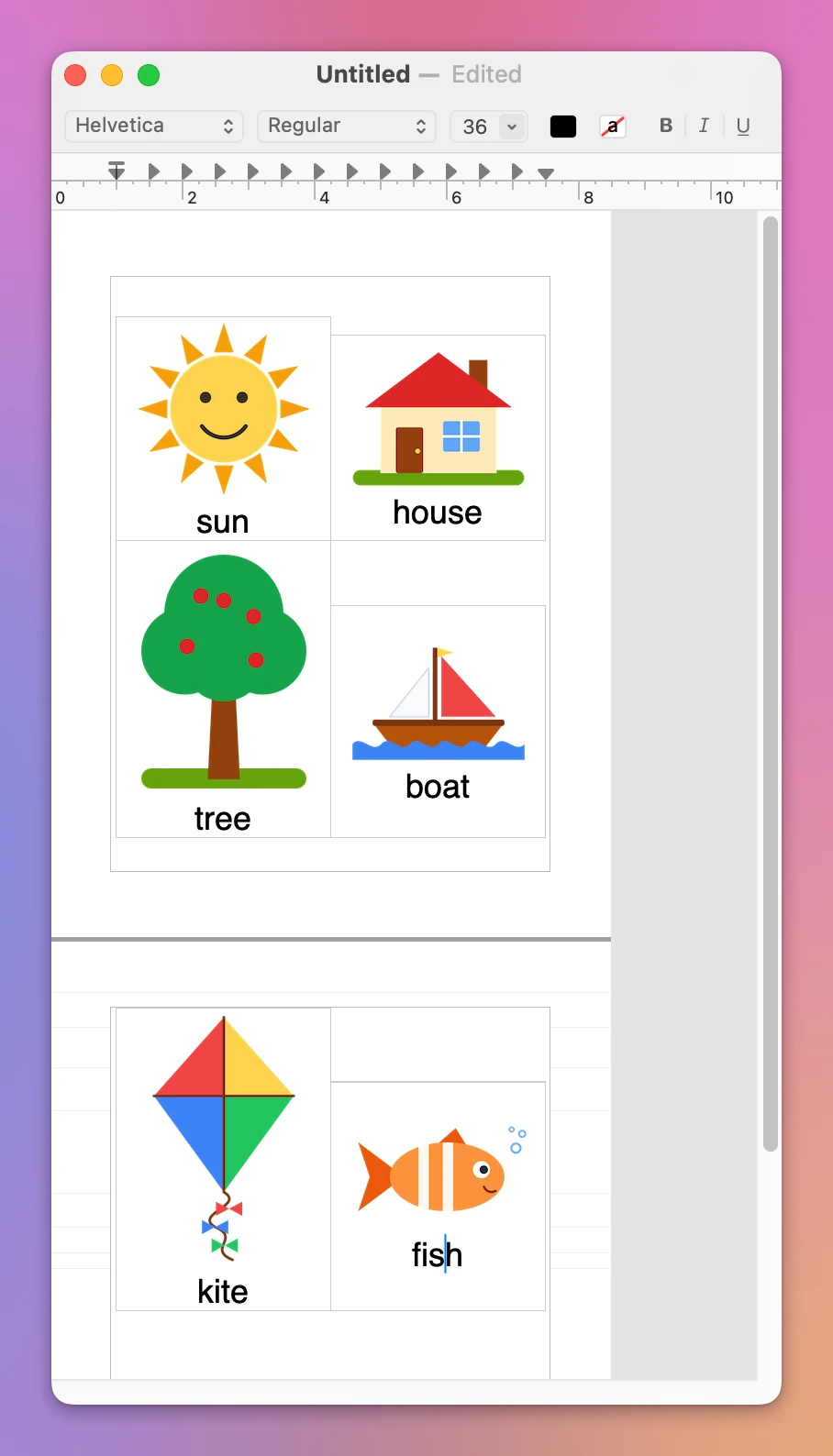
The pictures now have the same width, but the fish is 125 pixels tall and the kite 286. A row of the table is as tall as its tallest picture, so the three rows came out 86, 114 and 116 mm tall, with every card 83 mm wide.
The six cards also took two pages, with the kite and the fish alone on the second.
| A table in TextEdit | Flashcard PDF Printer | |
|---|---|---|
| Size of the pictures | The size of each file, so they go through Preview first | Fitted to the card as they are |
| Where the word goes | Next to the picture, until you press Return | Under the picture |
| Size of a card | 83 mm wide, and 86, 114 or 116 mm tall | 98 × 87 mm each, with 6 on a sheet |
| Paper for six cards | 2 pages | 1 sheet |
How do you make them with Flashcard PDF Printer?
Flashcard PDF Printer turns a list of words into sheets of cards, and a card can carry a picture. It costs $19, paid once.
- Open the app and click Type the Cards Yourself.
- Type a word and press Return twice. The first Return moves to the back, which stays empty here, and the second starts the next card.
- Open the folder with your pictures in the Finder, and drag each picture onto the row of its card. The row lights up when the picture is over it.
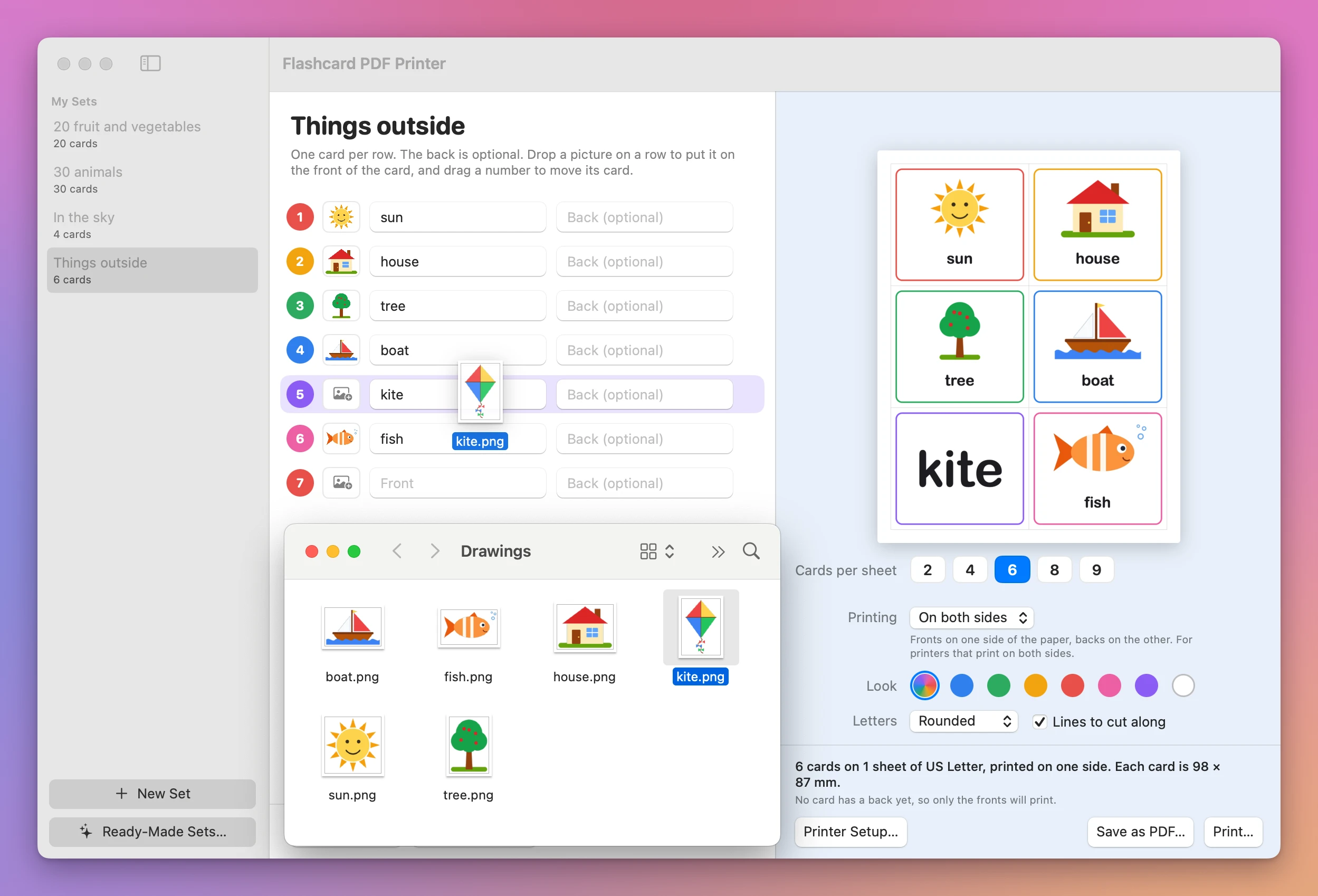
The picture shows up small next to the card’s number, and on the sheet it sits above the word. The six files went in as they were.
You can also click the picture button next to the card’s number. The Mac’s file window opens with the line “Choose a picture for the front of the card”. Pick the file and click Open. Both ways were used here, and one of the files was a JPEG.
On a card that has a picture, the same button offers Choose a Picture… and Remove the Picture.
How many cards per sheet suit pictures?
The set opened with 8 cards per sheet. Here’s what the numbers next to Cards per sheet did to these six cards on US Letter paper:
| Cards per sheet | Sheets | Size of each card | The sun, from ray to ray |
|---|---|---|---|
| 4 | 2 | 130 × 98 mm | 49 mm |
| 6 | 1 | 98 × 87 mm | 42 mm |
| 8 | 1 | 98 × 65 mm | 29 mm |
6 suited these cards. They fit on one sheet, and the sun is only 7 mm smaller than with 4. With 4 the words are a little bigger, and the second sheet has two cards and two empty spaces.
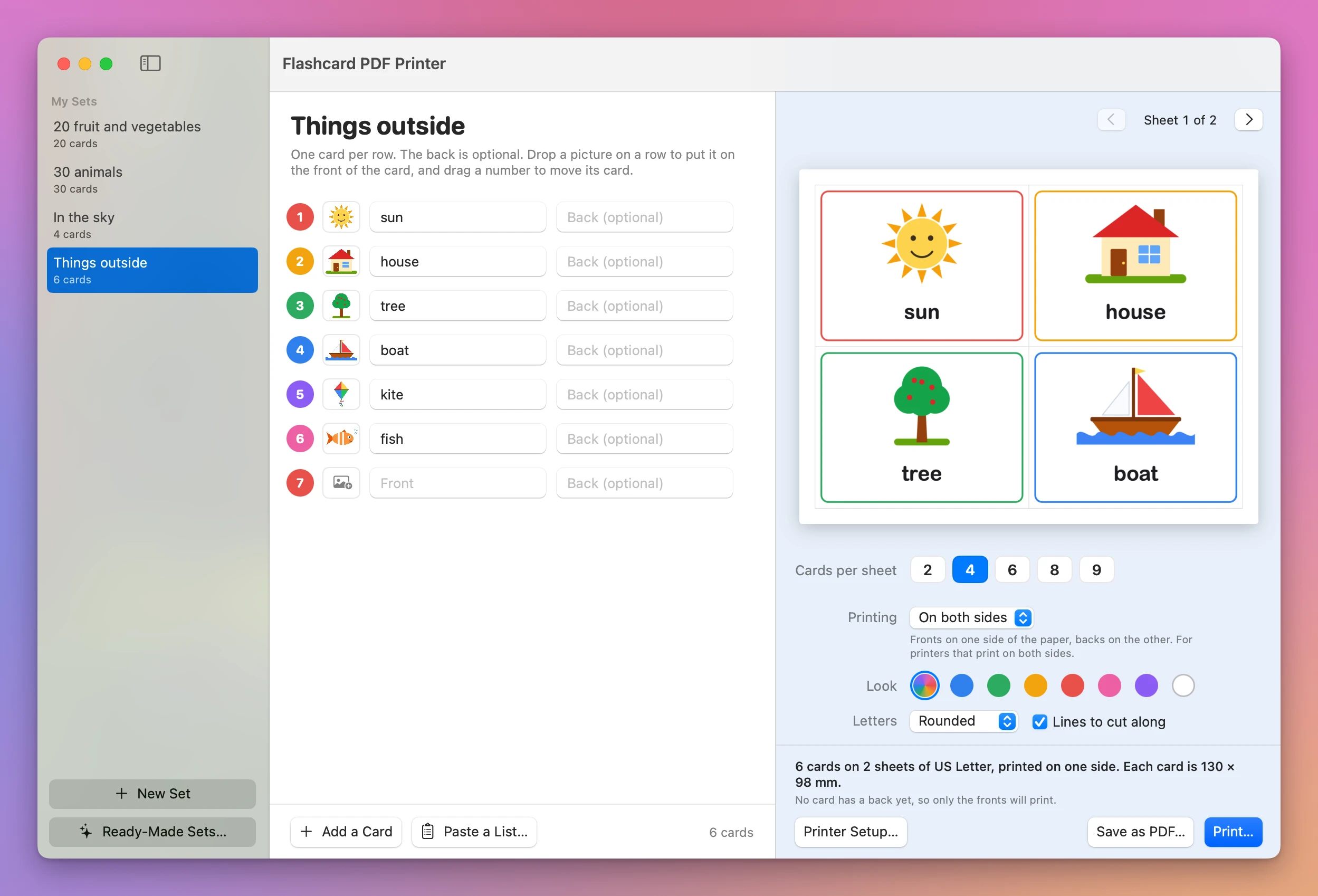
Empty the Front box of a card and its picture gets the whole card. The word can go in the Back box, to print behind it.
What if you have no pictures?
An emoji typed as the front of a card fills the card. Start a set with New Set and Add a Card, choose Edit > Emoji & Symbols, type moon in the search box and click the moon. Press Return, type the word for the back, and press Return again for the next card.
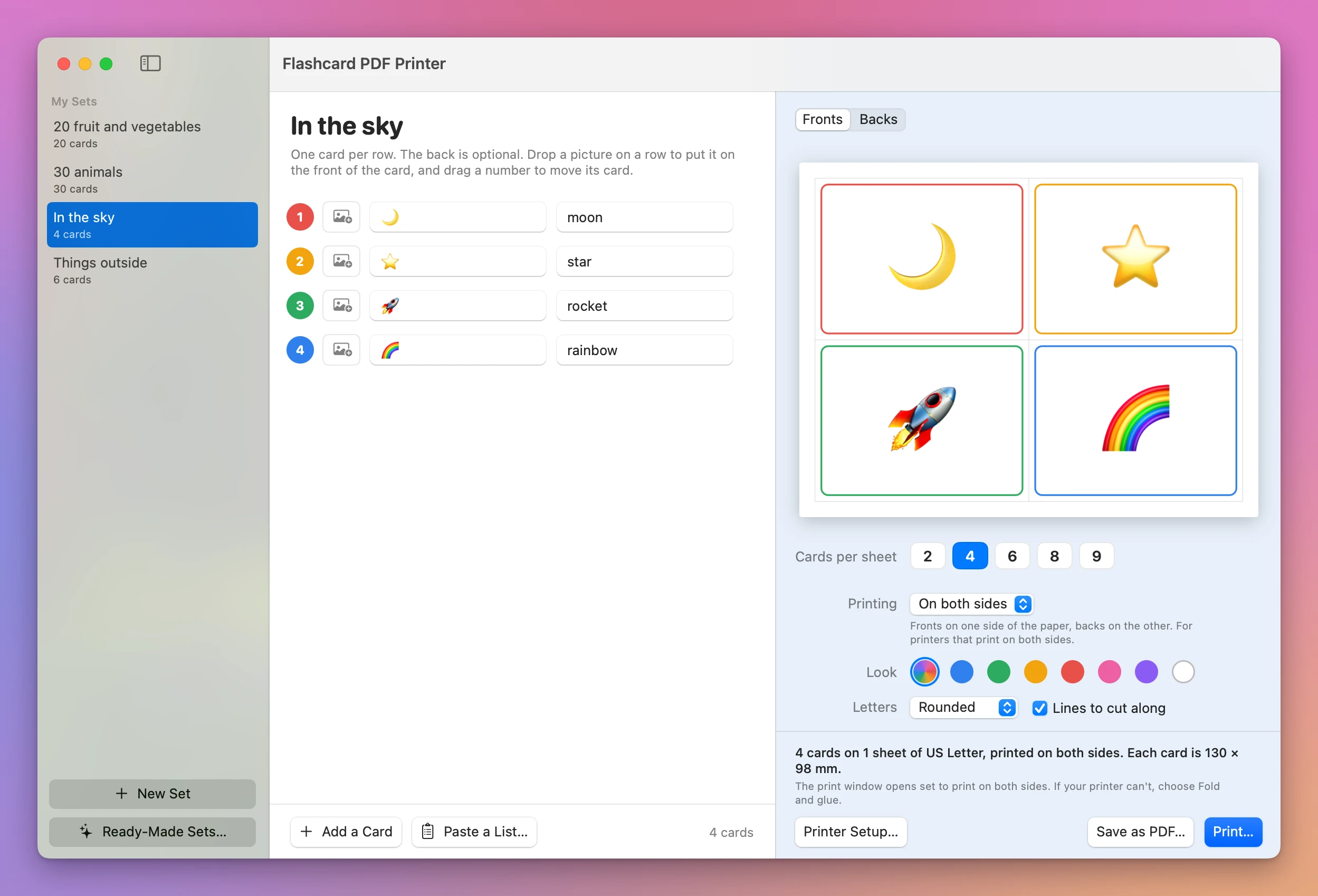
The app also has picture sets that are already written. Click Ready-Made Sets… under the list on the left, then Animals and Use This Set. You get 30 cards with an animal emoji on the front and its name on the back. Fruit and vegetables has 20.
How do you print them, or save a PDF?
Save as PDF… asks for a name and a place. Opened in Preview, the file for these six cards is one US Letter page, each card in a colored frame, with thin gray lines to cut along.
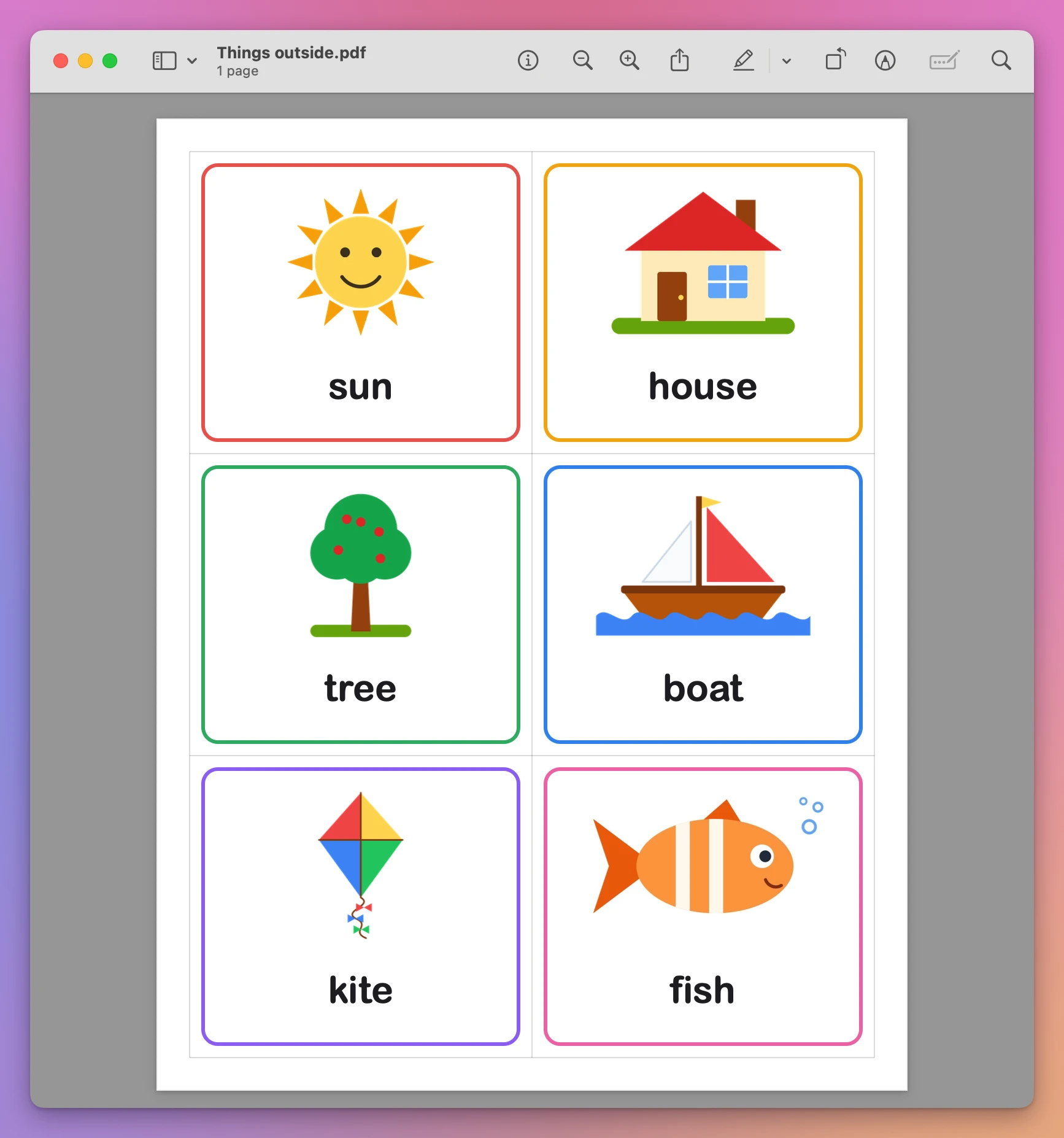
Print… is the button next to it. The test Mac has no printer, so nothing was printed here. For cards with a word on the back, How to print double-sided flashcards on a Mac covers printing on both sides.
Get Flashcard PDF Printer
Turn a list of words into paper flashcards. Type or paste the fronts and the backs, or start from a ready-made set, pick how many cards go on a sheet, and print them or save a PDF. Each back is printed exactly behind its front.
See Flashcard PDF Printer → · Read the docs · $19. See the app page for tax details.
Want me to talk about your product? You can sponsor this site.