How to print double-sided flashcards on a Mac
By Flavio
Flashcards printed on both sides need the page of backs mirrored, because the sheet is turned over. Do it by hand with two tables in TextEdit, or let Flashcard PDF Printer put each back behind its front.
You made a page of flashcards with the words on one side and the answers on the other. You printed it on both sides, cut the cards apart, and the answer behind “hot” is “small”.
The page of backs has to be a mirror image of the page of fronts. You can swap the columns yourself in TextEdit, the writing app that comes with the Mac. Or you can use Flashcard PDF Printer, a Mac app I built, where you type each back next to its front and the app does the swapping.
Why do the backs end up behind the wrong fronts?
Turn a sheet of paper over like the page of a book. Its left edge is now on the right, so the card that was top left is top right.
The back of the card on the left has to be printed on the right. Here are six cards, two per row:
| Fronts, left | Fronts, right | Backs, left | Backs, right |
|---|---|---|---|
| hot | big | small | cold |
| up | open | closed | down |
| day | wet | dry | night |
Cold is the back of hot. Hot is top left on the first page, so cold goes top right on the second.
How do you do it for free in TextEdit?
Here are those six cards, made on a test Mac with macOS 15 Sequoia. The words were made up for this example.
- Open TextEdit and choose Format > Wrap to Page, so you see where each page ends.
- Choose Format > Table…. In the small Table window that opens, click the arrows until Rows says 3 and Columns says 2.
- Type the six fronts, pressing Tab to move to the next cell: hot, big, up, open, day, wet.
- Click under the table, choose Edit > Insert > Page Break, and press Return.
- Choose Format > Table… again, and make this table 3 rows by 2 columns too.
- Type the backs with the two columns swapped: small, cold, closed, down, dry, night.
- Press Command-A to select everything. Click the size box in the toolbar, type 48 and press Return. Then click the second of the four alignment buttons to center the words.
- Press Command-P.
Don’t skip the Return in step 4. Without it, the second table landed on the first page here, right under the first one.
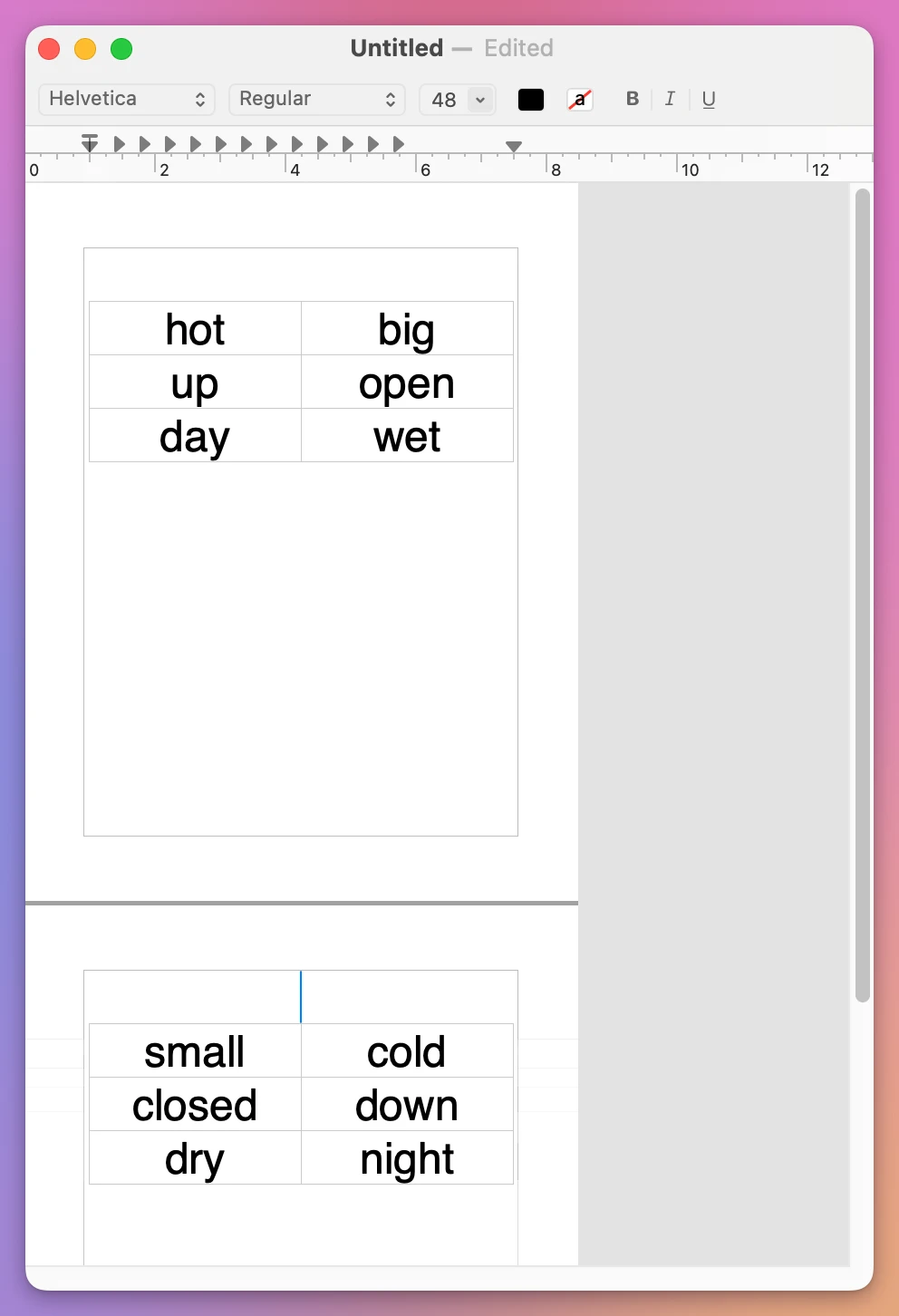
The print window opened on All 2 Pages. To print the two pages on one sheet, Apple’s help says to choose On from the Double-sided menu of the print window, if your printer can print on both sides. The test Mac has no printer, so this step stops there.
What does the free way cost?
The typing is the small part: twelve words, and about a dozen clicks and menu choices. The swap is yours to get right, row by row, on every sheet.
The cards are small, too. Each one is as tall as its line of text, so at size 48 the six cards filled about a quarter of the page.
| Two tables in TextEdit | Flashcard PDF Printer | |
|---|---|---|
| Where you type a back | In the other column of a second table | Next to its front, in the same row |
| The mirrored order | Worked out by you | Worked out by the app |
| Size of a card | As tall as one line of text | 98 × 87 mm with 6 cards on a US Letter sheet |
| The way your printer turns the paper | TextEdit didn’t ask | Two choices and a test sheet |
How do you do it with Flashcard PDF Printer?
Flashcard PDF Printer turns a list of words into sheets of cards. It costs $20, paid once.
- Open the app and click Type the Cards Yourself. An empty set opens, with the first row ready.
- Type a front, press Return, type its back, press Return. You’re on the next card. Go on until the sixth, wet and dry. The empty row left at the end doesn’t count as a card.
- Click the name at the top, New set, press Command-A and type a name. Here it’s Opposites.
- Click 6 next to Cards per sheet. The set opened with 8.
Printing was already set to On both sides. The line under the preview says what you get: “6 cards on 1 sheet of US Letter, printed on both sides. Each card is 98 × 87 mm.”
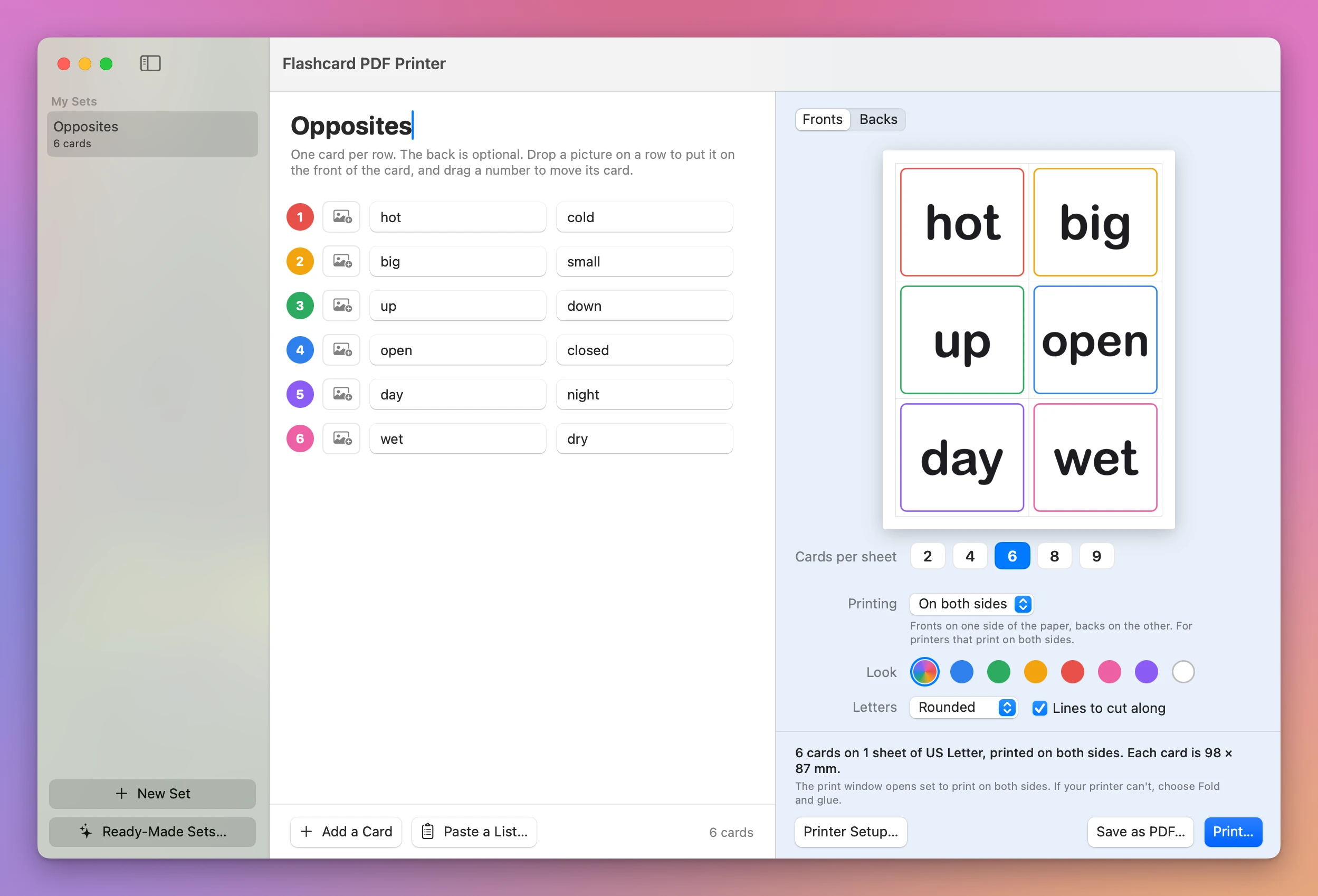
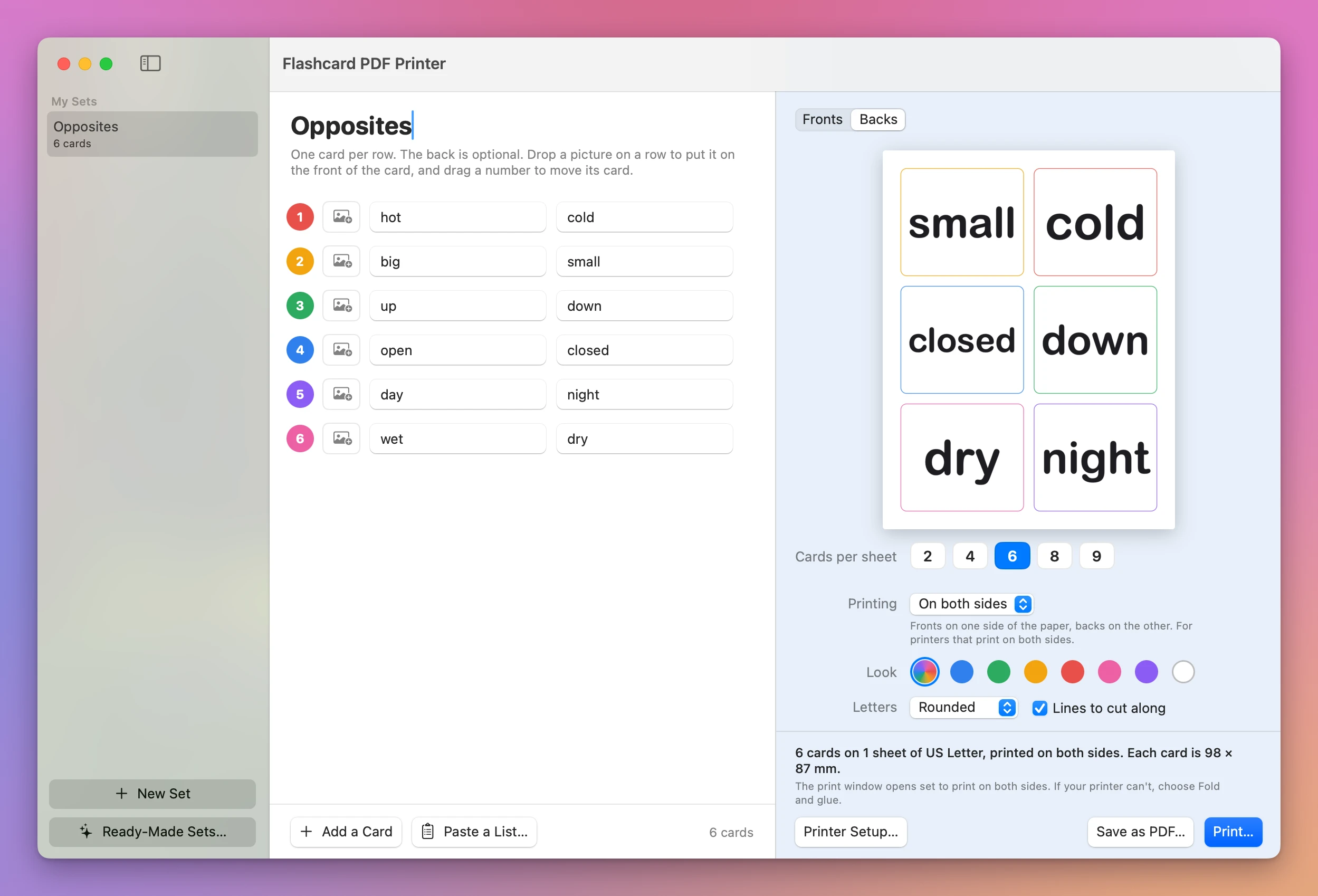
Now click Backs above the preview. You see the other side of the same sheet, already mirrored.
How do you know which way your printer turns the paper?
Printers turn the paper over in one of two ways. Click Printer Setup… and you find both under How your printer turns the paper over:
- Like the page of a book. The window says it’s what most printers do.
- Like the page of a notepad, turned over its top edge.
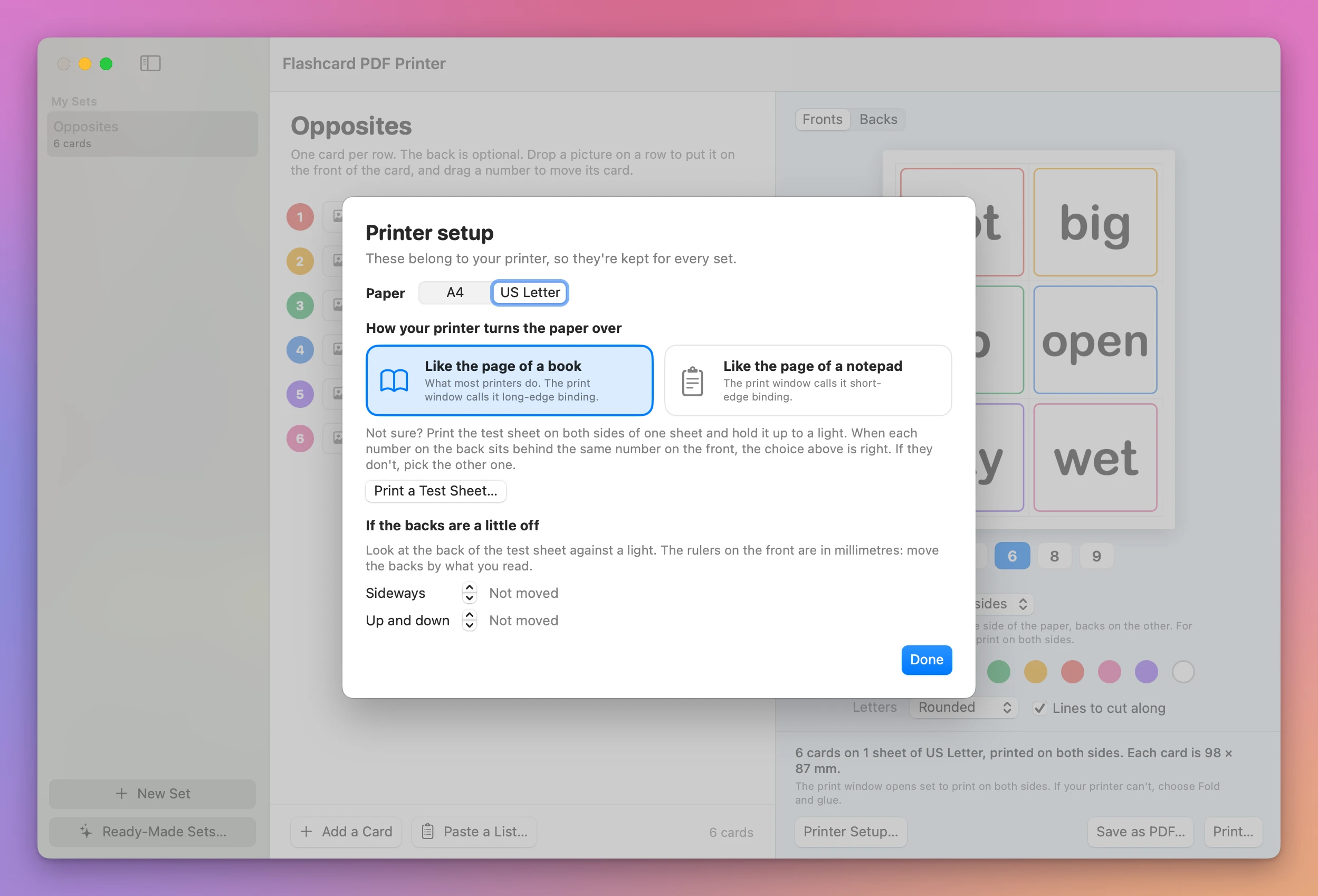
To find out which one is yours, click Print a Test Sheet…. It opens the print window with two pages: the numbers 1 to 8 on the first, and the same numbers mirrored on the second.
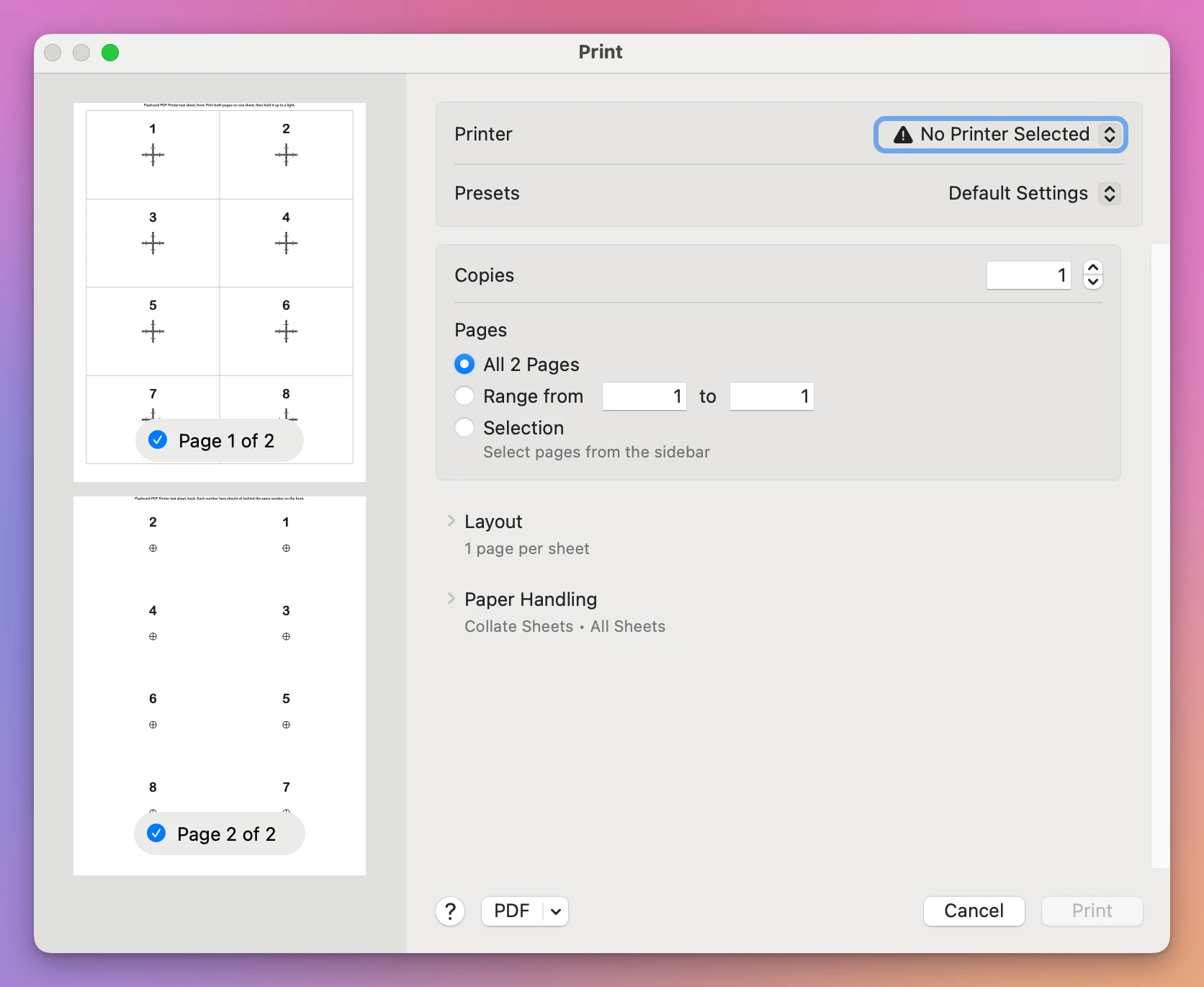
The Printer setup window tells you what to do with it: “Print the test sheet on both sides of one sheet and hold it up to a light. When each number on the back sits behind the same number on the front, the choice above is right. If they don’t, pick the other one.”
With Like the page of a notepad, the PDF saved here had its page of backs turned upside down. The preview in the window stayed the same.
Under If the backs are a little off there are two controls, Sideways and Up and down. You read how far off the backs are on the test sheet’s rulers, and move them by that much. One click on Sideways changed “Not moved” to “0.5 mm to the right”.
The app keeps these choices for every set, because they belong to your printer.
How do you print, or save a PDF?
Click Print…. The print window opened on All 2 Pages, the fronts on page 1 and the backs on page 2. A note in the app’s window says “The print window opens set to print on both sides. If your printer can’t, choose Fold and glue.” The test Mac has no printer, so its Print button stays gray.
Save as PDF… saves the same two pages as a file, to print somewhere else.
Print at 100%, without “scale to fit”. A page that’s shrunk moves every card a little, and the backs with them.
Get Flashcard PDF Printer
Turn a list of words into paper flashcards. Type or paste the fronts and the backs, or start from a ready-made set, pick how many cards go on a sheet, and print them or save a PDF. Each back is printed exactly behind its front.
See Flashcard PDF Printer → · Read the docs · $20. See the app page for tax details.
Want me to talk about your product? You can sponsor this site.