Make a Reminders checklist with due dates counted back from an event on Mac
By Flavio
Reminders' templates copy a list but not dates like "3 working days before". Here's how to count deadlines back from an event date, skip weekends and holidays, and move them all when the event moves.
You have an event on a fixed date, and a list of things to do before it: book the venue 12 weeks before, order catering 10 working days before, print badges 2 working days before. You want each one in Reminders, on the right day, so your iPhone tells you when.
Reminders can’t count back from a date. You can do it by hand with Calendar open, or let Deadline Checklist Generator work out every date, skip weekends and your holidays, and make the list for you.
Can Reminders make a list from a template?
Yes, but it doesn’t help with the dates. Apple’s Reminders help describes it: select a list, choose File › Save as Template, and later choose File › View Templates, pick the template and click Create List.
The new list has the same reminders. What it can’t know is that “Order catering” means 10 working days before this event. A template holds the reminders as they were when you saved it, so for each new event you open every reminder and set its date again.
Typing “next Friday” into a reminder’s date doesn’t help either. Those dates count forward from today, and Reminders knows nothing about your office’s holidays.
How do I count the dates by hand?
Open Calendar in month view next to Reminders and work through the list:
- For “12 weeks before”, go back 12 weeks from the event date. That lands on the same weekday, so it’s easy.
- For “1 month before”, go to the same day of the month before. If that’s a Saturday or a Sunday, pick the Friday before.
- For “10 working days before”, count back one weekday at a time, starting the day before the event. Skip Saturdays, Sundays and every holiday.
- Type each date into its reminder.
Step 3 is where mistakes happen. In the example below the event is Wednesday 9 June 2027, and Monday 31 May is a bank holiday. Counting back 10 working days and skipping that Monday gives Tuesday 25 May. Forget the holiday and you get Wednesday 26 May.
For an event with ten steps, that’s ten dates to count and ten to type. If the event moves a week, you do it all again, and you need to remember which reminders you’d already changed after a phone call.
How do I make the whole list in one go?
Deadline Checklist Generator keeps the steps as a template, with the offset of each one written as “12 weeks before” or “10 working days before”. You pick the event date, and it shows every due date before it creates anything.
The first time, click Add Sample Templates. You get Event, with ten steps from “Book the venue, 12 weeks before” to “Pay supplier invoices, 2 weeks after”, and Client workshop, with eight. Edit… opens a template to change its steps, and New… starts your own. Each step has a title, an amount, a unit (days, working days, weeks or months) and before or after.
In the sidebar, type the Event name (it becomes the name of the Reminders list) and set the Event date. Weekends are days off is ticked already.
How do I skip holidays?
Under Holidays, click Paste List… and paste your days off, one per line, written like 2027-05-31. You can add a note after a #. A line that isn’t a date is listed in red and skipped, so you see the mistake before you add anything.
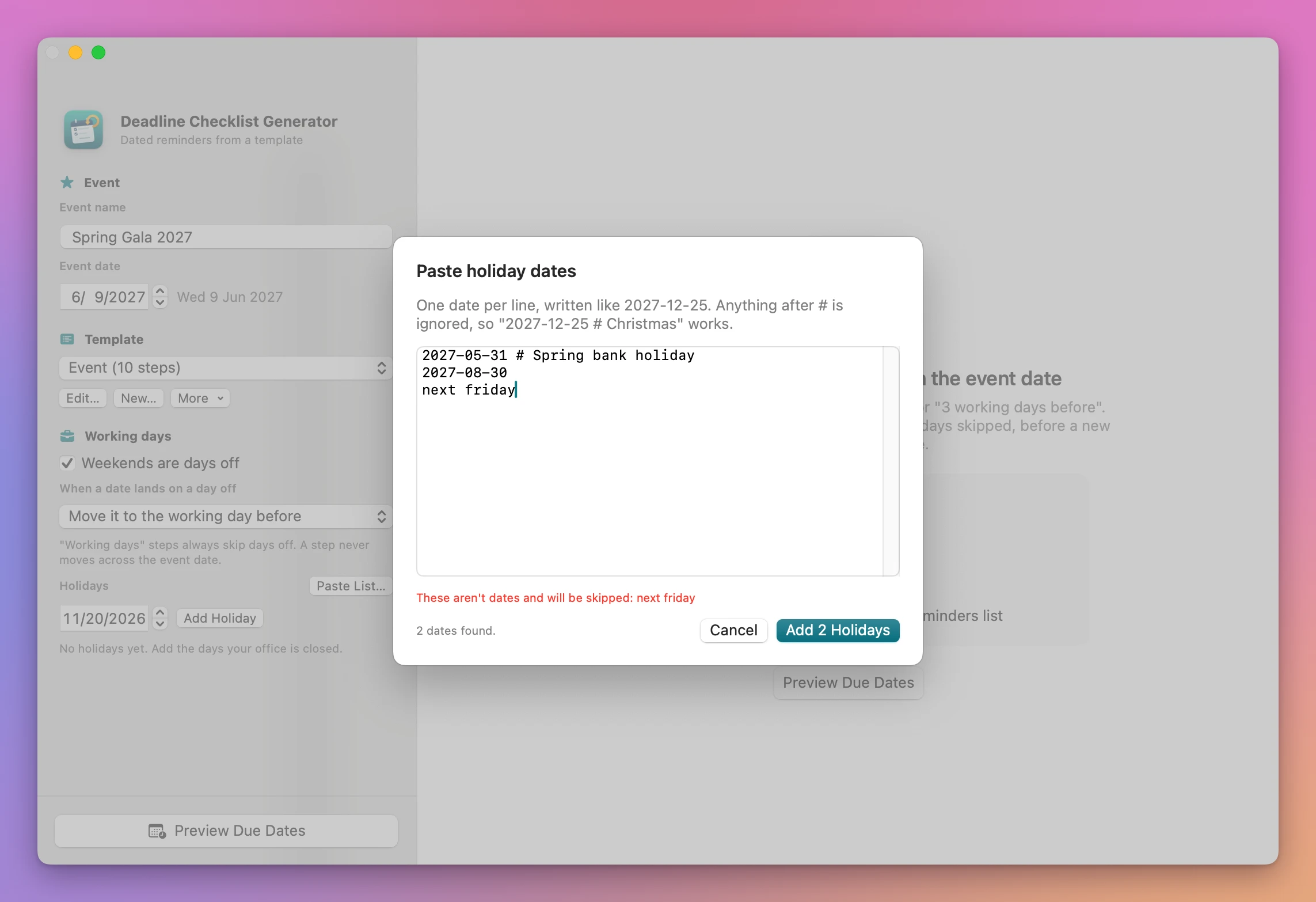
The data in these screenshots is made up, and they were taken on macOS 15.
When a date lands on a day off decides what happens to a step in weeks or months that falls on a weekend or a holiday. Move it to the working day before is the default. Steps in working days skip days off on their own.
What does the preview show?
Click Preview Due Dates. Every step gets its date and weekday. Here, “Order catering, 10 working days before” lands on Tue 25 May 2027, with the 31 May holiday skipped. “Confirm speakers and agenda, 1 month before” would be Sunday 9 May, so it moved to Friday 7 May, and the row is orange to say so.
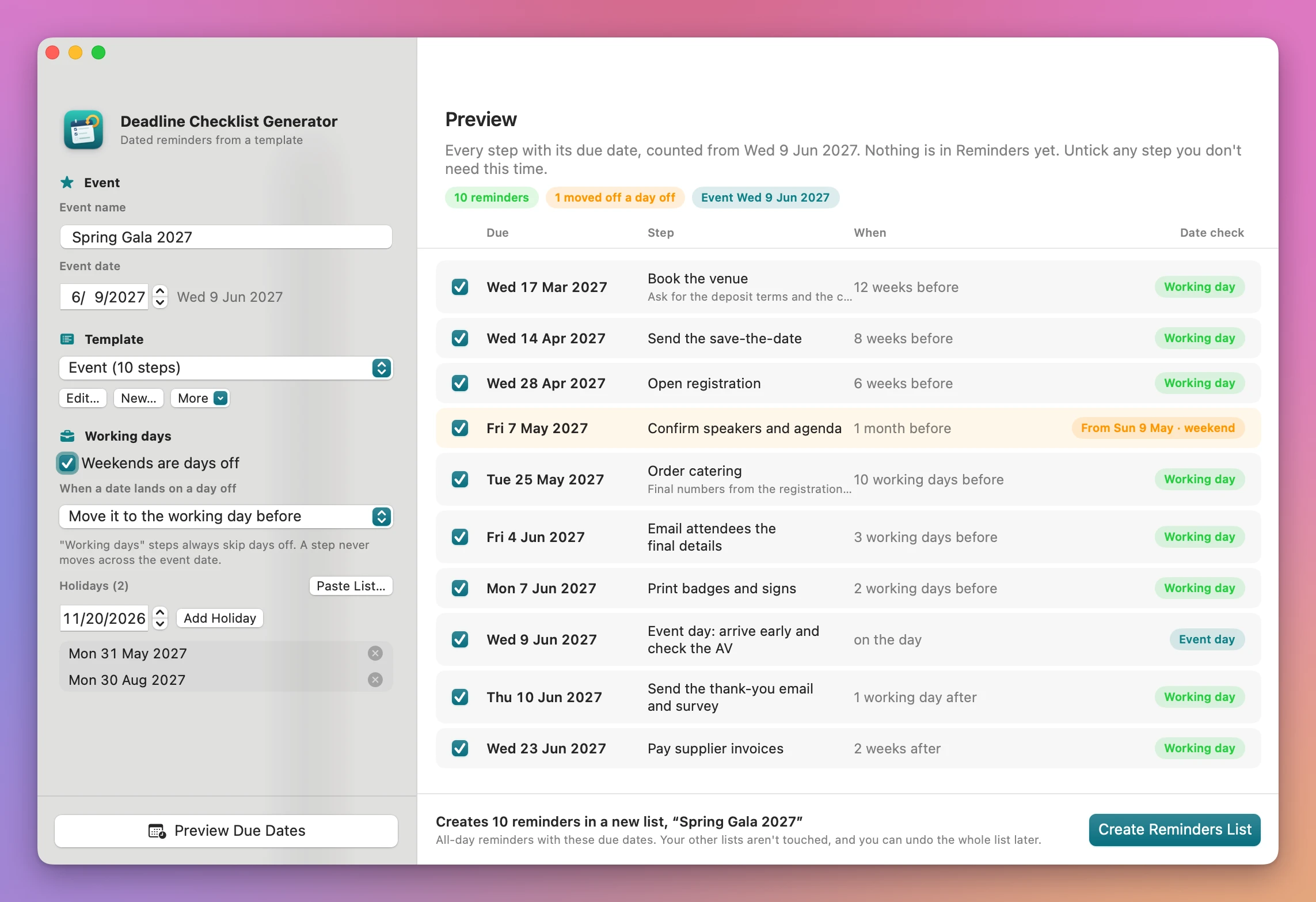
Untick any step you don’t need for this event, then click Create Reminders List. The first time, macOS asks whether the app can use your reminders. You get a new list called “Spring Gala 2027” with ten all-day reminders on those dates. Your other lists aren’t touched.
What happens when the event moves?
Choose the list under Checklists you created, set the New event date and click Review New Dates. Here the gala moved from 9 to 16 June. Meanwhile, “Order catering” had been changed to Friday 21 May in Reminders, and “Book the venue” was already done.
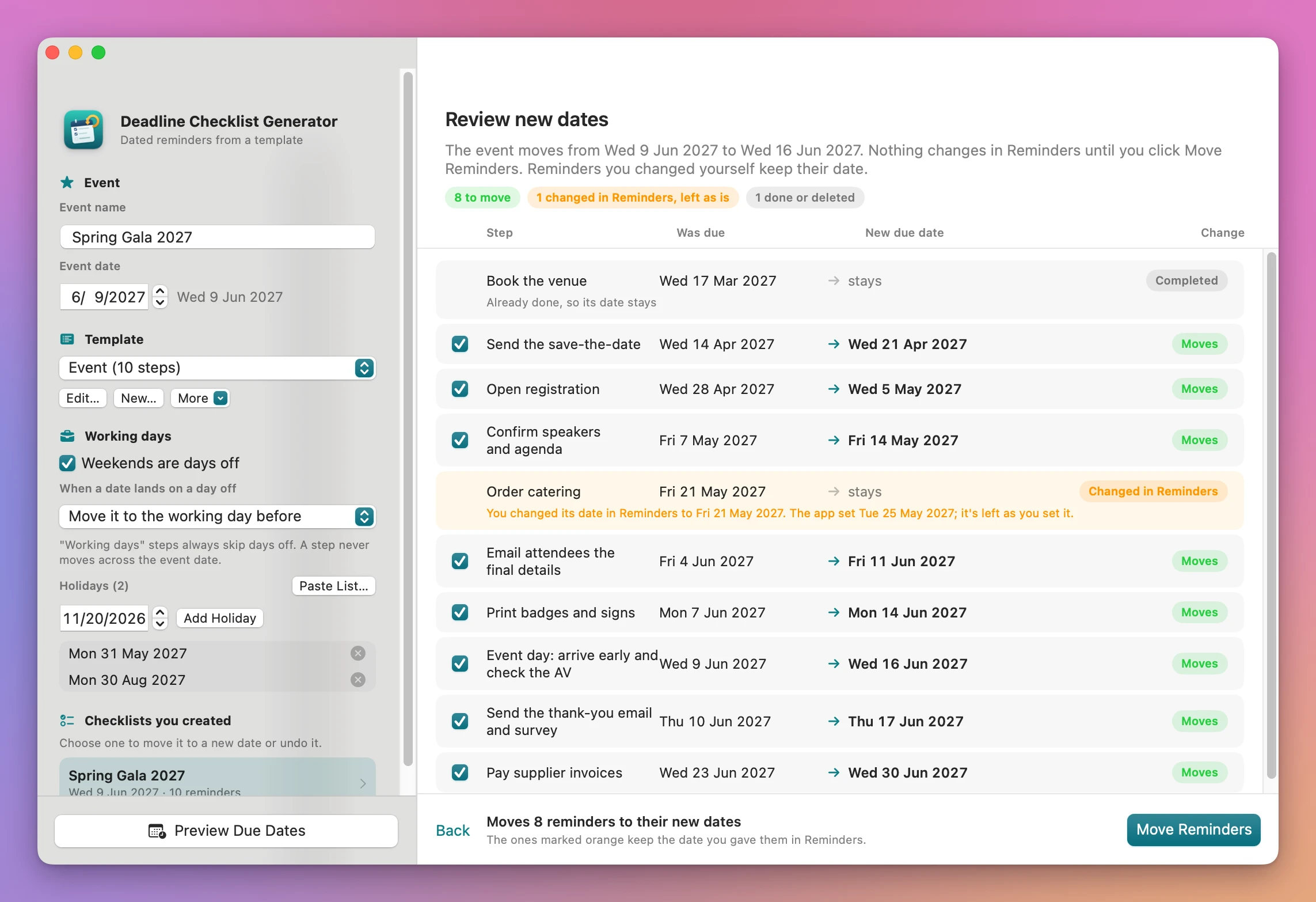
The review lists old and new dates side by side. Eight reminders move a week. The one you changed keeps your date, and the completed one is left alone. Nothing changes in Reminders until you click Move Reminders.
If you made the list by mistake, Undo This Checklist deletes the reminders the app created and the list, unless you added reminders of your own to it.
Which way should I use?
| Reminders template | Counting in Calendar | Deadline Checklist Generator | |
|---|---|---|---|
| Copies the steps | Yes | You type them | Yes, from your template |
| Due dates for a new event | Set each one again | Counted and typed by hand | Computed |
| Working days and holidays | No | You skip them by eye | Skipped, with your list |
| See the dates before creating | No | Yes, on paper | Yes, the preview |
| Event moves | Reset every date | Count everything again | Review, then Move Reminders |
| Cost | Free | Free | $19 once |
If your list has three steps and the dates never move, the Reminders template and a few minutes with Calendar are enough. For an event you run every year, a workshop for every client, or a date that keeps moving, Deadline Checklist Generator does the counting and the re-dating for you.
Get Deadline Checklist Generator
Turn a template of steps like "3 working days before" into dated Reminders, skip weekends and holidays, and re-date the list when the event moves.
See Deadline Checklist Generator → · Read the docs · $19. See the app page for tax details.
Want me to talk about your product? You can sponsor this site.