How to remove duplicate emails from an MBOX file on a Mac
By Flavio
Mail has no duplicate finder, and its Import Mailboxes… drops repeated Message-IDs without telling you which. Here's what Mail does on its own, and how to find the copies across exported mailboxes, check them side by side and write a cleaned .mbox.
You exported your Inbox from Mail, then found an older export on the old laptop, and the two overlap. Or you imported a backup twice. Now the same invoice is in your archive three times, and you want one clean .mbox before you keep it or move it somewhere else.
The short answer: Mail on the Mac has no command that finds duplicate emails. You can sort a mailbox and delete copies one by one, and Mail’s import quietly drops some of them. To find every copy across several exported mailboxes, see why each one counts as a copy, and write a cleaned mailbox while the originals stay as they were, you need an app made for it.
Does Mail remove duplicate emails?
There’s no Remove Duplicates anywhere in Mail. The free way is by hand: import the mailbox, sort the list by subject or date, open the emails that look alike, and delete the extra ones. Then export the mailbox again with Mailbox › Export Mailbox…, which the tutorial on exporting a mailbox from Mail walks through.
For a few dozen emails that works. Two emails with the same subject aren’t always the same email, though: a weekly report or a monthly newsletter can repeat its subject every time. You have to open each pair to be sure.
Mail does drop some copies when it imports. Choose File › Import Mailboxes…, pick Files in mbox format, and choose the file or the folder. Mail needs an email account set up before it imports anything.
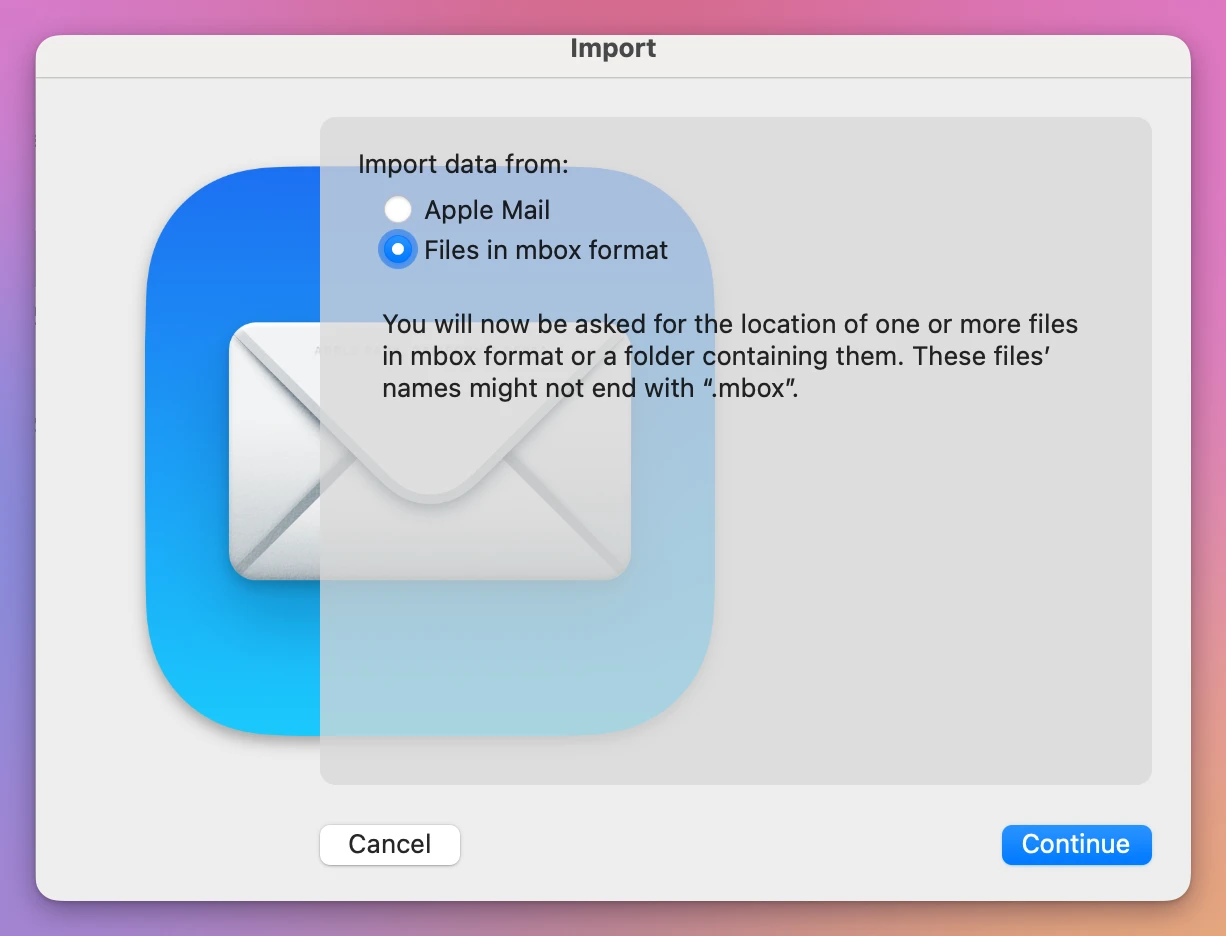
On the test Mac, Mail kept only one email per Message-ID inside each imported mailbox. The Message-ID is a label that the sending server puts on each email, and a real copy carries the same one. Mail didn’t say what it left out. A mailbox of 9 emails showed 8, because two different newsletters, the April and the May issue, had been sent with the same Message-ID, and Mail kept only one of them.
So the import is a partial cleanup, with three gaps:
- an email that’s in two different mailboxes stays twice
- copies that have no Message-ID at all aren’t matched
- two different emails that share an ID lose one, with no warning
How do I find duplicates across several mailboxes?
Mailbox Duplicate Cleaner is a Mac app I made for this. It reads exported mailboxes, .mbox files and the folders Mail writes when you export, groups the copies, and lets you look at each group before it writes anything. Mail and your email account are never opened. The app isn’t made by, affiliated with or endorsed by Apple, and costs $19, paid once.
The mailboxes in these screenshots are made up: an Inbox, a Sent mailbox, and an older Inbox exported from Mail on an “Old laptop”.
1. Add the mailboxes and choose where to save
Click Add Mailboxes… and pick the files, or drop them on the window. A folder like “Old laptop” works too: the app finds the mailboxes inside it. Then click Choose… under Save in. The cleaned copy goes into a new folder there, called “Cleaned mailboxes”.
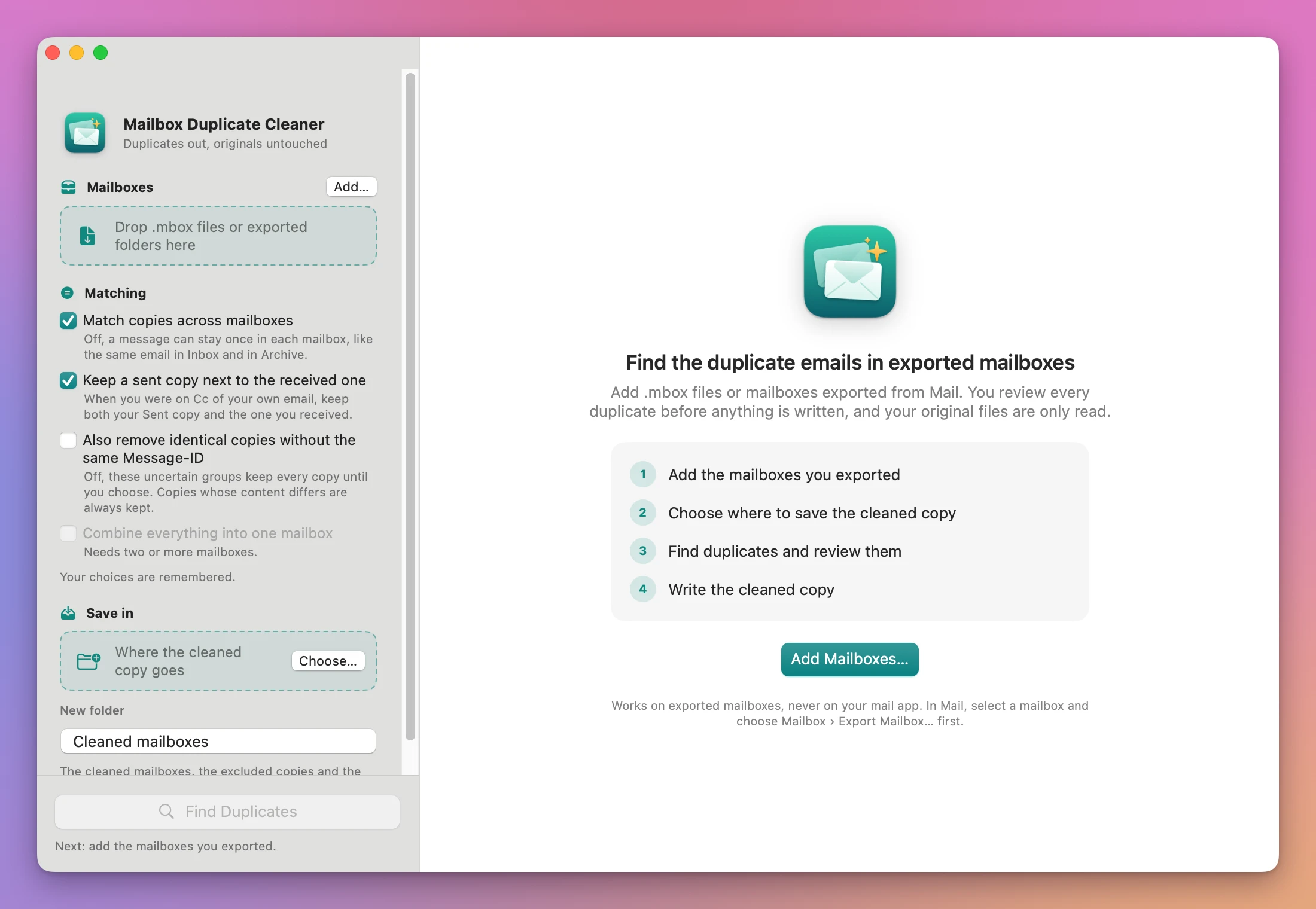
A file that isn’t a mailbox, like a single .eml email, is listed in orange with a sentence that says why.
2. Find the duplicates
Click Find Duplicates. Here the three mailboxes held 17 emails, and the app found 7 groups of copies.
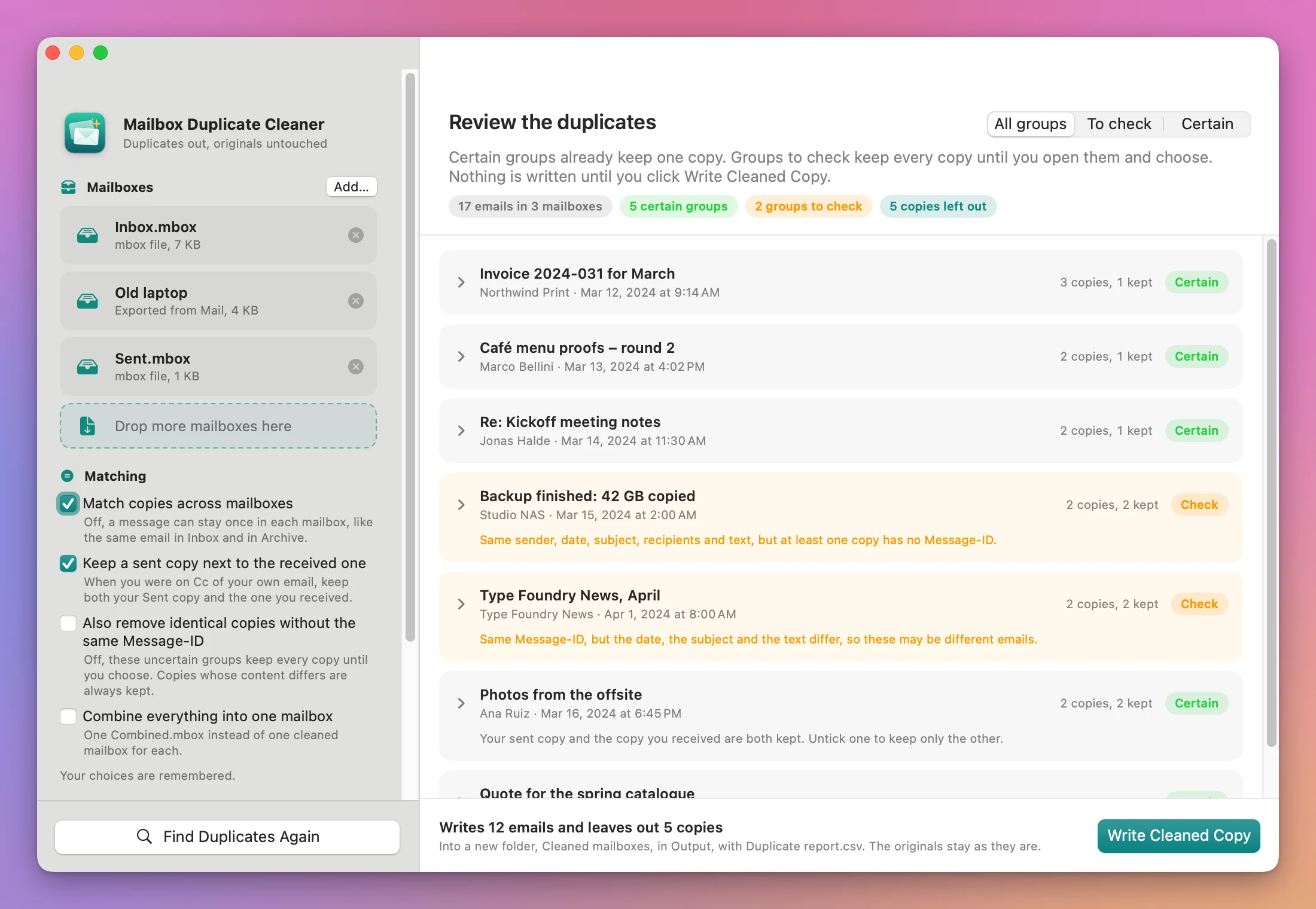
A Certain group has the same Message-ID and the same content on every copy, so it keeps one. A Check group keeps every copy and says what doesn’t line up. This is what the sample came to:
| Copies | What the app did | |
|---|---|---|
| Invoice 2024-031 for March | Inbox twice, Old laptop once | Certain, kept 1 |
| Café menu proofs, round 2 | Inbox, Old laptop | Certain, kept 1 |
| Re: Kickoff meeting notes | Inbox, Old laptop | Certain, kept 1 |
| Quote for the spring catalogue | Sent twice | Certain, kept 1 |
| Photos from the offsite | Sent, Inbox (you were on Cc) | Kept both, a sent and a received copy |
| Backup finished: 42 GB copied | Inbox twice, no Message-ID | Check, same text and date |
| Type Foundry News, April and May | Inbox, one shared Message-ID | Check, different dates and text |
The last row is the newsletter that Mail’s import merged. Here it’s flagged, and both issues stay unless you untick one.
3. Compare the copies you’re unsure about
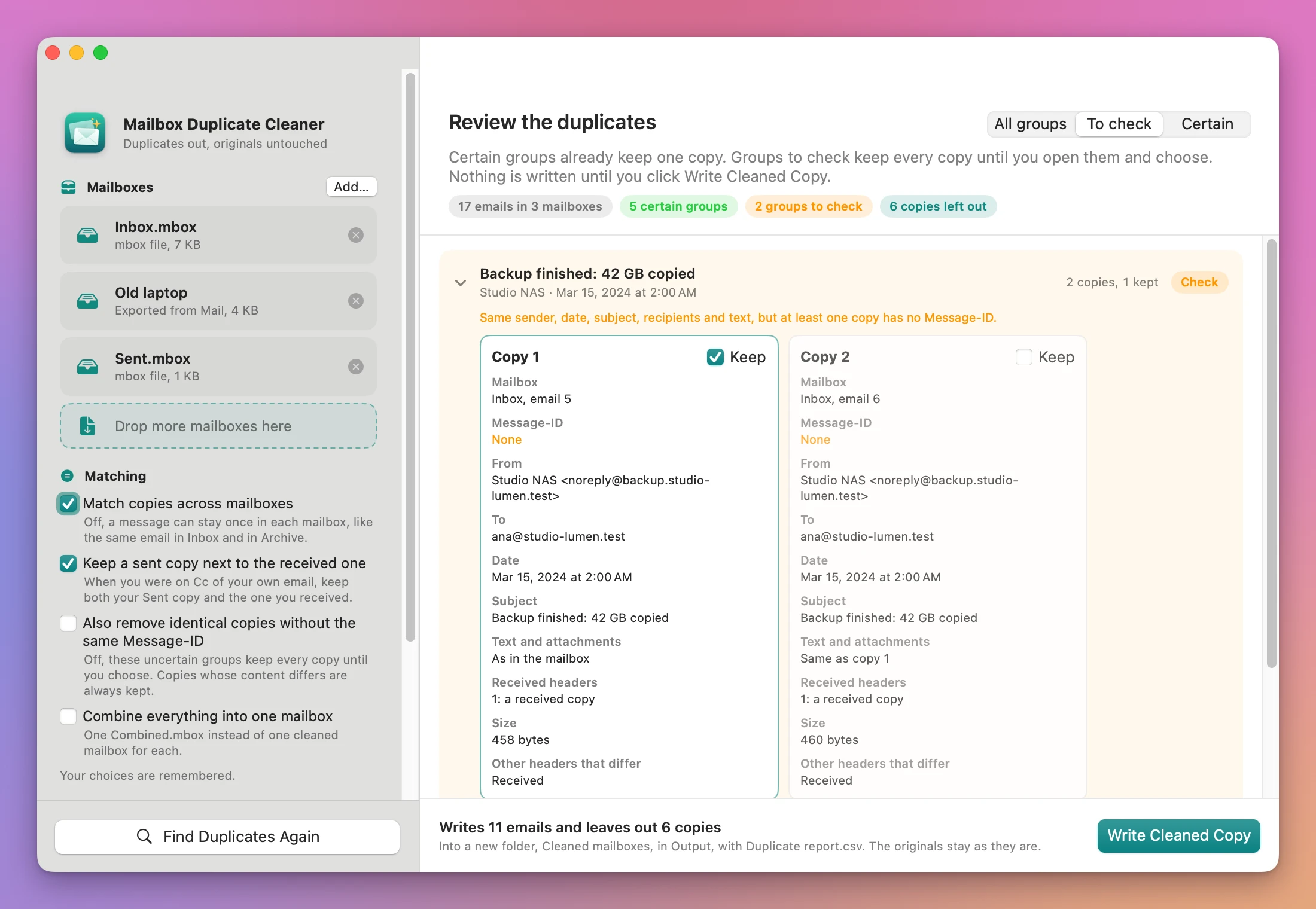
Click a group to open its copies side by side. The backup report has no Message-ID on either copy, but the sender, date, subject, recipients and text are the same, and the only header that differs is Received, which changes each time an email is delivered or imported. That’s a real copy, so here copy 2 was unticked.
4. Write the cleaned copy
Click Write Cleaned Copy. The new folder has one cleaned mailbox for each one you added, Excluded duplicates.mbox with the 6 copies left out, and Duplicate report.csv with one row for every copy in a group, kept or excluded. The original mailboxes are only read.
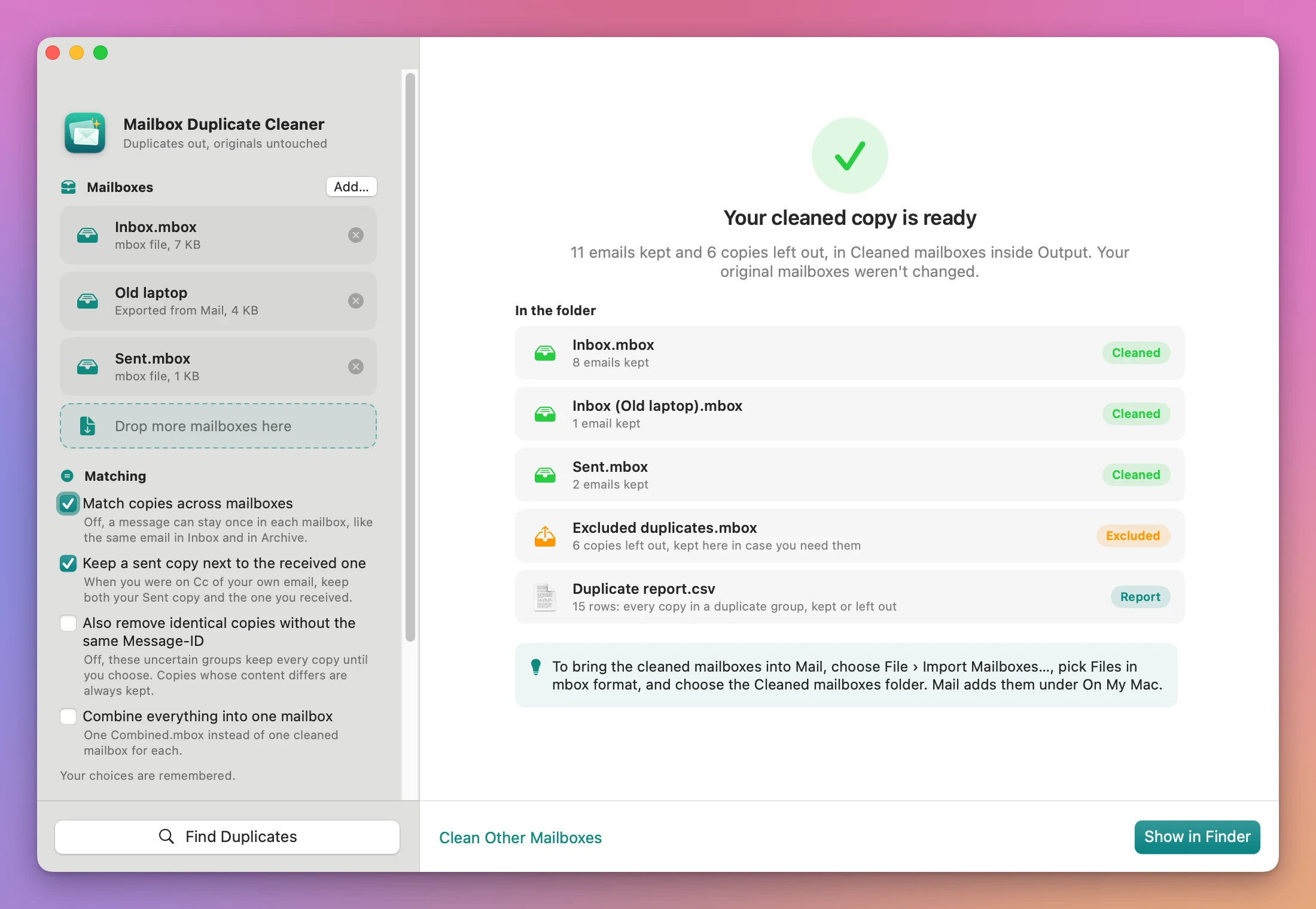
To read the result in Mail, import the new folder with File › Import Mailboxes… and Files in mbox format. If you kept both newsletter issues, Mail still shows only one of them, because of the Message-ID rule above.
Mail or the app?
| By hand in Mail | Mail’s import | Mailbox Duplicate Cleaner | |
|---|---|---|---|
| Finds the copies | You compare them one by one | Only repeated Message-IDs in one mailbox | Every group, in every mailbox |
| Copies without a Message-ID | If you spot them | Kept | Matched on sender, date, subject, recipients and text |
| Different emails with one ID | You decide | One is dropped | Flagged, both kept until you choose |
| Record of what was removed | None | None | A CSV and a mailbox of the removed copies |
| Your exported files | Unchanged | Unchanged | Unchanged, the result is a new folder |
For a handful of copies in one mailbox, sorting in Mail is enough. When two or three exports overlap, or you need to show someone what was removed, the app does the comparing and keeps a record. It works on exported mailboxes only, and it was tested with made-up mailboxes, not with real exports from Gmail, Thunderbird or Outlook.
Get Mailbox Duplicate Cleaner
Find the duplicate emails in .mbox files and mailboxes exported from Mail, compare the copies side by side, and write a cleaned copy with every removed copy kept aside and a CSV of each decision. The originals are only read.
See Mailbox Duplicate Cleaner → · Read the docs · $19. See the app page for tax details.
Want me to talk about your product? You can sponsor this site.