How to remove duplicate events in Calendar on a Mac
By Flavio
Calendar on the Mac has no duplicate finder. Here's how to tell real duplicates from a calendar shown twice, delete copies by hand, and clean up a double import with a backup of every copy you remove.
You imported an .ics file into Calendar, maybe after moving from another calendar app, and something went wrong. Now every meeting shows up twice, and the dentist three times.
The short answer: Calendar has no Remove Duplicates command. First check whether the events are real copies or one calendar shown twice, because the fix is different. Then delete the copies by hand, delete the whole imported calendar if that’s where they all are, or use an app like Calendar Duplicate Review that finds them, compares them, and backs them up before deleting.
Why does every event show up twice?
There are two reasons, and they look the same in the week view.
Real duplicates are separate events with the same title and time. You get them when you import the same file twice, import an export into a calendar that already had those events, or restore a backup on top of what was there. Each copy is its own event, and one of them may have notes or a link the other one doesn’t.
One calendar shown twice happens when two accounts on your Mac show the same calendar, for example a Google calendar added directly and also through another account. There’s only one event. Delete it from either side and it’s gone everywhere.
To tell them apart in Calendar, click an event and look at which calendar it’s in. If the two copies are in calendars from two different accounts with the same name, you’re probably looking at one calendar shown twice. Untick one of the two in Calendar’s sidebar and the copies disappear, with nothing deleted.
If both copies are in calendars On My Mac, or in “Work” and “Work (imported)”, they’re real duplicates.
How do I delete duplicate events in Calendar for free?
For a handful of copies, do it by hand. Type the event’s title in Calendar’s search field to list every match, open each copy, check which one has the notes, the link and the right alert, and delete the others with the Delete key.
If the second import went into a calendar of its own, and you haven’t added anything to it since, there’s a quicker way: delete that whole calendar from the sidebar. Every copy goes with it in one step. Look through it first, because everything in that calendar goes.
Neither works well when the copies are mixed in with events you want to keep, there are dozens of them, or the copies aren’t identical. A second import of a corrected file can move an event by a minute, or drop its notes. Calendar’s File › Export can save a whole calendar before you start, but not only the copies you’re about to delete.
How do I find and remove the duplicates with an app?
Calendar Duplicate Review reads your calendars, groups the copies, and shows them side by side. The example here is made up: a work calendar of 10 events, exported and imported a second time into a new calendar called “Work (imported)”. The second file had small differences: one event without its notes and link, a title in lowercase, and a design review moved by one minute.
The first time, click Allow Calendar Access and choose Allow Full Access. Then tick the calendars to look in, here Work and Work (imported).
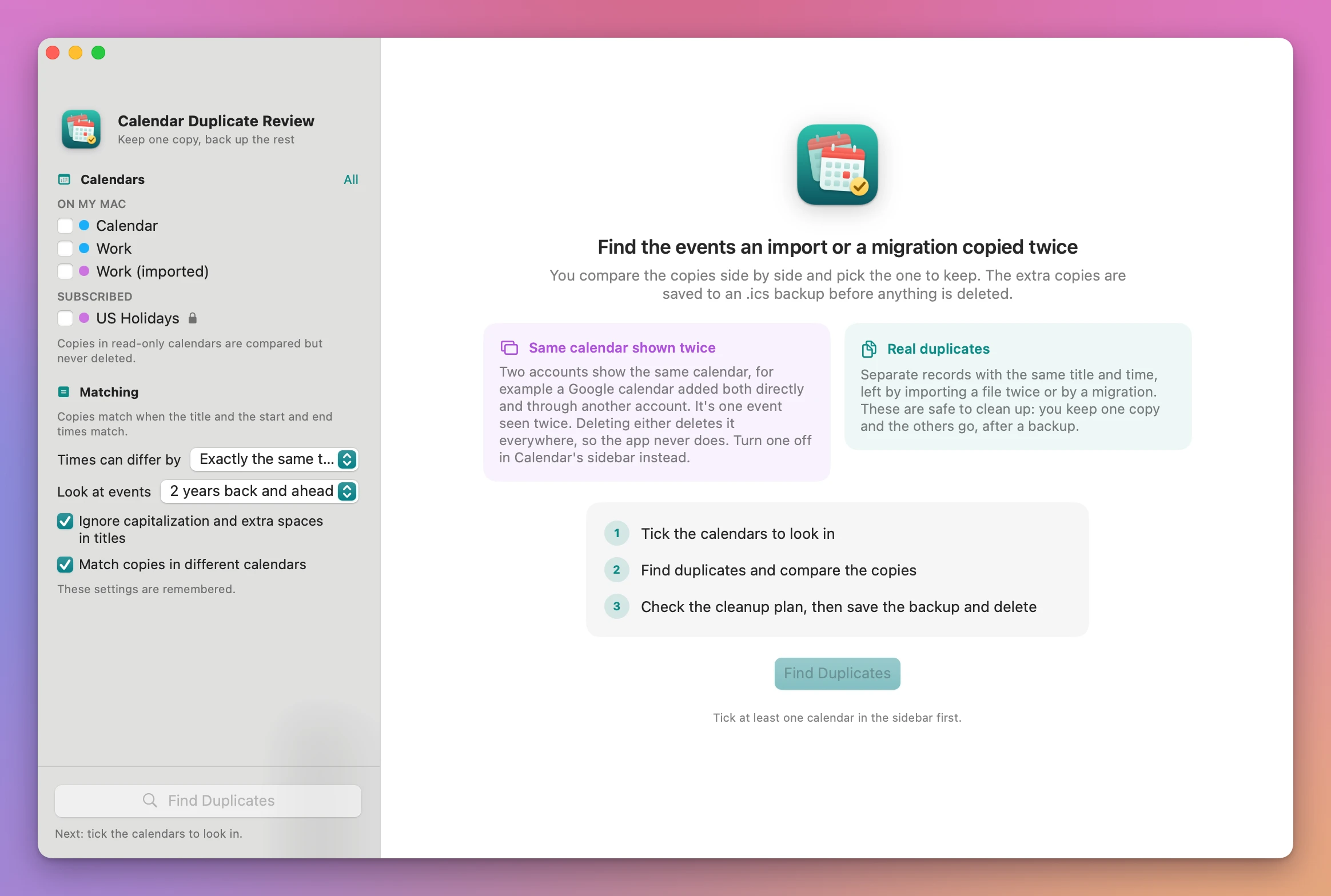
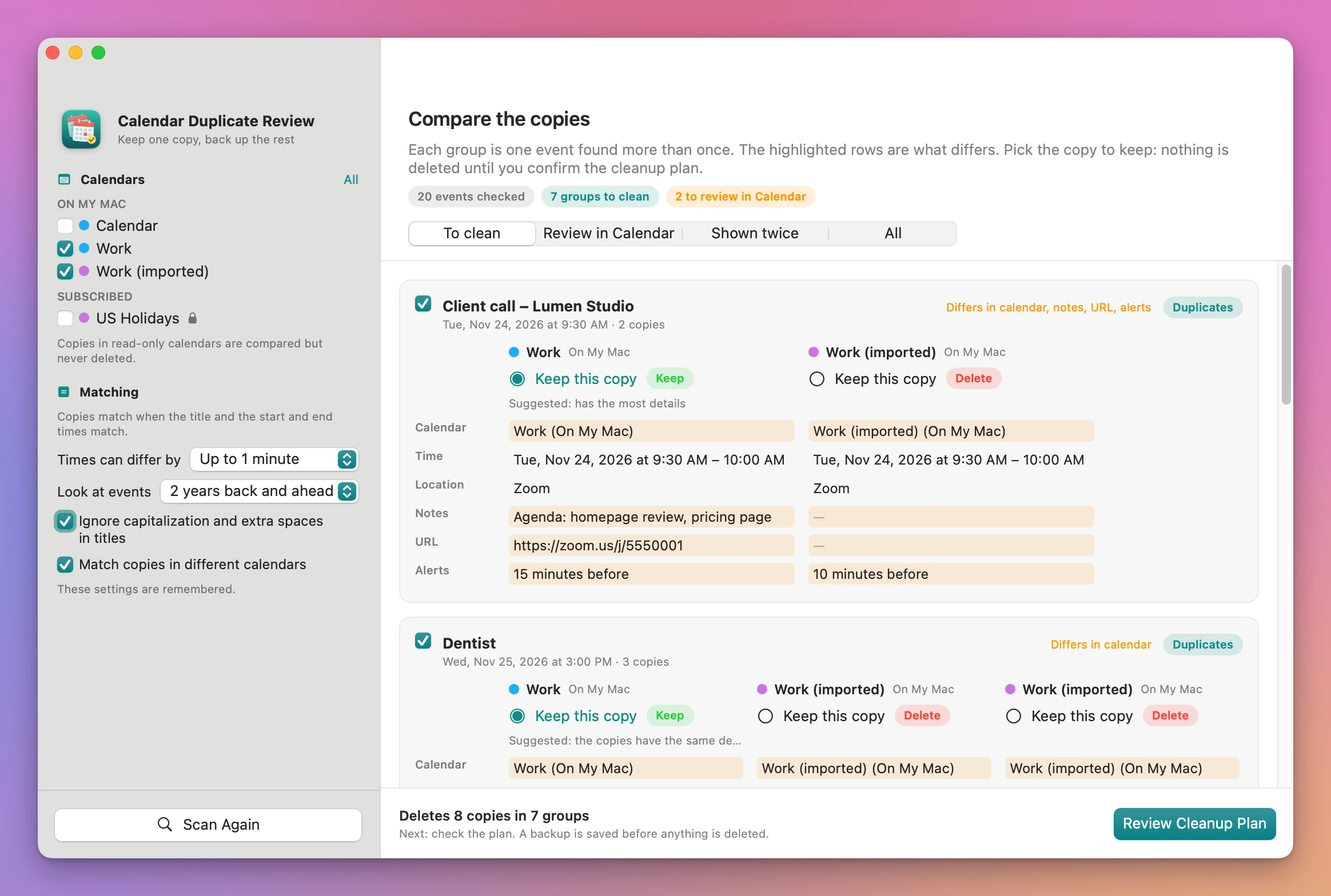
Under Matching, Times can differ by starts at Exactly the same time. With that setting, the scan found 6 groups. Setting it to Up to 1 minute found the moved design review too: 7 groups to clean, 8 copies to delete, out of 20 events. Ignore capitalization and extra spaces in titles is what matched “yoga class” with “Yoga class”.
Click Find Duplicates. Each group shows its copies in columns, with the rows that differ highlighted. For the client call, the copy in Work has the agenda, the Zoom link and a 15-minute alert, and the imported one has none of those. The app suggests keeping the copy with the most details. Click Keep this copy on another one to change it.
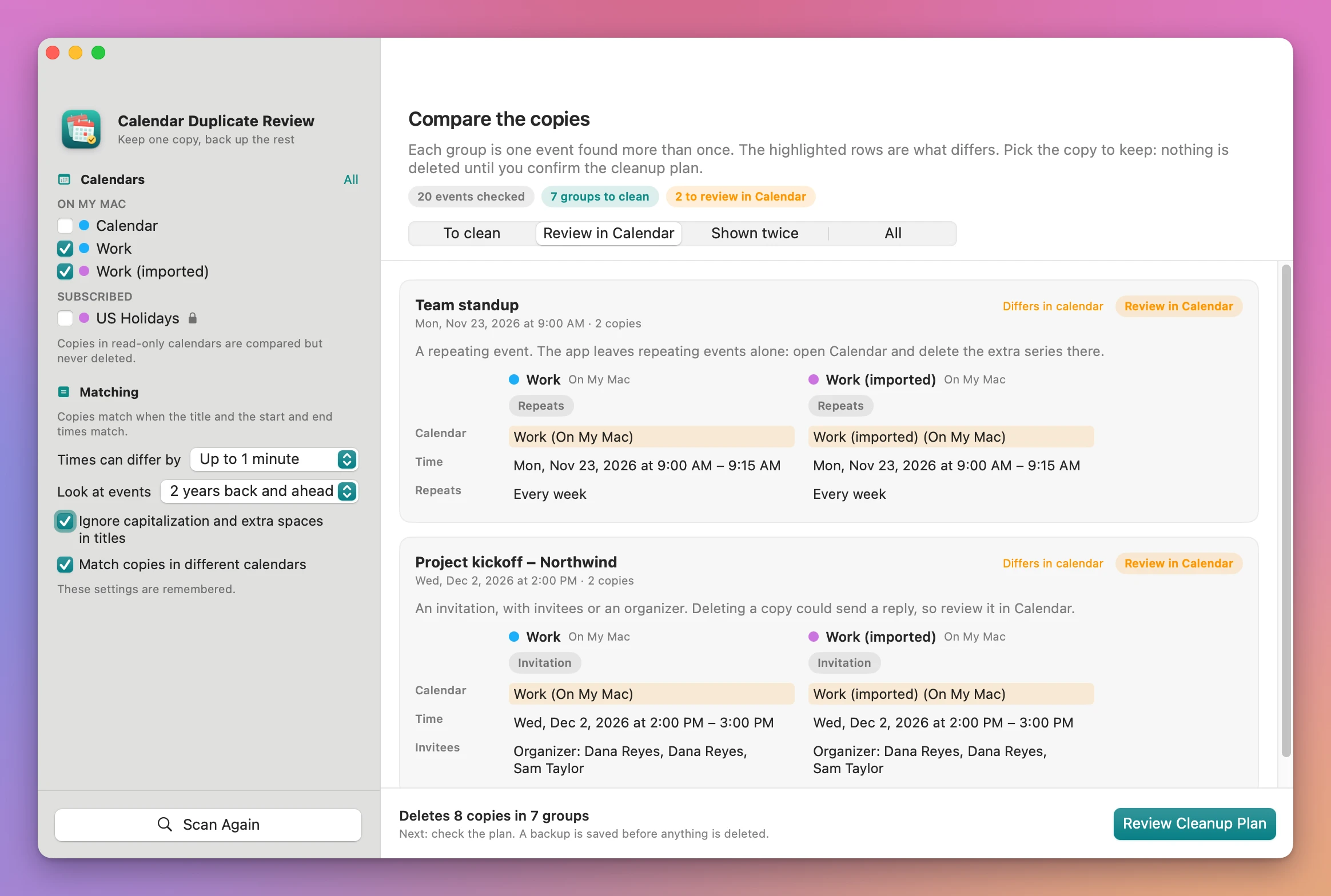
Two groups went under Review in Calendar. The weekly team standup repeats, and the project kickoff is an invitation with an organizer and invitees. The app never deletes those, so you look at them in Calendar yourself.
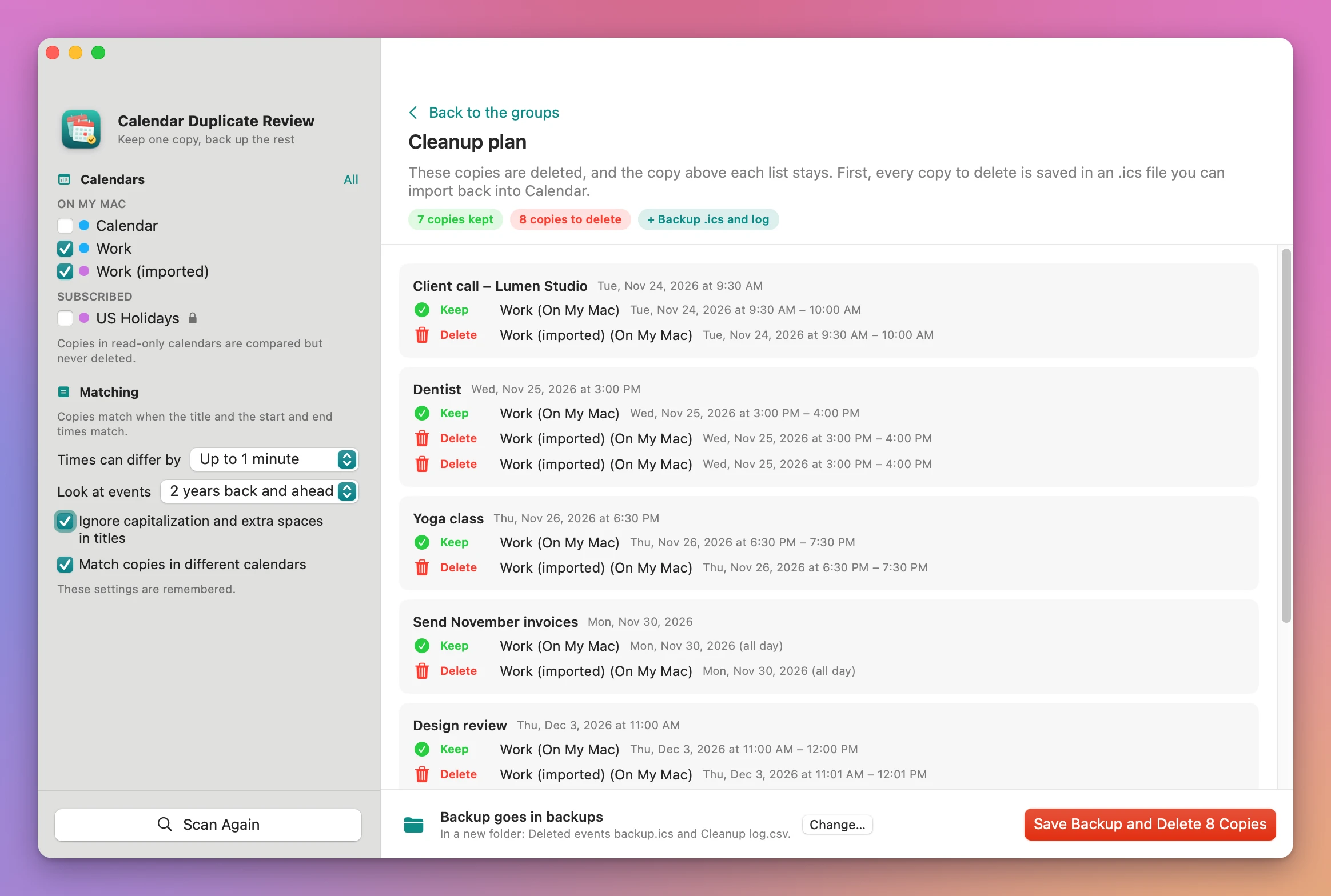
Click Review Cleanup Plan. It lists the copy that stays and the ones that go, for each group. Click Choose Backup Folder…, then Save Backup and Delete 8 Copies, and confirm.
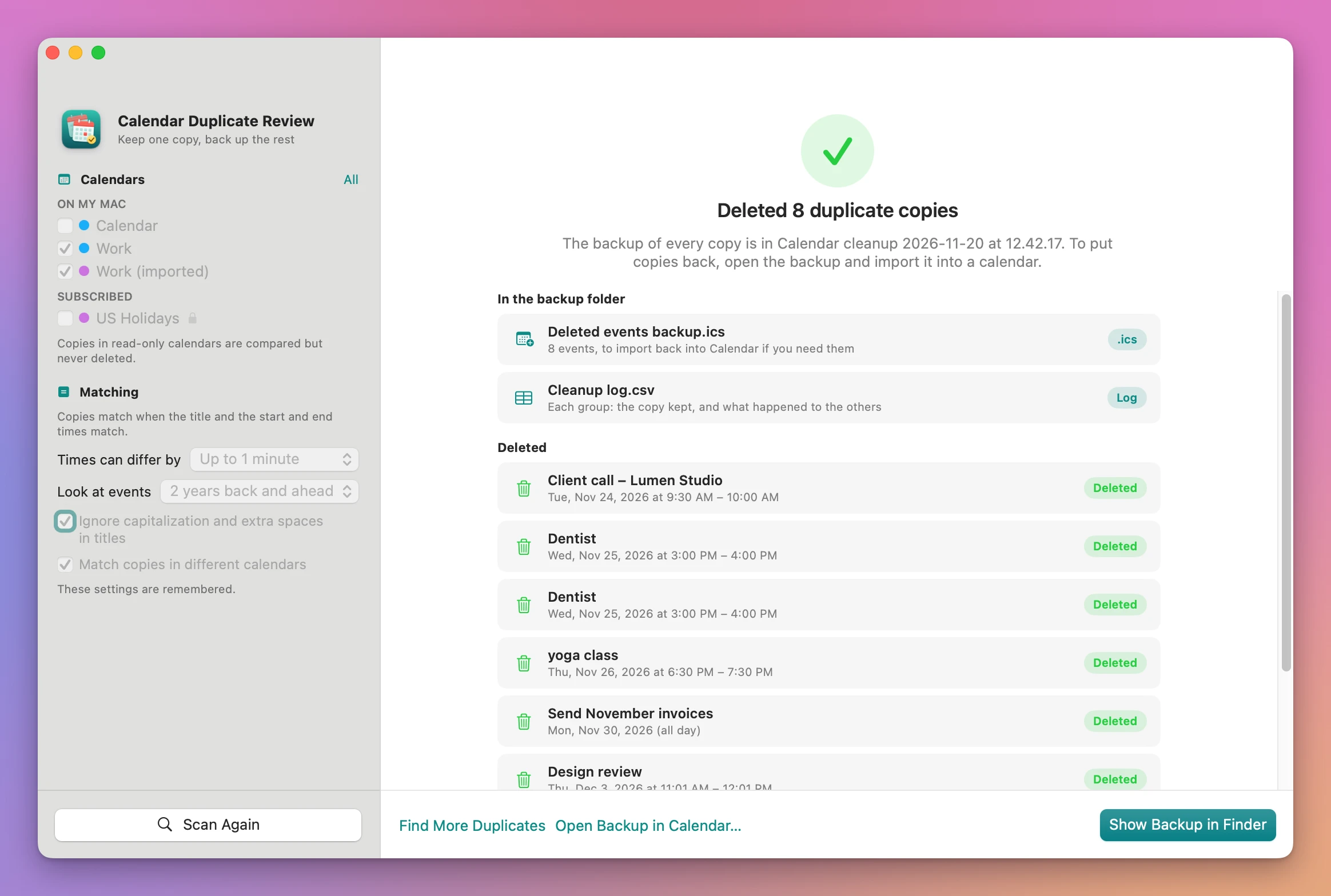
The app wrote a new folder with Deleted events backup.ics, holding the 8 deleted copies, and Cleanup log.csv, with one row per copy, saying which was kept and which deleted. Only then did it delete the copies.
Can I undo it?
Yes. On the done screen, click Open Backup in Calendar…. Calendar asks which calendar to import the copies into. On the test Mac, importing the backup into “Work (imported)” and scanning again found the same 20 events and 7 groups as before the cleanup.
Which way should I use?
| By hand | Delete the imported calendar | Calendar Duplicate Review | |
|---|---|---|---|
| Good for | A few copies | A second import in its own calendar | Dozens of copies, mixed in |
| Finds the copies | You search each title | No need | Find Duplicates |
| Copies a minute apart | If you notice | Gone with the calendar | Times can differ by |
| Which copy has the notes | Open each one | The imported copies go, whatever they hold | Side by side |
| Repeating events, invitations | You decide | Deleted with the calendar | Left for you to review |
| Backup | Export the whole calendar | Export the whole calendar | Only the deleted copies, as .ics |
I tested the app on calendars stored On My Mac, not on iCloud, Google or Exchange calendars. If your duplicates came from importing a spreadsheet, Import a CSV file into Calendar on a Mac shows how to bring a schedule in once, with an undo. Calendar Duplicate Review costs $19, paid once.
Get Calendar Duplicate Review
Find the Calendar events an import or a migration copied twice, compare the copies side by side, and delete only the copies you confirm, after an .ics backup of each one is saved.
See Calendar Duplicate Review → · Read the docs · $19. See the app page for tax details.
Want me to talk about your product? You can sponsor this site.