Save a YouTube live stream from its beginning after you joined late
By Flavio
Updated
Joined a YouTube live stream late? Record it from the earliest part YouTube still serves, catch up to live, and get one MP4 with Broadcast Keep's From beginning mode.
You opened a YouTube live stream 40 minutes in, and you want the file to start at the top of the broadcast, not at the moment you pressed record. As always with this app, only for a stream you own or have permission to save.
Broadcast Keep has a From beginning mode for this. It asks YouTube for the earlier part of the stream, downloads it faster than real time until it reaches the live edge, then keeps recording live until you stop.
Installing the tools, the sign-in browser and checking the finished file are in Record a YouTube live stream to an MP4 on your Mac. Here we only cover what changes when you start from the beginning.
What “the beginning” means
Viewers can drag a live stream’s progress bar back while it’s still running. That rewind is YouTube’s DVR, and its help page has three limits that matter here:
- viewers can never seek back to before the stream went live
- the streamer can turn DVR off with Enable DVR in the stream settings
- DVR may be limited or unavailable for streams longer than 12 hours
From beginning mode asks for that same history. A good check before you paste: open the stream in your browser and drag the progress bar back. If it goes back to the start, there’s a start to save.
Under the hood the app adds --live-from-start to the yt-dlp command. Its own help still calls it experimental:
yt-dlp --help | grep -A2 -- '--live-from-start' --live-from-start Download livestreams from the start.
Currently experimental and only supported
for YouTube, Twitch, TVer, and mellow-fanSwitch the mode before you paste
A pasted link starts recording right away, with whatever mode is selected. So pick From beginning under Start recording first. The caption under it changes to “Asks YouTube for the available stream from its beginning.”
The app remembers the mode. If your last recording was from the current point, it’s still on From current point, and you can’t change it once a recording is running.
Then paste the link. These are the differences between the two modes, straight from the command the app builds and the status it shows:
| From current point | From beginning | |
|---|---|---|
yt-dlp flag | none | --live-from-start |
| Formats it asks for | best video and audio | H.264 video and AAC audio first |
| Fragments downloaded at once | 1 | 5 (--concurrent-fragments 5) |
| Status title | Recording | Catching up, then Caught up |
| Time shown | elapsed | captured and elapsed |
| Trims a broken end when you stop | no | yes, when the tracks don’t line up |
Watch it catch up
While it catches up, the status shows two clocks. Captured is how much of the stream is in the files. Elapsed is how long you’ve been recording. The app reads the captured time from the files with ffprobe every second.
Here’s the demo from the app page, with a made-up surf cam stream that went live 33 minutes earlier, served by a stand-in for yt-dlp:
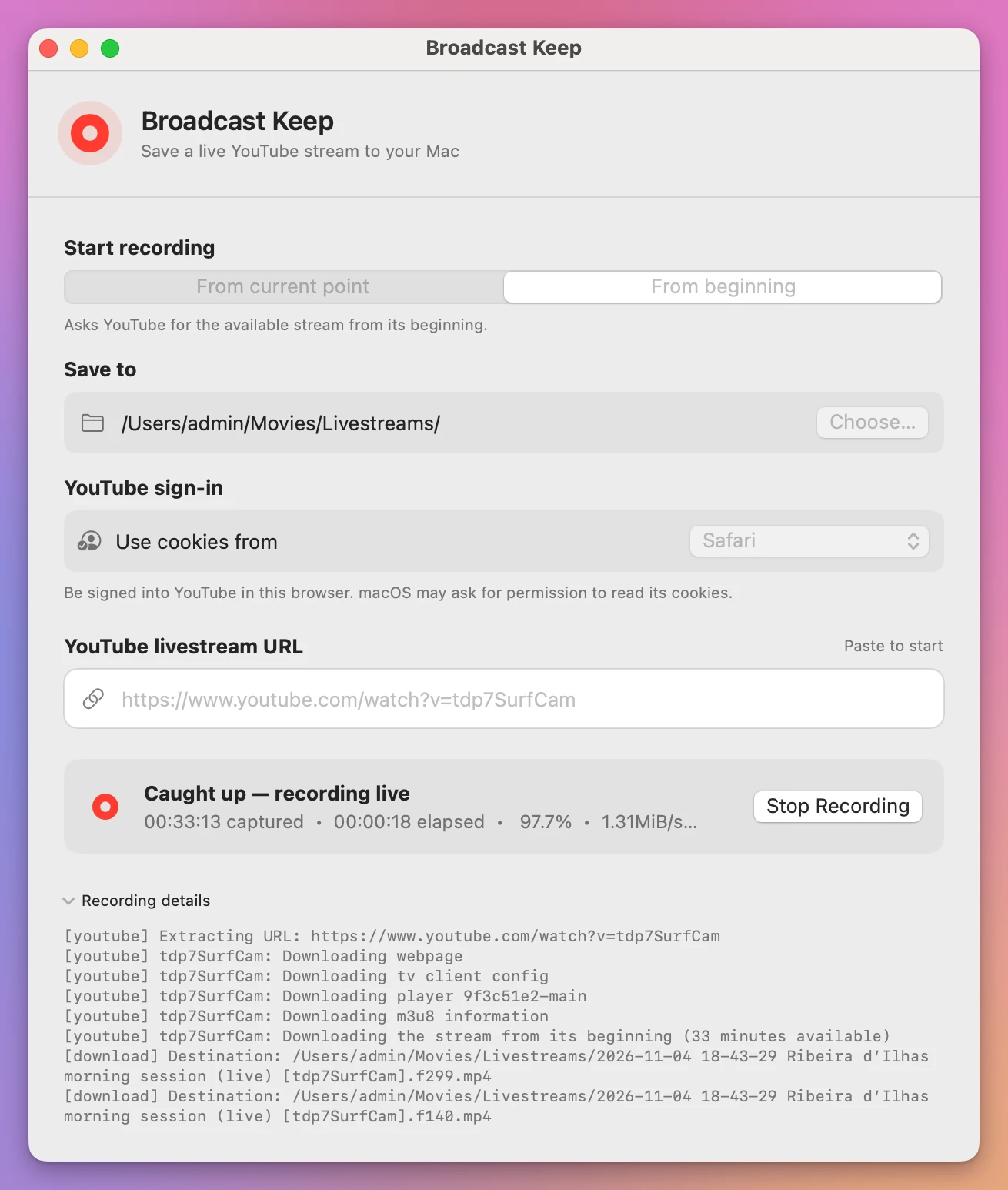
After 18 seconds of recording it has 33 minutes captured, because it downloads the old fragments far faster than the stream plays them.
The title switches to Caught up when the captured time is within 20 seconds of the time since the stream went live. To know that, the app needs the stream’s start time, which yt-dlp reports before the download starts.
In Recording details you see two destination files. In From beginning mode yt-dlp downloads the video and the audio separately, here .f299.mp4 (video) and .f140.mp4 (audio), and they become one file when you stop.
Stop, then let it finish
Click Stop Recording and leave the app alone while it says Finishing recording.
The app runs FFmpeg with both track files as inputs and -c copy, so nothing is re-encoded. I ran the same command on a one-minute 1080p test recording split the same way:
ffmpeg -hide_banner -loglevel error -y \
  -i "2026-11-07 10-15-30 Morning session (live) [tdp7SurfCam].f140.mp4" \
  -i "2026-11-07 10-15-30 Morning session (live) [tdp7SurfCam].f299.mp4" \
  -map '0:v:0?' -map '0:a:0?' -map '1:v:0?' -map '1:a:0?' \
  -c copy -movflags +faststart \
"2026-11-07 10-15-30 Morning session (live) [tdp7SurfCam].mp4"| File | Size |
|---|---|
.f299.mp4 (video track) | 48,046,476 bytes |
.f140.mp4 (audio track) | 973,645 bytes |
merged .mp4 | 49,052,484 bytes |
It took 0.05 seconds. The merged file is the two tracks added together, so for a moment the folder holds the recording twice. Leave that much free space. Once the MP4 checks out, the app deletes the two track files.
Stopping a catch-up recording can leave one track longer than the other. When the video and audio lengths differ by 2 seconds or more, the app looks for at least 5 seconds of silence at the end of the audio and cuts there, or cuts at the end of the shorter track. Normal quiet moments in the middle are never touched.
When Recording saved appears, click Reveal in Finder.
Check the start of the file
Open the MP4 and look at the first frames. They’re the oldest part YouTube still served for that stream.
To compare lengths, ask ffprobe for the duration and compare it with how long the stream had been live when you stopped:
ffprobe -v error -show_entries format=duration -of csv=p=0 "2026-11-07 10-15-30 Morning session (live) [tdp7SurfCam].mp4"60.000000That’s the one-minute test file. For a real recording, a duration much shorter than the stream’s age means YouTube didn’t have the opening any more. Nothing can bring that part back, so for your own streams, start the recording as soon as you go live.
If it doesn’t work
The recording started from now instead of the beginning: the mode was still From current point from last time. Stop, switch to From beginning, and paste the link again. It’s a new file.
The status stays on Catching up and never switches: the app couldn’t get the stream’s start time, so it can’t tell when it reached live. The recording itself is fine. Watch the captured time instead, which grows by about one second per second once it’s live.
Recording failed with “The recording was saved, but could not be made QuickTime-compatible.” means FFmpeg couldn’t merge the tracks. The two track files are still in the folder, so keep them until you’ve tried merging them yourself with the command above.
Everything else, like missing tools, the sign-in browser and extractor errors, is the same as in the current-point tutorial.
Get Broadcast Keep
Record a YouTube live stream to an MP4 on your Mac, from now or from the earliest part YouTube still has, even if you joined late.
See Broadcast Keep → · Read the docs · $19. See the app page for tax details.
Want me to talk about your product? You can sponsor this site.