
An app by Flavio
Broadcast Keep
A YouTube live stream is on and you want to keep it. Record it to an MP4 on your Mac, from now or from the earliest part YouTube still has.
Buy Broadcast Keep · $20One-time purchase. Tax included.
macOS 14 or later · Apple silicon and Intel
Latest version 1.6.0, released November 20, 2026
Keep a copy of the stream while it’s still live
A live stream is on YouTube right now and you want a copy on your Mac. Maybe it’s your own stream and you don’t trust the archive. Maybe you joined late, and you want the part you missed too.
Waiting for YouTube’s replay is a gamble. The channel owner can make it private or delete it, and YouTube says a stream longer than 12 hours may not be archived at all. Even on your own channel, YouTube Studio’s download gives you an MP4 in 720p or 360p, after the fact.
Broadcast Keep is a Mac app that records it for you. Paste the link of the live stream, and it saves the video as an MP4 file in the folder you choose. You can start from the moment you paste the link, or from the earliest part YouTube still has, and the app catches up to live on its own.
When you click Stop Recording, it puts the video and the sound together in one file, checks that the file is a working MP4, and shows you where it is.
Broadcast Keep needs three free tools to record. If you’re missing one, the app tells you how to install it. Set up the recording tools
Here’s a one-minute recording session, first from the current point, then from the beginning:
The surf cam stream is fictional. For the recording, a stand-in for yt-dlp served it locally, and FFmpeg merged the files into one MP4 as usual.
Who it’s for
- Streamers who want their own backup. You stream a 14-hour charity marathon or a long coding session. YouTube may not archive a stream over 12 hours, so you start Broadcast Keep when you go live and keep the MP4 yourself.
- Company and school teams. The all-hands, the product launch or the graduation is streamed on YouTube, sometimes as a private stream shared with your account. Pick your browser under YouTube sign-in and save the copy for the archive or the people who missed it.
- Course creators and webinar hosts. You teach live on your channel and want to cut the recording into lessons later. You get an MP4 in your folder, ready for your video editor, without waiting for the replay to process.
- Event producers. You stream a conference for a client and they want the raw file the same evening. Record it on a second Mac while the stream runs.
- Anyone who joined a permitted stream late. Your own members-only stream, or one the owner said you can keep. Pick From beginning, and the app saves the part YouTube still lets viewers rewind to, then keeps going live.
A recording, start to finish
- Under Start recording, choose From current point or From beginning.
- Under Save to, click Choose… and pick a folder with enough free space. It starts on your Movies folder.
- Under YouTube sign-in, pick the browser you use for YouTube: Google Chrome, Safari, Firefox, Brave or Arc.
- Paste the link into YouTube livestream URL. A pasted link starts recording right away. A typed one starts when you press Return or click Record.
- Watch the status. It shows how long you’ve been recording and, in From beginning mode, how much of the stream it has captured.
- Click Stop Recording when you have what you need. Leave the app open while it says Finishing recording.
- When Recording saved appears, click Reveal in Finder. Record Another clears the link for the next stream.
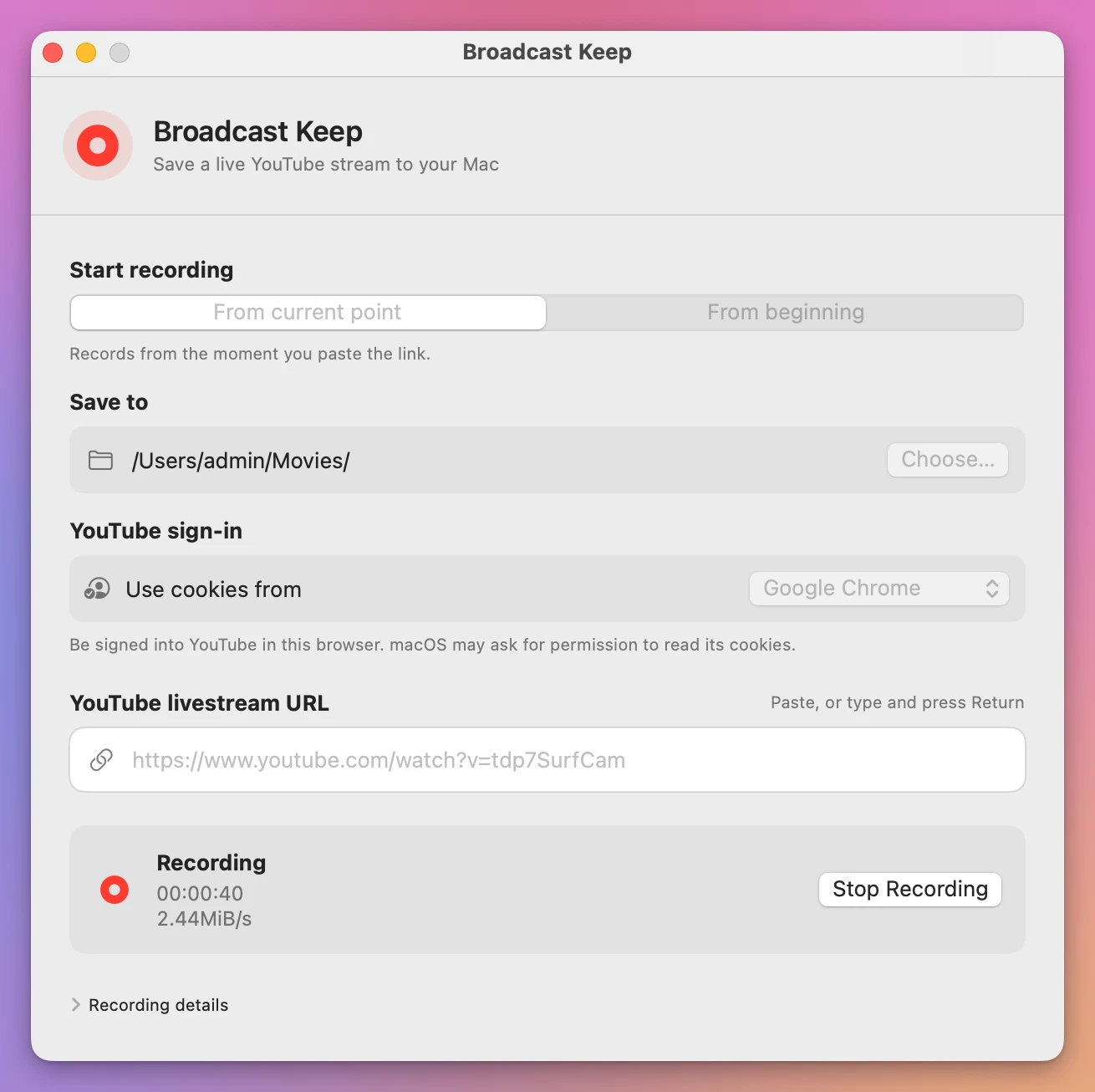
Once the tools are installed, a recording takes three choices and a paste. The app remembers the mode, the folder and the browser, so the next one is just the paste.
Joined late? Start from the beginning
Pick From beginning before you paste the link. The app asks YouTube for the earlier part of the stream, downloads it much faster than it plays, and then keeps recording live until you stop.
How far back it goes depends on YouTube. While a stream is running, viewers can usually rewind it, and that rewind history is what the app saves. If you can drag the progress bar back to the start in your browser, there’s a start to save. Save a YouTube live stream from its beginning goes through it step by step.
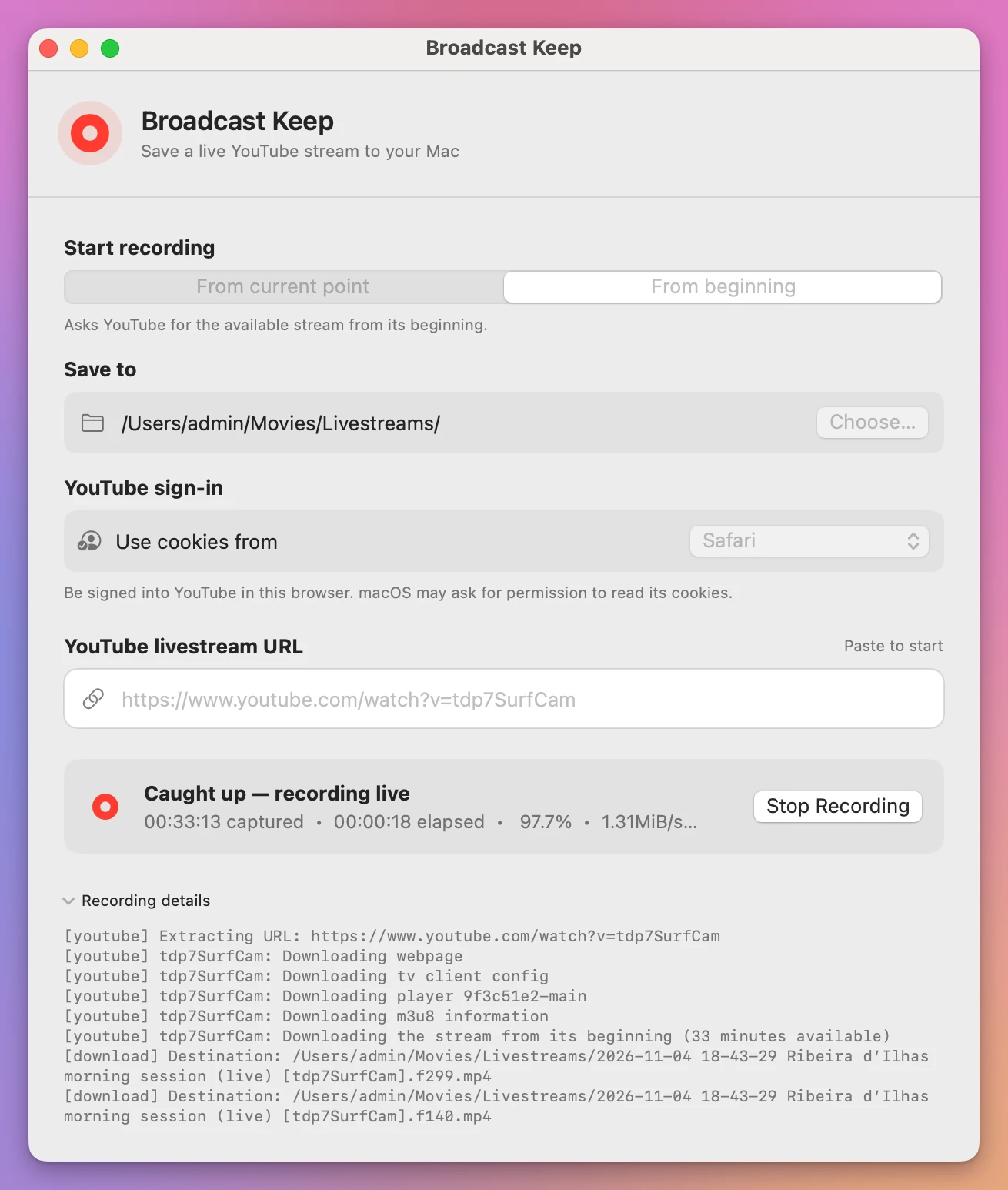
From current point records from the moment you paste the link. Either way, the window shows how long you’ve been recording, and in From beginning mode also how much of the stream it has captured so far. You can cancel or try again. If a recording is interrupted, the app keeps what it already has and checks the file before it says it’s saved.
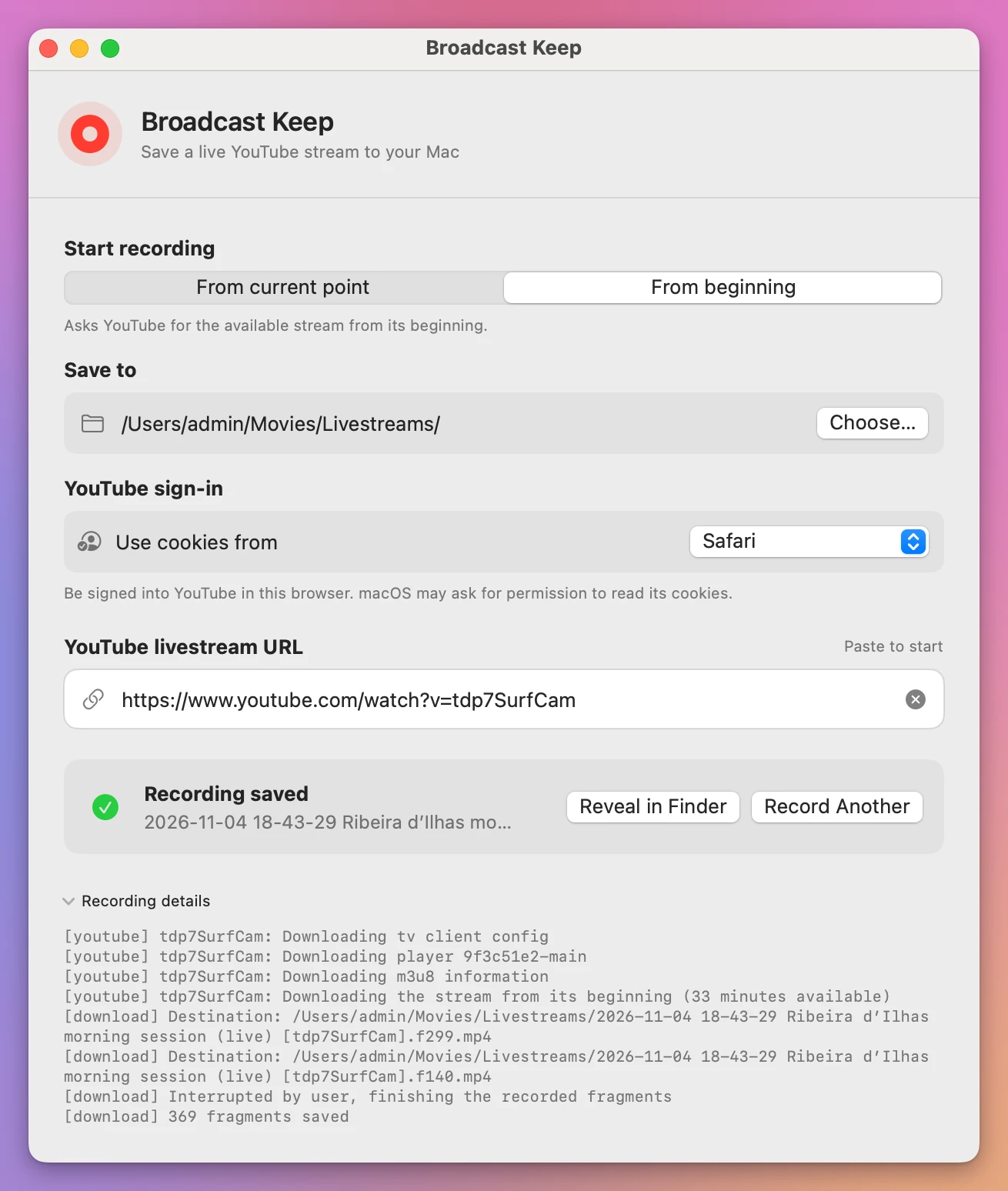
Record a YouTube live stream to an MP4 on your Mac covers a whole recording, from the settings to checking the finished file.
What you get
Each recording is one MP4 in the folder you picked, named with the date and time, the stream’s title and its YouTube ID, like 2026-11-19 18-30-00 Surf cam [tdp7SurfCam].mp4. The app asks yt-dlp for the best video and audio YouTube offers for that stream. The video and audio are copied into the MP4 without re-encoding, so the quality stays as YouTube sent it and finishing doesn’t take a long export.
Before it says Recording saved, the app checks that the file isn’t empty and is a real MP4. If something fails, the error shows with a Try Again button, and Recording details has the recent messages.
Streams that need you signed in
Some streams only play when you’re signed in, like a members-only stream on your own channel, or a private company stream shared with your account. For those, choose the browser you use for YouTube in YouTube sign-in. The app remembers which browser you picked, and never stores your cookies. macOS may ask permission the first time the tools read them.
Record only streams you own or have permission to save. Broadcast Keep doesn’t give you the right to copy someone else’s broadcast.
Why not use YouTube’s replay or a screen recording
For your own channel, YouTube’s archive and the download in YouTube Studio are free, and often enough. They only work after the stream ends, only if the archive exists, and the Studio download is 720p or 360p. The guide on whether YouTube live streams are saved covers those cases.
A screen recording with QuickTime works while the stream runs. It captures the screen, so the browser has to stay in front for hours. It doesn’t record the computer’s sound by itself, and it can’t go back to the part you missed.
| YouTube archive or Studio download | Screen recording | Broadcast Keep | |
|---|---|---|---|
| When | After the stream, if archived | While live | While live |
| Joined late | Replay only, if kept | Can’t go back | From beginning catches up |
| Quality | Studio download: 720p or 360p | Your screen size | Best stream YouTube offers |
| Sound | Included | Needs extra setup | Included |
| Your Mac while recording | Free | Browser must stay in front | Use it for other things |
| Streams over 12 hours | May not be archived | Possible, if nothing interrupts it | Doesn’t depend on the archive |
What it doesn’t do
- It doesn’t download finished videos or replays. It records streams while they’re live. Once a stream has ended, the app skips it.
- It doesn’t recover what YouTube no longer serves. From beginning only goes back as far as viewers can rewind.
- It only works with YouTube. Twitch and other sites aren’t supported.
- It doesn’t let you pick a quality or a format. You get the best stream YouTube offers, as an MP4.
- It doesn’t edit or trim. Open the MP4 in your video editor for that.
- It doesn’t install its tools for you. You paste one
brew installline in Terminal, once.
Set it up once
Broadcast Keep runs on macOS 14 or later, on Apple silicon and Intel Macs. It does the recording with three free tools, yt-dlp, FFmpeg and Deno, and you install them once with Homebrew.
Homebrew is a free installer for this kind of tool, the usual way to get them on a Mac. You install it by pasting one command in the Terminal app, the command from brew.sh. It asks for your Mac password, and it may install Apple’s Command Line Tools along the way. Homebrew officially supports macOS 15 Sequoia or later on Apple silicon. On Sonoma or on an Intel Mac it isn’t officially supported, but it may work.
Then paste this line in Terminal and press Return:
brew install yt-dlp ffmpeg denoThat’s all the typing. If you open Broadcast Keep before the tools are installed, the window says Recording tools required and shows the brew install line for what’s missing, with a Copy button. If Homebrew itself is missing, an Open brew.sh button takes you to its site. Install it, click Check Again, and you’re ready.
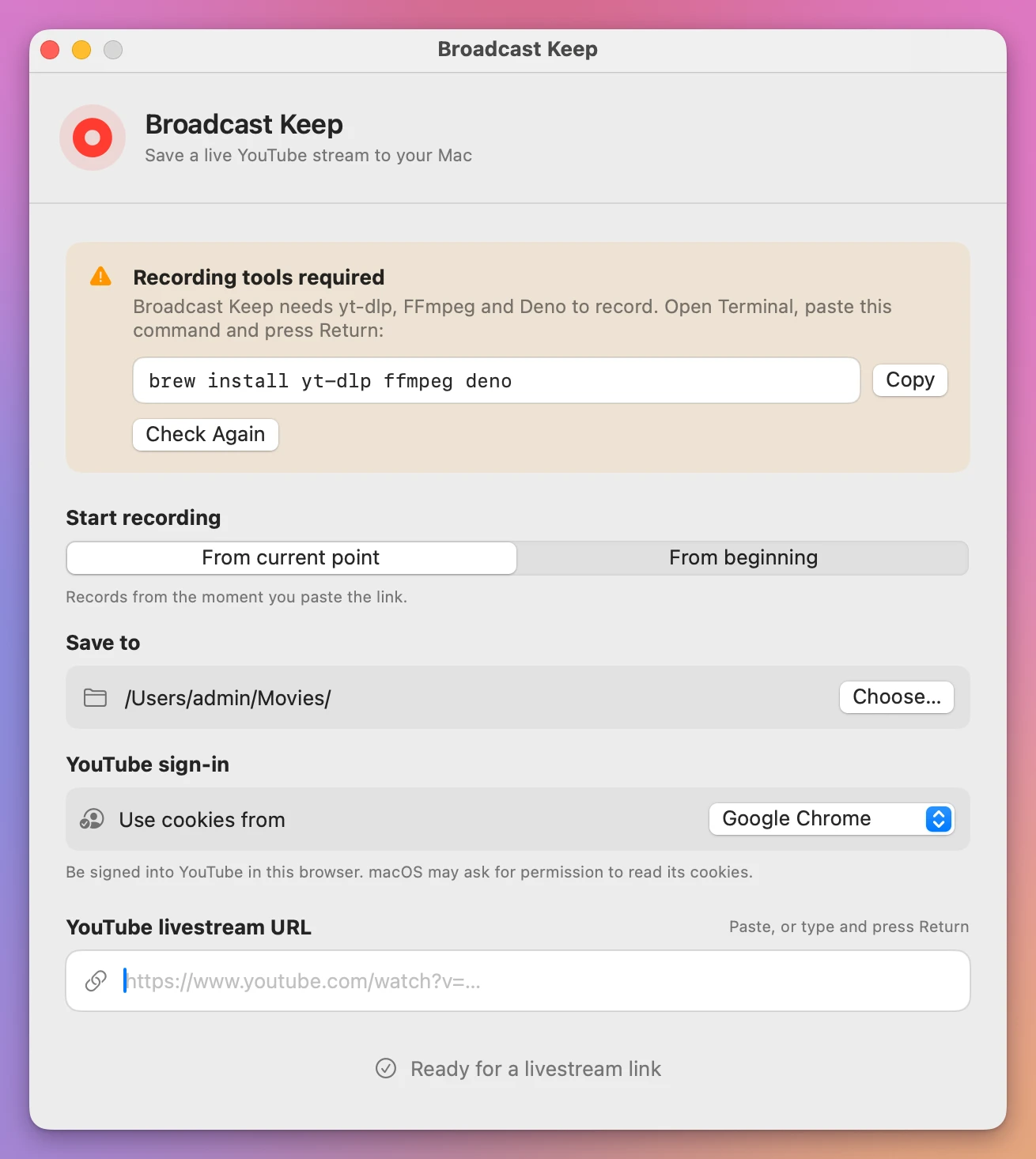
YouTube changes how it serves video from time to time, and yt-dlp follows it. If a recording that used to work starts failing, update the tools with brew upgrade yt-dlp ffmpeg deno.
Questions
Is it legal to record a live stream?
Record only streams you own or have permission to save, like your own channel’s or your company’s. The app doesn’t give you any rights over someone else’s video.
Does anything go through your servers?
No. There’s no backend, account system or analytics. The tools download the stream straight from YouTube to your folder, and your settings stay on your Mac. The app goes online on its own only for the daily update check.
What if a recording is interrupted?
The app keeps what it already has and checks the file before it says it’s saved. An interrupted recording can leave pieces in the folder, so keep them until you’ve checked the finished MP4.
Does it work on Intel Macs?
Yes, on macOS 14 or later. Homebrew doesn’t officially support Intel Macs or Sonoma, but it may work.
The documentation covers setup, browser sign-in and troubleshooting.
Downloads and updates
Download the app ZIP from your purchase page or Creem receipt. Unzip it and drag Broadcast Keep to Applications. Apple has notarized the app.
Broadcast Keep checks for updates once a day. Choose Broadcast Keep → Check for Updates… to check right away. Bookmark your purchase page if you want to download the latest version again.
How it works (for the curious, you can skip this)
The interface is SwiftUI. The recording engine runs yt-dlp, FFmpeg, ffprobe, and Deno with separate process arguments. FFmpeg copies the recorded video and audio into one MP4 without re-encoding. Before it reports success, the app checks that the file isn’t empty and starts with an MP4 ftyp header.
In from-beginning mode, ffprobe reads how much media has been captured, to show the catch-up progress. When you stop that kind of recording, it compares the video and audio lengths, and the app trims an unfinished tail.
There is no backend, account system, or analytics service. Recording mode, destination, and browser choice are saved locally. Your recordings stay in the folder you choose.