Send photos and files between your Macs without AirDrop
By Flavio
Updated
Pair two Macs once with a 6-digit code in Home Drop, then send photos and folders over your home network by dropping them on its window.
AirDrop asks you to pick a destination every time. That’s fine for one file from a phone, and tiring when the same two Macs at home swap photos and folders every day. I built Home Drop because I share a lot of photos and files with my girlfriend, and AirDrop and shared folders were slow and unreliable for that.
Home Drop keeps Macs paired. You drop files on its window and they go to the other Mac over your local network, with no account and no server in between. The Macs find each other on the network by themselves. AirDrop still has its place for an iPhone or a device you don’t own, as in my Mac and iPhone productivity tips.
Install it on both Macs
Home Drop needs macOS 14 or later on every Mac that sends or receives, Apple silicon or Intel. Download the zip from your Polar receipt, unzip it, and move Home Drop.app to Applications on each Mac.
Open it on both. On macOS 15 and later, the first launch asks whether Home Drop can find devices on your local network. Allow it on both Macs, because that’s how they see each other.
On its first launch the app also turns on its Share extension, so Share › Home Drop shows up in Finder and Photos. You can turn it off in System Settings › General › Login Items & Extensions.
To get updates, enter the license key from your receipt in Home Drop → License…. Home Drop then checks once a day and installs new versions with Install and Relaunch. Copies older than 1.3.0 can’t update themselves, so download 1.3.0 from the receipt once.
Pair the two Macs
Pairing swaps keys between two Macs. Each Mac makes its own key the first time it runs, and the 6-digit code makes sure the keys go to the Mac in front of you and not to some other device on the network.
On both Macs, click Pair a Mac (⌘P) at the bottom of the sidebar. Each sheet shows This Mac with a code on the left, and Pair with a Mac nearby on the right.
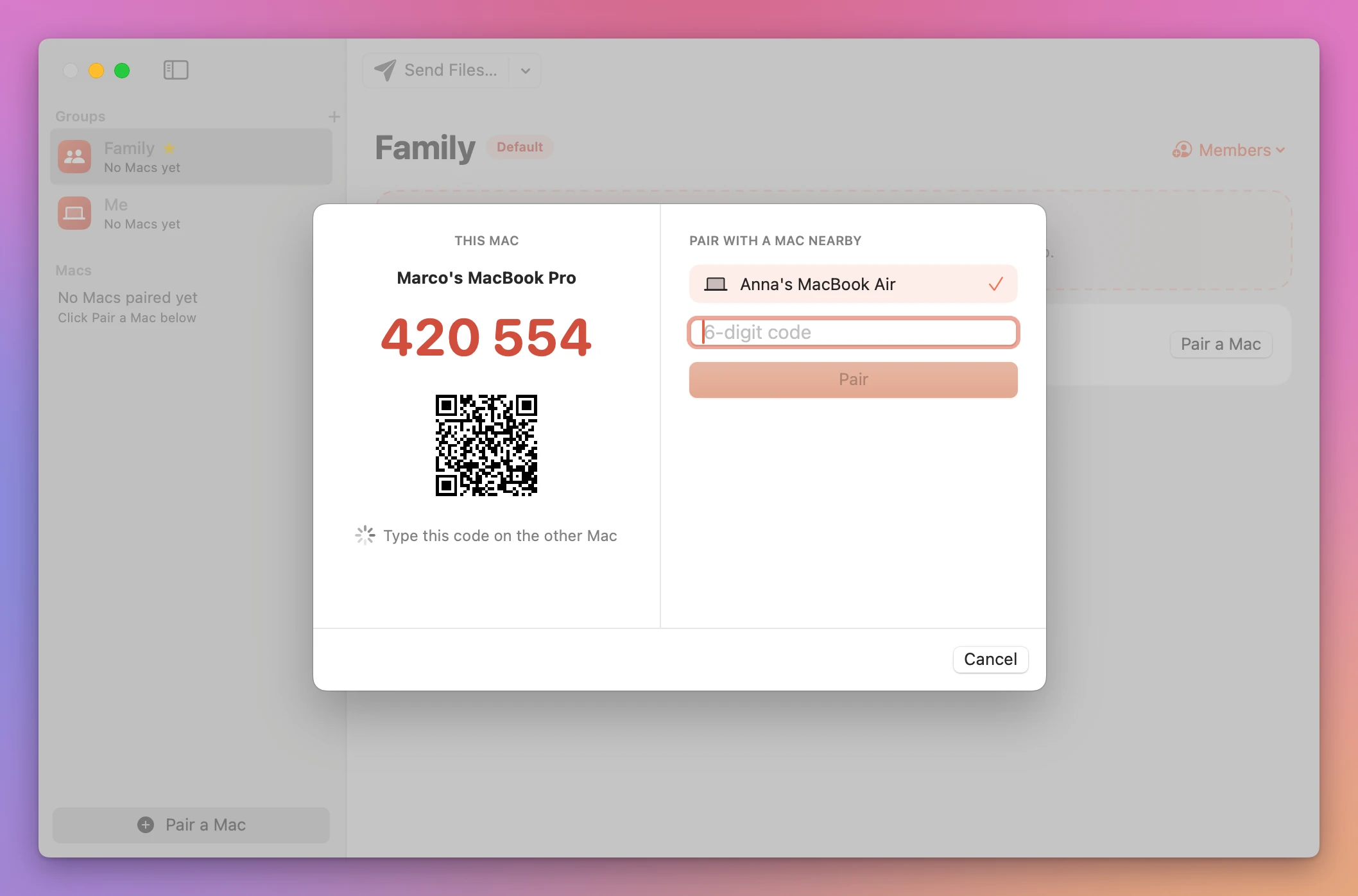
On one Mac, select the other Mac in the list, type the code that Mac shows, and click Pair. You only do it on one side. The names in these screenshots are from the demo on the app page, two test machines with made-up names and photos.
When it works, the sheet says Paired with Anna’s MacBook Air, followed by a Keys: line with a short fingerprint for each Mac and “The other Mac shows the same two.” Look at both screens and check they match. Below that you can tick the groups the new Mac belongs to.
The code stays valid while the sheet is open. Three wrong codes end it with “Too many wrong codes. Start pairing again.”, and Show a New Code makes a fresh one.
Drop files on the window
A fresh install has two groups, Family and Me. A group is a set of paired Macs with a shared stream of what was sent and received. The star marks the default group, and Family starts as the default.
There are four ways to send:
| You do | It goes to |
|---|---|
| Drop on the window or on the Dock icon | The default group (the star) |
| Hold ⌥ while you drop | The group you pick from a small menu |
| Drop on a group in the sidebar | That group |
| Share › Home Drop in Finder or Photos | The default group, or hold ⌥ to pick one |
Send Files… in the toolbar opens a file picker for the default group, and its arrow lets you pick a group first.
Be careful with the first row. Dropping on the window sends to the default group even when you’re looking at another group’s stream. That stream’s drop zone says so: “Drops go to the default group. Drop on Me in the sidebar, or hold ⌥.”
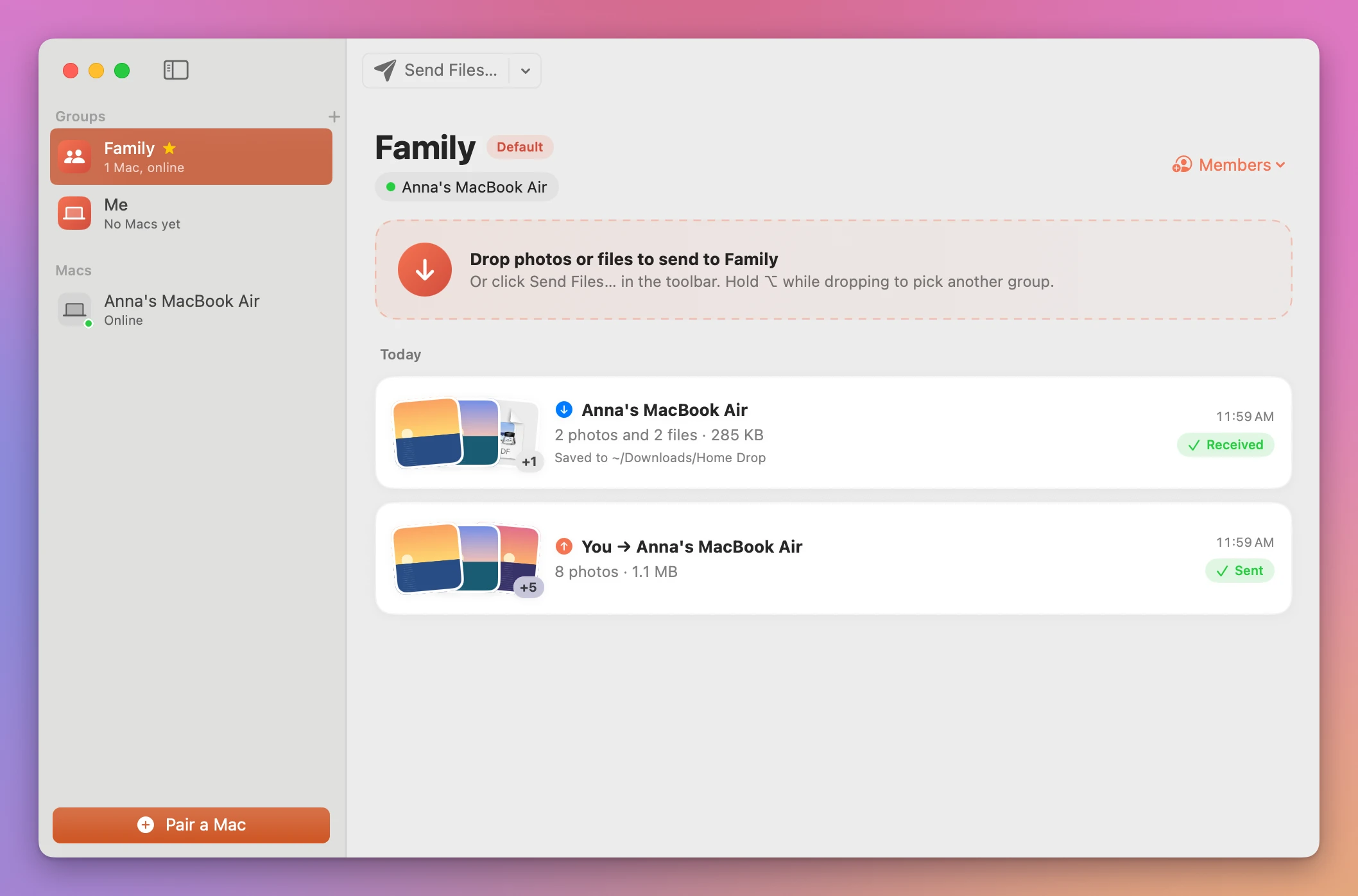
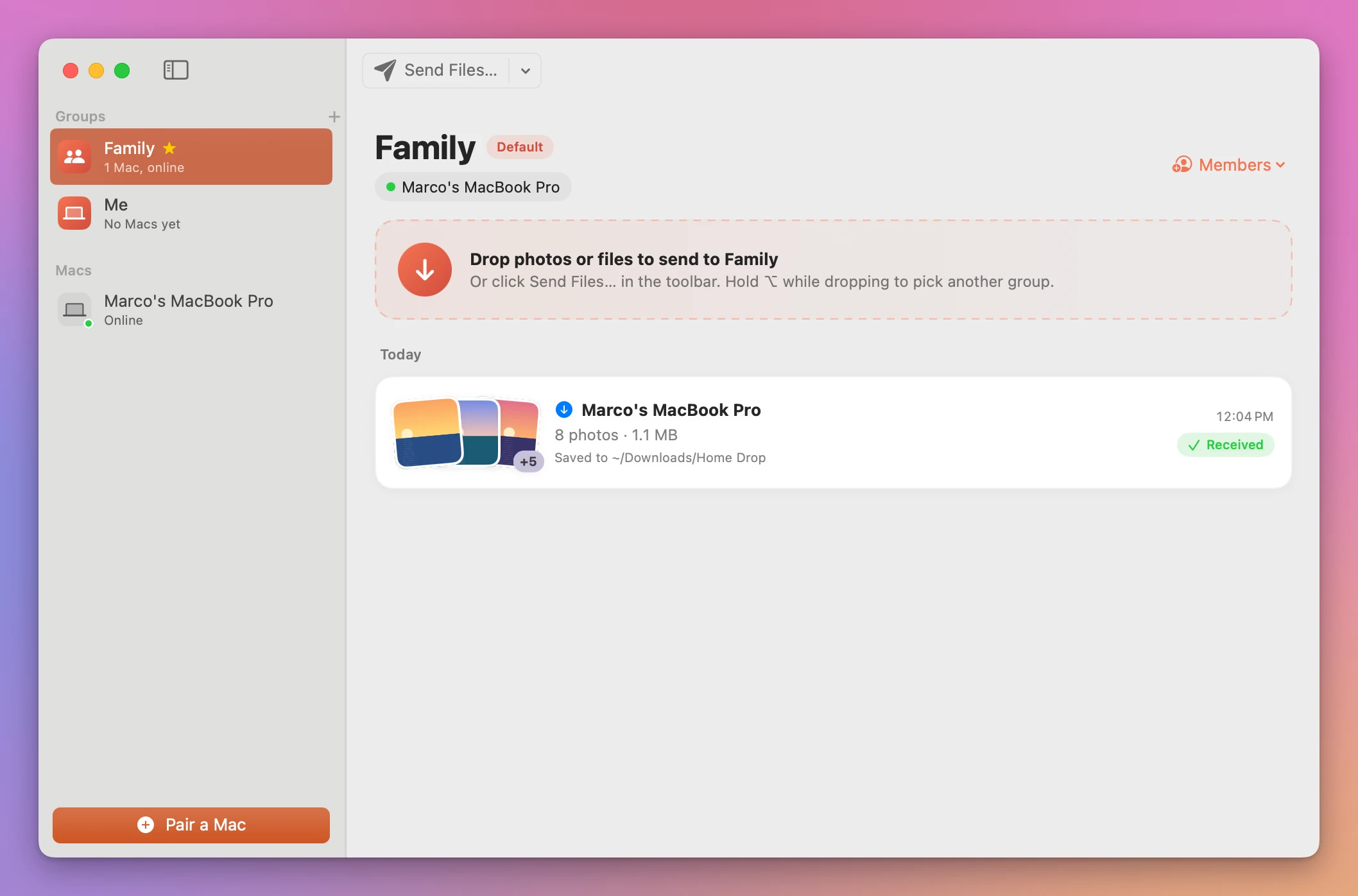
Each send becomes a card under the day it happened, with thumbnails, an arrow for sent or received, who sent it, the size and a status: Waiting, Sending, Sent, Received or Failed. Hover a card for a Show in Finder button, or right-click it for Show in Finder, Remove from Stream, and Send Again on a send that didn’t go through.
When the other Mac is asleep
Home Drop looks for each Mac in the group for 6 seconds. If it doesn’t find it, that recipient shows Waiting with “Offline. Sends when it’s back.”, and the send starts by itself when the Mac shows up on the network again. You don’t drop the files a second time.
Where received files land
On the receiving Mac, files go to the Home Drop folder inside Downloads. The received card says “Saved to ~/Downloads/Home Drop”, which is that folder, and a notification tells you who sent what when Home Drop isn’t the app in front.
Settings (⌘,) on the receiving Mac changes that. Choose… picks another folder, and Add photos and videos to Photos puts photos and videos into a Photos album, named Home Drop unless you type another name. Photos keeps each photo’s date and location, and a Live Photo arrives as one Live Photo. Other files still go to the folder.
Sharing from inside the Photos app sends a rendered copy, and a Live Photo comes through as a still. To send the original RAW file or a Live Photo, drag it from the Finder instead.
Forget a Mac before you sell it
Each Mac keeps its own list of paired Macs, and forgetting is local. To stop a Mac you’re selling from sending to you again, forget it on every Mac you keep.
Right-click the Mac under Macs in the sidebar and choose Forget Anna’s MacBook Air. It’s removed from the list and from every group.
After that, if that Mac tries to send to you, it gets an error that ends in “isn’t paired with this Mac. Pair them first.” Files it already sent stay in your folder or album.
To remove a group you no longer need, right-click it in the sidebar for Delete Group.
For scripts, see Send files to another Mac from the terminal with homedrop.
If it doesn’t work
The other Mac never shows up under Pair with a Mac nearby: it needs Pair a Mac open too, and both Macs have to be awake on the same network. On macOS 15 and later they also need the Local Network permission. If you denied it, turn Home Drop on in System Settings › Privacy & Security › Local Network.
“Wrong code. Check the code on Anna’s MacBook Air and try again.”: a digit was off. You have three tries per code.
“This Mac runs a different version of Home Drop”: update both Macs to the same version.
“Anna’s MacBook Air has different keys. Pair the two Macs again.”: the other Mac was reinstalled or forgot you. Forget it on this Mac and pair again.
Get Home Drop
Send photos and files straight to your other Macs over the local network. Pair once with a 6-digit code, no accounts and no servers. Includes a native Mac app and companion CLI.
See Home Drop → · Read the docs · $19. See the app page for tax details.
Want me to talk about your product? You can sponsor this site.