How to show your personal calendar as busy on your work calendar on a Mac
By Flavio
Your work or client calendar can't see your personal events, so people book over them. Here's how to show those times as plain Busy blocks without sharing what they are, by hand or kept in step by an app.
Your dentist appointment is in your personal calendar. Your colleagues look at your work calendar, see a free hour, and book a meeting right on top of it.
The fix is to put a “Busy” event in the calendar they can see, at the same time as each personal event, with no details. You can do it by hand, use Google’s free/busy sharing if everything is in Google, or let Busy Calendar Mirror copy the times across and keep them in step when your plans change.
Why can’t my work calendar see my personal events?
Because they live in different accounts. Your personal calendar is in iCloud, or stored on your Mac. Your work calendar is in your company’s Google Workspace or Microsoft 365. Calendar on the Mac shows both side by side, so they look like one calendar to you. Your colleagues only see the work one.
Can I share my personal calendar instead?
You can, but they’d see everything. When you share an iCloud calendar from Calendar, the other person reads every title, location and note. iCloud sharing has no option to show only free and busy.
Google Calendar does have one. In Google Calendar on the web, under a calendar’s settings, you can share it with a person and pick See only free/busy (hide details). If your personal calendar is in Google and your colleagues use Google, that’s the free answer, and you don’t need anything else.
It doesn’t help when your personal events are in iCloud or on your Mac, or when your work account only looks at its own calendar.
How do I add Busy blocks by hand?
Copy each personal event into the work calendar yourself:
- In Calendar, find the personal event, like “Dentist, Dr. Bianchi” on Saturday from 10 to 11.
- Double-click the same time in your work calendar, or in a calendar the other person can see, and type “Busy”.
- Leave the location, the people and the notes empty.
That works for one event. With school pickups every day, a weekly gym slot and a few appointments, it’s a dozen copies a week. The real work comes later: when the dentist moves to 2 PM, you have to remember the copy at 10 AM too. If you forget, your colleagues see you busy on a morning you’re free, and not busy in the afternoon when you’re at the dentist.
How do I keep Busy blocks in step automatically?
Busy Calendar Mirror copies the events of the calendars you tick into the calendar you pick, as blocks called “Busy”. Only the start and the end go across. It costs $19, paid once.
The example here is a made-up week in two calendars, “Personal (test)” and “Family (test)”, mirrored into “Shared Busy (test)”, all stored on a test Mac with macOS 15. The shared calendar already has one event someone else made, a “Team offsite” on Thursday.
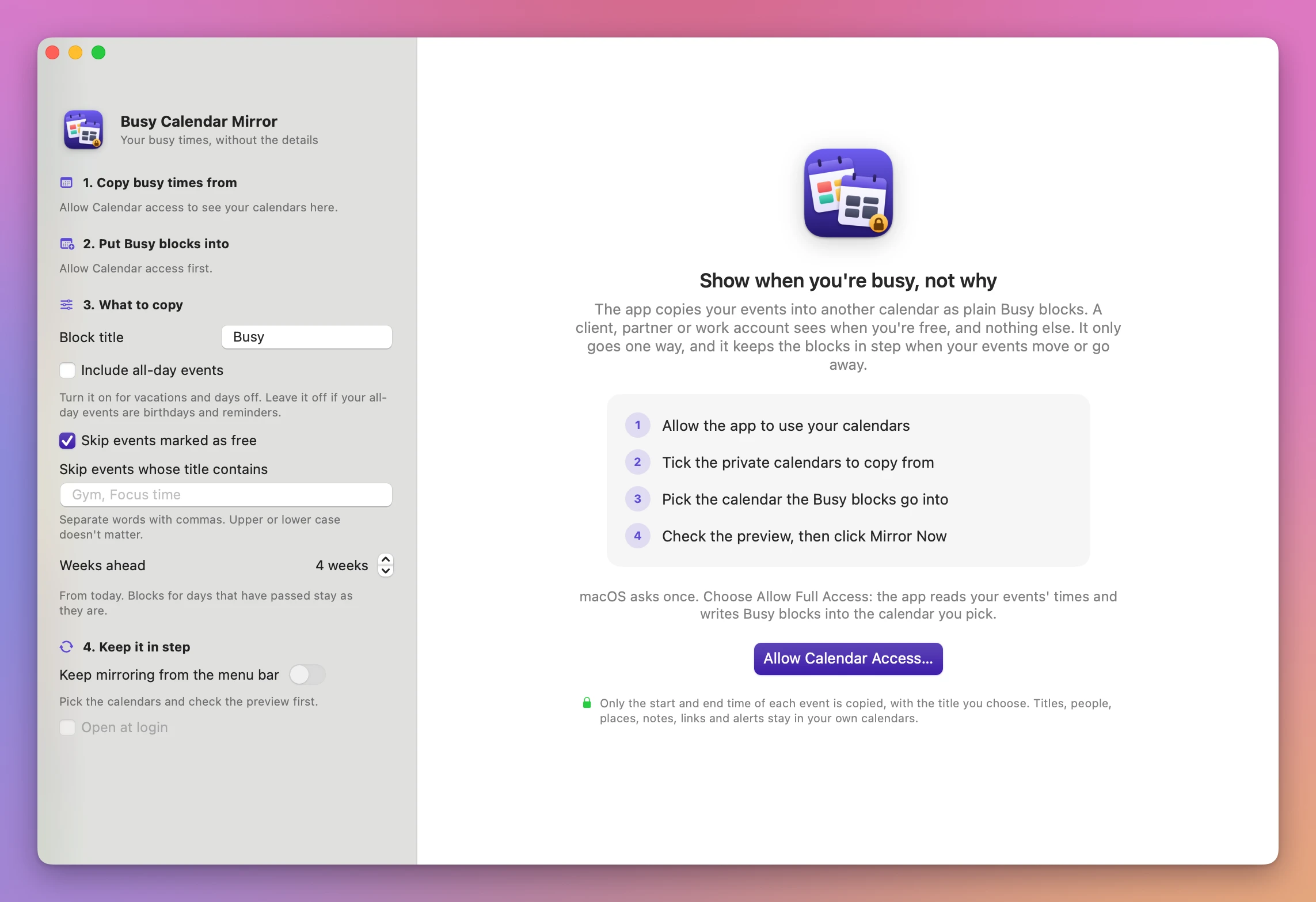
- Open the app and click Allow Calendar Access…, then choose Allow Full Access when macOS asks.
- Under 1. Copy busy times from, tick “Family (test)” and “Personal (test)”.
- Under 2. Put Busy blocks into, pick “Shared Busy (test)”. If you don’t have a calendar for this yet, Make a New “Busy” Calendar… makes one in the account you choose, and you share it from Calendar.
- Under 3. What to copy, leave the Block title as “Busy” and Include all-day events off, since this week’s all-day events are a birthday and a weekend away.
The preview found 13 blocks to add and skipped the two all-day events. After Mirror Now, every block in the shared calendar was titled “Busy”, with no location and no alerts, and the Team offsite was still there, unchanged.
What happens when my plans change?
Then the week changed, the way weeks do. The dentist moved from 10 AM to 2 PM, therapy on Sunday was deleted, Sunday’s school pickup moved half an hour later, and a haircut went in on Monday evening.
The preview listed exactly that: 2 to add, 1 to move, 2 to remove, 10 already mirrored. The event names are shown only to you, so you know which block is which.
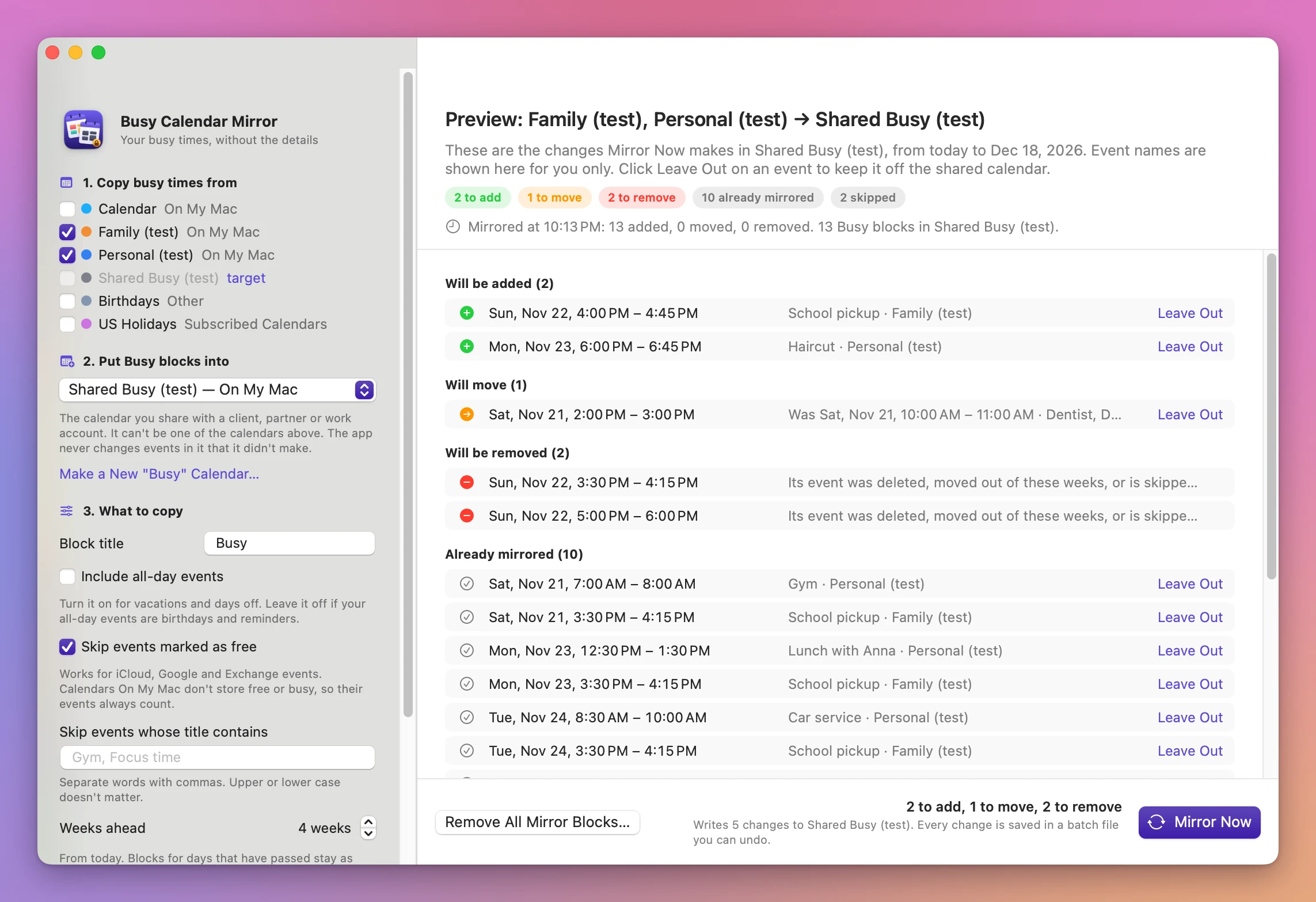
Here’s what the shared calendar showed before and after Mirror Now:
| Personal event | Shared calendar before | Shared calendar after |
|---|---|---|
| Dentist, moved to Sat 2:00 PM | Busy, Sat 10:00 AM | Busy, Sat 2:00 PM |
| Therapy, deleted | Busy, Sun 5:00 PM | Nothing |
| School pickup, moved to Sun 4:00 PM | Busy, Sun 3:30 PM | Busy, Sun 4:00 PM |
| Haircut, new on Mon 6:00 PM | Nothing | Busy, Mon 6:00 PM |
| Team offsite (made by someone else) | Thu 9:00 AM | Thu 9:00 AM, untouched |
If one event shouldn’t count, like a lunch you can move anytime, click Leave Out next to it. To skip a kind of event every time, type words like “gym” in Skip events whose title contains.
To stop clicking Mirror Now, turn on Keep mirroring from the menu bar. On the test Mac, a change in the personal calendar reached the shared one within seconds, with no click. The app also checks every 15 minutes, and keeps running in the menu bar when you close the window. It only works while your Mac is on and the app is running. A sync service like Reclaim or OneCal runs on its own servers around the clock, for a monthly fee, with access to your calendars.
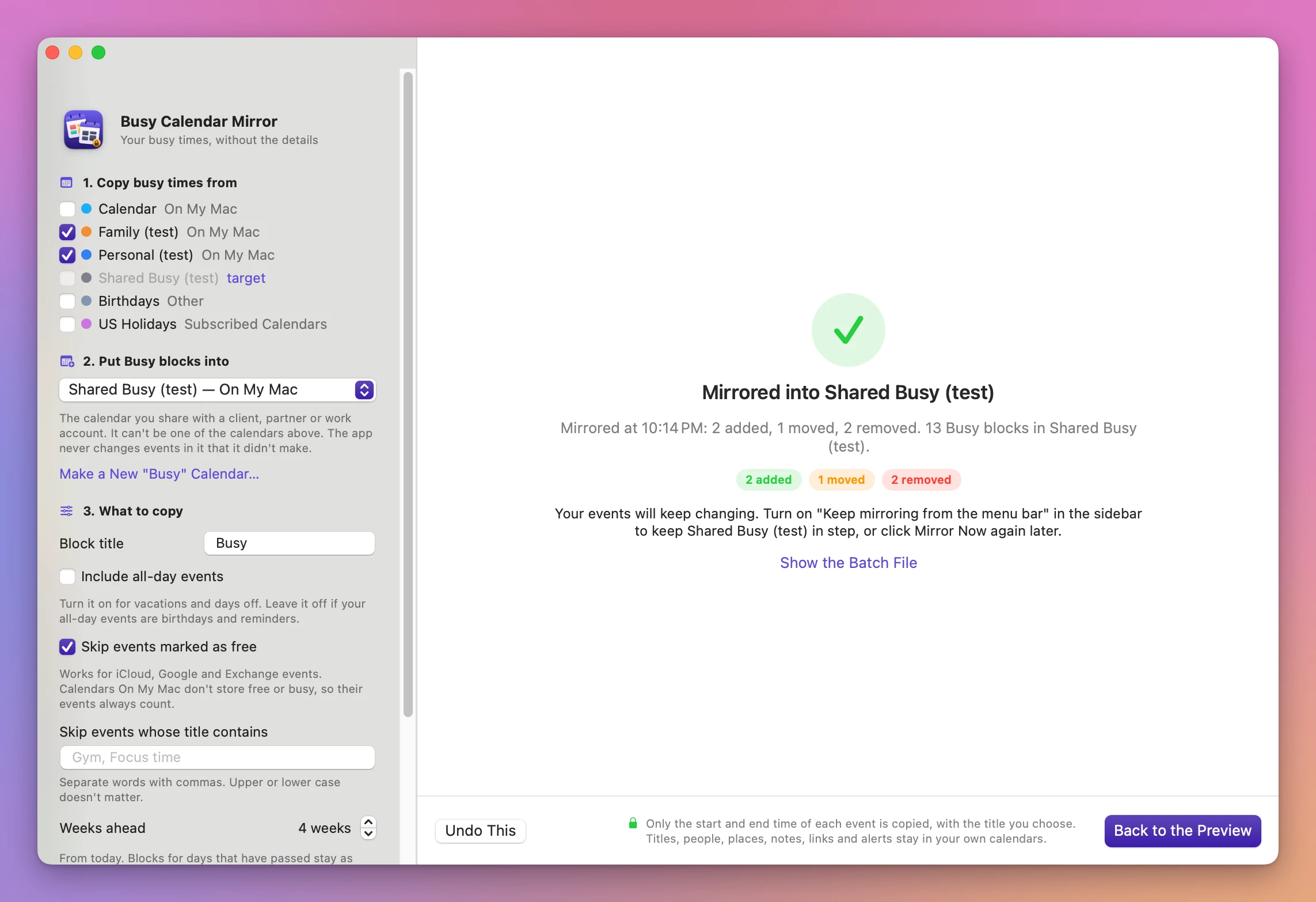
If something looks wrong, Undo This puts the shared calendar back, and Remove All Mirror Blocks… removes only the blocks the app made.
Which way should I use?
| By hand | Google free/busy sharing | Busy Calendar Mirror | |
|---|---|---|---|
| Works with iCloud and On My Mac calendars | Yes | No | Yes |
| What others see | What you type | Busy, no details | Busy, no details |
| An event moves | You move the copy | Follows | Follows on the next mirror |
| An event is deleted | You delete the copy | Follows | The block is removed |
| Pick which events count | Yes | No, the whole calendar | Skip words, all-day, free, Leave Out |
| Cost | Free | Free | $19 once |
The test used calendars stored on the Mac. A shared calendar in iCloud, Google or Exchange wasn’t tested, so how fast your colleagues see a new block depends on that account’s sync.
If you’d also like prep time around your meetings kept busy, here’s how to add buffer time between meetings. For your personal events, Busy Calendar Mirror puts the busy times where your colleagues can see them, and nothing else.
Get Busy Calendar Mirror
Copy the events of your private calendars into a shared calendar as plain Busy blocks, with no titles, people, places or notes, and keep them in step when your events move or go away.
See Busy Calendar Mirror → · Read the docs · $19. See the app page for tax details.
Want me to talk about your product? You can sponsor this site.