How to add buffer time between meetings in Calendar on a Mac
By Flavio
Calendar on the Mac has no buffer setting. You can block prep and wrap-up time by hand with your own events, or let an app add the blocks and move them when meetings move.
You want 15 minutes before each client session to get ready, and 10 minutes after to write your notes. Calendar shows that time as free, so a colleague or a booking page puts a call right up against your session.
Calendar on the Mac has no buffer setting. The way to keep that time is to put real events in it, marked busy, before and after each meeting. You can add them by hand, or let Meeting Buffer Blocks add them from a rule and keep them in step when your meetings move.
Does Calendar on the Mac have buffer time?
No. Calendar has no setting that adds time around an event. An event has a start and an end, and the minutes around it count as free.
Alerts don’t help here. An alert like “15 minutes before” reminds you on screen, but the time still shows as free to anyone who looks at your calendar, and to any booking page that reads it.
Google Calendar’s appointment schedules can add buffer time, but only to bookings made through Google’s own booking page, and only in Google Calendar. Normal events get nothing.
How do I add buffer time by hand?
Add an event before and after each meeting:
- Open Calendar in Day or Week view.
- Double-click the empty space just before the meeting, type a title like “Prep: Session – Maya Patel”, and drag the event’s edges so it ends when the meeting starts.
- Do the same after the meeting for your notes.
- Put these events in a calendar of their own, like “Buffers”, so you can hide them or give them their own color.
That’s two events per meeting. With ten sessions a week it’s twenty events, and the work isn’t done once they’re in. When a client moves a session, its prep block stays where it was. When a session is cancelled, both blocks stay behind. Two sessions ten minutes apart need you to decide how to split the gap.
How do I add buffer time automatically?
Meeting Buffer Blocks reads the calendars you pick, works out the blocks, shows them to you, and adds them to Calendar as busy events. It costs $19, paid once.
The example here is a made-up practice: client sessions in a “Clients” calendar, a supervision call in “Work”, and a school pickup in “Family”. The screenshots are from a test Mac with macOS 15.
- Open the app and click Allow Calendar Access, then choose Allow Full Access when macOS asks.
- In the sidebar, a first rule is already there. Name it, and in the Watch menu tick the “Clients” calendar.
- Leave Events on Every event in the calendar. You can also pick Events whose title contains… and type “session”, or Events with other attendees.
- Set Prep to 15 min before and Wrap-up to 10 min after. The Wrap title here is
Notes: {meeting}, so the block after a session is called “Notes: Session – Maya Patel”. - Click Preview Buffers.
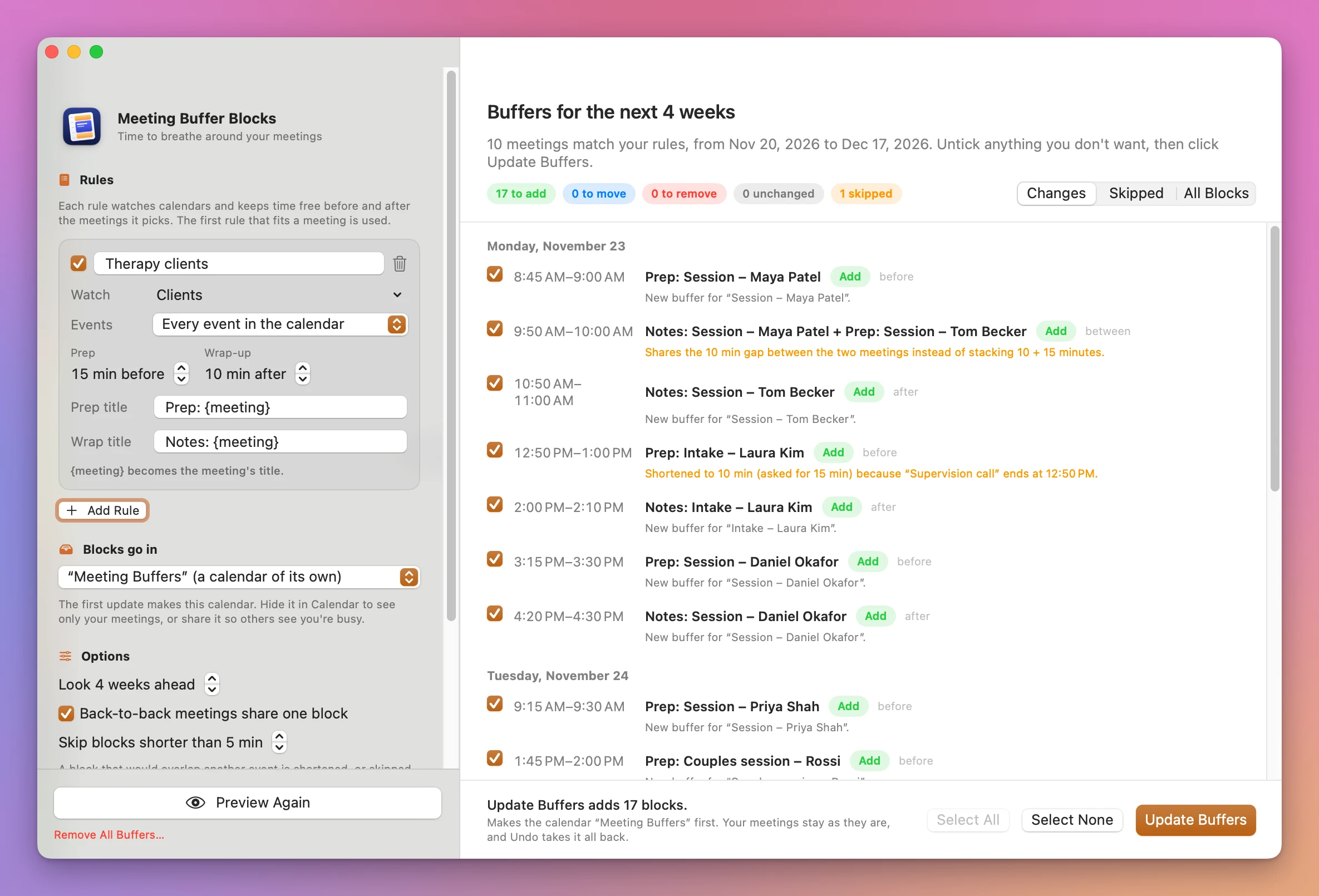
The preview found 10 sessions in the next 4 weeks and 17 blocks to add, each with a reason.
Three things in that list would take thought by hand:
- Maya Patel’s session ends at 9:50 and Tom Becker’s starts at 10:00. Instead of 10 minutes of notes plus 15 of prep, the gap became one block named after both.
- The supervision call in the “Work” calendar ends at 12:50, so Laura Kim’s prep is 10 minutes, not 15. The app checks every calendar, not only the one it watches.
- On Tuesday the team huddle starts the moment Priya Shah’s session ends, so her notes block was skipped and listed under Skipped.
Click Update Buffers. The first time, the app makes a calendar called “Meeting Buffers” and puts the 17 blocks there. Here’s Monday in Calendar after the update:
| Time | Before | After |
|---|---|---|
| 8:45–9:00 | Free | Prep: Session – Maya Patel |
| 9:00–9:50 | Session – Maya Patel | Session – Maya Patel |
| 9:50–10:00 | Free | Notes: Session – Maya Patel + Prep: Session – Tom Becker |
| 10:50–11:00 | Free | Notes: Session – Tom Becker |
| 12:50–1:00 | Free | Prep: Intake – Laura Kim (10 min) |
| 2:00–2:10 | Free | Notes: Intake – Laura Kim |
| 3:15–3:30 | Free | Prep: Session – Daniel Okafor |
| 4:20–4:30 | Free | Notes: Session – Daniel Okafor |
The sessions themselves didn’t change. The app never edits a meeting and never sends an invitation.
What happens when a meeting moves?
Click Preview Buffers again and the preview lists the blocks to move or remove, with the reason. Here, Maya Patel’s afternoon session was moved to 9:00, right before Tom Becker’s: her prep block moved, and her old notes block and Tom’s prep were replaced by one shared block.
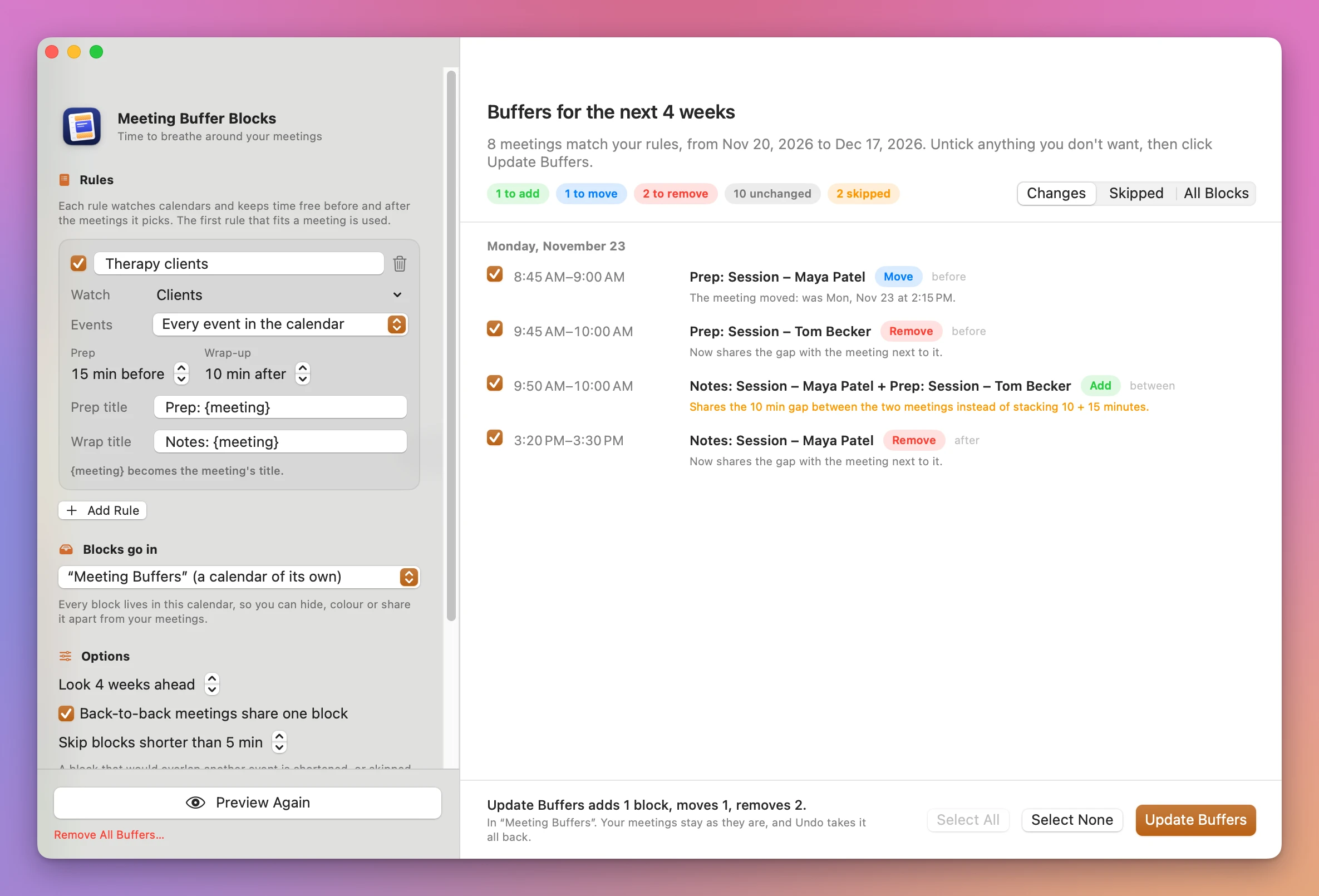
To skip the preview, turn on Update buffers automatically under Keep updating. When a session was moved in Calendar on the test Mac, the blocks followed within seconds. Close the window and the app stays in the menu bar and keeps doing it, as long as it’s running.
If you change your mind, Undo This Update puts the last update back, and Remove All Buffers… removes only the blocks the app made.
| By hand in Calendar | Meeting Buffer Blocks | |
|---|---|---|
| Ten sessions a week | Twenty events to add | One rule, then Update Buffers |
| A session moves | Move both blocks yourself | Shown in the preview, or moved on its own |
| A session is cancelled | Delete both blocks yourself | Removed |
| Sessions close together | You split the gap | One shared block |
| An event in another calendar | You have to notice | Block shortened or skipped, with the reason |
The test used calendars stored on the Mac. iCloud, Google and Exchange calendars weren’t tested.
If you also offer free times by email, you can leave room around your meetings in that list too. For the blocks themselves, Meeting Buffer Blocks keeps them where your meetings are.
Get Meeting Buffer Blocks
Add prep time before and wrap-up time after the meetings you choose, as busy blocks in Calendar so nobody books over them, and keep them in step when a meeting moves or is cancelled.
See Meeting Buffer Blocks → · Read the docs · $19. See the app page for tax details.
Want me to talk about your product? You can sponsor this site.