How to check that TikTok, Reels and Shorts buttons don't cover your text
By Flavio
The like and share buttons and the caption sit on top of a vertical video, and they can hide a title or a call to action. Here's how to check a video before you post it, by hand and with Vertical Video Safe Zones on a Mac.
You made a vertical video with text on it: a title, captions, a “LINK IN BIO” at the end. Once it’s posted, the app draws its own things on top. A column of buttons on the right, the account name and caption at the bottom, a bar of tabs at the top. Anything of yours that sits there is hard or impossible to read.
The short answer: before you post, look at every moment with text against where each app puts its interface. You can do it on your phone, frame by frame in your editor, or with Vertical Video Safe Zones, a Mac app that does the looking for you.
Where do the buttons and captions go?
Every app is a little different, and they change with updates and from phone to phone. The shape is always the same, though:
- a top bar with tabs or search;
- a column of buttons on the right: like, comment, share, and the profile picture;
- the caption and name at the bottom left, with the sound;
- a navigation bar at the very bottom.
The platforms publish safe-zone guidance, mostly for ads. Meta’s guidance for Reels ads, for example, says to keep text and logos out of the top 14%, the bottom 35% and 6% on each side. On a 1080 × 1920 video that leaves the middle of the frame, and not much else.
The free way: watch it where it will play
The most honest check is the app itself. Export the video, put it on your phone, start a new post in the app, and play it in the preview before you publish. Watch the whole video and stop wherever text appears. Then do the same in the next app, because TikTok, Instagram and YouTube put their buttons at different heights.
The other free way is in your editor. Download a safe-zone template (a picture with the interface areas marked), put it on a track above your video, and scrub through every second with text on screen.
Both work. Both take as long as the video, times the number of platforms, and you need sharp eyes for the half second where a title slides under a button. Neither gives you anything to send a client except a screenshot.
The quicker way: Vertical Video Safe Zones
Vertical Video Safe Zones plays the video on your Mac under grey blocks where each app’s interface sits, and finds the text under them. It costs $19, paid once. The screenshots here come from a test Mac running macOS 15, with a made-up video.
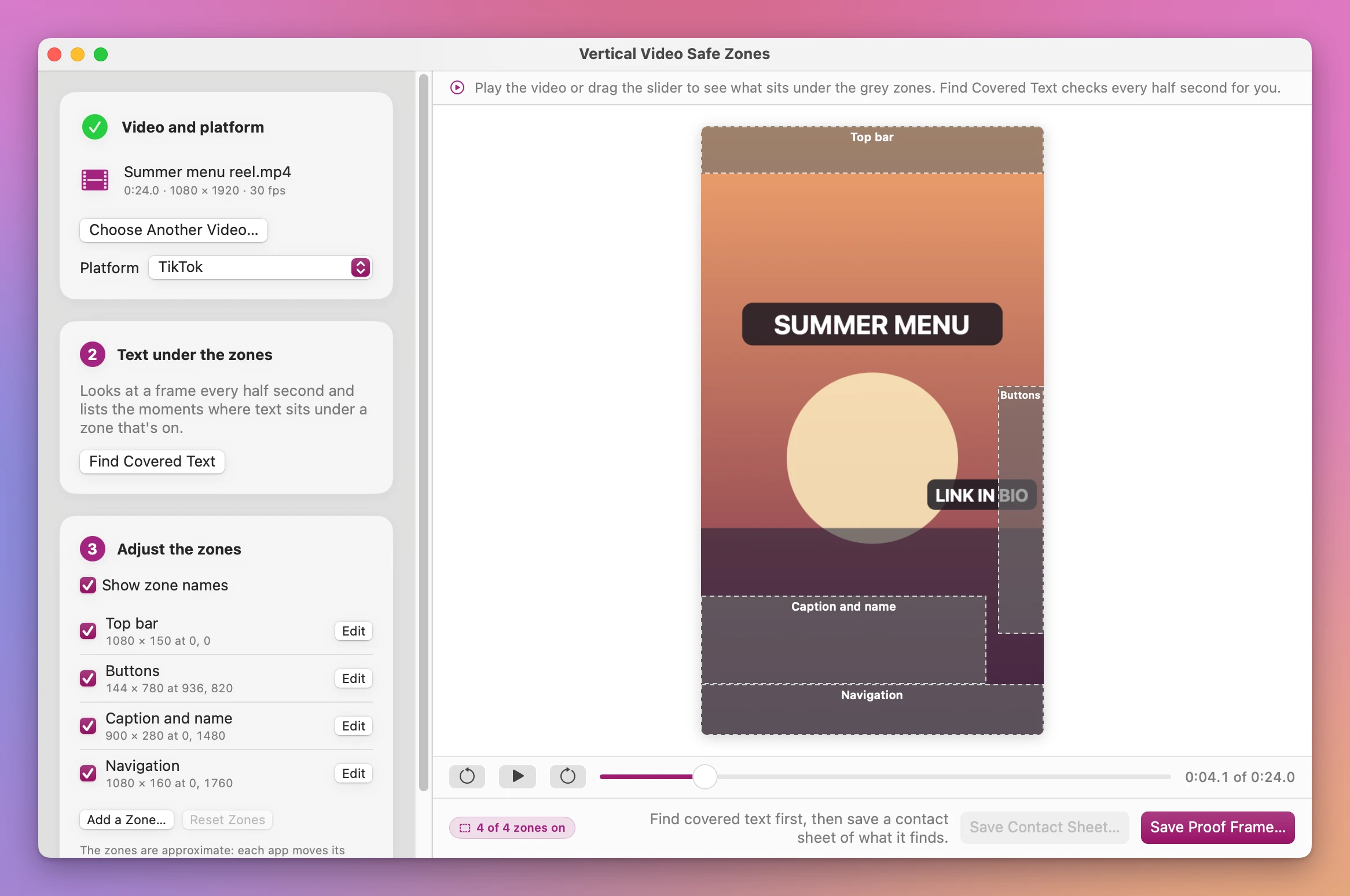
1. Open the video and pick the platform
Click Choose a Vertical Video…, or drag the video onto the window. Then pick the Platform: TikTok, Instagram Reels, YouTube Shorts or Facebook Reels.
Four grey blocks appear over the video: Top bar, Buttons, Caption and name and Navigation. Drag the slider or press Space to play. Here, at 0:04.1, “LINK IN BIO” runs right under the buttons.
2. Find the covered text
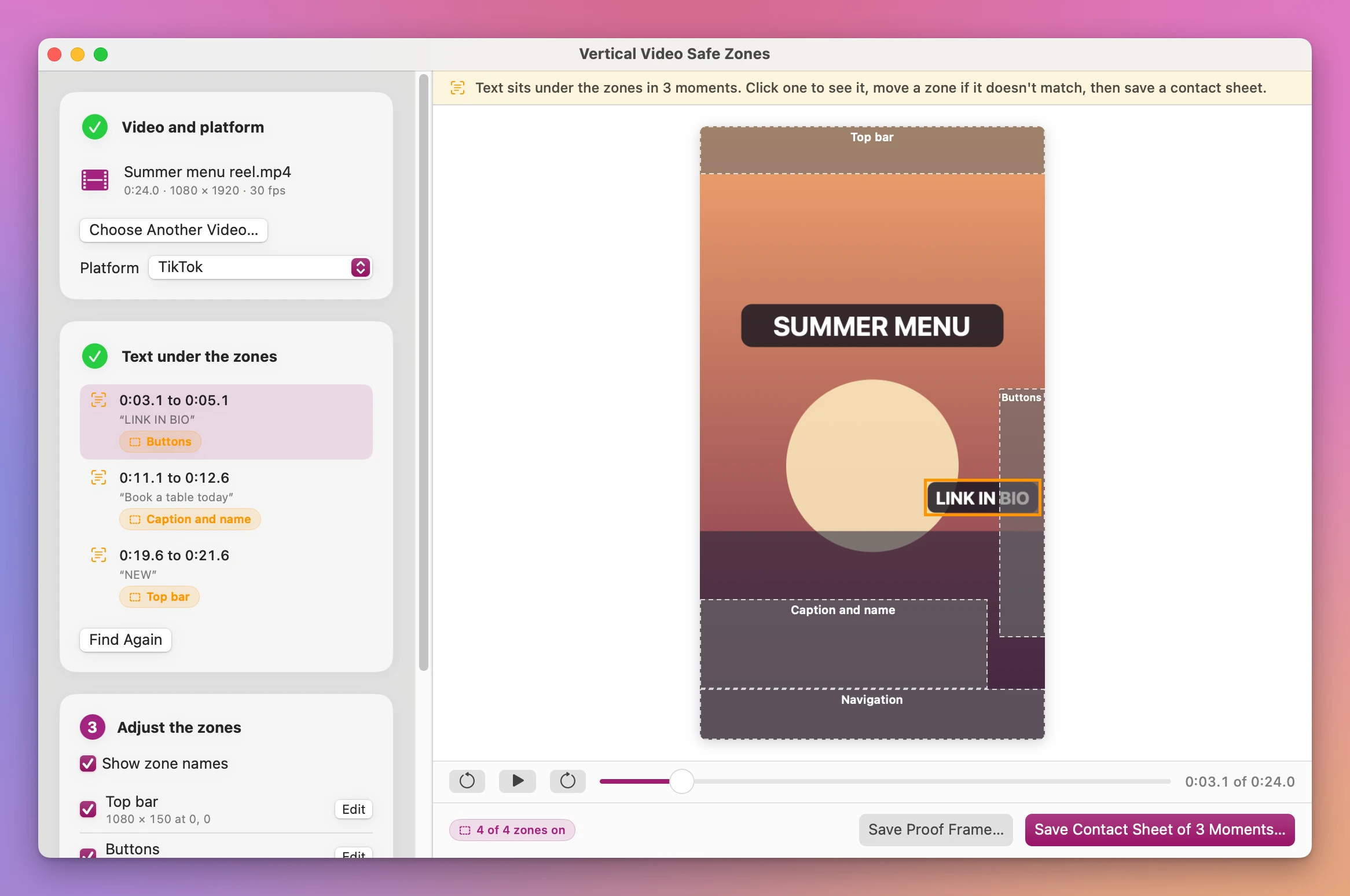
Click Find Covered Text. The app reads a frame every half second, finds the text in it, and lists every moment where text sits under a block. In this 24-second video it found three: “LINK IN BIO” under the buttons, “Book a table today” under the caption, and “NEW” under the top bar.
Click a moment and the video jumps there, with an orange box around the covered text.
It reads text, so a logo or very stylized lettering isn’t checked. Give the video one play-through too.
3. Match the zones to your phone
The blocks are approximate. If your phone shows the buttons a bit higher, drag the block on the video, or click Edit next to it and type the position in pixels of a 1080 × 1920 frame. Typing 880 in Left and 200 in Width made the Buttons block wider. Add a Zone… marks something of your own, like a poll sticker.
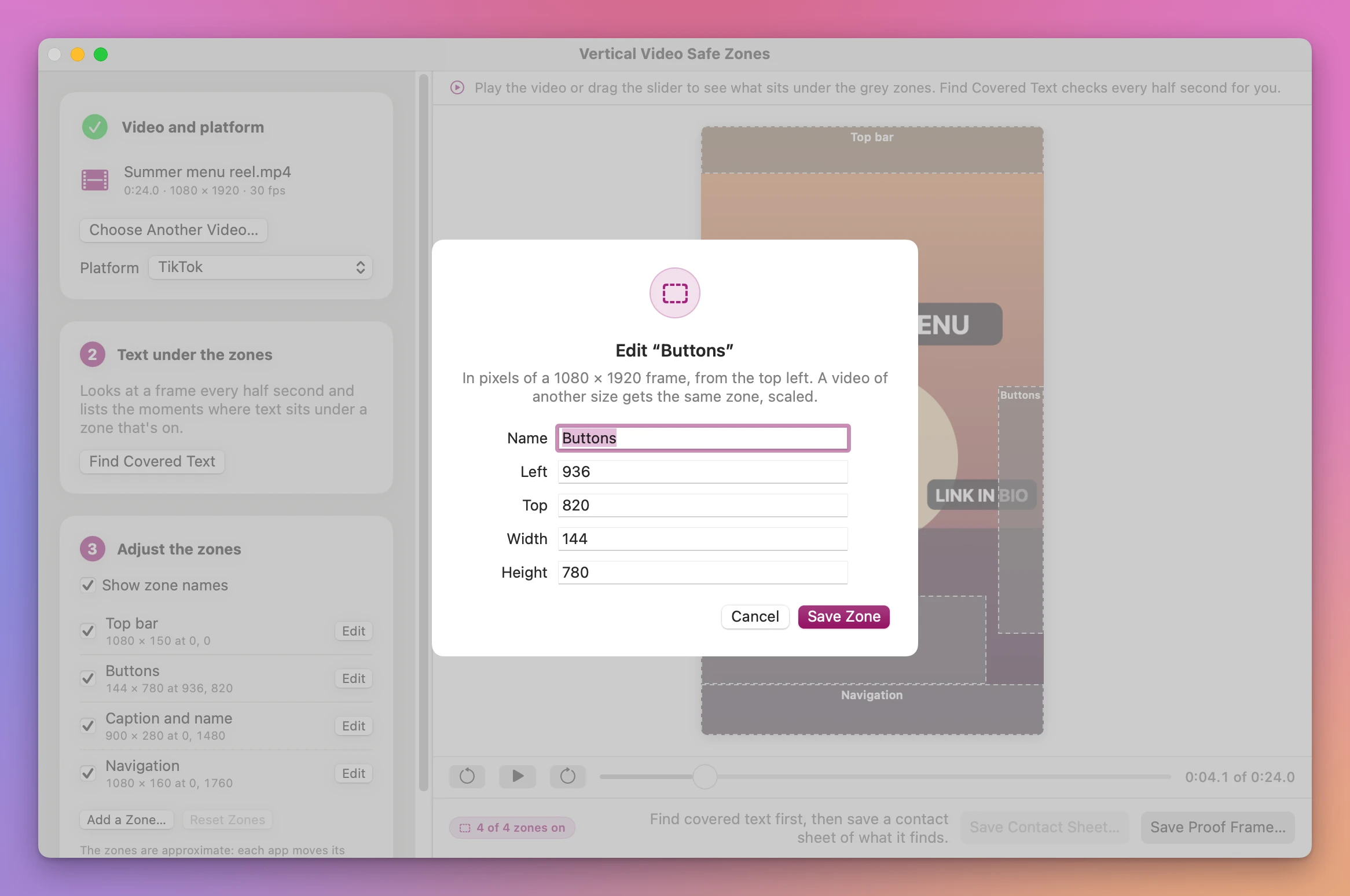
After a change, the list is cleared and the hint asks you to click Find Again, so the moments always match the blocks you see.
4. Save a contact sheet
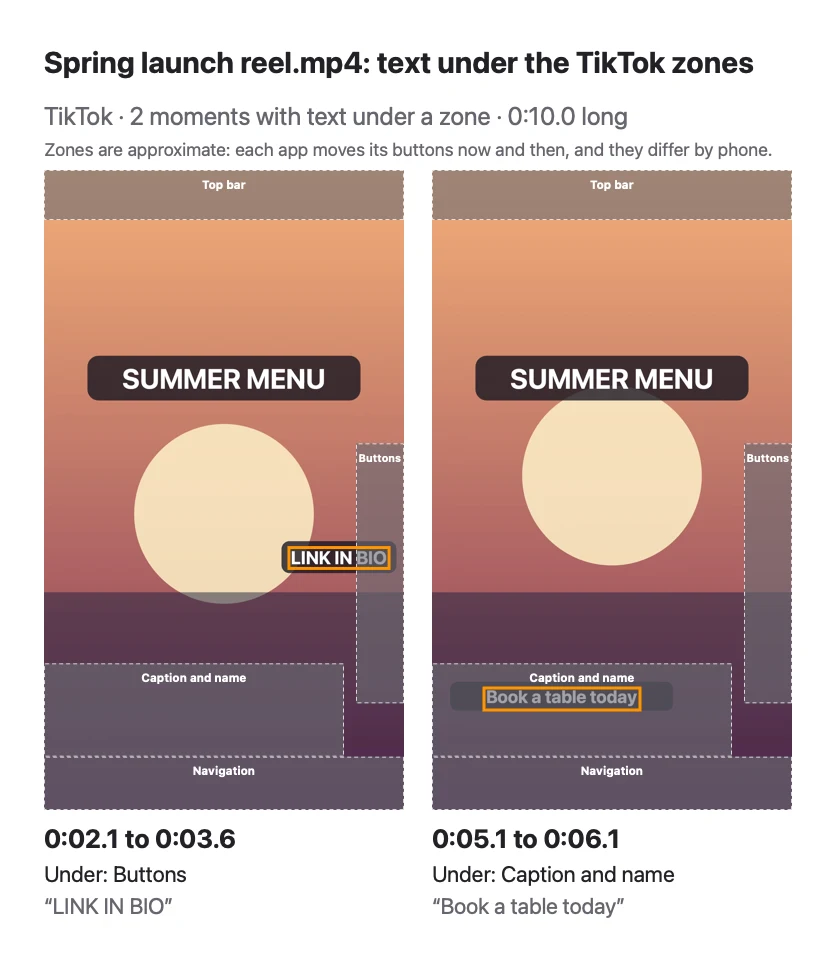
Fix the edit, export again and check the new video. When you want to show the client, click Save Contact Sheet…. You get one PNG with every covered moment side by side, its time, the block and the words. Save Proof Frame… saves the frame on screen instead.
Which way to use
| Draft on your phone | Template in your editor | Vertical Video Safe Zones | |
|---|---|---|---|
| Cost | Free | Free | $19 once |
| How long it takes | The video’s length, per platform | The video’s length, per platform | A few seconds for a short video |
| Exact for your phone | Yes | No | No, but you can adjust it |
| Lists every covered moment | No | No | Yes, with the words |
| Something to send a client | A screenshot | An exported frame | A contact sheet or proof frame |
The phone is still the final word for one platform. For a video that goes to three, or a client who wants proof, checking on the Mac first saves the round trips.
Vertical Video Safe Zones isn’t made by, affiliated with or endorsed by TikTok, ByteDance, Meta, Instagram, Facebook, Google or YouTube.
Get Vertical Video Safe Zones
Play a vertical video under grey blocks where TikTok, Instagram Reels, YouTube Shorts and Facebook Reels put their buttons, caption and top bar. Find every moment where your text sits under them, adjust the zones to match your phone, and save a proof frame or a contact sheet to send to a client.
See Vertical Video Safe Zones → · Read the docs · $19. See the app page for tax details.
Want me to talk about your product? You can sponsor this site.