Watch which coding agent is using your Mac test VM
By Flavio
Updated
See the screen of the headless test VM, which chat is running which testvm command, and when two agents are clicking in the same VM, with VM Peek and the testvm log.
When coding agents test Mac apps in a headless VM, nothing shows up on your screen, which is the point. It also means you can’t see what they’re doing in there, which chat is driving it, or whether a second chat started clicking in the same VM.
VM Peek is the window on that VM. It reads the log that testvm writes for every command, so it can tell you which agent ran what, and it shows the VM’s screen next to it.
How to let coding agents test Mac apps in a VM covers the setup: Tart, the VM and the testvm command. For the setup commands, see Set up a macOS test VM for your Mac app builds. Here we start once the VM exists.
What testvm logs
Every agent drives the VM through testvm. It opens a build, takes screenshots, reads the controls and clicks:
testvm note 'Checking the new watering reminders'
testvm open 'dist/Pocket Plants.app'
testvm ui 'Pocket Plants'
testvm click 812 494
testvm shot 'Pocket Plants'
open copies the build into the VM, quits the copy already running and waits for a window. ui lists the app’s controls with their click coordinates, and shot prints the path of the screenshot, like /tmp/testvm/Pocket-Plants-021958.png.
Each of those commands writes a line to ~/Library/Logs/testvm/activity.jsonl when it starts and another when it ends. What it printed goes to runs/<id>.txt in the same folder. Here’s the pair testvm status wrote when I ran it from a Claude Code chat:
testvm statusrunning at 192.168.64.3{"v":1,"event":"start","id":"20261107-134516-531","time":1794055516.181,"pid":531,"command":"status","args":[],"cwd":"/private/tmp/claude-501/skill-cabinet","agent":"claude","session":"claude","target":"vm"}
{"v":1,"event":"end","id":"20261107-134516-531","time":1794055516.281,"status":0,"last":"running at 192.168.64.3"}agent and session are how VM Peek tells chats apart. testvm works them out on its own, in this order:
| Agent | How testvm recognizes it | Session |
|---|---|---|
| Cursor | CURSOR_CONVERSATION_ID in the environment | The chat ID |
| Codex | CODEX_THREAD_ID in the environment | The thread ID |
| Claude Code, Codex, Cursor CLI, OpenCode, Amp, Gemini | A claude, codex, cursor-agent, opencode, amp or gemini process up the process tree | The name and the PID of that process |
| Claude Code, Cursor | CLAUDECODE or CURSOR_AGENT in the environment | The agent name, plus the terminal if there is one |
| Anyone else | Nothing of the above | terminal |
The lines above came from the fourth row, even though they ran in a Claude Code chat. The last section explains why.
testvm note writes a line too. The agent skill that comes with testvm, in skills/mac-test-vm of the source, tells every agent to start with a note, and VM Peek shows it next to the chat.
The Live view
Open VM Peek and select Live in the sidebar. The top shows whether the VM is running and its address, then the VM’s screen, refreshed every 2 seconds while the window is visible. It comes over the same SSH connection testvm uses. The pause button in the toolbar, or View → Refresh the VM Screen (⌘L), stops the refresh.
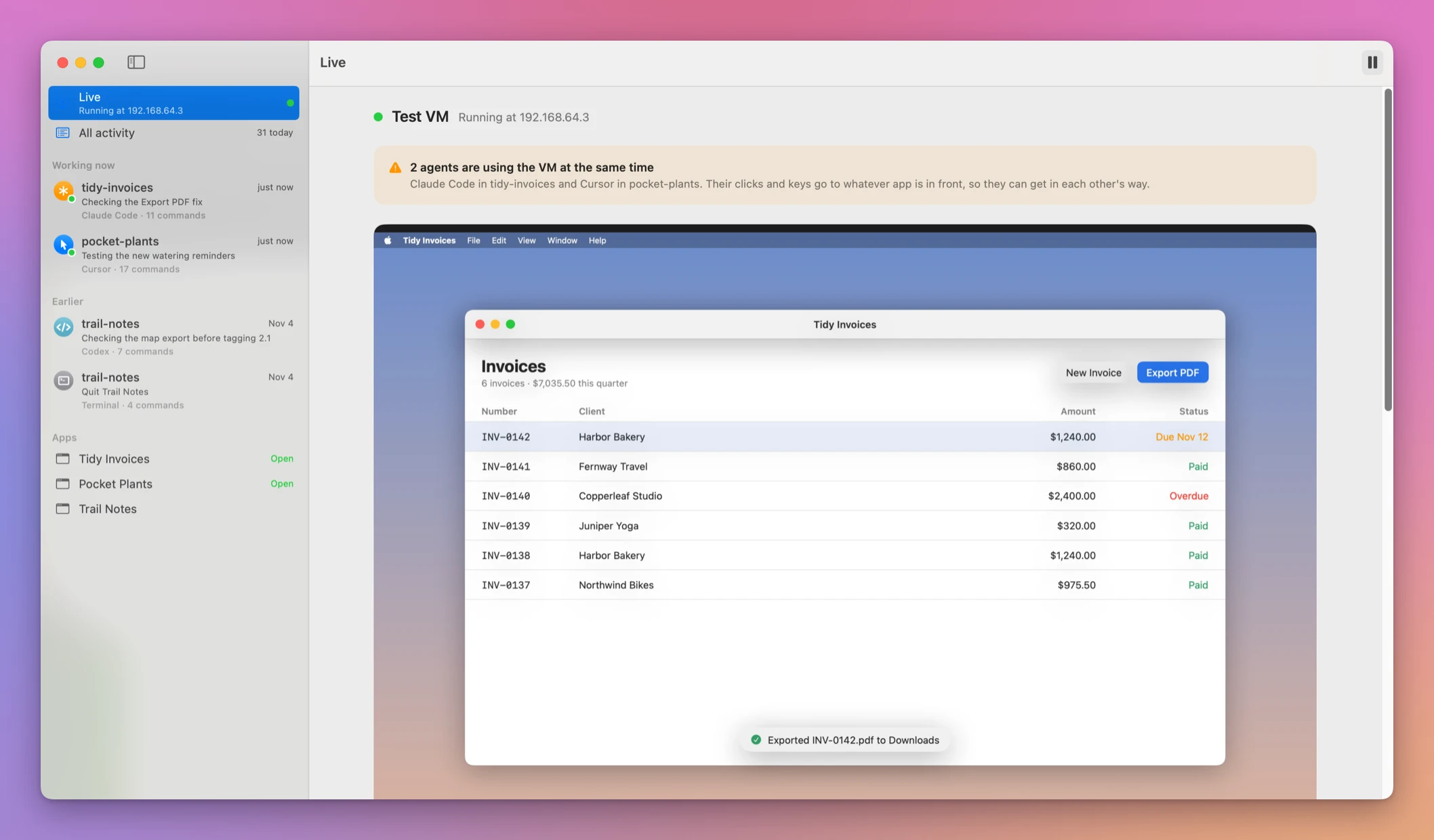
The agents, chats and apps in the screenshots are made up. Under Working now, the sidebar lists the chats that ran a command in the last 3 minutes, each with its note, its agent and how many commands it ran. Older chats move to Earlier.
The orange banner shows up when two chats are running a command, or ran one in the last 90 seconds. Clicks and keys go to whatever app is in front, so the Cursor chat testing Pocket Plants can click in Tidy Invoices, and a screenshot can catch the other agent’s app. VM Peek doesn’t lock the screen or queue anything. Stop one of the two chats, and have it run its check again after the other one finishes.
A chat’s timeline
Click a chat in the sidebar for everything it ran, newest first:
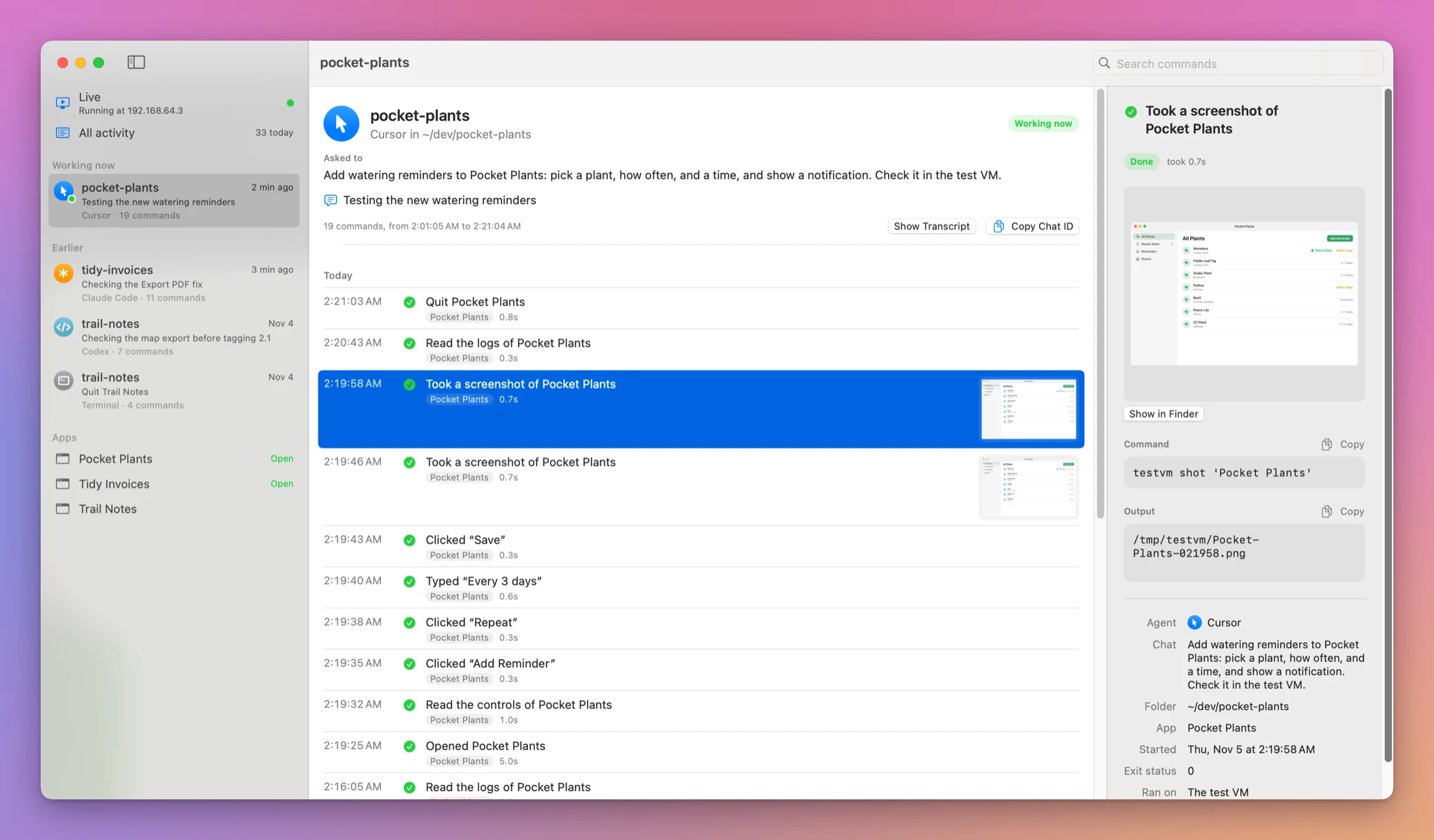
At the top is the prompt that started the chat, under Asked to. VM Peek finds the chat in that agent’s own transcripts and reads its first message. Below it is the note.
Each command reads as a sentence. A click names the control it hit, like Clicked “Add Reminder”, even though the agent clicked by coordinates: VM Peek looks up the point in the controls the agent read with testvm ui just before.
Select a command for its screenshot, the exact command line, what it printed, the exit status and who ran it. Search commands at the top right finds older ones.
When the agent says it’s done, check two things in its timeline:
- The last Opened before the screenshots. That’s the build the screenshots show.
- Any command without a green check. A failed
testvm clickbefore the screenshot means the app never got the click.
The Apps section of the sidebar gives each app its own timeline, across chats, which is how you find out which chat put the build that’s running now into the VM.
If something looks wrong
If the Live view has no screen, run testvm status. It prints running at <address> or stopped. The commands that need the VM, like open or shot, start it when it’s stopped.
If All activity is empty while agents are testing, they’re not going through testvm, or they’re writing to another log. VM Peek reads ~/Library/Logs/testvm/activity.jsonl. View → Show Activity Log in Finder opens it, and View → Reload (⌘R) reads it again from the start.
If Claude Code chats all show up as one session called claude, it’s the fourth row of the table. In testvm 1.1.1 the process-tree check reads the first word of each command line, and the Claude desktop app runs Claude Code from ~/Library/Application Support/Claude/claude-code/…/claude, a path with a space in it. The check sees Application instead of claude, so every chat from the desktop app falls back to CLAUDECODE and the same session. Claude Code started from a terminal, as claude, gets its own session per chat.
The log keeps prompts, command output and screenshot paths. When it grows past 20 MB, testvm renames it to activity.1.jsonl and deletes run outputs older than 30 days.
Get VM Peek
Watch your Mac test VM and control it with coding agents. Includes VM Peek, the testvm CLI and agent skill, and full source code.
See VM Peek → · Read the docs · $20 including tax, with full source code.
Want me to talk about your product? You can sponsor this site.