Why are my WhatsApp photos on the wrong date in Photos?
By Flavio
Photos saved from WhatsApp often land on the day you saved them, because there's no date taken inside. The right day is in the file name. Here's how to read it, how to fix the photos in Photos by hand, and how to fix them all at once.
You saved the photos a cousin sent on WhatsApp over the last year, imported them into Photos, and they all sit on one day: the day you saved them.
When a photo has no “date taken” inside the file, Photos files it by the file’s own date, and for a saved photo that’s the day it was saved. The real day is usually right there in the name: IMG-20230514-WA0007.jpg is May 14, 2023. You can retype it in Photos one day at a time, or let Photo Date Fixer write it into the files before you import them.
The photos here are drawings made for this tutorial, with WhatsApp-style names and a file date of February 10, 2024 at 10:00 AM. The screenshots are from macOS 15 Sequoia.
How do I read the date in the name?
There are two common shapes:
IMG-20230514-WA0007.jpg: the day is20230514, year, month, day.WA0007is a counter, not a time. There’s no time in the name at all.WhatsApp Image 2023-07-22 at 19.45.10.jpeg: the day and the time, 7:45:10 PM.
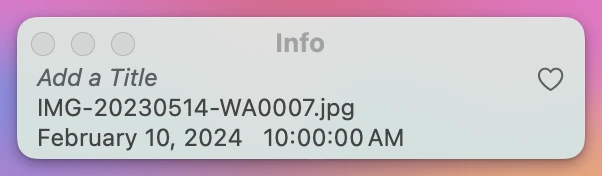
Photos ignores the name. Here’s one of four photos imported as they were:
| Name | Day in the name | Where Photos put it | After fixing the file |
|---|---|---|---|
IMG-20230514-WA0007.jpg | May 14, 2023 | February 10, 2024 | May 14, 2023, 12:00:07 PM |
IMG-20230514-WA0008.jpg | May 14, 2023 | February 10, 2024 | May 14, 2023, 12:00:08 PM |
IMG-20230612-WA0002.jpg | June 12, 2023 | February 10, 2024 | June 12, 2023, 12:00:02 PM |
WhatsApp Image 2023-07-22 at 19.45.10.jpeg | July 22, 2023, 7:45:10 PM | February 10, 2024 | July 22, 2023, 7:45:10 PM |
How do I fix them in Photos?
With Image › Adjust Date and Time…, one day at a time:
- Select the photos of one day. Command-I opens the Info window, which shows the name of the selected photo.
- Choose Image › Adjust Date and Time….
- Type the day from the name in Adjusted and click Adjust.
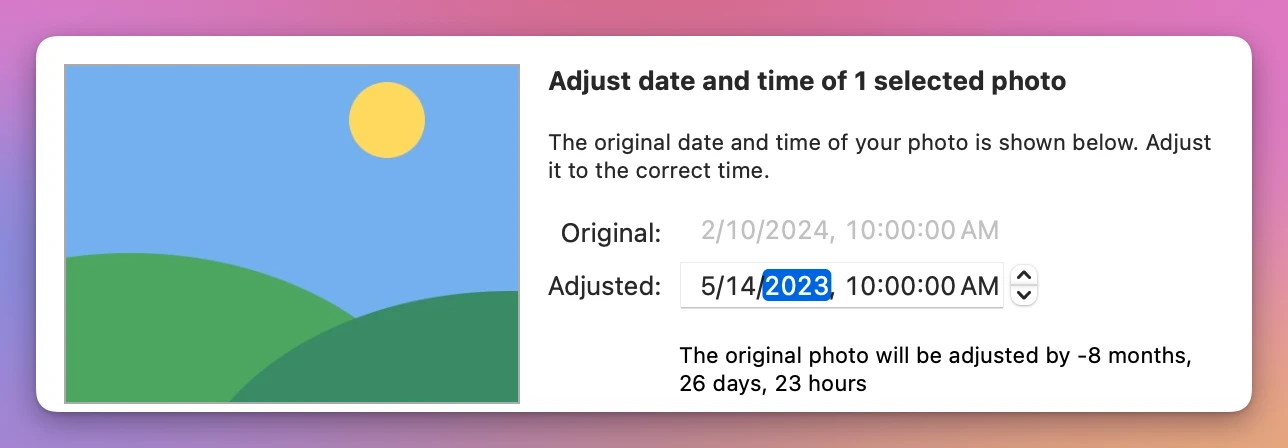
Photos moves all the selected photos by the same amount, so only select photos that had the same wrong date and belong on the same day. Here the four photos took four rounds, one per photo, and selecting the two May 14 photos together would have saved one. The time stays the one from the file, 10:00 AM, so the two photos of May 14 ended up on the same second, and the July photo lost its 7:45 PM.
It’s fine for a handful. For a year of saved photos it’s one round per day, reading each name yourself, and it only changes Photos: the files in the Finder keep the day you saved them.
Fix them all at once
Photo Date Fixer is a Mac app I made that reads the date in each file’s name and writes it into the photo and onto the file. It costs $19, paid once. It isn’t made by, affiliated with or endorsed by Apple, WhatsApp or Meta.
Click Choose Photos… and pick the photos, or a whole folder. Photos with a date in their name get it straight away:
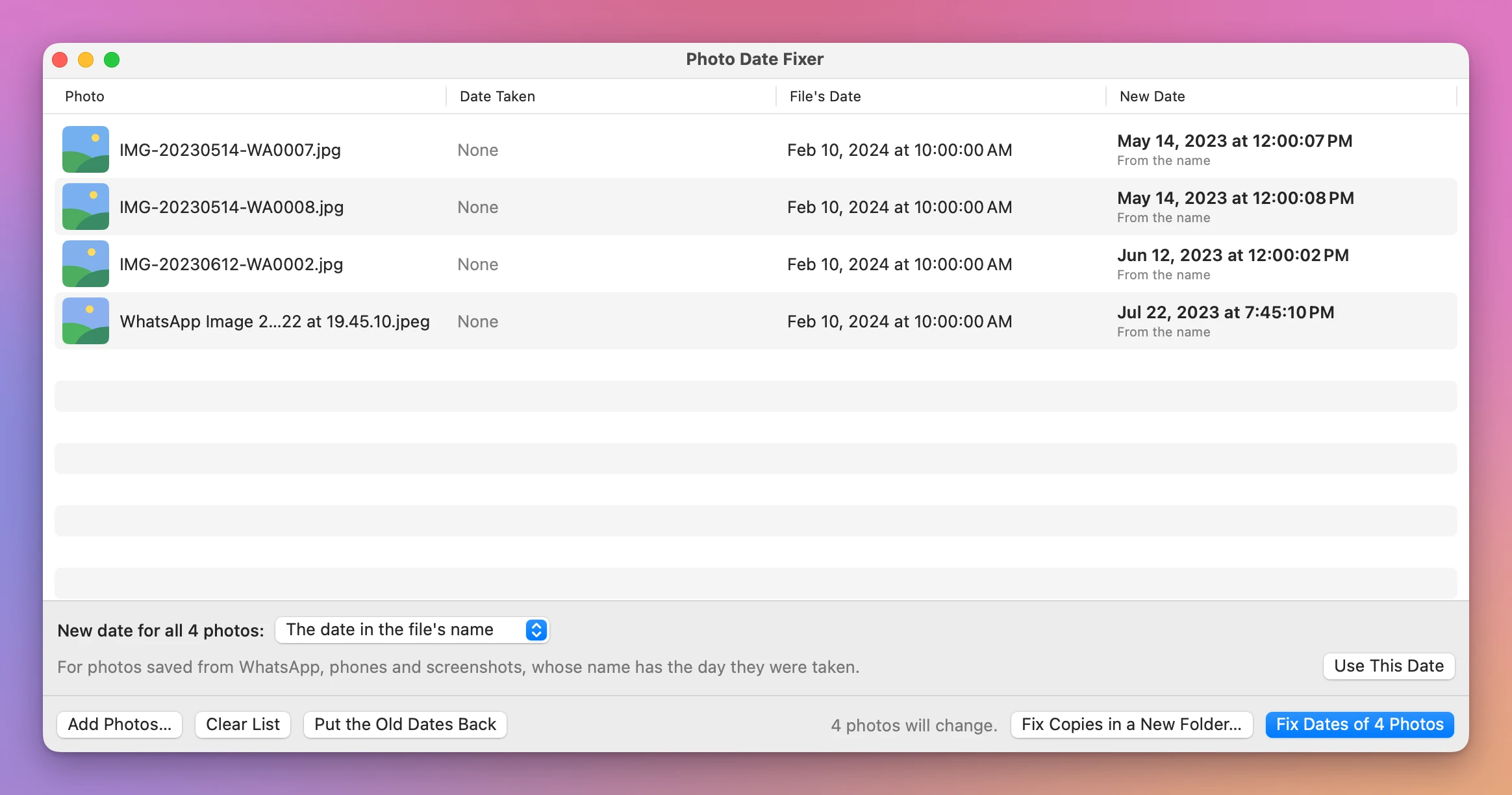
A name like IMG-20230514-WA0007.jpg has no time, so the app sets noon plus the counter in seconds: WA0007 is 12:00:07 PM and WA0008 is 12:00:08 PM. The photos of one day keep their order. A name with a time, like WhatsApp Image … at 19.45.10, keeps that time.
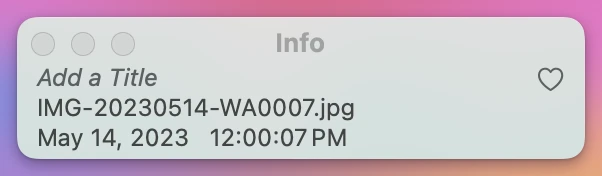
Click Fix Dates of 4 Photos, then Fix Dates in the confirmation. Nothing changes before that click. Imported into Photos again, the four landed on May 14, June 12 and July 22, 2023, as in the table:
A few things to know:
- Fix the files before you import them. The app never changes your Photos library. If the photos are already in Photos, either use Adjust Date and Time there or export them, fix the files and import them again.
- On the test Mac, Photos recognized the fixed files as photos it already had and listed them under Already Imported. Delete the old copies in Photos first.
- WhatsApp videos (
VID-…mp4) get the date on the file only, and the row says so. Photos files a video by the date saved inside it when it has one, which the app doesn’t change, so a video can still land on another day in Photos. - The Finder’s Date Added becomes the time of the fix, because each photo is written as a new file in place of the old one. Date Created and Date Modified get the date from the name.
Put the Old Dates Back undoes the last fix. For scans, which have no date in the name at all, the tutorial on scanned photos shows how to type one. If the photos came with a chat you want to keep, the tutorial on saving a WhatsApp chat as a PDF covers that.
Get Photo Date Fixer
Give scans, photos saved from WhatsApp and photos from a camera with the wrong clock their real date, inside the photo and on the file, so they sort on the right day in Photos and in the Finder. The picture is never re-compressed, and one click puts the old dates back.
See Photo Date Fixer → · Read the docs · $19. See the app page for tax details.
Want me to talk about your product? You can sponsor this site.