Find where each coding agent loads skills from on your Mac
By Flavio
Updated
See which folders Claude Code, Codex, Cursor and the other agents on your Mac read for skills, then list the gaps with skillscout.
To check which installed skills you actually use, see Find agent skills you never use and remove them safely.
A skill is on your Mac, and one agent uses it while another says it isn’t there. You want the folder each agent actually loads, not a guess from a blog post about a different tool.
A skill is a folder with a SKILL.md file. It teaches an agent one task. Writing that file is How to write an Agent Skill. Linking one folder so several agents share it is Share one agent skill between Claude Code, Codex and Cursor. This walkthrough stops at the locations. You’ll know which of the eight agents reads which folder, and you’ll have listed the skills on disk.
Skill Cabinet is the Mac app that already knows those folders. It groups copies of one skill under one name, and each row shows the agents that load it.
What you need
Skill Cabinet runs on macOS 14 Sonoma or later, on Apple silicon and on Intel. The current build runs on Sonoma as well as later releases.
After purchasing, download the app zip from your Polar receipt, unzip it, and drag Skill Cabinet to Applications. It’s signed with an Apple Developer ID and notarized. Confirm Open at the normal first-launch prompt.
You need at least one of the agents it knows, installed on this Mac: Cursor, Claude Code, Codex, Gemini CLI, OpenCode, Droid, Pi and Amp. The app scans the skill folders and the chat histories of the agents it finds. If an agent isn’t installed, it isn’t in the scan. You don’t need an account for the scan. Skill Cabinet reads skills and chats on your Mac. Chats leave the Mac only when you use the AI features, through your own Codex or Claude Code account. This walkthrough doesn’t use those features.
Install the command from Skill Cabinet → Install Command Line Tool…. The docs’ read-only commands are list, show, usage and similar. skillscout help lists the commands that change or remove skills. We won’t run those here.
The preflight check is the search field. Press ⌘F, or use Find. If the field doesn’t take focus, the window isn’t the one the shortcut is bound to.
See which agents read which folder
Eight agents don’t share one directory. Six of them share ~/.agents/skills. Those six are the ones that aren’t limited to a private folder: Cursor, Codex, Gemini CLI, OpenCode, Droid and Pi. Cursor and OpenCode also load ~/.claude/skills. Claude Code and Amp only read their own folder. Claude Code’s folder is ~/.claude/skills. The page doesn’t name Amp’s folder. Read it from the skill’s row instead of inventing a path.
Select any skill in Skill Cabinet and Available in lists every agent, with the folder that agent loads the skill from:
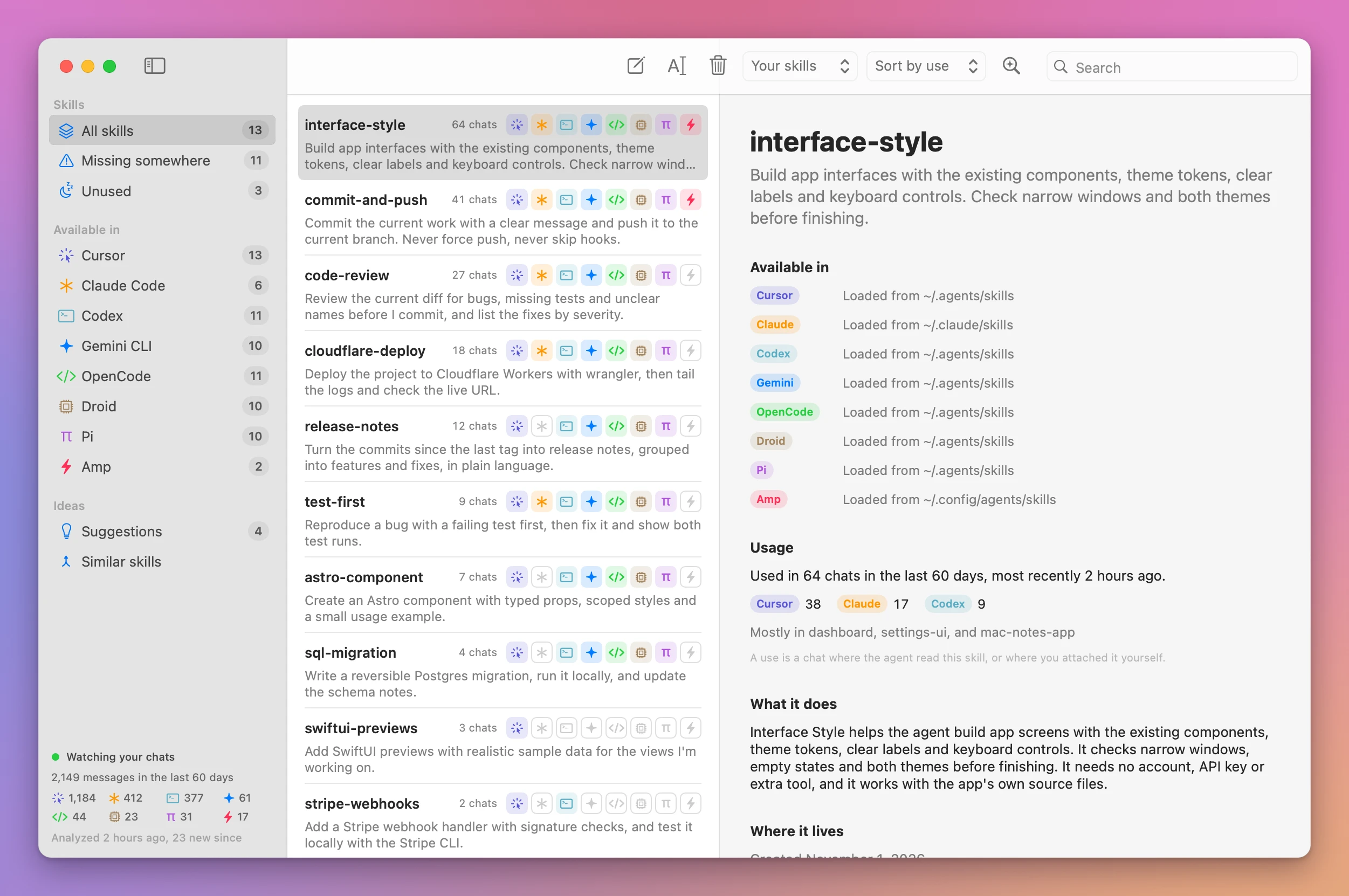
That split is why a skill you wrote for Claude Code loads in Cursor and not in Codex. Cursor reads ~/.claude/skills as well as ~/.agents/skills. Codex is one of the six, so it reads ~/.agents/skills and does not read Claude Code’s folder. If you skip this and copy a skill into the folder you happen to have open, you can end up with a second SKILL.md. The agent that doesn’t read that folder still won’t see it.
Example 1: a skill that started in Claude Code
The docs use a skill named release-notes. Yours will have its own name. Select it. Available in shows which agents already load it. Where it lives is the list of folders. For a skill that started in Claude Code, that list should include ~/.claude/skills, and the agents on the row should include Claude Code and, because they also read that folder, Cursor and OpenCode. Codex stays off the row until the skill is also in ~/.agents/skills.
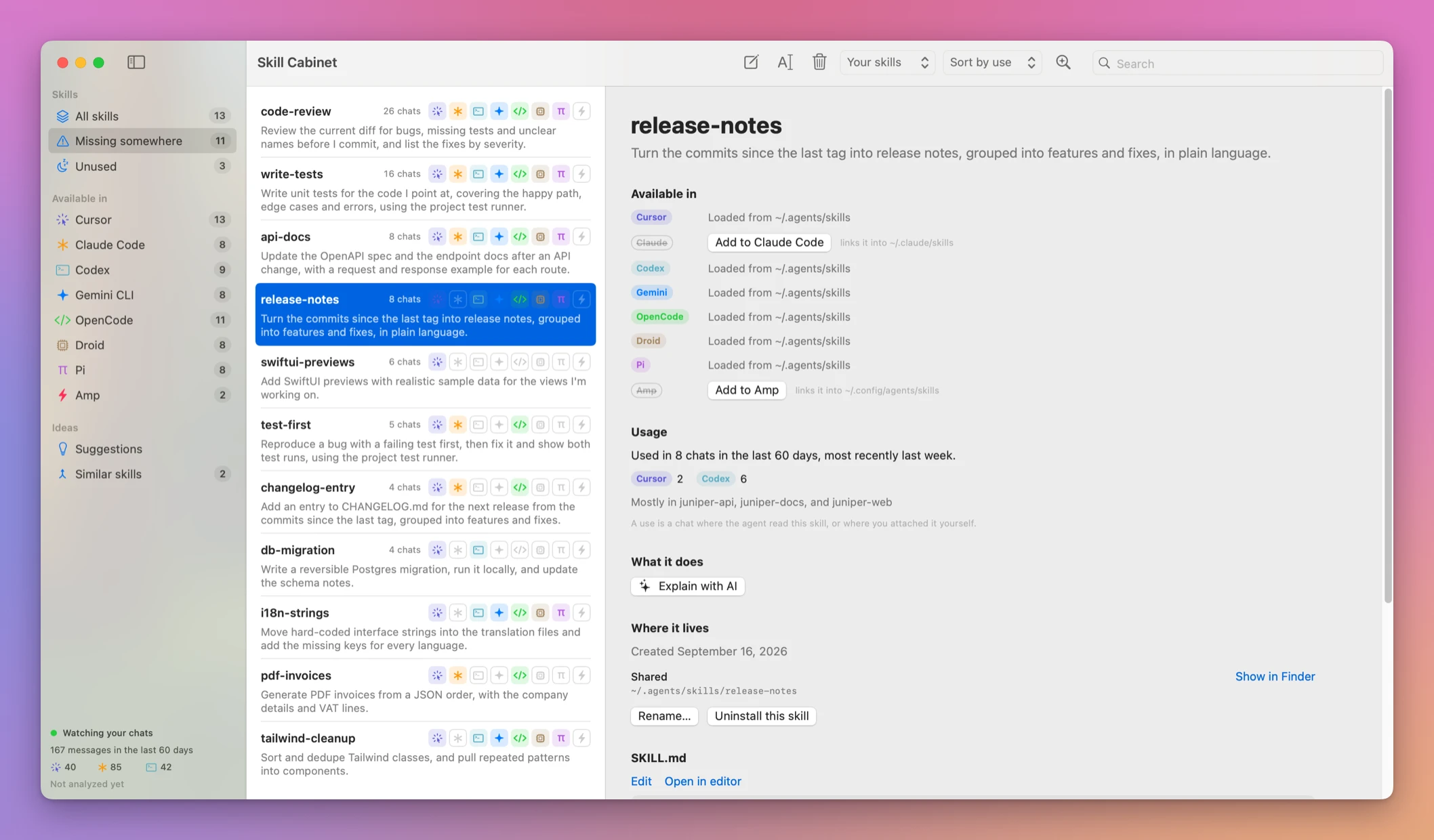
Missing somewhere collects skills at least one enabled agent can’t see. release-notes belongs there while Codex, Amp, or anyone else on your list is missing it. The share tutorial is the Add to step. Here you’re only reading the row.
Open Settings and turn an agent off when you don’t want its skills or its chats in the window. Turning it off removes it from this picture. A skill can look missing because you hid the agent, not because the folder is empty.
Look at the two shared folders
The window is a summary. The files are still in the agent folders. If Skill Cabinet and the disk disagree, the disk is what the agent will load on its next session. A cache in the app can’t invent a SKILL.md the folder doesn’t have.
List the two paths the page actually names. Amp’s folder isn’t in these commands, on purpose.
ls ~/.claude/skillsls ~/.agents/skillsA skill folder contains SKILL.md. This find stops two levels down so it doesn’t wander into every nested directory an agent might keep beside its skills:
find ~/.claude/skills ~/.agents/skills -maxdepth 2 -name SKILL.mdThe shape of that listing is one path per skill file. The docs don’t print a sample, so yours will name your skills. This tree is the layout, using the docs’ example name. It is not a listing from one Mac:
~/.claude/skills/release-notes/SKILL.md
~/.agents/skills/release-notes/SKILL.md
A second ls reads the folders again. Nothing in these commands writes a file. If a line appears twice, once under each directory, you have two copies, or a link and its target. ls -ld on one of those paths shows whether the entry is a link. The share tutorial uses that check when you mean to share one file. Two real directories with the same name are two skills that can drift.
The list in the app updates from a file watcher while you work. Creating a folder in Terminal should show up without a relaunch. If it doesn’t, the agent that owns the folder may be turned off in Settings, or the new folder has no SKILL.md yet. The app groups skills by that file.
Separate your skills from plugins and built-ins
A folder full of skills is not a folder full of skills you wrote. Plugins ship their own, and Cursor and Codex ship built-ins. Search for a name in that mix and you can “find” a skill you can’t edit, then wonder why your change didn’t stick.
The list opens on your own skills. The menu next to Sort picks Your skills, Plugin skills, Built-in skills or All skills. The sidebar counts follow the filter. A skill you keep in your own folders stays under Your skills even when a plugin has one with the same name.
Your skills
Plugin skills
Built-in skills
All skills
Example 2: the same name in two places
Example 1 followed one skill you wrote, and asked which agents load that folder. This one uses the filter, which example 1 never opened. Switch to Plugin skills and look for a name you also see under Your skills. Those are two skills. Plugin copies are managed by the plugin. The app copies them when you share them, instead of linking, because a plugin update replaces the original folder. Built-ins stay with Cursor or Codex. Remove and Uninstall don’t manage those.
Press ⌘F and type part of the name or the description. The filter still applies, so a search under Your skills won’t show a built-in with the same words. Switch to All skills before you decide the skill isn’t installed.
Ask skillscout which agent is missing it
The window is fine when you’re sitting at it. A script, or a check you want to rerun after installing an agent, wants the same answer in the terminal. skillscout reads the skills. It doesn’t move them unless you run a command skillscout help lists for that. The commands below are the read-only ones.
skillscout list--missing keeps the skills some enabled agent can’t see. Adding one agent doesn’t clear the list while another enabled agent is still missing that skill.
skillscout list --missingIf you’d rather click, Missing somewhere in the sidebar is the same list. Select a skill there, and each agent that doesn’t load it gets an Add to button in place of its folder:
--json is the same list for a script. The docs don’t print a sample object. Run it and read the keys you actually got. Don’t code against a shape you haven’t seen.
skillscout list --missing --jsonskillscout show takes the skill name. The docs’ example is release-notes. Swap in the name from skillscout list.
skillscout show release-notesA use means a chat loaded or attached the skill. Several reads in one chat count once. The default lookback is 60 days, and you can change it in Settings. Unused is the skills with no recorded use in that period. An unused skill can still be useful. The view only describes the chat history the app could read. Agents store that history on the Mac, in JSONL or JSON files, or in a SQLite database for OpenCode. The page doesn’t list those history paths, so don’t go hunting for a filename that isn’t on the page. skillscout usage is the count.
skillscout usageskillscout similar compares your own skill text on the Mac, with no AI, and lists skills that read alike. It’s a location check of a different kind: two folders, two names, overlapping words. Merging them is a separate step, and not this one.
skillscout similarRun skillscout list again after you install another agent. The second run isn’t a saved snapshot. It reads the folders of the agents that are enabled now. A skill that was missing only because that agent was off can disappear from --missing once you turn the agent back on.
Back up the skill folders, not the app cache
Skill files stay in the agents’ folders. Skill Cabinet’s cache, explanations and suggestions live in ~/Library/Application Support/Skillscout. Copying only that support folder keeps the app’s notes and loses the SKILL.md files the agents load. Copying only ~/.agents/skills misses a skill that exists solely in ~/.claude/skills, and it misses Amp’s folder, which you have to read from Where it lives on each skill.
Back up the skill folders you saw in the find output, the Amp path the row showed, and the Skillscout support folder if you care about the cache. These are the paths the page names. Amp’s path is the one Where it lives adds, and it won’t be in this list:
~/.claude/skills
~/.agents/skills
~/Library/Application Support/Skillscout
``` There is no cloud copy. Uninstall moves managed copies to the Trash, which is the undo for a removal, and it tells you which agents lose access before it does that. A `find` doesn’t remove anything. Deleting a directory in Finder does, and the Trash is the way back until you empty it.

**Example 3: the skill looks missing, and the folder is fine**

You run `skillscout list --missing` and `release-notes` is on it, even though `ls ~/.claude/skills/release-notes` shows `SKILL.md`. The usual cause is an agent that doesn’t read that folder, or an agent you turned off. Codex doesn’t read `~/.claude/skills`. Amp doesn’t either. Settings can hide an agent you do use. Open the skill, read **Where it lives**, and compare those paths to the two `ls` commands. The share tutorial’s **Add to** is the fix when the file is real and that agent never looks in that folder.

The filter can fake the same symptom. **Your skills** hides plugins and built-ins. A built-in you remember from Cursor won’t show until you pick **Built-in skills** or **All skills**.

## If something looks wrong

If the shell says `skillscout: command not found`, install it again from **Skill Cabinet → Install Command Line Tool…**. The window still has the rows. **Missing somewhere** and **Where it lives** don’t need the command.

If `ls ~/.claude/skills` says no such file, Claude Code hasn’t created that folder yet, or this Mac user isn’t the one the agent uses. The other path is `~/.agents/skills`. Amp’s path is on the skill row, not in that error.

If Cursor shows a skill and Codex doesn’t, you’re in the Claude Code case. The file is in `~/.claude/skills`. Codex reads `~/.agents/skills`. That’s a gap, not a broken install. The share tutorial links the folder across.

If Claude Code can’t see a skill that `ls ~/.agents/skills` shows, Claude Code never reads that shared folder. It only reads its own. **Where it lives** should be missing `~/.claude/skills` for that skill.

If a skill you wrote shows up only under **Plugin skills**, you’re looking at the plugin’s copy. Your folder stays under **Your skills** even when the names match. Edit the one under **Your skills** if that’s the file you meant.

If **Unused** lists a skill you used yesterday, the lookback, the agent switch in Settings, or a chat the app couldn’t read is the cause. A use is a chat that loaded or attached the skill. Opening the file in an editor doesn’t count. The default period is 60 days.

If `skillscout similar` pairs two skills you know are different, **They’re different skills** dismisses that pair. The comparison is local word overlap, not a verdict that they should be one skill.

If you only copied `~/Library/Application Support/Skillscout` to a new Mac, the agents still have empty skill folders. Put the `SKILL.md` directories back where **Where it lives** showed them.
Get Skill Cabinet
Find agent skills on your Mac, see which agents load each one, share them across folders, and track how often you use them.
See Skill Cabinet → · Read the docs · $20 including tax, with full source code.
Want me to talk about your product? You can sponsor this site.