Where are Voice Memos stored on a Mac?
By Flavio
Voice Memos keeps its recordings in a folder called Recordings, inside the Library folder of your home folder, under Group Containers. Here's how to open it with the Finder, what's in it, and why you shouldn't change anything there.
You want to find the actual files of your voice memos on your Mac, to back them up or to see how much space they take.
They’re in a folder called Recordings, inside your home folder’s Library:
~/Library/Group Containers/group.com.apple.VoiceMemos.shared/Recordings
The ~ means your home folder. The Library folder is hidden in the Finder, so the easiest way there is Go to Folder.
Open the folder with Go to Folder
- Click the Finder in the Dock.
- Choose Go › Go to Folder… in the menu bar (or press Shift-Command-G).
- Paste the path above and press Return.
Once the path is in the box, the Finder shows the place it’s about to open:
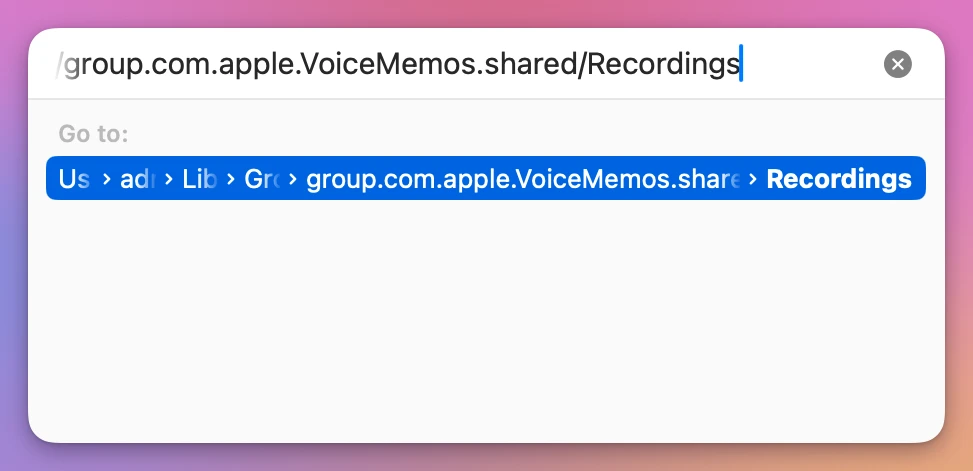
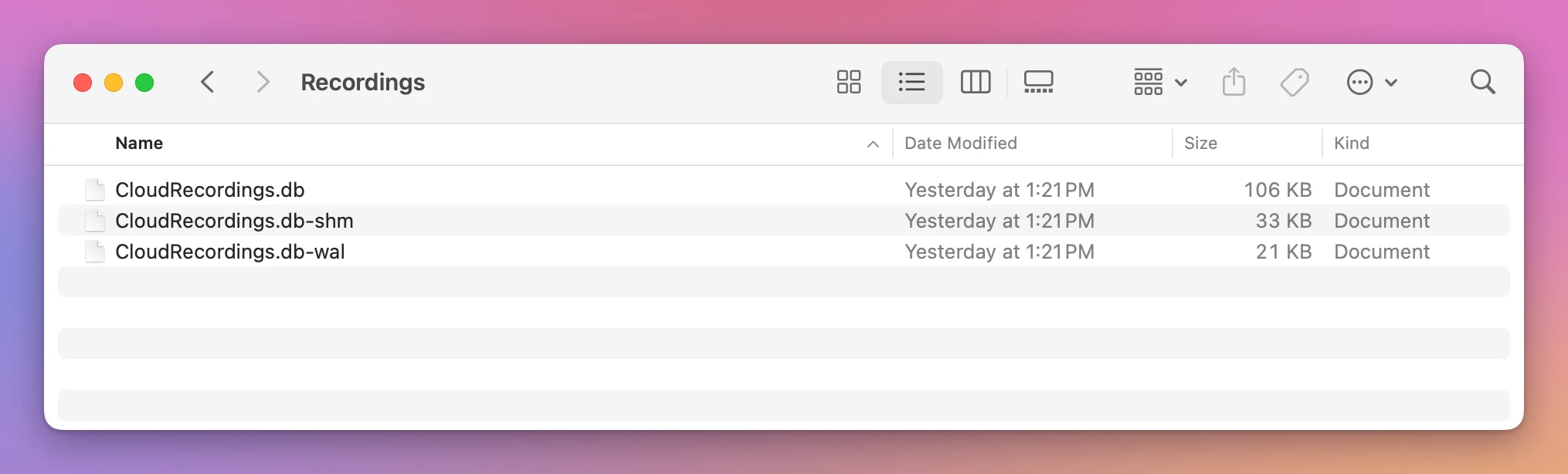
The screenshots are from a test Mac running macOS 15 Sequoia. Its Voice Memos had no recordings of its own (the test Mac has no microphone, and Voice Memos has no import), so its Recordings folder only held what Voice Memos creates the first time it opens: its database and two files that go with it.
The Exporter for Voice Memos app describes the same place in words, when you pick the wrong folder: “It’s in your home folder, in Library, then Group Containers, then group.com.apple.VoiceMemos.shared.”
What’s in the Recordings folder
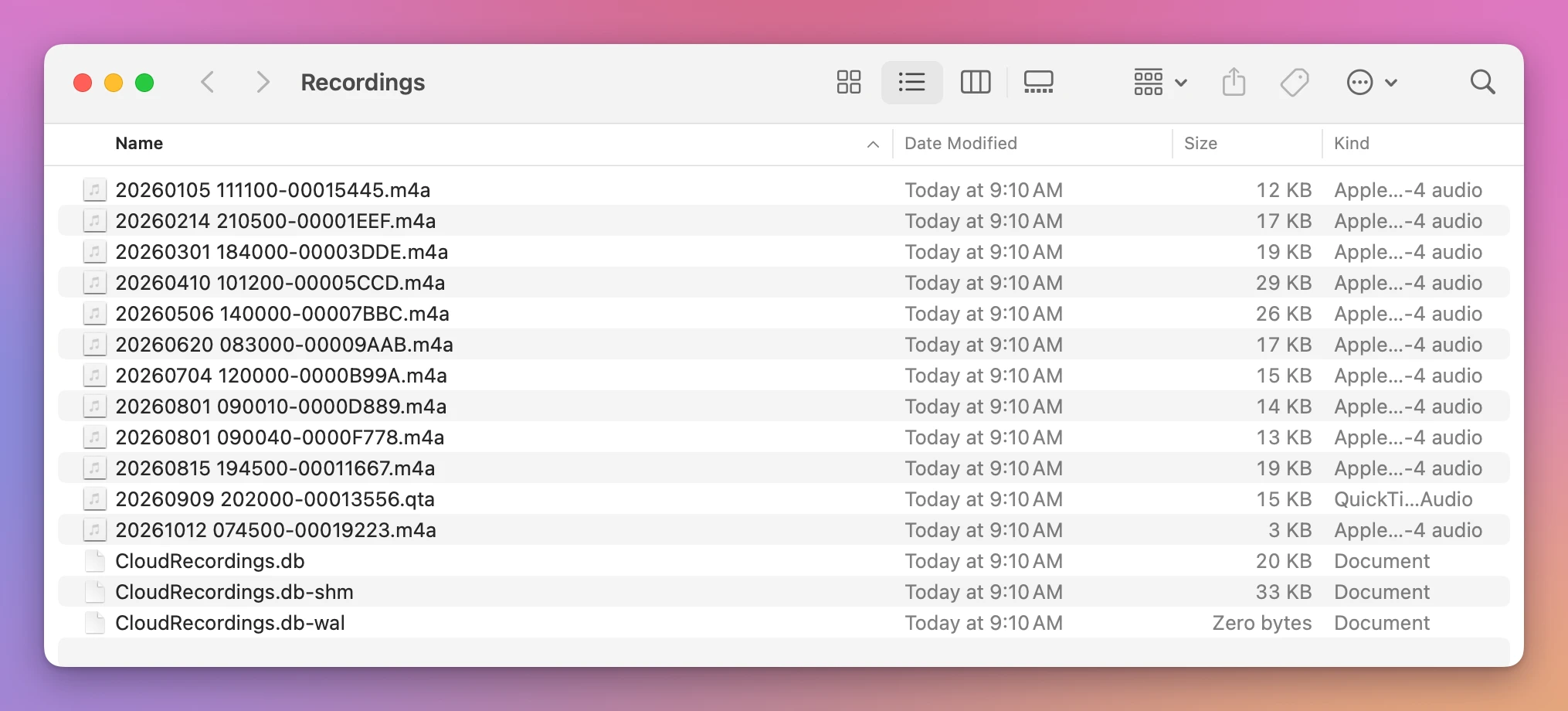
To see what a folder with recordings in it looks like, the test Mac also had a made-up library: 13 short recordings spoken by the Mac’s own voice, with made-up titles, laid out the way Exporter for Voice Memos expects Voice Memos to lay them out. Everything in it is made up for the test.
| What you see | What it is |
|---|---|
CloudRecordings.db | Voice Memos’ list of recordings: titles, dates, lengths, folders |
CloudRecordings.db-shm and -wal | Files that go with the database while it’s in use |
Files ending in .m4a | Audio. In the made-up library they’re named with a date, a time and a code, not with the title |
A file ending in .qta | Audio in QuickTime Audio format. Apple’s iPhone guide says layered recordings use it |
| A very small file | In the made-up library, a recording that isn’t really on the Mac |
Notice that the titles you see in Voice Memos, like “Chorus take 2”, aren’t in the file names. They’re in the database. So the folder tells you that the recordings are there, but not which one is which.
Don’t change anything in there
This folder belongs to Voice Memos. Don’t move, rename, edit or delete anything in it, not even one file. The database points to each recording by its file name, so a file that moves or changes name is one Voice Memos can’t find where it expects it.
Look, don’t touch. To get copies of your recordings, use Voice Memos itself (drag a recording to a Finder window, as Apple’s guide describes) or an app that copies them out and leaves this folder as it is.
See the same recordings with their titles
Exporter for Voice Memos is a Mac app I made that reads this folder, shows the recordings with their titles, and saves copies to a folder you pick. It only reads: nothing in Recordings is changed. It’s my own app, not made by, affiliated with or endorsed by Apple. It costs $19, paid once.
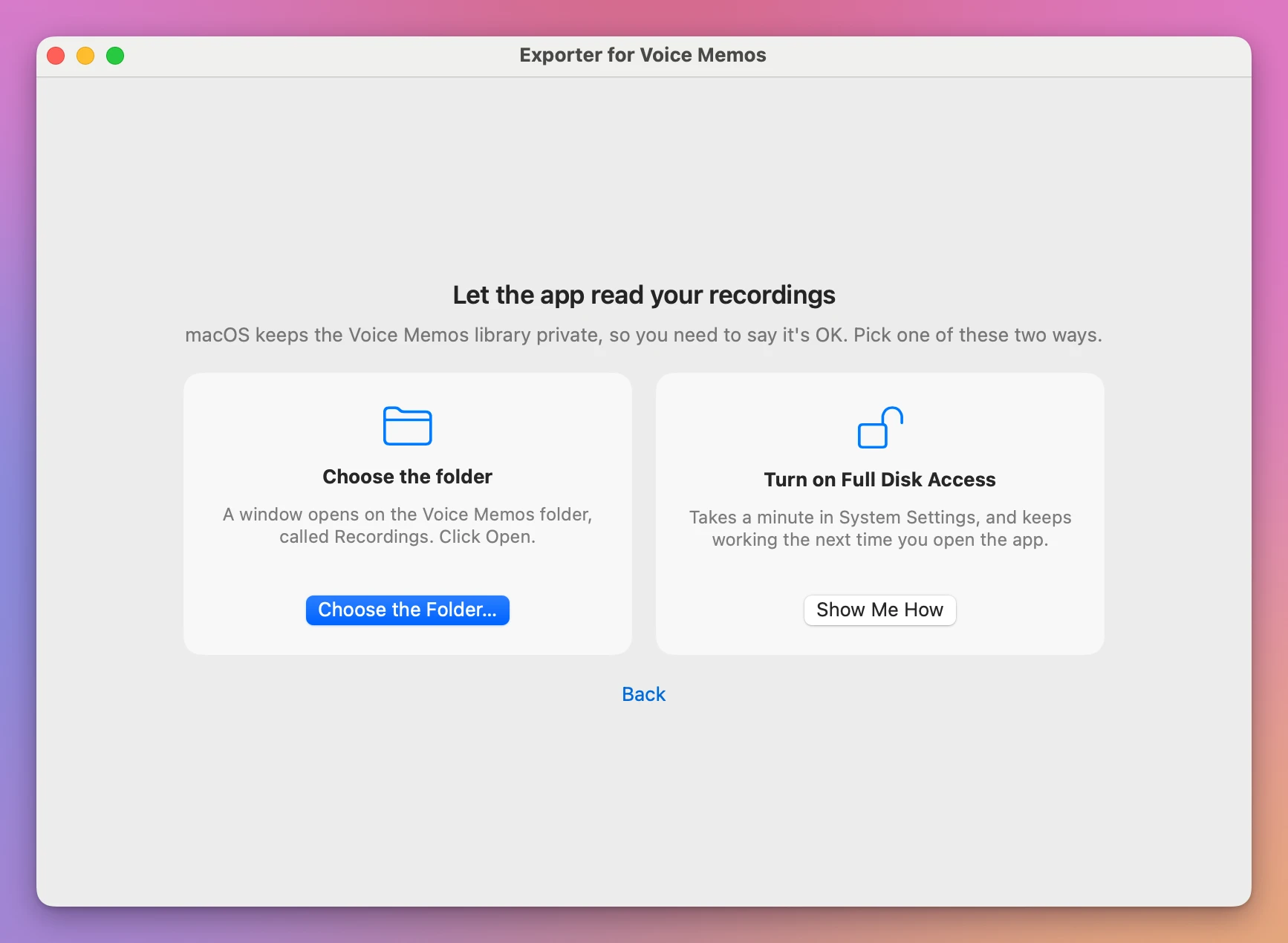
Click Show My Recordings and it reads the folder above. If macOS won’t let the app look in it, the window shows two ways to let it in. This is what the app displays in that case:
Choose the Folder… (also in the File menu as Choose Recordings Folder…) opens a window right on the Recordings folder. Here it is on the test Mac, with Voice Memos’ own files greyed out, since it’s a folder you pick, not a file:
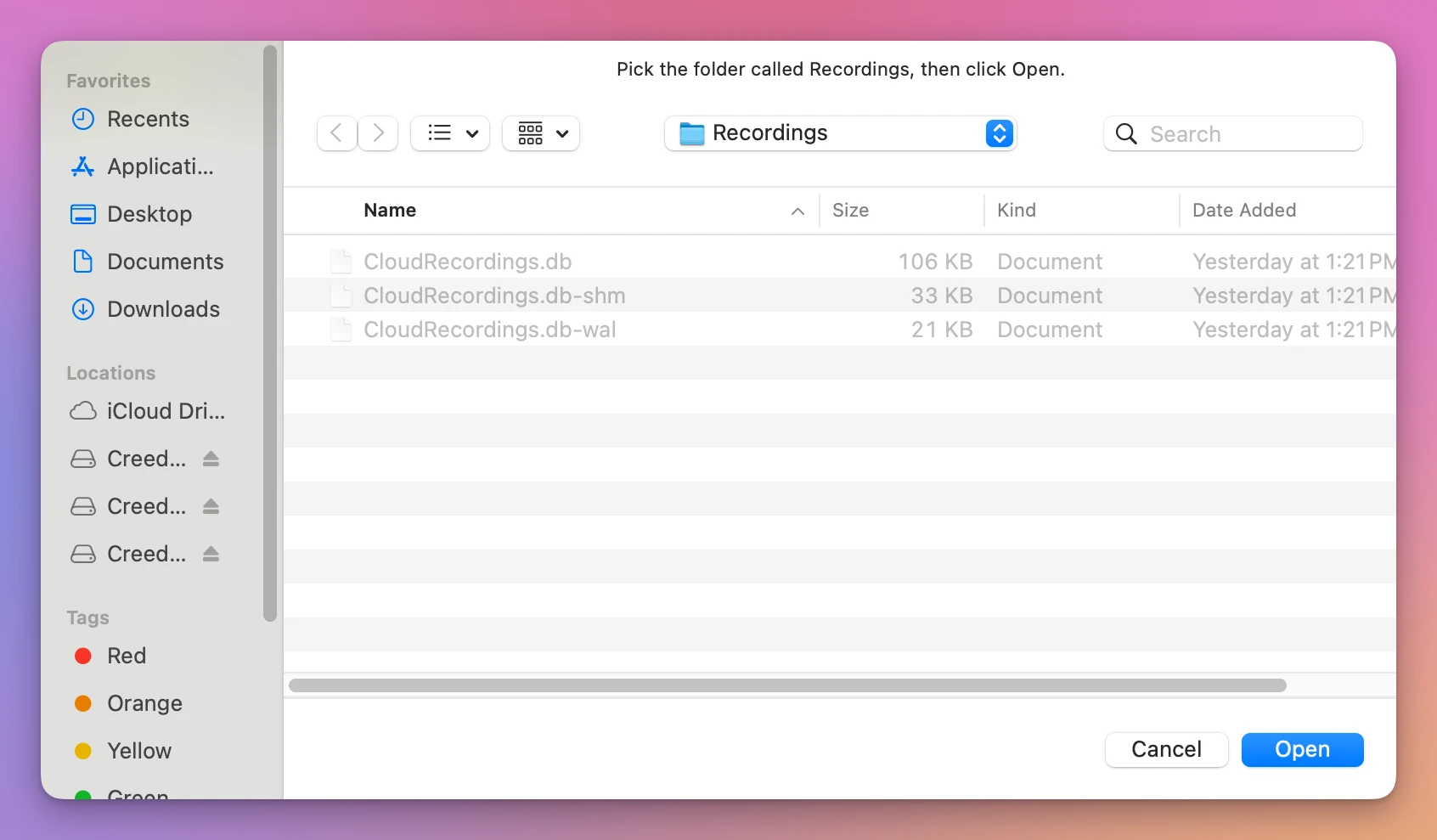
Click Open. The same window can open any other Recordings folder too: on the test Mac, Go to Folder inside it led to the made-up library, and the app listed its 12 recordings with their titles, folders, dates and lengths, plus one in Recently Deleted. Then Export saves them as the tutorial about exporting all your voice memos shows, with names like 2026-03-01 19.40 Chorus take 2.m4a.
| The Recordings folder in the Finder | The same recordings in the app | |
|---|---|---|
| Names | Date, time and a code | The title from Voice Memos |
| Folders | All in one folder | The Voice Memos folders |
| Which ones are only in iCloud | Not shown | Marked “Only in iCloud” |
| Safe to change | No | The app only reads it |
Get Exporter for Voice Memos
Save every recording in Voice Memos to a folder you pick, named with the date and title, with the right file dates, in its folders, with its transcript as text and an index of everything. Run it again and it saves only what is new.
See Exporter for Voice Memos → · Read the docs · $19. See the app page for tax details.
Want me to talk about your product? You can sponsor this site.