
An app by Flavio
Video Audio Extractor
Save the audio of many videos at once as M4A, WAV or an untouched MOV copy, with each audio track in its own file and every file checked.
Buy Video Audio Extractor · $20One-time purchase. Plus tax where it applies.
macOS 15 or later · Apple silicon and Intel
Latest version 1.3.0, released November 20, 2026
You recorded eight interviews on camera this month. The editor wants the sound as WAV files. The transcription service wants something small it can upload. And the second camera recorded the guest’s microphone and yours on separate tracks.
You could open each video in an editor, find the audio, export it, pick a format and name the file. Eight times. Then again in the other format.
Video Audio Extractor does the batch in one go. Add the videos, pick M4A, WAV or Original MOV, and click Export. Each audio track comes out as its own file, named after the video, and the app checks every file before it calls it done.
Who it’s for
- Podcasters. You record a video podcast and publish an audio-only feed too. Every episode means pulling the sound out of a two-hour MOV. Drop the week’s recordings in and get M4A files for the feed.
- Journalists and researchers. You have a folder of recorded interviews and calls to transcribe. Transcription tools take audio files, and an M4A is a fraction of the video’s size, so the upload is quicker.
- Video editors and sound people. The camera recorded a separate track for each microphone. The mixer wants each one as a WAV. You get
Interview - track 1.wavandInterview - track 2.wavwithout opening an editor. - Musicians and music teachers. You filmed a rehearsal or a student recital on your phone. Keep the sound to listen to on a walk, or send it to the student, without a 2 GB video attached.
- Churches, clubs and event organizers. The talk was recorded on video, and you want to post the audio as a recording. A whole season of talks is one batch.
From a folder of videos to a folder of audio
Say you have this month’s interviews in one folder.
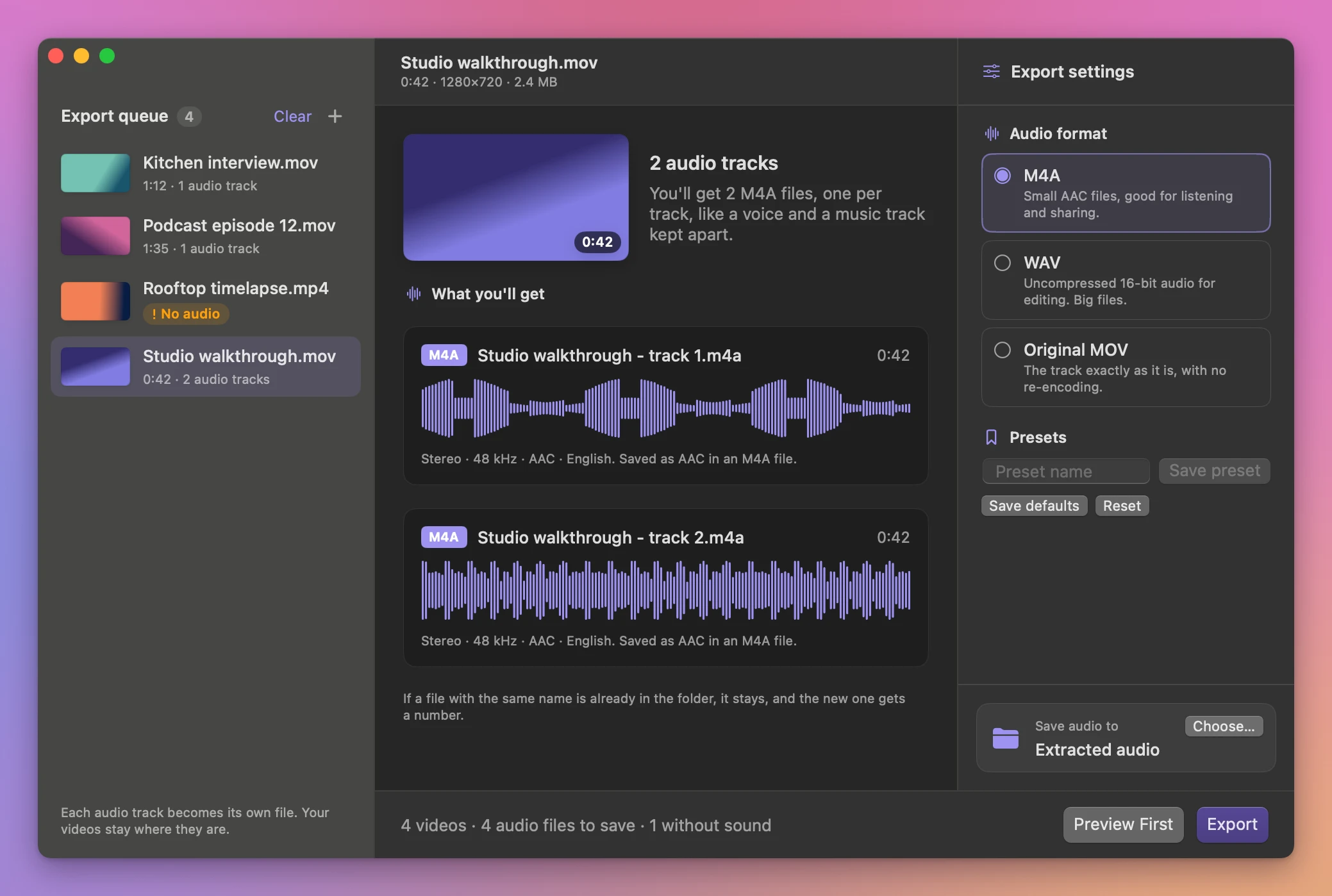
- Add the videos. Drag them onto the window, or click Add Videos… (the + next to Export queue). The original files stay where they are. Click a video to see the audio files you’ll get from it, one per track, each with a waveform, its length and its name.
- Pick the format. Under Export settings, click one of the Audio format cards. M4A is the default and gives small AAC files. WAV gives uncompressed audio for editing. Original MOV copies the track as it is, with no re-encode. With WAV picked, each track shows about how big its file will be.
- Listen to one first. Click Preview First. The app extracts the first video’s audio to a temporary file and opens it in Quick Look, so you can hear it before you export the rest.
- Choose the output folder. Click Choose… next to Save audio to. If you click Export first, the app asks for one.
- Click Export. Each video in the queue gets a green Saved pill, or a red Failed one. The results screen lists every saved file with its waveform, and the videos that failed with the reason. Click Listen to play a file in Quick Look.
- Open the folder. Show in Finder or Show output opens it in Finder.
If you always want WAV, click Save defaults and the app starts with WAV next time. If you switch between formats for different people, type a name like “Editor WAV” and click Save preset. It then shows up in a Presets menu.
What you get
One file per audio track
A video with one audio track gives one file, called <video name> - audio.m4a (or .wav, or .mov). A video with several tracks gives one file per track, numbered: Interview - track 1.wav, Interview - track 2.wav. Nothing is mixed together, so each microphone stays separate.
Three formats, for three jobs
- M4A encodes the audio as AAC. It’s the small one, good for listening, sharing and uploading to a transcription service.
- WAV is 16-bit PCM at the source’s own sample rate and channel count. It’s large, and every audio editor opens it.
- Original MOV puts the track into a QuickTime file without re-encoding it. The sound is bit for bit what the camera recorded. This works when the original encoding can go into a MOV, and the app tells you when it can’t.
Every file is checked
After writing a file, the app opens it and counts what’s inside. It must contain exactly one audio track and no video. If it doesn’t, that file isn’t saved and the video gets the error “The extracted file failed audio verification.”
Your files are safe
The videos you add are only read. The app writes new files into the folder you chose, and when a name is taken it adds a number instead of replacing anything: Interview - audio (2).m4a.
A video with no sound gets the message “This video has no audio tracks.” A file that isn’t a video gets “This file has no readable video tracks.” Either way, the rest of the batch keeps going. Cancel stops the batch and keeps the files that already finished.
Why not use QuickTime Player
QuickTime Player can export the audio of an open video as an M4A file. It’s free, and for one video it’s the right tool. For a batch, you open each video, export, type a name, pick the folder and close it. Eight interviews is eight rounds. If someone needs WAV, it isn’t one of the choices.
Audio and video editors can export WAV and separate tracks. Then each video is a project: import, find the tracks, set the export, name it. Online converters want the whole video uploaded, which for an hour of interview footage is slow, and the recording leaves your Mac.
| By hand | Video Audio Extractor | |
|---|---|---|
| Eight videos | Eight rounds of open, export, name, close | Add them all, click Export |
| Formats | M4A in QuickTime, WAV in an editor | M4A, WAV or Original MOV |
| Separate microphone tracks | A project per video in an editor | One numbered file per track |
| Checking the result | You open each file | Every file checked for one audio track and no video |
| Naming | You type every name | <name> - audio or <name> - track N, a number when taken |
| Privacy | Online converters upload the video | Everything happens on your Mac |
What it doesn’t do
- It doesn’t edit the audio. No trimming, no volume changes, no noise removal. You get each track as it was recorded.
- It doesn’t mix tracks together. Two microphone tracks give two files. Mix them in an audio editor if you need one.
- It doesn’t make MP3. The choices are M4A, WAV and Original MOV.
- It doesn’t open audio files. Every input must have a video track. To strip the sound from videos instead of keeping it, Batch Video Mute makes silent copies. To shrink a video for an upload form, there’s Video Size Limit.
- It doesn’t download videos. It works on files already on your Mac.
Questions
Are my videos changed?
They stay exactly as they were. The app only reads them and writes new audio files into the output folder.
Does anything get uploaded?
The extraction happens on your Mac, so a private interview stays private. The app uses the internet only to check for and download updates.
Which format should I pick?
M4A for listening, sharing and transcription. WAV when someone is going to edit or mix the audio. Original MOV when you want the recorded sound with no re-encoding at all, and the person receiving it can open a QuickTime file.
What if Original MOV doesn’t work for a video?
Some audio encodings can’t be copied into a MOV. That video gets an error like “The audio encoding is incompatible with this export format.” Run it again with M4A or WAV.
Which videos does it read?
Local videos that macOS can read, like the MOV and MP4 files from iPhones, cameras and screen recordings.
What it needs
Video Audio Extractor runs on macOS 15 Sequoia or later, on Apple silicon and Intel Macs. Files are processed locally.
Works on local videos macOS can read. Some source audio encodings cannot be copied directly into a MOV.
The Video Audio Extractor docs walk through each step.
Buy Video Audio Extractor
$20 plus tax where it applies, paid once.
Download the app from the order page or your Creem receipt, unzip it and move it to Applications. I sign the app with my Apple Developer ID, and Apple notarizes the download.
The app checks for updates once a day. When a new version is ready, click Install and Relaunch. To check anytime, choose Video Audio Extractor → Check for Updates….