
An app by Flavio
Word Revision Finalizer
Turn Word documents full of tracked changes and comments into clean final copies, a whole folder at once. Accept all or reject all, preview every change, and get every copy checked.
Buy Word Revision Finalizer · $20One-time purchase. Plus tax where it applies.
macOS 14 or later · Apple silicon and Intel
Latest version 1.0.0, released November 20, 2026
The proposal went through three reviewers. Tom cut a sentence, Maria changed “four weeks” to “six weeks”, Anna left a comment asking whether the price is final. Everyone agreed. Now the client gets the .docx.
If you switch Word’s view to No Markup and send it, the changes are only hidden. The client can show them again, along with the internal comments and the line you deleted from the pricing. The real fix is to accept every change and delete every comment, in every file you send. With five chapters or ten deliverables, that’s a lot of rounds, and nothing tells you afterwards that a file is really clean.
Word Revision Finalizer does it for a whole folder. Add the documents, choose Accept all changes or Reject all changes, look at the preview, and click Create Final Copies. Each copy is read back after it’s written, to check that no tracked change and no comment is left. Your original documents stay as they were.
Who it’s for
- Freelance editors. You returned a manuscript’s chapters with tracked changes, the author signed off, and the publisher wants clean chapter files with no leftover comments and no editor names in them.
- Consultants. A proposal went through three reviewers. The client gets a final .docx that can’t show the internal comments or the pricing line you deleted.
- Law offices and contracts managers. The negotiation is over and you need the execution copy of the agreement, plus a record of every change that was accepted.
Revisions.csvis that record. - Grant writers and researchers. The funder or the journal gets a clean manuscript, and the team keeps the tracked version.
- Project managers. A reviewer edited a batch of procedures, and you decided to reject all of it for now. One pass gives you back the pre-review versions as clean files.
From tracked changes to clean copies
Say the chapters are in one folder.
- Add the documents. Drop the files or the folder on the Documents box, or click Add…. A folder is searched for Word files. Each document has a checkbox, so you can leave one out. An old
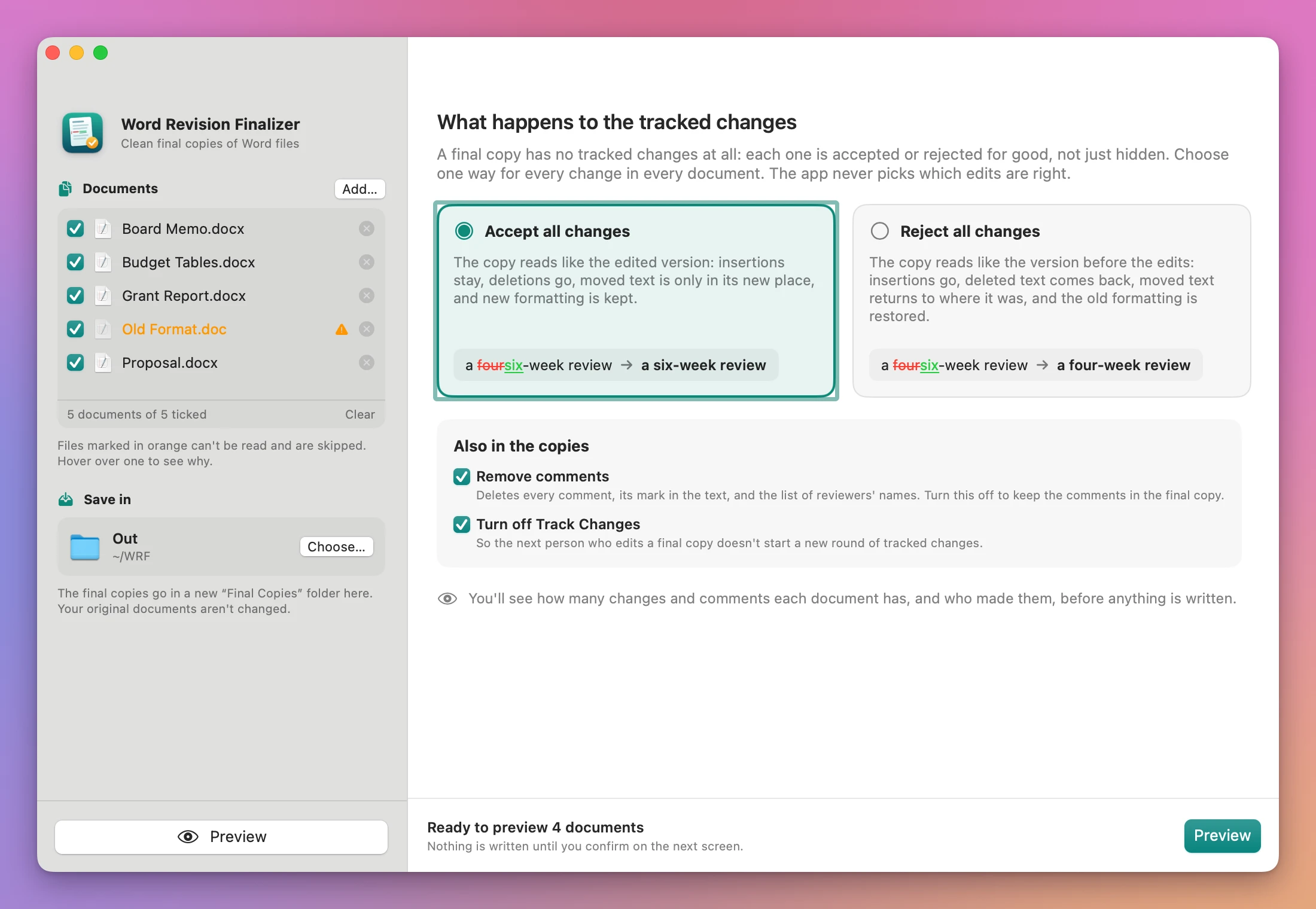
.docor a.docmshows in orange, and hovering it says why it can’t be read. - Choose what happens to the changes. Click Accept all changes for the edited version, or Reject all changes for the version before the edits. Nothing is chosen for you: the app never decides which edits are right.
- Check the options. Under Also in the copies, Remove comments and Turn off Track Changes are on. Untick Remove comments if the comments should stay.
- Choose where to save. Click Choose… under Save in. The copies go in a new “Final Copies” folder there.
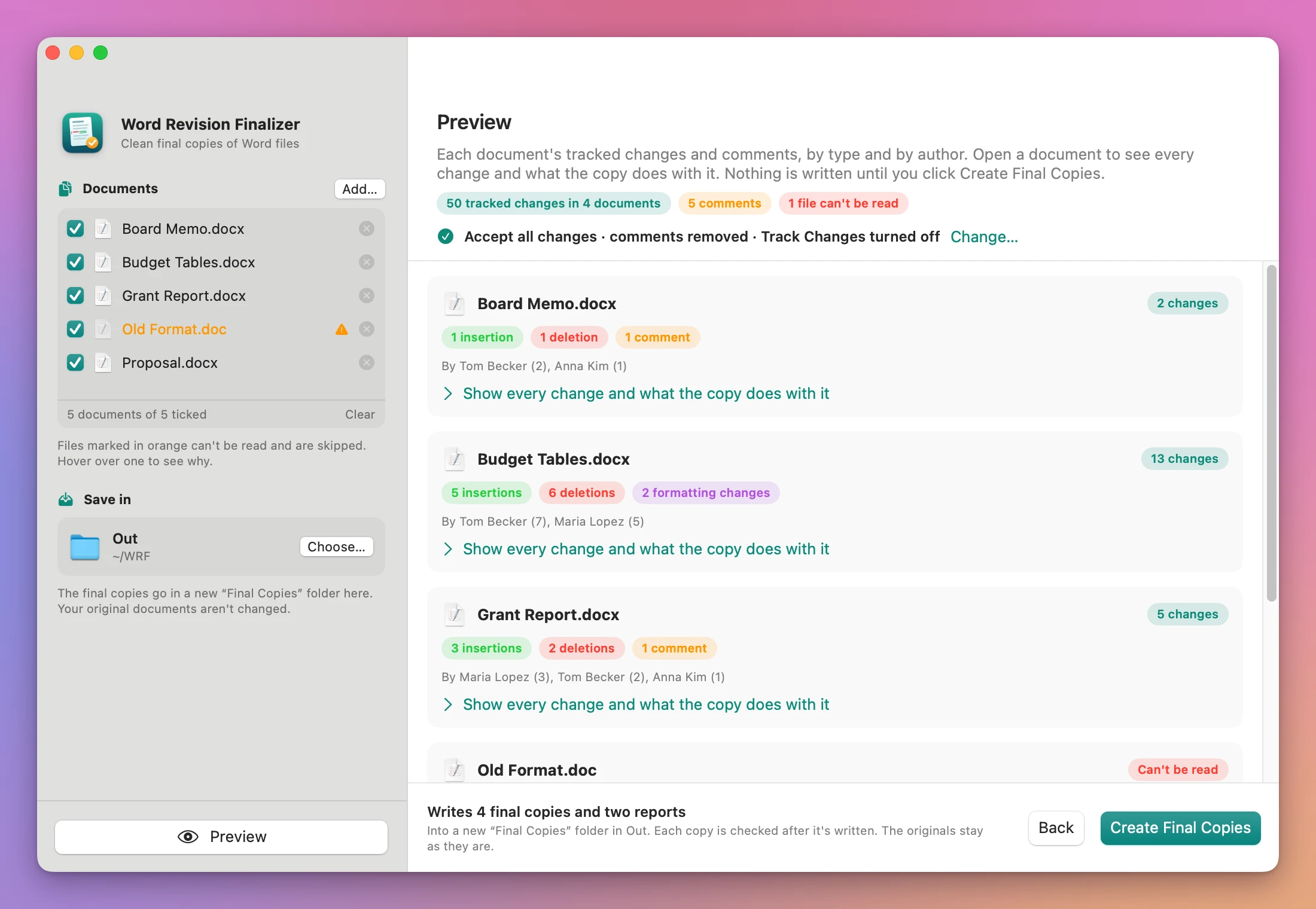
- Click Preview. Each document gets a card with its changes by type (insertions, deletions, moves, formatting changes, paragraph breaks, comments) and by person. Click Show every change and what the copy does with it to see the list.
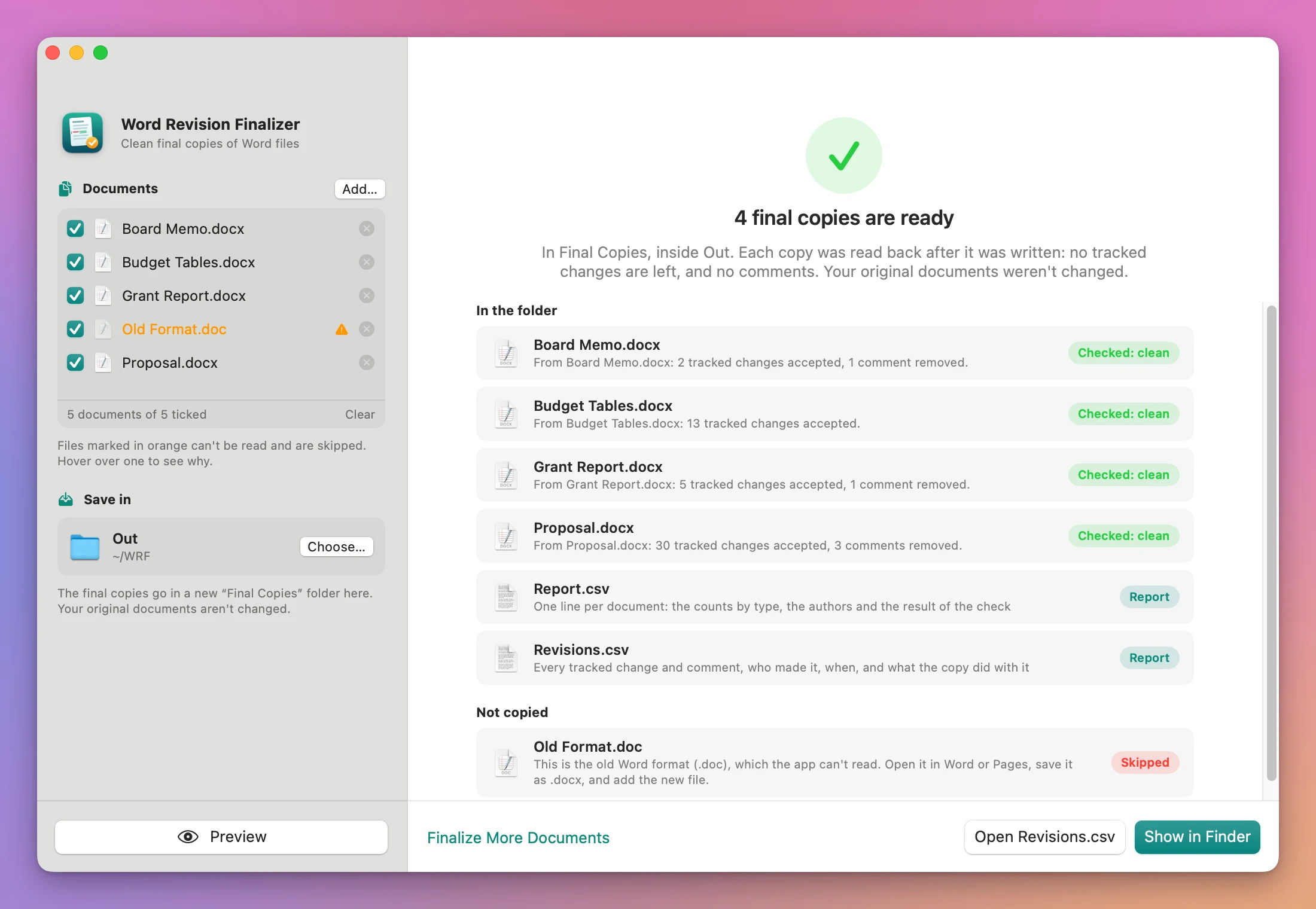
- Click Create Final Copies. The done screen lists each copy with what was done to it and a green Checked: clean pill, the two reports, and the files it didn’t copy, with the reason.
The bottom bar always says what’s missing, and the main button changes with it: Add Documents…, then a choice of accept or reject, Choose Where to Save…, then Preview. The options and the save folder are remembered. The accept or reject choice isn’t, on purpose, so you make it every time.
See every change before anything is written
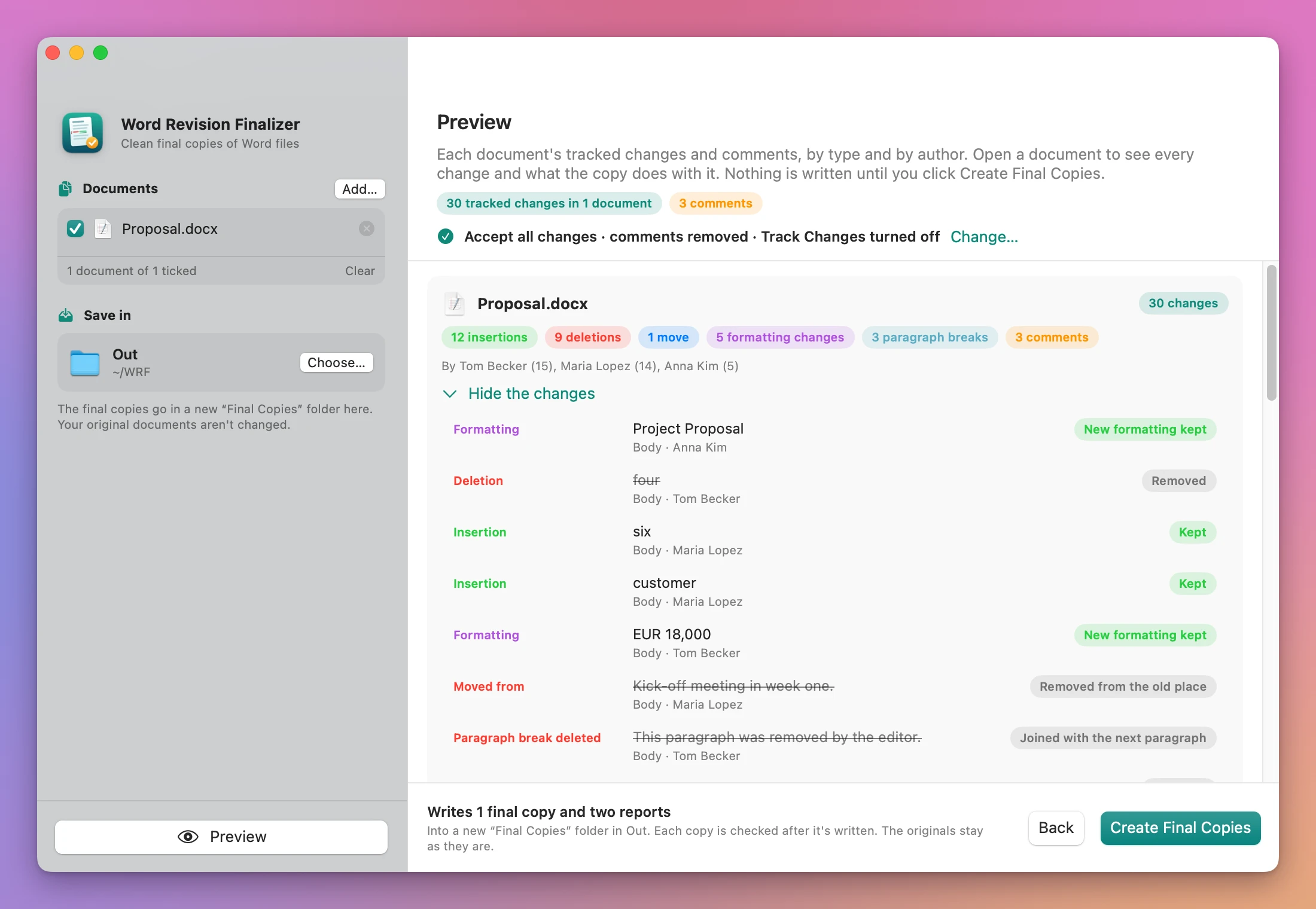
The preview lists each tracked change in a document: its type, its text (struck through when it won’t be in the copy), where it is (Body, Header, Footer, Footnotes, Endnotes, Comments), who made it, and what the copy does with it. With Accept all changes, an insertion says Kept, a deletion Removed, moved text Removed from the old place, and a formatting change New formatting kept.
A document with nothing to change says Already clean, and its copy is the same file, byte for byte. A file the app can’t read says why, in red: an old .doc, a document with macros, one protected with Restrict Editing or a password, an encrypted or damaged file.
What you get
A new Final Copies folder in the place you chose (Final Copies 2 if there’s already one), with:
- One final copy per document, with the same file name. No tracked changes are left in it: each one was accepted or rejected for good.
- Report.csv, one line per document: the counts by type, the people who made the changes, the choice you made, whether comments were removed, and the result of the check.
- Revisions.csv, one line per tracked change and comment: the document, where it was, the type, who made it, when, the text, and what the final copy did with it.
With Remove comments on, the comments go, with their marks in the text and the list of reviewers’ names that Word keeps for them. With Turn off Track Changes on, the next person who edits a copy doesn’t start a new round of tracked changes.
The folder appears in one step, when every copy is finished and checked, so you never get half a batch.
Why not use Word’s Accept All
Word’s Accept and Reject buttons on the Review tab have Accept All Changes and Reject All Changes, and for one open document that’s the right tool. For a folder, it’s one document at a time: open, accept all, delete all comments, turn off Track Changes, save, close. Ten deliverables is ten rounds, and afterwards you have no list of what was accepted.
The common shortcut is to switch the view to No Markup or Simple Markup. That only changes what you see on your screen. The tracked changes are still in the file, and anyone can show them again.
LibreOffice is free and can accept all changes too (Edit › Track Changes › Manage), one document at a time, and saving from it rewrites the whole document its own way. Pages opens a .docx with tracked changes and can accept or reject them, but sending a .docx back goes through a conversion, again one document at a time. TextEdit and Quick Look show the inserted and the deleted text next to each other, with no way to finalize them.
| Word, one document at a time | Word Revision Finalizer | |
|---|---|---|
| Ten documents | Ten rounds of open, accept, delete comments, save, close | Add the folder, one preview, one click |
| Hiding vs removing | No Markup only hides the changes | Every change accepted or rejected for good |
| Comments and reviewers’ names | Delete All Comments, file by file | Removed with their marks and the list of names |
| Proof | You open each file again | Every copy read back and marked Checked: clean |
| A record | None | Revisions.csv with every change and what happened to it |
| Your originals | Saved over | Unchanged, the finals are copies |
| Needs Word | Yes | No |
What it doesn’t do
- It doesn’t choose change by change. One choice, accept all or reject all, applies to every change in every document. To keep some edits and drop others, do it in Word.
- It only reads .docx. Old
.docfiles,.docmand other macro documents,.dotxtemplates, documents protected with Restrict Editing or a password to modify, encrypted and damaged files are skipped with a sentence in the report. - It isn’t a full metadata cleaner. The document’s author, title and “last modified by” stay as they are. Hidden text, document variables and custom data aren’t touched.
- It doesn’t reach inside charts, SmartArt or embedded objects. Tracked changes there aren’t covered.
- It doesn’t edit in place. It always writes copies into a new folder.
To change the same text in many documents instead, there’s Word Batch Text Replacer.
Questions
Are my original documents changed?
No. The app only reads them and writes the final copies into a new folder.
Do I need Microsoft Word?
No. The app reads and writes the .docx files itself, and writes standard .docx files. It rewrites only the parts of a document that change, and copies the rest as it was. The final copies were checked in LibreOffice, which found no tracked changes left, and with macOS’s own text tools. They haven’t been opened in Microsoft Word or Pages yet.
Is No Markup in Word the same thing?
No Markup changes what Word shows, and the tracked changes stay in the file. A final copy from this app has none: each was accepted or rejected.
What happens to a comment on text that gets removed?
With Remove comments off, comments stay in the copy. A comment attached only to text the copy doesn’t have anymore is removed too, and Report.csv says so.
Does anything get uploaded?
No. Everything happens on your Mac. The app goes online only to check for updates.
The Word Revision Finalizer docs go through each screen.
Buy Word Revision Finalizer
$20 plus tax where it applies, paid once. Download the app from the order page or your Creem receipt.
Unzip it and move it to Applications. It runs on macOS 14 Sonoma or later, on Apple silicon and Intel Macs. I sign the app with my Apple Developer ID, and Apple notarizes the download.
The app checks for updates once a day. When a new version is ready, click Install and Relaunch. To check anytime, choose Word Revision Finalizer → Check for Updates….