How to claim your free Gemini API credits with Google AI Ultra
By Flavio
Tagged: AI
Google AI Pro and Ultra subscriptions do not cover Gemini API calls directly, but they include monthly Google Cloud credits you can claim in Google AI Studio.
When you pay for Google AI Pro or Google AI Ultra, your subscription covers the Gemini app, Antigravity, and your consumer quotas. It does not automatically make Gemini API calls free.
API billing runs separately through Google Cloud. If you generate a key in Google AI Studio and start calling paid-only models like gemini-4-neon or gemini-4-argon, you pay per token.
What is easy to miss is that Google includes recurring monthly Google Cloud credits with both Google AI Pro and Google AI Ultra through the Google Developer Program. I opened Google AI Studio on my Google AI Ultra (20x) account today and found $110 in unclaimed API credits sitting in the bottom-left corner.
What each plan includes
Here is how the Gemini API options compare across plans:
| Plan | Monthly API credits | Credit validity | Paid models (neon, argon, carbon) | Prompts used to train Google models |
|---|---|---|---|---|
| Gemini API Free Tier | $0 | n/a | No (gemini-4-hydrogen, gemini-decision-1 and embeddings only) | Yes |
| Google AI Pro | $10 / month | 12 months | Yes (once billing is linked) | No (paid tier) |
| Google AI Ultra (5x) | $40 / month | 12 months | Yes (once billing is linked) | No (paid tier) |
| Google AI Ultra (20x) | $100 / month | 12 months | Yes (once billing is linked) | No (paid tier) |
Credits come through the Google Developer Program and apply to your linked Google Cloud billing account. They spend down before Google charges your card, and they work for the Gemini API as well as other Google Cloud services.
Step 1: open Google AI Studio with your Ultra account
Sign into Google AI Studio with the exact Google account that holds your Pro or Ultra subscription. Family plan members cannot claim these credits, only the primary subscriber.
Look at the bottom-left sidebar, right above the account row showing your ULTRA badge. You will see a Redeem $… in API credits button.
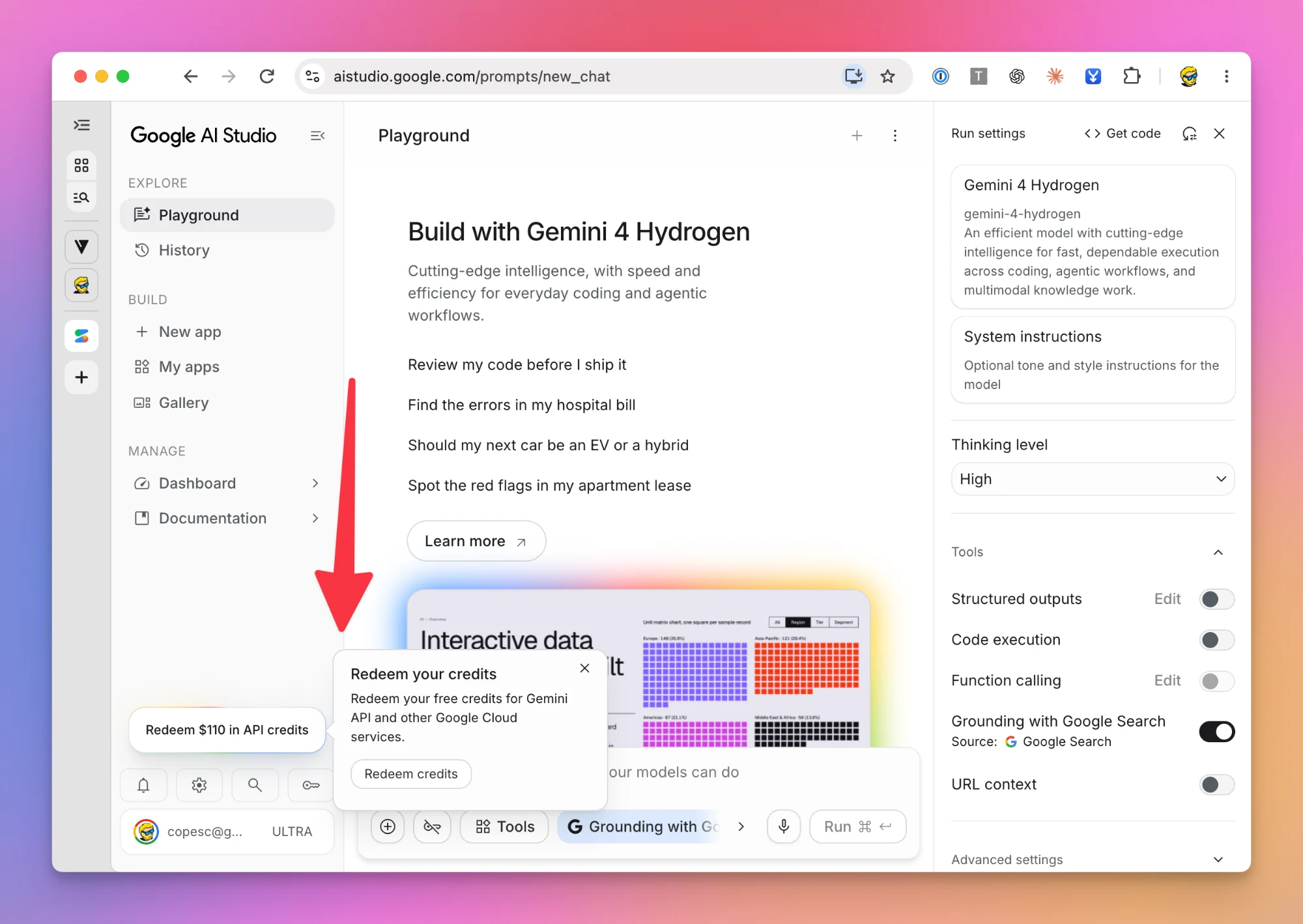
Mine showed $110 because I had two pending offers waiting: a $100.00 monthly credit and a $10.00 credit from an earlier period.
Step 2: select your billing account and redeem
Click Redeem credits. A dialog opens with your Google Cloud billing account selector and every credit offer currently available to your account.
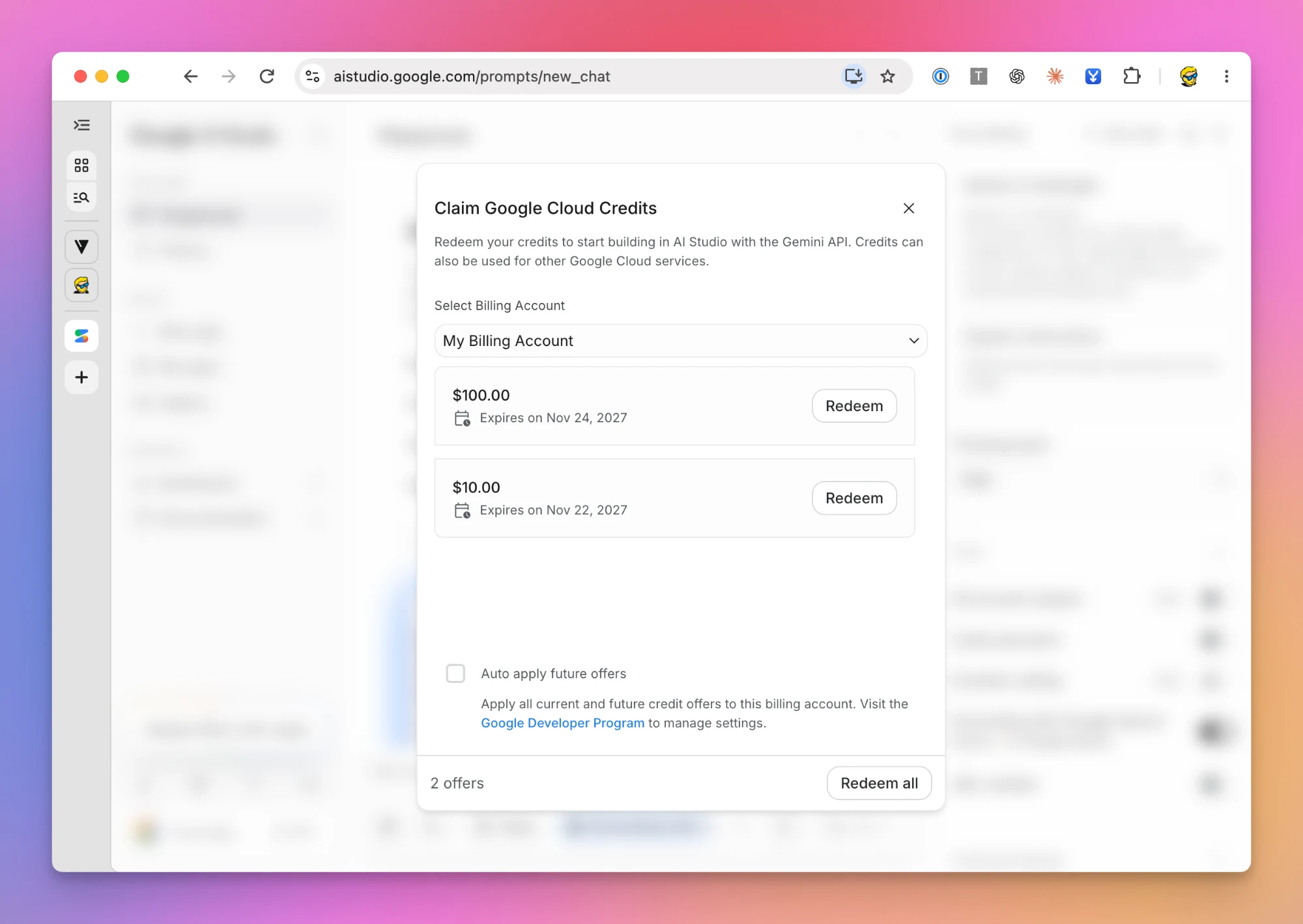
Pick the billing account you use for Google AI Studio, then check Auto apply future offers if you do not want to repeat this every month. Click Redeem all (or redeem each offer individually).
When it finishes, AI Studio shows a confirmation banner at the top of the page.
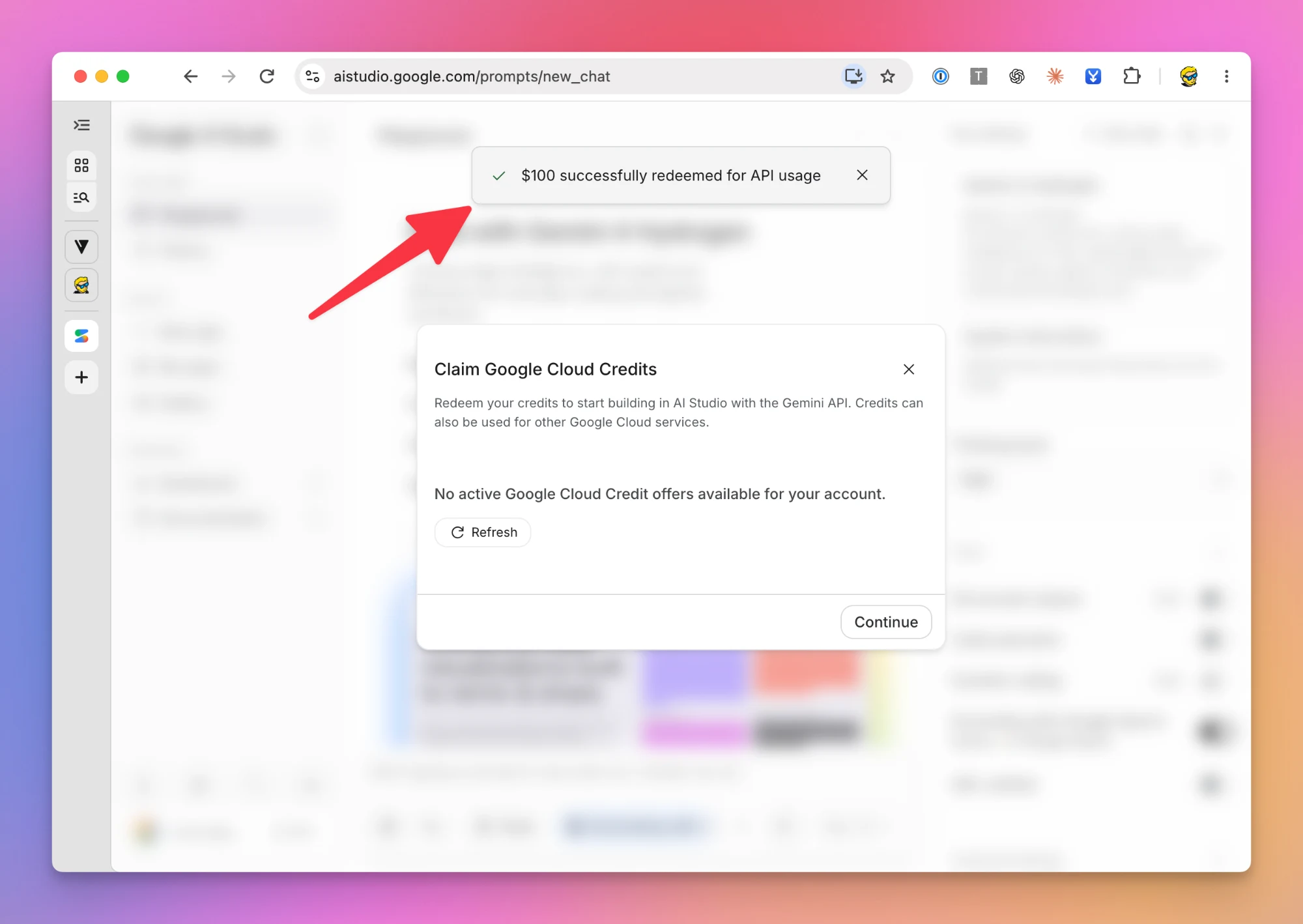
If you have never set up a Google Cloud billing account before, AI Studio walks you through creating one and linking your Google Developer Program profile. Your credits draw down first before any charge hits your payment method.
Step 3: verify your balance in Billing
Open Dashboard then Billing in AI Studio (aistudio.google.com/billing) to confirm the credits landed on the right account. My €-denominated billing account showed €98.8 immediately, split into the two grants (€8.99 expiring Nov 22, 2027 and €89.81 expiring Nov 24, 2027).
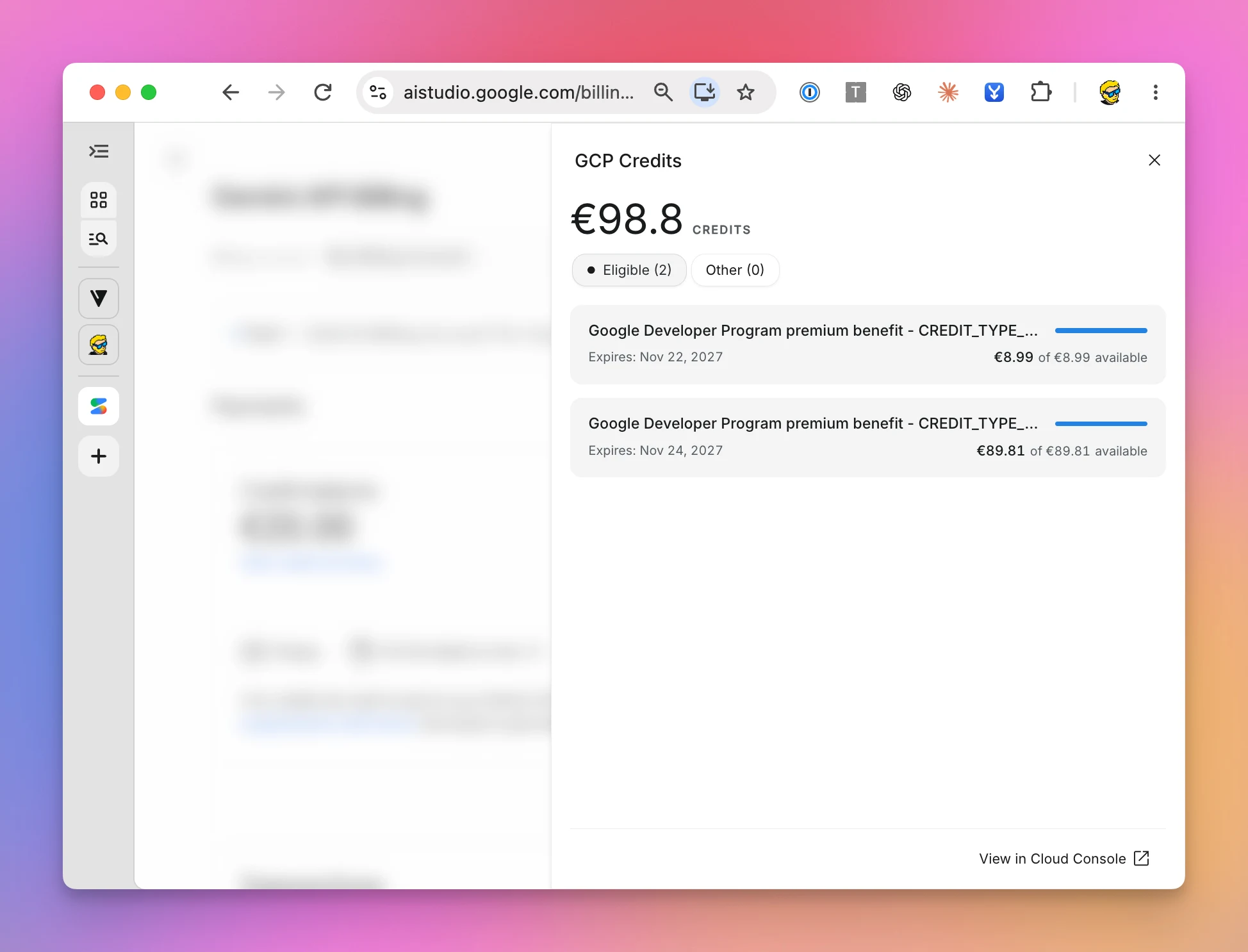
Each grant stays valid for 12 months from the day it is issued, so you do not have to burn the whole balance in one month.
How far $100 goes on the Gemini API
At current Gemini API prices (AI model names explained), $100 covers a lot of prototyping, eval runs, and small production tools:
gemini-decision-1($0.10 / 1M input tokens, 0 output tokens): 1 billion input tokens, enough for millions of classification or routing calls (Gemini Decisions API).gemini-4-hydrogen($1.50 / $7.50 per 1M tokens): tens of thousands of structured extraction and tool-calling requests.gemini-4-neon($3 / $15 per 1M tokens): thousands of complex reasoning turns, especially if you set the thinking level tolowormediuminstead ofxhigh(Gemini 4 Neon review).
Once your billing account is linked to your AI Studio project, create an API key in AI Studio, export it in your shell, and test a call with @google/genai:
export GEMINI_API_KEY="your-key-here"import { GoogleGenAI } from '@google/genai'
const ai = new GoogleGenAI()
const response = await ai.models.generateContent({
model: 'gemini-4-hydrogen',
contents: 'Reply with the word ok and nothing else.',
})
console.log(response.text)How I use these credits
My Ultra subscription already covers interactive coding sessions in T3 Code and Antigravity, where flat-rate plans beat paying per token (best value AI subscription).
These monthly credits fill the gap on the other side: code that calls models directly over HTTP. Scripts, eval suites, side projects, and the AI features inside products you ship to users all need API keys, not a chat window. Claiming the monthly grant turns an Ultra subscription into both your daily coding plan and a funded sandbox for building real AI features.
The one thing to watch is billing alerts. Credits do not hard-stop your API key when they run out. Set a budget alert on your Google Cloud billing account so a runaway loop does not quietly roll over onto your card.
Want me to talk about your product? You can sponsor this site.
Related posts about ai: