What's new in Grok Bot 1.0
By Flavio
Tagged: AI
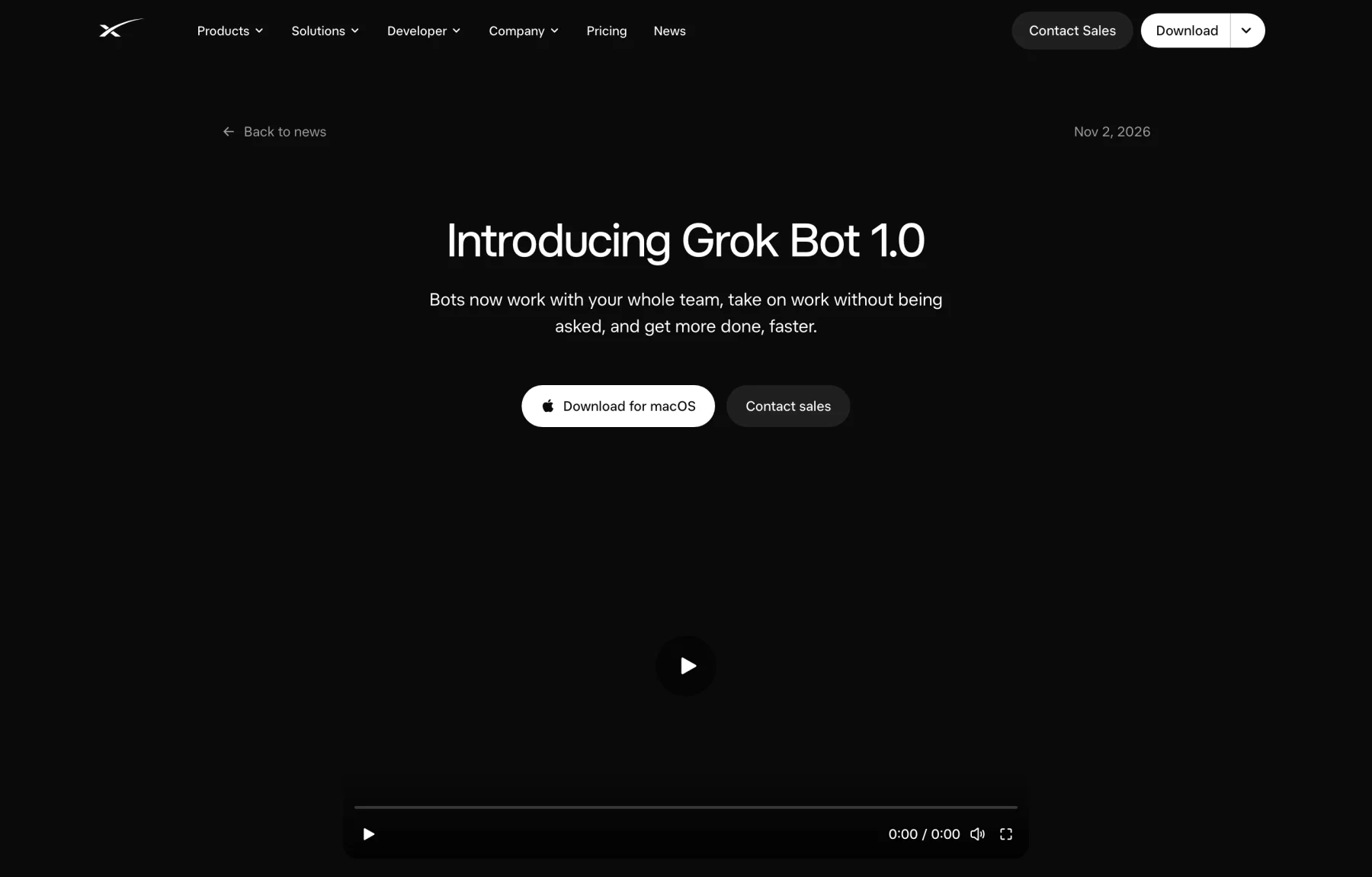
Grok Bot 1.0 adds Team Bots you publish and share, Slack and Microsoft Teams, meetings on Meet and Zoom, shared connectors and reviewed learnings.
Grok Bot is out of beta. Grok Bot 1.0 turns a Bot from a personal assistant into something a whole team can talk to, in the app, in Slack, in Microsoft Teams and in a video call.
xAI announced it on November 2, 2026. The app itself got the 1.0 number on November 11.
If you’ve never used Grok Bot, start with the deep dive. This post covers only what changed.
I run my Bots alone, so I can’t share one with a team. The steps for Team Bots, Slack, Microsoft Teams and meetings follow the documentation, and the screenshots are from the announcement, the changelog and the docs.
The quick answer
| Beta | 1.0 | |
|---|---|---|
| Sharing a Bot | Whole team, or people you invite | Team, organization, people or groups, after you Publish it |
| What teammates teach it | Saved for the team right away | Waits under Review learnings for the owner or a Manager |
| Where you talk to it | The app and Slack | The app, Slack and Microsoft Teams |
| Video calls | No | Google Meet, Zoom and Microsoft Teams |
| App accounts | The owner’s apps work for everyone | Shared connectors, set app by app |
| Who can share | Anyone on the team | Anyone, or Admins only |
| Plans | Team Bots on Team and Enterprise | Same, plus Meetings on Team, Enterprise and Ultra |
Which version is 1.0
The announcement is dated November 2 and points to changes that had already shipped in versions 0.71 to 0.75: better browser use, editable Pages, and approvals that ask less often.
The changelog lists version 1.0.1 on November 11, and that entry also includes 1.0.0. It is the one that adds meetings, Microsoft Teams, shared connectors and Review learnings.
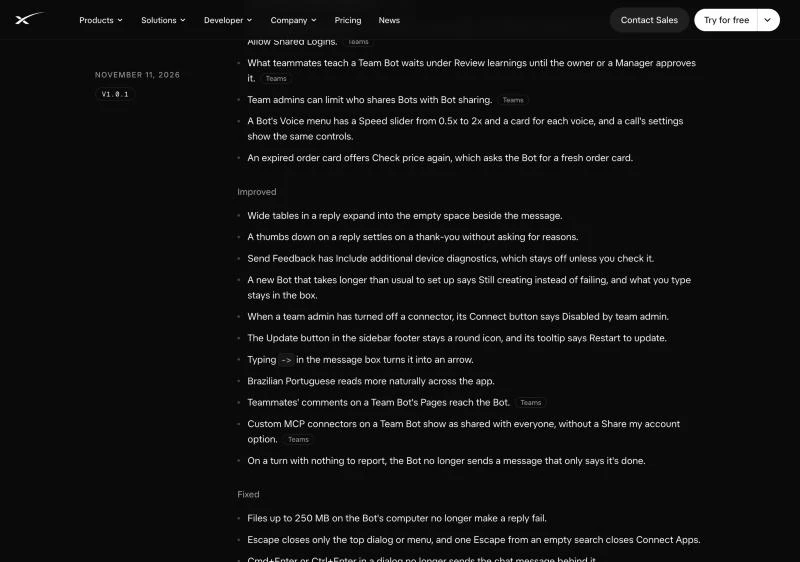
My Mac app was still on 0.79.3 that evening, with the round update button in the sidebar footer. Its tooltip says Restart to update. Check your version before you look for any of the menus below.
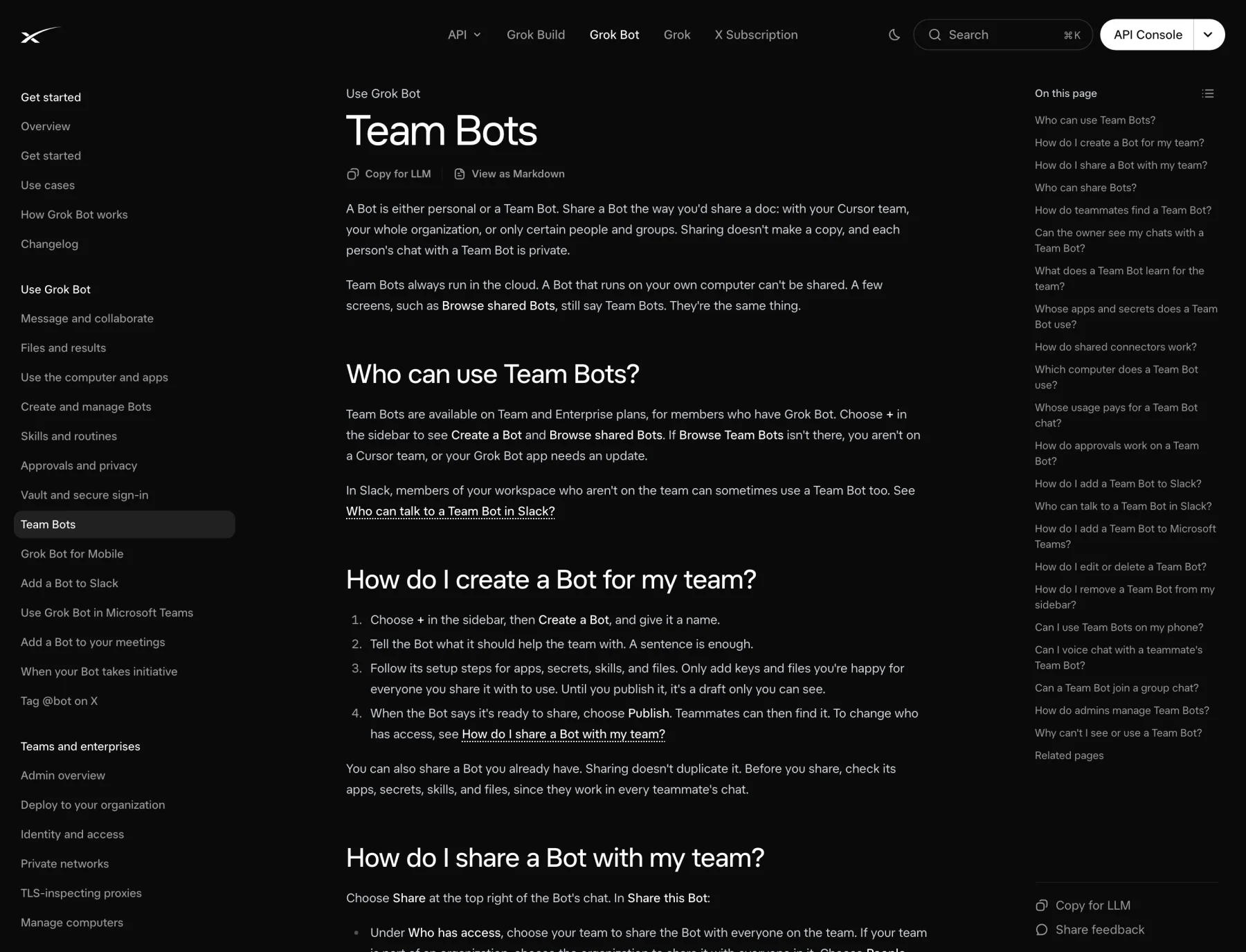
Create a Team Bot and publish it
Shared Bots are called Team Bots again. A few screens still say “shared Bots”, such as Browse shared Bots, and the Team Bots documentation says they’re the same thing.
A Team Bot now starts as a draft. Here’s how you create one:
- Click + in the sidebar, choose Create a Bot, and name it.
- Tell the Bot what it should help the team with.
- Follow its setup steps for apps, secrets, skills and files.
- When the Bot says it’s ready, click Publish.
Until you publish it, only you can see it. Add only the keys and files you’re happy for every teammate to use, because they work in everyone’s chat.
You can still share a Bot you already have. Sharing doesn’t make a copy.
Share it with people or groups
Click Share at the top right of the Bot’s chat. Under Who has access you pick your team, your organization, or People you invite. The last one limits the Bot to the people and groups you add under Add people or groups.
There are three roles:
| Role | Chat with the Bot | Change how it works and share it | Delete it |
|---|---|---|---|
| Collaborator | Yes | No | No |
| Manager | Yes | Yes | No |
| Owner | Yes | Yes | Yes |
Copy link gives teammates a link to the same Bot. A template link is different, because it gives each person their own copy.
Every teammate’s chat is private. The owner and the Managers can’t read it.
Where a Team Bot runs, and who pays
This is the part to understand before you put a Bot in a channel. The place where you talk to the Bot decides which computer it uses and whose apps it can reach.
| Where you ask | Computer | Apps it can use | Usage |
|---|---|---|---|
| Your own chat | Yours | The owner’s, and yours after you allow it | Yours |
| Slack DM | Yours | The owner’s, and yours after you allow it | Yours |
| Slack channel, thread or group DM | The Bot’s own | The owner’s only | The person it answers |
| Slack user with no linked account | The Bot’s own | The owner’s only | The team’s |
In your own chat the Bot asks before it touches your accounts. The card offers Allow once, Always allow and Skip.
Approvals follow the person. In a Slack thread the Bot posts a Review an action card, and only the person who asked can answer it.
Review what the team teaches it
In the beta, a Team Bot saved what it learned for the whole team and told you afterward. In 1.0, when a teammate teaches it something for the team, the Bot suggests the change and waits.
The owner and the Managers open the Bot’s details and find Review learnings under Suggested. Each item says what it does, for example Updates the skill, and has Approve and Reject buttons.
What the Bot learns about you personally still stays between you and the Bot. Changes the owner or a Manager makes in the main chat apply right away.
The same list is in Manage (the wrench icon), under Knowledge. That screen also has Analytics, with messages, hours saved and top users.
Bring the Bot into Microsoft Teams
Slack worked in the beta. Microsoft Teams is new, and it needs three people to say yes:
- A team admin opens the Grok Bot page of the team dashboard and clicks Enable next to Enable Microsoft Teams, signing in with a Microsoft Teams or Global administrator account.
- The Bot’s owner or a Manager opens the Bot’s details and clicks Connect Microsoft Teams under Bring to your team’s Microsoft Teams.
- A Microsoft Teams admin approves the Bot in the Teams admin center, under Teams apps, Manage apps, Pending approval.
Microsoft doesn’t notify the admin, so send them the link from the dialog. After approval, Teams can take up to an hour to finish the setup.
Each person then links their Microsoft account once. Message the Bot and it replies with a Link Account card only you can see. The Microsoft Teams guide has a troubleshooting table for every message the dialog can show.
In Teams you mention the Bot in a channel, add it to a group chat, or message it directly. If you ask for a file in a channel, it tells you to message it directly, and sends the file through your OneDrive.
Add a Bot to a meeting
A Bot can join a Google Meet, Zoom or Microsoft Teams call. This one doesn’t need a team, because it’s also on the Ultra plan.
- Paste the meeting link in the Bot’s chat and ask it to join and take notes.
- Approve the card.
- When the meeting starts, the host lets the Bot in.
Everyone in the call sees who it belongs to. The Bot joins as Bot name (your first name's Bot) - transcribing, or Bot name (Team Bot) - transcribing for a Team Bot.
The Bot doesn’t speak. You write to it by name in the meeting chat, and it answers there. If someone asks for something it won’t share with the whole call, it tells you who asked and offers to send it to you.
When the call ends, the Bot posts a summary and the action items in its chat. Later you can ask it for the summary or the transcript of any past meeting.
Scheduled meetings show under Upcoming in the Bot’s details. Their menu has Disable Interactivity, which keeps the Bot taking notes without answering, plus Cancel and Quit.
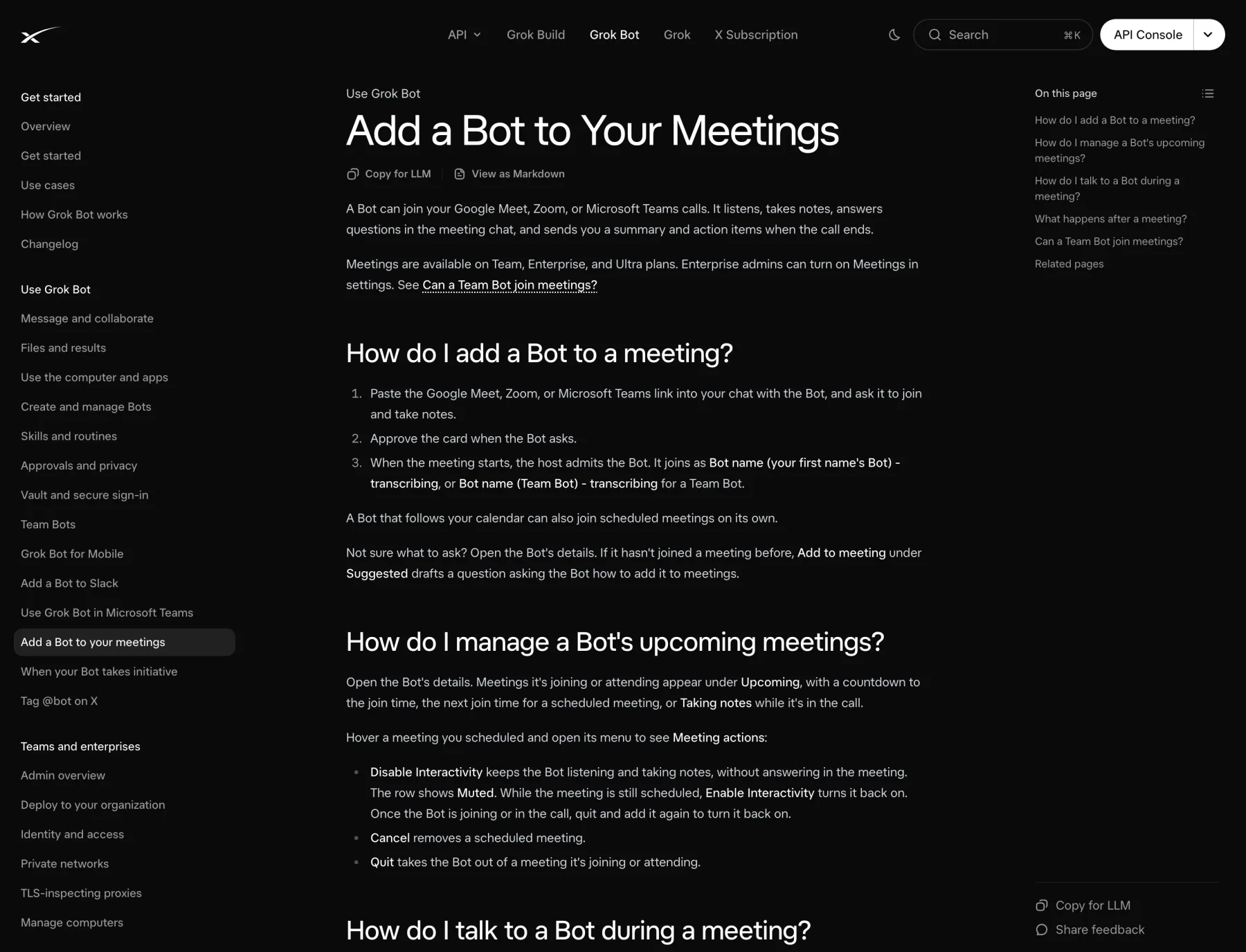
A Bot that follows your calendar can also join scheduled meetings on its own. The meetings page has the details.
Share one login with the team
A Team Bot uses the owner’s apps for everyone, and asks before it uses yours. With shared connectors, the owner or a Manager decides this app by app.
Open the Bot’s details, then Setup, then Service accounts, and pick an app under Shared connectors:
- Use individual accounts makes each teammate connect their own.
- Share your account makes every teammate act through your account.
- The Bot’s own account uses a separate team account. Not every app supports it.
Share your account only works after a team admin turns on Allow Shared Logins, which is off by default. Be careful with it. Whatever the Bot does through that connector, for any teammate, happens as you.
What “proactive” means in practice
The announcement talks a lot about Bots taking initiative. The documentation is more modest about it.
Your Primary Bot looks for work it can take over and offers to do it. It also tells you when an app like Gmail signed you out, and offers to reconnect. It offers first, and it still asks before a risky action.
A Team Bot can’t be your Primary Bot. What it can do is ask you for something it needs. If a routine needs one of your connected apps, the Team Bot asks in its Slack thread and tags you.
You can’t switch the check-ins off yourself. Turning off Notifications for a Bot only silences the alerts.
New admin controls
Team admins get a few new switches on the Grok Bot page of the dashboard:
- Bot sharing can be Everyone or Admins only. Bots that are already shared stay shared.
- Allow Shared Logins is the switch behind shared connectors.
- Slack Workspace Access lets people in your Slack workspace who aren’t on the team use Bots shared with the organization. It’s on by default, and their replies use the team’s usage.
- Meetings, under Bot Capabilities, turns meetings on or off for all Bots.
- Manage Bots lists every shared Bot, with an Auto-add column that puts a Bot in members’ sidebars.
The teams and enterprises page lists the rest.
What you get without a team
Most of 1.0 needs a Team or Enterprise plan. If you use Grok Bot alone, like I do, this is what changes:
| Feature | Individual plan | Team or Enterprise |
|---|---|---|
| Faster browser, better documents and slides | Yes | Yes |
| Approvals that ask less often | Yes | Yes |
| Primary Bot offering work | Yes | Yes |
| Meetings | Ultra only | Yes |
| Team Bots, Slack, Microsoft Teams | No | Yes |
| Shared connectors, Review learnings, Analytics | No | Yes |
The 1.0.1 release also has small things for everyone. The Voice menu has a Speed slider from 0.5x to 2x, an expired order card offers Check price again, and the Bot no longer sends a message that only says it’s done.
If you work alone, update the app and keep using it as before. On a team, start with one Team Bot for one shared job, shared with People you invite, and look at Review learnings after the first week.
Want me to talk about your product? You can sponsor this site.
Related posts about ai: