Migrating a WordPress blog to EmDash: the checklist
By Flavio
Tagged: Cloudflare
The built-in WordPress importer, the exporter plugin, what moves and what doesn't, how statuses and dates come across, and a checklist to run the migration from export to cutover.
EmDash was built as a place for WordPress sites to go. It has a WordPress importer in the admin, an exporter plugin for the WordPress side, and an agent skill for porting themes. Wes Bos moved 307 posts and 6.7 GB of photos in two days with it, and Cloudflare moved its own blog.
This is the checklist for doing it with a blog. It’s the WordPress counterpart of the Ghost guide, and it’s shorter because the importer does the part I had to script there. I put it together from the importer docs and three documented runs on EmDash 1.2 to 1.4: Wes Bos’s, InstaWP’s test of a small WooCommerce site, and EmDashBits’ nine-post export. I’ll add my own numbers when I run one.
What moves and what doesn’t
| In WordPress | In EmDash | How |
|---|---|---|
| Posts and pages | Posts and Pages collections | Importer |
| Custom post types | New collections, one each | Importer creates them |
| Gutenberg and classic HTML | Portable Text | Importer |
| Categories and tags | The category and tag taxonomies |
Importer |
| Custom taxonomies | Created with the exporter plugin, skipped from a WXR file | Exporter |
| Media | Media library in R2 | Importer, downloaded from the live site |
| Featured images | featured_image field |
Importer |
| Authors | EmDash users or guest bylines | You map them in the review step |
| Slugs | Slugs | Kept |
| Published dates | publishedAt |
Kept, read from the GMT date |
| Yoast and Rank Math title and description | SEO panel | Exporter only, switch per plugin |
| ACF text, number, true/false | Fields of the same type | Exporter, suggested in the review step |
| ACF relationships, images, repeaters | JSON with WordPress IDs in it | Imported, but useless until you rewrite them |
| Comments, menus, logo, favicon | Comments, Menus, site identity | Exporter 1.2.0 or later |
| Shortcodes | Literal text, [gallery ids="12,13"] |
Rebuild by hand |
| Server-rendered blocks (Latest Posts, Query Loop) | Empty HTML block with the block comment | Rebuild by hand |
| Reusable blocks | Sections | Importer |
| Theme | Your Astro pages | Rewritten |
| PHP plugins | nothing | Rebuilt, or dropped |
| WooCommerce products | Title, description and image only | Price, SKU and the store are lost |
| Scheduled, pending, private, trashed posts | Drafts | All of them |
Two rows are the ones that decide how long this takes. If the blog is posts with images and the odd embed, the importer does the whole content part in a few minutes. If it leans on shortcodes, page builders or a dozen plugins, each of those is a thing to rebuild in Astro, and you should count them before deciding.
Two ways in
| WXR file | EmDash Exporter plugin | |
|---|---|---|
| What you need | Tools → Export → All content | The wp-emdash plugin installed on WordPress |
| Posts, pages, custom post types | yes | yes |
| Drafts | yes | yes |
| Media | downloaded from the live site after import | downloaded from the live site after import |
| Custom taxonomies | skipped | created |
| ACF values | no, only suggested | yes, into matching fields |
| Yoast and Rank Math fields | no | yes |
| Comments, menus, logo, favicon | no | yes, with 1.2.0 or later |
Categories created twice (en and en_US) |
happened in InstaWP’s test | no |
| Resumable | rerun with “skip existing” | rerun with “skip existing” |
| Works with WordPress.com | yes | no |
Use the exporter plugin if you can install plugins on the site. The file route exists for hosts where you can’t, and for WordPress.com, which has no EmDash connection. Either way the XML and the plugin both carry only the URLs of your images. The files are downloaded from the live site in a separate media step, so WordPress has to stay up until that step is done.
The importer connects from Cloudflare’s network and refuses localhost, private IPs and names like mysite.local. For a site on your machine the docs’ answer is a cloudflared tunnel to the web server port, a wp search-replace to the tunnel address, and the reverse once media is copied. For a blog on a host, none of that applies.
The import screen
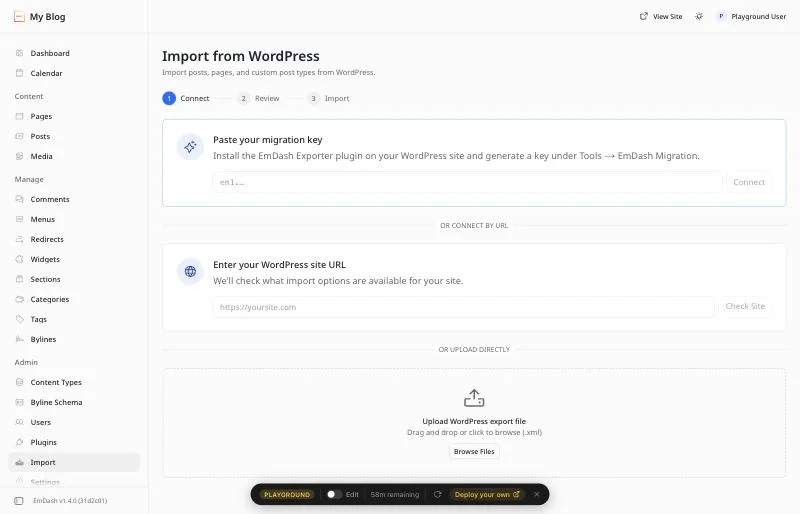
Three steps: Connect, Review, Import. Review is where you spend the time. For each post type it shows the target collection and whether it’s ready, needs a new collection, needs fields added, or is incompatible because a field with the same slug already exists with a different type. The importer never changes an existing field’s type, so you rename the field or pick another collection.
In the same screen you map WordPress authors to EmDash users. Anyone you leave unmapped becomes a guest byline, which is right for the people who wrote three posts in 2017 and don’t need a login.
With the exporter plugin there’s one more set of switches: menus, site title and tagline, logo and favicon, and the SEO fields.
Then Import, and then a separate media step that downloads every attachment, stores it through R2, and rewrites the URLs in post bodies and featured image fields. Files are deduplicated by a SHA-1 of their bytes, so rerunning the step is safe.
What comes out
Statuses collapse:
| WordPress | EmDash |
|---|---|
publish |
published |
draft, pending, private |
draft |
future, trash, anything else |
draft |
A scheduled post loses its schedule, a private post becomes a draft anyone with admin access can publish, and a trashed post comes back as a draft. Go through the drafts list once after the import and delete what was trash.
Dates are read from the GMT fields, so a post written at 09:00 in Rome shows up as 07:00 UTC and renders correctly in whatever timezone the Astro page formats it in. The archive keeps its order.
Internal links are the one that changed between versions. On 1.2.0 the importer couldn’t read the site URL, and every link between posts came through as an absolute link to the old domain. On 1.3.1 and later they import as relative paths. Check with a search for the old domain in the content anyway, because links written by hand with the full URL stay full.
Images are rewritten to /_emdash/api/media/file/... after the media step. Before it runs, every image still points at wp-content/uploads on the old site, which is why the old site stays up.
URLs
WordPress blogs have one of four permalink structures, and the importer doesn’t know which one you used. It keeps the slug, and your Astro routes decide the path.
| Permalink setting | Old URL | What to do |
|---|---|---|
| Post name | /my-post/ |
Put the post route at src/pages/[slug].astro and set the collection’s urlPattern to /{slug} |
| Day and name | /2023/02/14/my-post/ |
A route at src/pages/[year]/[month]/[day]/[slug].astro, or a middleware that strips the date and redirects |
| Month and name | /2023/02/my-post/ |
Same, two segments |
| Plain | /?p=123 |
A redirect map from ID to slug. The WXR has both |
The blog template ships with posts under /posts/{slug}. For “post name” permalinks, changing that is a one-line edit in seed/seed.json and a file move, the same as in the Ghost guide. For date-based permalinks my advice is to keep the dates in the new URLs. A redirect per post works, but it’s 301s forever for no gain, and the date route is ten lines of Astro.
WordPress forces a trailing slash by default, and the middleware from the Ghost guide handles that too.
Categories live at /category/slug/ in WordPress and the template puts them at /categories/[slug]. Tags are /tag/slug/ in both. The feed is /feed/ in WordPress and /rss.xml in the template. Both are one line each under Redirects in the admin.
Then crawl. Pull the old sitemap, which Yoast or Rank Math or WordPress itself serves at /sitemap.xml or /sitemap_index.xml, and request every URL on the new site:
const index = await fetch('https://blog.flaviocopes.com/sitemap_index.xml').then(r => r.text())
const sitemaps = [...index.matchAll(/<loc>([^<]+)<\/loc>/g)].map(m => m[1])

let paths = []
for (const sitemap of sitemaps) {
  const xml = await fetch(sitemap).then(r => r.text())
  paths.push(...[...xml.matchAll(/<loc>https:\/\/blog\.flaviocopes\.com(\/[^<]*)<\/loc>/g)].map(m => m[1]))
}

let failed = 0
for (const path of paths) {
  const res = await fetch(`https://blog.workers.dev${path}`, { redirect: 'follow' })
  if (res.status !== 200) { failed++; console.log(res.status, path) }
}
console.log(paths.length, 'checked,', failed, 'failed')
A Yoast sitemap index has a separate file for posts, pages, categories, tags and authors, so this checks all of them at once. Author pages don’t exist in the template. Either add src/pages/author/[slug].astro over bylines, or redirect them to the home page.
Plugins
Make the list before you export. Open Plugins in WordPress and sort each active one into a bucket:
- Replaced by Astro or EmDash. Yoast, Rank Math, caching plugins, sitemap plugins, image optimizers, security plugins, backup plugins. Astro and the Cloudflare edge do all of this, and EmDash has redirects, SEO fields, backups and an image pipeline built in.
- Replaced by an EmDash plugin. The registry had 98 plugins in October 2026. Broken link checks, SEO checks, a Bluesky cross-poster, HubSpot and Zapier lead delivery. No newsletter, no analytics, no commerce, so don’t expect to find those.
- Rebuilt in Astro. Anything that renders on the page: related posts, tables of contents, galleries, code highlighting. These are Astro components now, and most are shorter than the plugin’s settings page.
- Dropped. The ones you installed in 2019 and forgot.
Wes Bos’s site had one plugin that mattered, and he rebuilt it. If your list has ten in the third bucket, that’s the estimate for the migration, not the import.
Shortcodes are plugins in disguise. Search the exported XML for [ to see how many you have. Each one arrives as literal text in the post body, and the plugin that rendered it is gone.
The checklist
Before you start
- A backup of the database and
wp-content/uploads, kept until the end. - The permalink structure, written down. Settings → Permalinks.
- The active plugins, sorted into the four buckets above.
- A count of shortcodes in the export.
- A count of posts, pages and each custom post type, from the WordPress admin. You compare against these after the import.
- Whether the site has comments you want to keep, and a menu you want to keep. Both need the exporter plugin at 1.2.0 or later.
- A Cloudflare account, and the domain on Cloudflare DNS or ready to move.
- Node 20 or later, and Wrangler logged in.
On the WordPress side
- The EmDash Exporter plugin installed, or the WXR export downloaded with Tools → Export → All content.
- A migration key generated under Tools → EmDash Migration.
- If the site is behind Cloudflare, a WAF skip rule for
/wp-json/emdash/v1/and/wp-content/uploads/. On the free plan, Bot Fight Mode off during the migration. - The site’s sitemap saved locally.
New site
-
npm create emdash@latest -- blog --template cloudflare:blog --yes - Routes and
urlPatternmatched to the old permalink structure. - Trailing slash middleware, leaving
/_emdashand/.well-knownalone. - Custom domain in
wrangler.jsoncbefore the first deploy. - Deployed once, setup wizard done, you’re the admin.
- Site left in staging mode.
Import
- Import → paste the key, or upload the XML.
- Every post type in the review step reads “ready” or “new collection”. No “incompatible”.
- Authors mapped. The rest left as guest bylines.
- Menus, site identity and SEO switches on, if you came through the exporter.
- Import run. Counts per collection compared with your numbers from before.
- Media step run. The failed list is empty, or every failure explained.
- Drafts list reviewed. Trash deleted, scheduled posts rescheduled, private posts decided.
Check
- Every sitemap URL returns 200 on the new site.
- Ten random posts opened. Images load from
/_emdash/api/media/, not from the old domain. - A search of the content for the old domain, and for
[. - Posts with embeds, galleries and quotes opened. InstaWP’s run lost the text of quote blocks and kept only the citation.
- Categories, tags and featured images on the archive pages.
-
/feed/and/category/redirects in place. - Backups on, Time Travel bookmark noted.
- Each plugin in the “rebuilt” bucket rebuilt, or consciously postponed.
Cut over
- Site URL set to the real domain, staging mode off.
- DNS pointed at the Worker.
- URL check run again on the real domain.
- Search Console watched for two weeks.
- WordPress left running, unreachable from the public, for a month. Then cancelled.
What it costs after
| WordPress on shared hosting | EmDash on Cloudflare | |
|---|---|---|
| Hosting | $5 to $50 a month | $0 on the free plan, $5 if you want sandboxed plugins |
| Database | MySQL on the host | D1, 5 GB free |
| Images | on the host, served by PHP | R2, 10 GB free, served from the edge |
| Image resizing | a plugin | Cloudflare Images, 5,000 transforms a month free |
| Updates | WordPress core, every plugin, PHP | npm update emdash and deploy |
| Security patches you apply | all of the above | none |
Wes Bos went from $600 a year to the free plan, and the page speed score went from 52 to 75 with no work on the front end beyond porting the theme.
Want me to talk about your product? You can sponsor this site.
Related posts about cloudflare: