
An app by Flavio
Client File Collector
Your client sent a list of photo filenames. Paste it, choose the shoot’s folder, and copy their picks into one folder on your Mac, ready for editing or delivery.
Buy Client File Collector · $20One-time purchase. Plus tax where it applies.
macOS 14 or later · Apple silicon and Intel
Your client picked 40 photos out of a shoot of 2,000
Say you’re a photographer. You’ve sent a client proofs from a shoot, and they email you 40 filenames they want edited: DSC_1042.jpg, DSC_1187.jpg, DSC_1320.jpg, and the rest of their picks.
Those photos are mixed in with the whole shoot. Some are in subfolders. You need a folder containing just the selected files so you can start editing or hand them to a retoucher.
Client File Collector finds the files on that list and copies them into a new folder. You check the matches before copying. Your originals stay where they are.
Paste the list, check the matches, collect the files
- Choose the Asset folder containing the shoot. The app searches its subfolders too.
- Paste one filename per line into Requested filenames. You can also import a text file or a one-column CSV with no header. For CSV, enable Treat the list as one-column CSV.
- Choose Save in, name the new output folder, and click Preview.
- Check the results, then click Collect Files. Use Show in Finder to open the folder with the copies.
Keep the filenames from the proofs when you make the list. If your client sends DSC_1042 and your original is DSC_1042.CR3, turn on Match without extension. To find RAW originals from JPEG proof names, remove .jpg from the names in your list first. If both a RAW file and a JPEG share that name, the app flags the ambiguity so you can specify which file you want.
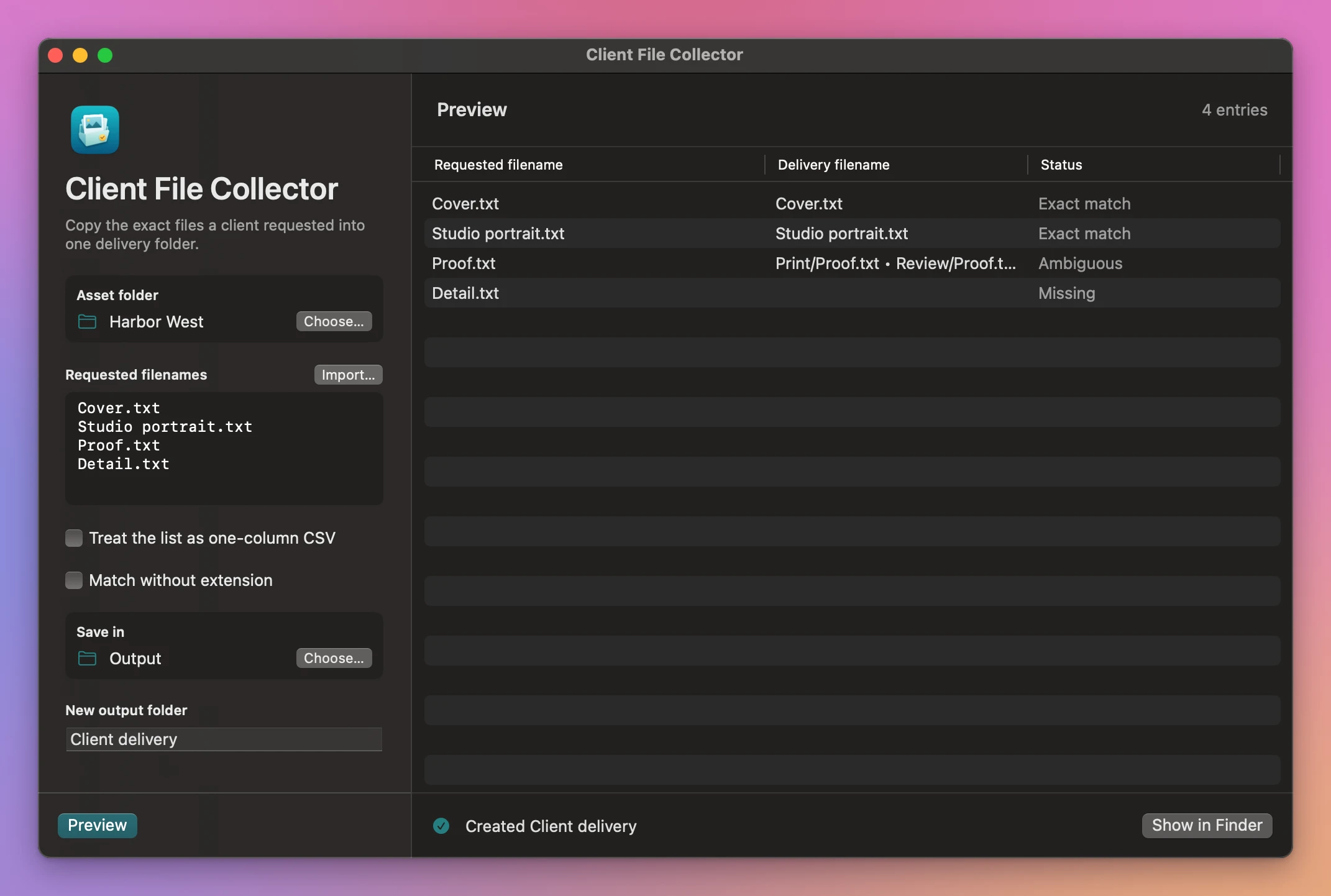
The screenshot uses small sample files to show the checks. Two filenames match, one is missing, and another appears in two folders.
Catch missing files and duplicate names before delivery
A filename that appears in several folders needs a decision. The preview shows the matching paths and skips that request when collecting files. Missing files are flagged too. A name repeated in your list is marked as a repeat.
The new folder contains the matched copies and Collection report.csv, including the names that still need attention. Resolve those requests and preview again before sending the delivery.
Other times a filename list needs to become a folder
- A designer handing approved artwork to a printer. The client sends a list of approved PDF filenames. Collect those exports from the project folders into a new handoff folder.
- A video editor gathering selected clips. An editor sends the original clip filenames they need. Collect those files from a shoot’s folders for a separate editing job.
- A bookkeeper gathering invoice PDFs. Someone requests a specific set of invoices and you have their PDF filenames in a spreadsheet. Export that column as a CSV and collect the matching PDFs from your archive.
Each workflow starts with files already on your Mac and a list of their filenames. For a few files in one folder, selecting them in Finder is enough. This app is for longer lists or files spread across subfolders.
Buy Client File Collector
$20 plus tax where it applies, paid once. The purchase page shows the download and your license key. You’ll find them in your Creem receipt too.
Unzip the download and drag the app to Applications. It runs on macOS 14 Sonoma or later on Apple silicon and Intel Macs. File processing happens on your Mac.
Enter your key in Client File Collector → License… to turn on updates. One key works on three Macs.