
An app by Flavio
Photo Metadata Cleaner
Make clean PNG copies of your photos without GPS location, camera details or dates, check each copy after saving, and get a before-and-after report.
Buy Photo Metadata Cleaner · $20One-time purchase. Plus tax where it applies.
macOS 15 or later · Apple silicon and Intel
You took photos of the room you’re renting out. They look great. Each file also holds the GPS coordinates of the flat, down to the building. It also says which phone took it, and when. Anyone who downloads the original file can read all of that.
Some websites remove this when you upload. Many places don’t: a photo sent by email as a file, shared through a cloud link or attached to a forum post often keeps everything.
Photo Metadata Cleaner makes clean copies. Add the photos, click Export, and each one comes out as a PNG with no location, camera details or dates in it. The app reads every copy back to check, and saves a small report that lists which tags were there before and which are left.
Who it’s for
- People renting out a room or selling a house. You want the photos online before you share the address with strangers. A photo taken on the spot carries the address in its GPS coordinates.
- Parents. You send photos of the kids to a club, a school newsletter or a group of other parents. Photos taken in the garden hold the location of your home.
- Online sellers. You photograph items on the kitchen table and post them on a classifieds site or send them by email to a buyer. The buyer doesn’t need to know where the kitchen is.
- Journalists and people protecting a source. A source sends you a photo. Before it goes anywhere, the camera serial details, the date and the location need to go, and you want a record that they did.
- Photographers. A contest asks for entries without identifying data, or a client should get files without your camera’s details. Pick Keep capture settings and the exposure, aperture, ISO and focal length stay.
From photos to clean copies
Say you have twelve photos of a flat to post on a listing site.
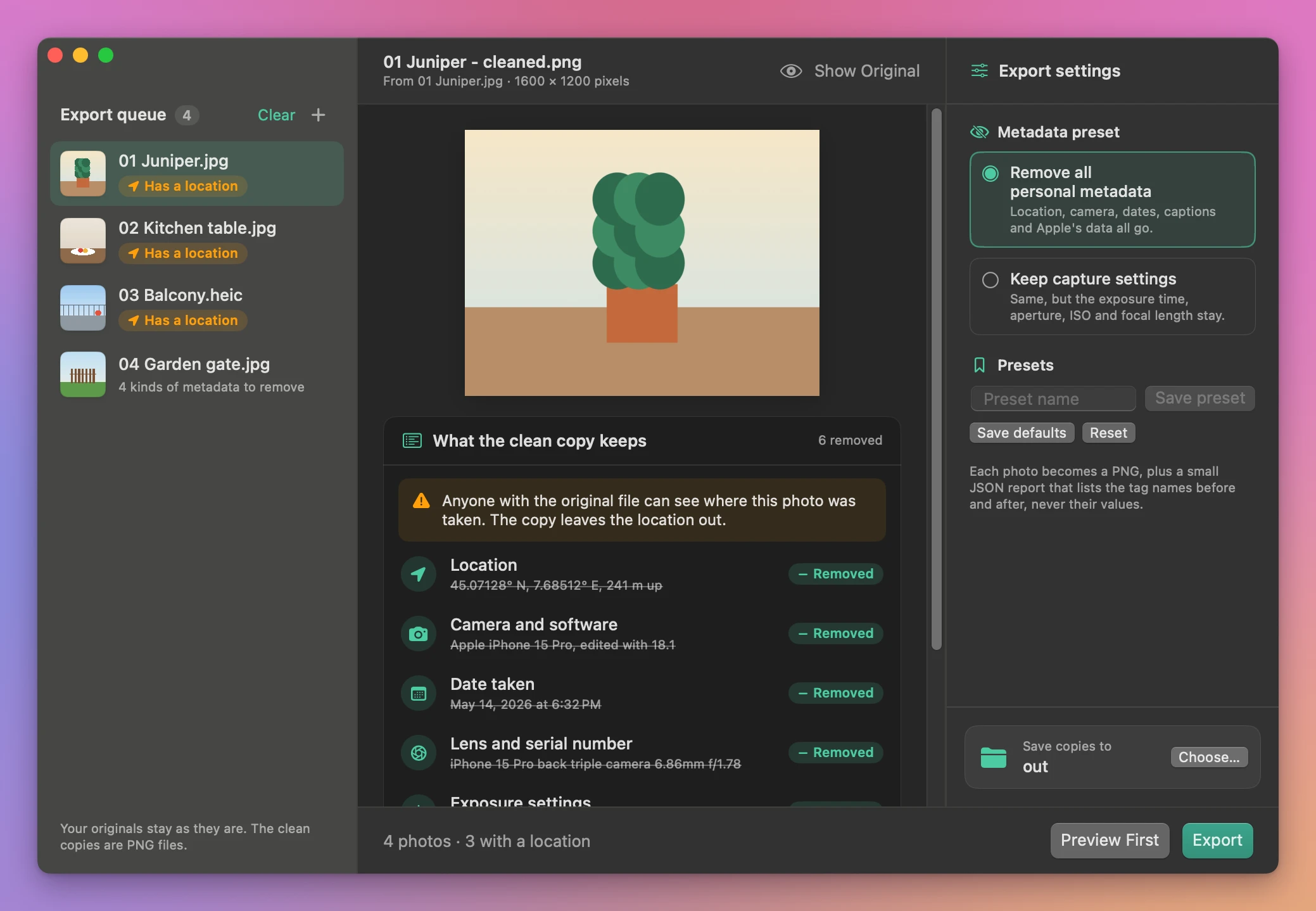
- Add the photos. Drag them onto the window, or click Add Photos…. The originals stay where they are. iPhone HEIC photos work. Photos that hold a location get an orange Has a location label in the Export queue.
- Pick the preset. Under Metadata preset, Remove all personal metadata takes out everything personal. Keep capture settings also keeps the four exposure values photographers care about. Click a photo in the queue to see the location, camera, date and the rest it holds, and which of them the copy keeps.
- Check one first. Click Preview First. The app cleans the first photo to a temporary file and opens it in Quick Look, so you can see it’s the right way up.
- Choose a folder. Under Save copies to, click Choose…. A new folder like “Flat photos - clean” keeps the copies apart from the originals.
- Click Export. Each photo in the queue gets a green Cleaned label, or a red Failed one with the reason. The results list every copy, like
01 Juniper - cleaned.png, with Open for the PNG and Report for01 Juniper - cleaned metadata.json. - Upload the PNGs. Show in Finder opens the folder. The PNGs are the files to share.
What gets removed
With Remove all personal metadata, the clean copy has no:
- GPS data: the coordinates, altitude and direction.
- Camera and software details: the make and model, and the app that last edited the photo.
- Dates and capture details: when the photo was taken, and the exposure data.
- Apple’s own data: the extra fields an iPhone adds.
- Captions and keywords: IPTC and XMP data, where titles, captions, keywords, copyright notes and ratings usually live.
What stays is what an image needs to display: its width and height, the EXIF version and the color space. With Keep capture settings, four more stay: the exposure time, the aperture, the ISO and the focal length. Nothing else carries over.
Every copy is checked
After writing a PNG, the app opens it and reads its metadata. If any of the removed groups is still there, or any tag outside the preset, the copy isn’t saved and the photo gets the error “The export still contains metadata outside the selected preset.” It also checks that the width and height match.
The report shows what was there
Next to each PNG, the app saves a JSON report. It lists the tag names in each group before and after, and the picture’s dimensions. It lists names only, never the values. So the report says the original had a {GPS} group with Latitude and Longitude, and the copy has none, without ever writing your coordinates into another file.
Rotation is applied
Phones often save a photo sideways with a tag that says “turn this”. Once that tag is gone, some viewers would show the photo on its side. So the app turns the picture itself before saving, and the copy looks right everywhere without the tag.
PNG, so nothing is lost
PNG doesn’t compress away any detail, so each copy is pixel for pixel what you saw, at full size. The catch is weight: a PNG is usually much larger than the JPEG or HEIC it came from. If the site has a file size limit, Image Upload Fitter makes JPEGs at the size and KB the form wants.
The originals stay as they are
The app reads your photos and writes new files into the output folder. When a name is taken, it adds a number. A damaged file or something that isn’t a photo gets “This file is not a readable photo.” and the rest of the batch keeps going. Cancel stops the batch and keeps the copies already saved.
Why not just turn off location
macOS gives you two ways to drop the location. When you export from Photos, you can leave out the location information. In Preview, the inspector has a Remove Location Info button, one photo at a time. Both deal with the location only. The camera model, the date and time and the other tags stay in the file.
Taking a screenshot of the photo drops the original’s tags but gives you a lower-quality copy at screen size. Online metadata removers mean uploading the very photos you’re trying to keep private.
| By hand | Photo Metadata Cleaner | |
|---|---|---|
| Location | Photos export option, or Preview one at a time | Removed from every copy |
| Camera model, dates, captions | Stay in the file | Removed, or exposure kept with Keep capture settings |
| Checking the result | Open an inspector on each file | Every copy read back and checked |
| A record of what changed | None | A JSON report per photo, names only |
| Rotation | Depends on the tool | Applied to the picture itself |
| Privacy | Online removers upload your photos | Everything happens on your Mac |
What it doesn’t do
- It doesn’t hide what’s in the picture. A street sign, a house number, a car’s plate or a face in a mirror stays visible. Look at the photo before you share it.
- It doesn’t clean in place. You get new files. The originals keep their metadata.
- It only saves PNG. No JPEG or HEIC output.
- It doesn’t handle video, animated images or multi-page files. It takes single-frame photos, up to 120 megapixels.
- It keeps the file name.
IMG_1842.heicbecomesIMG_1842 - cleaned.png. If the name itself says something private, rename the copy.
Questions
Are my original photos changed?
They stay exactly as they were, metadata included. The app writes clean copies into the folder you choose.
Does anything get uploaded?
The photos are cleaned on your Mac. The app uses the internet only to check for and download updates.
Should I share the JSON report too?
Keep it for yourself, as a record of what was removed. It holds tag names only, no values, so it doesn’t contain the location either.
Can I keep the exposure details for a photo contest?
Choose Keep capture settings. The copy keeps the exposure time, the aperture, the ISO and the focal length, and loses everything else.
Which photos can I add?
Single-frame photos macOS can open, like JPEG, PNG and the HEIC photos from an iPhone.
What it needs
Photo Metadata Cleaner runs on macOS 15 Sequoia or later, on Apple silicon and Intel Macs. Files are processed locally.
Exports single-frame PNGs up to 120 megapixels. Details visible in the image itself remain visible after cleaning.
The Photo Metadata Cleaner docs cover each step.
Buy Photo Metadata Cleaner
$20 plus tax where it applies, paid once.
Download the app from the order page or your Creem receipt, unzip it and move it to Applications. I sign the app with my Apple Developer ID, and Apple notarizes the download.
The app checks for updates once a day. When a new version is ready, click Install and Relaunch. To check anytime, choose Photo Metadata Cleaner → Check for Updates….