
An app by Flavio
Post Slide Deck
Collect posts on X with one click, add your own title and image slides, and play a clean slideshow you record and talk over. A Mac app with a Chrome extension.
Buy Post Slide Deck · $20One-time purchase. Tax included.
macOS 14+ · Chrome extension
Latest version 1.5.0, released November 20, 2026
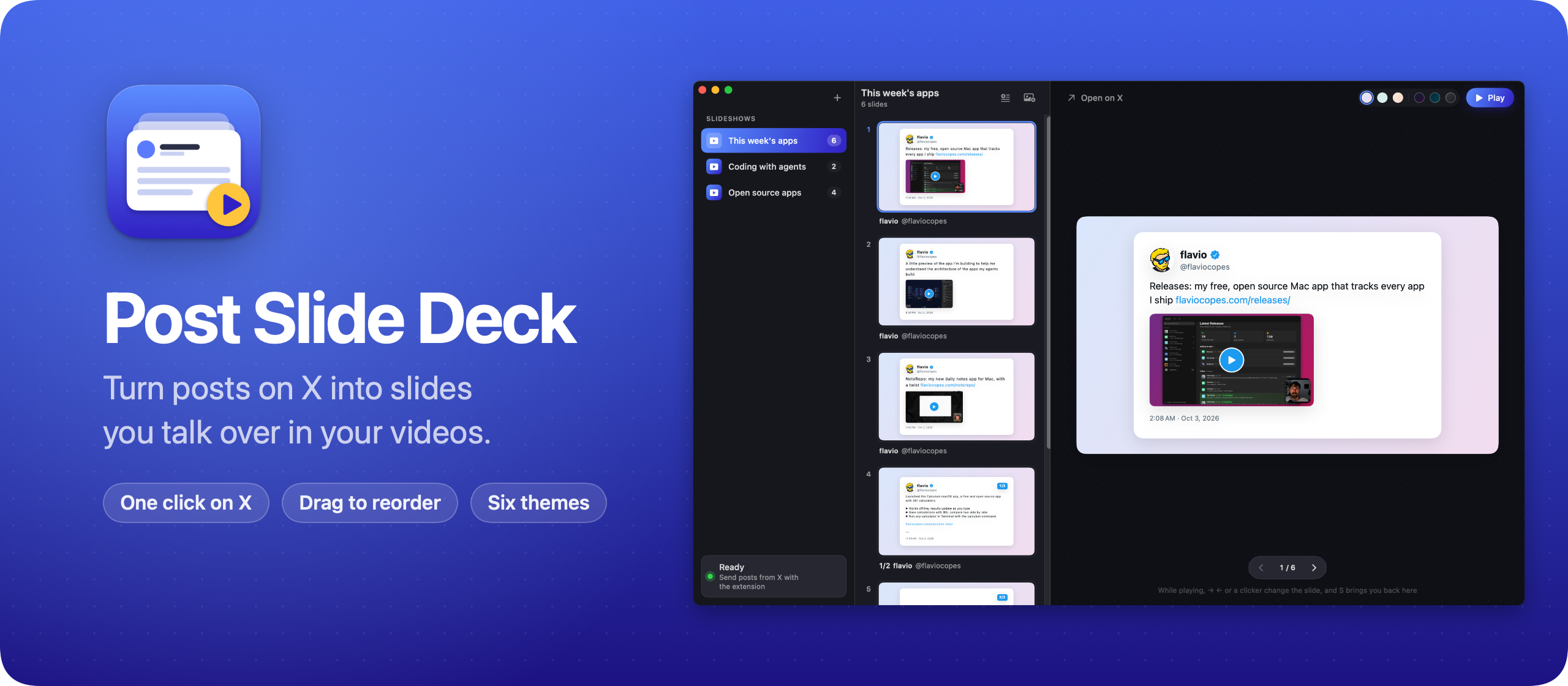
$20 including tax, one-time purchase.
Talk about posts on X without recording X
Say you make a weekly video about what happened in your corner of the internet. The material is a dozen posts on X. You want to show each one and say what you think.
Recording X itself puts the timeline, the replies, the ads and the sidebar in the frame. You scroll around looking for the next post while you’re talking, then cut the scrolling out in the edit.
Post Slide Deck is a Mac app with a Chrome extension that turns posts on X into slides. Click a small icon under a post, and it shows up in the app as a slide with the author, avatar, text and images. Press Play and record a window that shows only the slide.
I built it for my own videos about posts on X. I wanted a clean slideshow of just the posts I picked, in the order I want to talk about them.
Here’s how it works in a minute. The accounts and posts in it are made up, and so is the X page:
Who it’s for
- YouTubers who cover news from X. You make a weekly roundup of AI announcements or app launches. Collect the 12 posts during the week with one click each, and on recording day the slideshow is already in order.
- Creators who react to posts. You read a post, then talk about it for two minutes. Shorter posts get bigger text, so a one-liner fills the frame and stays readable on a phone.
- Course makers and teachers. You quote what people said about a tool in a lesson. Add a title slide, three posts and a screenshot of the tool, and record the lesson without opening a browser.
- Speakers who quote posts in a talk. The slides don’t depend on X, so a dead conference Wi-Fi doesn’t matter, and a presentation clicker changes the slide.
- Social media managers. You walk a client through last month’s best posts on a call. Share one clean window instead of scrolling their timeline while they watch.
From a week of posts to a recorded video
- Open Post Slide Deck and press ⌘N to create a slideshow. Double-click it to rename it, say This week’s apps.
- Browse X in Chrome. Under each post you want, click the slide icon next to Like. A message at the bottom of the page tells you where it went, like Added to “This week’s apps”, slide 6.
- Press ⌘T to add an intro slide with a title and smaller text below it. Type on the slide in the preview.
- Drop a screenshot from your Desktop onto the slide list to add it as a slide. ⇧⌘I lets you pick an image instead.
- Drag the slides into the order you want to talk about them. Pick a theme with the swatches next to Play.
- Press ⌘↩. The window shows only the slide. Start your screen recorder on that window, then press → to move through the posts as you talk.
- Press S when you’re done, and you’re back to the slideshow on the slide you stopped at.
Collecting is spread over the week, one click per post. On recording day there’s nothing left to crop or arrange.
One click under a post
Each post goes to the slideshow selected in the app, so you can keep one slideshow per video. The first post you send creates a slideshow if you don’t have one.
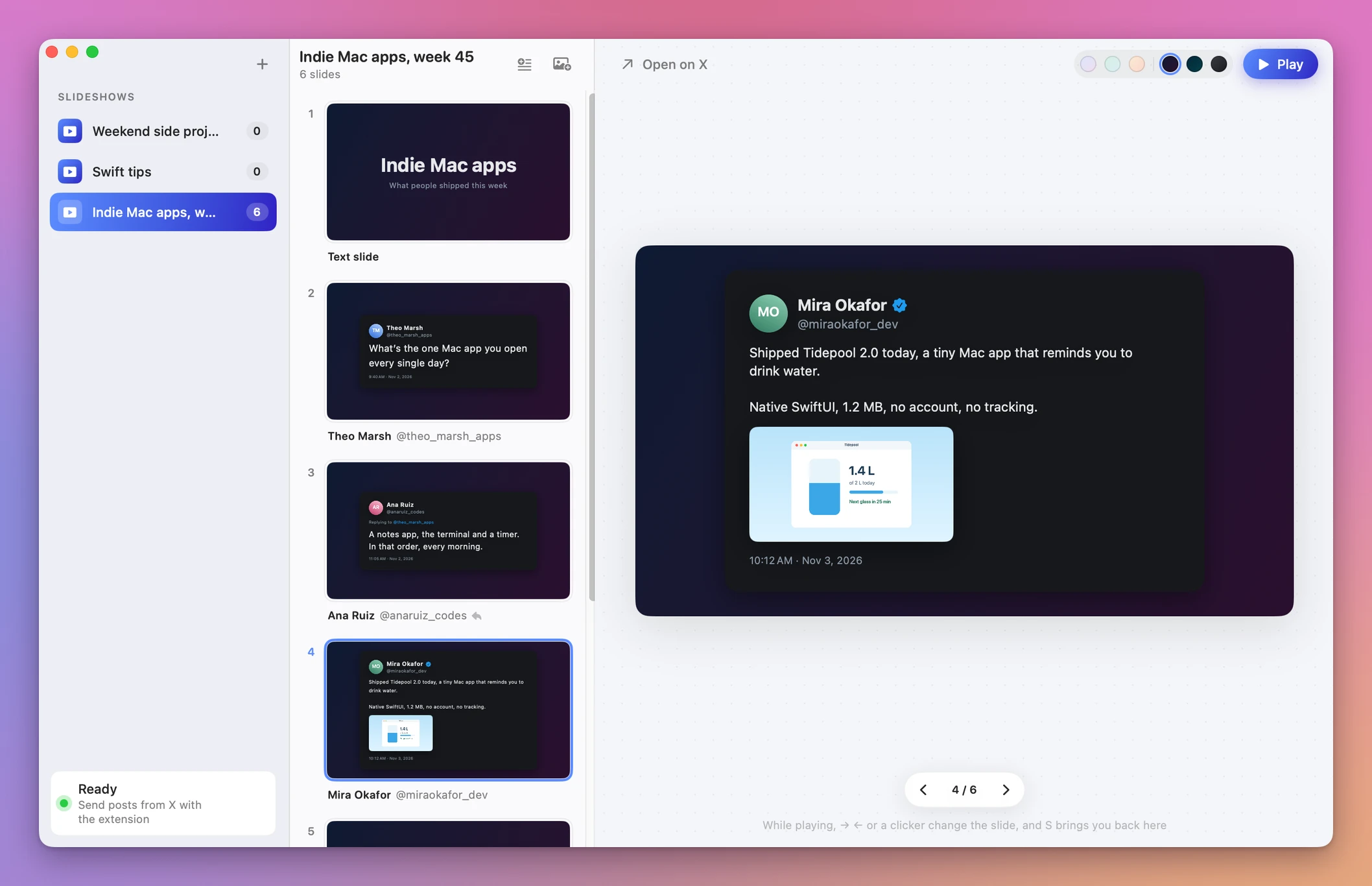
The accounts and posts in these screenshots are made up.
Each post becomes a small slide in the middle column. Drag the slides to put them in the order you want, or drop one on another slideshow in the sidebar to move it there. Press Delete to remove a slide, or right-click it to open the post on X.
The six round swatches next to Play set the slideshow’s theme: Dawn, Mint and Peach are light, Midnight, Ocean and Graphite are dark. Each slideshow keeps its own.
Your own text and image slides
Posts aren’t the only slides. Press ⌘T for a text slide with a title and optional smaller text, for an intro, a section break or a closing slide. Drop images on the slides, like screenshots of an app, and each one becomes a slide shown as large as it fits on the theme’s background.
Post Slide Deck keeps its own copy of every image, so the slide still works if you delete or move the original.
Playing the slideshow
When you’re ready to record, press ⌘↩ or click Play. The window shows only the slide, with no sidebar, no buttons and no traffic lights, so a recording of the Post Slide Deck window is just the slide.
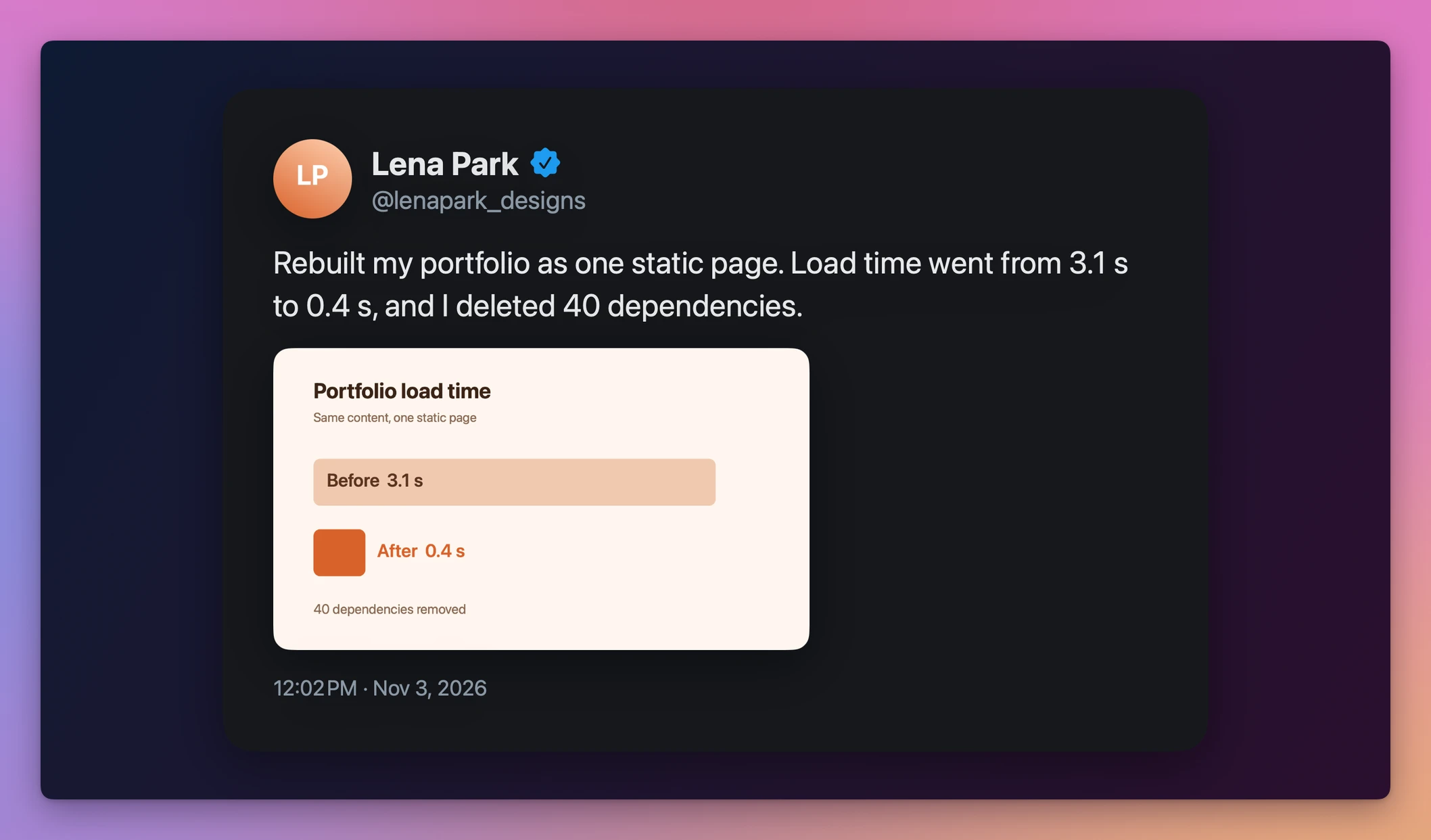
→ and ← change the slide, and so do Space, Page Up and Page Down, so a presentation clicker works too. S, Esc or ⌘↩ take you back to the slideshow, on the slide you stopped at.
While it plays, a small window shows the next slide. It’s a separate window, so it stays out of a recording of the main window. Drag it wherever you like, even to another display, and Post Slide Deck puts it there next time.
I record it with Borumi. I wrote about what a recording tool needs before an agent can help with it.
A few details make the slides easier to talk over:
- Shorter posts get bigger text, so a one-liner fills the slide.
- Long posts split into readable pages marked 1/3, 2/3 and so on. The author and date are on the first page and images on the last. Moving or deleting any page acts on the whole post.
- Replies show who they reply to.
- Videos show up as their thumbnail with a play button.
- X cuts long posts short in the timeline. Open the post and click the icon again, and Post Slide Deck replaces the text with the full one.
The app downloads the avatar and the images when a post arrives. The slides don’t depend on X while you record, and they work offline.
Let an agent build the deck
Post Slide Deck has a command line tool, postdeck. Install it from Post Slide Deck → Install Command Line Tool…, and the agent skill from Install Agent Skill…. Then an agent like Claude Code, Cursor or Codex can create a slideshow, add text slides, images and posts, reorder them and pick a theme. You see every change in the app right away.
postdeck create "This week's apps" --theme midnight
postdeck add-text "This week's apps" "This week's apps" --subtitle "Four Mac apps I shipped"
postdeck add-image "This week's apps" ~/Desktop/noterepo.png
postdeck open "This week's apps"
Why not screenshot the posts into Keynote
You can. Take a screenshot of each post, crop it, drop it on a slide, and present. For three posts, that’s fine.
For a weekly video with 12 posts, that’s 12 screenshots, 12 crops and 12 drags before you record. The text is a picture, so a short post can’t grow to fill the slide, and a long post becomes one tall image you have to shrink.
Recording the X page directly is faster to set up and messier to watch, with ads and scrolling in every shot.
| Screenshots in Keynote | Post Slide Deck | |
|---|---|---|
| Adding 12 posts | 12 screenshots, crops and drags | 12 clicks while you browse |
| Short posts | Small text in a big slide | Bigger text, fills the slide |
| Long posts | One tall image, shrunk | Split into readable pages |
| A matching look | Up to you | Six themes, one per slideshow |
| Next slide while recording | Keynote’s presenter display | A separate Up Next window outside the recording |
| Offline | Yes | Yes, images are downloaded when posts arrive |
What it doesn’t do
- It doesn’t record video. It shows the slides. Your screen recorder makes the video file.
- It only collects from X. The extension runs on x.com and twitter.com, in Chrome. Posts from other networks go in as screenshots.
- It doesn’t play videos from posts. A video shows as its thumbnail with a play button.
- It doesn’t export to Keynote, PowerPoint or PDF. The slideshow lives in the app.
- It doesn’t install the extension from the Chrome Web Store. You load it once from inside the app, as shown below.
How it works
A content script on the X page can’t talk to an app on your Mac, so the page hands the post to the extension’s service worker. The worker sends it to a tiny HTTP server inside the app, on 127.0.0.1:7678. That server only listens on your Mac, and it refuses requests from web pages, so a website can’t add slides behind your back.
Reading a post from X is the fragile part, because X changes its markup. The extension handles the current markup and the older one, reads the date from the post ID (X’s IDs carry a timestamp), and skips anything inside a quoted post. Its test loads the extension into Chromium and clicks posts on real X pages saved in the repo, so when X changes something, I save fresh pages and see what broke.
Each slide is laid out on a 1920×1080 canvas, and every size is scaled to the window width. That keeps the text and the images sharp in a small window, in full screen, and in the thumbnails.
The app is SwiftUI with no dependencies. Your slideshows stay in one JSON file on your Mac, with the images in a folder next to it. There are no accounts and no analytics.
Questions
Does the extension read my X timeline?
No. It reads a post from the page only when you click its button, and sends it to the app on your Mac. It runs only on x.com and twitter.com, and the only other place it can reach is the app.
Where are my slideshows stored?
In ~/Library/Application Support/Postdeck, with the downloaded images. Back up that folder to keep your decks.
What if a post doesn’t arrive?
Check that the app is open, that the right slideshow is selected, and that you reloaded X after installing the extension. X changes its pages now and then, so check for a newer version in the app if capture stops working.
Does the extension update itself?
No. When a release changes the extension, the release notes say so, and you click its reload button in chrome://extensions.
Does it work on Intel Macs?
Yes. It runs on macOS 14 Sonoma or later, on Apple silicon and Intel.
The documentation covers every shortcut and the postdeck command. The tutorial on turning posts on X into slides builds a deck from start to finish.
Buy Post Slide Deck and get started
Post Slide Deck costs $20 including tax, paid once. The purchase includes the signed Mac app and automatic updates.
After purchase, download the signed and notarized Mac app ZIP from your purchase page.
Post Slide Deck checks for updates once a day. Choose Post Slide Deck → Check for Updates… to check now and Install and Relaunch to install.
Unzip the app zip. Drag Post Slide Deck to your Applications folder. It runs on macOS 14 Sonoma or later, on Apple silicon and Intel Macs. It’s signed with my Apple Developer ID and notarized by Apple, so it opens like any other app you download.
The Chrome extension is inside the app bundle. Open chrome://extensions, turn on Developer mode, then choose Load unpacked and pick /Applications/Post Slide Deck.app/Contents/Resources/Post Slide Deck Extension. Reload X to see the slide icon under posts.
The included README covers every feature and shortcut.