How to accept all tracked changes and remove comments in multiple Word documents on a Mac
By Flavio
Switching Word to No Markup only hides tracked changes. Here's how to accept or reject them for good and delete the comments, one document at a time for free, or a whole folder at once.
You have a folder of Word documents full of tracked changes and reviewers’ comments. Everyone signed off, and now the clean versions have to go out: to the client, the publisher, the funder.
The short answer: in each document, accept (or reject) every change, delete every comment and turn off Track Changes, then save. Switching the view to No Markup isn’t enough, because it only hides the changes on your screen. For a whole folder, an app can do every document in one pass.
Why doesn’t No Markup make a clean copy?
Word’s Review tab has a menu for how changes are shown: Simple Markup, All Markup, No Markup and Original. Pick No Markup and the document looks finished. The deleted text, the inserted text and the comments are still in the file, though, and whoever opens it next can switch the view back and read them all.
A clean final copy has no tracked changes at all. Each one was accepted, so it became normal text, or rejected, so it was undone.
Here’s a real example, a short board memo with one edit and one comment:
| What’s in the file | |
|---|---|
| Tracked version | The new office opens on |
| No Markup | Shows “15 June”. The deletion, the insertion and the comment are still in the file |
| Accept all | ”The new office opens on 15 June.” Nothing else in the file |
| Reject all | ”The new office opens on 1 June.” Nothing else in the file |
How do I accept all changes in Word?
For one document, Word does it on the Review tab:
- Click the arrow under Accept and choose Accept All Changes. To undo every edit instead, use the arrow under Reject and Reject All Changes.
- Click the arrow under Delete in the Comments group and choose Delete All Comments in Document.
- Click Track Changes to turn it off, so the next person’s edits aren’t recorded as a new round.
- Save, and close.
That’s the right tool for one file. With ten files it’s ten rounds of the same clicks, and nothing shows you afterwards which documents are really done, or what was accepted in each one.
If you don’t have Word, LibreOffice is free and has Edit › Track Changes › Manage, with an Accept All button. It also works one document at a time, and when it saves the .docx it rewrites the whole file its own way. Pages opens tracked changes in a .docx and can accept or reject them, but a .docx sent back from Pages goes through a conversion. TextEdit and Quick Look show deleted and inserted text side by side, and can’t finalize either one.
How do I do a whole folder at once?
Word Revision Finalizer is a Mac app I built for this. It doesn’t need Word. You add the documents, choose accept all or reject all, look at a preview of every change, and it writes the clean copies into a new folder. Your originals stay as they were.
The documents in these screenshots are made up, and so are the reviewers’ names.
1. Add the documents and choose
Drag the files or the folder onto the Documents box, or click Add…. Then click Accept all changes or Reject all changes. Nothing is picked for you. Each card shows what the copy reads like, with a tiny example.
Under Also in the copies, Remove comments and Turn off Track Changes are already ticked. Click Choose… under Save in to pick where the copies go.
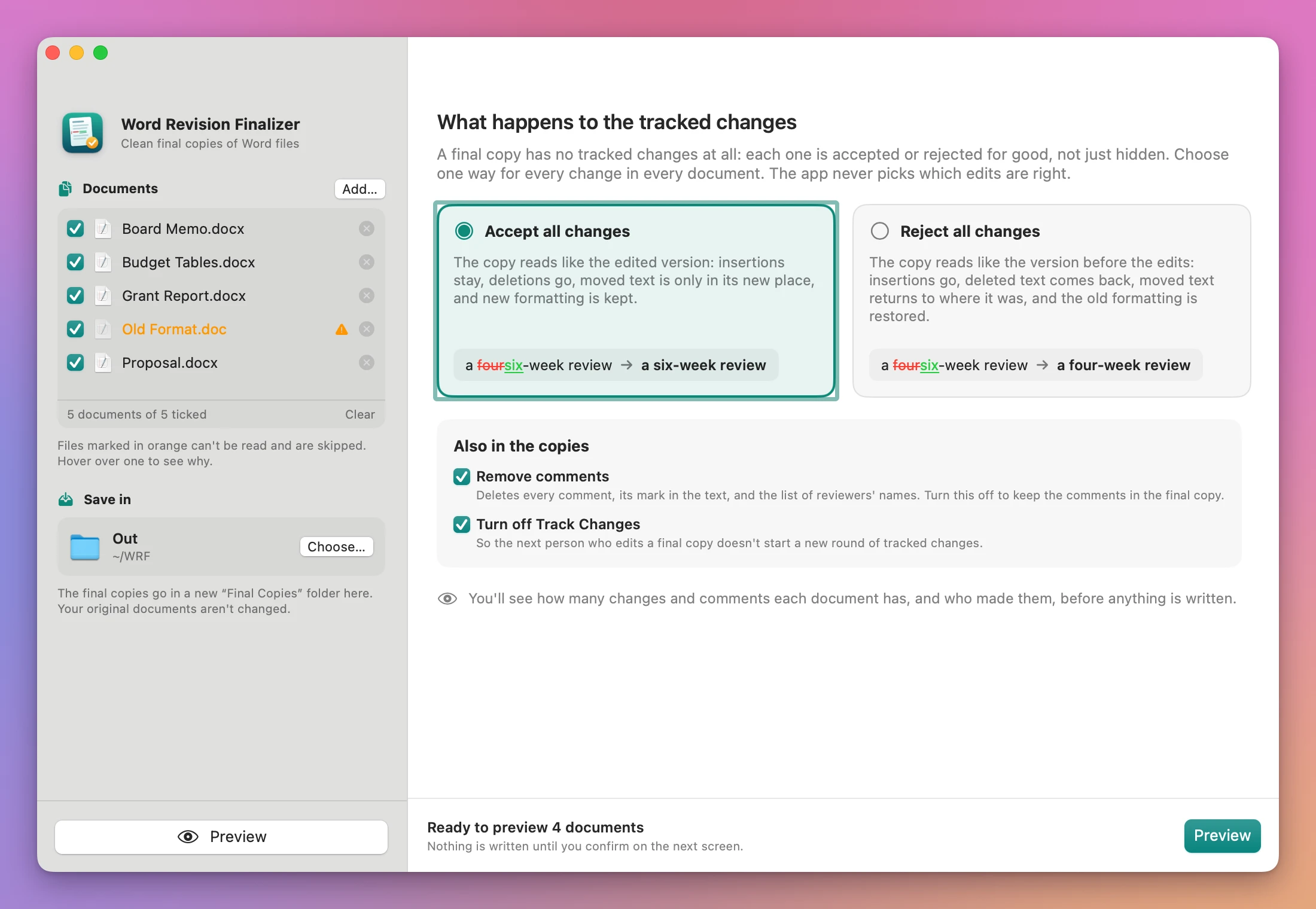
An old .doc file shows in orange, and hovering it says why: the app reads .docx only. Save it as .docx in Word or Pages first.
2. Look at the preview
Click Preview. Each document gets a card with its number of insertions, deletions, formatting changes and comments, and who made them.
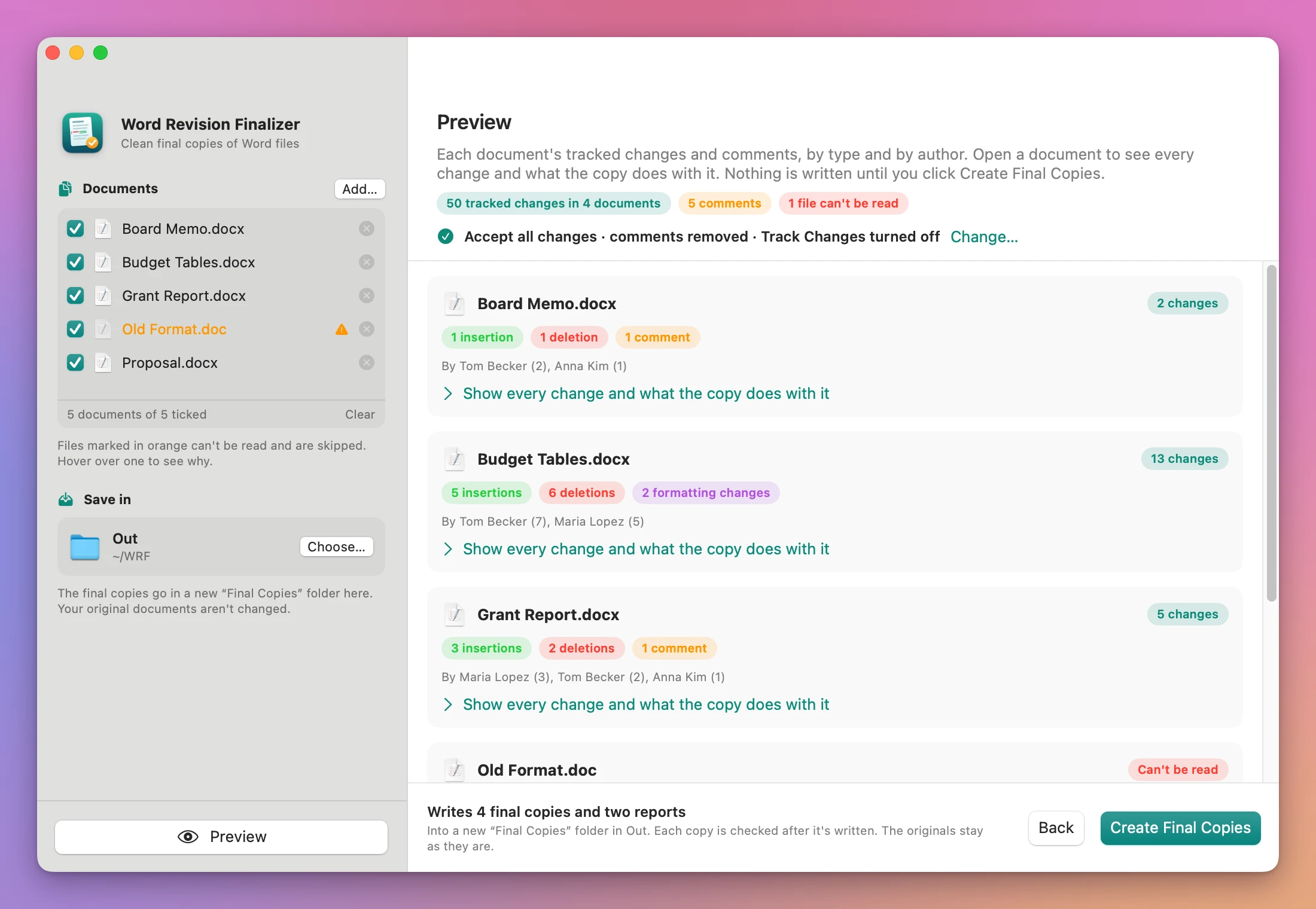
Click Show every change and what the copy does with it to see the list. Text that won’t be in the copy is struck through, and each line says what happens: Kept, Removed, Removed from the old place for moved text, Joined with the next paragraph for a deleted paragraph break.
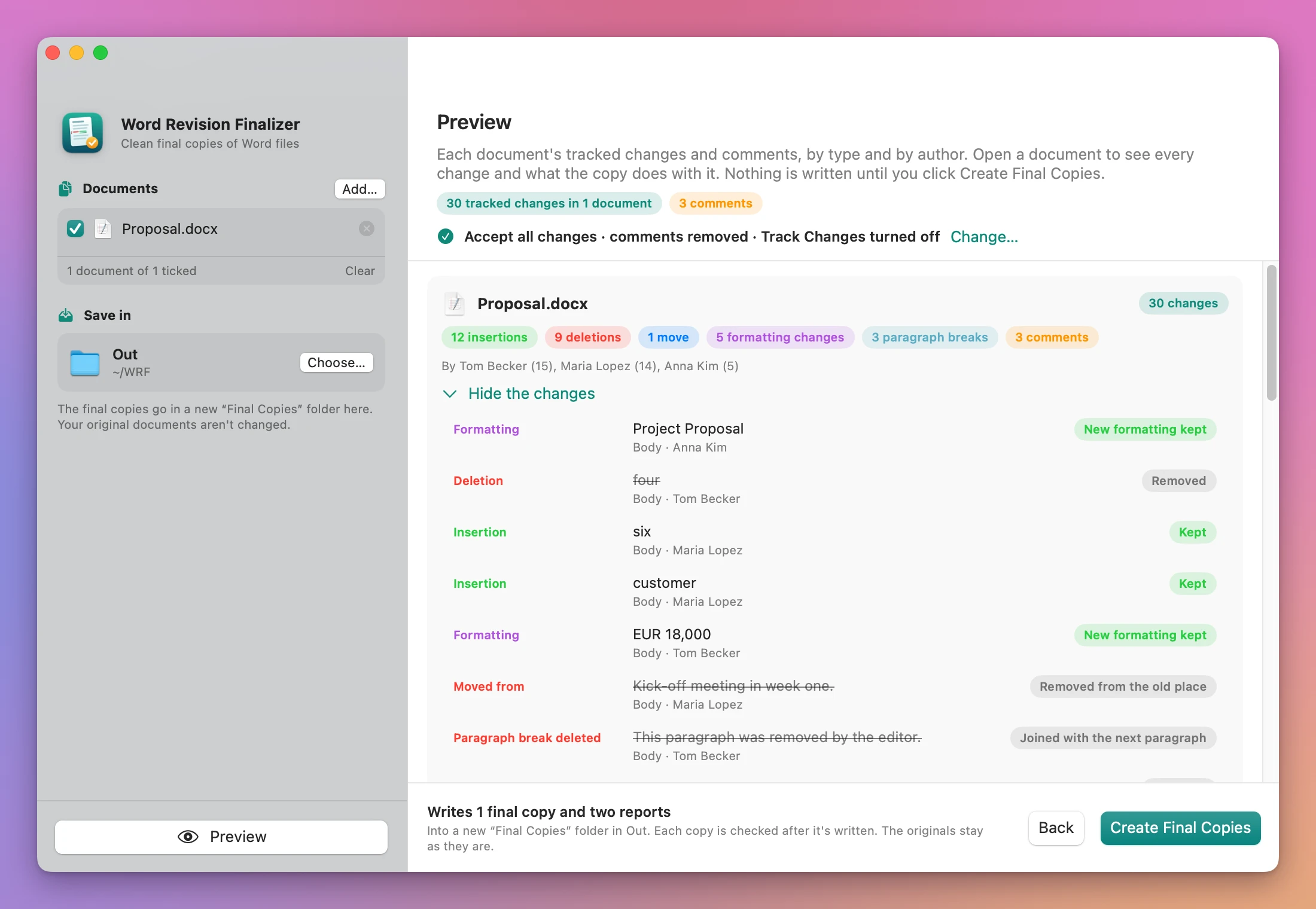
3. Create the final copies
Click Create Final Copies. The app writes each copy, then reads it back to check that no tracked change and no comment is left. Each one gets a green Checked: clean pill.
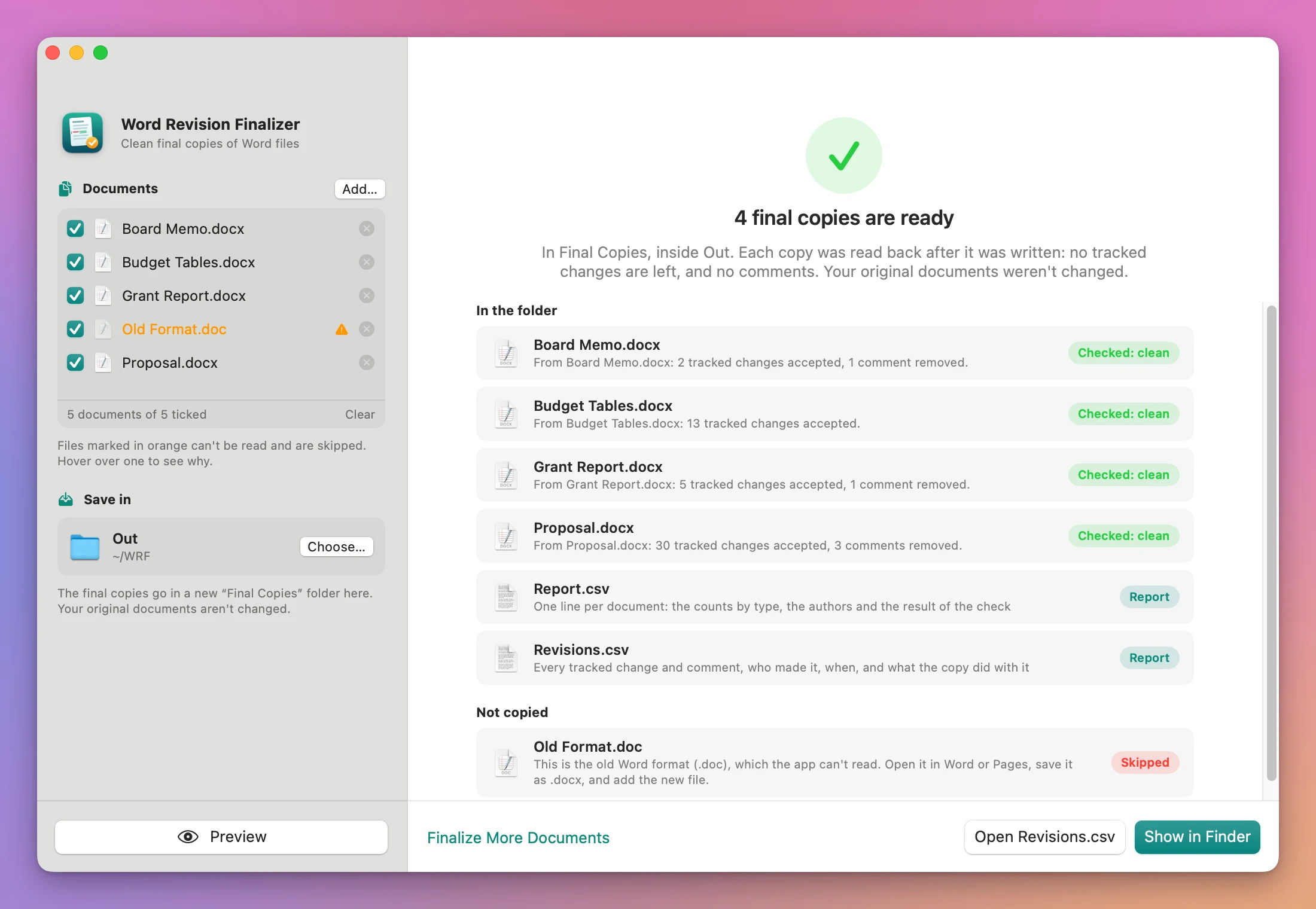
The Final Copies folder has the copies with their original names, plus two spreadsheets. Report.csv has one line per document. Revisions.csv has one line per change, with who made it, when, and what the copy did with it. For the board memo, the deletion of “1 June” says Removed, the insertion of “15 June” says Kept, and Anna Kim’s comment says Removed.
The copies are standard .docx files. They were checked in LibreOffice, which found no tracked changes left in any of them, but they haven’t been opened in Microsoft Word or Pages yet.
Which way should I use?
| Word, one by one | LibreOffice | Word Revision Finalizer | |
|---|---|---|---|
| Cost | Comes with Word | Free | $19, paid once |
| Ten documents | Ten rounds of clicks | Ten rounds of clicks | One pass |
| Comments | Delete All Comments, per file | Deleted per file | Removed in every copy |
| Preview of what changes | Reading each document | Reading each document | Every change, by type and person |
| A record of the changes | None | None | Revisions.csv |
| Originals | Saved over, unless you save a copy | Saved over, unless you save a copy | Never touched |
| Pick change by change | Yes | Yes | No, one choice for everything |
The last row matters. If some edits should stay and others go, review them in Word. The app is for the moment when the decision is made for the whole document, and the whole folder.
The app costs $19, paid once. To change the same words in many documents instead, like a client’s new name, there’s Word Batch Text Replacer.
Get Word Revision Finalizer
Make clean final copies of many Word documents: accept or reject every tracked change, remove comments, and check each copy.
See Word Revision Finalizer → · Read the docs · $19. See the app page for tax details.
Want me to talk about your product? You can sponsor this site.