How to change folder colors and icons on a Mac (and change them back)
By Flavio
Finder tags color-code a folder, and Get Info pastes a custom icon onto one folder. To give many folders a colored icon with a symbol at once, and undo it later, use a batch tool with a restore log.
Every folder on a Mac is the same blue folder. Open a Clients folder with 20 projects inside and you’re reading names to find the one you want.
For one or two folders, the Mac has free ways to fix that: a colored tag, or a custom icon pasted in Get Info. For a whole set of folders, or when you want an easy way back, Folder Icon Painter paints them in one go and keeps a log to restore them.
Can I color a folder without changing its icon?
Yes, with a Finder tag. Control-click the folder and click one of the colored dots in the menu. The folder gets that tag, and you can click the tag in the Finder sidebar to see every folder that has it.
A tag is a small dot next to the name, though. The icon stays the standard blue folder, so in icon view, in a Dock stack or in an Open dialog, a row of tagged folders still looks like a row of identical folders. For “this one is important”, that’s enough. To tell 20 folders apart at a glance, you need different icons.
How do I change one folder’s icon?
Apple’s help describes the free way in the Finder:
- Open the picture you want in Preview, choose Edit › Select All, then Edit › Copy.
- Select the folder and choose File › Get Info (Command-I).
- Click the small icon at the top left of the Info window.
- Choose Edit › Paste (Command-V).
To take the custom icon off, open Get Info again, click the small icon, and press Delete. The folder goes back to the standard icon.
This works well for a folder or two. It has three catches:
- You need the picture first. Get Info can’t tint the folder or put a symbol on it, so a “green folder with ACME on it” has to be drawn in another app.
- It’s one folder at a time. Twenty folders is twenty rounds of copy, Get Info, click, paste.
- Removing an icon deletes it. If you paste over a custom icon you made earlier, or delete it, it’s gone. There’s no history.
How do I change the icons of many folders at once?
Folder Icon Painter is a Mac app I built for this. It tints the macOS folder any color, adds a symbol, an emoji or up to 4 letters, and paints every folder you pick in one batch. It costs $19, paid once.
The folders in these screenshots are made up: a Clients folder with Acme Corp, Archive 2024, Beta Studio, Delta Fitness, Gamma Bakery, and a small app called Mockup Tool. Beta Studio already had its own custom icon, a red folder with a 🔥. The screens are from macOS 15.
- Drop the
Clientsfolder on the Folders list, or click Add…. - Set Which folders to Plus their subfolders, so the folders inside get the icon too.
- In Skip folders named, add
Archive*to the list. The*matches anything, soArchive 2024is left alone. - Under Icon, pick Tinted folder, the blue color, and the Symbol badge. Here it’s the paintbrush symbol.
- Click Preview.
The preview lists every folder with its current icon, an arrow, and its new icon. Nothing has changed yet. Delta Fitness was unticked here, so it says Left out:
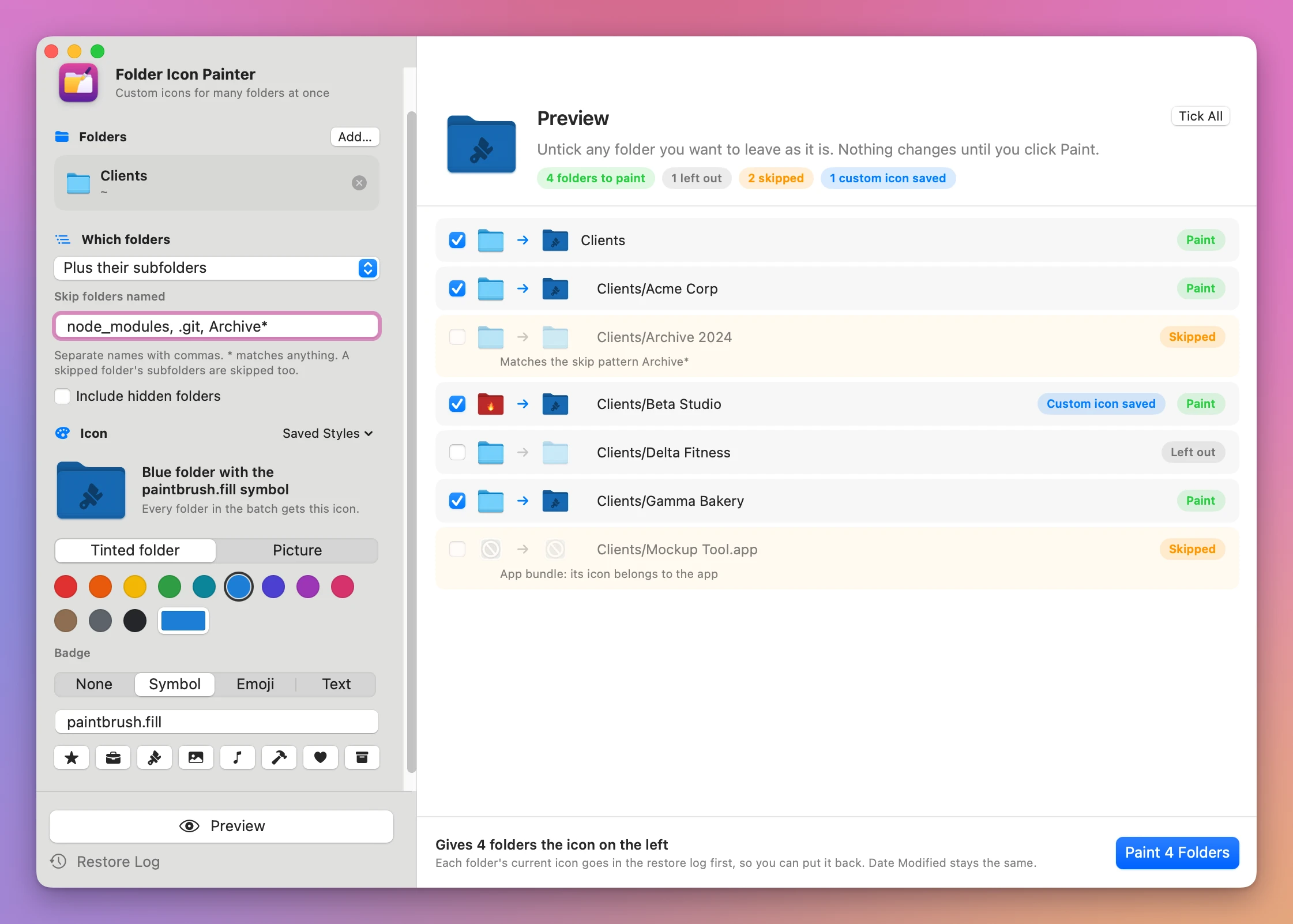
Two folders are skipped on their own. Archive 2024 matches the pattern, and Mockup Tool.app is an app, whose icon belongs to the app. The app also refuses system folders and your home’s Desktop, Documents and Downloads.
Click Paint 4 Folders, and the Finder shows the result:
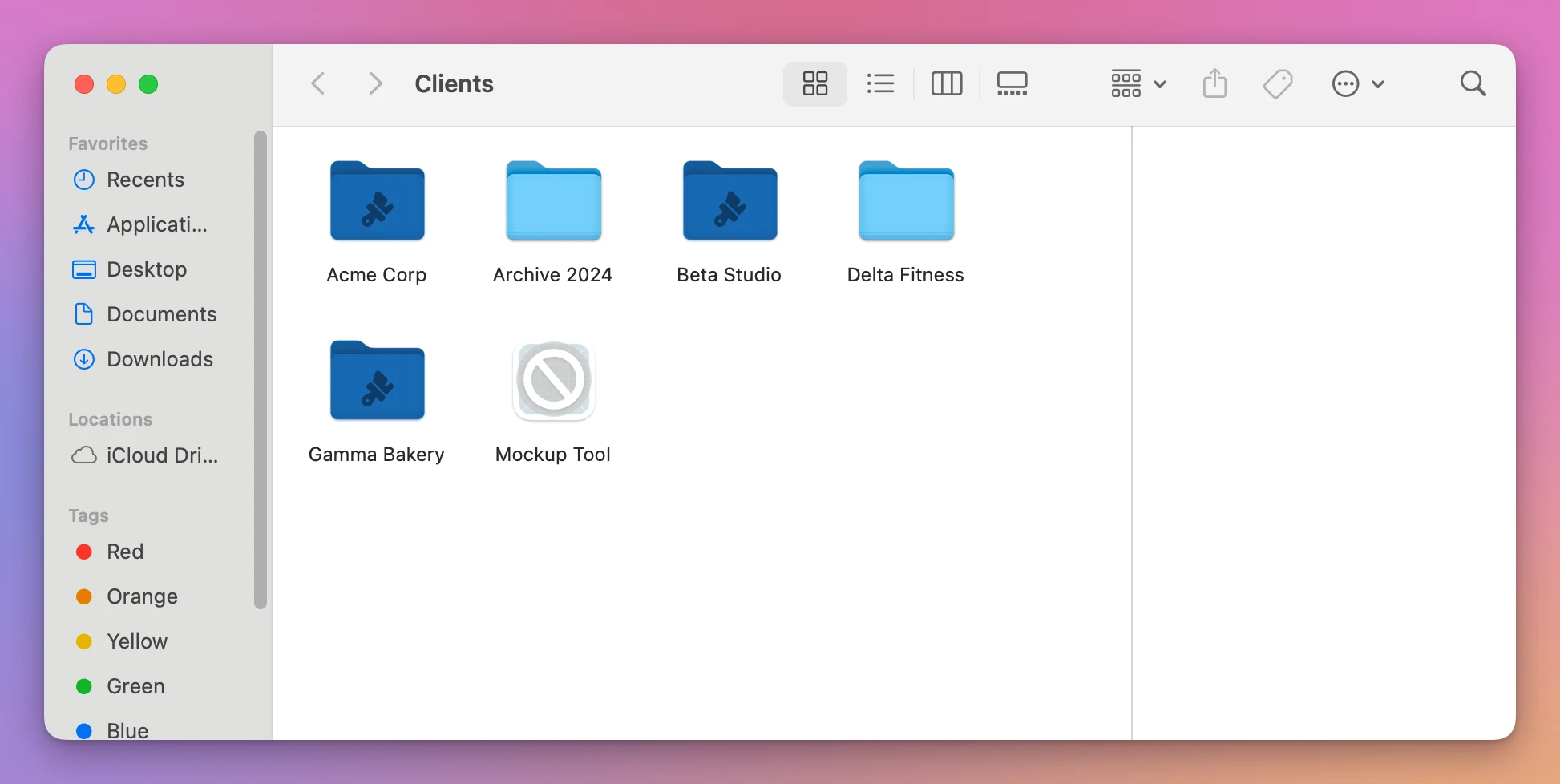
Each folder’s Date Modified stays the same, so a window sorted by date doesn’t change order.
How do I put the old folder icons back?
Every click on Paint is a batch in the Restore Log, the button at the bottom of the window’s sidebar. Pick the batch, leave ticked the folders you want back, and click Restore 4 Folders.
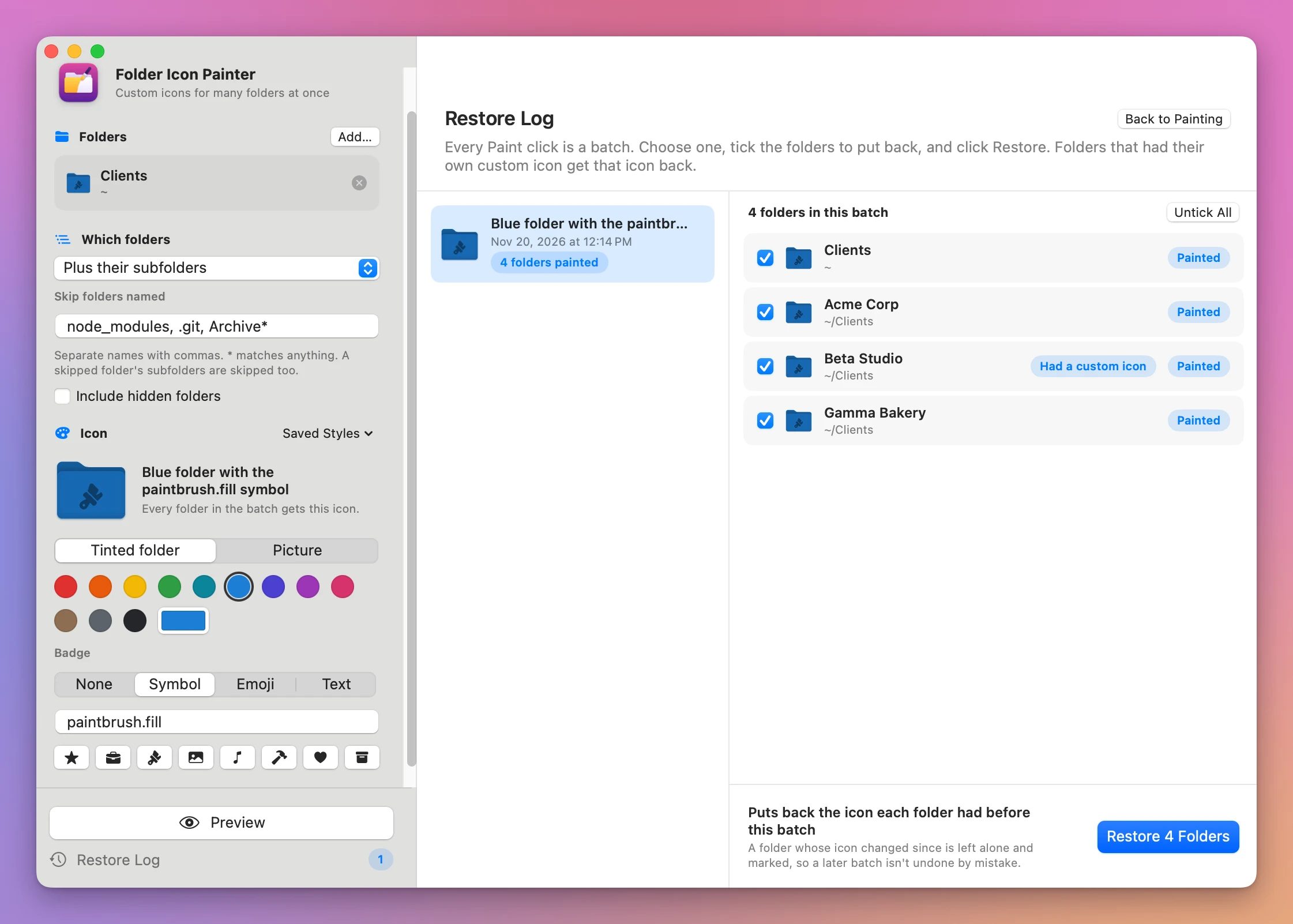
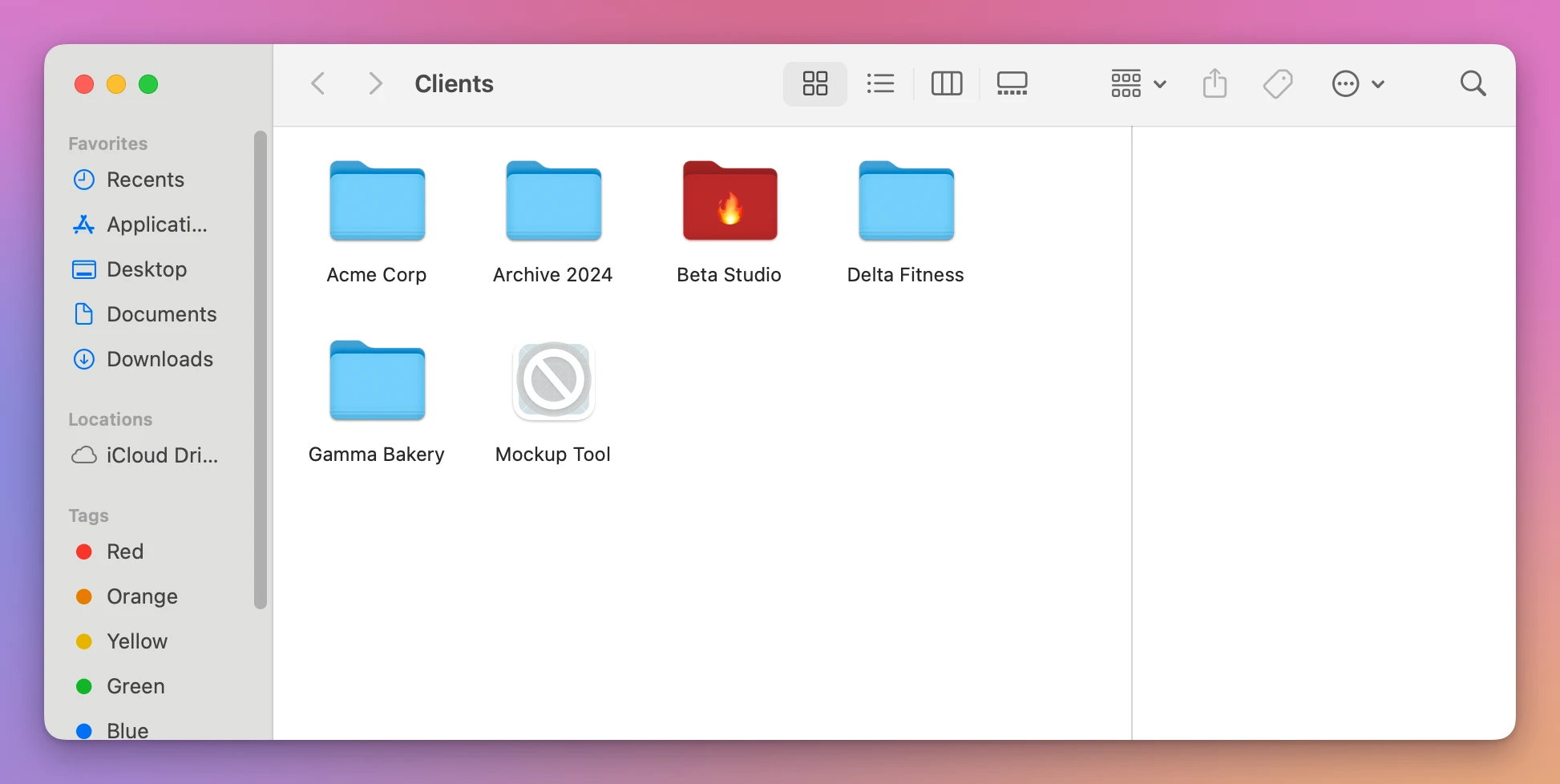
The folders that had the standard icon get it back. Beta Studio gets back its red folder with the 🔥, the same icon it had before the batch, because the app saved a copy of it before painting:
If you painted a folder again in a later batch, or changed its icon by hand, restoring the older batch leaves it alone and marks it Changed since, so you don’t undo newer work by accident.
Which way should I use?
| Finder tag | Get Info and paste | Folder Icon Painter | |
|---|---|---|---|
| Changes the icon | No, a dot next to the name | Yes | Yes |
| Make a colored folder with a symbol or letters | No | Draw it in another app first | In the app |
| 20 folders | Select them all, one click | 20 rounds of copy, Get Info, paste | One preview, one click |
| Subfolders | Open each folder and select them | One by one | Up to every level, with names to skip |
| Undo | Remove the tag | Delete the icon, an earlier custom one is lost | Restore log, earlier custom icons come back |
| Cost | Free | Free | $19, paid once |
My advice: use a tag to mark a folder, and Get Info for one folder you want to look different. When it’s a whole set, like every client, every class or every project of the year, use Folder Icon Painter. If you start each client with the same set of folders, creating them from a template pairs well with it.
Custom icons stay on the Mac’s own disk. On some external drives, network shares and iCloud Drive folders an icon may not stick, and the app lists those folders in red after painting.
Get Folder Icon Painter
Give many folders a tinted, badged or picture icon at once, preview every folder first, and put the old icons back from a restore log.
See Folder Icon Painter → · Read the docs · $19. See the app page for tax details.
Want me to talk about your product? You can sponsor this site.