How to check a redacted PDF before you send it
By Flavio
Open the blacked-out PDF in Preview and run four checks: search for what you hid, copy all the text into TextEdit, click a box, and read the title in Tools › Show Inspector. Here's what a safe file and an unsafe one show.
You blacked out the account number on a bank statement and the PDF is ready to send. How do you know the number is gone from the file, and not just covered?
Open the PDF in Preview and run four checks. Search for what you hid. Copy all the text and paste it into TextEdit. Click a black box. Read the PDF’s title in Tools › Show Inspector. If the hidden text turns up in any of them, don’t send the file.
PDF Blackout, a Mac app I made, checks every copy it saves.
How do I check a blacked-out PDF?
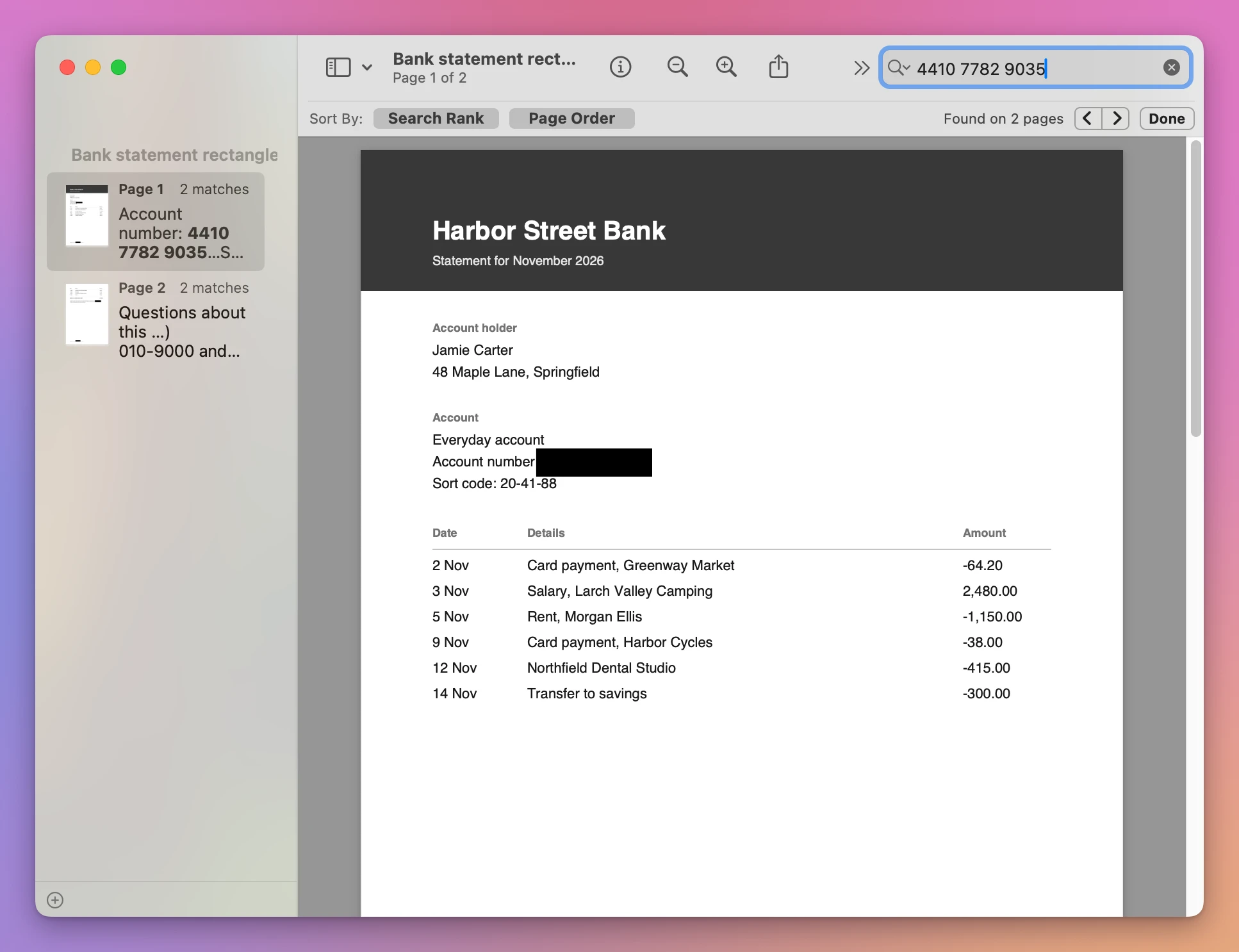
The screenshots are from a test Mac with macOS 15 Sequoia, and the bank statement in them is made up. Its account number, 4410 7782 9035, is printed four times on two pages.
Three copies of it were checked here. They look the same on screen, with four black boxes each:
- one with a black rectangle from Preview’s Markup toolbar over each place
- one where each place was marked with Preview’s Tools › Redact
- one saved by PDF Blackout
The checks are done in Preview, the app that opens PDFs on every Mac.
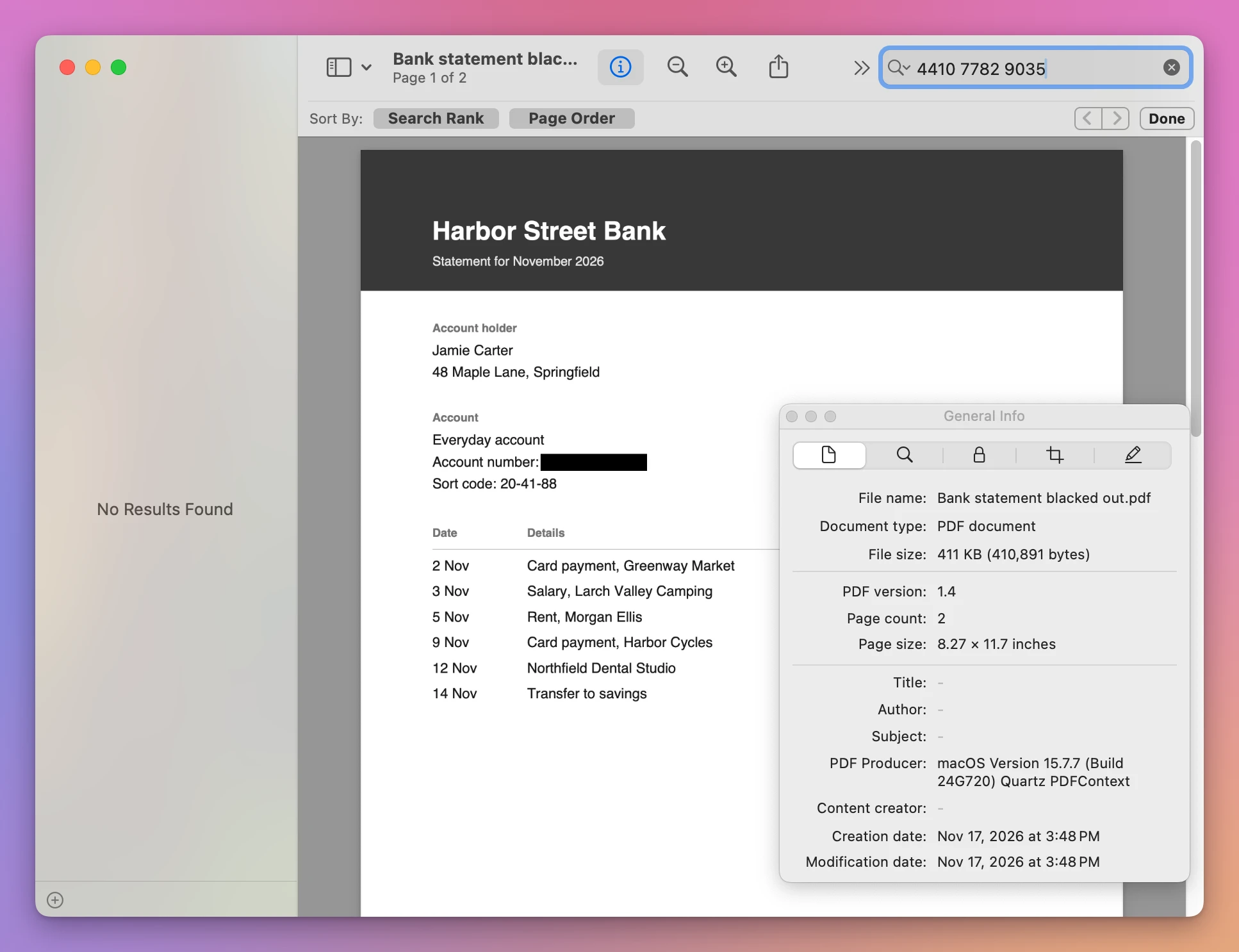
- Search for what you hid. Choose Edit › Find › Find… and type it. On the copy with rectangles the sidebar listed Page 1 with “2 matches” and Page 2 with “2 matches”. On the other two it said “No Results Found”.
- Copy all the text. Click the page, choose Edit › Select All, then Edit › Copy. Open TextEdit and paste. The text from the copy with rectangles had the number four times. The text from the other two had no number. In PDF Blackout’s copy that line read “Account number: I”, with a stray letter where the box is.
- Click a box. On the copy with rectangles, a click put blue handles around the rectangle, and dragging it aside showed the number. On the other two, a click selected nothing and the Delete key did nothing.
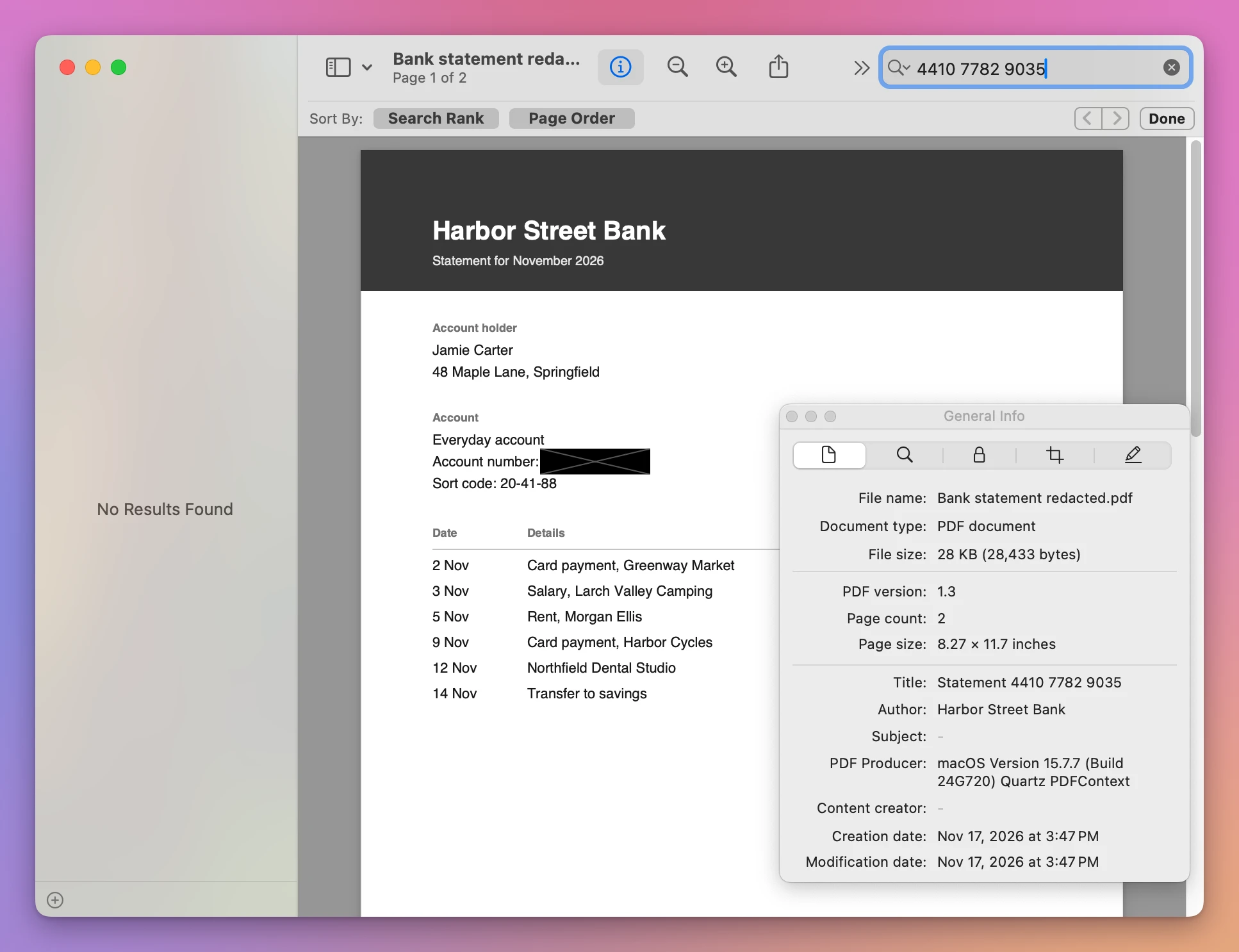
- Read the title. Choose Tools › Show Inspector. A small window opens with the file’s details, and one of them is Title.
What is the title of a PDF?
A PDF has a title and an author that aren’t printed on any page. The app that made the file wrote them, and they travel with it. This statement’s title is “Statement 4410 7782 9035”, so the account number is in it.
Preview’s Redact took the number out of the pages and left the title alone. The redacted copy passed the first three checks, and the Inspector still showed the number. The copy with rectangles had the same title.
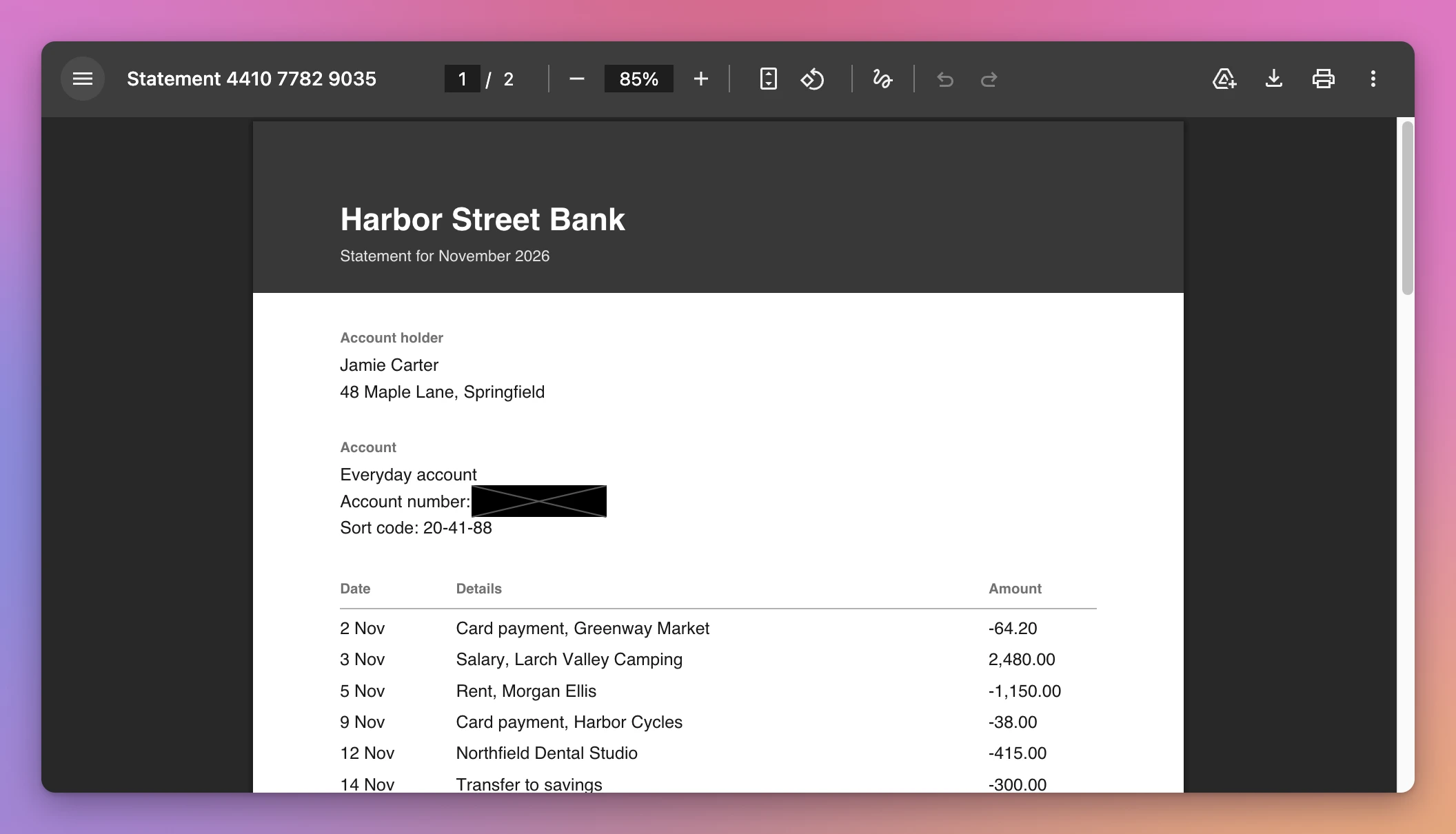
The title shows up outside the Inspector too. Opened in Chrome with File › Open File…, the redacted copy had “Statement 4410 7782 9035” as the name of its tab, and again above the page.
How do I remove the title in Preview?
Print the PDF into a new PDF. With the redacted copy open in Preview:
- Choose File › Print….
- Click the arrow next to PDF at the bottom of the dialog and choose Save as PDF….
- Look at the Title and Author boxes. Here Title was filled in with the file’s name, and Author with the name of the test Mac’s user account. Delete both, or type what the other person may read.
- Give the file a new name and click Save.
The new file showed a dash for Title and Author in the Inspector, and it passed the other three checks. Its pages came out in US Letter size, where the original was A4, because that’s the paper the print dialog was set to.
Printing doesn’t help a file with rectangles, though. That copy, printed the same way, still gave “2 matches” on each page, and the number was still in the pasted text. For that one, delete the rectangles and hide the number for good. Why a black box on a PDF doesn’t hide the text under it explains it, and How to redact a PDF on a Mac has the steps.
The shorter way, with PDF Blackout
PDF Blackout blacks out parts of a PDF and saves a copy where those parts are gone. It costs $19, paid once. It isn’t made by, affiliated with or endorsed by Adobe or Apple.
Here the number went in the search field, Find answered “Found 4 times on 2 pages, marked in yellow.”, and Black Out All 4 put a box on each place. Then Save Blacked-Out PDF… and Save.
After saving, the app opens the copy and checks that every box is solid and that nothing is left under it. If the check fails, it deletes the copy and tells you.
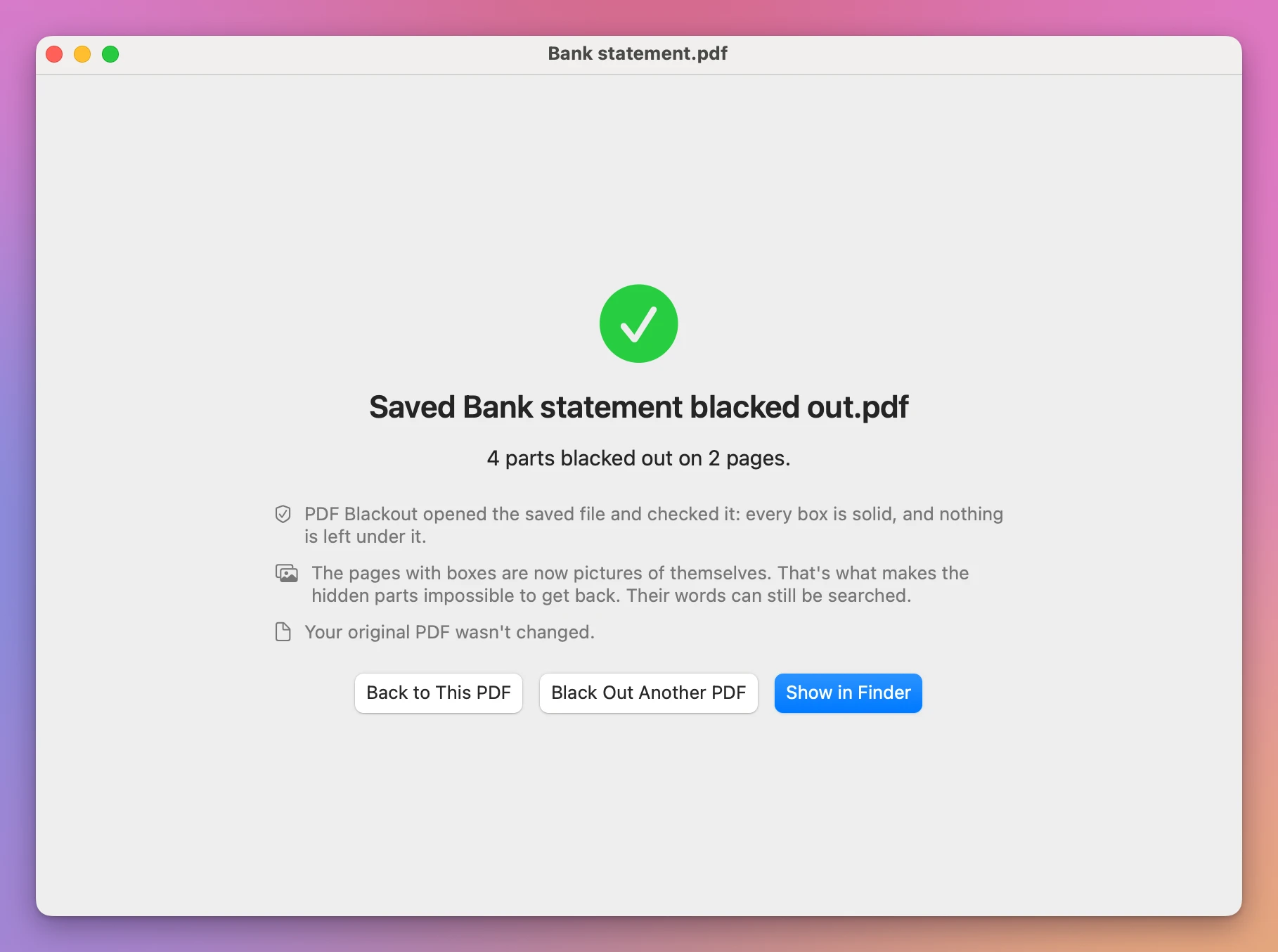
The original’s title and author aren’t copied to the new file. In Preview the copy passed all four checks, with a dash next to Title and Author. In Chrome its tab had the file’s name, Bank statement blacked out.pdf.
What did each copy show?
| Check | Black rectangles on top | Preview’s Redact | PDF Blackout |
|---|---|---|---|
| Search for the number | ”2 matches” on each page | ”No Results Found" | "No Results Found” |
| Select All, Copy, paste into TextEdit | The number, four times | No number | No number |
| Click a box | Blue handles, and it drags away | Selects nothing | Selects nothing |
| Title in the Inspector | Statement 4410 7782 9035 | Statement 4410 7782 9035 | A dash |
| Safe to send? | No | After printing it to a new PDF with an empty title | Yes |
Run the search once for each thing you hid, then read the pages yourself. All three copies of this statement still show the sort code and the holder’s address, because no box was put on them.
Get PDF Blackout
Black out a name, an address or an account number in a PDF and save a copy where it is gone from the file, not hidden under a black box. Drag over what to hide, or find a word, every email address or every phone number and black them all out. The app checks the copy, and your original PDF is never changed.
See PDF Blackout → · Read the docs · $19. See the app page for tax details.
Want me to talk about your product? You can sponsor this site.