Copy photos from your Mac to a USB drive for a Windows PC
By Flavio
To give photos to someone with a Windows PC, check that the USB drive is formatted as ExFAT or FAT32, and export the photos as JPEG. Here's how to check the drive in Disk Utility, what each format allows, and how to copy the photos.
Your dad wants the family photos, and he has a Windows PC. You have a USB stick and the photos are in Photos on your Mac.
Two things decide whether this works. The drive has to be formatted in a way both a Mac and a PC can use, which means ExFAT or FAT32. And the photos should be JPEG, because a PC may not open HEIC, the format iPhones use. Check the drive in Disk Utility, then export from Photos as JPEG.
The photos here are drawings made for this tutorial, and the two drives are made-up ones: “FAMILY USB”, formatted as ExFAT, and “OLDUSB”, formatted as FAT32. The screenshots are from macOS 15 Sequoia.
Which format is my USB drive?
Open Disk Utility, in Applications › Utilities, and click the drive in the sidebar. The line under its name says the format:
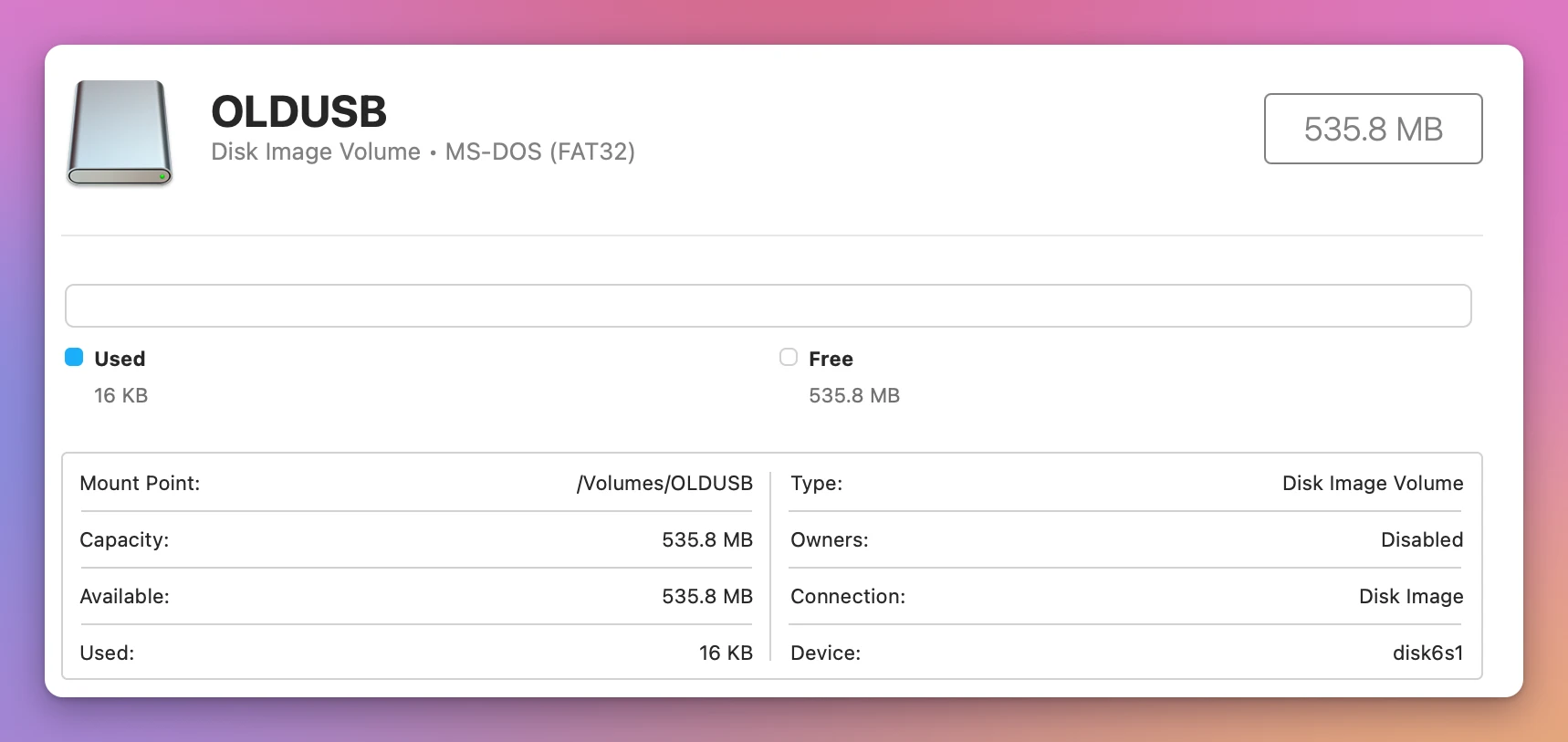
Here “FAMILY USB” said ExFAT and “OLDUSB” said MS-DOS (FAT32).
Apple’s Disk Utility guide lists MS-DOS (FAT) and ExFAT as the formats that work with Windows: FAT for drives of 32 GB or less, ExFAT for bigger ones.
| Format | Mac reads | Mac writes | Windows reads | Biggest file |
|---|---|---|---|---|
| FAT32 (MS-DOS) | Yes | Yes | Yes | Just under 4 GB |
| ExFAT | Yes | Yes | Yes | No limit you’ll hit with photos and videos |
| NTFS | Yes | No | Yes | No limit you’ll hit |
| APFS or Mac OS Extended | Yes | Yes | No | No limit you’ll hit |
FAT32 is the old one, still on many small sticks. Its limit is per file: one video of 4 GB or more doesn’t fit, even when the drive has room. Photos are far smaller, so it’s long videos that run into it.
ExFAT has no such limit, and both a Mac and a PC read and write it. For a drive that goes between the two, it’s the one to use.
NTFS is what Windows uses for its own disks. Some USB drives come formatted that way. A Mac can open the files on it, but it can’t copy anything onto it.
How do I change the format?
Formatting erases everything on the drive, so copy off anything you want to keep first.
In Disk Utility, select the drive and click Erase. The window asks for a name and a Format:
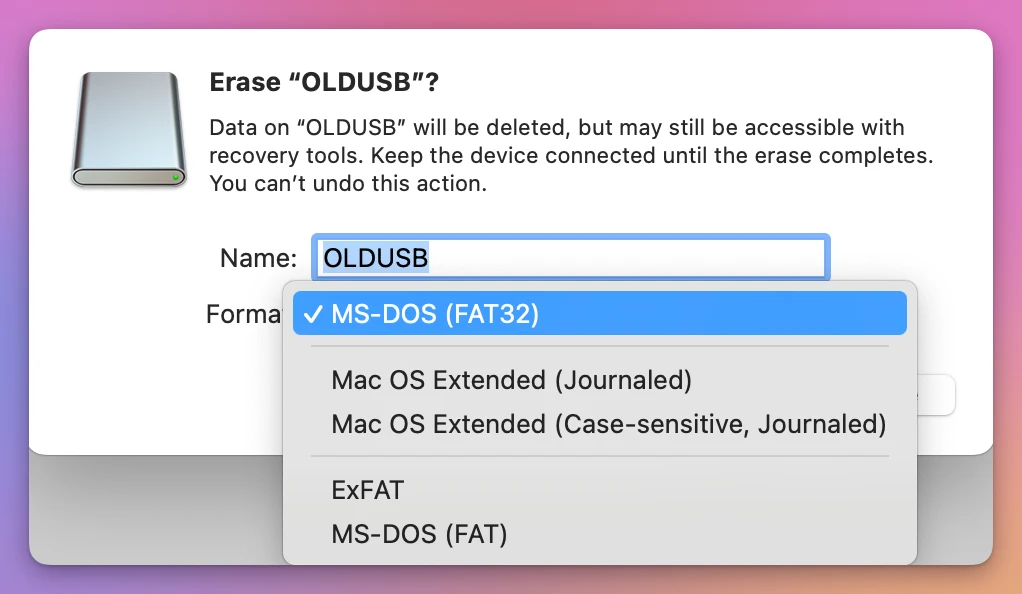
Pick ExFAT and click Erase. NTFS isn’t in the list, because a Mac can’t write it. Here the drive was fine as it was, so Cancel closed the window and nothing was erased.
Copy the photos from Photos
- In Photos, open the album and press Command-A.
- Choose File › Export › Export 5 Photos. The number is how many you selected.
- Set Photo Kind to JPEG, click Export, and pick the drive under Locations in the panel. Make a folder for the album with New Folder.
- Click Export.
The HEIC to JPG tutorial has this window in detail.
Here the lake album went into a “By hand” folder on FAMILY USB. Two things showed up afterwards. The JPEGs had today’s date as Date Modified in the Finder, the day of the export, while the date the photo was taken is still inside each file. And next to every photo, Photos left a hidden file starting with ._. They’re 4 KB each. The Finder never shows them, but other devices can list them as extra files, as the tutorial about ._ files explains.
For more than one album, repeat it for each, with a folder for each, as in the tutorial on exporting albums to folders.
Do it in one go with the drive checked for you
Exporter for Apple Photos is a Mac app I made to copy photos out of Photos into folders, one per album. It’s for exactly this: the family photos on a USB drive for a relative with a Windows PC. It costs $19, paid once, and it isn’t made by, affiliated with or endorsed by Apple.
Tick the albums, tick Convert HEIC to JPEG, and Choose Folder… on the drive. The window then says what the drive is and what the export needs, before anything is copied:
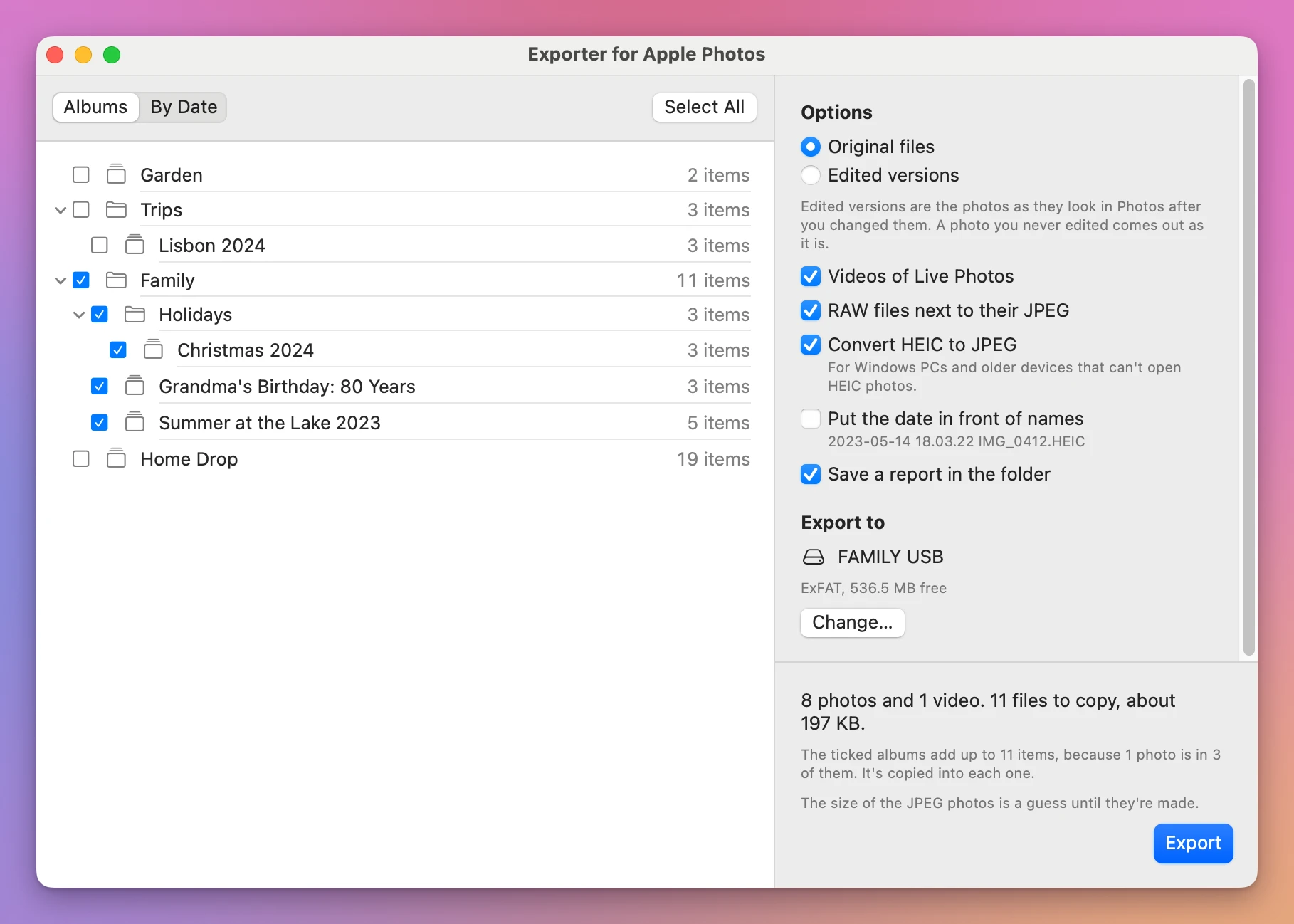
After Export, the window said “Saved 11 files, 306 KB, to FAMILY USB.” Here’s the drive, with Photos’ export from before on top and the app’s below:
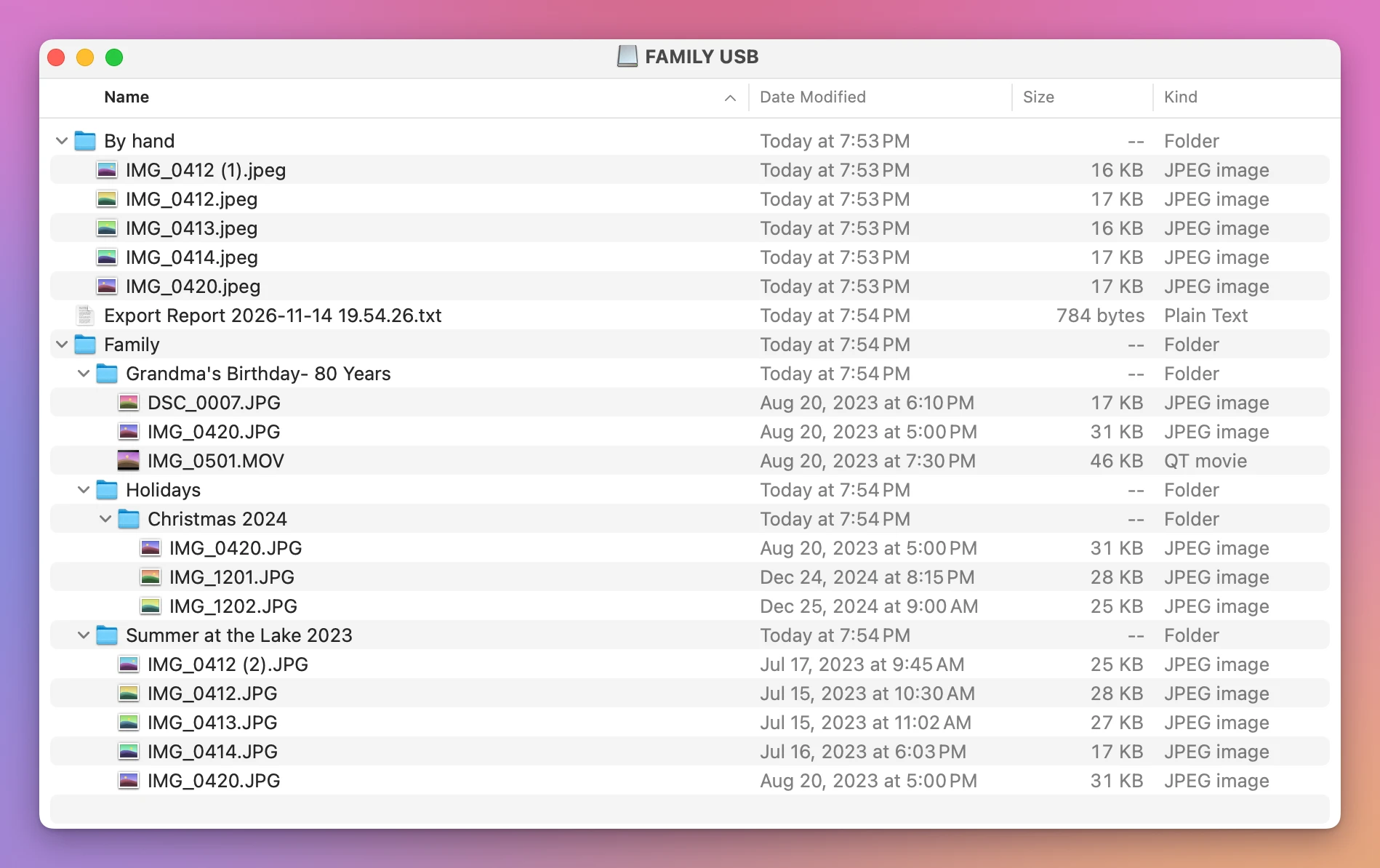
The HEIC photos became JPEG, the photo that was already JPEG and the video were copied as they were, and each file is dated the day it was taken. The app left no ._ files on the drive.
The same with the FAT32 drive, for the Trips and Garden albums:
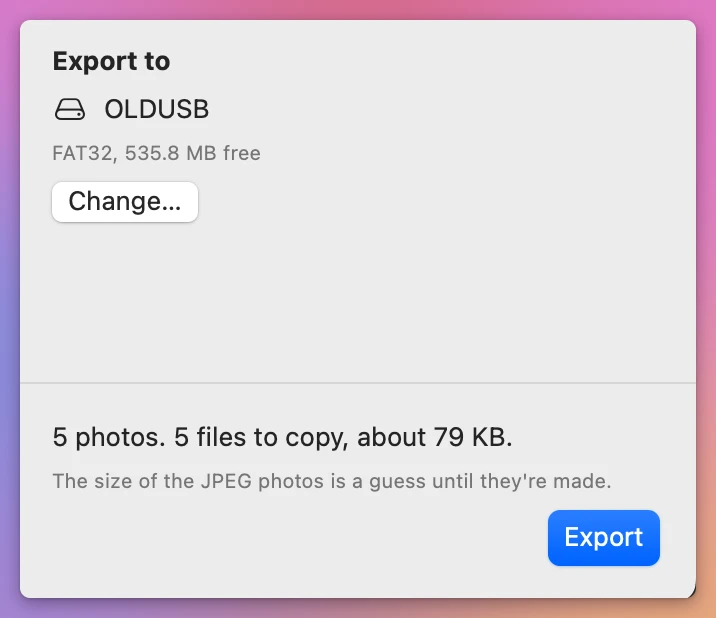
None of the made-up videos come near 4 GB, so there was nothing to warn about here. With a longer video, the app lists each one of 4 GB or more before the export starts, says a FAT32 drive can’t hold it, and skips it, so you can copy it later to an ExFAT drive. An NTFS drive gets a sentence saying the Mac can’t write to it, and Export stays off. If the drive doesn’t have room for everything, the window says so, and Export stays off too.
Get Exporter for Apple Photos
Copy your photos and videos out of Photos on your Mac into plain folders: one per album, each file with its original name and the date it was taken. HEIC to JPEG for Windows, a space check before it starts, and a second run that copies only what is new.
See Exporter for Apple Photos → · Read the docs · $19. See the app page for tax details.
Want me to talk about your product? You can sponsor this site.