How to export photos from Photos on a Mac into folders, one per album
By Flavio
Photos exports the photos you select into one folder, with no album names. Here's how to export album by album by hand, what you end up with in the Finder, and how to export all your albums as folders in one go.
You want your photos out of Photos and into normal folders, maybe to put them on a drive, or to stop paying for iCloud. You’d like each album to become a folder, with its photos inside.
Photos can do it, one album at a time. You open the album, select everything, export it, and make the folder yourself in the save panel. Photos has no option that names the folder after the album. With five albums that’s around 50 clicks. Exporter for Apple Photos does all the albums at once, folders inside folders, in about eight.
How do I export an album from Photos?
The photos here are drawings made for this tutorial, in made-up albums: a Family folder with “Summer at the Lake 2023”, “Grandma’s Birthday: 80 Years” and a Holidays folder with “Christmas 2024”, then “Lisbon 2024” in a Trips folder, and a “Garden” album. The screenshots are from macOS 15 Sequoia.
- Click the album in the sidebar, under Albums.
- Choose Edit › Select All, or press Command-A.
- Choose File › Export › Export Unmodified Originals For 5 Photos. The number is the number of photos you selected.
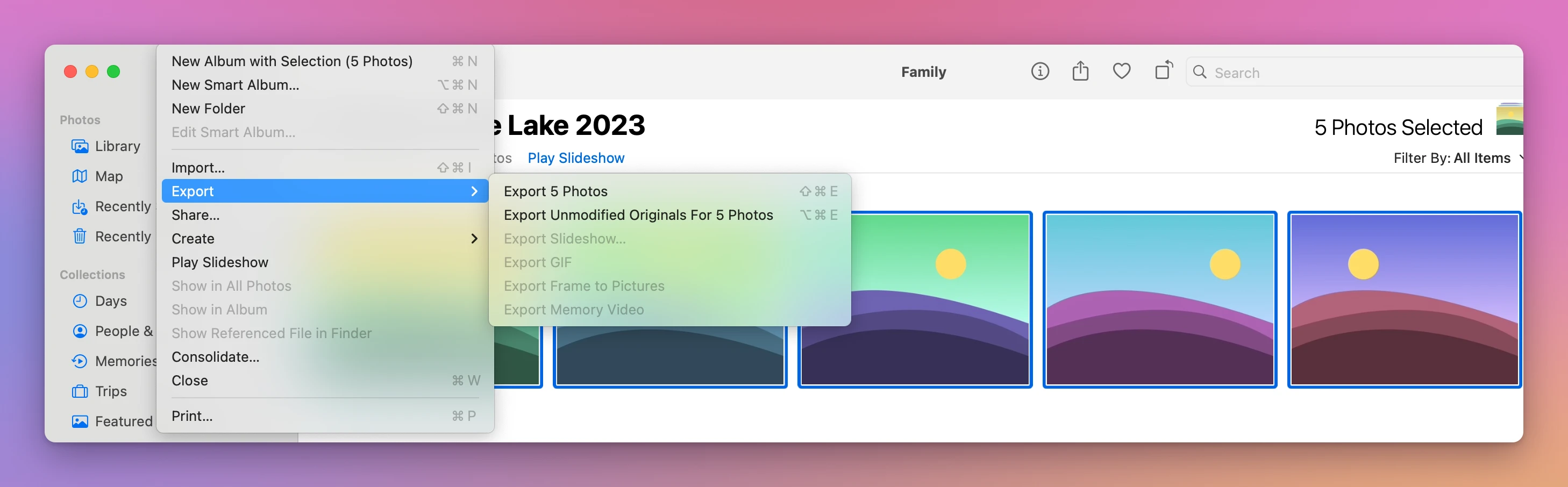
Export Unmodified Originals gives you the files as they came into Photos, at full quality. Export 5 Photos makes new copies in a format you pick, like JPEG. For a backup, the originals are the ones you want.
A small window opens with two menus. File Name is set to Use File Name, which keeps names like IMG_0412.HEIC. Subfolder Format has only two choices:
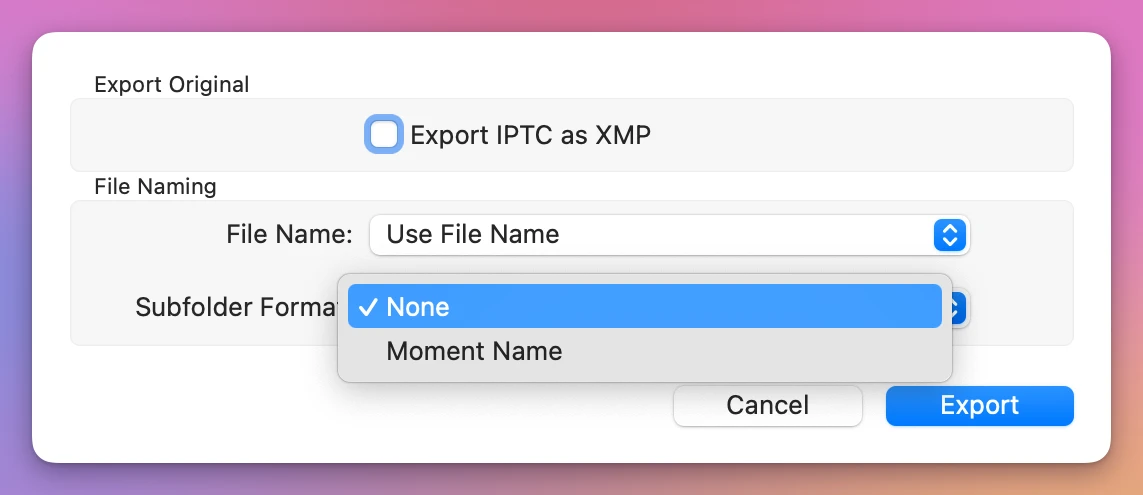
- None puts every photo in the folder you pick.
- Moment Name makes one folder per day. Here, the lake album came out as “July 15, 2023”, “July 16, 2023”, “July 17, 2023” and “August 20, 2023”.
Neither one uses the album’s name. So:
- Click Export.
- In the save panel, click New Folder, type the album’s name, and click Create.
- Click Export Originals.
Then click the next album and start again from step 1.
What do I get in the Finder?
After doing that for all five albums, here’s the folder:
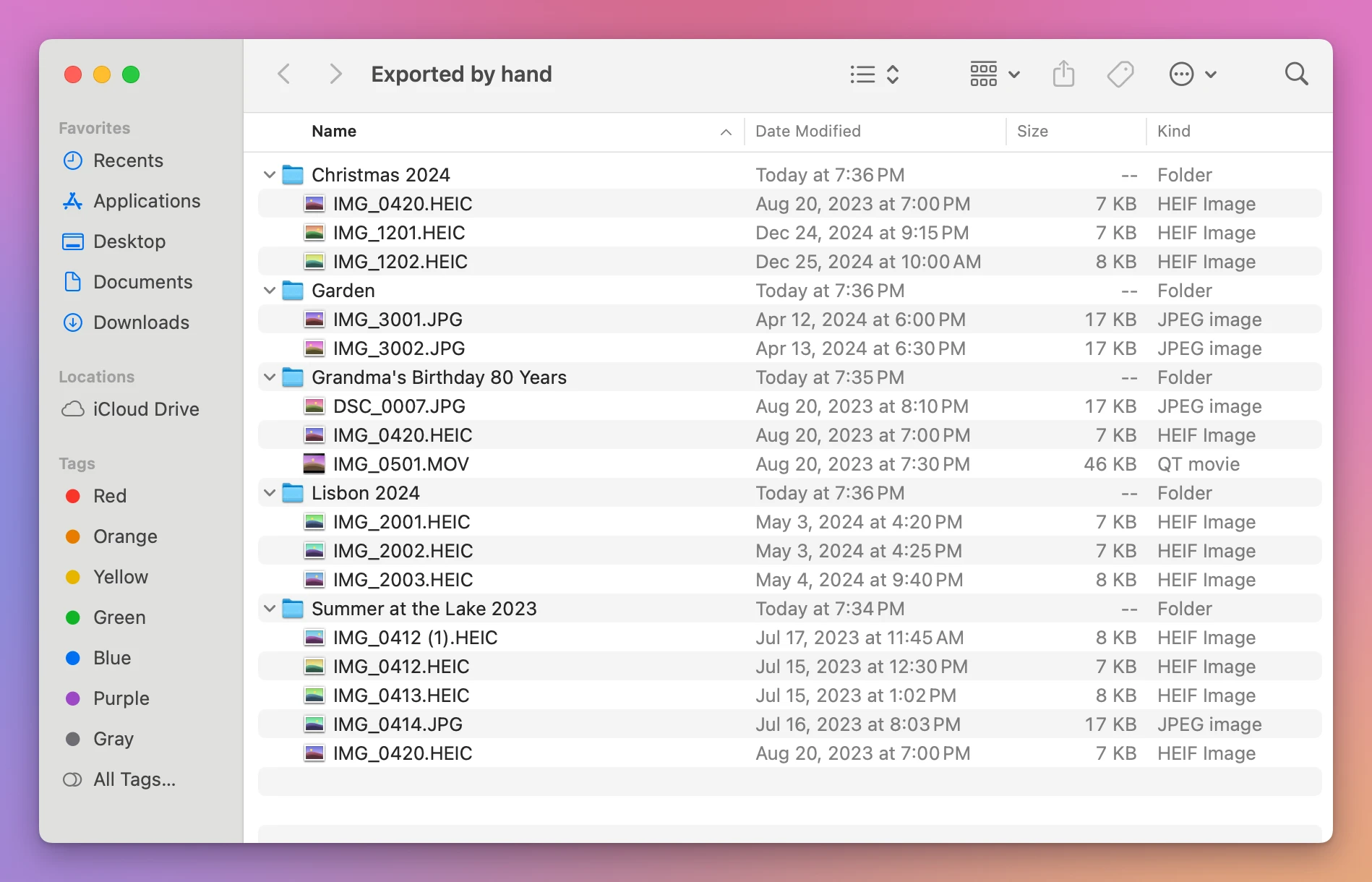
It worked, with a few things to know:
- The folders are all at the same level. “Christmas 2024” lives inside Family › Holidays in Photos, and here it sits next to everything else. To keep that order you’d make the Family and Holidays folders yourself and export into the right one.
- One photo is in three albums, so it was exported three times, once per folder. Each export is a separate copy.
- The lake album has two photos called
IMG_0412.HEIC. Photos named the second oneIMG_0412 (1).HEIC. - If you add photos to an album later, the next export copies the whole album again. Photos doesn’t know what’s already in the folder.
How many clicks is that?
For each album: one click on the album, two for Select All in the Edit menu, three to reach Export Unmodified Originals, then Export, New Folder, Create and Export Originals. That’s ten clicks and a folder name to type, per album.
| Photos, one album at a time | Exporter for Apple Photos | |
|---|---|---|
| Clicks for the five albums | About 50, plus five folder names typed | About 8 |
| Folders | One per album, if you make it yourself | One per album, made for you |
| Folders inside folders | Flat, unless you build them by hand | Like in Photos: Family › Holidays › Christmas 2024 |
| A photo in three albums | Copied into each album’s folder | Copied into each album’s folder |
| Two photos with the same name | IMG_0412 (1).HEIC | IMG_0412 (2).HEIC |
| Running it again later | Copies everything again | Copies only what’s new |
Export every album at once
Exporter for Apple Photos is a Mac app I made for this. It copies albums out of Photos into folders, one per album, inside folders named like your Photos folders, and never changes anything in Photos. It costs $20, paid once, and it isn’t made by, affiliated with or endorsed by Apple.
The window opens on a Choose Albums… button, with a line under it: “Your Mac will ask if the app can see your photos. Click Allow.” After the click, macOS asked whether “Exporter for Apple Photos” could access the photo library, with the app’s own explanation: it reads albums, photos and videos to copy them to the folder or drive you pick, never changes anything in Photos, and nothing leaves your Mac. The buttons were Allow Access to All Photos and Don’t Allow.
Click Allow Access to All Photos. The albums show up as they are in Photos, folders and all, each with its number of items. Tick a folder and every album inside it is ticked too. Here, ticking Family and Garden picked four albums. Then Choose Folder…, a folder, and Export Here:
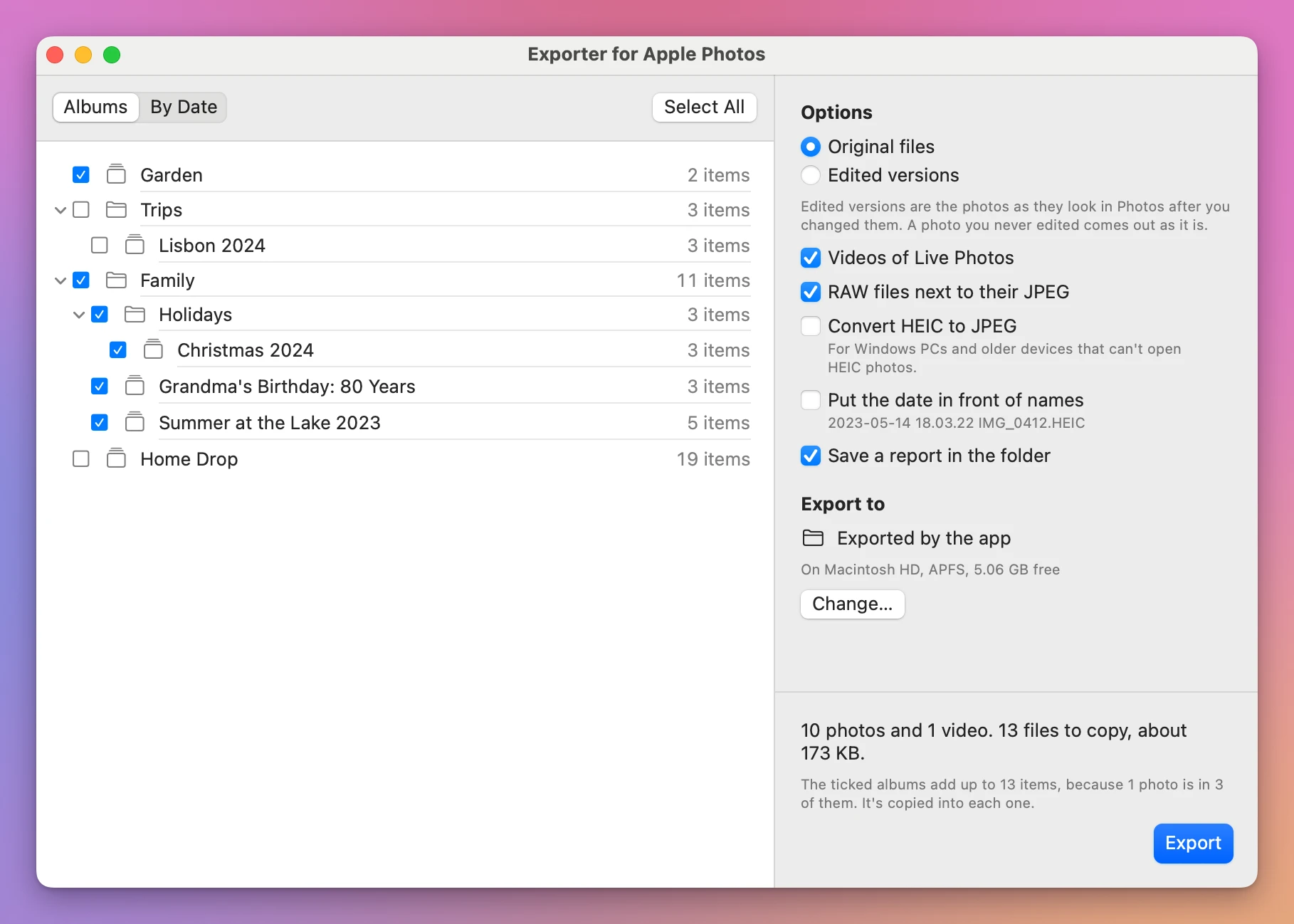
The summary at the bottom counts everything before it starts: 10 photos and 1 video, 13 files. The album rows add up to 13 items, because one photo is in three albums, and the note under the summary says it’s copied into each one. Click Export. A moment later the window said “Export finished” and “Saved 13 files, 173 KB, to the folder “Exported by the app”.”, with the name of the report it saved in the folder. Show in Finder opens the folder:
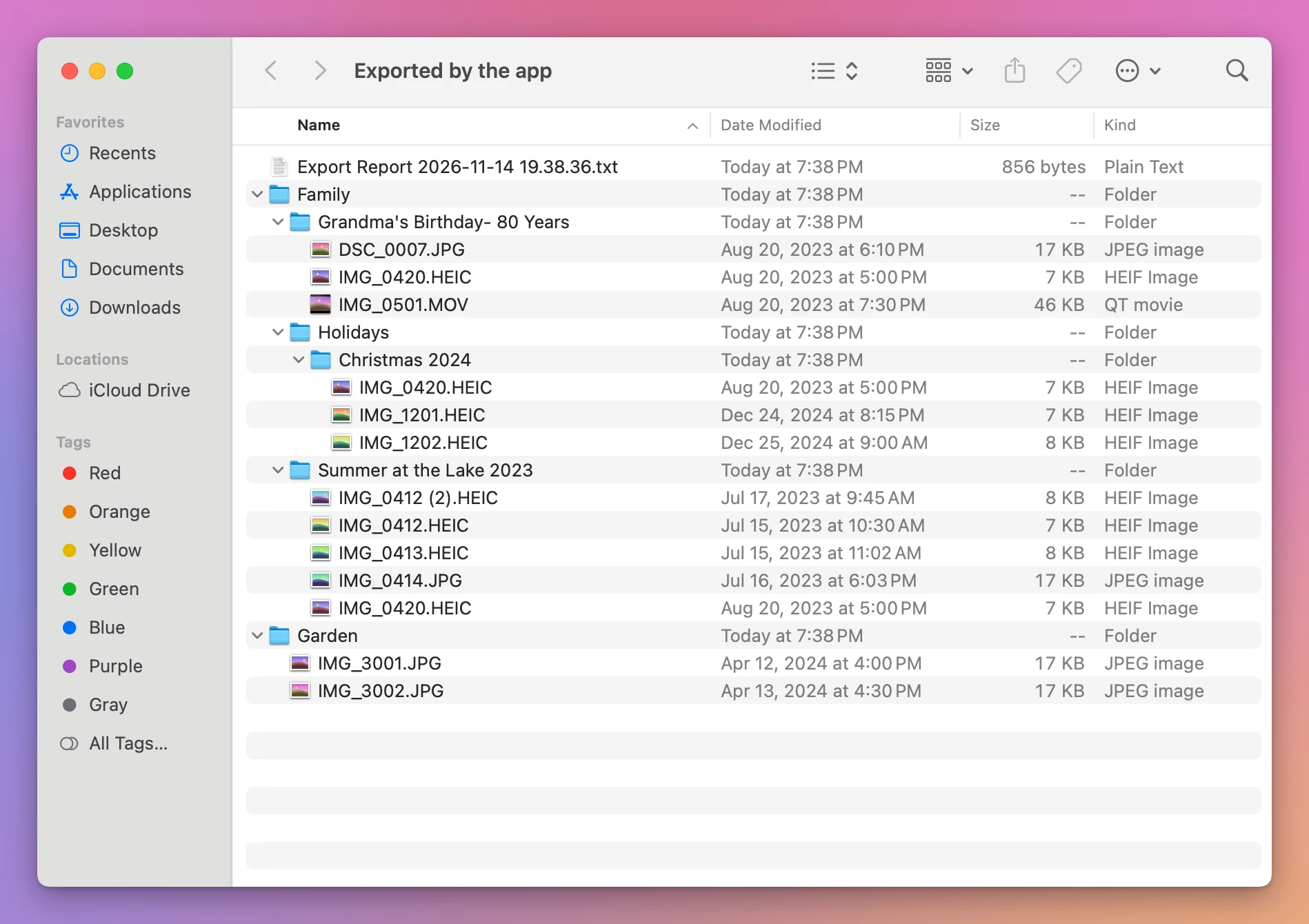
Christmas 2024 is inside Holidays, inside Family, like in Photos. The colon in “Grandma’s Birthday: 80 Years” became a dash, because a colon can’t be in a folder name on a Windows PC. Each file is dated the day the photo was taken, and the report next to the folders lists every file that was saved.
Click Export More and the same albums show “Everything is already there”. When you add photos to an album and export again to the same folder, only the new ones are copied.
If you never made albums, click By Date instead of Albums. It lists the whole library by year, with the months inside, and you tick those instead.
Get Exporter for Apple Photos
Copy your photos and videos out of Photos on your Mac into plain folders: one per album, each file with its original name and the date it was taken. HEIC to JPEG for Windows, a space check before it starts, and a second run that copies only what is new.
See Exporter for Apple Photos → · Read the docs · $20. See the app page for tax details.
Want me to talk about your product? You can sponsor this site.