See which Docker container published a local port
By Flavio
Updated
Match a local port to the Docker container that published it, with docker ps, docker port and Port Pilot, then stop that container.
Port 8080 is taken, and the process listening on your Mac is Docker. That name doesn’t tell you which container published it, or which port the app is using inside the container. Those two numbers are often different.
Port Pilot runs docker ps and attaches the container name, the image and the port inside the container to that listener. The manual route is docker ps and docker port, which is what this page walks before the ports command. The general ports check, project and lsof walkthrough is find what’s using a port on macOS. Find and kill the process using a port is the plain lsof version, and ports is the background on what a port is.
You’ll leave with the container name for one published port, a second container on a different host port, and a stop that uses docker stop rather than a kill of Docker’s process on the Mac.
What you need
The ports command is the Port Pilot CLI. It runs on macOS and Linux. You need Node.js 20 or newer. Docker is optional for Port Pilot in general. This tutorial needs Docker, because there is no container to name without it.
After purchase, download the source zip from your Polar receipt and unzip it. From that folder:
npm install
npm run verify
npm link
npm link puts ports on your PATH. The menu bar app is separate SwiftUI source for macOS 13 or later. You don’t need it here. Scanning stays on the machine. Port Pilot doesn’t send process details anywhere.
On macOS the scanner uses lsof. On Linux it uses ss, or lsof when ss finds nothing. Install Docker the way you already do on that machine, and check that the daemon answers before you blame the port:
docker psAn empty table is fine. A connection error means Docker isn’t running, and the later ports check can only show Docker’s own process. Publish ports deliberately is the course lesson for the -p flag used below.
Read the host port and the container port
A container has its own network. The app can listen on 3000 in there and still be invisible on your Mac until you publish a host port. Publishing is the -p flag on docker run. EXPOSE in a Dockerfile is only a note in the image. Docker does not publish that port for you.
Skip this and you’ll curl 3000 on the host, get nothing, and go looking for a process that was never listening there. Or you’ll stop a container that published a different host port.
Example 1: the Notes API on 8080
The Docker course runs a Notes API image that listens on 3000 inside the container, and publishes it on loopback port 8080:
docker run --name notes -d -p 127.0.0.1:8080:3000 notes-api:dev
docker port notes
docker port prints the mapping. In that lesson the line is:
3000/tcp -> 127.0.0.1:8080Read it from the container outward. 3000/tcp is the port inside the container. 127.0.0.1:8080 is the address on your machine. Only programs on that machine can open it, because the host address is loopback. The course lesson spells the flag as host address, host port, container port, left to right.
docker ps prints the same fact in one cell. Docker’s own docker port documentation uses a busybox container named test as the example, not the Notes API. Its docker ps line shows:
0.0.0.0:1234->9876/tcp, 0.0.0.0:4321->7890/tcpThe number before -> is the host port. The number after it is the container port. docker port test then prints:
7890/tcp -> 0.0.0.0:4321
9876/tcp -> 0.0.0.0:1234
Asking for a protocol that was not published fails. The same documentation page shows docker port test 7890/udp returning Error: No public port '7890/udp' published for test. That line means the protocol or the port was never published for that container. Start Docker only when docker ps itself cannot talk to the daemon.
Let Port Pilot name the container
When a container publishes a port, the listener lsof finds is Docker’s process. The working directory is not your project folder, so the usual project lookup has nothing useful to say. Port Pilot still asks Docker. It runs docker ps and matches the published host port.
That match is what puts docker: and the container name in the Command column of ports list. ports check adds a Docker line with the container name, the image and the port inside the container. The app page describes the same three facts for a published port: container name, image and private port.
If you skip the match and stop the PID, you signal Docker on the Mac. Other containers published through that process go with it. The container you cared about is not addressed by name.
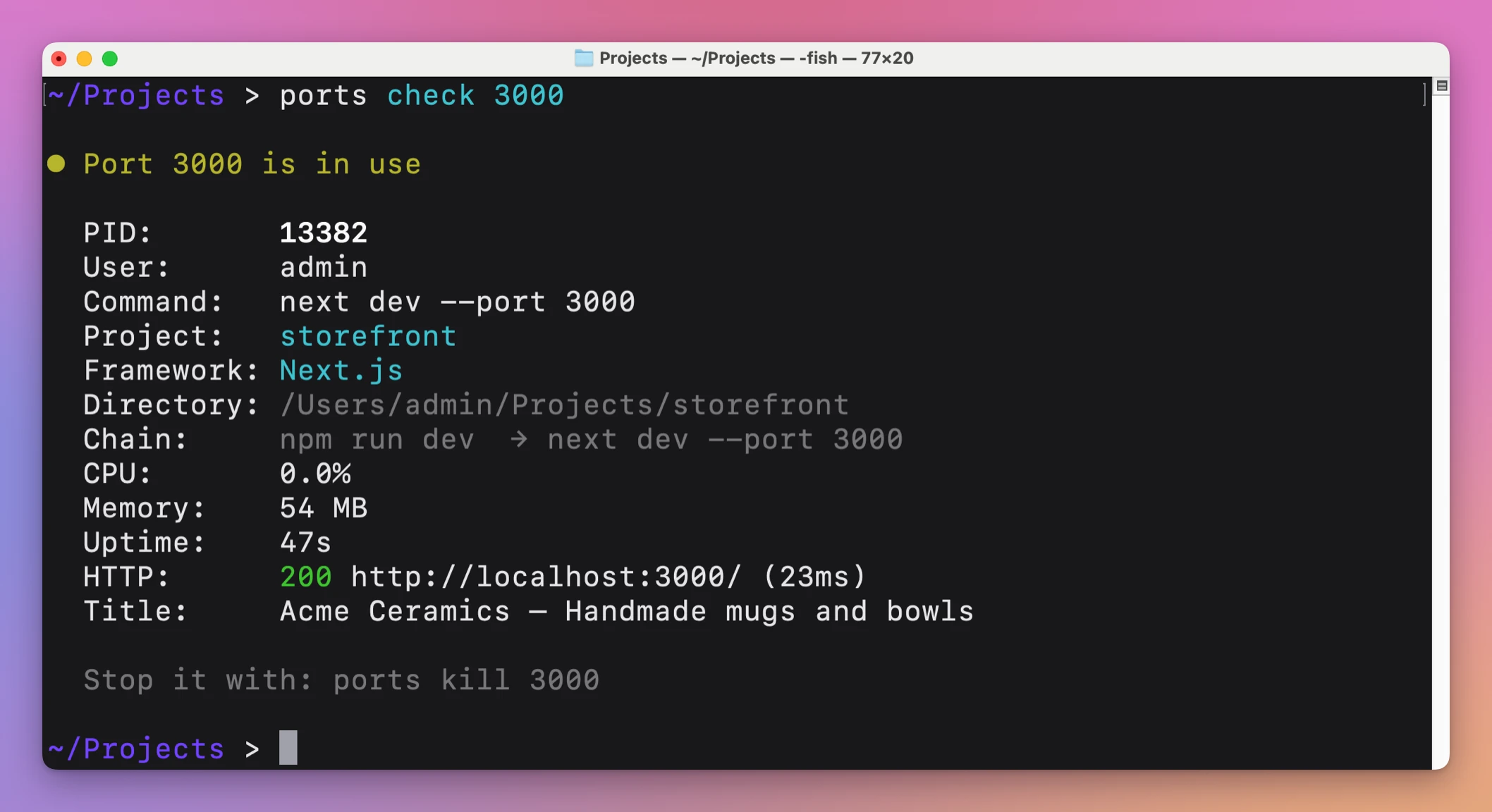
ports check 8080Use the host port, 8080, not 3000. I don’t have a captured ports check transcript for a container in the docs, so I won’t paste a made-up block. The Docker line is the one with the container name, the image and the private port. The rest of the check (PID, command, HTTP probe) is the same report as any other listener, covered in the macOS tutorial linked above.
This is that report for a Next.js server on port 3000, with no container behind it:
ports listFind the row whose Command cell starts with docker: and the container name from docker ps. For the Notes API that name is notes, because --name notes set it.
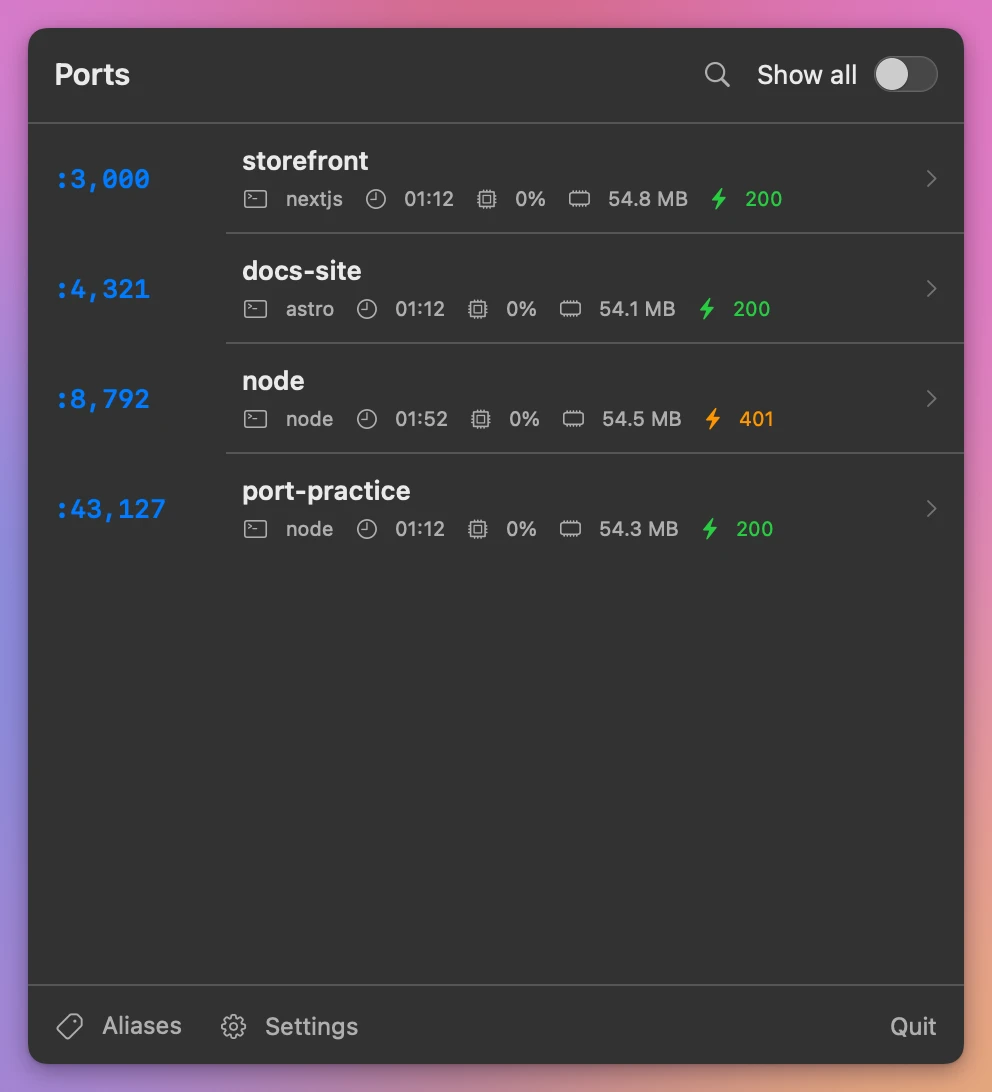
If you’d rather click, the Port Pilot menu bar app shows the same listeners, because it reads them from the ports CLI. Click a row to open its details. For a published port, the details have a Container line with the container name and the image. Here it lists a few Node servers and no containers:
Port Pilot waits up to 900 ms for docker ps. If Docker isn’t running, or that command takes longer, the Docker line is missing and you only see Docker’s process. Start Docker and run ports check again. The HTTP probe on / has its own 450 ms limit, from the same lookup, and it is separate from the Docker wait. A slow container does not by itself remove the Docker line. A slow docker ps does.
Publish a different host port
The host port is chosen when the container is created. The image does not own it. The course lesson says to stop the API and run it again with -p 127.0.0.1:9090:3000. The process inside still listens on 3000. Your machine now uses 9090.
Example 2: 9090, then Compose on every interface
docker stop notes
docker run --name notes-9090 -d -p 127.0.0.1:9090:3000 notes-api:dev
docker port notes-9090
docker port prints the same shape as before. The host port in the line is 9090. ports check 9090 is the Port Pilot check for this one. ports check 8080 no longer belongs to notes, because that container is stopped.
The course lesson also runs two copies at the same time. Both listen on 3000 inside their own container. One is published on 8080 and the other on 8081. docker ps then has two PORTS cells, and ports list should show two docker: rows if both matches return in time. The container port is the same in both rows. The host port is what tells them apart. A container that is not published at all never appears in that list, because nothing on the Mac is listening for it. Other containers reach it on Docker’s network, which is the next lesson after publish-ports, and Port Pilot has no host port to attach a name to.
Compose writes the mapping in compose.yaml instead of on the command line. The course lesson Describe services with Compose uses:
services:
  api:
    build: .
    ports:
      - "8080:3000"
"8080:3000" is the same idea as -p 8080:3000 without a host address. The course lesson says that form publishes on all interfaces (0.0.0.0), not only on 127.0.0.1. Anything that can reach your machine can open 8080. Loopback is the tighter publish. The Compose file does not say loopback unless you write the address.
Compose also renames the container. The project name defaults to the folder name, and the lesson’s database container is notes-api-database-1. The api service gets that same kind of prefix. docker stop api is the wrong string unless docker ps shows a container whose name is exactly api. Copy the name from the NAMES column.
A second docker compose up does not invent a new host port. The lesson says up compares the file with what is running and leaves the rest alone. The published port stays 8080 until you change the file.
Stop the container and check again
docker stop asks the container to exit, and Docker drops the publish. The host port is free unless some other process has taken it. Port Pilot’s ports kill is for a process tree on the Mac. It is the wrong tool for a container, because the PID on the port is Docker.
docker stop notes-9090
ports check 9090
The port is free when nothing is listening. The macOS tutorial’s ports check JSON uses entry set to null for a free port. You should not see a Docker line for 9090 after the stop.
Bring the same container back with docker start. The publish was stored when the container was created, so 9090 comes back with notes-9090. That is the undo. It does not undo a docker rm, and it does not put back a container you never named.
docker start notes-9090
ports check 9090
The second check can show the Docker line again, with the same container name, as long as docker ps answers within 900 ms. If it doesn’t, you get Docker’s process and no container name, which looks like the match is broken. Wait for Docker and check once more.
Leave Docker Desktop, or dockerd, running. Stopping that process unpublishes every container at once. docker stop with one name is the narrow undo for the one publish you don’t want.
Read a missing Docker line before you stop anything
The Docker line is a match against docker ps, with a 900 ms budget. It is not a guess from the process name. When the line is absent, Port Pilot is telling you the match did not finish. The listener can still be Docker. You just don’t have a container name yet.
Stopping from that incomplete check is how a one-container problem becomes a daemon restart. The confirmation screen will show Docker’s command, PID and process chain. That chain is the Mac-side process. Decline it.
Example 3: Docker didn’t answer
Quit Docker, or leave a stuck docker ps that cannot return in time, then:
ports check 8080You get the listener, and you do not get a container name, image or private port. The Command column will not show docker: plus notes. The macOS port tutorial states this limit in one paragraph. Here it is the whole failure mode, because the rest of this page depends on that match.
Start Docker again. Give docker ps a moment, then repeat ports check 8080. The line comes back when the match succeeds. If 8080 is free because you had already stopped the container, the check is a free port, and there is nothing to kill.
A second check after a successful match should show the same container name for the same publish. It does not allocate a new container. docker ps is a read. Running it twice is how you confirm the name before docker stop.
If something looks wrong
If ports check shows Docker’s process and no container name, Docker isn’t running or docker ps took longer than 900 ms. Start Docker and check again.
If other containers died after you stopped the PID from lsof, that PID was Docker on the Mac. Start Docker, then use docker stop and the container name from docker ps.
If curl to localhost:3000 fails while docker port shows 3000/tcp -> 127.0.0.1:8080, you used the container port as a host port. Open 8080.
If docker port CONTAINER 7890/udp prints Error: No public port '7890/udp' published for test, that protocol was not published. The docs use that command on their test container. Check docker port CONTAINER with no extra argument.
If you typed the Compose service key api and docker ps shows a longer name, stop the name from the NAMES column. The lesson’s example of a prefixed name is notes-api-database-1.
If the new container should be private to your Mac but docker ps shows 0.0.0.0:8080, the publish had no host address. -p 8080:3000 and Compose’s "8080:3000" do that. Recreate it with 127.0.0.1: in front of the host port.
If ports list hides the row, run ports list --all. The default list keeps listeners with development evidence, including a Docker mapping. Without a mapping, Docker’s process can sit with the system listeners.
If a second docker run cannot publish 8080, the first container still holds that host port. docker ps shows who. Stop that name, or pick 9090, which is the course lesson’s second mapping.
Get Port Pilot
Inspect local services, check their health, and stop the right process through a terminal dashboard, CLI, or macOS menu bar app.
See Port Pilot → · Read the docs · $20. See the app page for tax details, with full source code.
Want me to talk about your product? You can sponsor this site.