How to export a note from Apple Notes as a PDF
By Flavio
Notes on the Mac has File > Export as PDF… for the note you're looking at. Here's what the PDF keeps, what happens when you select several notes, and how to save a whole folder of notes as PDFs in one go.
You want a note out of the Notes app as a PDF, to send it to someone, print it, or keep it with other documents.
For one note, Notes does it on its own: open the note and choose File > Export as PDF…. The PDF keeps the headings, the tables, the pictures and the links. For a whole folder of notes it gets slow, because it saves one note at a time.
The screenshots are from macOS 15 Sequoia, and the notes in them are made up for this tutorial.
How do I save one note as a PDF?
- Open Notes and click the note.
- Choose File > Export as PDF….
- The name is already the note’s title. Pick a folder next to Where and click Save.
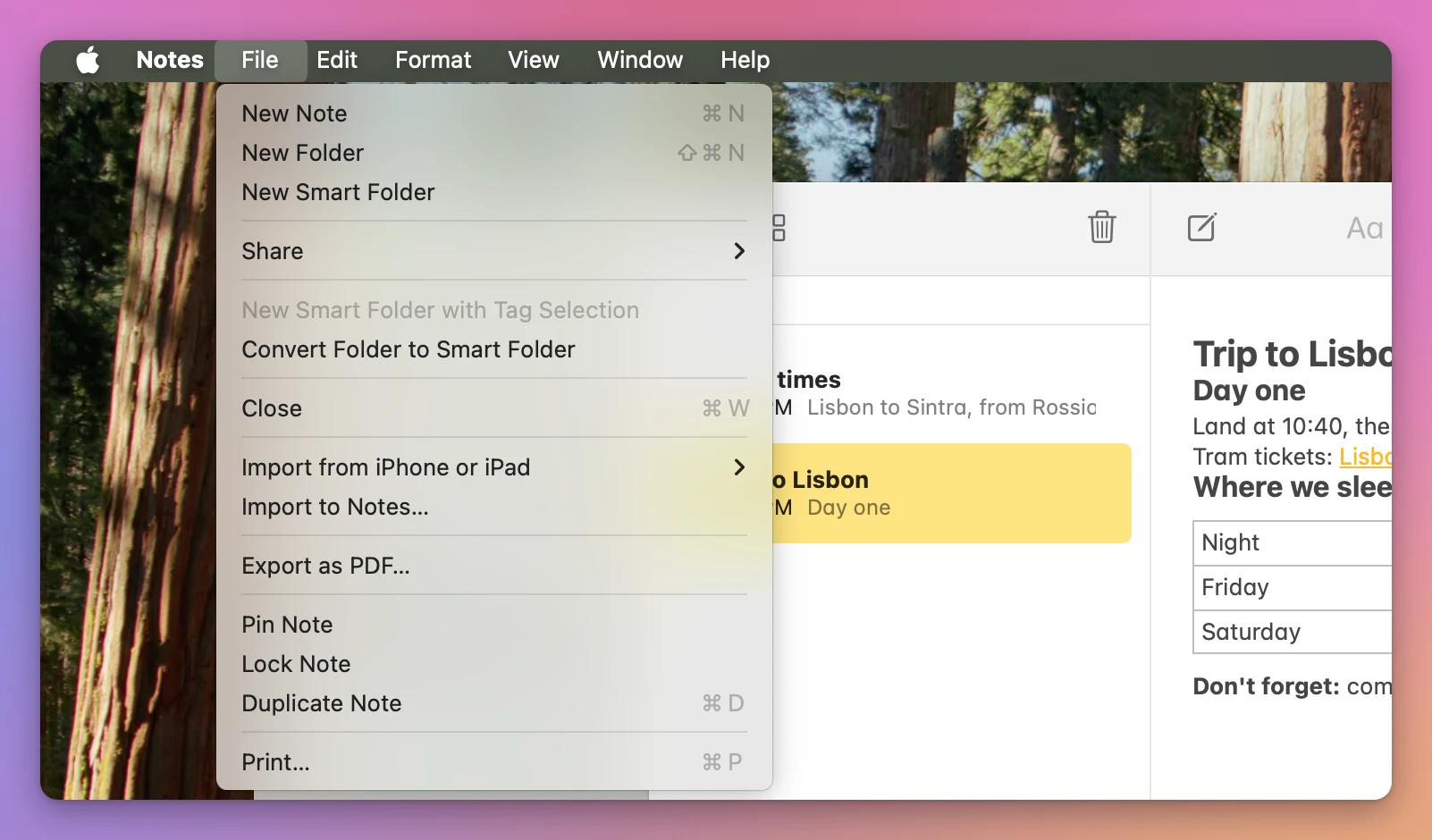
Here’s what came out for three notes in Notes’ default Letter page size:
| Note | What’s in it | The PDF |
|---|---|---|
| Trip to Lisbon | Headings, bold, italic, a link, a 3 by 3 table | 1 page, table with its lines, the link still clickable |
| Sunset sketch | A line of text and a pasted picture | 1 page, the picture full width |
| Book club notes | 60 short chapters | 6 pages |
The PDF looks like the note does in Notes. Preview opened it with the table and its borders:
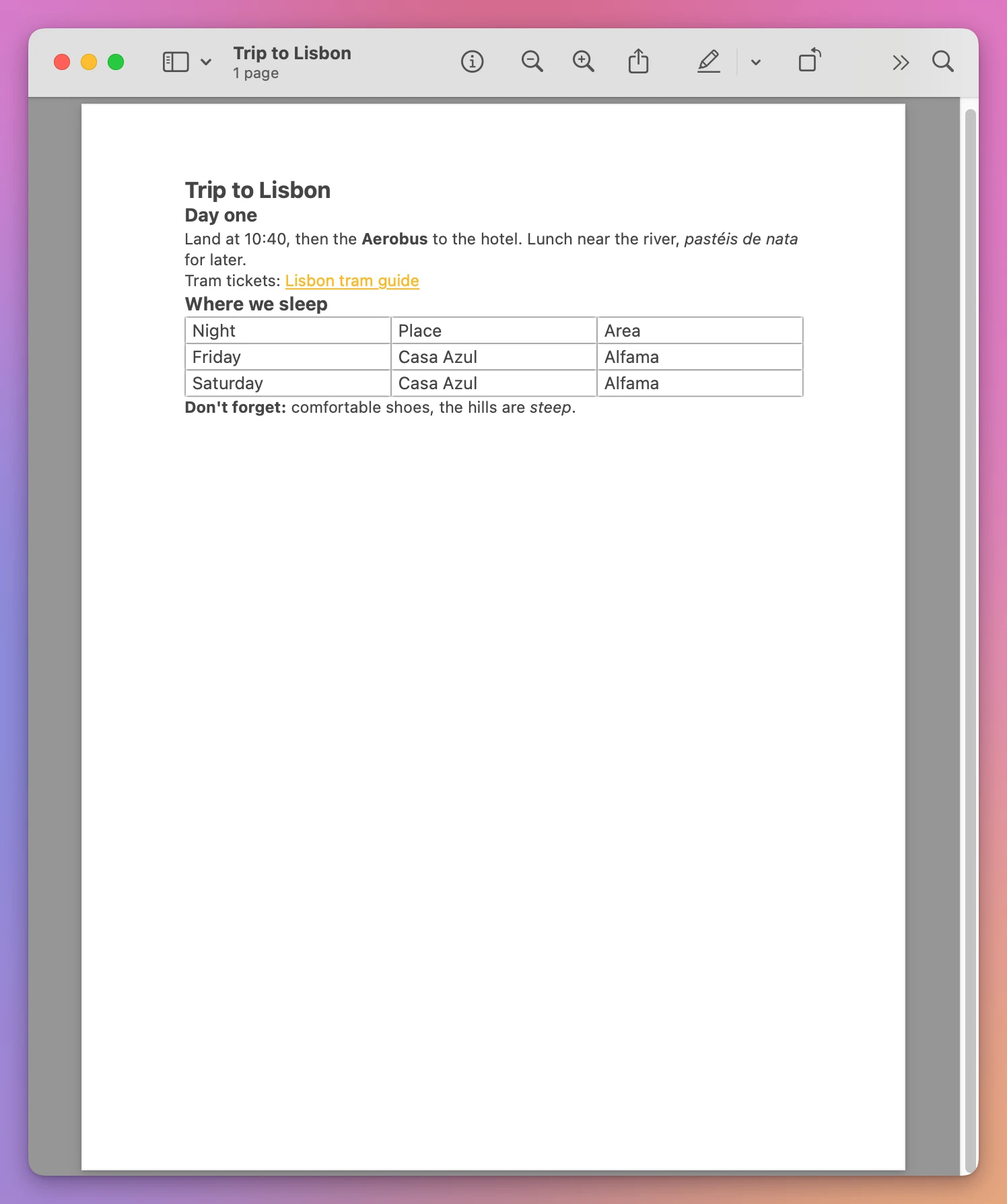
Two things are missing. The PDF has no date of the note on it, and the file’s date in the Finder is the minute you exported it, not the day you wrote the note. If you sort a folder of exported PDFs by date, you get the order you exported them in.
For one note, or a few, that’s all you need.
Can I select several notes and export them together?
You can select several notes with Command-click, and Export as PDF… stays in the File menu. With nine notes selected it offered one file, named after the first one, and that PDF held only that note. The Share menu was greyed out.
A locked note is another stop: with it selected, Export as PDF… and Print… are greyed out until you remove the lock.
So twenty notes means twenty rounds, all landing in the same folder.
How do I save a whole folder of notes as PDFs?
Exporter for Apple Notes is a Mac app I made that saves notes as files, as many as you tick. It’s my own app, not made by, affiliated with or endorsed by Apple. It costs $20, paid once.
- Open it and click Show My Notes. The first time, your Mac asks if the app can control Notes. Click Allow: that’s how it reads the notes.
- Your Notes folders show up with the number of notes in each. Click Select None, then tick the folders you want. Here it’s Pictures and Travel.
- Leave Save as on PDF, pick A4 or Letter next to Paper, and click Export….
- Choose a folder, like Documents, and click Export Here.
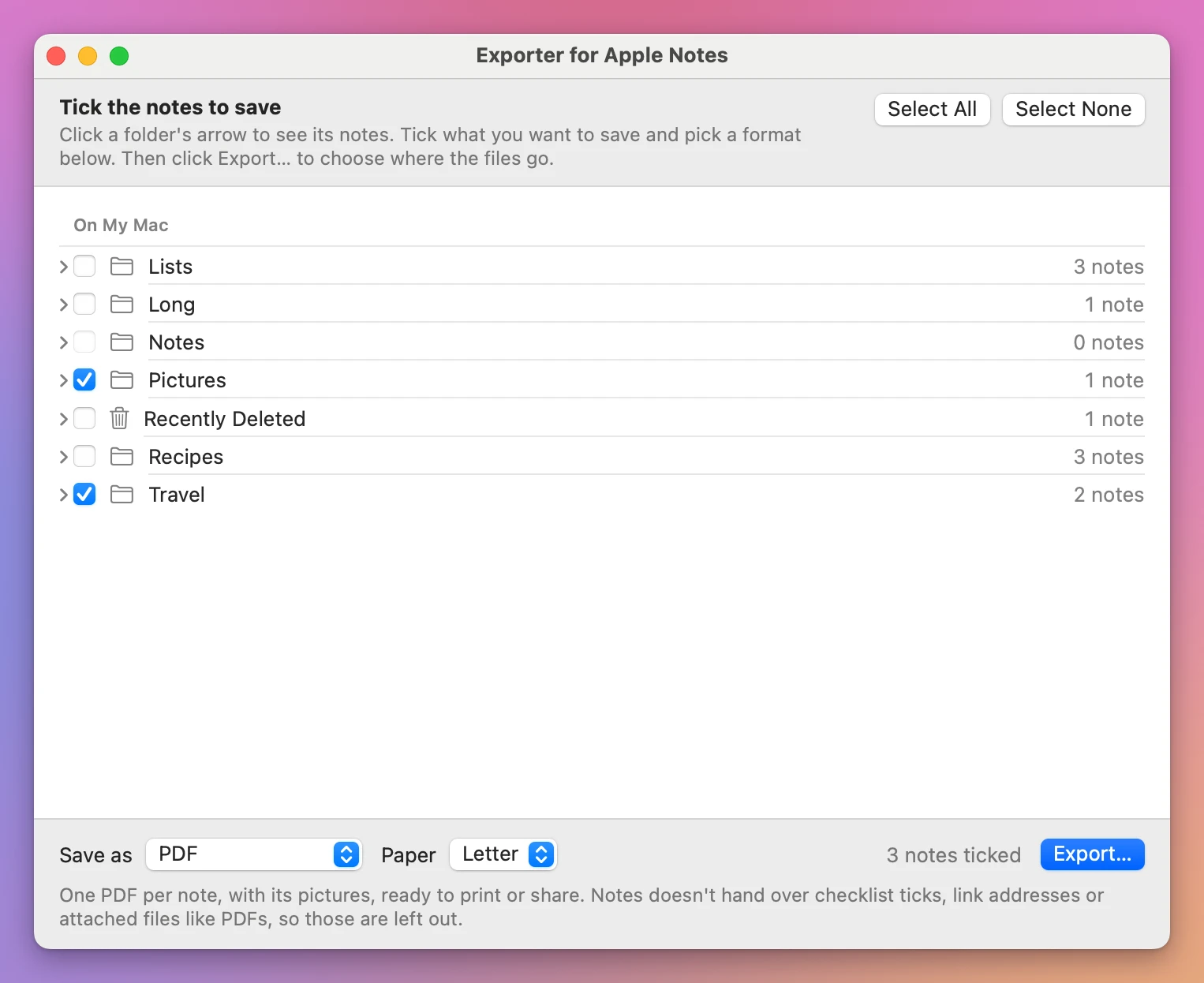
The window says what it can’t bring over before you export: Notes doesn’t hand other apps checklist ticks, link addresses or attached files like a PDF dragged into a note. Pictures and tables do come through.
It finishes with a report:
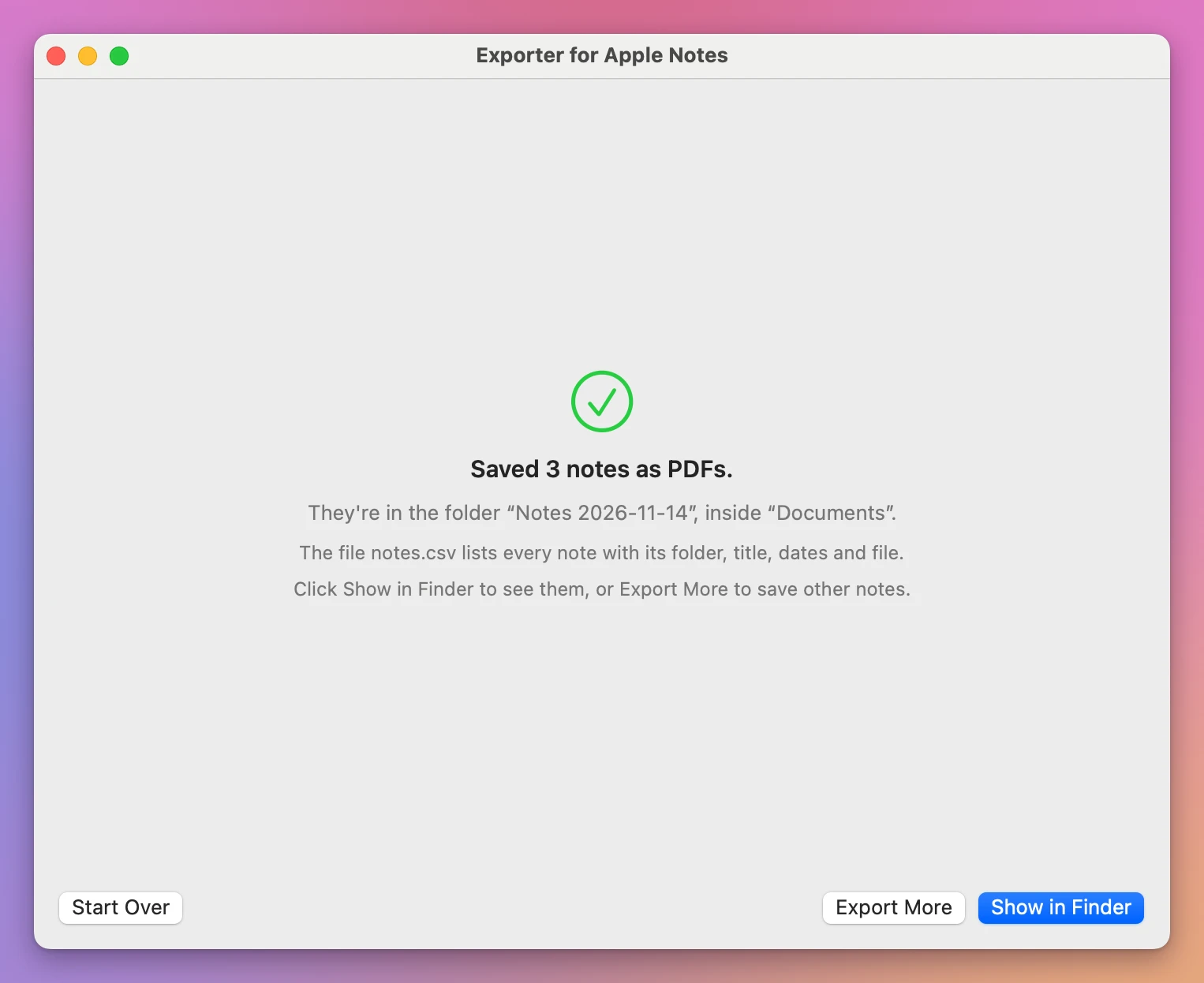
Show in Finder opens the new folder. Each Notes folder became a folder, each note a PDF named after it, and each file carries the time the note was last changed, not the time of the export:
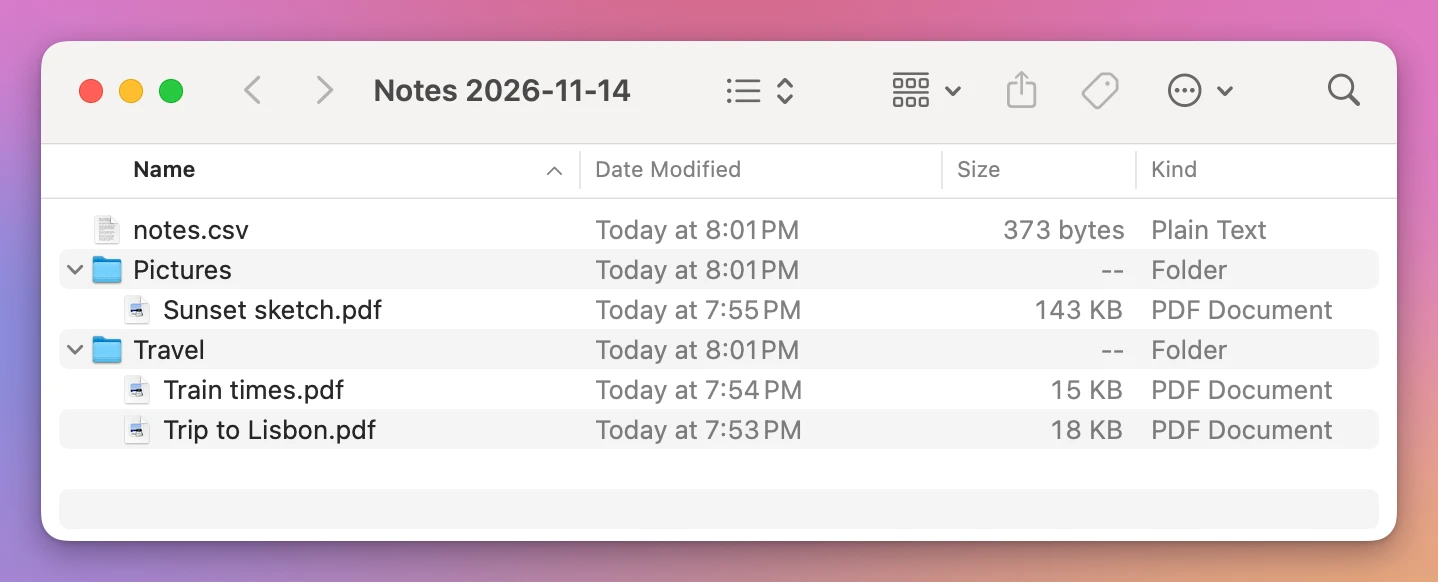
The app draws its own PDFs, so they look different from Notes’ ones:
| Notes’ Export as PDF… | Exporter for Apple Notes | |
|---|---|---|
| Notes at once | One | Every ticked note |
| File names | The note’s title | The note’s title, in a folder named like its Notes folder |
| Pictures and tables | Yes | Yes |
| Link | Clickable | The words stay, the address is gone |
| Date on the page | No | ”Created” under the title, and “Edited” if the note changed later |
| Date of the file | The moment you export | The note’s own date |
| Page numbers | No | Yes |
| Book club notes | 6 pages | 8 pages |
| Locked notes | Greyed out | Skipped and named in the report |
The link is the one thing Notes’ own export does better, so for a note that’s mostly links, use Export as PDF…. For a folder, or for all your notes, the app saves them in one go and leaves them sorted like they are in Notes.
Get Exporter for Apple Notes
Save your notes from the Notes app as files: one PDF, Word file, text file, Markdown file or web page per note, in folders named like your Notes folders, with the pictures and the notes' dates.
See Exporter for Apple Notes → · Read the docs · $20. See the app page for tax details.
Want me to talk about your product? You can sponsor this site.