How to join videos in QuickTime Player on a Mac, and does it lose quality?
By Flavio
Combine several videos into one with QuickTime Player on your Mac, step by step. Which save option keeps the picture as it was, and which one compresses it again.
You have a few videos on your Mac and you want them in one file. QuickTime Player is already on your Mac, and it can do it.
The short answer: open the first video, add the others with Edit > Add Clip to End…, then close the window and pick Greater Compatibility (H.264) when it asks to keep the new video. With H.264 clips, like the ones I tested, that keeps every frame exactly as it was. The other choice, Smaller File Size (HEVC), compresses the whole video again, and it’s the one the menu was on the first time. If you do this often, Clip Joiner, a Mac app I made, does the join in one click.
I tried every step on a Mac running macOS Sequoia with three made-up videos, clip1.mp4, clip2.mp4 and clip3.mp4. Each one is 20 seconds of 1080p video with sound, 25.9 MB. Then I compared what QuickTime Player wrote with the original clips, frame by frame.
How do I join videos in QuickTime Player?
- Open the first video in QuickTime Player.
- Choose View > Show Clips. A strip with the video’s frames appears at the bottom of the window.
- Choose Edit > Add Clip to End…, pick the next video and click Choose media.
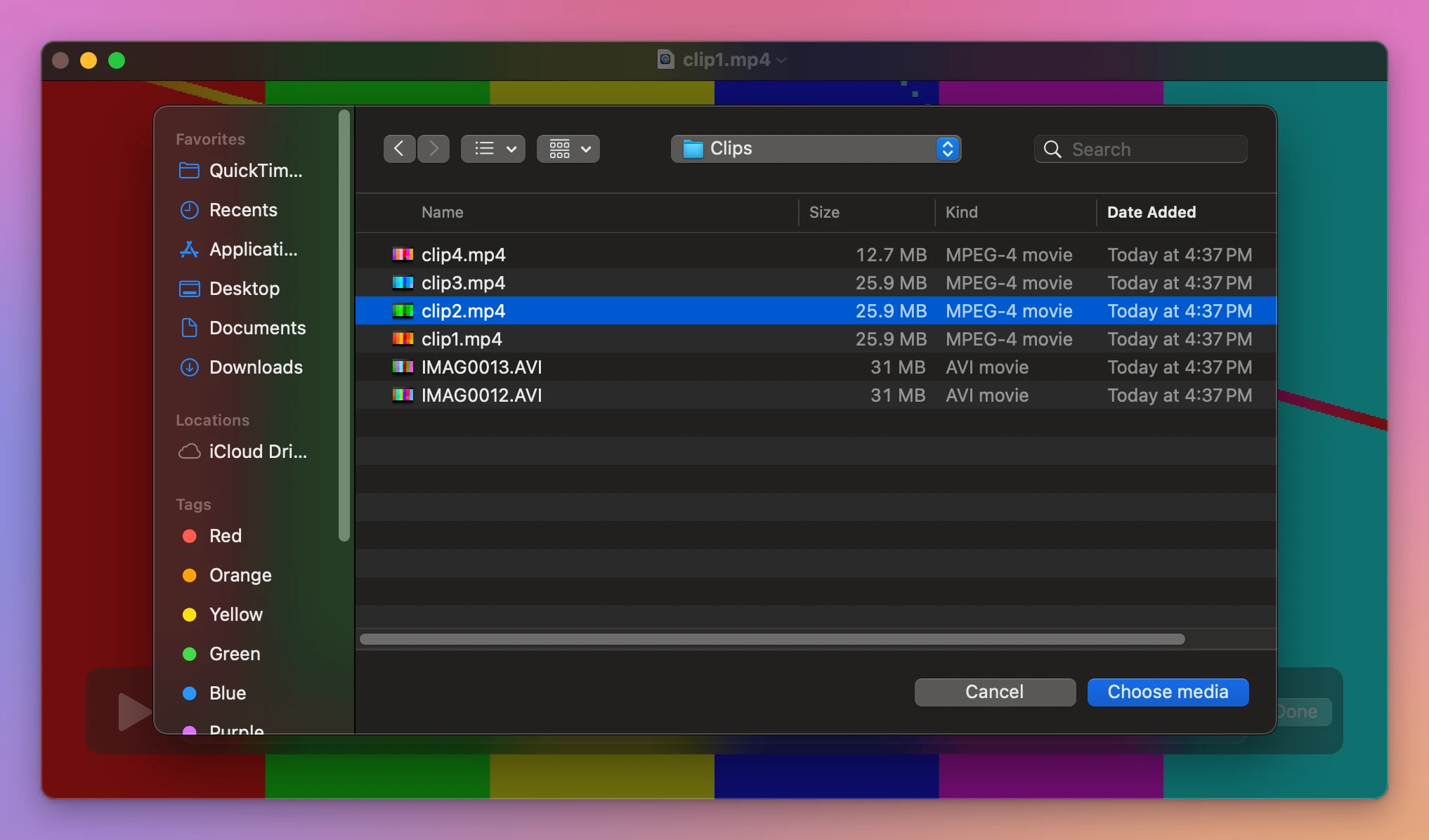
- Repeat step 3 for each video, in the order you want them. Each one shows up as a new block in the strip.
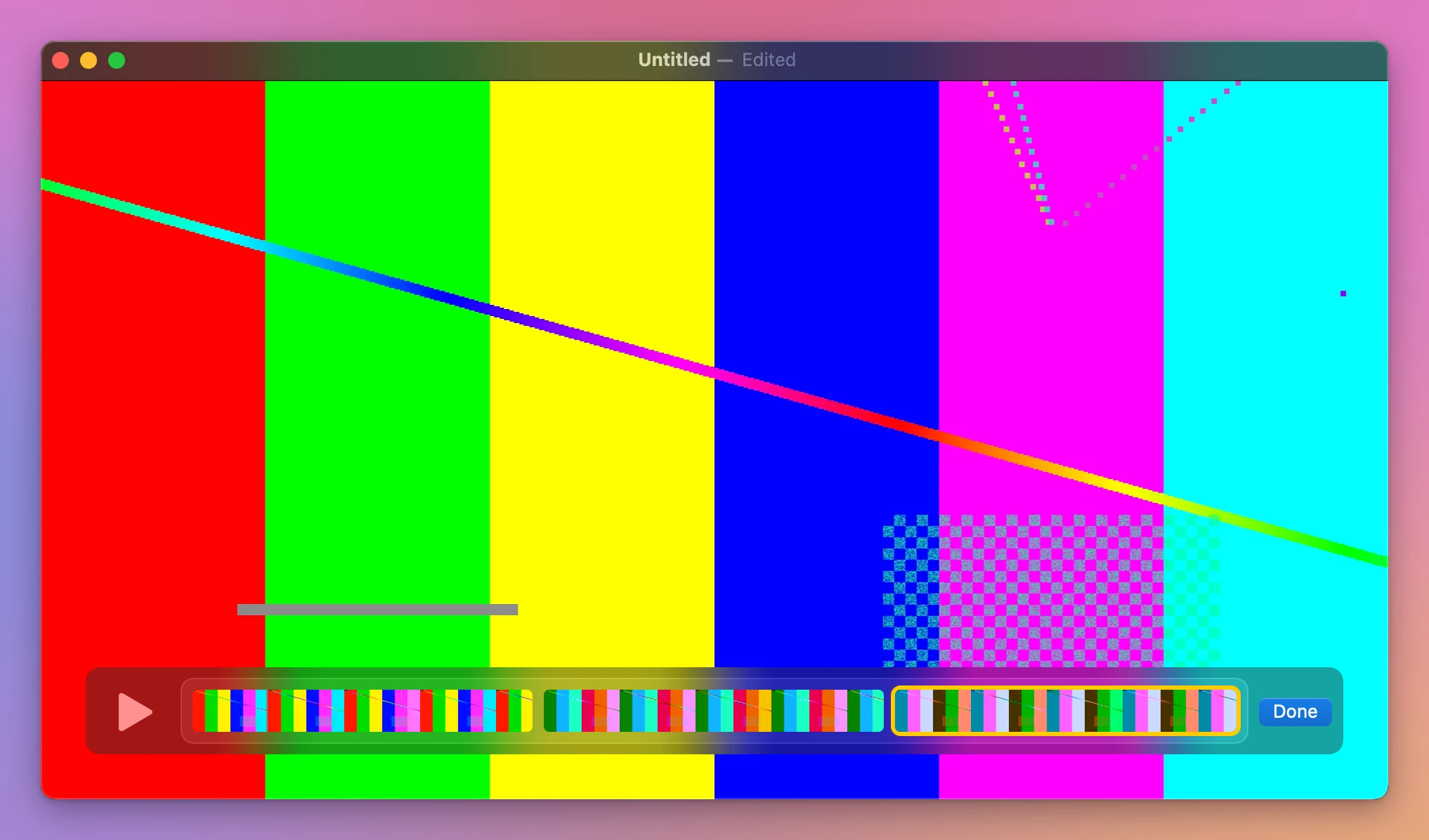
- Click Done. The window is now called Untitled and plays the three videos one after the other, 1 minute in all.
File > Save is greyed out. How do I keep the video?
After adding a clip, File > Save… is greyed out, and so are Rename… and Move To…. It stayed that way with MP4 clips, with AVI clips, and with a .mov file QuickTime Player had written itself.
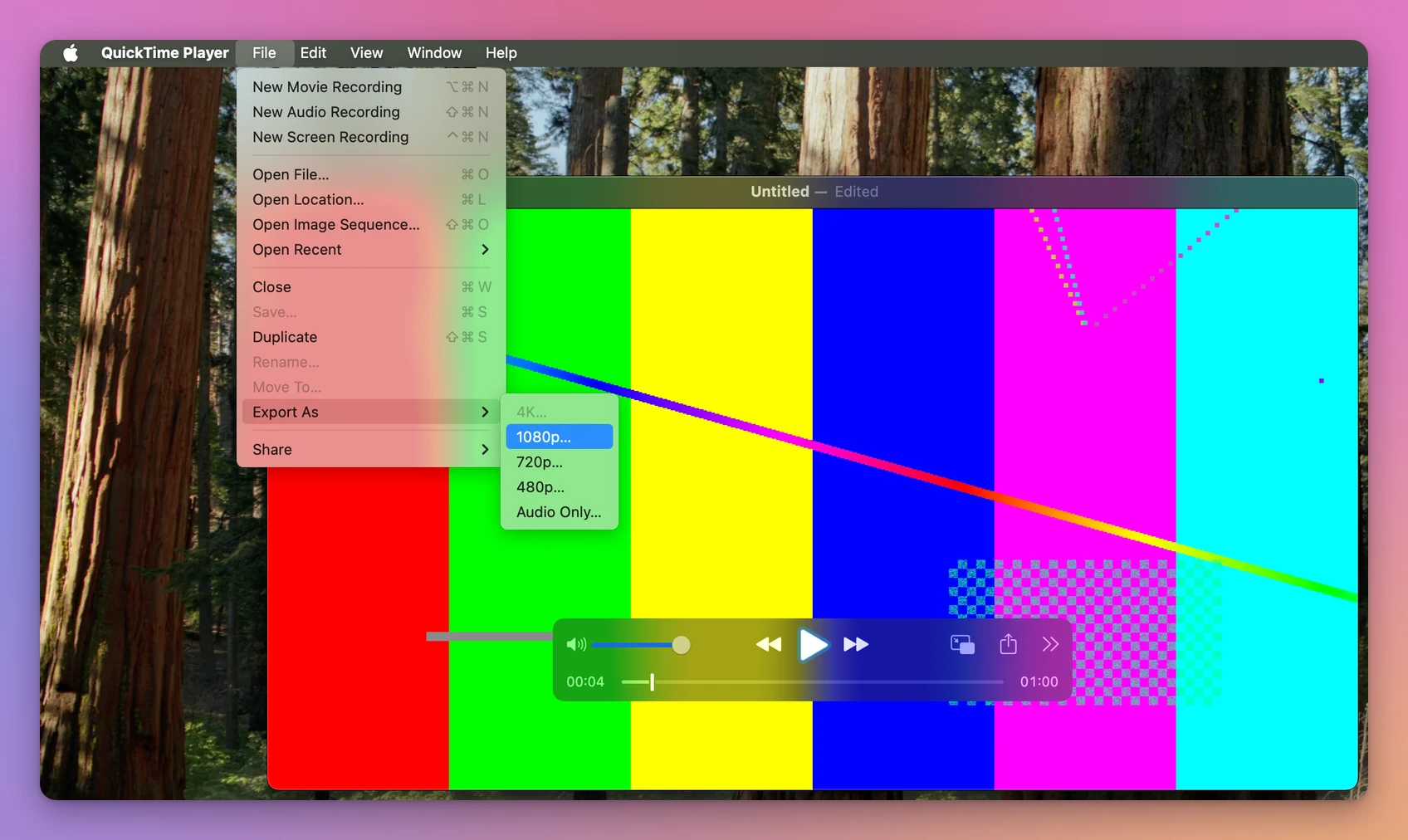
There are two ways to get a file out of it:
- Close the window. QuickTime Player asks “Do you want to keep this new document?” and offers to export it, with a name, a folder and a choice of format.
- Choose File > Export As and a size. 4K is greyed out when the clips are 1080p. 1080p asks the same format question. 720p and 480p don’t ask.
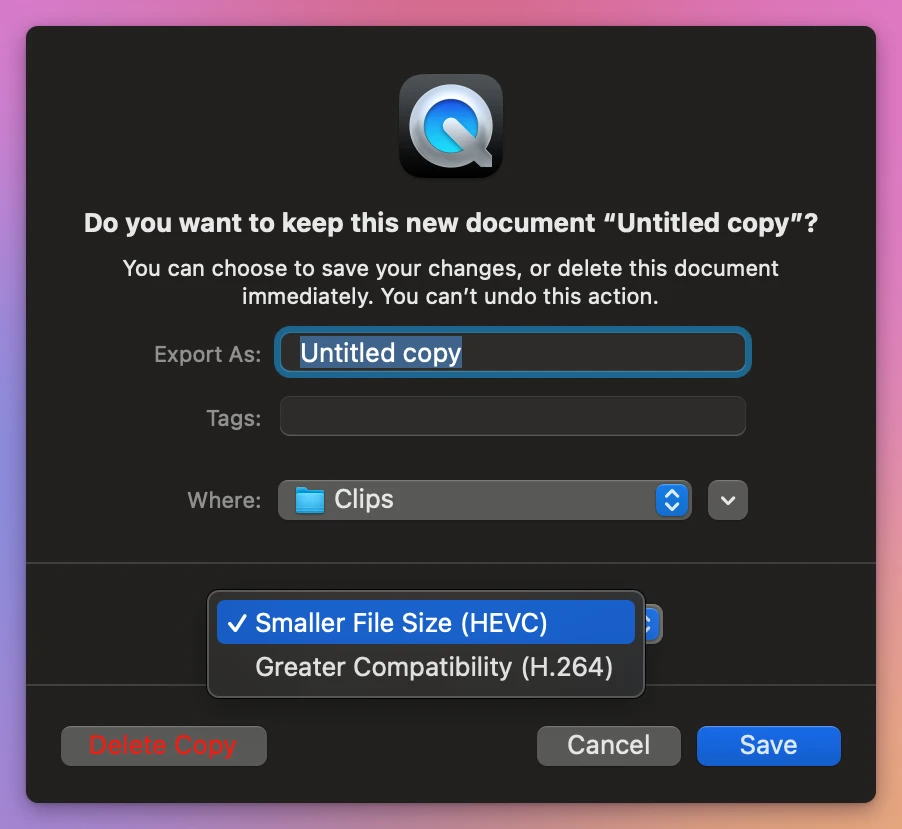
The first time, the format menu was on Smaller File Size (HEVC). That’s the one to change. After that it remembers your last choice, so look at it every time.
Will I lose quality?
It depends on that menu. HEVC and H.264 are two ways of compressing video (two codecs). My clips are H.264.
With H.264 chosen, QuickTime Player copied the clips’ compressed frames into the new file as they were. With HEVC, it decoded every frame and compressed it again, which loses a little detail each time.
Here’s what each choice wrote from the same three clips:
| Time | Size | The picture | |
|---|---|---|---|
| The three clips | 77.8 MB together | ||
| Close, Greater Compatibility (H.264) | About 1 second | 77.7 MB | Every frame identical to the clips |
| Export As > 1080p, H.264 | About 1 second | 77.7 MB | Every frame identical to the clips |
| Export As > 1080p, HEVC | 2 minutes 30 seconds | 59.2 MB | Compressed again as HEVC |
| Export As > 720p | 12 seconds | 56.4 MB | Made smaller and compressed again |
| Clip Joiner | About 5 seconds, with its check | 77.8 MB | Every frame identical to the clips |
The sound wasn’t compressed again in any of them. The times are from a virtual Mac I use for testing.
QuickTime Player wrote a .mov file every time, even from MP4 clips. You can tell from its size in the Finder what happened: the clips’ size added up means the frames were copied, clearly smaller means they were compressed again.
What about videos with different picture sizes?
I joined clip1.mp4 (1920x1080) with clip4.mp4 (1280x720). QuickTime Player added it without a warning and played the smaller part stretched to fill the window.
Kept with H.264, the file took about a second, and at 38.6 MB it’s the size of the two clips together. Inside, the first 20 seconds are 1920x1080 and the next 20 are 1280x720, each clip’s frames as they were. macOS opens it and plays it to the end. Export As > 1080p with H.264 gave the same file: the 720p part stayed 720p.
Does it work with AVI files?
It opened two made-up AVI clips in the shape trail cameras record, Motion JPEG video with uncompressed sound, 10 seconds and 31 MB each. It joined them, and closing the window with H.264 chosen took about 6 seconds.
The file was 26.8 MB, from 62 MB of clips. Nothing was kept as it was: the picture was compressed again as H.264, and the sound was compressed as AAC.
Is there a way that keeps the original file type?
Clip Joiner costs $20, paid once. It joins the videos as they are, with no format menu to get wrong, and it keeps MP4 clips as an MP4.
I opened the folder with the same three clips. They’re listed oldest first. I ticked all three and clicked Join 3 Videos into One. About 5 seconds later the row said Joined and checked: 2026-10-08 to 2026-10-10.mp4, 1 minute, 77.8 MB, named after the days the clips were recorded.
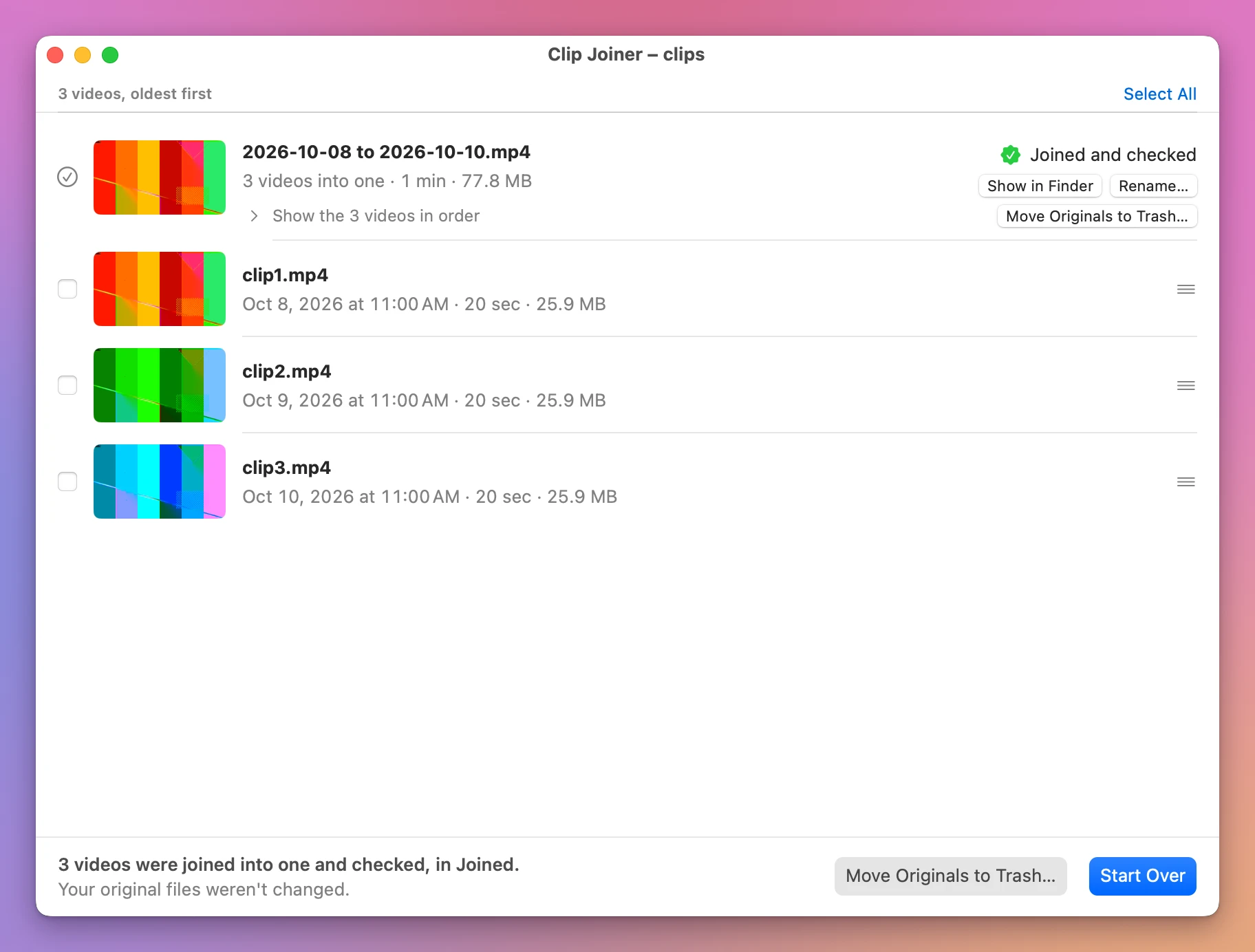
Before it says that, the app reads the clips and the joined file back from the disk and compares every frame and every piece of sound.
Where QuickTime Player differs:
- Clips recorded with different settings, like another picture size, are refused before anything is written, and the app names the odd one out. QuickTime Player joins them without a word.
- Trail camera AVI clips become a
.movwith the camera’s own frames, instead of being compressed again. - It also puts back recordings a GoPro or a drone split into several files.
Get Clip Joiner
Join the videos on a memory card into one file on your Mac, straight from the card. Nothing loses quality, and every join is checked before your originals go.
See Clip Joiner → · Read the docs · $20. See the app page for tax details.
Want me to talk about your product? You can sponsor this site.