How to print a photo at its actual size on a Mac
By Flavio
Preview's print panel picks Scale to Fit for a big photo, and the print comes out as big as the paper. Give the photo a size in inches with Adjust Size, then print at Scale 100%.
You want a 5×7 print of a photo for a frame. You open it on your Mac, press Command-P, print, and it comes out filling most of the page.
A photo from a phone or a camera has no real size in inches, only pixels. When you print it from Preview, the print panel either shrinks or stretches it to the paper with Scale to Fit, or prints it at whatever size the file claims. To get a real 5×7, give the photo that size first with Tools › Adjust Size…, then print with Scale at 100%. Or use an app that works in inches from the start, like Photo Print Sheet.
The pictures here are drawings made for this tutorial, and the screenshots are from macOS 15 Sequoia. The test Mac had no printer, so every print went to a PDF with the print panel’s PDF › Save as PDF, and the boxes were measured on those PDFs.
Why does my photo print so big?
The test photo is a lighthouse, 2000×3000 pixels. Preview’s Adjust Size… window said it was 27.78×41.67 inches at 72 pixels per inch, much bigger than a sheet of Letter paper.
Opening the print panel with Command-P showed Scale to Fit selected, with Print Entire Image under it, and the Scale box greyed out at 24%:
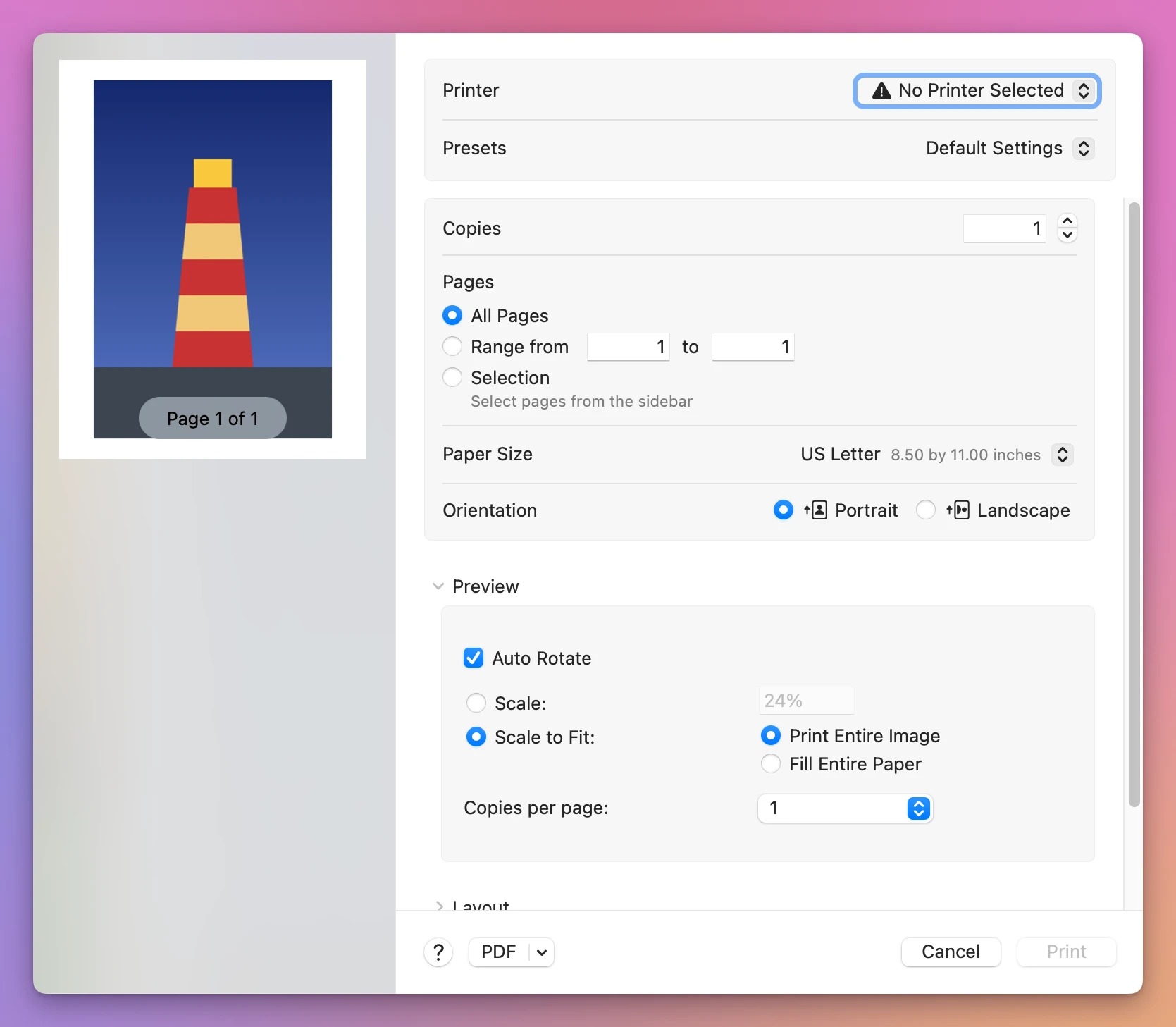
Saved as a PDF from there, the lighthouse measured 6.6×9.89 inches. That’s the photo stretched to fill the space inside the margins, with no size you picked.
How do I set the size in Preview?
Give the photo its size in inches first. Preview calls this Adjust Size.
- Open the photo in Preview.
- Choose Tools › Adjust Size….
- Uncheck Resample image. Now Preview changes only how many pixels go in an inch, and the pixels themselves stay the same.
- Make sure the menu next to Width says inches, then type the width you want.
- Click OK.
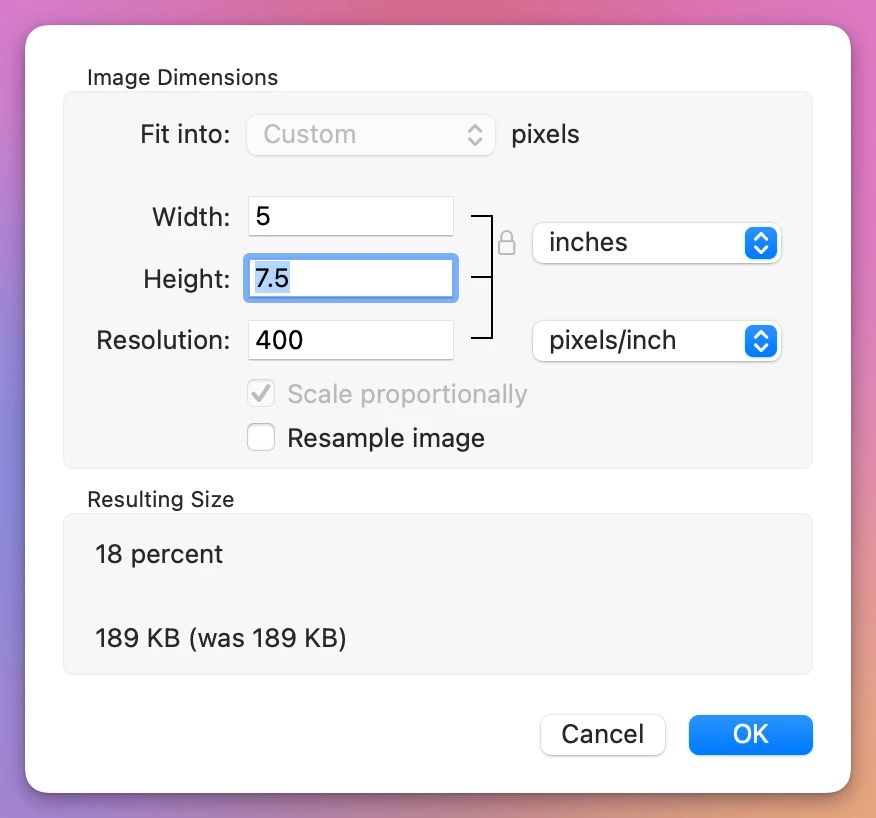
Typing 5 for the width gave a height of 7.5 and a resolution of 400 pixels per inch. The file stayed at 189 KB, because no pixel changed.
Notice the 7.5. This photo is 2 by 3 in shape, and a 5×7 is a little wider than that, so Preview can’t make it 5×7 without cutting a strip off. You get 5×7.5, or 4.67×7 if you type 7 for the height. To get an exact 5×7 in Preview you have to crop the photo to that shape first.
Preview keeps the new size in the file: after closing Preview, the copy used here said 400 pixels per inch. Work on a copy if you don’t want that.
Which print setting keeps the size?
After Adjust Size, the print panel opened on Scale: 100% this time:
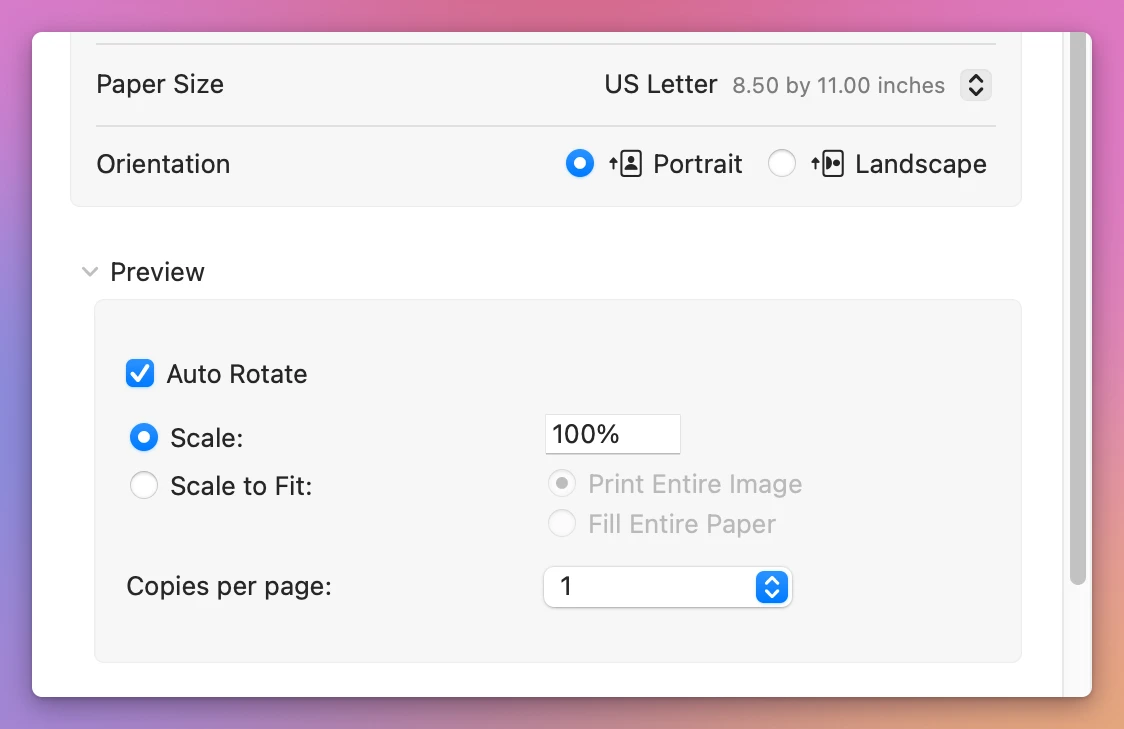
On the test Mac, Preview picked Scale to Fit for the photo that was bigger than the paper and Scale: 100% for the ones that fit, like a small 520×700 drawing at 72 pixels per inch. Check which one is selected every time before you print.
Here’s what each setting gave, measured on the PDFs:
| What was done in Preview | Print setting | Size on the page |
|---|---|---|
| Opened the photo as it was | Scale to Fit (already selected) | 6.6×9.89 in |
| Adjust Size to 5 in wide | Scale 100% (already selected) | 5×7.5 in |
| Adjust Size to 5 in wide | Scale to Fit, picked by hand | 6.6×9.89 in |
The last row is the trap. Even after you set the size, Scale to Fit throws it away and stretches the photo to the page again.
Is there a quicker way?
Photo Print Sheet is a Mac app I made that works in print sizes from the start. It costs $20, paid once. It’s my own app, not made by, affiliated with or endorsed by Apple or any printer or paper maker.
Click Add Photos…, pick the photo, and choose 5×7 in from its size menu. The photo fills the 5×7 and the app crops what doesn’t fit, which here is a thin strip at the top and bottom. You can drag the photo on the sheet to choose what’s kept, or pick Fit to see the whole photo with white borders.
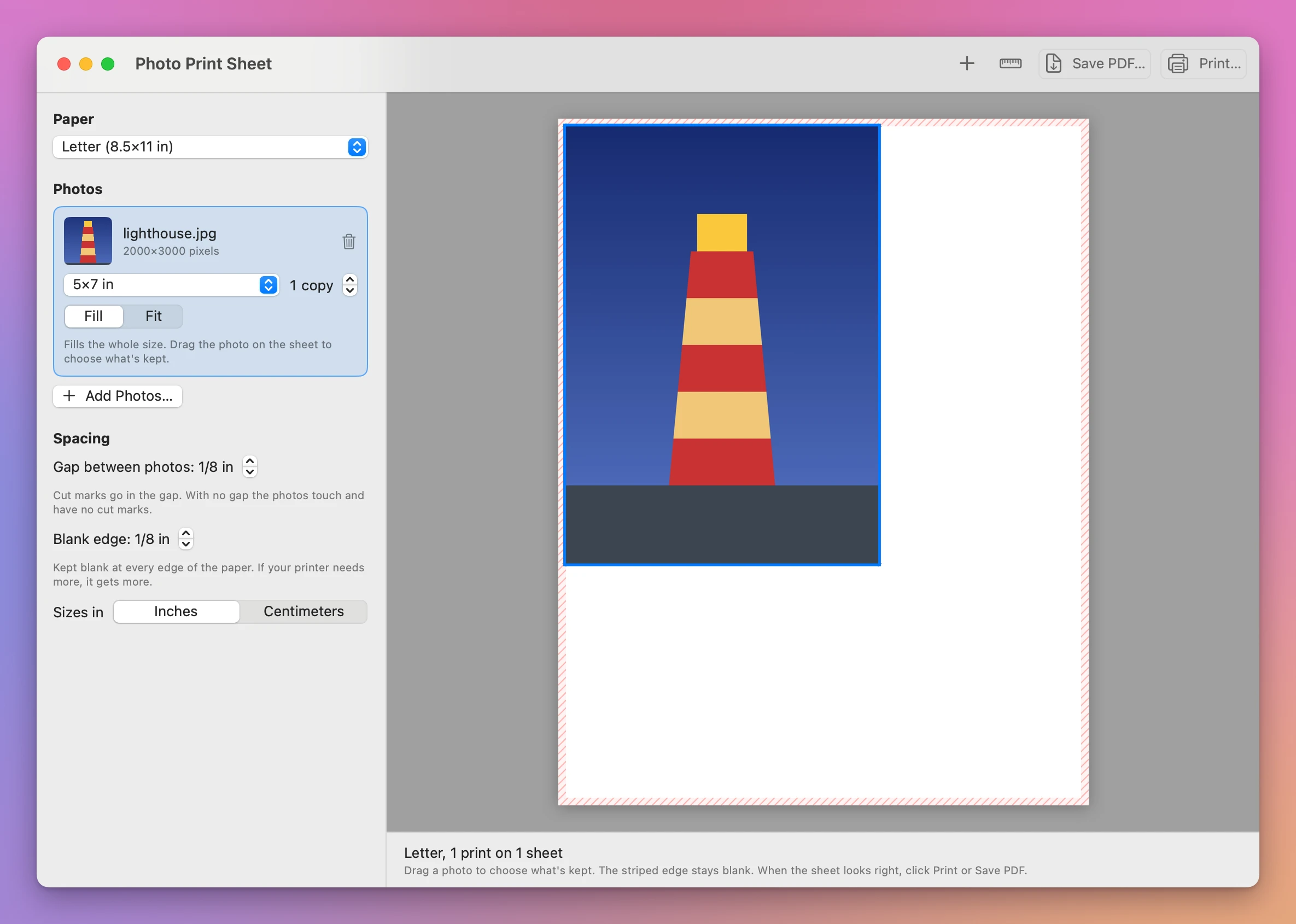
Save PDF… wrote a page with the lighthouse at exactly 5×7 inches, 1/8 inch from the top and left edges. Print… prints at 100% with no scaling, so there’s no Scale to Fit to get wrong.
With no printer on the test Mac, printing to a PDF from the app’s print panel brought up a check first, “A photo would be cut off”, saying “lighthouse.jpg runs into the edge this printer can’t print”. Move It In moved the photo a little further from the edge, and the next print to PDF measured 5×7 inches again.
How do I know my printer prints at real size?
A PDF that measures right is half the story. Some printers shrink the page a little on their own, so check yours once.
In the app, Print Test Ruler… prints a page with a line 10 cm long and a line 4 inches long. On the PDF from the test Mac, they measured exactly that.
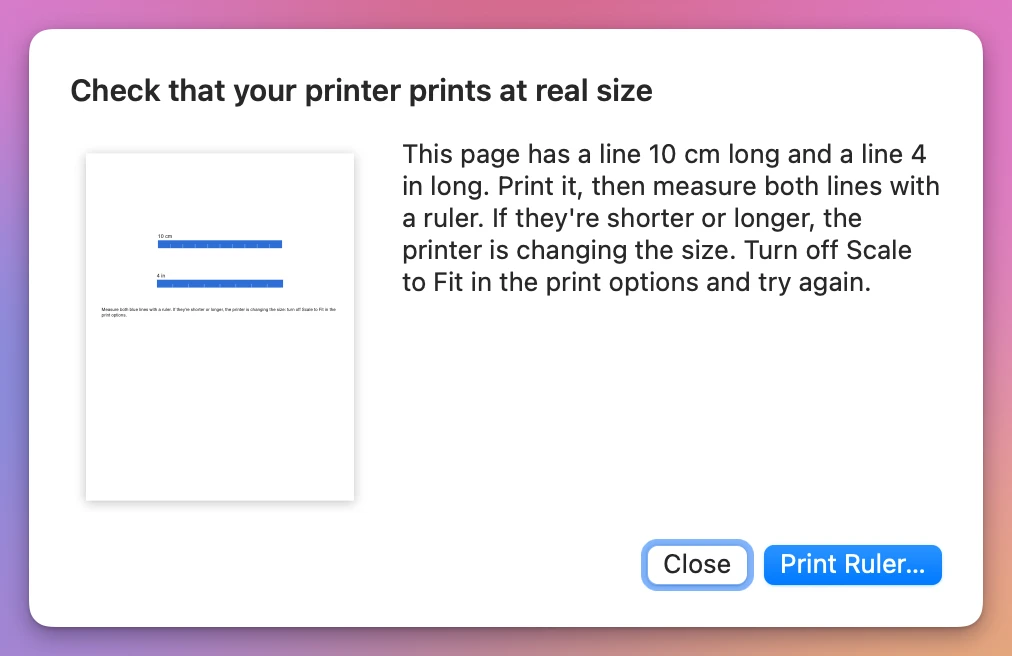
Print it and measure both lines with a ruler. If they’re shorter or longer, the printer is changing the size. Turn off Scale to Fit in the print options and print the ruler again.
Get Photo Print Sheet
Put several photos on one sheet of paper, each at the exact size you pick: wallet photos, a 5×7 for a frame, a few small ones for a locket. Arranged on as few sheets as possible, with cut marks. Print at 100% or save a PDF.
See Photo Print Sheet → · Read the docs · $20. See the app page for tax details.
Want me to talk about your product? You can sponsor this site.