How to rotate a video on a Mac
By Flavio
A video that plays sideways or upside down turns the right way up with QuickTime Player's Rotate Left or the Finder's Rotate Left quick action, both free. Here's what each one does to the file, and where a new copy ends up.
You filmed something with the phone held sideways, and now the video plays on its side on the Mac. Or it’s upside down.
The Mac can turn it for free, two ways. QuickTime Player has Edit › Rotate Left and saves a new copy. The Finder has a Rotate Left button that turns the file itself, in place. For one video, either one does the job.
How do I rotate a video in QuickTime Player?
Open the video in QuickTime Player, then choose Edit › Rotate Left (Shift-Command-L) or Rotate Right (Shift-Command-R). Click again to turn it more: twice turns an upside-down video. The same menu has Flip Horizontal and Flip Vertical.
The video here is made up for this tutorial: four colored corners and a white arrow that points up, so you can see at a glance which way is up. It plays turned to the right, with the arrow pointing sideways. The screenshots are from macOS 15 Sequoia.
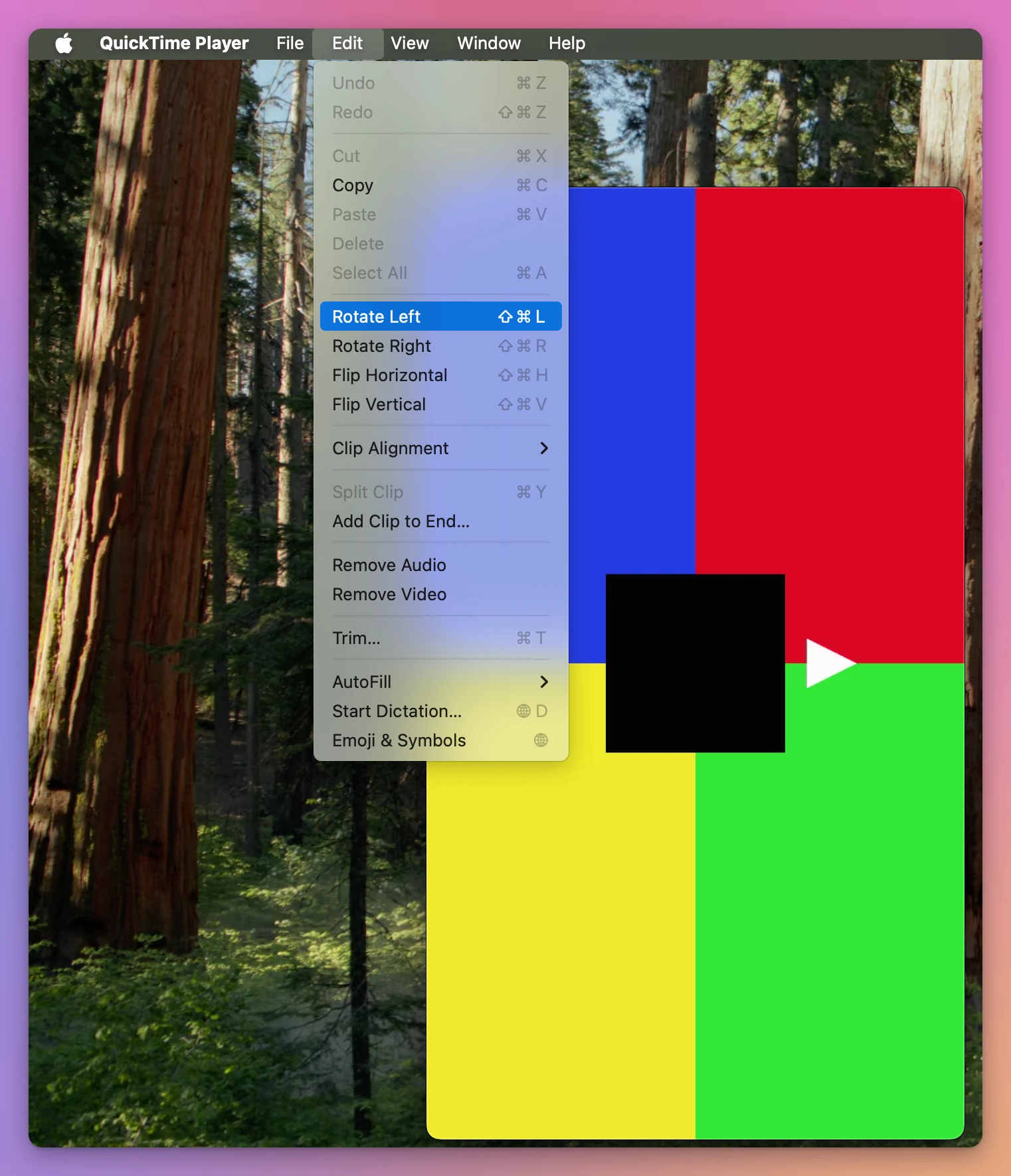
The picture turns right away, and the window is now called “Untitled”, marked Edited. On the test Mac, File › Save… was greyed out after the turn. Closing the window (File › Close, or Command-W) brought up the save question instead:
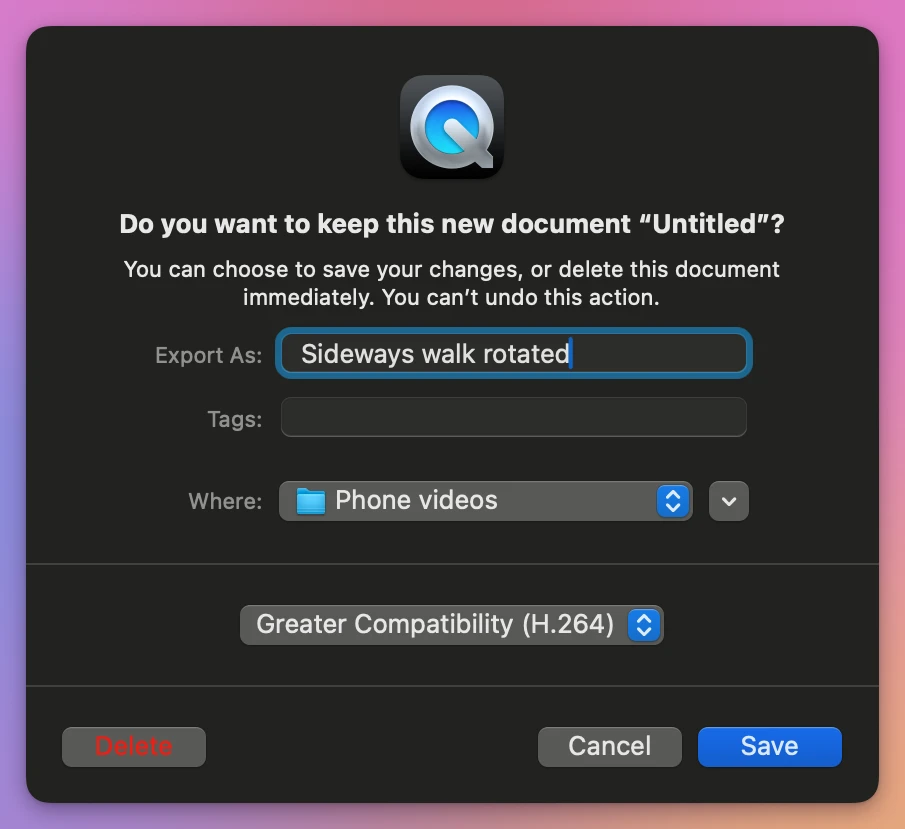
- Type a name in Export As. It starts as “Untitled”.
- Pick the folder in Where. It isn’t always the video’s folder, so check it.
- Pick a format: Smaller File Size (HEVC) or Greater Compatibility (H.264). H.264 was picked here.
- Click Save.
The new video was in the folder a few seconds later, upright, with the original untouched next to it. Its date in the Finder was today’s, and the date the video was shot, which the original had inside it, wasn’t in the new file anymore.
How do I rotate a video in the Finder?
Select the video in a Finder window. If the preview pane is on (View › Show Preview), there’s a Rotate Left button under the preview. It’s also in the right-click menu, under Quick Actions:
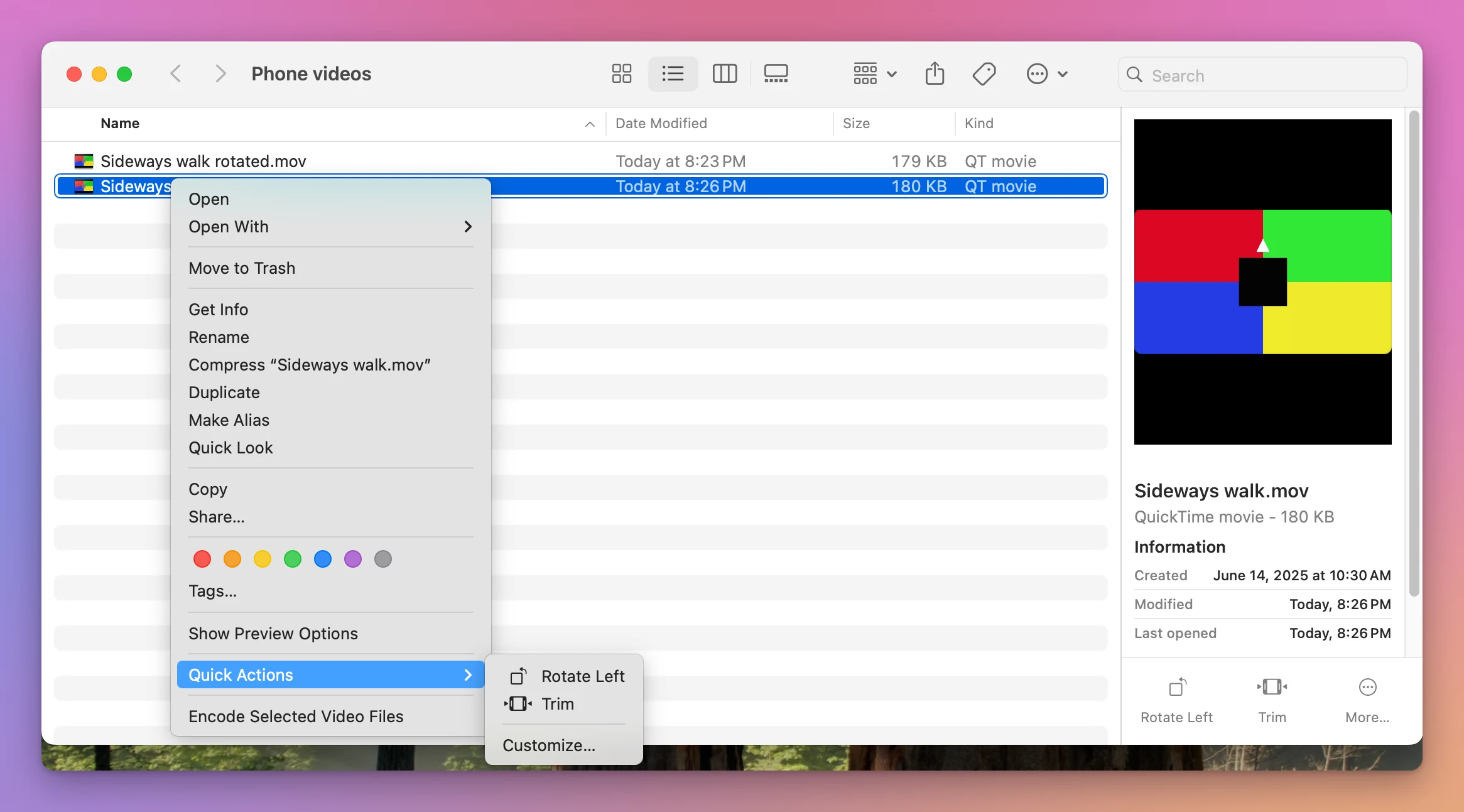
One click turned it, in less than five seconds. There’s no Rotate Right in the Finder: click Rotate Left twice for an upside-down video, three times for one that’s turned the other way.
Be careful with one thing: the Finder turns the file itself. It doesn’t ask, and it doesn’t make a copy. On the test Mac the size stayed the same, the Created date stayed June 14, 2025, and Modified became today. If you want to keep the original as it was, right-click it and choose Duplicate first, then turn the copy.
For one video, either of these is enough. QuickTime is the way when you want a new file, the Finder when you’re fine changing the one you have.
| Original | New file’s name and folder | Date in the Finder | Time for a 12-second video | |
|---|---|---|---|---|
| QuickTime Player | Unchanged | You type the name and pick the folder | Today | A few seconds after Save |
| Finder quick action | Turned in place | No new file | Created kept, Modified today | Under five seconds |
| Sideways Video Fixer | Unchanged | Sideways walk (fixed).mov, next to the original | The original’s, June 14, 2025 | Under five seconds |
The shorter way: Sideways Video Fixer
Sideways Video Fixer is a Mac app I made for videos that play on their side or upside down. You turn the video in its window, click Save, and the new copy goes next to the original with “(fixed)” after its name. It costs $20, paid once, and it isn’t made by, affiliated with or endorsed by Apple or Dolby.
Click Choose Videos… and pick the video, or drop it on the window. It shows the video as it plays now, sideways. Click Rotate Left and the picture turns at once, and the line at the bottom says where the new file will go:
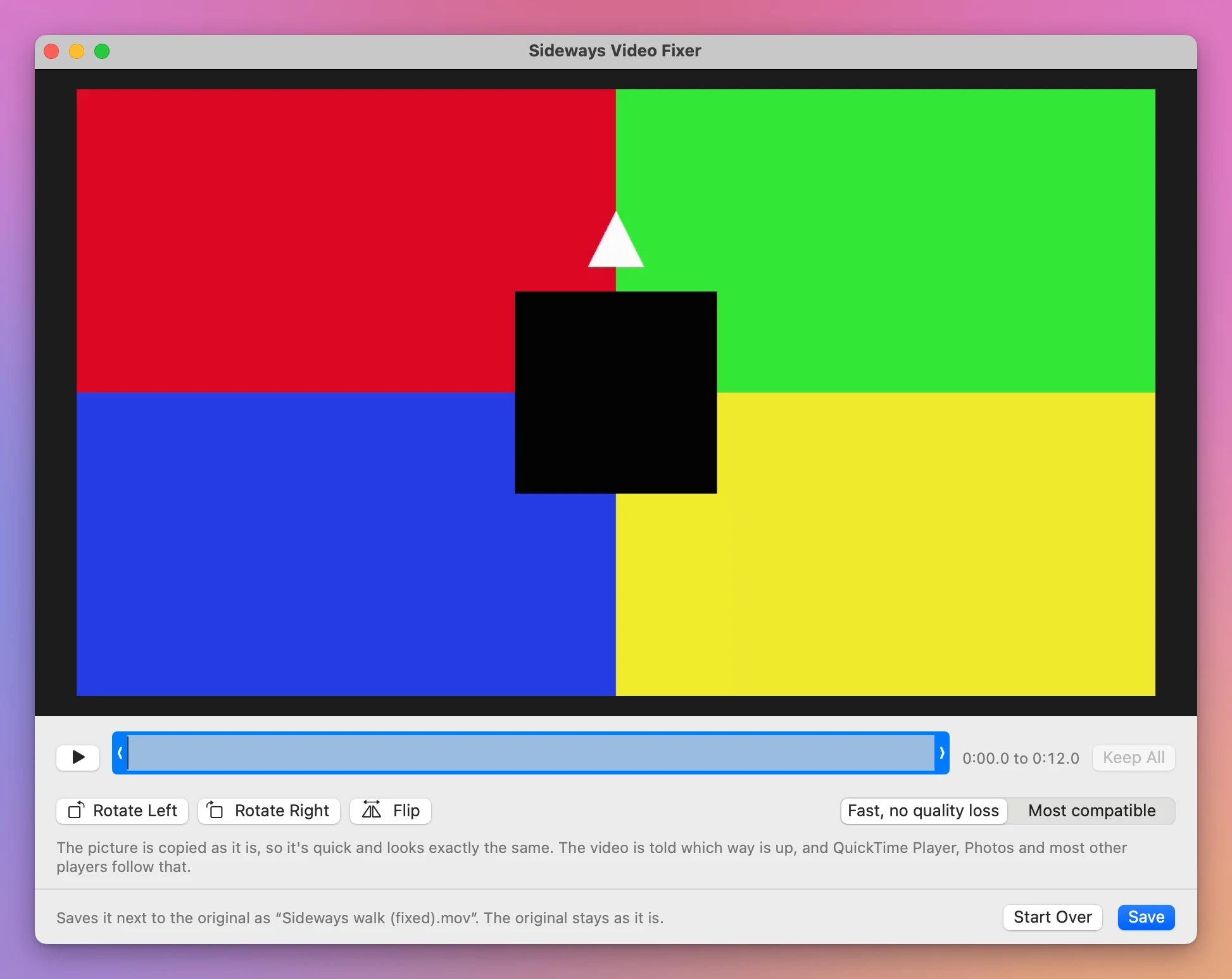
There’s a Rotate Right too, so no clicking three times. Click Save. The app opens the new file again and checks it before giving it its name, and the window said “Done, 1 video saved” and “Saved and checked as “Sideways walk (fixed).mov”.” Show in Finder opened the folder with the new file selected:
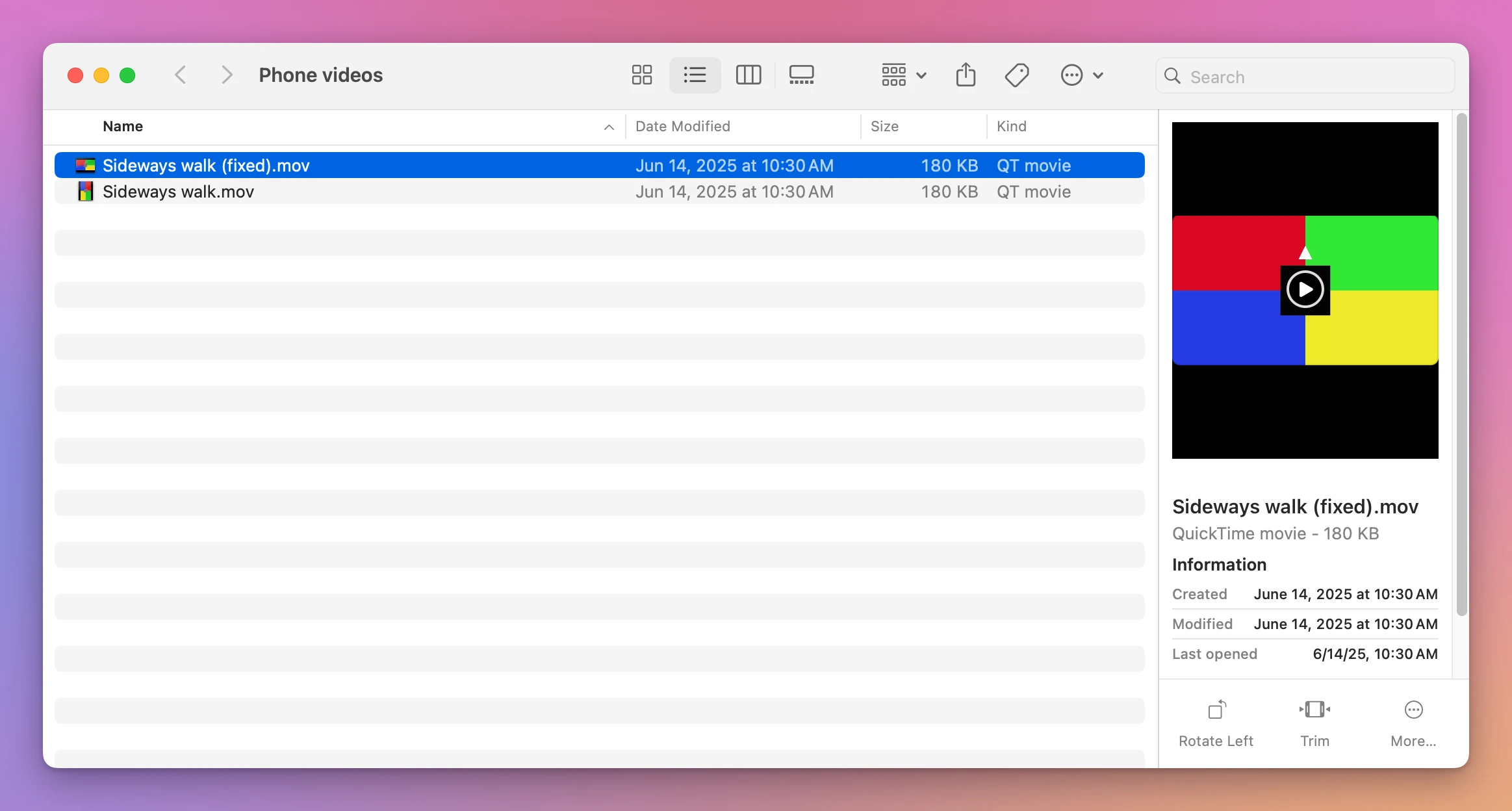
The new file has the original’s dates in the Finder, so it sorts next to the other videos from that day, and the date it was shot is still inside it. The original wasn’t changed.
The app was saving the fast way here, Fast, no quality loss, which is picked when you start. The other way, Most compatible, is for a TV or a player that still shows the new file sideways.
Get Sideways Video Fixer
Turn a video that plays sideways or upside down the right way up. Rotate, flip and trim it, and save a checked copy next to the original, the fast way with no quality loss or upright for every TV and player.
See Sideways Video Fixer → · Read the docs · $20. See the app page for tax details.
Want me to talk about your product? You can sponsor this site.