How to save an email as a PDF on a Mac
By Flavio
In Mail, select the email and choose File › Export as PDF…. That's all you need for one email. Here's what the PDF looks like, what happens to the attachments, and a way that names and dates each file for you.
You need an email as a PDF: an invoice for your accountant, a confirmation for a claim, a message you want to keep after you close the account.
In Mail on the Mac, select the email and choose File › Export as PDF…. Pick a name and a folder, click Save, and the email is a PDF. For one email, that’s all you need. If you do it often, or the attachments need to come along, Mailbox to PDF does it with the file named and dated for you.
Export one email from Mail
The test Mac runs macOS 15 Sequoia. Its Mail has a mailbox of made-up emails, from made-up people at made-up addresses.
- Click the email in Mail’s list.
- Choose File › Export as PDF….
- Mail suggests the subject as the name. Change it if you like, pick a folder in Where, and click Save.
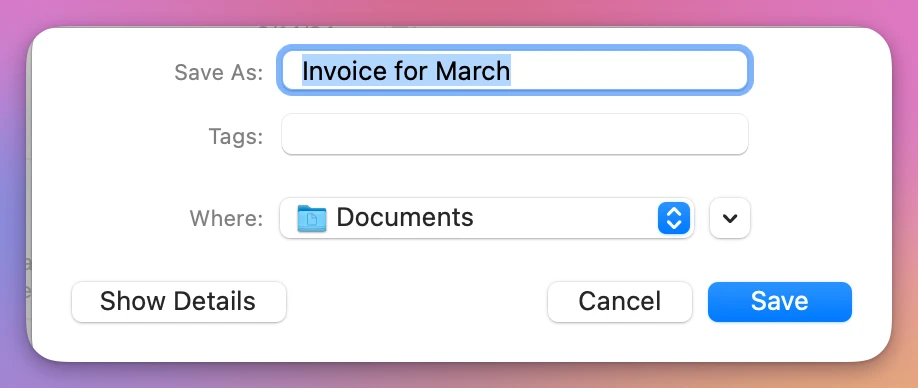
Here the email was “Re: Invoice for March”, a reply with a receipt attached. Mail suggested “Invoice for March”, without the “Re:”.
What’s in Mail’s PDF?
The PDF is the email as Mail shows it, on one page: From with the name and the address, Subject, Date, To, then the text.
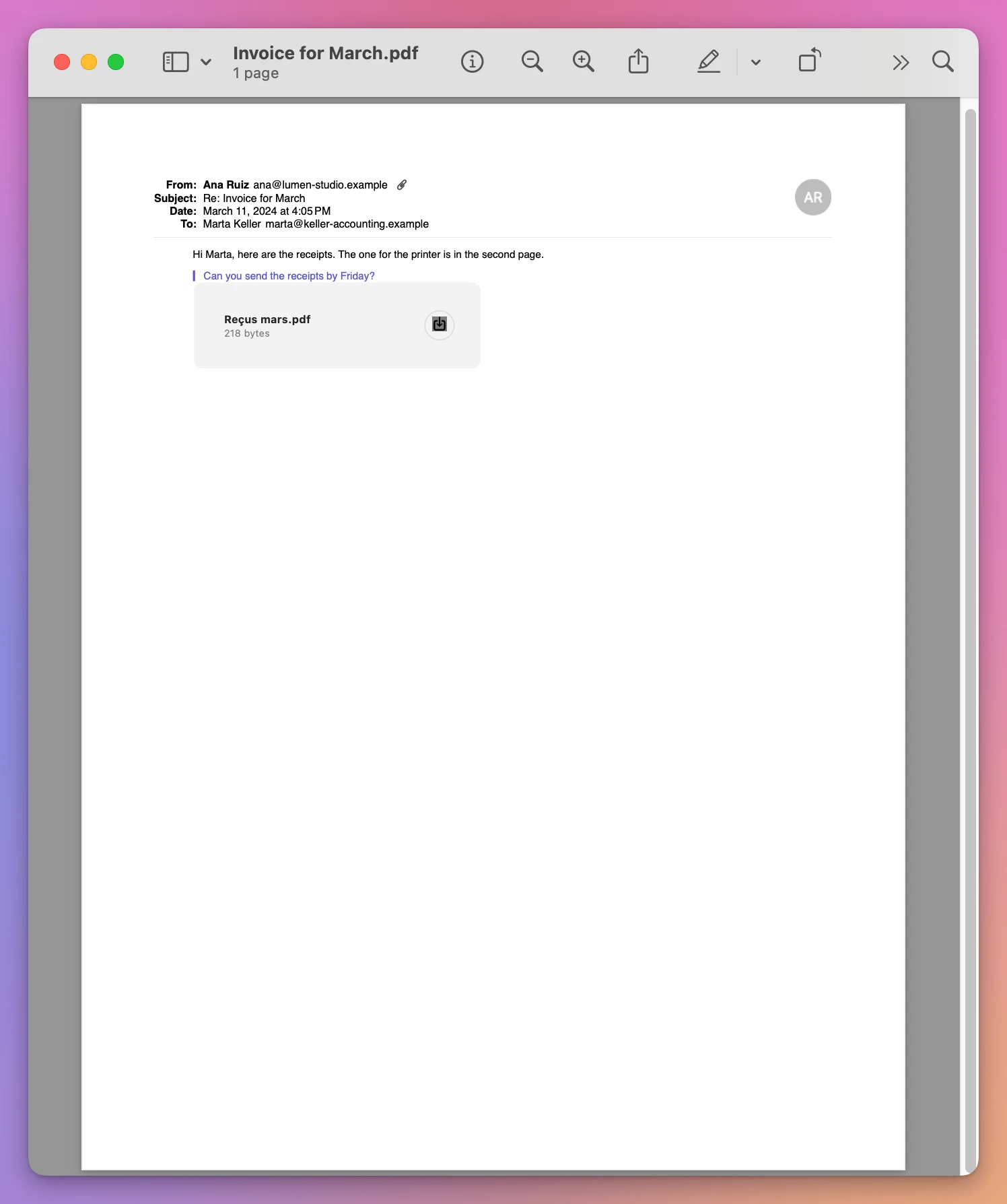
The attachment, Reçus mars.pdf, shows up as a grey box with its name and size. The file itself isn’t in the PDF. If the accountant needs the receipt too, you save it separately: click the attachment in Mail, or use File › Save Attachments….
The file’s date in the Finder is the moment you exported it, not the date of the email. Do ten of them and they all carry today’s date.
A newsletter works the same way. “Spring open studio 🌷” came out with its picture, but the file was named Spring open studio .pdf: Mail dropped the flower emoji and left a space before .pdf.
Is Print the same?
File › Print… opens the print window, and its PDF button at the bottom saves a PDF, with choices like paper size and scaling. The test Mac had no printer, so Print itself was greyed out. With several emails selected, Print and Export as PDF give different results, which is the topic of the next tutorial.
When it’s more than one email
Export as PDF is quick for one email. It gets slow when you have a dozen invoices to send, each needs a name you can sort by, and each has an attachment to save by hand.
Mailbox to PDF is a Mac app I made for that: the emails you pick become PDFs, with their attachments in a folder next to each PDF. It isn’t made by, affiliated with or endorsed by Apple. It costs $20, paid once.
- Select the emails in Mail. Hold Command to pick more than one.
- In the app, click Read Selected Emails.
The first time, macOS asks whether Mailbox to PDF can control Mail. The sentence under the question is the app’s own:
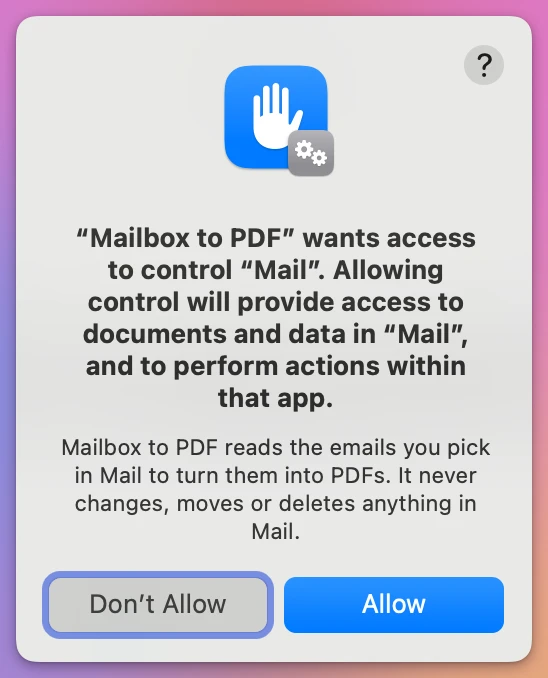
Click Allow. It came up only after the click on Read Selected Emails, not when the app opened. If you click Don’t Allow by mistake, the app shows a button that opens the right page of System Settings.
Then you see the emails you selected, with a paper clip on the one with an attachment:
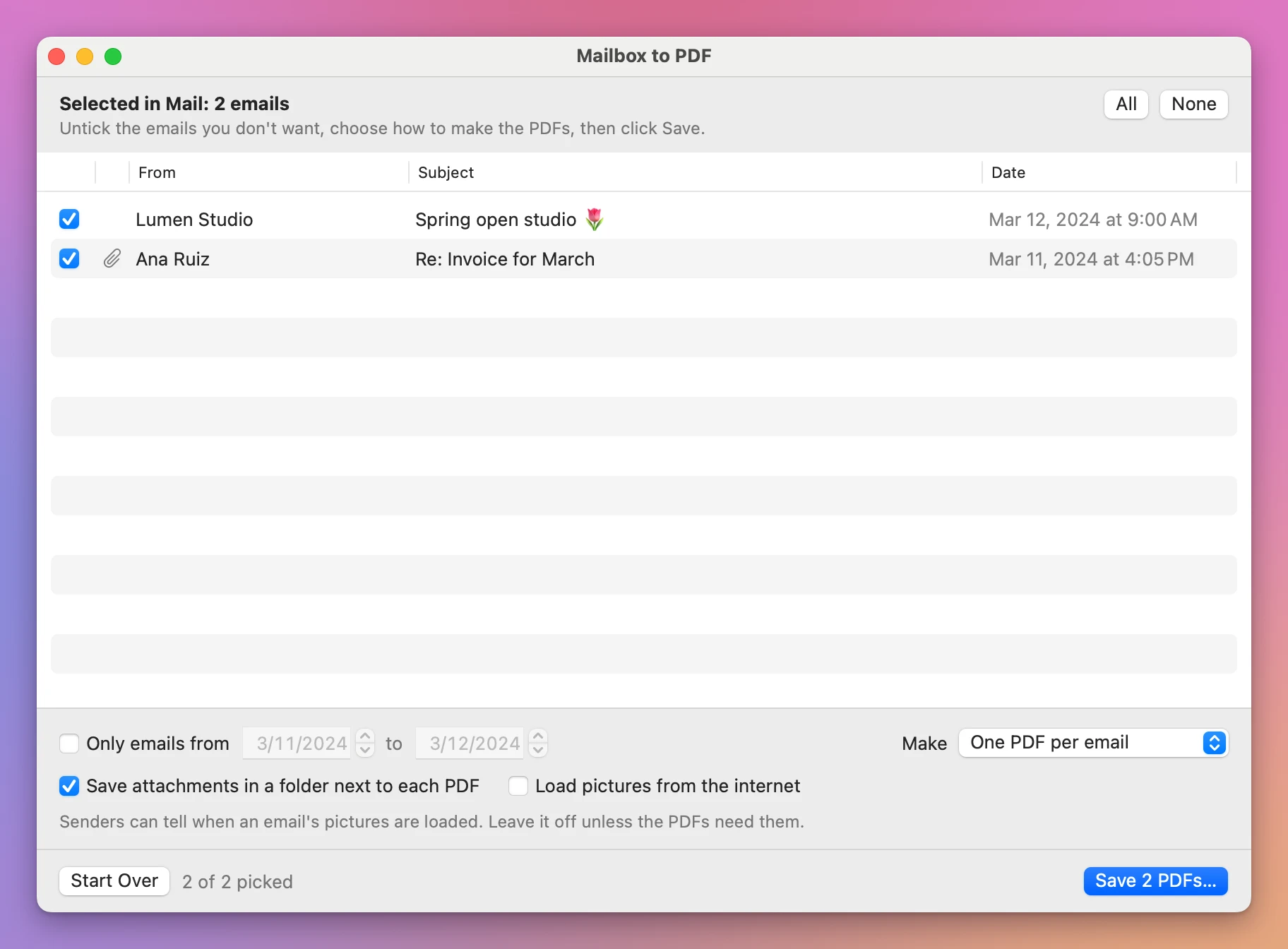
- Leave Make on One PDF per email.
- Click Save 2 PDFs…, pick a folder and click Save Here.
The Finder shows the result. Each PDF starts with the date of the email, and the receipt is in a folder with the same name as its PDF:
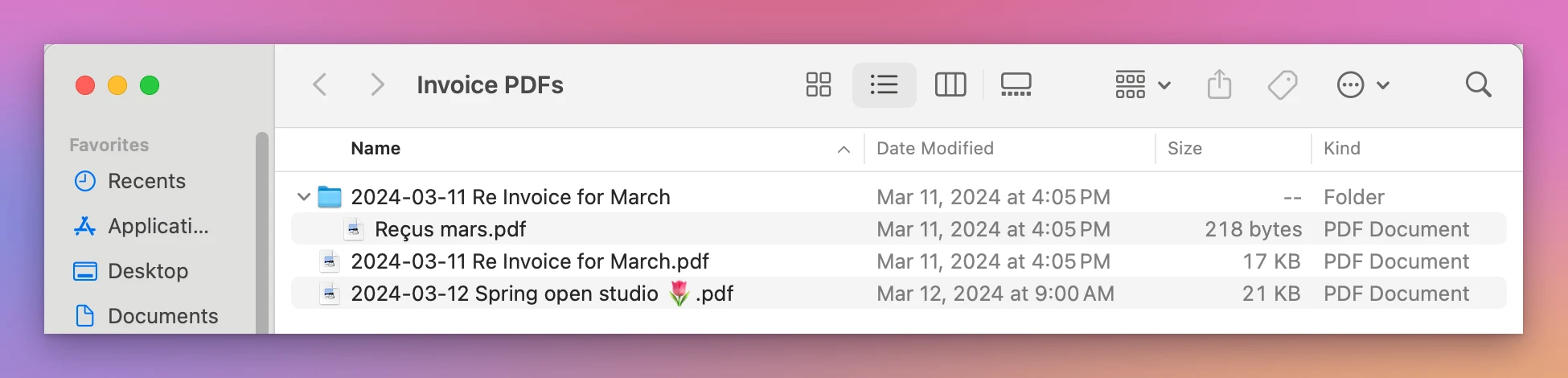
The files are dated like their emails, so sorting by date in the Finder puts them in the order they were sent. The emoji stayed in the name. Each page starts with who sent it, who it went to, the date, the subject and the names of the attachments:
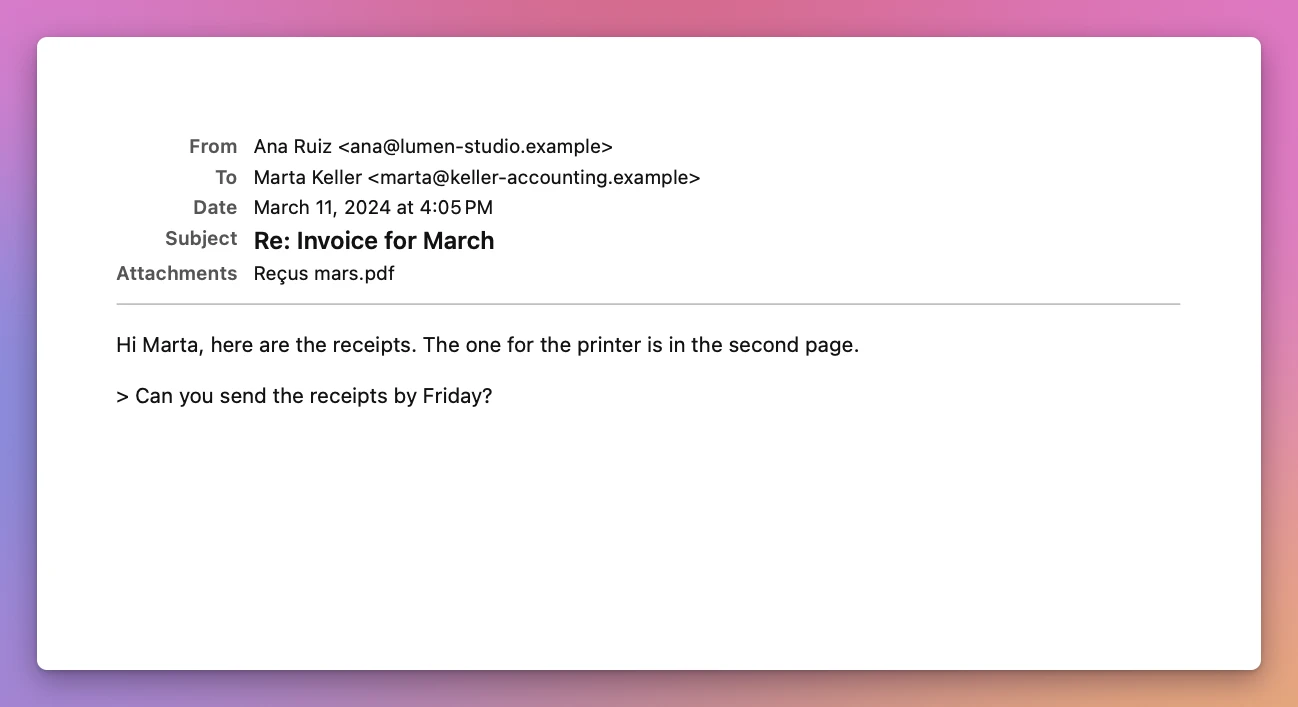
Pictures sent inside an email show, like the newsletter’s. Pictures the email loads from the sender’s server stay off unless you tick Load pictures from the internet, because loading them tells the sender you opened the email.
Mail’s export and the app, side by side
| Mail’s Export as PDF | Mailbox to PDF | |
|---|---|---|
| File name | The subject, without “Re:”, typed or accepted each time | 2024-03-11 Re Invoice for March.pdf, date and subject |
| File date in the Finder | When you exported it | The date of the email |
| Attachment | Its name and size in a grey box | Its name in the header, the file in a folder next to the PDF |
| Emoji in the subject | Dropped from the file name | Kept |
| Pictures from the sender’s server | As Mail shows them | Off unless you tick the box |
| Several emails at once | See the next tutorial | One click |
Get Mailbox to PDF
Turn emails into PDFs: the ones selected in Mail, a whole mailbox, or an .mbox or .eml file. One PDF per email, per conversation, or one for everything, with the attachments in a folder next to each PDF.
See Mailbox to PDF → · Read the docs · $20. See the app page for tax details.
Want me to talk about your product? You can sponsor this site.