How to save a text message conversation as a PDF on a Mac
By Flavio
Save a Messages conversation as a PDF on your Mac, choose the days to include, replace phone numbers with names, and check which photos and attachments made it into the file.
You want a Messages conversation in one PDF, with the names and photos in place. Screenshots work for ten messages. For a few months of them, you need a file you can save or send.
The short answer: Messages on the Mac has File › Print…, and the print window can save a PDF instead of printing. Apple’s guide describes the steps, and doesn’t say what ends up in the PDF. Chat to PDF for iMessage saves the whole conversation, or only the days you pick, with the sender, date and time of every message, the photos, and page numbers.
Print it from Messages
These steps are from Apple’s Messages User Guide for macOS Sequoia, the page “Print or create a PDF of a conversation in Messages on Mac”. The test Mac used for this tutorial had no Apple Account signed in, and Messages showed only its sign-in window, so they couldn’t be tried there:
- Open Messages and select the conversation.
- Choose File › Print.
- Click the small arrow next to PDF at the bottom of the print window, then choose an option.
Apple’s page on saving any document as a PDF fills in the last step: choose Save as PDF, then a name and a place for the file.
That’s all Apple says. The page doesn’t say whether the PDF has the whole conversation or only part of it, whether each message keeps its time, or whether the photos are in it. Open the PDF and check it before you send it to anyone.
Save it with Chat to PDF for iMessage
Chat to PDF for iMessage is a Mac app I made that reads the conversations Messages keeps on your Mac and turns the one you pick into a PDF. It’s my own app, not made by, affiliated with or endorsed by Apple. It costs $20, paid once.
On your own Mac, the app first asks you to turn on Full Disk Access for it in System Settings, and shows the steps. It can also open a copy of a Messages folder, from another Mac or a backup, with Open a Messages Folder…. That’s what happened here, on a Mac running macOS 15 Sequoia: the people, numbers and messages below are made up, in a Messages folder made for testing.
- Pick the conversation on the left. Each one shows the day of its last message and how many messages it has.
- Messages keeps phone numbers and email addresses, not names, so the list showed numbers. Click Names…, then Use Names from Contacts. macOS asked first:
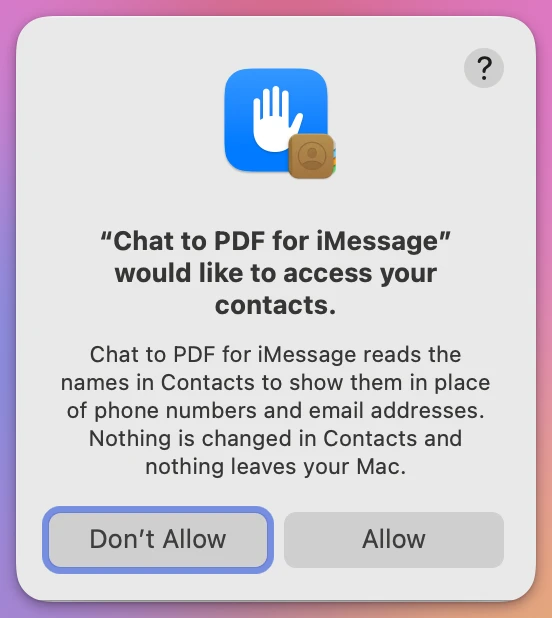
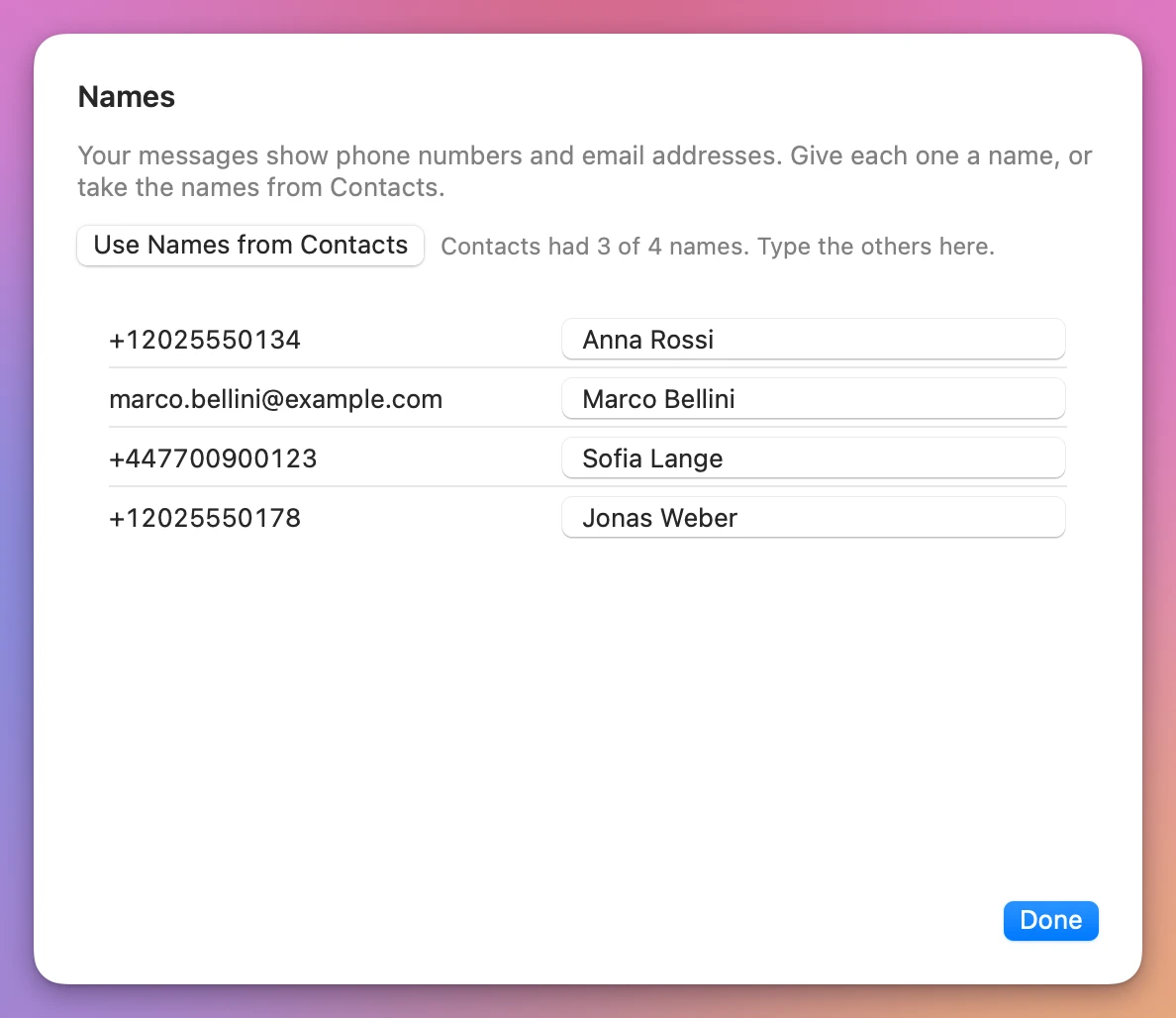
- After Allow, the sheet said “Contacts had 3 of 4 names. Type the others here.” The fourth number got a name typed by hand:
- Type your name in Your name. It goes on your messages, on the right. From and To start at the first and last message: change them to keep only some days.
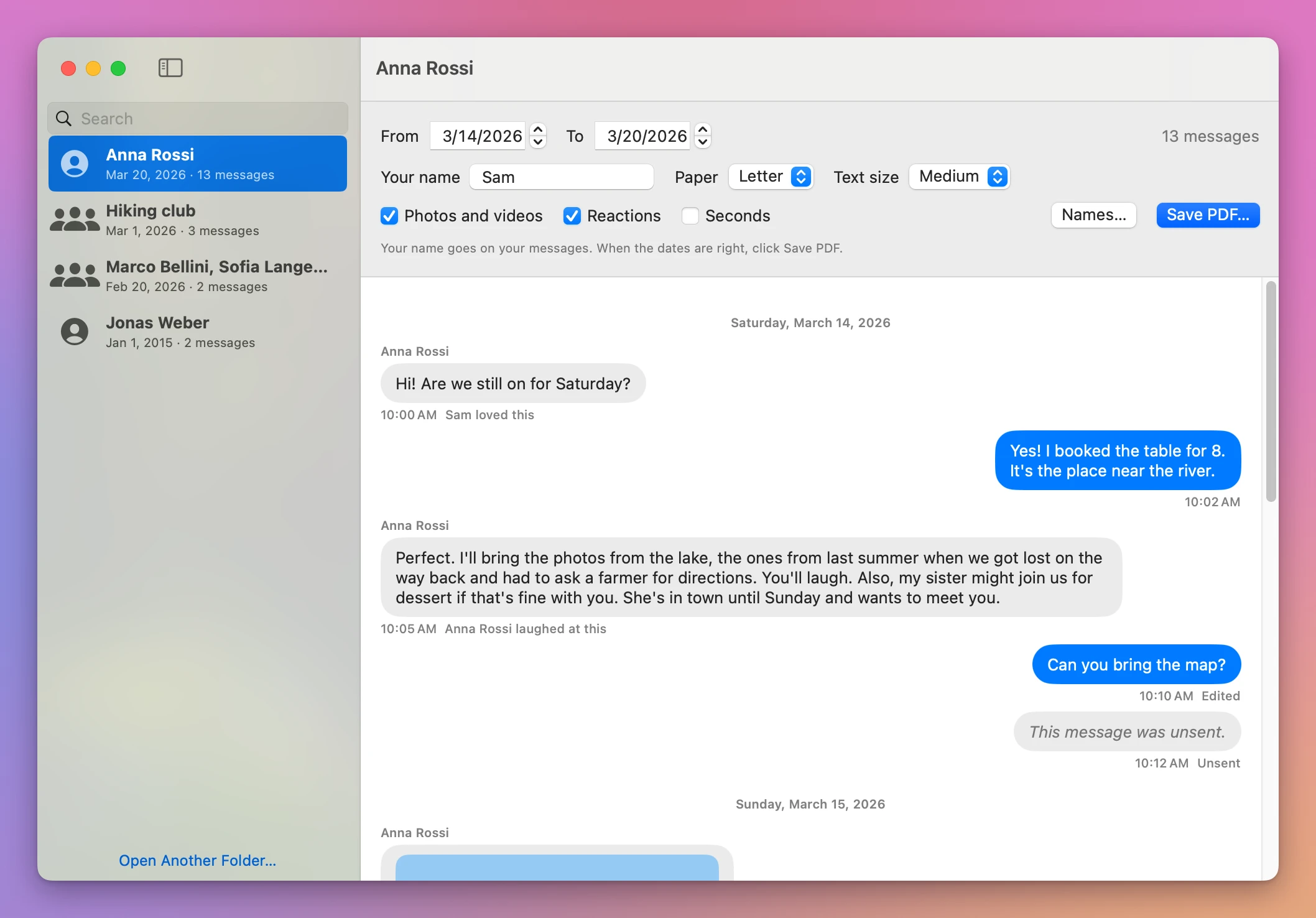
- Click Save PDF…, pick a name and a folder, and click Save.
The window then says what’s in the PDF and what isn’t:
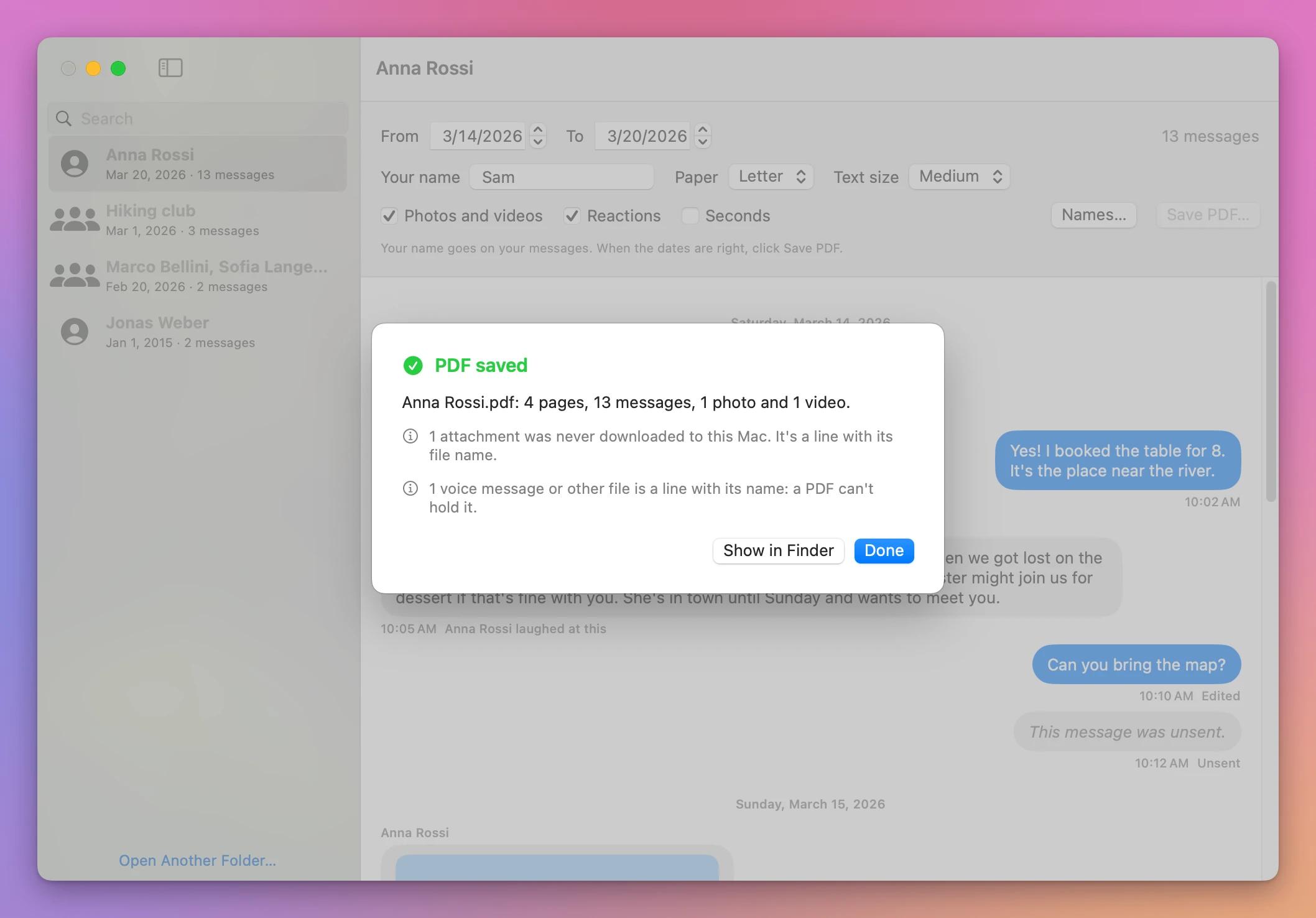
Which messages and attachments made it into the PDF?
Start with the first page. It lists Anna Rossi, People “Anna Rossi, Sam”, Dates “March 14, 2026 to March 20, 2026”, Messages 13, and the day the PDF was made. Check that the people and date range are the ones you meant to include. The messages follow under a heading for each day, each with its sender and time.
The photo sits inside Anna’s message. The video is its first frame with a play sign and its file name. A photo that was never downloaded to the Mac is a line with its name and the reason. Every page ends with “Anna Rossi · Made on November 14, 2026” and “Page 3 of 4”.
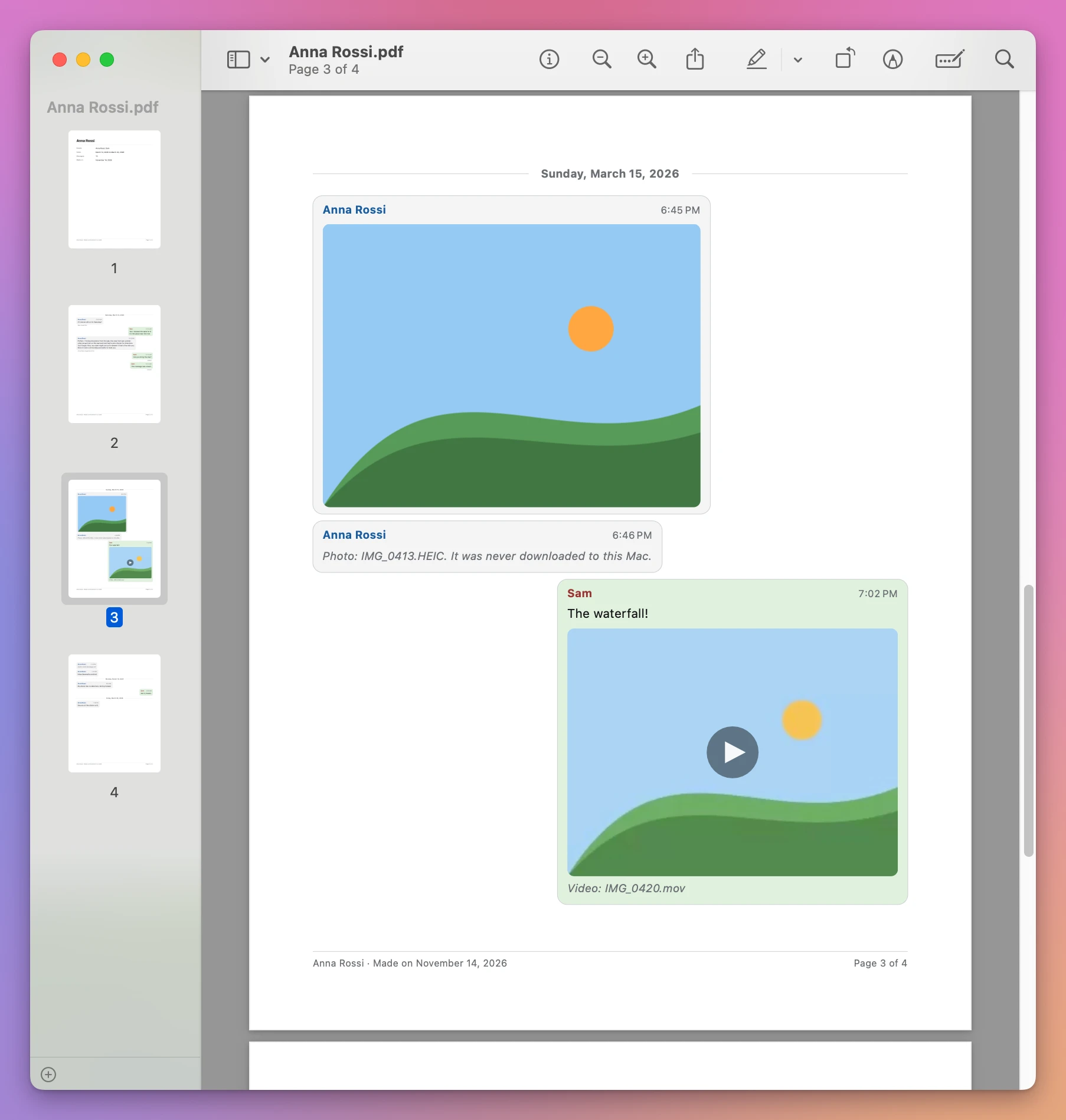
The voice message is a line with its file name, “Audio: Audio Message.caf”. For photos that stayed in iCloud, the app’s own instructions say to open the conversation in Messages, scroll through it so the Mac downloads them, then save the PDF again.
I made the app without reading anyone’s real messages and tested it on made-up conversations, not on a real history built up over years. Check the PDF before you hand it to anyone.
The two ways side by side
| Messages, File › Print | Chat to PDF for iMessage | |
|---|---|---|
| Steps | Apple’s guide: File › Print, then PDF | Pick the conversation, Save PDF… |
| How much of the conversation | Not stated | All of it, or the days between From and To |
| Date and time on each message | Not stated | Time on each message, a heading for each day |
| Photos | Not stated | Inside the message, a video as its first frame |
| Names instead of numbers | Not stated | From Contacts, or typed by hand |
| Page numbers | Not stated | ”Page 3 of 4” on every page |
| What’s missing | Not stated | Listed after saving, and named in the PDF |
Get Chat to PDF for iMessage
Turn an iMessage or text message conversation into a clean PDF: every message with its sender, date and time, the photos where they were sent, reactions and edits marked, and page numbers. For a court case, a custody file, a lawyer, or to keep.
See Chat to PDF for iMessage → · Read the docs · $20. See the app page for tax details.
Want me to talk about your product? You can sponsor this site.