How to save a voicemail from your iPhone to your Mac
By Flavio
If the iPhone still works, the Phone app can share a voicemail as a file, one at a time. If you have a backup of the iPhone on your Mac, you can save every voicemail in it at once, each named by its date and number.
There’s a voicemail on your iPhone that you want to keep for good. Maybe it’s a birthday message, or the voice of someone you can’t call anymore, and you don’t want it to depend on one phone.
If the iPhone still works, the Phone app can share each voicemail as a file, and you can keep that file on your Mac. If the phone is gone but you made a backup of it on your Mac, the voicemails may still be in that backup, and Voicemail Keeper can save them from there.
Share it from the Phone app
These steps come from Apple’s iPhone User Guide, the page “Check your voicemail on iPhone”. There was no iPhone for this tutorial, so they’re Apple’s words, not something tried here:
- Open the Phone app.
- With the newer layout, tap Calls, then the voicemail in the Recents list. With the classic layout, tap Voicemail, then the voicemail.
- Tap the Share button.
From the share sheet you can save the voicemail to Files, or send it to yourself, and then copy it to your Mac. It’s free and it takes a minute for one voicemail. For ten of them, you do it ten times.
Apple’s page also says that voicemails “are saved until you delete them (or until your carrier erases them, if they’re not stored in iCloud)”. So a file on your Mac is a good idea even while the phone works.
What you get on the Mac
There was no iPhone on the test Mac, so a sound file saved by Voicemail Keeper stands in for one shared from a phone. Everything in the screenshots is made up, backups and callers included, and the recordings are test sound, a buzz as long as the voicemail, not a voice.
Double-clicking the file opened it in QuickTime Player, which played it. It’s 41 seconds long:
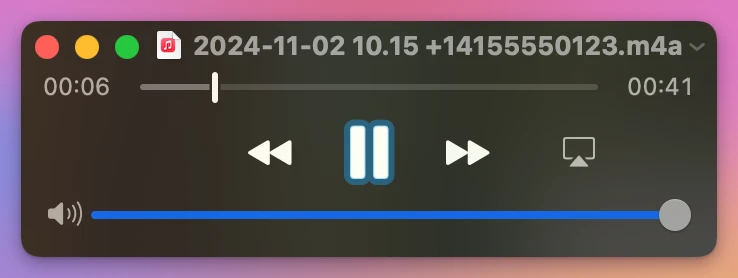
Check that it plays before you delete anything from the phone. Then copy it somewhere else too, like an external drive.
Save them all from a Mac backup
Voicemail Keeper is a Mac app I made that finds the voicemails inside an iPhone backup on your Mac, plays them, and saves each one as a sound file. It’s my own app, not made by, affiliated with or endorsed by Apple. It costs $20, paid once.
I tested it on backups made for the purpose, with and without a password, and not yet on a real iPhone backup with real voicemails. If it doesn’t understand your backup, it says so and changes nothing.
- Click Find Backups on This Mac. The window lists the backups with each phone’s name, model, iOS version and the day of the backup.
- Click Open next to the one you want. Each voicemail shows the number, the date and time, and the length.
- Click the play button to listen. While it plays, the button turns into a stop button.
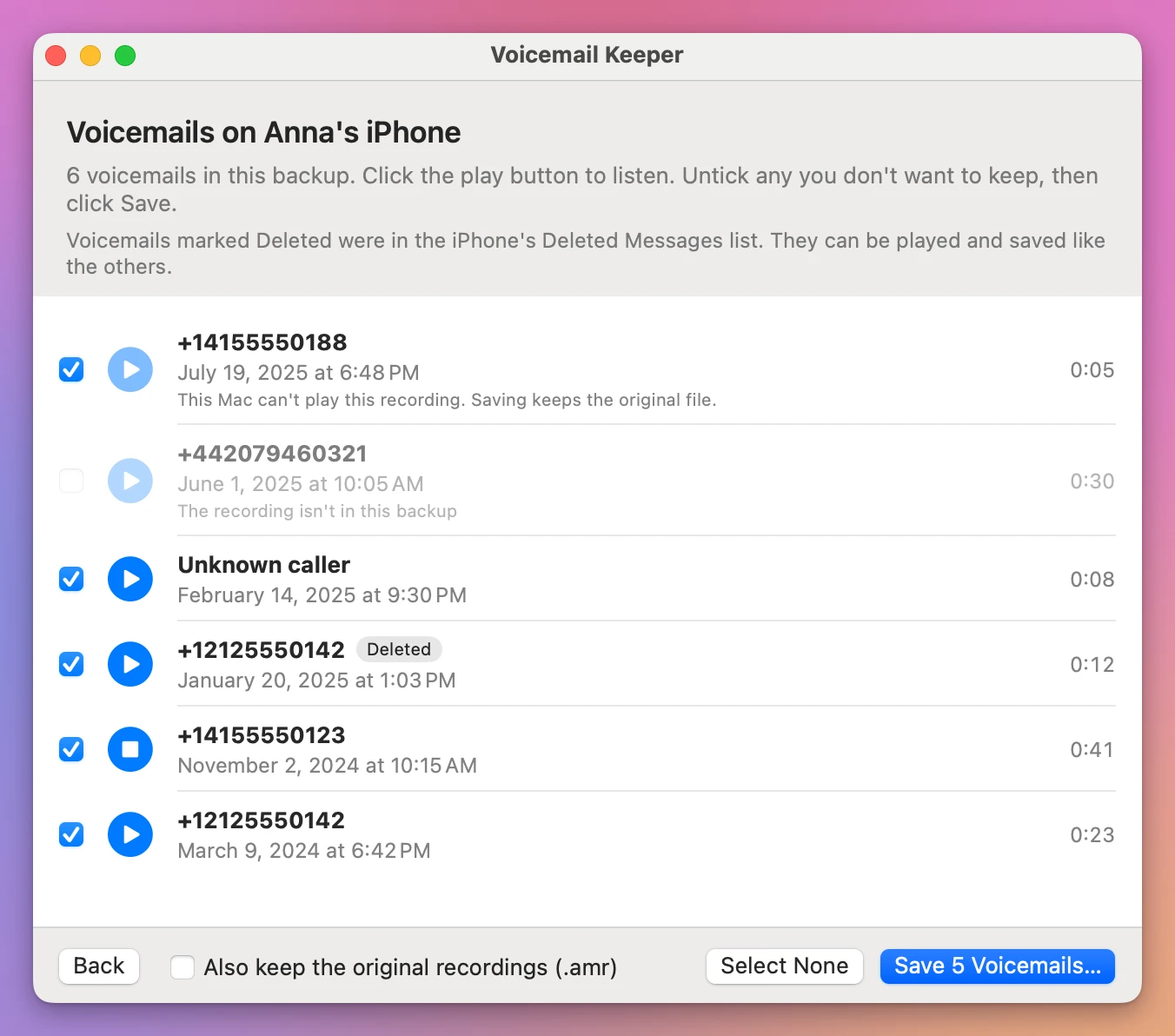
The first voicemail says “This Mac can’t play this recording. Saving keeps the original file.” The app shows that line as soon as the list opens, and its play button is greyed out. The second is in the backup’s list, but its recording isn’t, so it can’t be ticked.
- Leave ticked the ones you want and click Save 5 Voicemails…. The number follows what’s ticked.
- Choose a folder and click Save Here. The app makes a new folder inside it, so nothing already there is touched.
The window then says what happened to each voicemail:
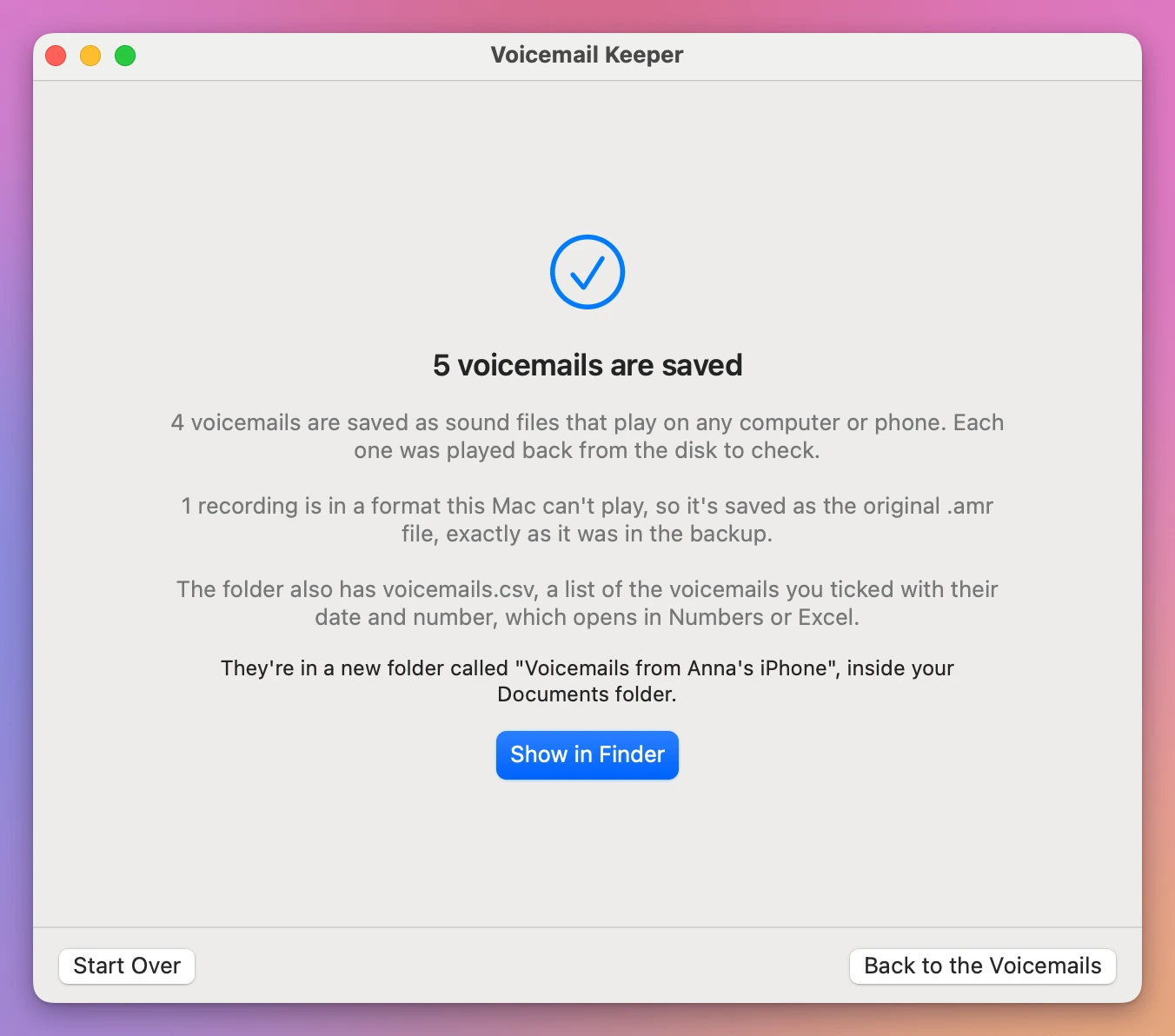
Show in Finder opens the new folder. Each file is named by the date, the time and the number, and its date in the Finder is the day of the call, so they line up the way they arrived. The voicemail with no number is called “Unknown caller”:
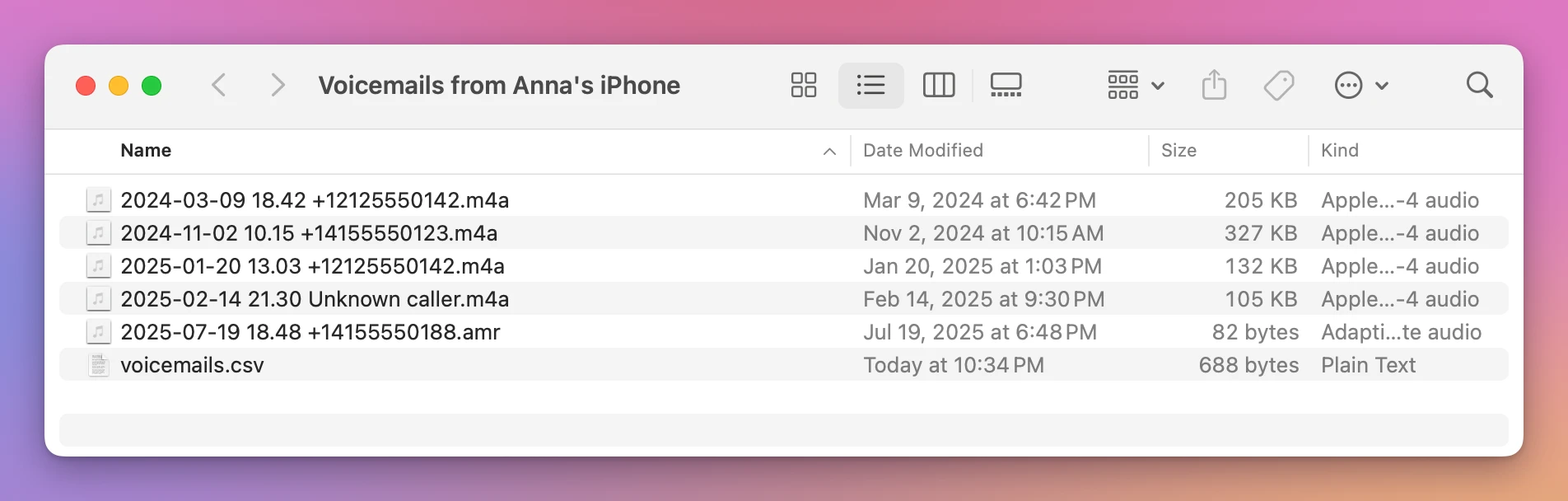
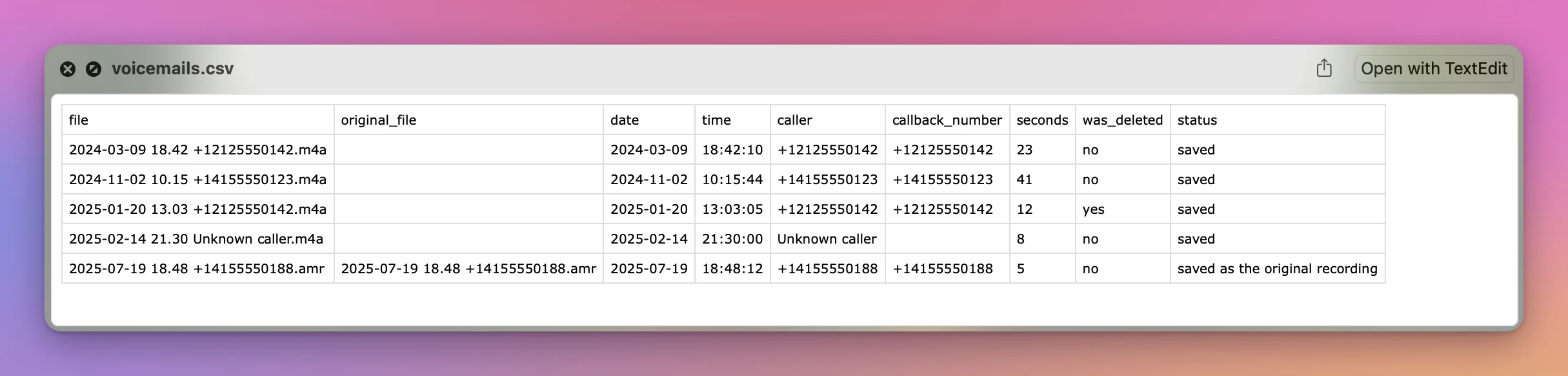
voicemails.csv lists the voicemails you ticked. Select it and press Space to look at it in Quick Look. It also opens in Numbers or Excel:
Which way fits you
| Share from the Phone app | Voicemail Keeper | |
|---|---|---|
| What you need | The iPhone, working | A backup of the iPhone on your Mac |
| How many at a time | One | All of them, or the ones you tick |
| File name | What the share sheet gives it | Date, time and number, like 2024-11-02 10.15 +14155550123.m4a |
| File date in the Finder | When you saved it | The day of the call |
| Deleted voicemails | Only after you undelete them | The ones still in Deleted Messages, marked Deleted |
| Cost | Free | $20, paid once |
When the backup has no voicemails
The app’s first screen has a “Good to know” box with two limits, and they decide whether this works for you:
- “Voicemails are in a backup only when your carrier offers Visual Voicemail, the list of voicemails you see in the Phone app.”
- “The backup has to be made on a Mac, or copied to it. An iCloud backup doesn’t have them.”
If you still have the iPhone but no backup, the button I don’t have a backup yet shows how to make one in the Finder. While you have the phone, share the voicemails that matter most today, and make the backup too.
Get Voicemail Keeper
Find the voicemails in an iPhone backup on your Mac, listen to them, and save each one as a sound file that plays anywhere, with the date of the call. For the voicemail you can't lose.
See Voicemail Keeper → · Read the docs · $20. See the app page for tax details.
Want me to talk about your product? You can sponsor this site.