How to see a video's resolution, frame rate and codec on a Mac
By Flavio
Get Info in the Finder shows a video's picture size, codec and length, but not its frame rate. QuickTime Player's Movie Inspector shows the frame rate too. Here's where to look.
You want to know a video’s picture size, how many frames a second it has, or how it’s compressed. Maybe the camera has a setting you don’t remember, or you want to join a few clips and need to know they’re the same.
There are two places on a Mac, and neither needs any extra app. The Finder’s Get Info window shows the picture size, the way the video is compressed and its length, but not the frame rate. QuickTime Player’s Movie Inspector shows the frame rate too.
I tried both on four made-up clips: three MP4 videos (one 1920x1080 at 30 frames a second, one 1280x720 at 30, one 1920x1080 at 25) and an AVI clip shaped like the ones a trail camera records. Then I checked what macOS showed against what’s really in the files. Everything it showed was right. What matters is what it leaves out.
Get Info in the Finder
Select the video in the Finder and press Command-I, or choose File > Get Info. Open the More Info section by clicking its arrow.
For an MP4 video it lists Dimensions (the picture size, in pixels), Codecs (the way the video and the sound are compressed), Duration and Audio channels.
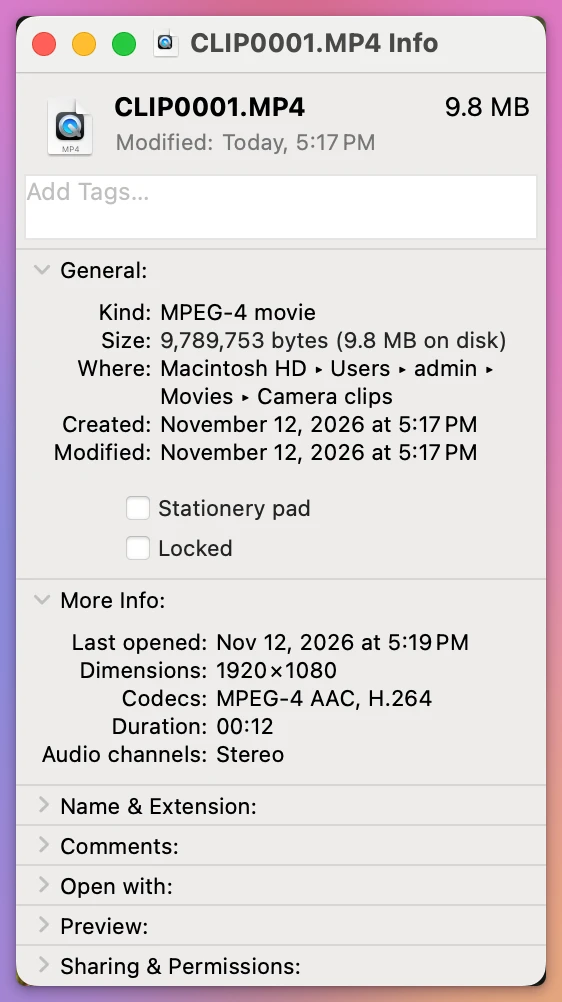
Codecs lists both together, the sound first: MPEG-4 AAC is the sound, H.264 is the picture. Duration is rounded to the second.
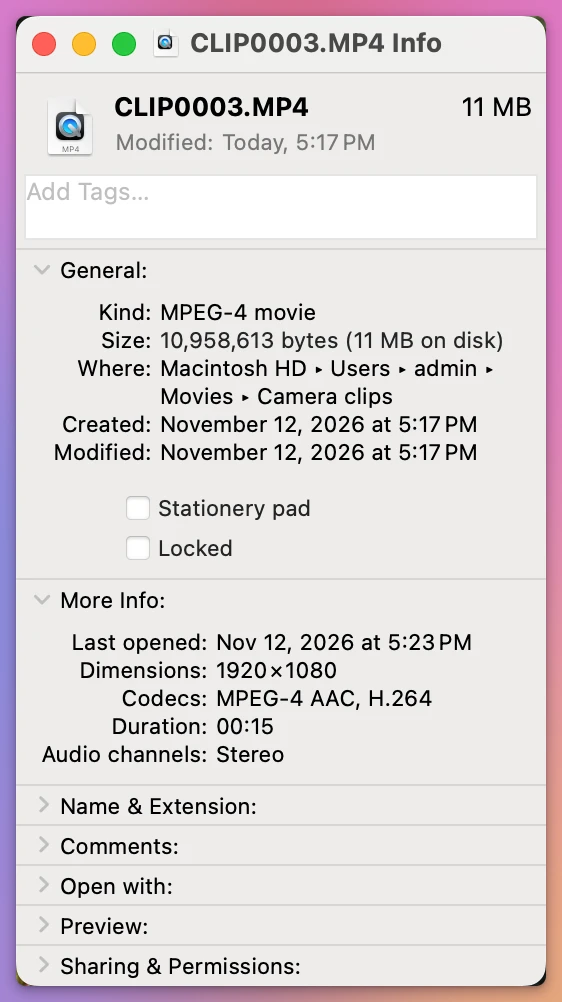
Get Info has no line for the frame rate. Apart from its length, the 25 frames a second clip below looks identical to the 30 frames a second one above:
Two things can make More Info nearly empty.
The first: the Mac hasn’t read the file yet. These lines come from Spotlight, the Mac’s search, which reads new files in the background. On my test Mac, More Info showed only Last opened until Spotlight had gone through the folder. Then the other lines appeared.
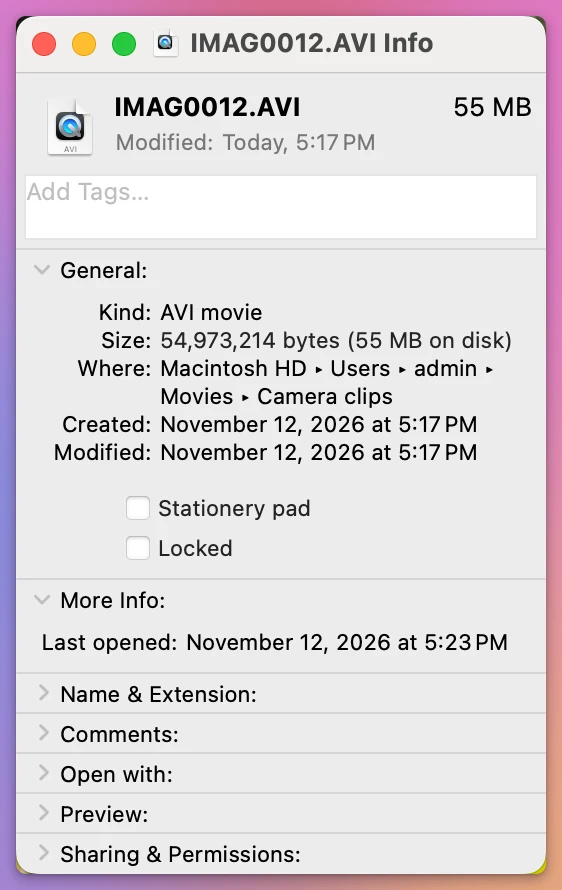
The second: the AVI clip. Its More Info shows Last opened and nothing else, and it stayed that way. Spotlight doesn’t read AVI files, so Get Info can’t tell you anything about them.
To compare several clips, press Option-Command-I instead. You get one Info window that changes when you click another file, so you can go down the list without opening a window for each one.
The Finder’s column view shows the same lines: select a video, click Show More next to Information in the preview on the right, and you get Dimensions, Codecs, Duration and Audio channels again. The list view has no column for the picture size or the length (I checked View > Show View Options).
QuickTime Player’s Movie Inspector
Open the video in QuickTime Player, then choose Window > Show Movie Inspector, or press Command-I. Click the arrows next to Video Details and Audio Details to open them.
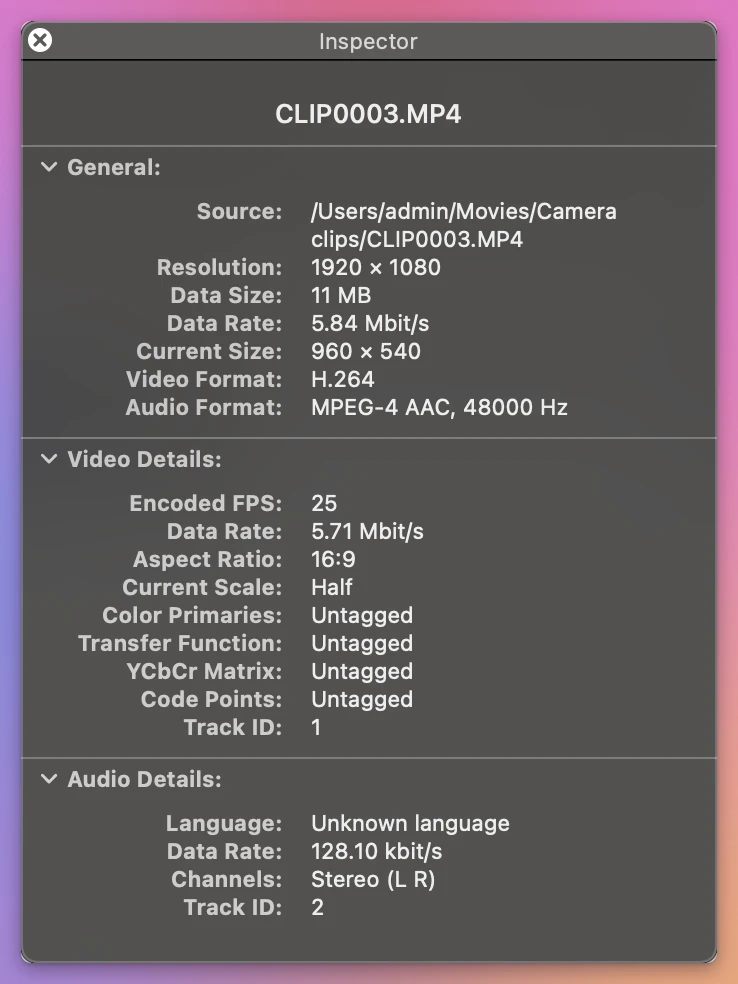
Resolution is the picture size. Encoded FPS is the frame rate, the number of frames in every second of video. Video Format is the way the picture is compressed, and Audio Format the way the sound is, with its sample rate. Channels, under Audio Details, says mono or stereo.
Don’t be fooled by Current Size: it’s the size of the window, so it changes when you resize it. Data Rate is how much data a second of video takes, so a higher number usually means a bigger file for the same length.
The Inspector shows the movie whose window is in front.
It also works on the AVI clip, which Get Info couldn’t read. QuickTime Player opened it and showed its Motion JPEG picture, its uncompressed sound (Linear PCM, 16000 Hz) and 30 frames a second:
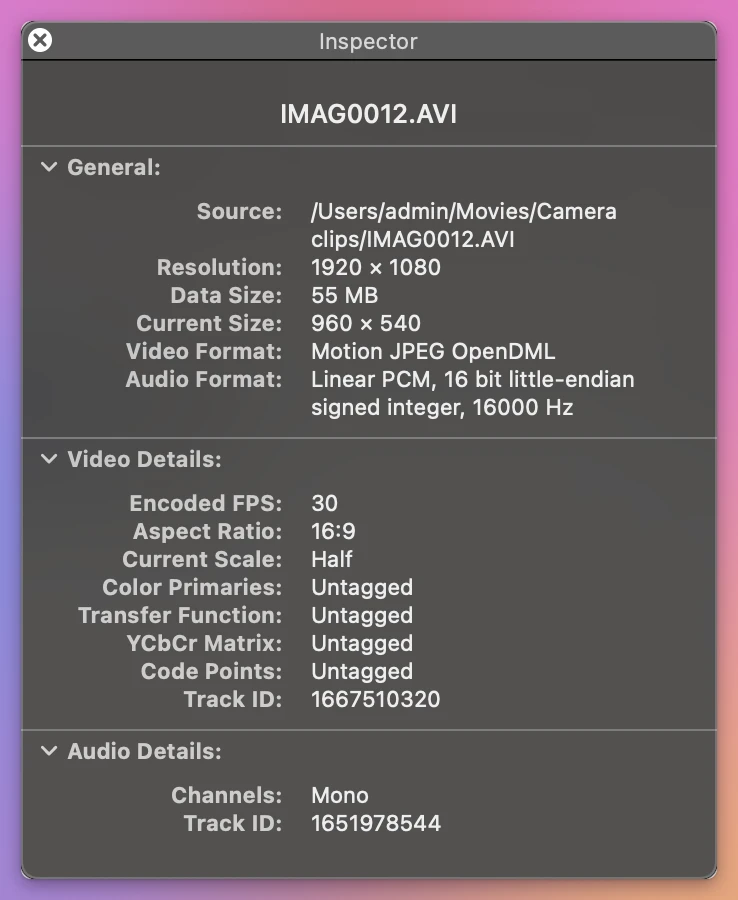
The Inspector has no length line. The length is at the right end of the bar that appears over the picture when you move the pointer on it (00:20 for this clip).
Which one shows what
| What you want to know | Get Info, MP4 | Get Info, AVI | QuickTime Player’s Movie Inspector |
|---|---|---|---|
| Picture size | Dimensions | No | Resolution |
| Frame rate | No | No | Encoded FPS |
| How the picture is compressed | Codecs | No | Video Format |
| Sound | Codecs and Audio channels | No | Audio Format (with the sample rate) and Channels |
| Length | Duration | No | No, it’s in the playback bar |
So for a quick look at an MP4, Get Info is enough. For the frame rate, or for an AVI file, open the video in QuickTime Player.
Why the settings matter when you join videos
A video file is a long row of compressed frames. Two videos can go one after the other in a single file, with every frame kept as the camera wrote it, only when they were recorded the same way: same picture size, same frame rate, same way of compressing the picture, same kind of sound. If one clip differs, either the picture changes size partway through the joined file, or everything has to be compressed again to fit one setting, and that loses a little detail.
That’s why these numbers are worth checking before a join. In my QuickTime Player tutorial, QuickTime Player joined a 1920x1080 clip with a 1280x720 one without a word. With clips that came off different cameras, or a camera whose setting changed, look at each one first.
Let the app find the odd one out
Clip Joiner is a Mac app I built to join videos into one file without compressing them again. It reads every clip’s settings itself, so you don’t have to open the Inspector on each one. If a clip was recorded differently, it doesn’t join anything and names that clip, with the setting that differs:
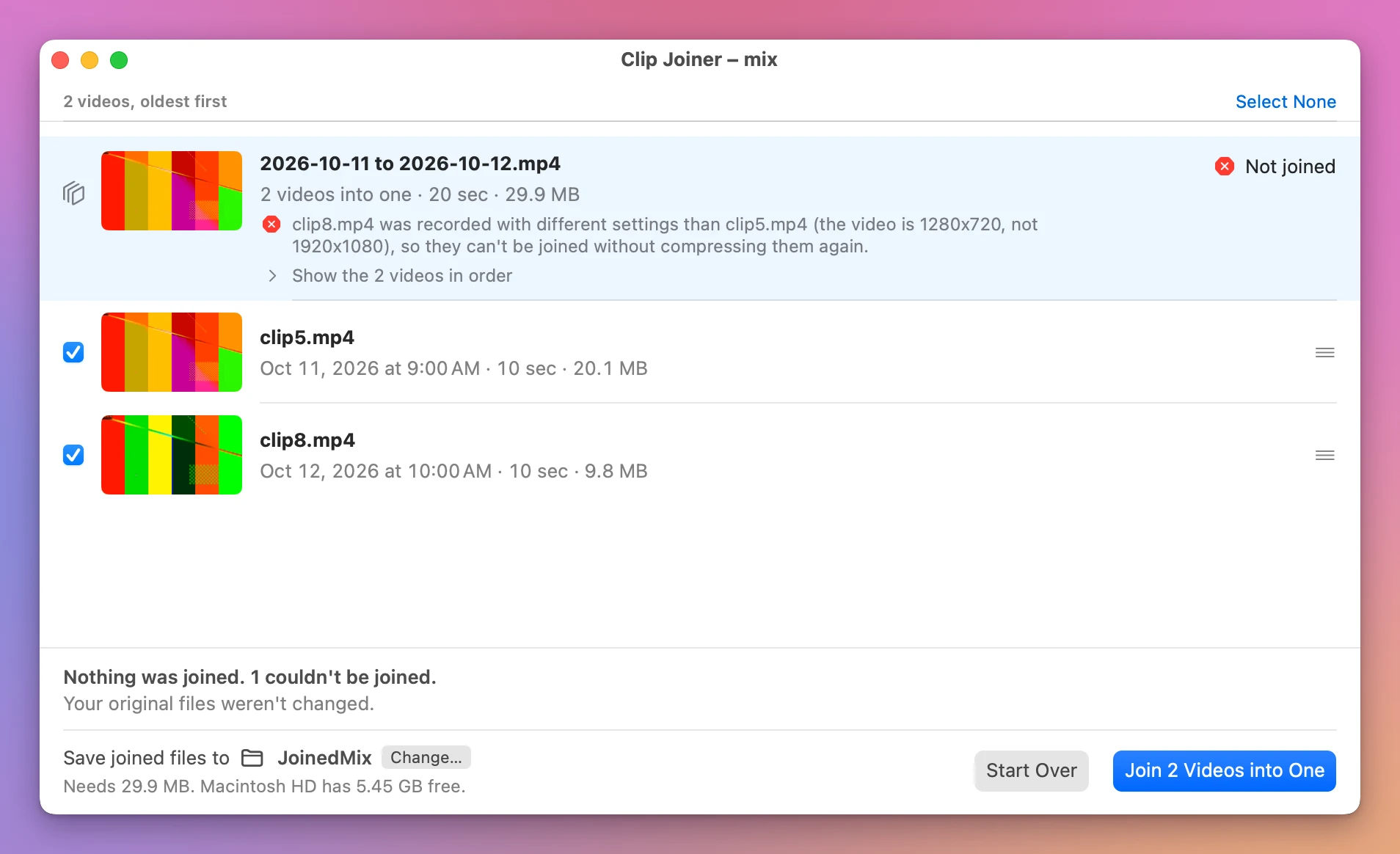
Untick that clip and the others join with the camera’s own frames. It costs $19, paid once.
Get Clip Joiner
Join the videos on a memory card into one file on your Mac, straight from the card. Nothing loses quality, and every join is checked before your originals go.
See Clip Joiner → · Read the docs · $19. See the app page for tax details.
Want me to talk about your product? You can sponsor this site.