How to copy or export a Voice Memos transcript
By Flavio
Voice Memos on a Mac shows a recording's transcript with the Transcription button, and you can select the text and copy it, one recording at a time. To save every transcript as a text file next to its recording, you need an app that reads them.
Voice Memos made a transcript of your recording, and you want that text in a document: to send it, to quote it, to keep it next to the audio. There’s no Export Transcript button.
On a Mac you can copy one transcript at a time from Voice Memos and paste it wherever you like. To save the transcripts of all your recordings as text files, an app has to read them for you.
Copy one transcript in Voice Memos
These steps are from Apple’s Voice Memos User Guide for macOS Sequoia, on the page “View a transcription of a recording”. The test Mac for this tutorial had no recordings of its own (no microphone, and Voice Memos has no import), so they’re Apple’s words, not steps tried here:
- Open Voice Memos.
- Click the recording with the transcript you want to view.
- Click the Transcription button.
- Select the text you want to copy, Control-click it, then choose Copy.
Then paste it into TextEdit, Notes or an email with Command-V. Apple’s newer version of the page adds that step: paste the text into another document, such as a Mail message or a text file.
The same page says that on macOS Sequoia transcription needs a Mac with Apple silicon, and that it isn’t available in all countries or regions. If there’s no transcript, there’s nothing to copy.
That’s free and fine for one recording. For forty, it’s forty rounds of click, select, copy, switch, paste, and name the file so you know which recording it belongs to.
Save every transcript as a text file
Exporter for Voice Memos is a Mac app I made that saves the recordings Voice Memos has on the Mac to a folder, and writes each transcript Voice Memos already made as a .txt file next to its recording. It doesn’t make transcripts: a recording that Voice Memos didn’t transcribe gets no text file. It’s my own app, not made by, affiliated with or endorsed by Apple. It costs $19, paid once.
The library in these screenshots is made up: 13 short recordings spoken by the Mac’s own voice, with made-up titles. Its transcripts were written by the tool that made the library, in the layout the app expects from Voice Memos, so this shows what the app does with a transcript. A transcript from a real iPhone wasn’t part of the test.
In the list, the Transcript column has an icon on each recording that has one. Its help text reads “Voice Memos made a transcript of this recording. It’s saved as a text file next to it.” Tick Add times to transcripts at the bottom if you want each paragraph to start with its time:
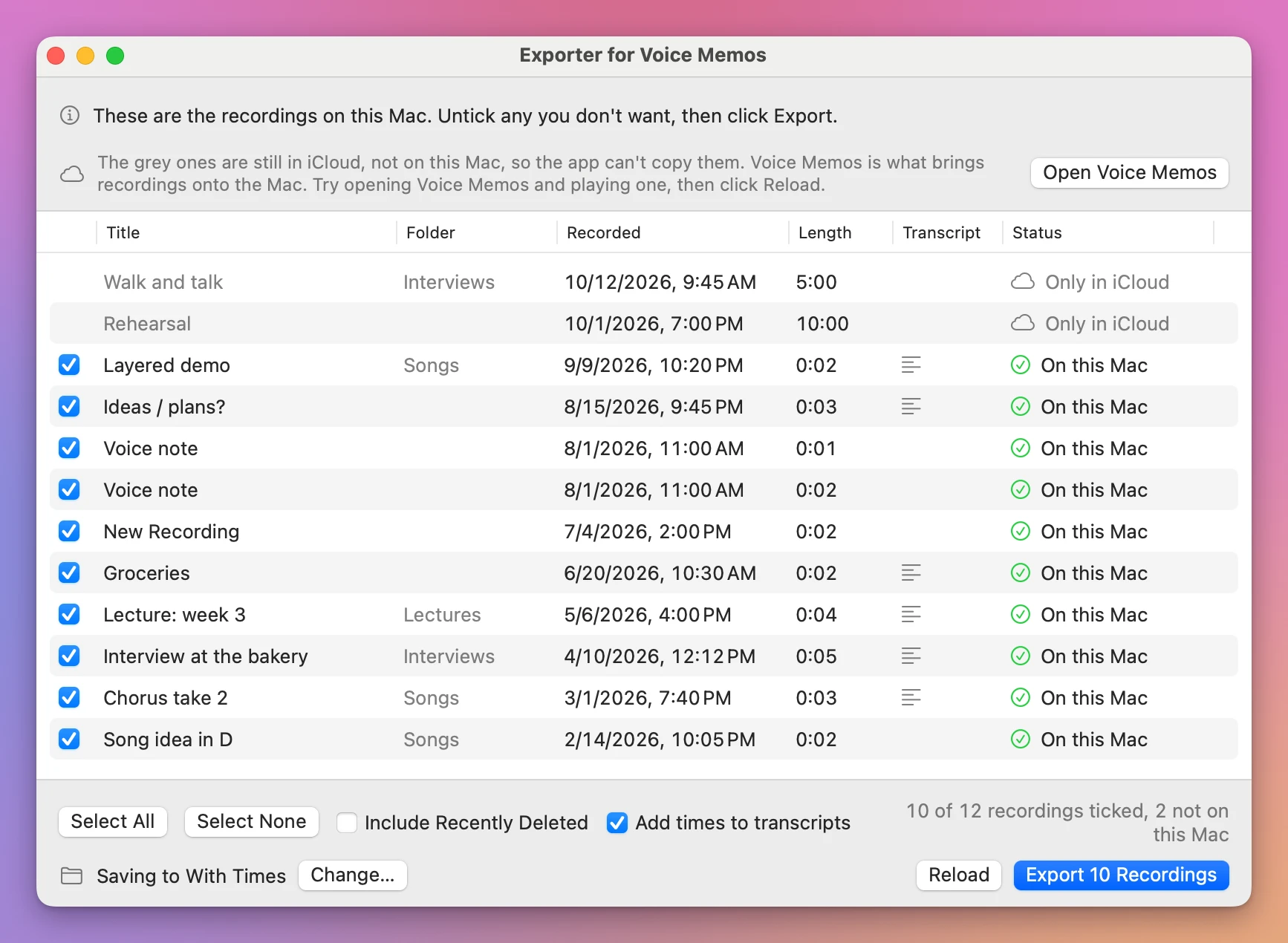
Click Export. The report counts the transcripts too:
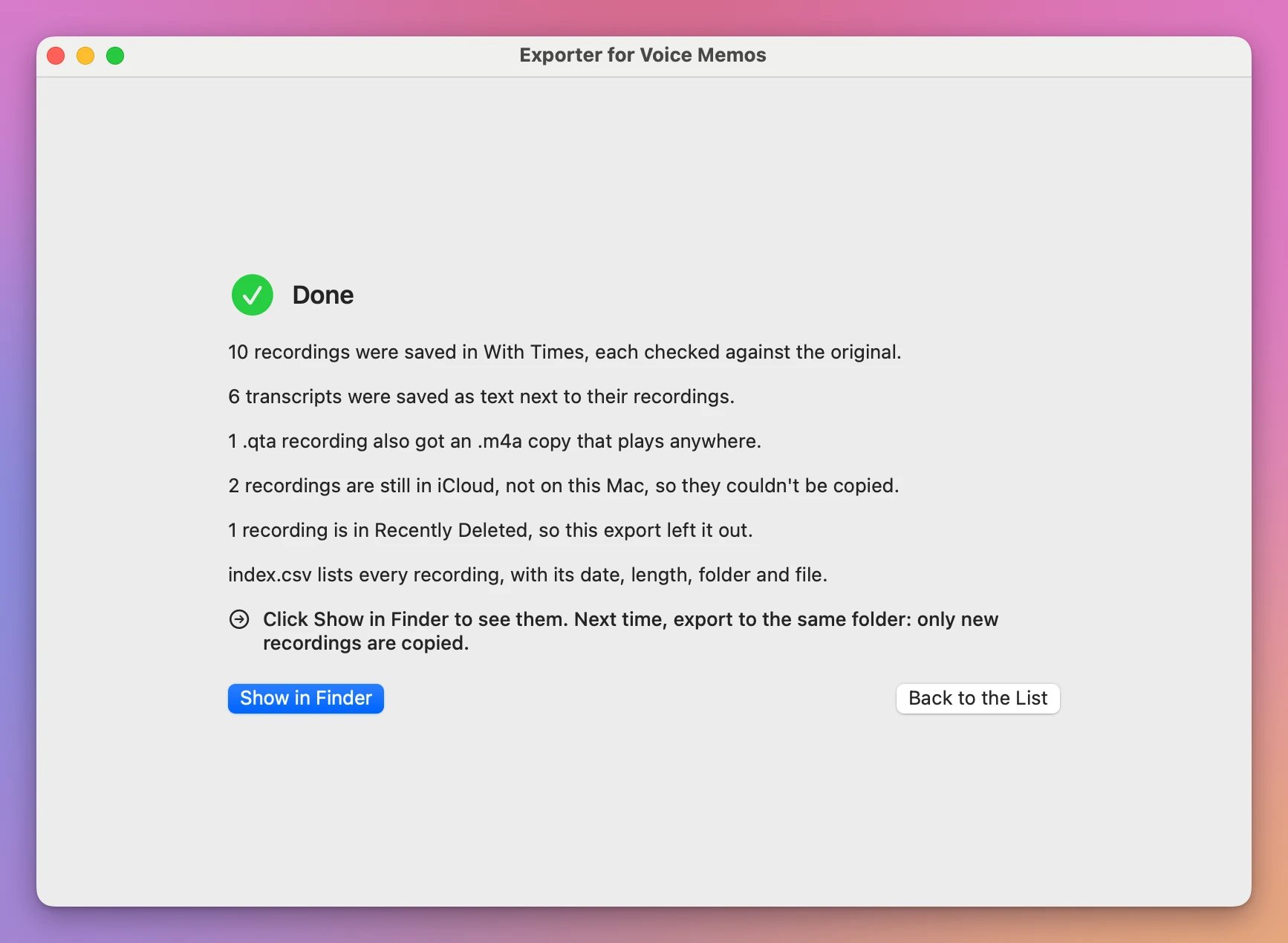
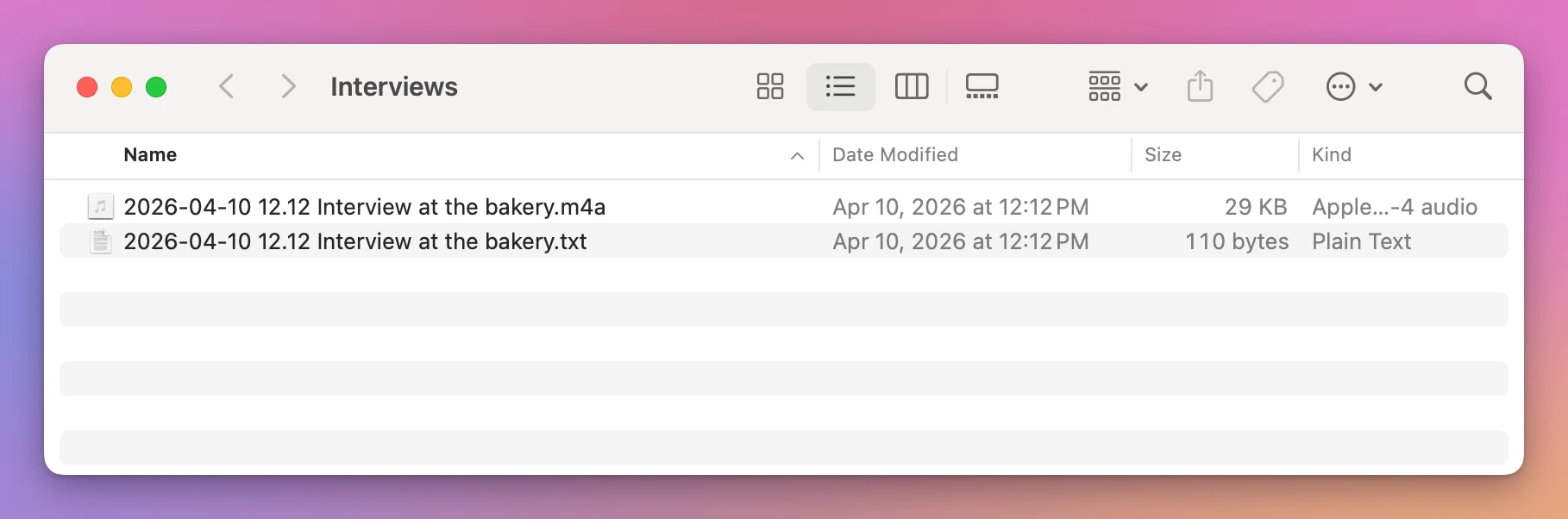
Each text file has the same name as its recording, so they sit side by side in the Finder, with the recording’s date:
Here’s the .txt opened in TextEdit:
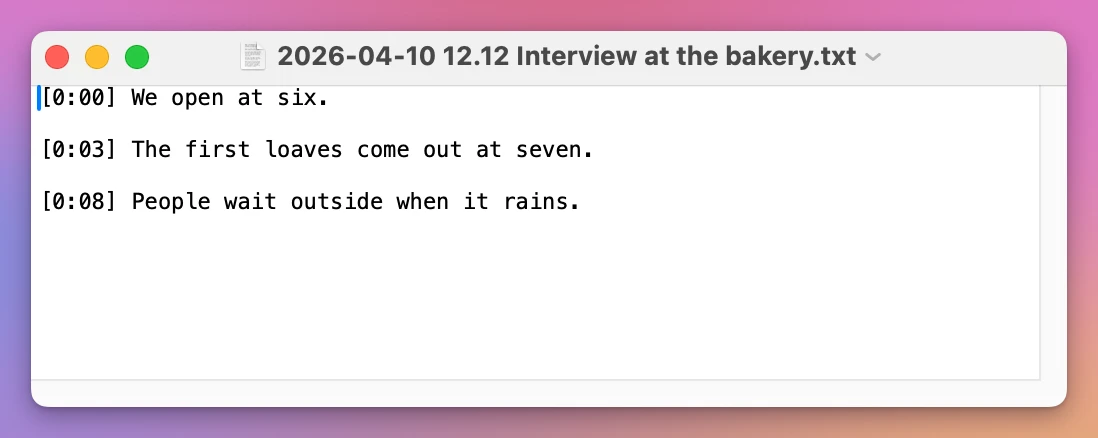
The times are the ones stored in the transcript. In the made-up library they were written by hand and run past the end of these few-second recordings. With the box unticked, the same file has only the three sentences, a blank line between them:
| Add times to transcripts | What the file starts with |
|---|---|
| Off | We open at six. |
| On | [0:00] We open at six. |
The app splits the text into paragraphs where the transcript shows a pause, so a long recording doesn’t come out as one block.
Copy and paste, or the app
| Copy and paste in Voice Memos | Exporter for Voice Memos | |
|---|---|---|
| One transcript | A few clicks | A whole export, for one recording |
| Every transcript | Once per recording | One export |
| File name | You type it | Same as the recording: date, time and title |
| Times | Not stated | Optional, at the start of each paragraph |
| Recording saved with it | No, only the text | Yes, in the same folder |
| Makes a transcript Voice Memos didn’t | No | No |
For one recording you want to quote, copy and paste is quicker. For a whole library of interviews or lectures, the app saves every transcript in one go, next to its audio.
If you want to see where the recordings themselves live, the tutorial about where Voice Memos are stored opens the folder. The tutorial about exporting all your voice memos shows the whole export, folders and all.
Get Exporter for Voice Memos
Save every recording in Voice Memos to a folder you pick, named with the date and title, with the right file dates, in its folders, with its transcript as text and an index of everything. Run it again and it saves only what is new.
See Exporter for Voice Memos → · Read the docs · $19. See the app page for tax details.
Want me to talk about your product? You can sponsor this site.