How to watch dashcam footage on a Mac
By Flavio
Put the dashcam's card in your Mac and its videos play in the Finder with Quick Look, or in QuickTime Player. Here's what you see on the card, how to play the front and the rear camera, and where watching it file by file gets slow.
You don’t need the dashcam maker’s app to watch what the camera recorded. Take the memory card out of the camera, put it in your Mac (with an adapter if it’s a microSD card), and the videos play with what the Mac already has: Quick Look in the Finder, and QuickTime Player.
What makes it awkward is the number of files. A dashcam doesn’t save a drive as one video. It saves a short clip every minute or every few minutes, and a second clip for the rear camera if it has one.
I tried everything here on a stand-in card: a disk image formatted like a dashcam’s card, called DASHCAM, with made-up clips named the way a dashcam names them. The pictures are a drawn road with the camera’s clock in the corner, not real footage, and the files are much smaller than a real camera’s, because the drawing compresses well. The steps are the same with a real card.
Find the videos on the card
The card shows up in the Finder sidebar under Locations. Open it, then the DCIM folder. On my stand-in card it has three folders, Normal, Event and Parking. Cameras name these folders differently, and some put everything in one folder, so look at your own card.
Open the folder with the normal recordings and choose View > as List, so you see the dates and the sizes:
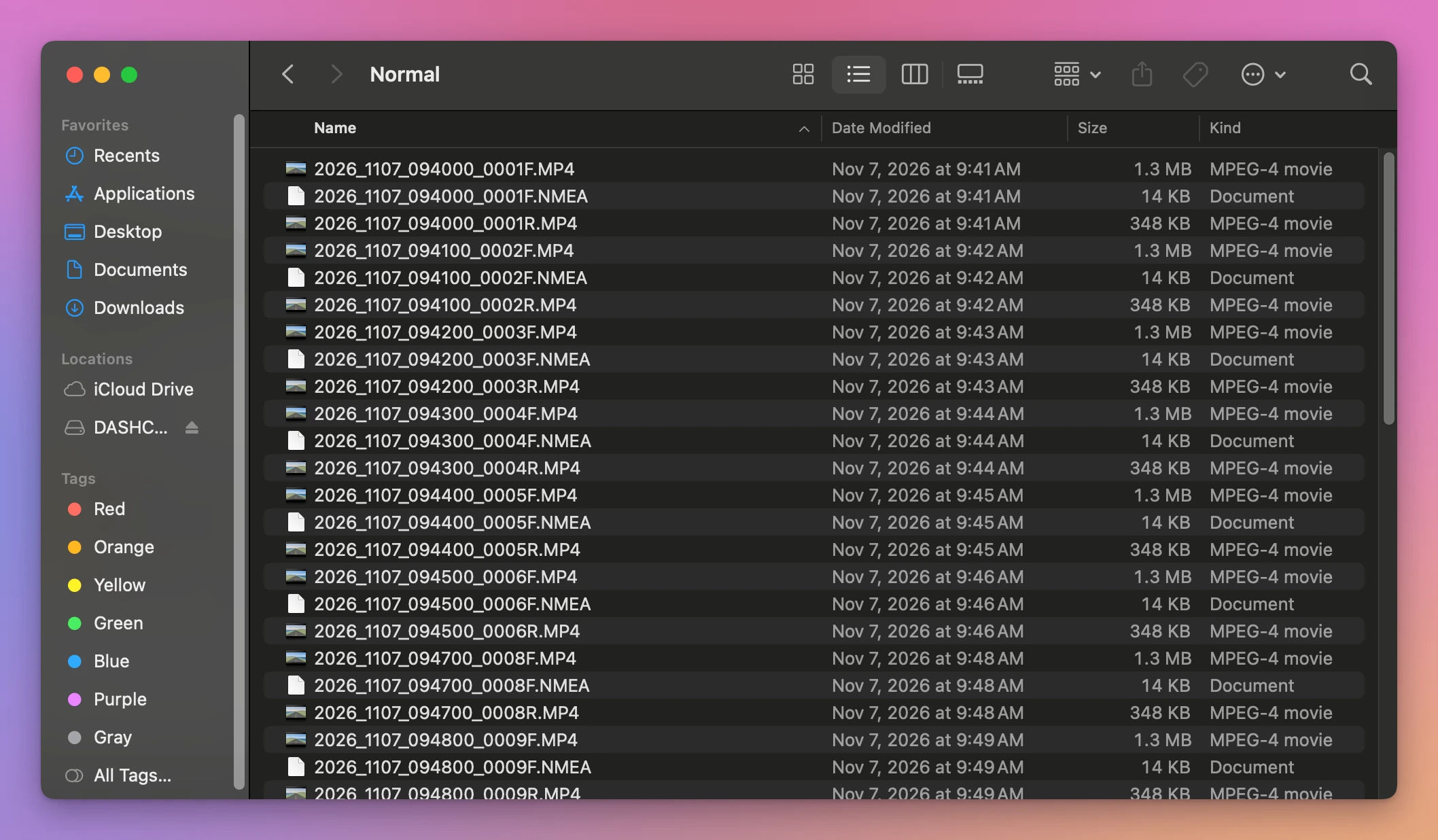
Every minute of driving left three files on my card:
| File | What it is | Size on my stand-in card |
|---|---|---|
2026_1107_094000_0001F.MP4 | The front camera’s video, starting at 9:40:00 on November 7, 2026 | 1.3 MB |
2026_1107_094000_0001R.MP4 | The rear camera’s video of the same minute | 348 KB |
2026_1107_094000_0001F.NMEA | The GPS positions of that minute, as text | 14 KB |
The name is the date and time the clip started, a number that counts up, and a letter for the camera. Not every camera writes a GPS file next to the video, and some put the GPS inside the video instead. A real camera’s videos are also far bigger than mine.
Play a clip with Quick Look
Click a video once and press the Space bar. Quick Look opens it and starts playing right away:
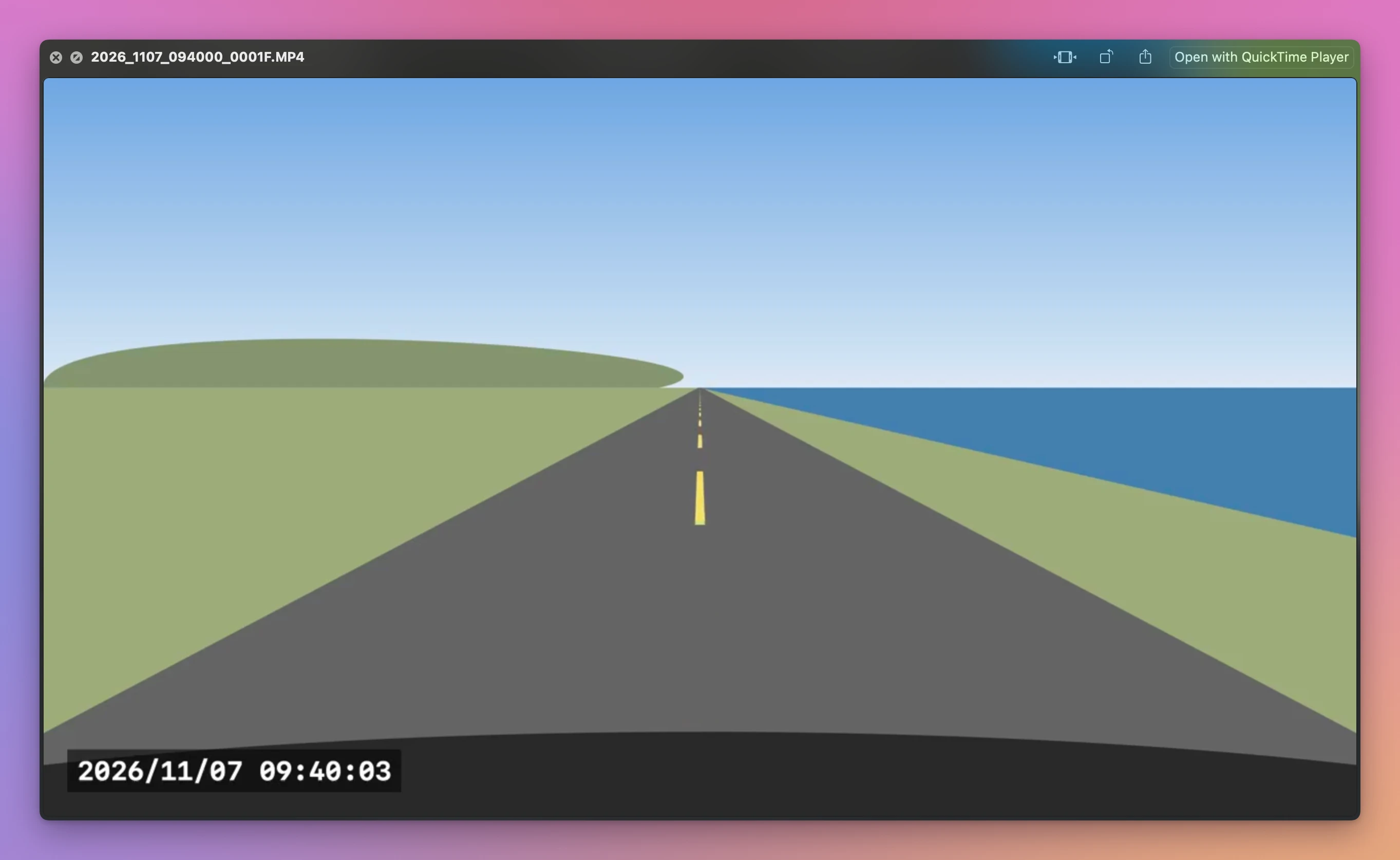
The down arrow moves to the next file in the list, and Quick Look shows that one instead. In my folder the next file is the GPS file, which Quick Look shows as a blank page, and then the rear video:
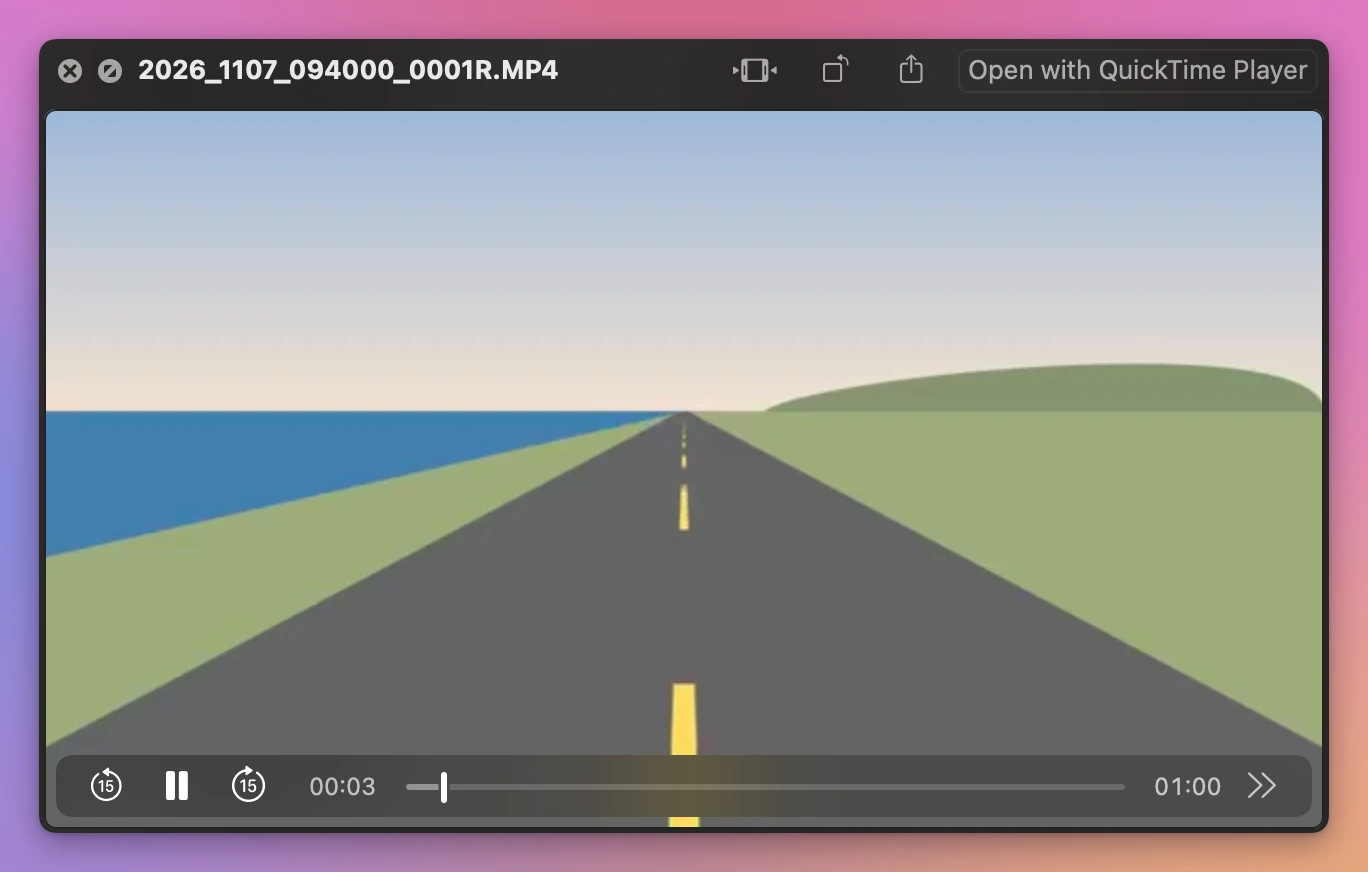
When a clip reaches its end, Quick Look stays on its last picture. My rear clip stopped at 09:40:59 and didn’t go on to the next minute. You press the down arrow, skip the GPS file and the rear clip, and press play again for each minute of the drive.
Play it in QuickTime Player
Double-click a video, or click Open with QuickTime Player at the top of Quick Look. QuickTime Player has a bigger window, a timeline you can drag, and the clip’s length on the right of the controls. It also plays one file at a time.
You can play straight from the card. Nothing on the card changes when you watch a video. Copy the files to your Mac first if you plan to keep them, because a dashcam usually records over its oldest clips when the card fills up.
Where watching it file by file stops
My Saturday morning drive was 12 clips from the front camera and 12 from the rear, 11 minutes 37 seconds in all. Here’s what each way of watching it gave me:
| Quick Look | QuickTime Player | Trips for Dashcam | |
|---|---|---|---|
| Files you open for the 9:40 AM drive | 12 front, 12 rear, one at a time | 12 front, 12 rear, one at a time | 1 trip |
| Goes on to the next minute by itself | No, it stops on the last picture | No | Yes |
| Front and rear together | No | No, two windows | Yes, the rear in a corner |
The clip the camera locked, in Event | You open that folder | You open that folder | Clip 7 of 12, in its place |
| Where the car was | No | No | The route on a map |
For one moment you already know the time of, Quick Look is enough. Find the file whose name has that time and press the Space bar. For a whole drive, or when you don’t know when something happened, the file-by-file way gets slow.
Watch the whole drive as one video
Trips for Dashcam is a Mac app I made that turns the clips on the card into trips you watch from start to end. It’s my own app, not made by, affiliated with or endorsed by any dashcam maker. It costs $20, paid once.
Put the card in, click Open DASHCAM, and pick a trip on the left. On my stand-in card it found 4 trips over 2 days. The 9:40 AM trip played as one video of 11:37, with the rear camera in the corner and the route on a map. When it got to the minute the camera had locked, which sits in the Event folder on the card, the line under the video said “Impact or event” and “Clip 7 of 12”:
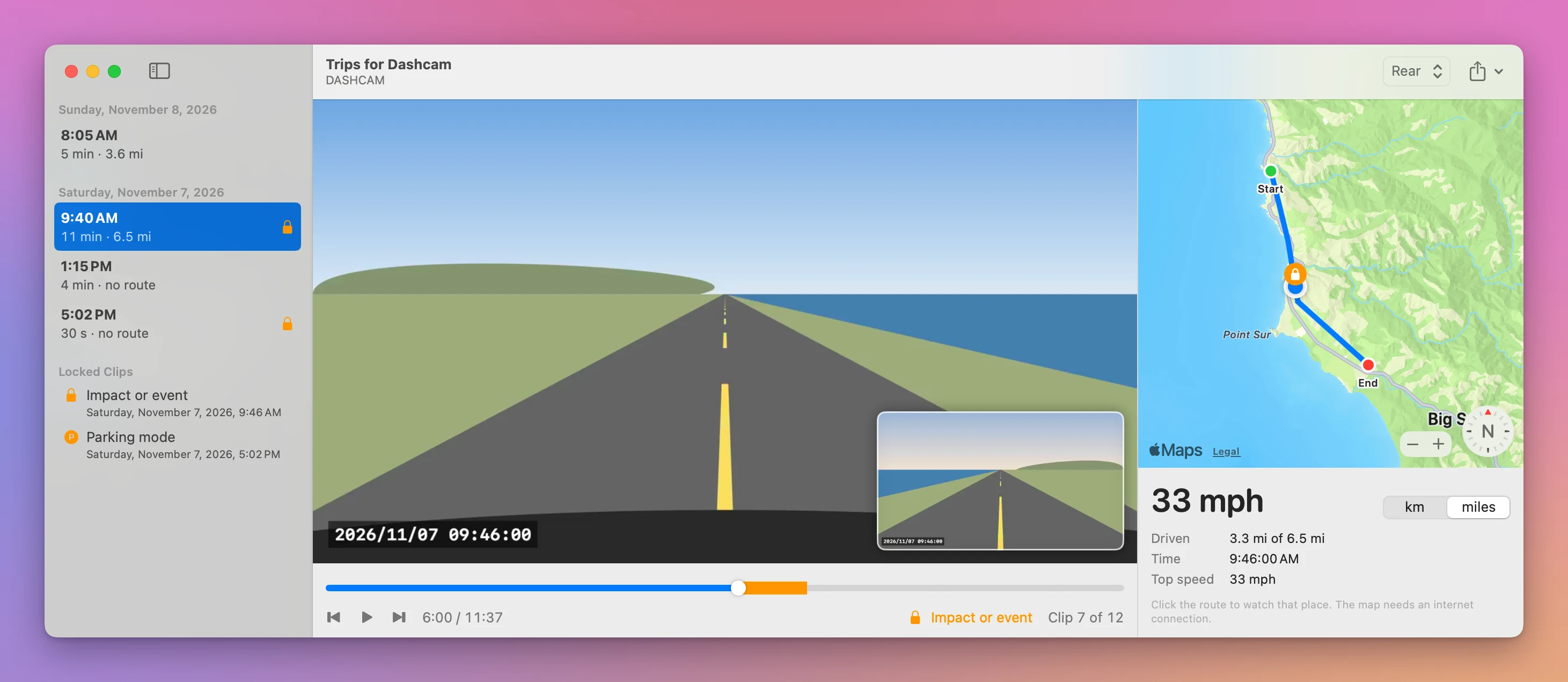
The Space bar plays and pauses, and the left and right arrow keys jump to the previous or the next clip. The app only reads the card and never changes a file on it. The map comes from Apple Maps, so it needs an internet connection, while the videos play without one.
Get Trips for Dashcam
Watch your dashcam's memory card as trips instead of hundreds of short files, with the rear camera in a corner and the route on a map. Save a stretch of video without losing quality, the route or a picture. Nothing on the card is changed.
See Trips for Dashcam → · Read the docs · $20. See the app page for tax details.
Want me to talk about your product? You can sponsor this site.