How to watch several webcams at once on a Mac
By Flavio
Open each webcam page in its own Safari window and tile them with Window › Move & Resize › Arrange › Quarters. Or put the webcams on one wall in an app that refreshes them for you.
You want to keep an eye on a few webcams at the same time: the snow on a mountain, the lake in town, the beach where you’re going next week. Each one is on its own website, and a browser tab shows one page at a time.
The free way is Safari: open each webcam page in its own window, then choose Window › Move & Resize › Arrange › Quarters, and Safari tiles four windows on the screen. The shorter way is Window on the World, an app that puts the webcams on one wall and refreshes them on its own.
How do I see four webcam pages side by side in Safari?
Here are the steps with four panoramic webcams: Gornergrat above Zermatt, the Zugspitze in Germany, Zürich’s old town and Table Mountain in Cape Town.
- Open the first page, then each of the others in a new tab:
gornergrat.roundshot.com,zugspitze.panomax.com,zuerichtourismus.roundshot.comandtablemountain.panomax.com. - Answer the cookie banners. Gornergrat’s was in German, and refusing took two clicks: Einstellungen oder ablehnen, then Einstellung speichern.
- Go to the last tab and choose Window › Move Tab to New Window. Do the same for two more tabs, so each page has a window of its own.
- Choose Window › Move & Resize, and under Arrange pick Quarters.
Safari puts the four windows in the four corners of the screen. The screenshots are from a test Mac with macOS 15 Sequoia, taken on November 13 at about 10:30 in the morning, Central European time.
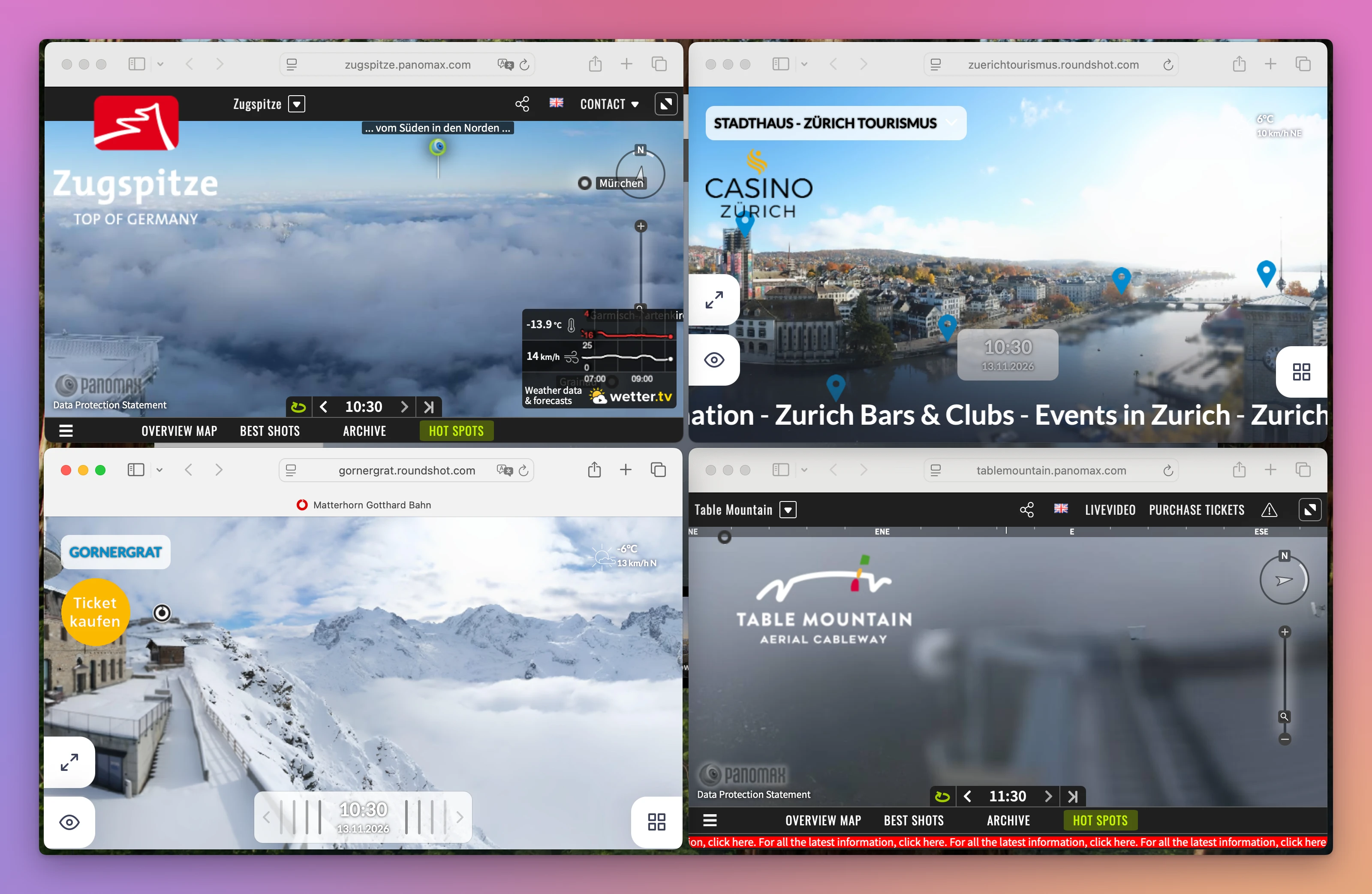
It works, and it costs nothing. It also took four addresses, one cookie banner, three menu commands and one more for the tiling.
What else is on those pages?
A lot, around a picture that only gets a quarter of the screen. On these four pages there were logos, a Ticket kaufen button, weather boxes, compass and zoom controls, timelines with the hour, menus with Archive and Time Lapse, and sponsor logos that changed while the page was open (Lindt, then Casino Zürich). Zürich and Table Mountain had text scrolling along the bottom.
Windy, a site with many webcams, asked for more. On the Eiffel Tower webcam page, clicking Reject on the analytics question brought up a second box: to use Windy for free without analytics, you have to log in. The two buttons were Login and Allow anonymous analytics.
Do I have to reload the pages?
Not these four. These webcams take a new picture every 10 minutes, and the timelines showed 10:10, 10:20 and 10:30. Left open, the pages brought in the 10:30 picture on their own, a few minutes apart: Zürich by 10:35, the Zugspitze and Table Mountain by 10:38. Reloading Gornergrat at 10:35 showed its 10:30 picture right away.
Until the new picture arrives, a window shows the old one. The hour on each page’s timeline tells you which one you’re looking at, in the webcam’s own time zone: Table Mountain’s 10:30 picture said 11:30, because Cape Town is an hour ahead.
How do I put them all on one wall?
I kept checking the same webcams: is there snow on the pass, is the lake calm, is it sunny where I’m going this weekend. Each one is on a different website, each website with its own player, cookie banner and ads. So I made Window on the World, a Mac app that puts them all on one wall.
The first time it opens, it already has 32 webcams of famous places in six areas: The Alps, Cities, Coasts and Islands, Nordic and Arctic, National Parks, Asia and the Himalaya. Gornergrat, the Eiffel Tower and Oia on Santorini are already in Favorites, the wall it opens on.
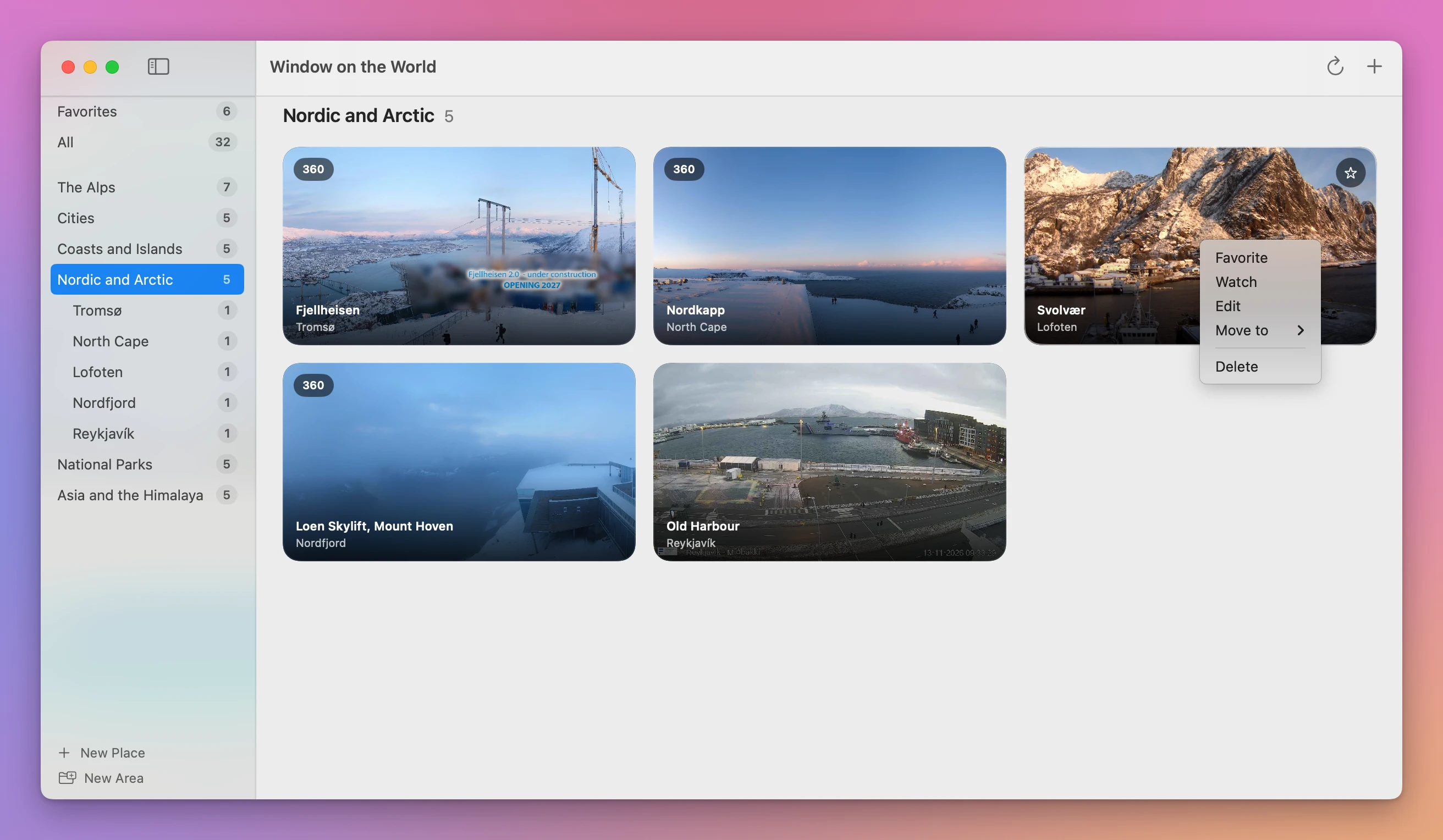
To add a webcam to that wall, right-click its tile and choose Favorite. The menu also has Watch, Edit, Move to and Delete.
Here the Zugspitze (in The Alps), Zürich’s old town (in Cities) and Table Mountain (in Coasts and Islands) went to Favorites, one right-click each. The wall then had six webcams. The Eiffel Tower is one of Windy’s webcams, and its tile showed the picture with no question about logins or analytics.
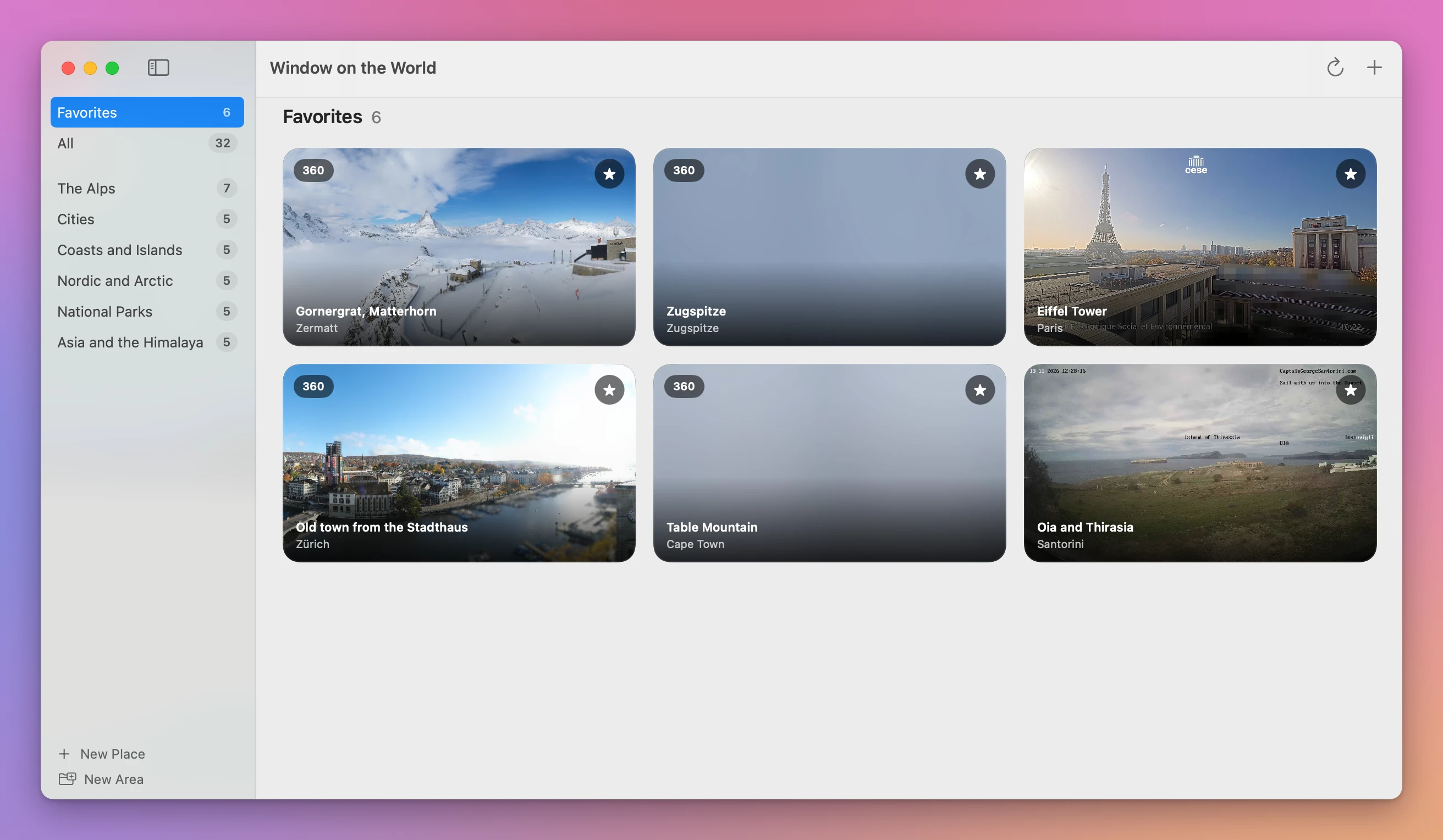
Each tile shows the latest picture, its name and its place, and a 360 badge on a panorama. Nothing else from the website comes along. All in the sidebar shows the 32 webcams on one wall, and an area shows only its own. At that hour, the Space Needle tile in Seattle was dark: it was half past one in the morning there.
How often do the pictures change?
The app checks each webcam on its own schedule, and only while it’s in front. Click a tile to watch it big, and the line under the name says how often and how long ago: “360 · every 3 minutes · 1 min ago” for Gornergrat. The Zugspitze and Table Mountain were every 2 minutes, Zürich every 3, the Eiffel Tower and Santorini every 5. View › Refresh (Command-R), or the arrow in the toolbar, gets every picture now.
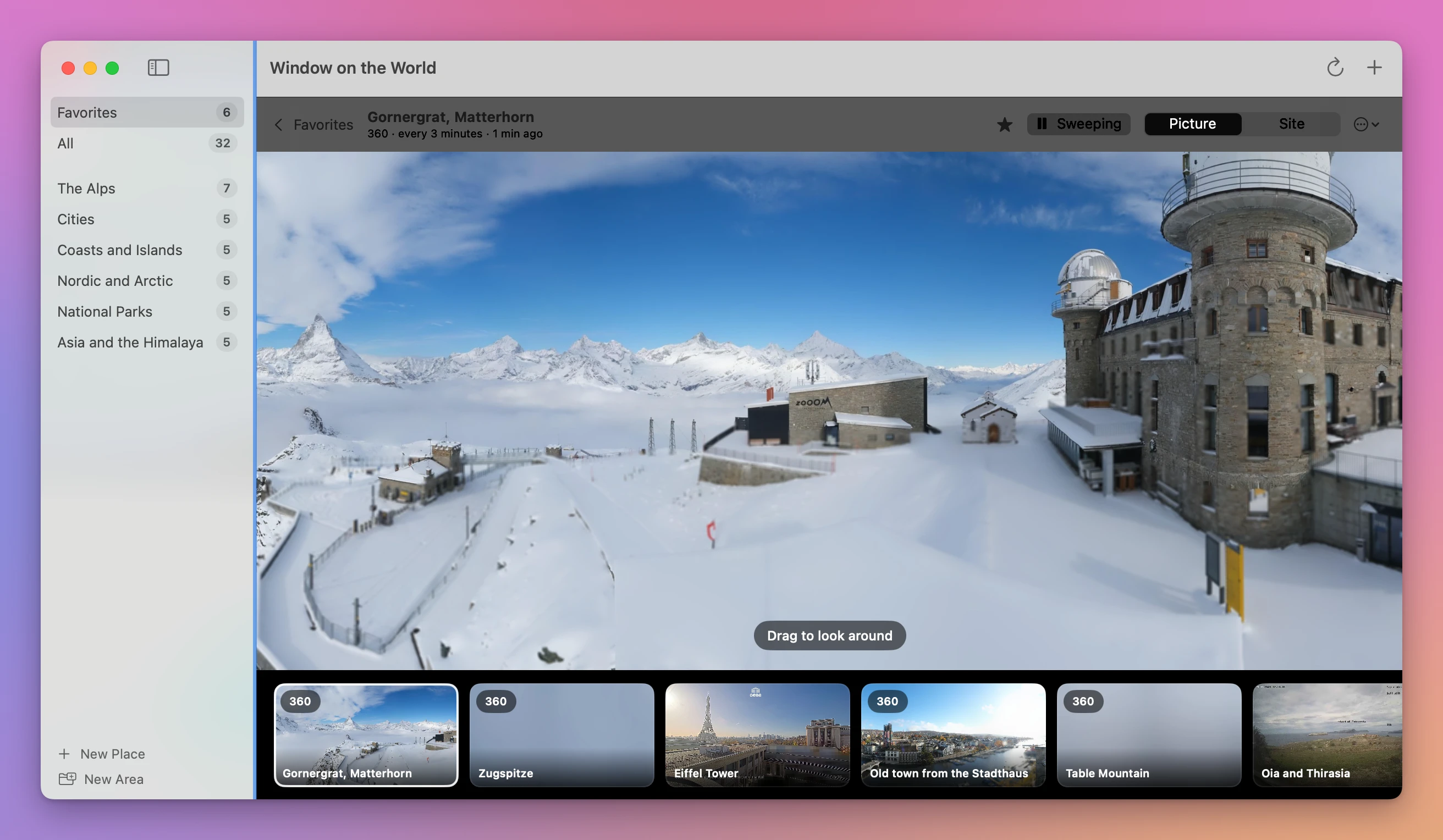
Gornergrat opened already panning by itself, with the button saying Sweeping, and it can be dragged to look around. The other favorites stay in a row at the bottom, one click away.
Which way should I pick?
| Safari, one window each | Window on the World | |
|---|---|---|
| Getting four on screen | Four addresses, cookie banners, three Move Tab to New Window, Arrange › Quarters | One right-click on each webcam you add |
| Around the picture | Logos, buttons, weather boxes, timelines, sponsors, scrolling text | The name and the place |
| Windy’s Eiffel Tower webcam | Asked to log in or allow analytics | Showed the picture |
| A new picture | On these four pages, it came in on its own, minutes apart | Checked every 2 to 5 minutes here, while the app is in front |
| More webcams | One more window for each | Six on Favorites, 32 on All |
For two or three webcams you check once in a while, Safari’s windows are fine. If you keep checking the same places every day, Window on the World puts them on one wall. It costs $20, paid once.
Get Window on the World
Put public webcams of the places you love on one wall on your Mac: mountains, lakes, cities and beaches, refreshed on their own. Paste a link and the app works out if it's a live stream, a still or a 360° panorama.
See Window on the World → · Read the docs · $20. See the app page for tax details.
Want me to talk about your product? You can sponsor this site.