Where are iPhone backups stored on a Mac?
By Flavio
Your Mac keeps iPhone backups in ~/Library/Application Support/MobileSync/Backup, one folder per backup with a long coded name. Here's how to open that folder in the Finder, how to tell which phone a folder belongs to, and what not to touch.
You backed up an iPhone on your Mac, in the Finder or in iTunes, and now you want to see where that backup is. Maybe the phone is gone and the backup is all you have.
The backups are in a hidden folder in your home folder: ~/Library/Application Support/MobileSync/Backup. Each backup is a folder with a long coded name. You can open it from the Finder’s Go menu, as Apple’s support page “Locate and manage backups of your iPhone, iPad, and iPod touch” describes.
Open the backups folder
- Click the Finder in the Dock.
- Choose Go › Go to Folder… in the menu bar.
- Paste or type
~/Library/Application Support/MobileSync/Backupand press Return.
The ~ is your home folder. The Finder shows the full path under the text field as you type:
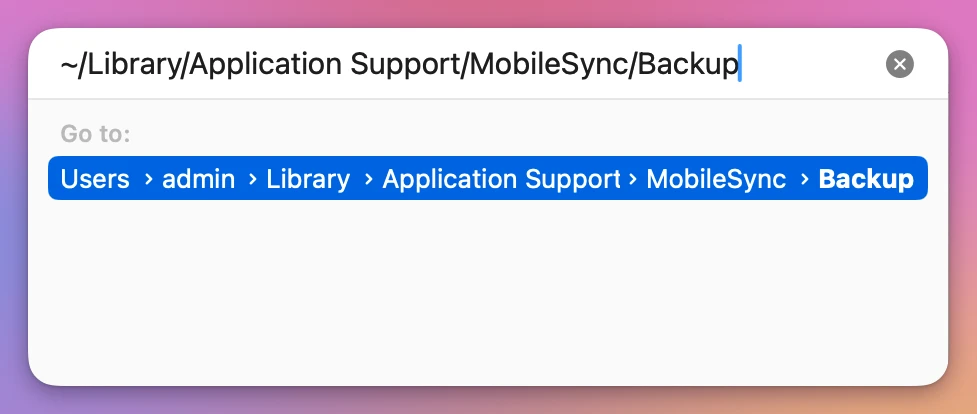
The screenshots are from a test Mac with macOS 15 Sequoia, and the backups in them are made up: three backups made for testing, of “Anna’s iPhone”, “Marco’s iPhone” and “Lena’s iPhone”.
Which folder is which phone?
Each backup gets one folder, named with a long code that identifies the device, like 00008110-000A1B2C3D4E5F60. Nothing in the name tells you whose phone it is.
Click the arrow next to a folder to see what’s inside. In the made-up backup of Anna’s iPhone there were seven folders with two-character names, and four files:
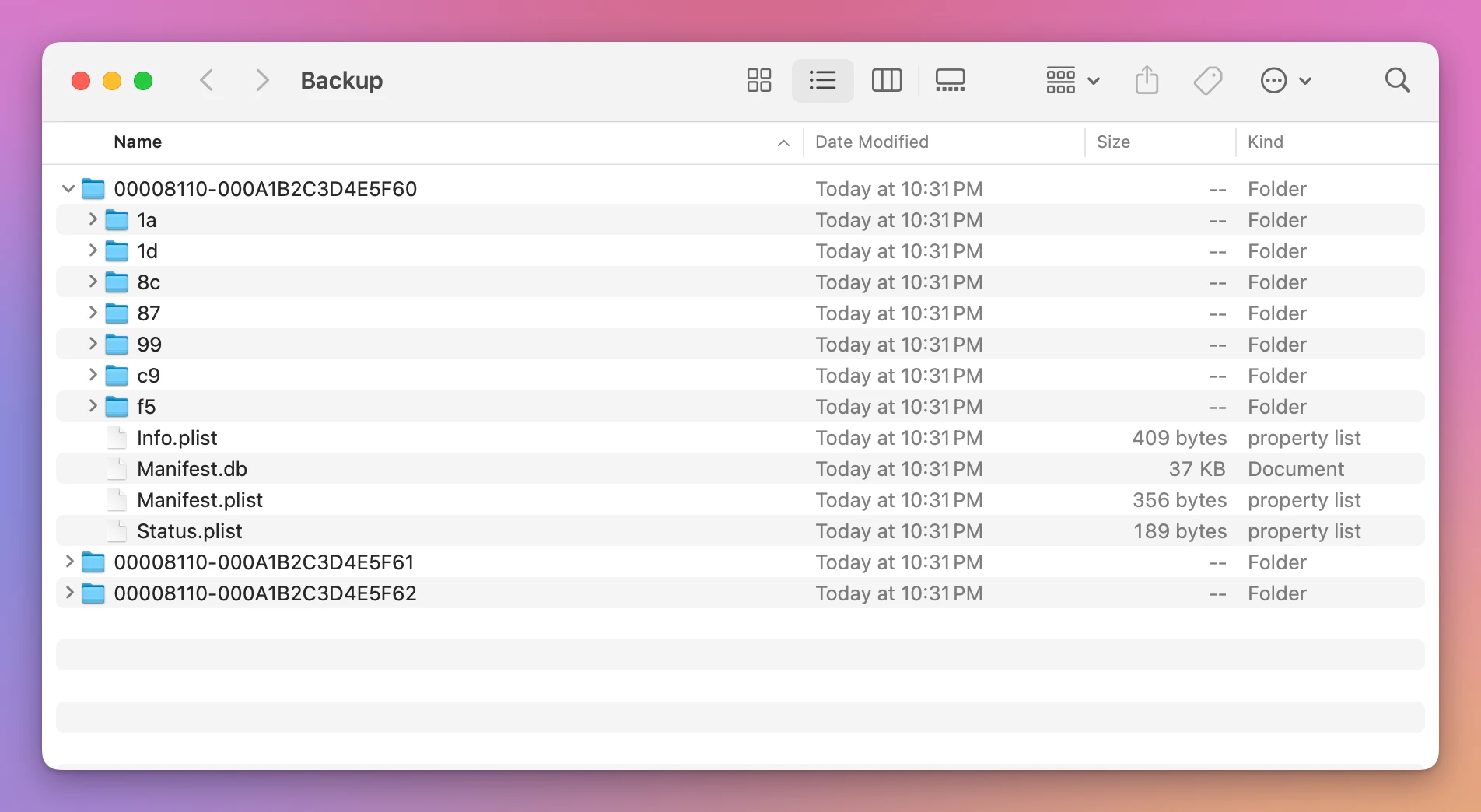
To see which phone a folder is, select its Info.plist and press Space. Quick Look shows it as text, and the phone’s name is after Device Name:
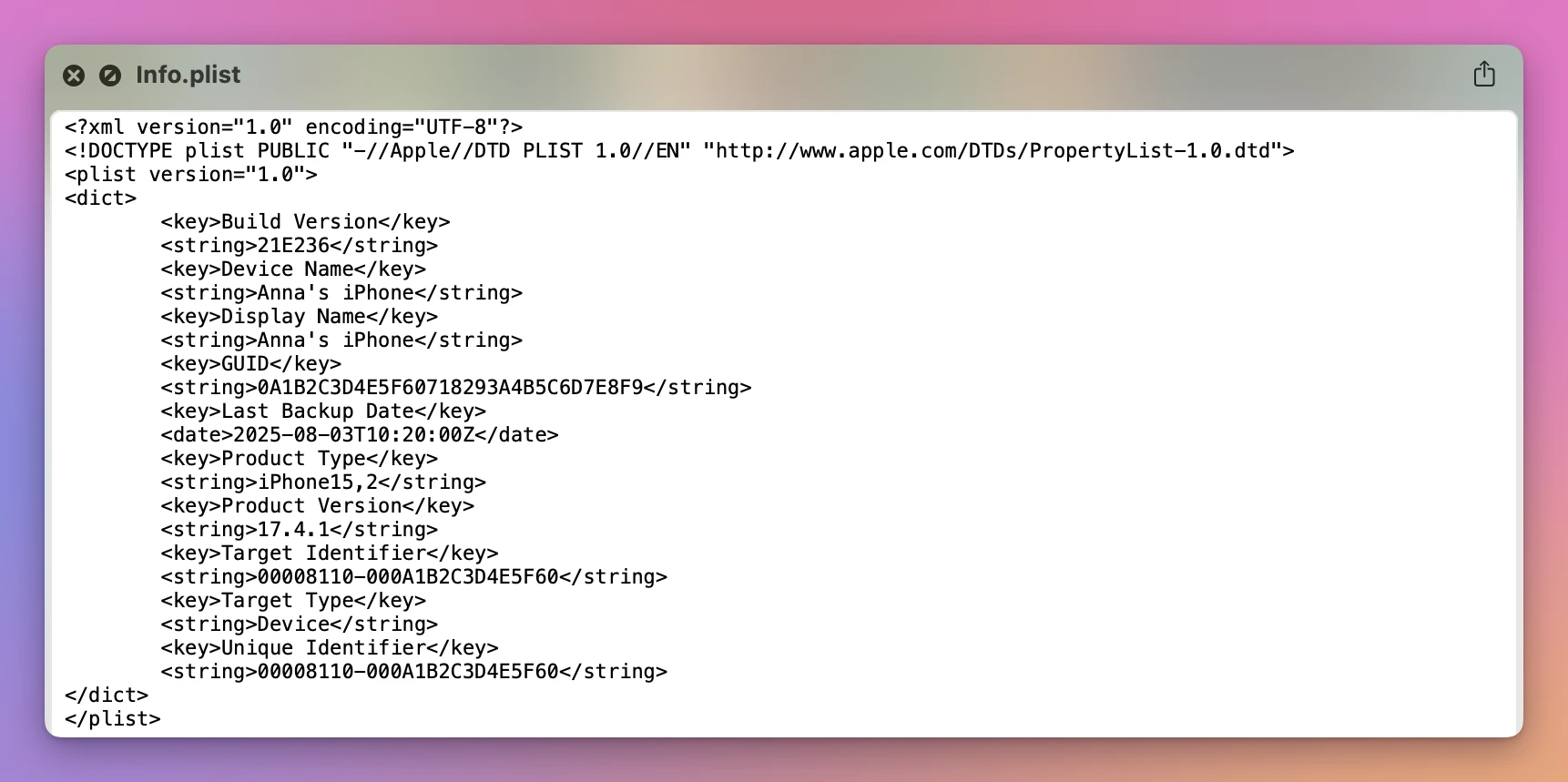
Here’s what each part of the made-up backup held:
| In the backup folder | What it is |
|---|---|
Info.plist | The phone’s name, model code, iOS version and the date of the backup |
Manifest.plist | Details about the backup itself, like whether it has a password (IsEncrypted) |
Status.plist | The state of the backup, “finished” here |
Manifest.db | A database that lists every file in the backup and where it is |
Folders like 1a, c9 | The backed-up files, each named with a long code and sorted into folders by its first two characters |
The files from the phone don’t keep their names in there. In Anna’s backup, the 41-second voicemail is the file 1ad71a1d57852fc94a80e01d975ce755c90a864b in the 1a folder, and only Manifest.db says what it is.
Look, but don’t change anything
Don’t move, rename or edit anything inside these folders. A backup is read as a whole, by the Finder when it restores a phone and by any app that opens it, and a file that moved or changed can break it. Looking at a file in Quick Look changes nothing.
To delete or keep a backup, use the Finder’s own window for it. These steps are from Apple’s page and need the iPhone plugged in, so they couldn’t be tried on the test Mac:
- Connect the iPhone with a USB cable and select it in the Finder.
- Click the General tab, then Manage Backups.
- Right-click a backup and choose Delete, Archive or Show In Finder.
Apple warns that “after you delete a backup, you can’t recover it”, and suggests Archive for a backup you want to keep, “so that later backups don’t replace it”.
If you want a copy somewhere else, copy the whole backup folder. On the test Mac, selecting the folder, choosing Edit › Copy, going to the Desktop and choosing Edit › Paste Item made a copy there, and the original stayed where it was.
Open the backup’s voicemails
The coded names make it hard to find anything by hand. Voicemail Keeper is a Mac app I made that reads iPhone backups and finds the voicemails in them, so you can listen and save each one as a sound file. It’s my own app, not made by, affiliated with or endorsed by Apple. It costs $19, paid once. I tested it only on backups made for the purpose, like the ones here, and not yet on a real iPhone backup.
Find Backups on This Mac reads the same folder and shows each backup by the phone’s name instead of the code, with the model, the iOS version and the date. Marco’s backup has a password, and the app marks it:
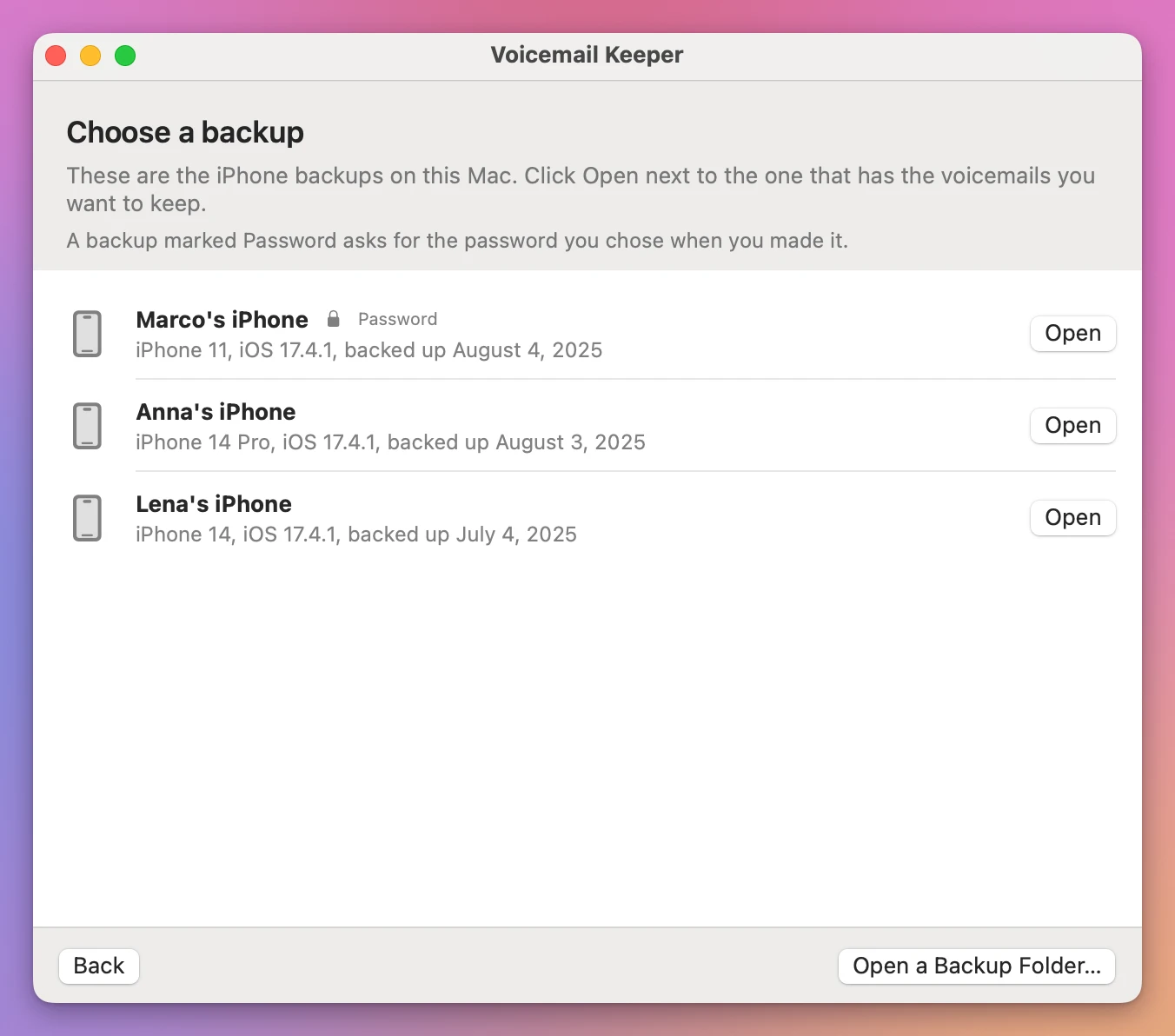
For the copy on the Desktop, Open a Backup Folder… does the same. Choosing the 00008110-000A1B2C3D4E5F60 folder there opened Anna’s voicemails straight away. The app only reads a backup: nothing in it is changed.
macOS can protect the backups folder. On the test Mac, the app read it without asking for anything. When macOS won’t let the app look inside, the app shows this screen instead. This screenshot is the app’s demonstration of it, since the test Mac never showed it for real:
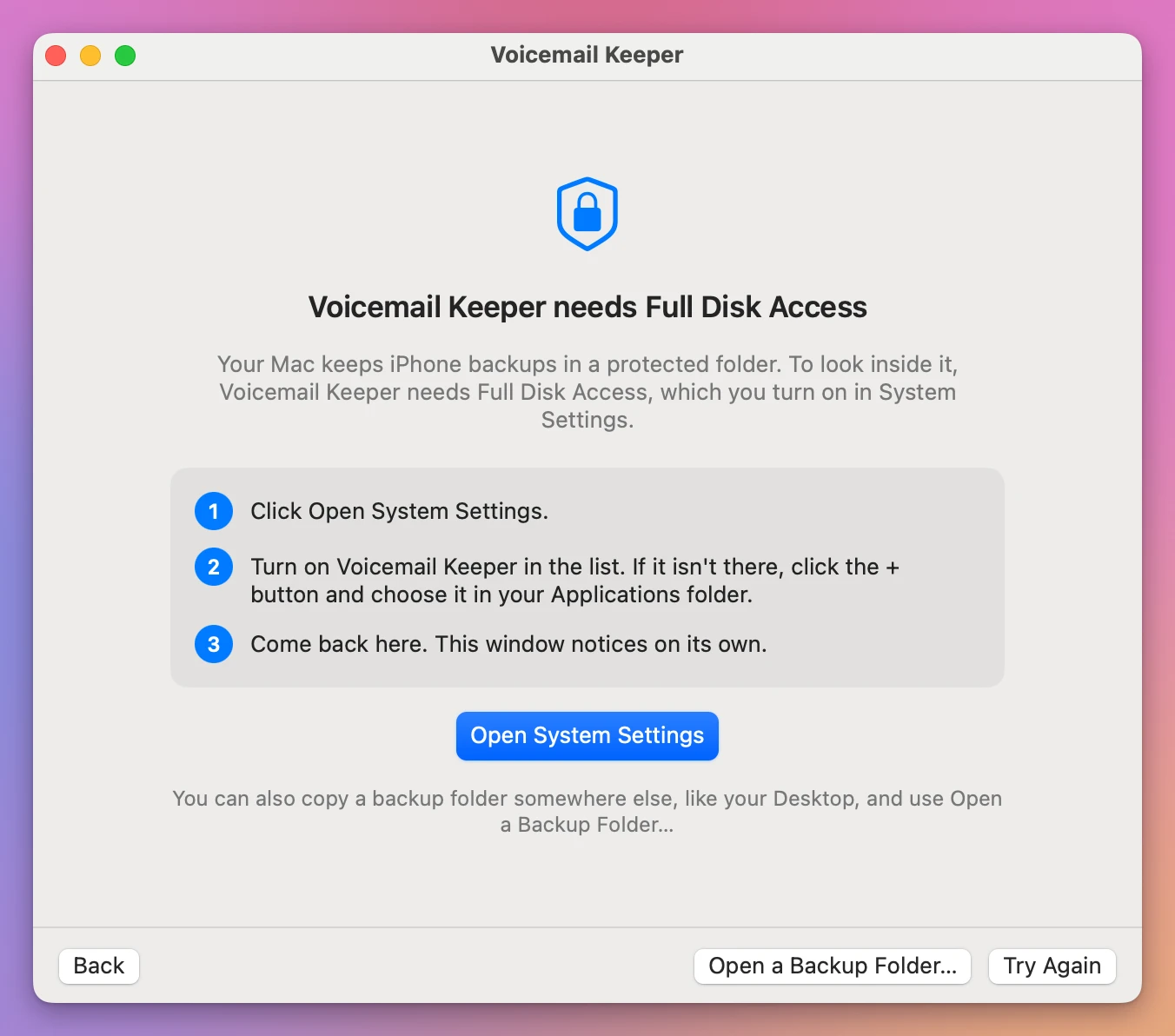
The last line of that screen is the copy from the previous section: a backup on the Desktop opens without that step.
To save the voicemails once a backup is open, the tutorial on saving a voicemail from your iPhone to your Mac goes through it.
Get Voicemail Keeper
Find the voicemails in an iPhone backup on your Mac, listen to them, and save each one as a sound file that plays anywhere, with the date of the call. For the voicemail you can't lose.
See Voicemail Keeper → · Read the docs · $19. See the app page for tax details.
Want me to talk about your product? You can sponsor this site.