JavaScript in the browser
Read and change a page with JavaScript
Use window and document to inspect page elements, traverse their parents and children, and create or edit DOM nodes with JavaScript.
JavaScript uses document to read and change the page. In this lesson, we’ll find elements, move between their parents and children, and create new nodes.
These objects belong to the DOM. For how the browser builds the tree from HTML, read the Document Object Model lesson.
When the browser parses HTML, it creates nodes for the document, elements, text, and comments. The browser exposes APIs to read and change those nodes.
This is also how modern JavaScript frameworks update the page. You can inspect the current DOM using the Browser Developer Tools.
The DOM is not part of the JavaScript language. It is a Web API that browsers make available to JavaScript.
The DOM is standardized by WHATWG in the DOM Living Standard Spec.
With JavaScript you can interact with the DOM to:
- inspect the page structure
- access page metadata
- edit the CSS styling
- attach or remove event listeners
- edit any node in the page
- change any node attribute
.. and much more.
The two objects you will use most often are document and window.
The Window object
The window object represents the window that contains the DOM document.
window.document points to the document object loaded in the window.
Properties and methods of this object can be called without referencing window explicitly, because it represents the global object. So, the previous property window.document is usually called just document.
Properties
Here is a list of useful properties you will likely reference a lot:
consolepoints to the browser debugging console. Useful to print error messages or logging, usingconsole.log,console.errorand other tools (see the Browser DevTools article)documentas already said, points to thedocumentobject, key to the DOM interactions you will performhistorygives access to the History APIlocationgives access to the Location interface, from which you can determine the URL, the protocol, the hash and other useful information.localStorageis a reference to the Web Storage API localStorage objectsessionStorageis a reference to the Web Storage API sessionStorage object
Methods
The window object also exposes useful methods:
alert(): which you can use to display alert dialogspostMessage(): sends messages between windowsrequestAnimationFrame(): used to perform animations in a way that’s both performant and easy on the CPUsetInterval(): call a function every n milliseconds, until the interval is cleared withclearInterval()clearInterval(): clears an interval created withsetInterval()setTimeout(): execute a function after ‘n’ millisecondsaddEventListener(): add an event listener to the windowremoveEventListener(): remove an event listener from the window
See the full reference of all the properties and methods of the window object at https://developer.mozilla.org/en-US/docs/Web/API/Window
The Document object
The document object represents the DOM tree loaded in a window.
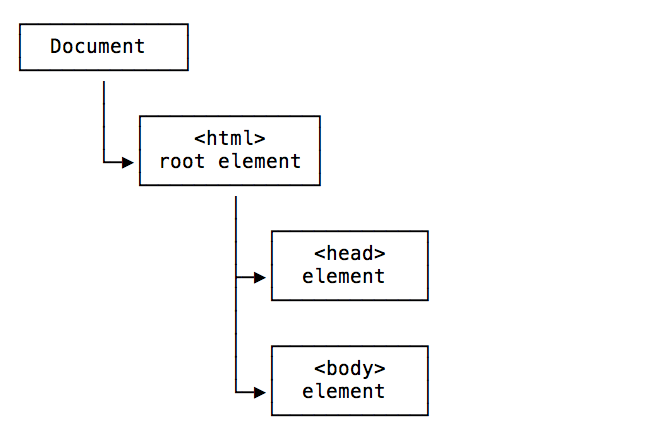
Here is a representation of a portion of the DOM pointing to the head and body tags:
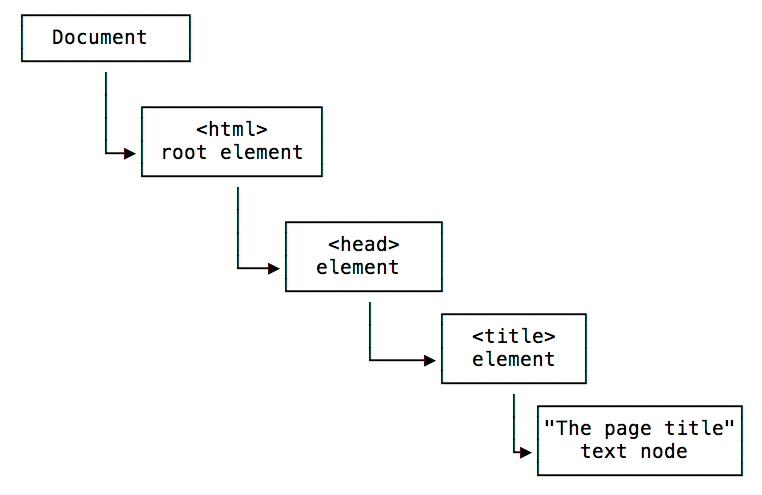
Here is a representation of a portion of the DOM showing the head tag, containing a title tag with its value:
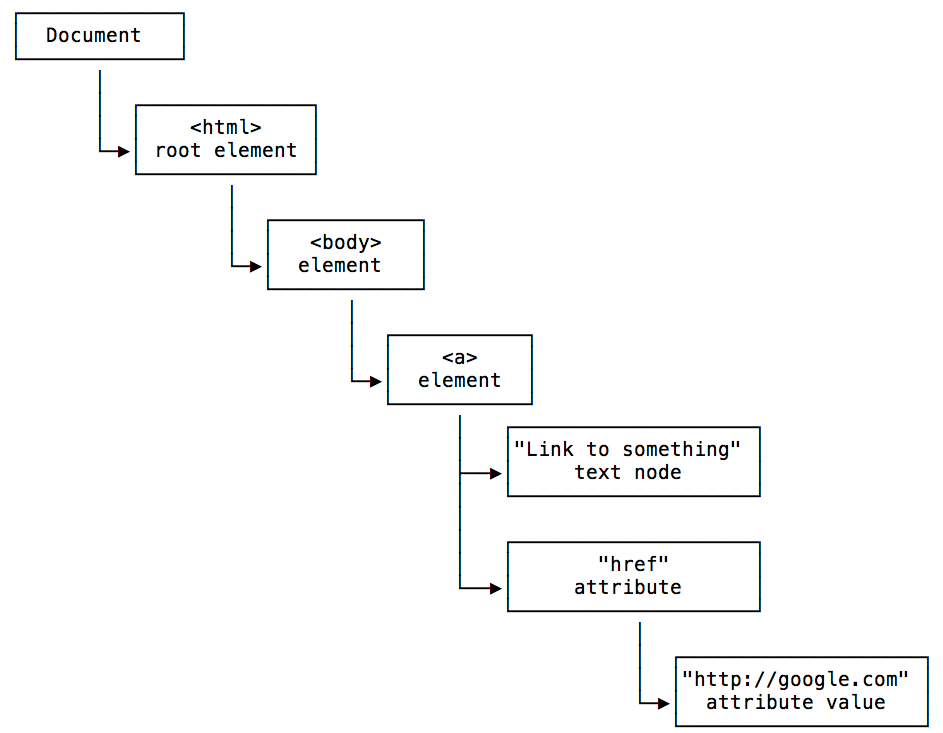
Here is a representation of a portion of the DOM showing the body tag, containing a link, with a value and the href attribute with its value:
The Document object can be accessed from window.document, and since window is the global object, you can use the shortcut document object directly from the browser console, or in your JavaScript code.
This Document object has a ton of properties and methods. The Selectors API methods are the ones you’ll likely use the most:
document.getElementById()document.querySelector()document.querySelectorAll()document.getElementsByTagName()document.getElementsByClassName()
You can get the document title using document.title, the URL using document.URL, and the referrer using document.referrer.
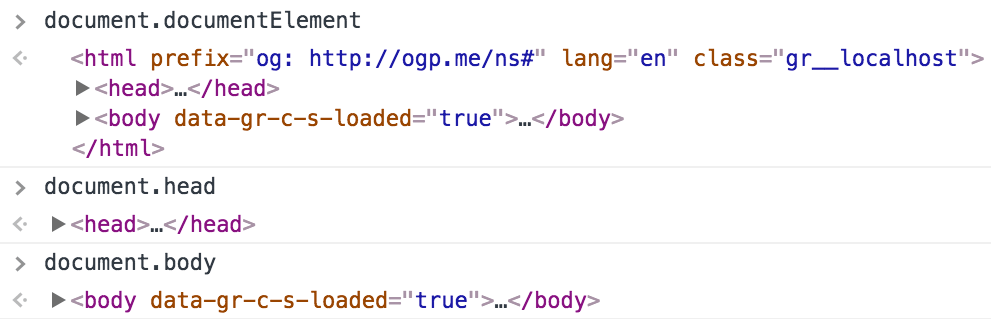
From the document object you can get the body and head Element nodes:
document.documentElement: the roothtmlElementdocument.body: thebodyElement nodedocument.head: theheadElement node
You can also get a list of all the element nodes of a particular type, like an HTMLCollection of all the links using document.links, all the images using document.images, all the forms using document.forms.
The document cookies are accessible in document.cookie. The last modified date in document.lastModified.
Avoid document.write(). It can replace the current document and cause serious performance problems. Use the DOM methods below instead.
See the full reference of all the properties and methods of the document object at https://developer.mozilla.org/en-US/docs/Web/API/Document
Types of Nodes
There are different types of nodes, some of which you have already seen in the example images above. The main ones you will encounter are:
- Document: the document Node, the start of the tree
- Element: an HTML tag
- Attr: an element attribute, represented as a node but not stored as a child in the main tree
- Text: text inside an Element
- Comment: an HTML comment
- DocumentType: the Doctype declaration
Traversing the DOM
The DOM is a tree of elements, with the Document node at the root, which points to the html Element node, which in turn points to its child element nodes head and body, and so on.
From each of those elements, you can navigate the DOM structure and move to different nodes.
Getting the parent
Every element has just one parent.
To get it, you can use Node.parentNode or Node.parentElement (where Node means a node in the DOM).
They are almost the same. parentNode returns any kind of parent node. parentElement returns an Element, or null when the parent is not an Element.
Use parentElement when you specifically need an element.
Getting the children
To check if a Node has child nodes, use Node.hasChildNodes() which returns a boolean value.
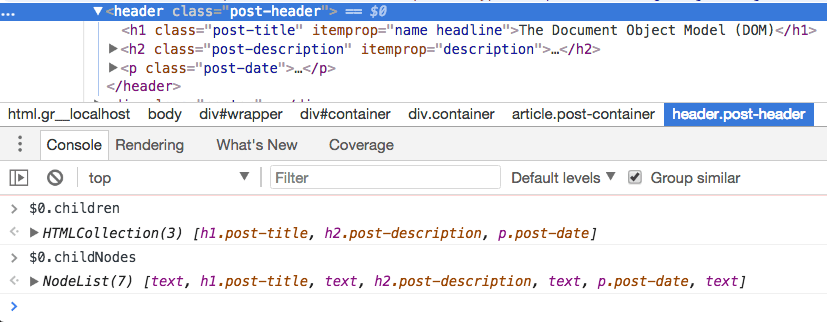
To access all child nodes, including text and comments, use node.childNodes.
To access only child elements, use element.children. It returns an HTMLCollection and ignores whitespace text nodes. The MDN DOM anatomy guide shows this distinction.
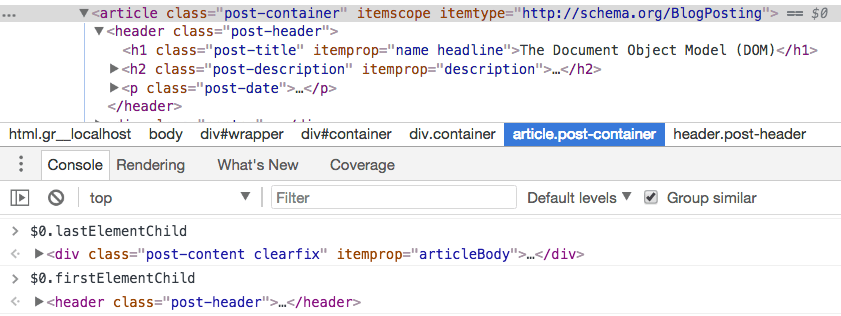
To get the first child Element, use element.firstElementChild. To get the last child Element, use element.lastElementChild:
The DOM also exposes node.firstChild and node.lastChild. These do not filter for Element nodes, so they can return whitespace Text nodes.
In short, to navigate child elements use
element.childrenelement.firstElementChildelement.lastElementChild
Getting the siblings
In addition to getting the parent and the children, since the DOM is a tree you can also get the siblings of any Element Node.
You can do so using
element.previousElementSiblingelement.nextElementSibling
The DOM also exposes previousSibling and nextSibling, but as their counterparts described above, they include white spaces as Text nodes, so you generally avoid them.
Editing the DOM
The DOM offers various methods to edit the nodes of the page and alter the document tree.
You can create nodes with:
document.createElement(): creates a new Element Nodedocument.createTextNode(): creates a new Text Node
Then add them to another element using appendChild():
const div = document.createElement('div')
div.appendChild(document.createTextNode('Hello world!'))
document.body.appendChild(div)parent.removeChild(child)removes a child nodeparent.insertBefore(newNode, existingNode)inserts a node before another childelement.appendChild(newChild)adds a node after the existing childrenelement.prepend(newChild)adds a node before the existing childrenelement.replaceChild(newChild, existingChild)replaces a child nodeelement.insertAdjacentElement(position, newElement)inserts an element at a specified position. See the possible valueselement.textContent = 'Hello'replaces an element’s text content
Lesson completed