What is Cursor Origin? Cursor's Git hosting vs GitHub
By Flavio Copes
Cursor Origin hosts Git repositories inside Cursor. Learn how its repos, GitHub sync, pull requests, agents, apps, CLI, and early-beta limits work.
Cursor can now host your code.
The new service is called Cursor Origin.
Until now, Cursor worked with code hosted somewhere else. Your repository usually lived on GitHub, GitLab, or Bitbucket. Cursor opened it, understood it, and let its agents make changes.
Origin adds the missing piece. Cursor can now store the repository too.
At first, this sounds like Cursor built a smaller GitHub. That is partly true. Origin has repositories, code browsing, pull requests, access controls, and integrations.
It also puts your code, pull requests, and coding agents in the same system. This changes how agents take part in the repository workflow.
Here’s how it works today, including the limits of the early beta.
What is Cursor Origin?
Cursor Origin is Cursor’s own Git hosting service. Cursor calls it a Git forge, the same kind of service as GitHub or GitLab: it stores your repositories and adds code browsing, pull requests, permissions, and GitHub mirroring. The difference is that Cursor’s cloud agents work inside the same system as your code and pull requests.
A Git forge is a service that hosts Git repositories and adds collaboration tools around them. GitHub, GitLab, Bitbucket, and Gitea are all Git forges.
Origin starts with the essentials:
- Git repositories
- browser-based code browsing and search
- branches and commit history
- pull requests and code reviews
- repository permissions
- branch rules and merge protections
- GitHub mirroring
- cloud agents and automations
- deployment and CI integrations
- a command-line tool and a REST API
Origin launched in early beta on August 17, 2026. Cursor is rolling it out on its paid plans.
It is available on Premium, Super, Ultra, Teams, and Enterprise. Legacy Start, Pro, Pro+, and Ultra plans also have it. It is not available on Free or Plus.
Early beta matters here. The main workflow exists, but the product, interface, integrations, and API can still change.
Cursor keeps the current feature and setup details in the official Origin documentation.
Origin does not replace Git
Before going further, let’s separate Git from Git hosting.
Git runs on your computer. It tracks files, commits, branches, and merges.
Origin stores a remote copy of that Git repository. It also gives your team a place to browse code, review changes, and run agents.
The relationship looks like this:
your project → Git commits → Origin repository → pull requests and agentsYou still use normal Git commands:
git add .
git commit -m "Add the search page"
git push
Origin works with standard Git over HTTPS. It also supports SSH keys.
If Git itself is still new to you, start with my free Git Course. It explains commits, branches, remotes, pushing, pulling, and pull requests.
The 2 ways to use Origin
Origin can host a repository itself or mirror one from GitHub. The choice decides which service remains the source of truth.
Origin can host the repository
You can create a new repository directly on Origin.
In this case, Origin is the source of truth. Your team clones from Origin and pushes changes back to Origin.
Pull requests also live on Origin. They are not copied to GitHub.
This is the clean Origin-native setup.
Origin can mirror GitHub
You can also connect an existing GitHub repository.
Cursor copies its Git history, branches, tags, code, and pull requests into Origin. It then keeps that copy updated.
GitHub stays the source of truth.
You can browse the code and work with pull requests inside Cursor. Pushes still go to GitHub, even when you push through the Origin remote.
This is the safest way to test Origin with an existing project. You get the new interface and agent workflow without moving the main repository.
The Codebase is the home for your repositories
Origin repositories live in the new Codebase area at cursor.com/codebase.
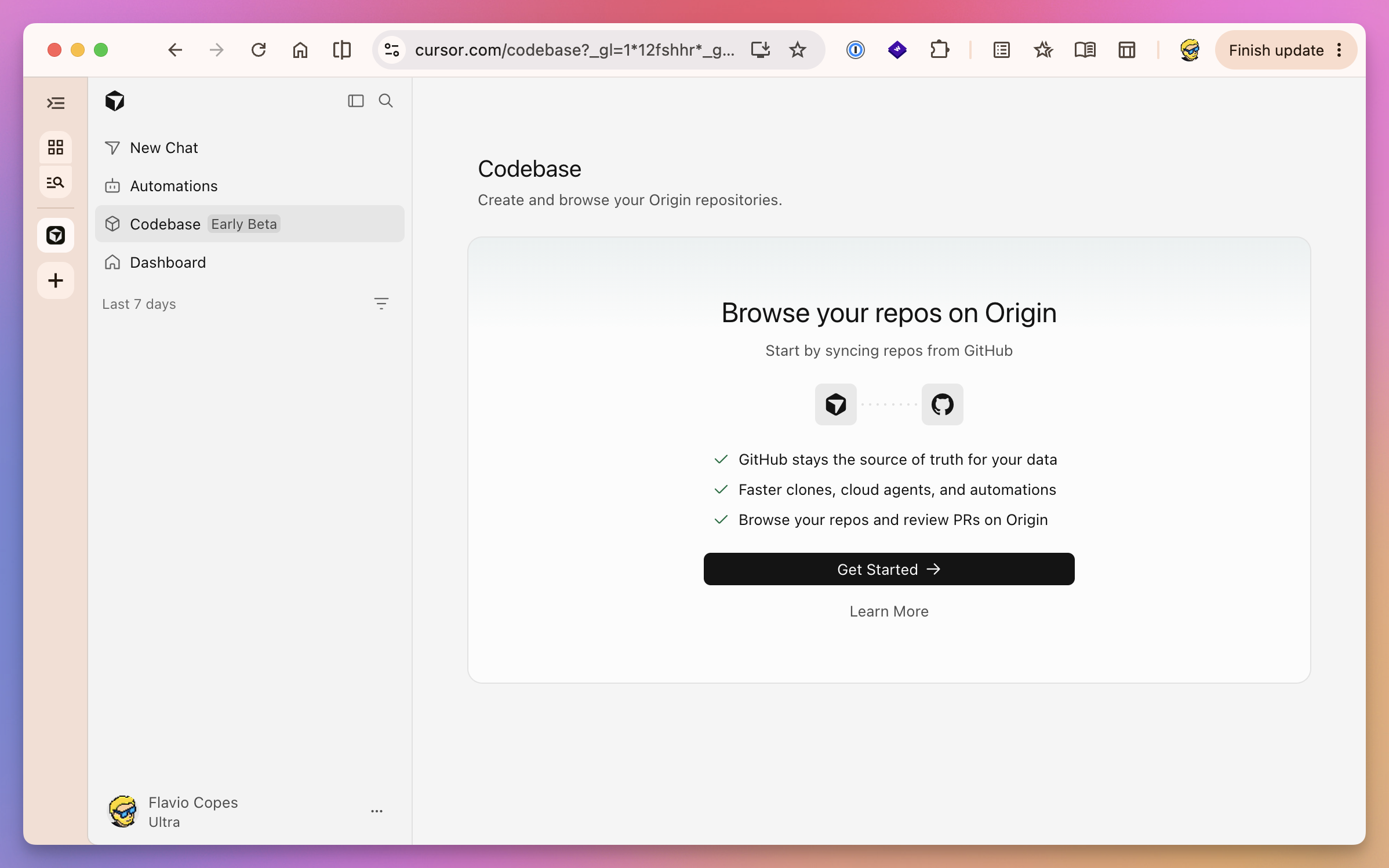
The first time you open it, Cursor asks you to sync a repository from GitHub. Click Get Started to begin.
Cursor then asks you to claim a codebase name. That name becomes part of every repository URL.
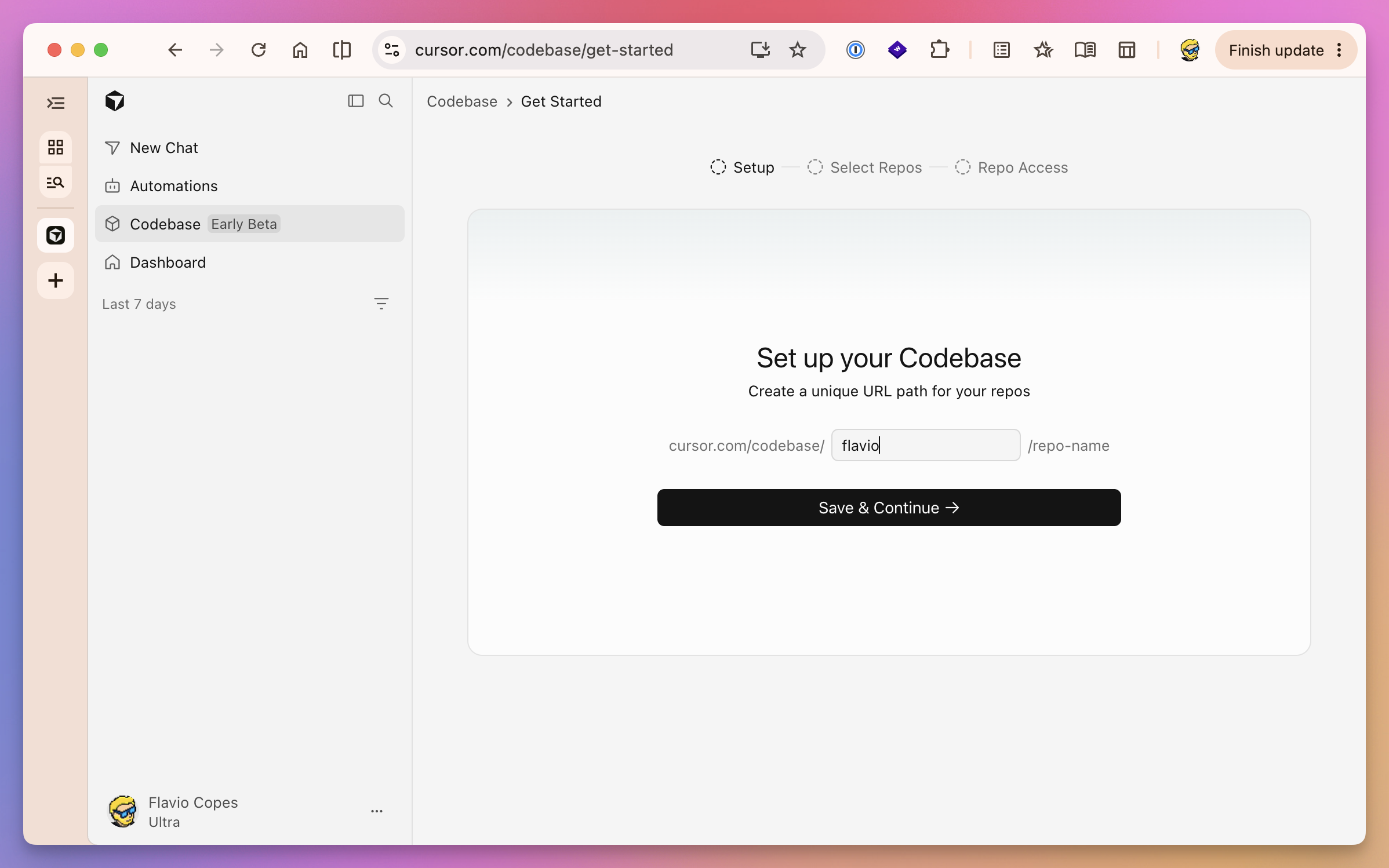
For example, a team called acme could have this repository:
https://cursor.com/codebase/acme/checkoutChoose this name carefully. Cursor says you cannot change the namespace during the beta.
From the Codebase page, you can create a repository or sync one from GitHub.
Origin shows an icon beside each repository. The icon tells you whether Origin hosts it or mirrors it from GitHub.
That small detail is useful. Both kinds appear in the same list, but they do not behave in the same way.
Creating an Origin repository
The simplest way to start is through the browser.
Open the Codebase page, select New, enter the repository name, and create it.
Origin currently offers 2 visibility levels for team-owned repos:
- Internal makes the repository visible to people with access to the team’s codebase
- Private limits it to people granted access directly or through codebase permissions
That chooser only appears for repos owned by a team codebase. Repos you create under a personal account are always Private and visible only to you. You share them from the repo’s Settings > Collaborators.
Notice what is missing: public repositories.
The current creation flow only documents Internal and Private visibility. That makes Origin suitable for private work and team projects, but not yet a complete home for public open source projects.
You can also ask a Cursor agent to create the repository. The agent can install the Origin CLI, sign in, create the repository, add the remote, and push the code.
The agent uses your Cursor permissions. It cannot create a repository you are not allowed to create.
Create and deploy a web app from scratch
You can now create new web apps with Cursor, store the code with Origin, and deploy to Vercel.
Choose Start from scratch in the repository picker, then tell the agent what to build. Cursor starts a cloud agent without asking you to connect an existing repository first.
You can preview the app in the browser while the agent works. When you are happy with it, create an Origin repository to save the code. Then connect your Vercel account and publish the app to get a live URL.
You can see the Cursor announcement on X and the related trending page.
Installing the Origin CLI
Origin has its own command-line tool named origin.
It is separate from the Cursor Agent CLI. The Agent CLI runs a coding agent. The Origin CLI manages repositories, authentication, pull requests, rules, SSH keys, and API requests.
Cursor provides this installation command:
curl -fsSL https://downloads.cursor.com/origin/install.sh | shThen sign in:
origin auth loginThe login opens a browser and configures a Git credential helper. After that, normal git push and git pull commands can authenticate with Origin.
You can check the current login with:
origin auth statusThe official Origin CLI documentation includes installation details and troubleshooting steps.
Creating and cloning repositories from the terminal
You can create a repository without opening the browser:
origin repo create origin-testWhen you omit a namespace, Origin creates the repository under your account.
My account would then clone it like this:
origin repo clone flaviocopes/origin-testAlternatively, use standard Git:
git clone https://origin.cursor.com/flaviocopes/origin-test.gitIf the project already exists on your computer, add Origin as its remote:
git remote add origin https://origin.cursor.com/flaviocopes/origin-test.git
git push -u origin main
This is the same remote workflow you already use with GitHub. If you want a short refresher, see how to add a Git remote.
Browsing and searching code
Every repository has a Code tab.
You can browse folders, open files, switch branches, and inspect commit history. Select a commit to see its metadata and changed files.
Press T to open Go to file. You can also use the search field to find files and code matches.
This part feels familiar if you already use GitHub.
The difference is that an agent is available beside the code. You can ask questions about the file you are reading. The agent can explain the code, follow a call across the repository, make a change, and push a branch.
The repository is not just a page an agent can read. It is part of the agent’s working environment.
Pull requests in Origin
Origin repositories have pull requests.
Push a branch first:
git switch -c add-search
git push -u origin add-search
Then open a pull request from the browser or the Origin CLI:
origin pr create -t "Add search" --status openThe pull request page has 4 main areas:
- Activity shows comments, reviews, and status changes
- Commits shows every commit in the change
- Checks shows CI results for the branch
- Files Changed shows the diff and inline comments
You can request reviewers, comment on lines, approve a change, request changes, inspect merge conflicts, and merge when the review and checks are complete.
The CLI covers the same workflow:
origin pr diff
origin pr checks
origin pr review --approve
origin pr merge
Most origin pr commands detect the repository from the current origin Git remote. They also detect the pull request for your current branch when you do not provide a number.
This makes the CLI useful for both people and agents. An agent can create, inspect, update, and merge a pull request without scraping a web page.
How GitHub mirroring works
GitHub mirroring lets you bring an existing project into Origin without moving it.
You need:
- Origin access on Premium or higher, Teams, Enterprise, or a legacy paid plan
- the Cursor GitHub app connected to the account or organization
- GitHub admin access to the repository you want to mirror
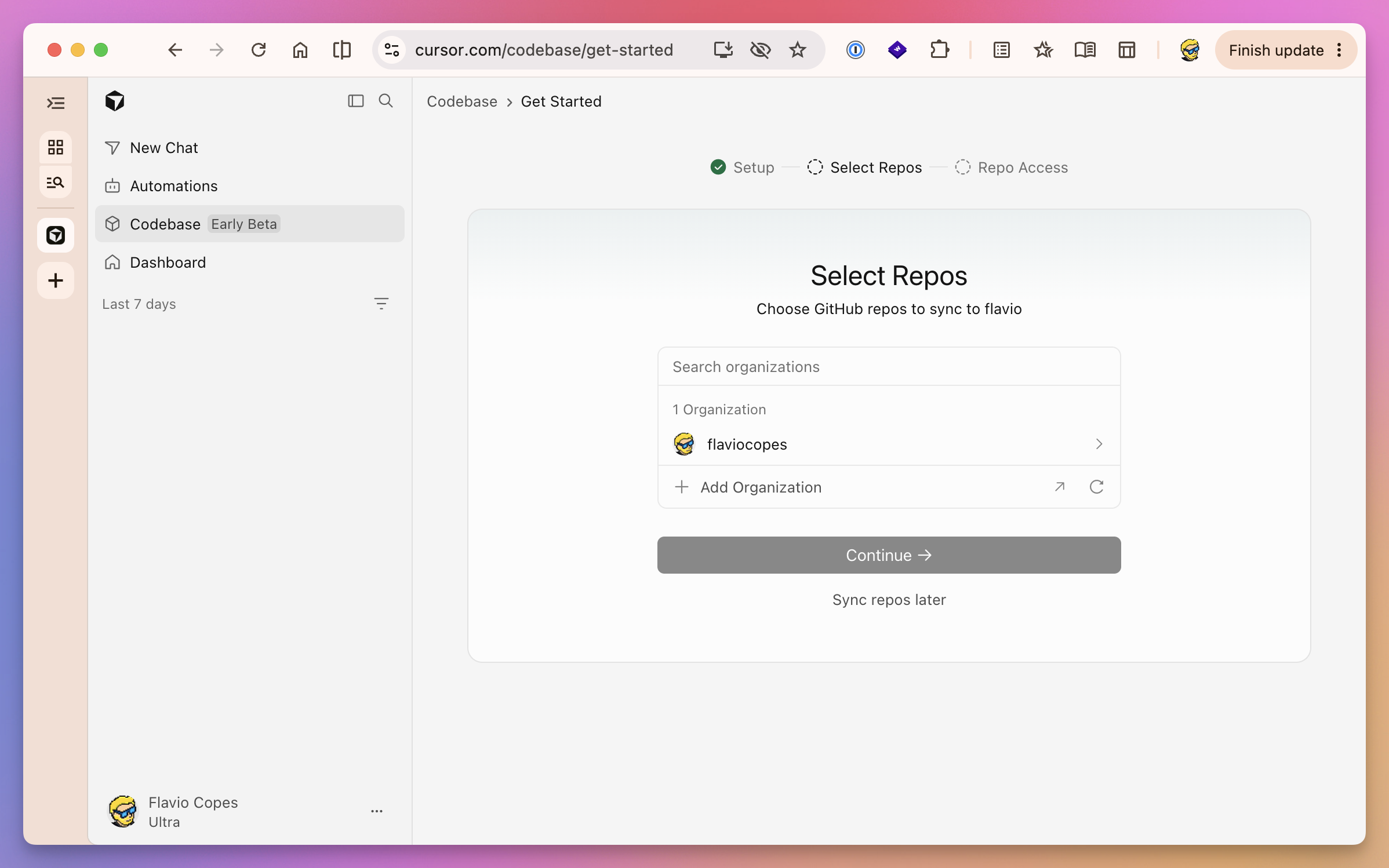
Open the Codebase page and start the setup flow. Cursor first shows the GitHub organizations you can access.
Open the organization and select the repositories you want to sync.
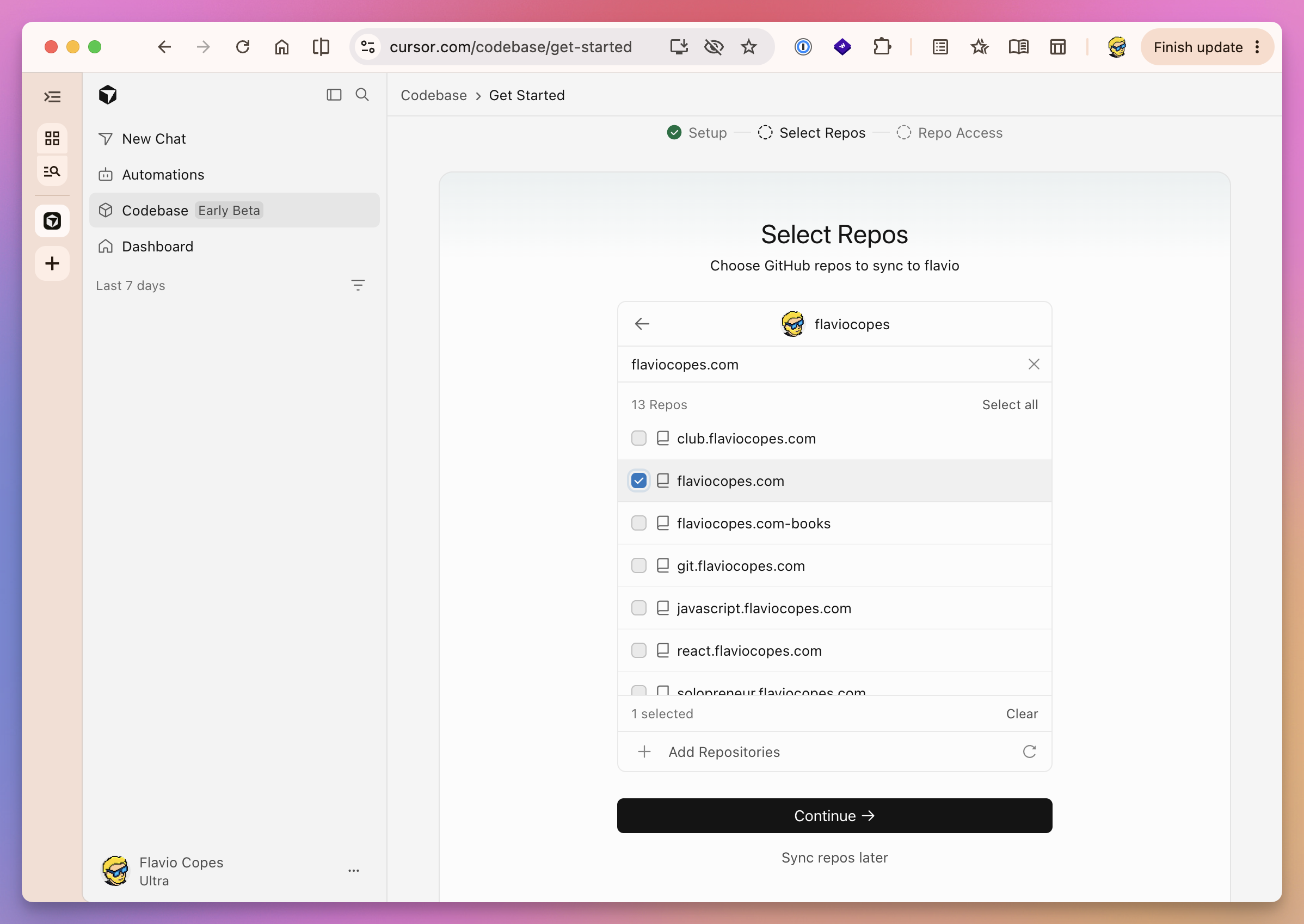
Select Continue. Origin then shows who will have access to each repository.
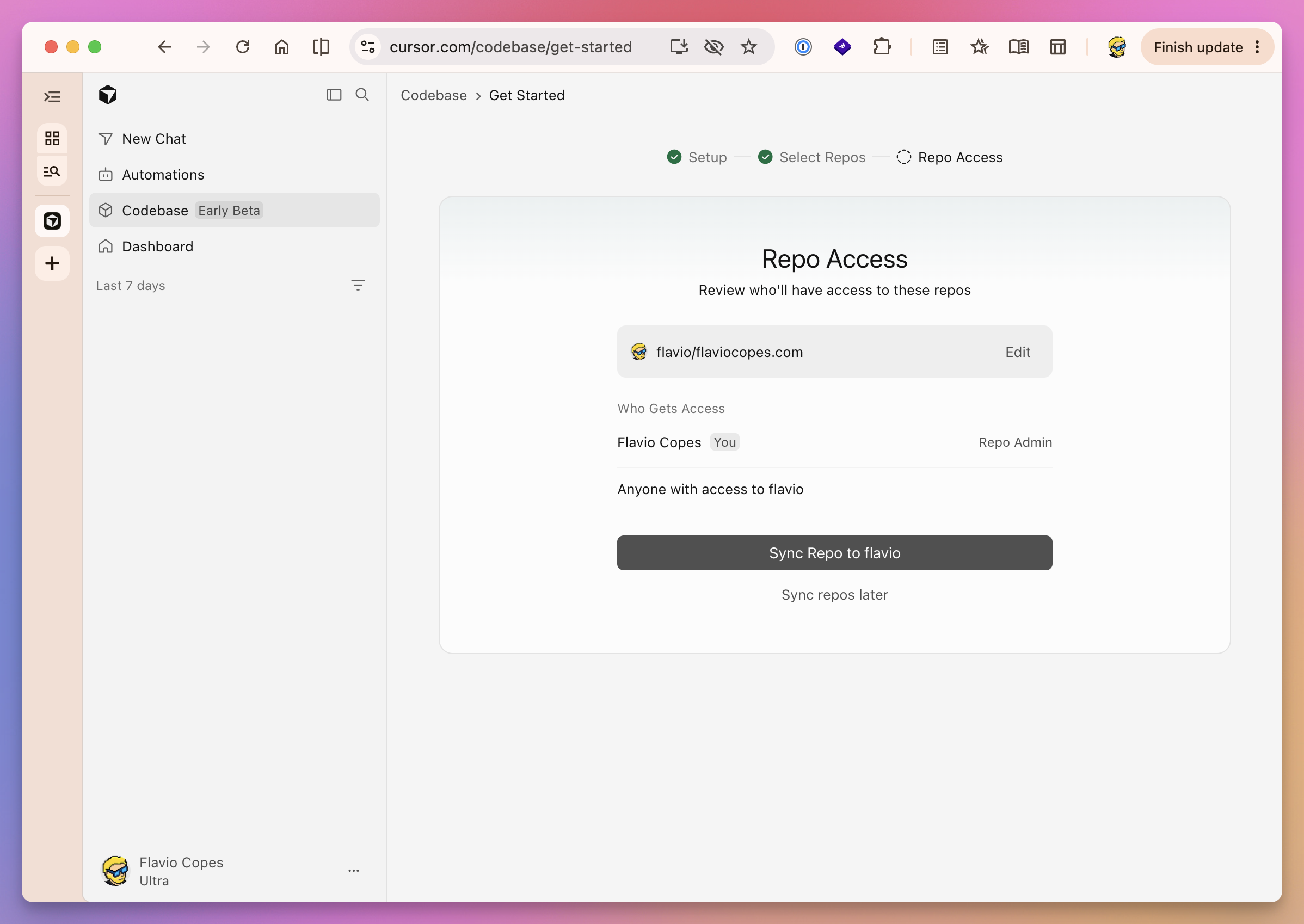
Review this screen before confirming. GitHub permissions and Origin permissions are related, but they are not the same thing.
Select Sync Repo when everything looks right. Origin starts receiving the repository and marks GitHub as the source.
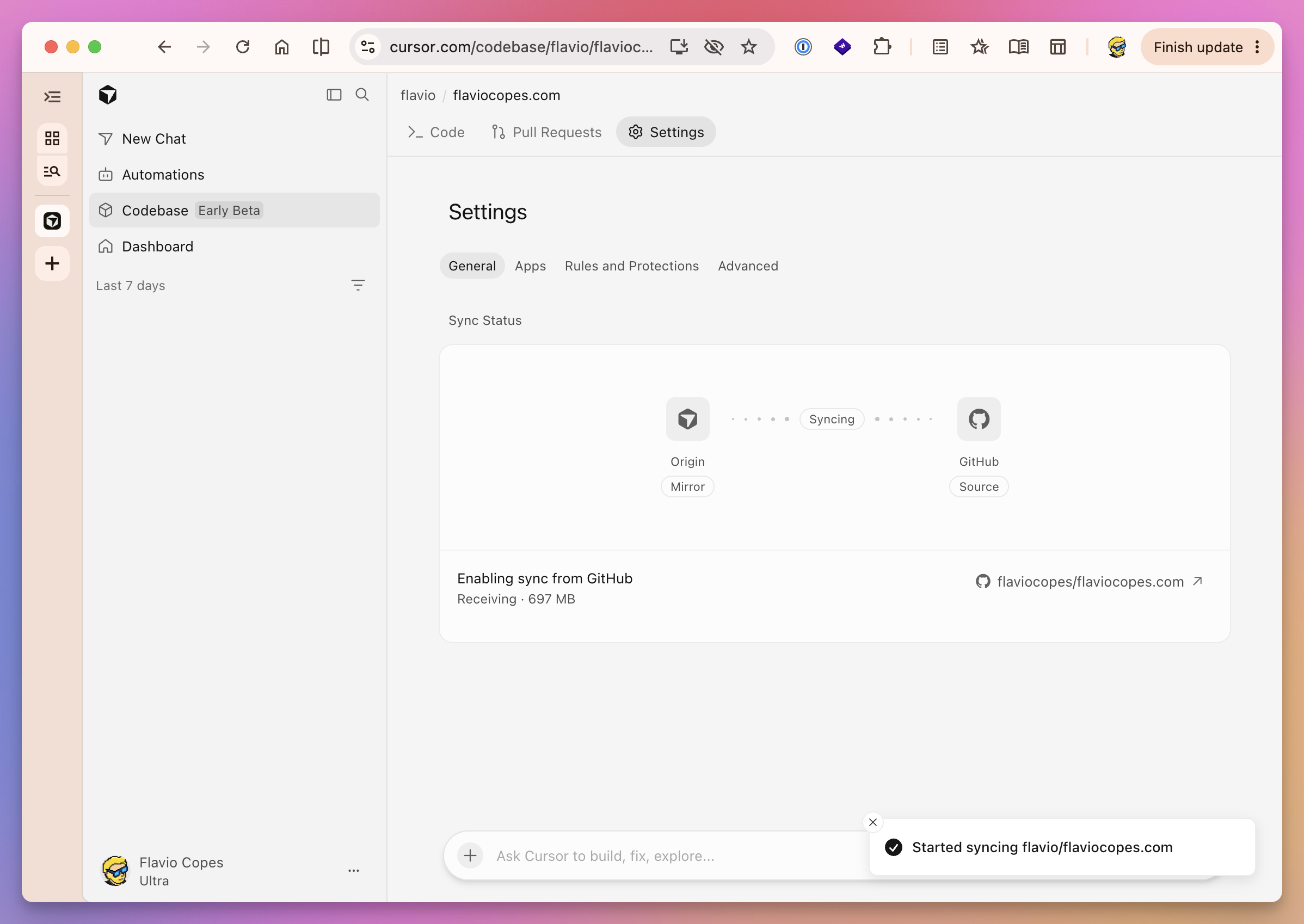
Origin then copies the repository and keeps it updated.
Here is what currently moves across:
| Synced to Origin | Stays on GitHub |
|---|---|
| Git history, branches, and tags | GitHub Issues |
| Files and code search | GitHub Actions workflows |
| Pull requests, comments, and reviews | GitHub Actions secrets |
This is not a complete GitHub backup.
The mirror gives Origin the code and pull request workflow. GitHub still owns issues, Actions, secrets, and the main repository.
Mirrored pull requests sync both ways
Pull requests on mirrored repositories appear in both services.
You can leave a comment in Origin and see it on GitHub. A reply or reaction added on GitHub appears in Origin within seconds.
You can also review and merge a GitHub pull request from Origin.
This bidirectional sync is what makes the mirror useful. A team does not need to move every reviewer into Cursor on the first day.
Some people can keep working in GitHub. Others can work in Origin. Both sides see the same pull request conversation.
GitHub remains the source of truth
Mirroring does not quietly move ownership to Cursor.
If a repository started on GitHub, pushes still go to GitHub. Origin keeps its copy updated from there.
You can clone the Origin remote and push to it, but Origin passes that push through to GitHub.
This removes a common source of confusion. You do not end up with 2 independent repositories that slowly drift apart.
If you later want to move fully to Origin, open the repository settings and select Detach from GitHub.
Detaching stops the sync and turns the Origin copy into a standalone repository. Origin becomes the source of truth. The original GitHub repository is not changed.
From that point forward, the 2 repositories can diverge.
Agents are part of the repository workflow
Origin is not only code storage inside the Cursor website.
Cursor cloud agents can work directly against Origin repositories. They can:
- clone the repository
- create a branch
- change files
- run the project’s checks
- commit and push
- open a pull request
- respond to review feedback
Those agents usually run on Cursor’s servers. You can also run them on your own Mac when the task needs local tools or credentials.
You can also ask questions while browsing a repository. The agent has the surrounding code and can move from explanation to implementation.
This removes a layer of setup.
With a separate code host, Cursor needs permission to connect, clone, push, and update the pull request. With Origin, those operations belong to the same Cursor account and permission system.
This does not remove the need for permissions or review. It makes the connection more direct.
Cursor says more agent-native features are coming. I would treat that as direction, not as a feature list. The current product already connects agents to repositories and pull requests, but the deeper roadmap has not been defined publicly.
Automations can react to repository events
Cursor Automations can run cloud agents on a schedule or after a source-control event.
For an Origin repository, an automation can react to events such as:
- a push to
mainormaster - a pull request being opened
- new commits pushed to a pull request
The automation can inspect the repository, run a task, make changes, and open or update a pull request.
The phrase “designed for agent scale” refers to this automation workflow. One person opening one repository does not need a new Git forge. A team running many agents needs reliable repository access, event triggers, permissions, branches, checks, and review paths.
Origin puts those pieces under the same product.
Deployments and CI
Origin launched with integrations for Vercel, Depot, and Buildkite.
Connect Vercel from the repository’s Apps tab. A pull request can get a preview deployment where you test the change and leave comments. Merging can deploy the production version.
Depot and Buildkite provide CI for repositories hosted on Origin. Both can run existing GitHub Actions workflows, and Buildkite can run its own pipelines too.
There is an important limit for mirrored repositories.
Depot and Buildkite work with Origin-hosted repositories. A GitHub mirror keeps its CI on GitHub.
Origin’s app ecosystem is still small. That is normal for an early beta, but it matters if your project depends on a long list of GitHub Apps.
Repository permissions and protections
Repository settings are split into 4 areas:
- General
- Permissions
- Rules and Protections
- Apps
Permissions control who can access the repository.
Team-wide codebase settings control who can enable Origin, create repositories, and grant access to other members.
Origin follows the Privacy Mode of the person or team that owns the namespace. Teams using Cursor’s legacy privacy mode must switch to the current Privacy Mode before enabling Origin.
Rules and Protections handles branch rules and merge protections. Cursor says this interface is still being redesigned, so names and controls can change during the beta.
My advice is to test the permission model before moving an important repository. Create a private test repository, add a teammate, and verify who can browse, push, create pull requests, change rules, and install apps.
Do not assume a new forge copies every GitHub permission exactly.
Origin also has a public API
Origin is not limited to the website and CLI.
The Origin REST API lets tools work with repositories, commits, checks, pull requests, reviews, and app installations.
Origin Apps use a model similar to GitHub Apps:
- An app signs a short-lived token.
- It exchanges that token for an installation token.
- The installation token only accesses approved repositories and scopes.
- Origin sends signed webhooks when relevant events happen.
The origin api command can call endpoints that do not yet have a dedicated CLI command.
This matters for the future app ecosystem. CI providers, deployment platforms, internal tools, and agents need a stable machine interface. A browser UI is not enough.
The API is also in early beta. Cursor tells integration authors to review the current API specification when updating an app.
Is Origin a GitHub replacement?
Not yet for most teams.
Origin already covers the core private repository workflow:
- host code
- clone, push, and pull with Git
- browse and search files
- review and merge pull requests
- control team access
- run agents and automations
- connect selected deployment and CI services
But GitHub is much larger than that core.
Origin does not currently mirror GitHub Issues or Actions secrets. Its native app ecosystem is small. The documented creation flow has no public repository option. GitHub also has releases, packages, discussions, projects, security tools, sponsors, social discovery, and a huge integration ecosystem.
You can see the larger GitHub surface in my developer’s introduction to GitHub.
So I would not describe Origin as a complete GitHub replacement today.
I would describe it as a new Git hosting path for teams that want Cursor agents closer to their repositories and pull requests.
That narrower description is still important.
How I would use Cursor Origin
I would start with a small private project.
I publish many self-contained projects in my software library. They include source code, tests, documentation, and instructions for coding agents. One of those repositories would be a good Origin test.
I would not move the repository on day one.
I would mirror it from GitHub and keep GitHub as the source of truth. Then I would test one complete workflow:
- Browse the project in Origin and ask the agent how one feature works.
- Ask a cloud agent to make a small change on a branch.
- Let it open a pull request.
- Review the diff and leave one line comment in Origin.
- Confirm the comment appears on GitHub.
- Push another commit and verify checks and sync behavior.
- Merge from Origin and confirm GitHub matches.
This test would tell me much more than a feature list.
I would check authentication, sync delay, agent setup, permissions, review quality, CI results, and what happens when the agent fails halfway through.
I would not move flaviocopes.com to a native Origin repository yet.
This site depends on GitHub Actions and Cloudflare Pages. Origin’s current native integrations focus on Vercel, Depot, and Buildkite. A GitHub mirror also does not copy Actions secrets.
Keeping GitHub as the source of truth would preserve the deployment workflow while still letting me test Origin’s agents, code browsing, and pull request interface.
Later, if Origin adds the integrations I need and proves reliable, I could detach the mirror. That would be a deliberate migration, not an experiment performed on the main repository.
When Origin is a good fit
Origin is worth testing when:
- your team already uses Cursor heavily
- most repositories are private
- cloud agents create or review many pull requests
- you want repository events to trigger Cursor Automations
- your deployment and CI tools already integrate with Origin
- you want to evaluate it through GitHub mirroring first
The GitHub mirror makes the last point easy. You can test the workflow without immediately moving the repository.
When I would wait
I would wait when:
- the repository is public open source
- the project depends on GitHub Issues, Discussions, Projects, or Releases
- many GitHub Apps are part of the workflow
- your compliance process has not approved Cursor as a code host
- the repository needs a mature and stable API contract
- an early-beta failure would stop an important release
Origin stores your source code. Treat that as an infrastructure decision, not as an editor preference.
Review access, privacy, backups, recovery, audit needs, and exit paths before moving important work.
How I would evaluate Origin
Origin pulls the repository host into Cursor. An agent can make a branch and update a pull request without working through a separate code host integration.
This removes a few steps for one developer. It could matter more for a team running many agents, because the code host can treat those agents as normal participants in the workflow.
Origin is not yet a complete GitHub replacement. I would mirror one private GitHub repository, keep GitHub as the source of truth, and test the complete agent-to-pull-request workflow described above.
Want me to talk about your product? You can sponsor this site.