Build a Node.js Hello World Docker container
By Flavio Copes
Learn how to build a simple Node.js Hello World Docker container from scratch, writing the Dockerfile, running docker build, and mapping ports.
In the Dockerfile introduction post I introduced a simple Node.js Dockerfile example:
FROM node:24
WORKDIR /usr/src/app
COPY package*.json app.js ./
RUN npm install
EXPOSE 3000
CMD ["node", "app.js"]
The node:24 tag you start from matters for image size — I built a free Docker base image size comparison that compares common Node base images. Prefer current Node LTS (node:24, or node:22 if you stay on the previous LTS). Reach for node:24-alpine when you want a smaller image.
NOTE: use double quotes in the
CMDline. Single quotes will result in an error.
Let’s use this Dockerfile to build an image, and then run the container.
I’m going to create this file in the dev/docker/examplenode folder. I create a simple Node.js app in the app.js file, using Express:
const express = require('express')
const app = express()

app.get('/', (req, res) => res.send('Hello World!'))
app.listen(3000, () => console.log('Server ready'))
Super simple, but we have one dependency. I need to add it to the package.json file, so I run
npm init -y
npm install express
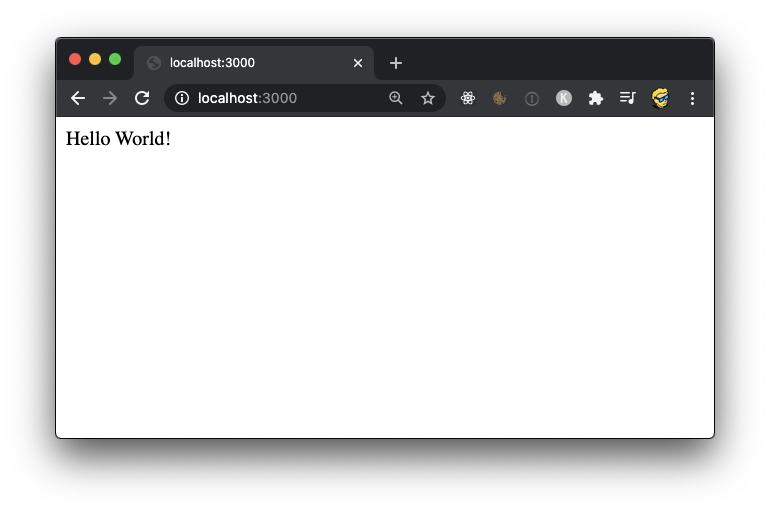
Now you can run node app.js and make sure it works:
Stop this process and let’s create a Docker Image from this.
All you need are the app.js, package.json and package-lock.json files.
And the Dockerfile. Create a Dockerfile file in the same folder, with no extension (not Dockerfile.txt).
You can freely delete the node_modules folder that now contains the Express library and its dependencies, but you can also create a .dockerignore file and add node_modules inside it, to make Docker ignore this folder completely.
It works like .gitignore in Git.
Run the command
docker build -t examplenode .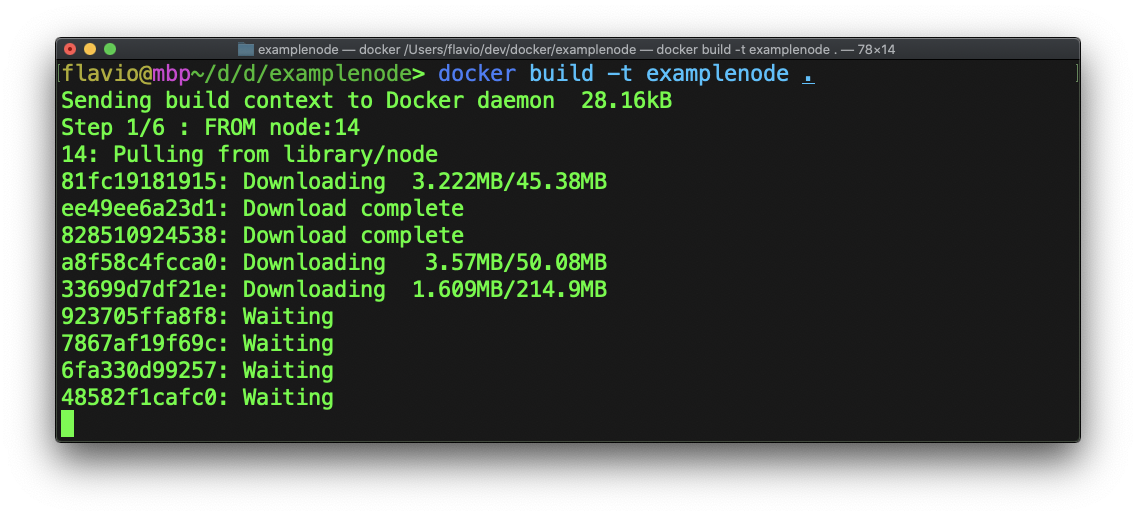
It will take a while to download the Node image and run npm install, then you’ll get a successful message.
It’s important to note that after you first download a base image like the node one we use here, that will be cached locally, so you don’t need to download it again and the image building process will be much faster.
Now we can run a container from the image:
docker run -d -p 3000:3000 --name node-app examplenode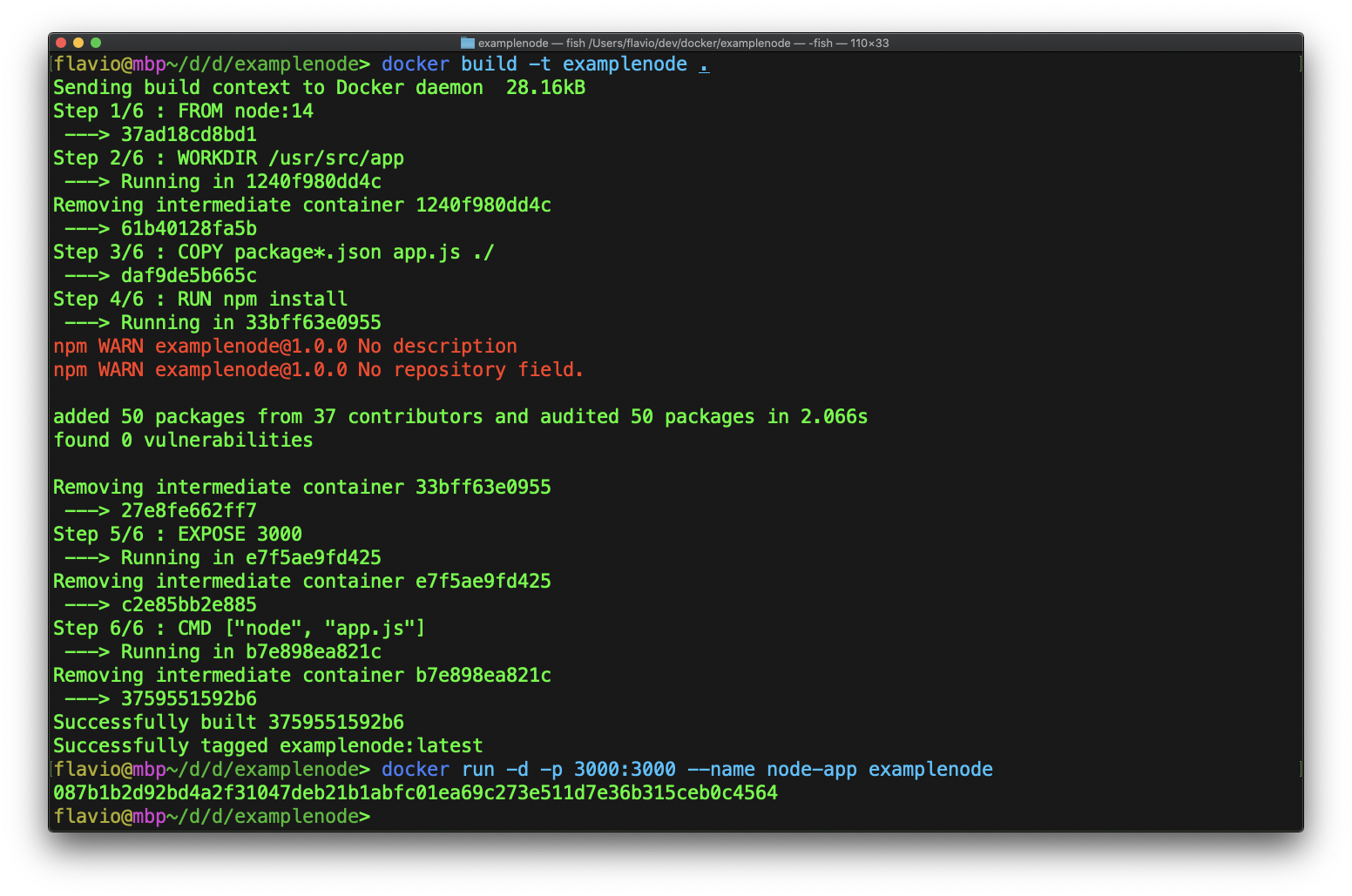
Now you can see the image running in Docker Desktop:
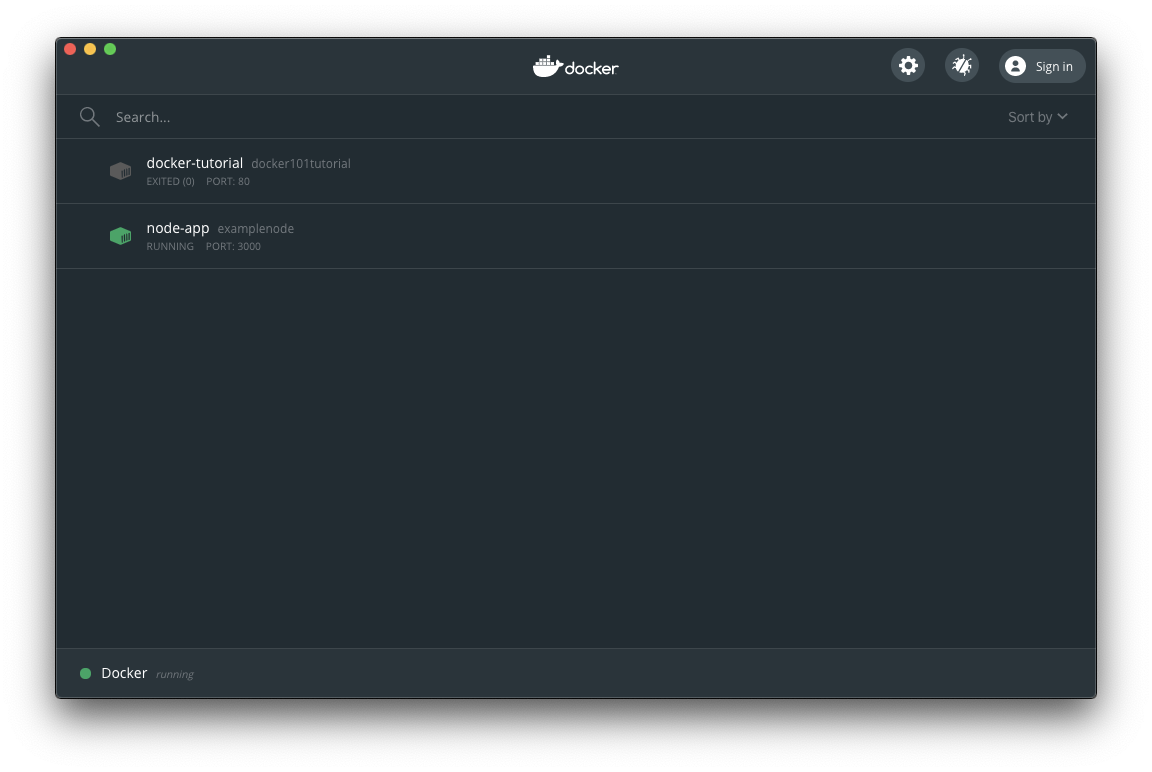
And you can click the “Open in browser” button to open the app running on port 3000:
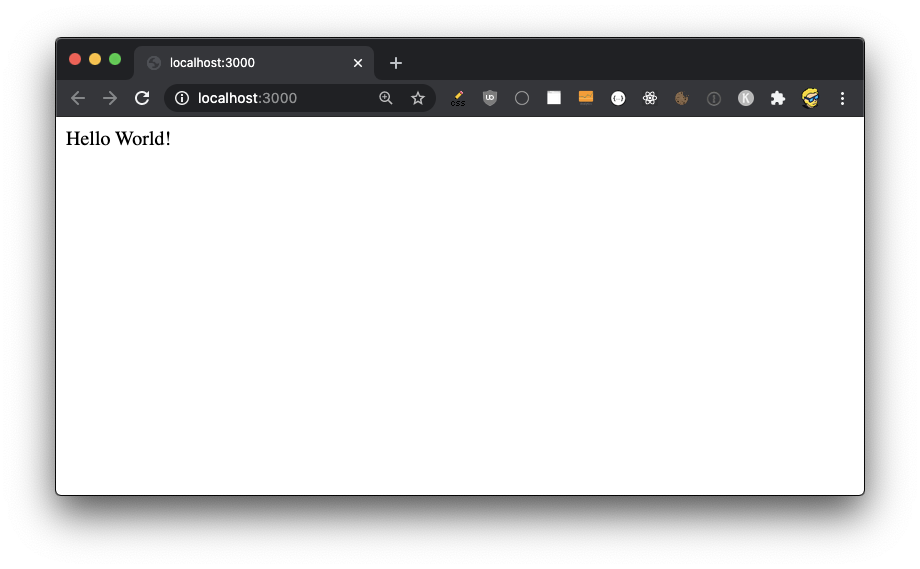
Just like before! Except now the app is running in its own container, completely isolated, and we can run whatever version of Node we want in the container, with all the benefits Docker gives us.
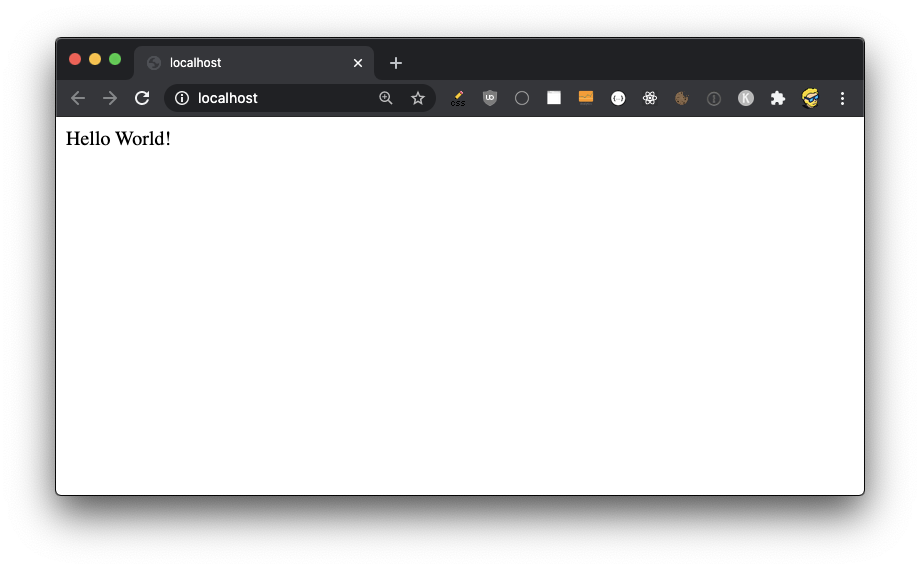
For example you can remove the container and run it on port 80 instead of 3000, with:
docker run -d -p 80:3000 --name node-app examplenodeThe image does not need to change, all you change is the port mapping. Here’s the result:
Want me to talk about your product? You can sponsor this site.
Related posts about docker: