What is tldraw? The canvas, SDK, MCP, Offline and Flash
By Flavio Copes
A practical guide to tldraw: the infinite canvas, React SDK, AI integrations, local agent workflows, Flash animations, and software development use cases.
tldraw is an infinite canvas for drawing and arranging ideas.
I see it as a quick way to create low-fidelity visuals. You can explain an idea, document a system, or create a chart without worrying about making it perfect.
You can share those drawings, add them to documentation, or keep them for yourself. Sometimes drawing something is the easiest way to understand it now and remember it later.
tldraw becomes even more useful with AI agents. An agent can draw what it found in a codebase or explain a process on the canvas. You can correct the drawing, move things around, and continue the conversation from there.
Think of a whiteboard that never runs out of space. You can sketch with the pen, add shapes and text, connect things with arrows, drop in images, and move everything around.
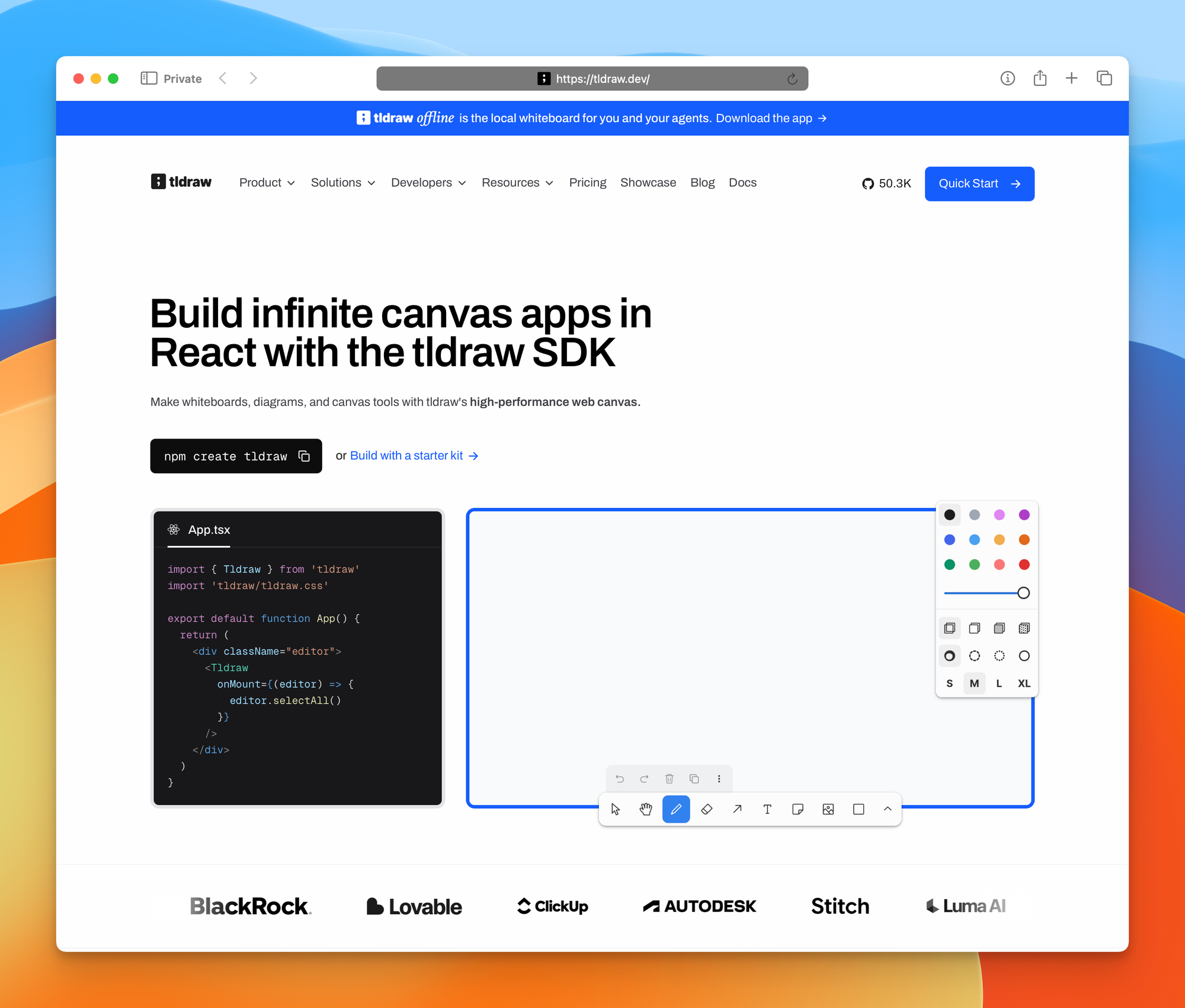
You can use tldraw.com as a free online whiteboard. Developers can also use the tldraw SDK to build their own canvas applications.
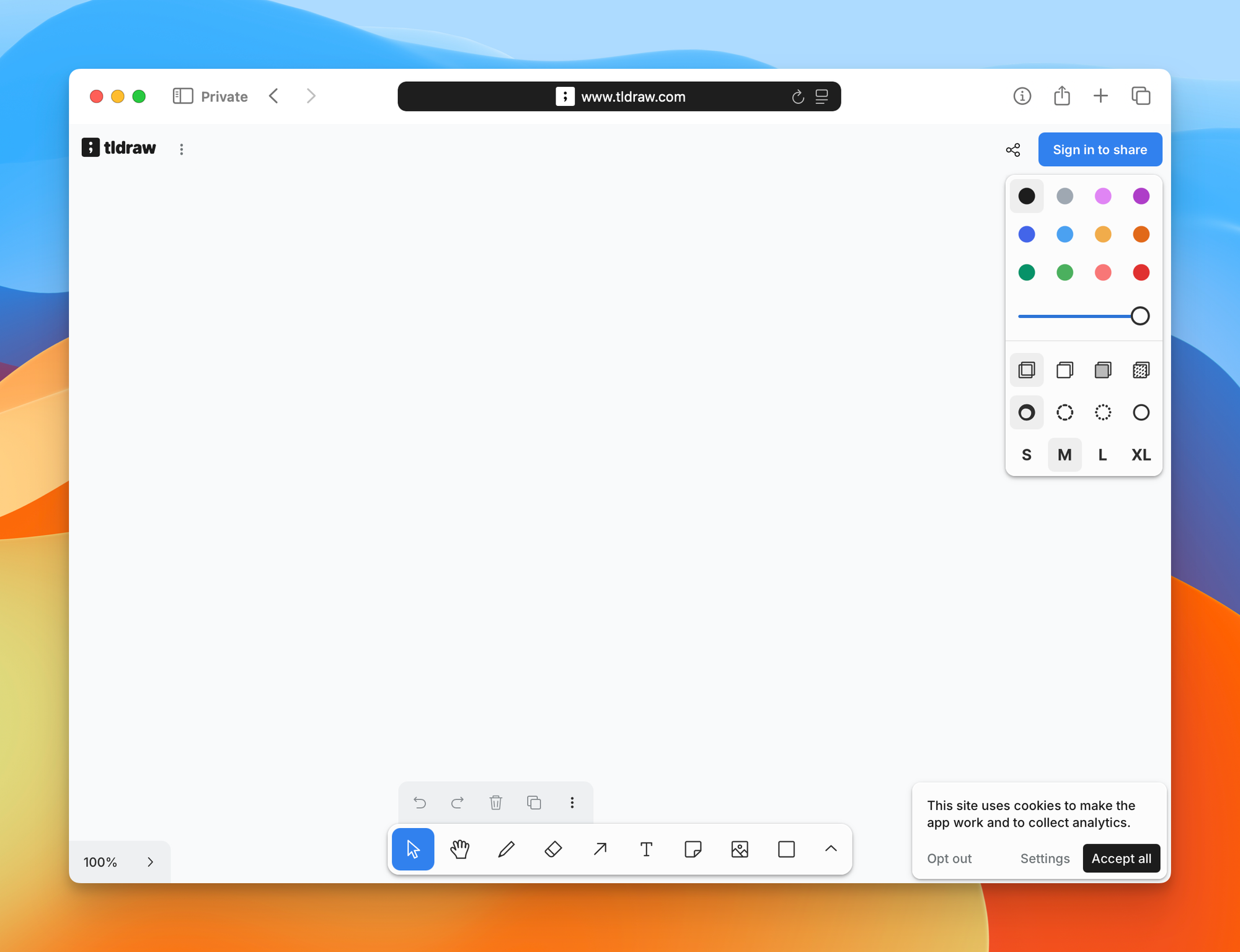
What is an infinite canvas?
Documents have pages and slides have fixed edges. An infinite canvas gives you one large surface with a camera that moves across it.
You pan to move around and zoom to change the level of detail. One area can hold a rough idea. Another can contain the detailed flow. You can move between them without splitting the work into separate files.
This works well for diagrams because ideas rarely arrive in the correct order. You can start with two boxes, insert another step, move a whole section, and reconnect the arrows.
I have always liked whiteboards. I wrote years ago that a big physical whiteboard is one of the best investments you can make. It helps because you can put an entire problem in front of you.
tldraw puts that open space on a screen, without the physical size limit.
What can you do with tldraw?
The basic tools cover most whiteboard work.
You can draw freehand, create geometric shapes, write text, add sticky notes, and connect shapes with arrows. You can group related items, align them, distribute them evenly, change their order, and copy whole sections.
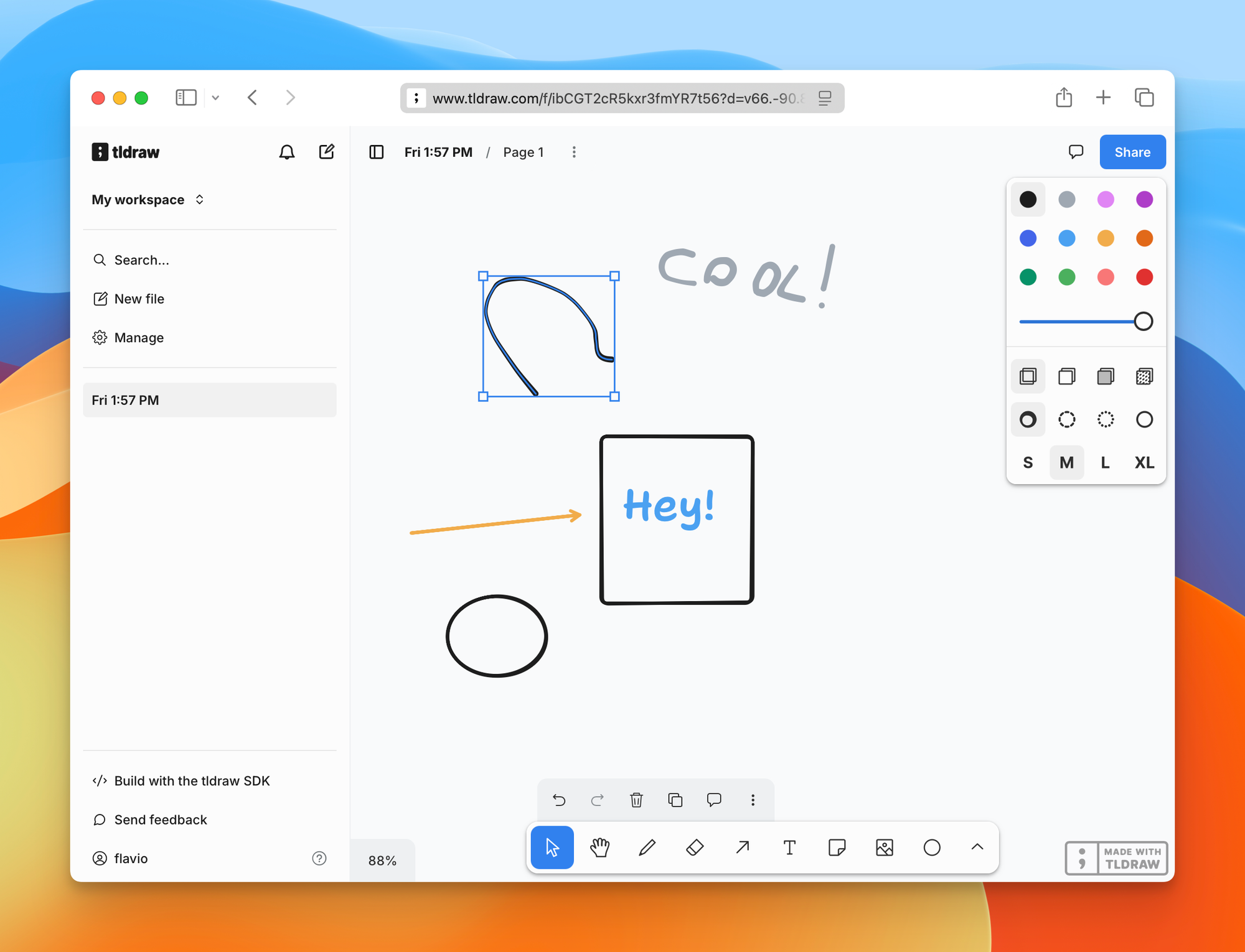
Images and videos can live on the board too. This makes tldraw useful for mood boards, screenshot feedback, wireframes, presentations, and visual documentation.
You can also share a board and work with other people. tldraw handles live cursors, presence, following another person’s viewport, and real-time updates.
tldraw is also an SDK
The online whiteboard is one application built with the tldraw SDK.
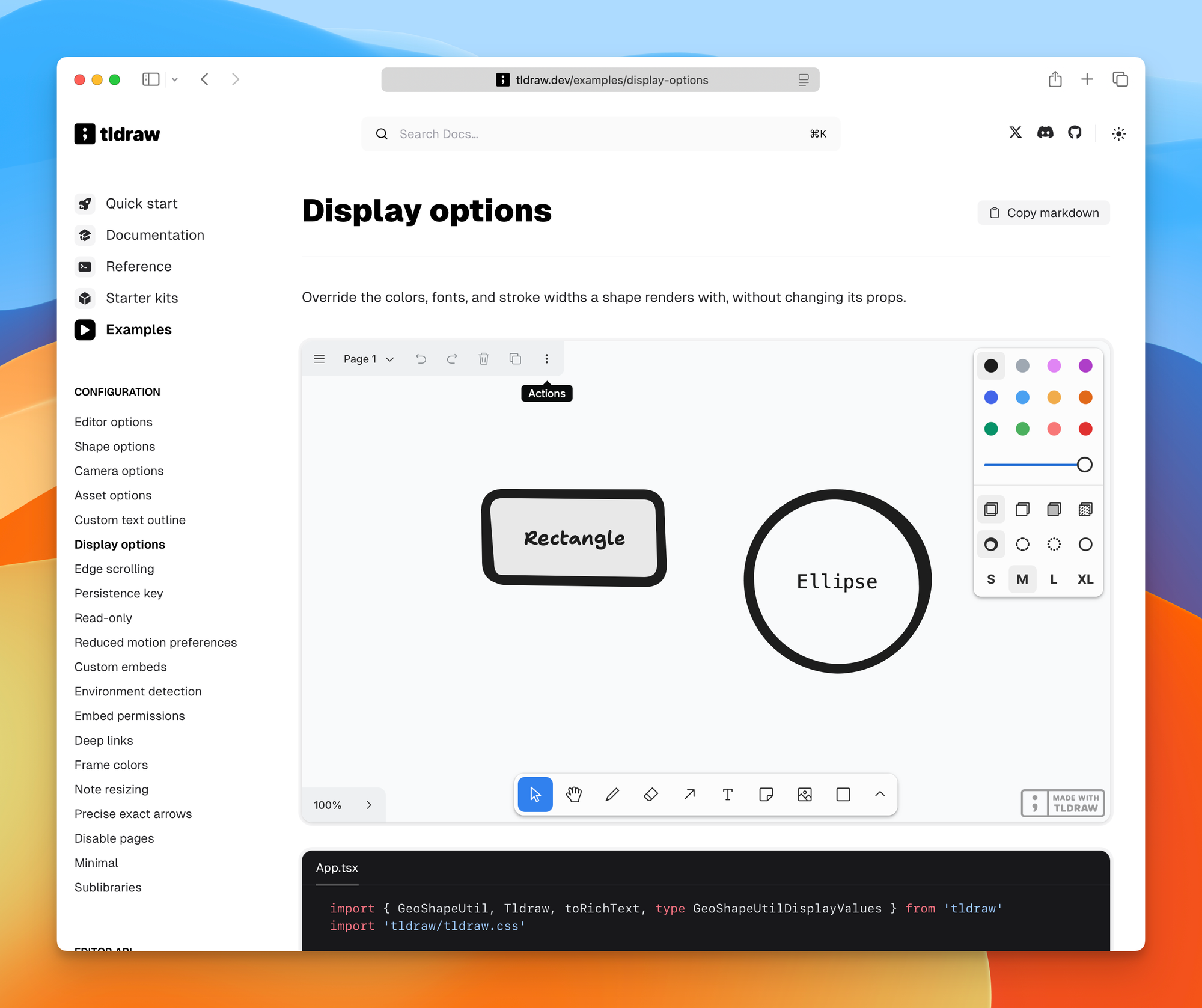
The SDK is a React and TypeScript toolkit for building infinite-canvas software. It provides selection, resizing, rotation, snapping, arrows, text editing, images, undo and redo, camera controls, persistence, and multiplayer sync.
Building this interface is harder than it looks. Shapes must respond to mouse, touch, and keyboard input. Arrows need to stay attached while nodes move, and selection must work across nested groups. Copy, paste, history, zoom, and collaboration add more edge cases.
tldraw handles this foundation, so you can work on the parts specific to your application.
The canvas uses React and regular DOM elements. A custom shape can contain a button, input, video, live chart, or another web interface. You can create custom tools, change the menus, add new interactions, and control the editor through its runtime API.
tldraw is useful beyond whiteboards. You can build a diagram editor, visual workflow tool, floor planner, node-based application, collaborative teaching tool, or an interface that does not fit well into rows and columns.
How tldraw is built
The SDK is TypeScript and React. Under the canvas sits Signia, tldraw’s own reactive state library, and a store that keeps a document as a flat set of records: shapes, pages, assets, bindings, and the presence of each connected user. Undo, saving, and multiplayer are all diffs of those records. In the browser, documents are saved to IndexedDB. On disk they are .tldraw files.
tldraw.com runs on Cloudflare. Steve Ruiz explained in the tldraw sync announcement that the team built their own sync engine because nothing they tried kept up with the canvas. Each shared board is one Durable Object with a SQLite database inside it, reached through a Cloudflare Worker over WebSockets. Cloudflare guarantees a single instance per board id, so there is always one authoritative copy of the document. Snapshots, document history, and uploaded images go to R2. The engine is open source as @tldraw/sync.
App data such as users, workspaces, file lists, and comments lives in Postgres on Supabase. The browser reads it through Zero, Rocicorp’s sync engine, with its cache running on Fly.io. tldraw had written that layer themselves first and replaced it with Zero in August 2026.
The client is a React 19 app built with Vite, with Clerk for sign-in, deployed on Vercel.
If you want the same setup for your own canvas app, run npm create tldraw@latest -- --template multiplayer. The Multiplayer starter kit is the template extracted from tldraw.com: the Durable Object, the SQLite storage, and R2 uploads, without authentication or long-term history. My free Cloudflare course covers Workers, Durable Objects, and R2 if you are new to them.
Why tldraw is interesting for AI agents
Chat works well for a focused question. Once an application has routes, queues, databases, background jobs, and failure paths, I often want to see how they connect.
With tldraw, you can ask an agent to draw that system. You can move a box, delete an arrow, circle the part that looks wrong, and let the agent see your changes. You both work on the same diagram.
The tldraw team uses the same canvas foundation across several separate products and starter kits:
- an MCP App that puts a live canvas inside an agent conversation
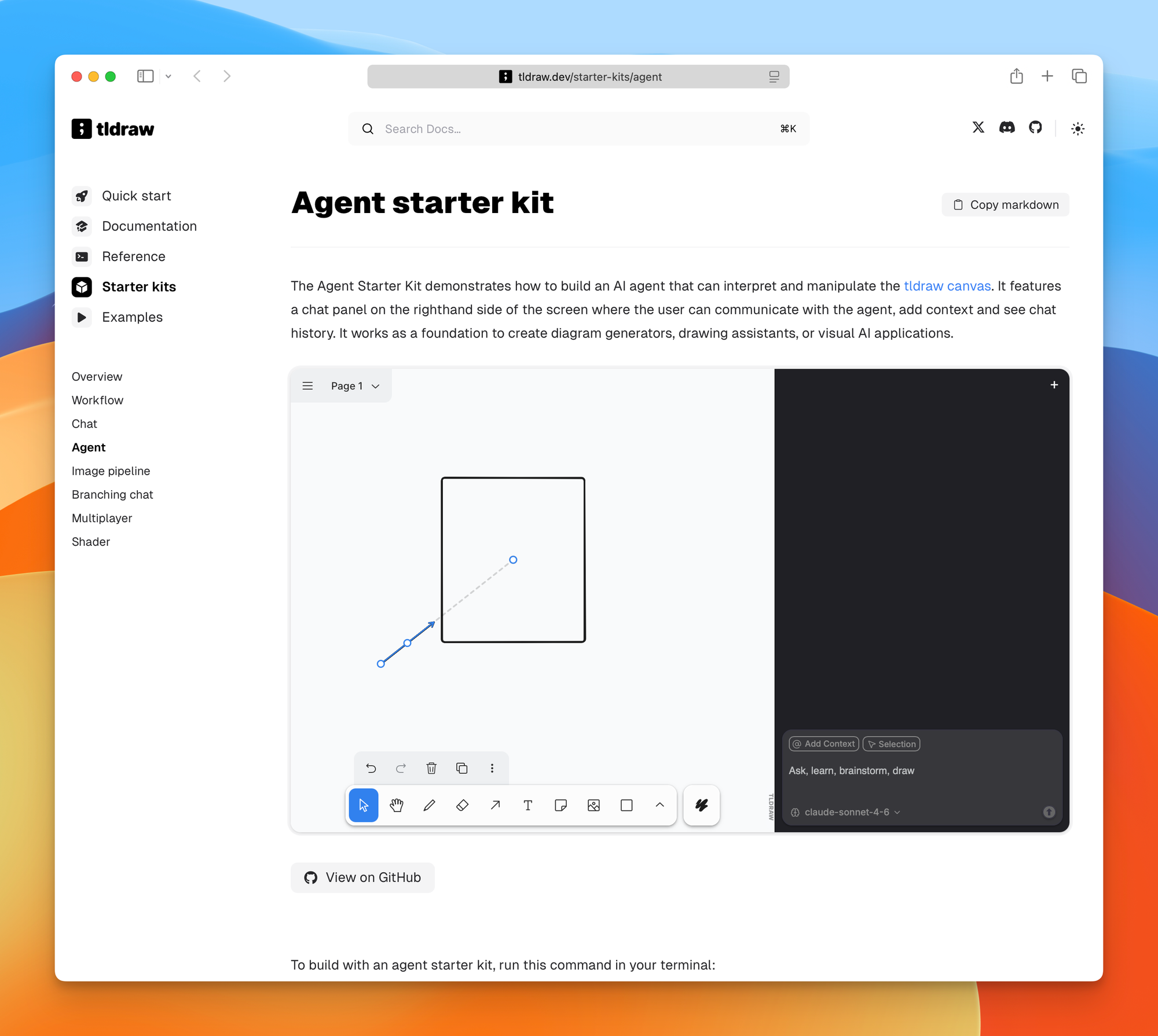
- an Agent starter kit for models that can read and change a canvas
- a Chat starter kit for sending sketches and annotated images to a model
- a Workflow starter kit for executable node graphs
- a Branching Chat starter kit for visual conversation trees
- tldraw Offline, where local agents can change file-based boards and write scripts
- tldraw Computer, an experimental visual computing environment
- tldraw Flash, a separate application for recording canvas animations
Why text is not enough for software work
Suppose I ask an agent to explain a purchase webhook.
It can give me a numbered list:
- verify the signature
- identify the product
- write access to storage
- subscribe the buyer
- send the email
That list hides the part I care about. It does not show what happens if storage succeeds and email fails, which calls can be retried, or where human approval belongs. I also need to see which branch handles a duplicate webhook.
On a canvas, I can put the main path across the middle and branch failure paths below it. I can use another color for external side effects, then mark where the system cannot safely go back.
This matches how I already use AI to understand code. I start at the entry point and follow the data. Then I look for side effects and failure paths. tldraw can put that map on the screen.
An editable canvas lets me correct the agent’s model of the system. It can read my changes and continue from there.
The tldraw MCP App in Cursor and Claude
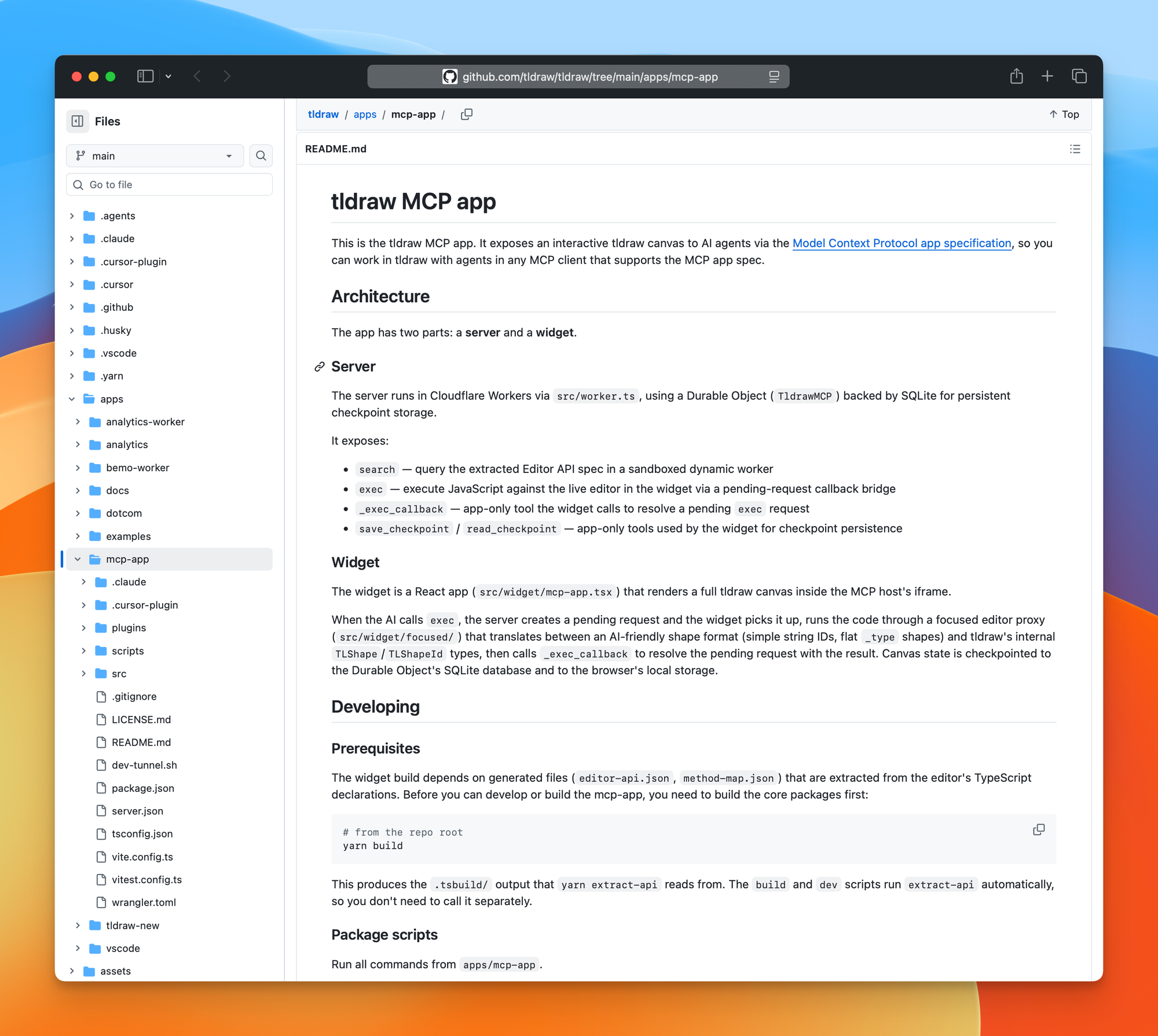
tldraw has an MCP App for Cursor and Claude that you can try without building an application. MCP Apps extend the Model Context Protocol with interactive interfaces. Instead of returning another block of text, the tool can return a working tldraw canvas inside the chat.
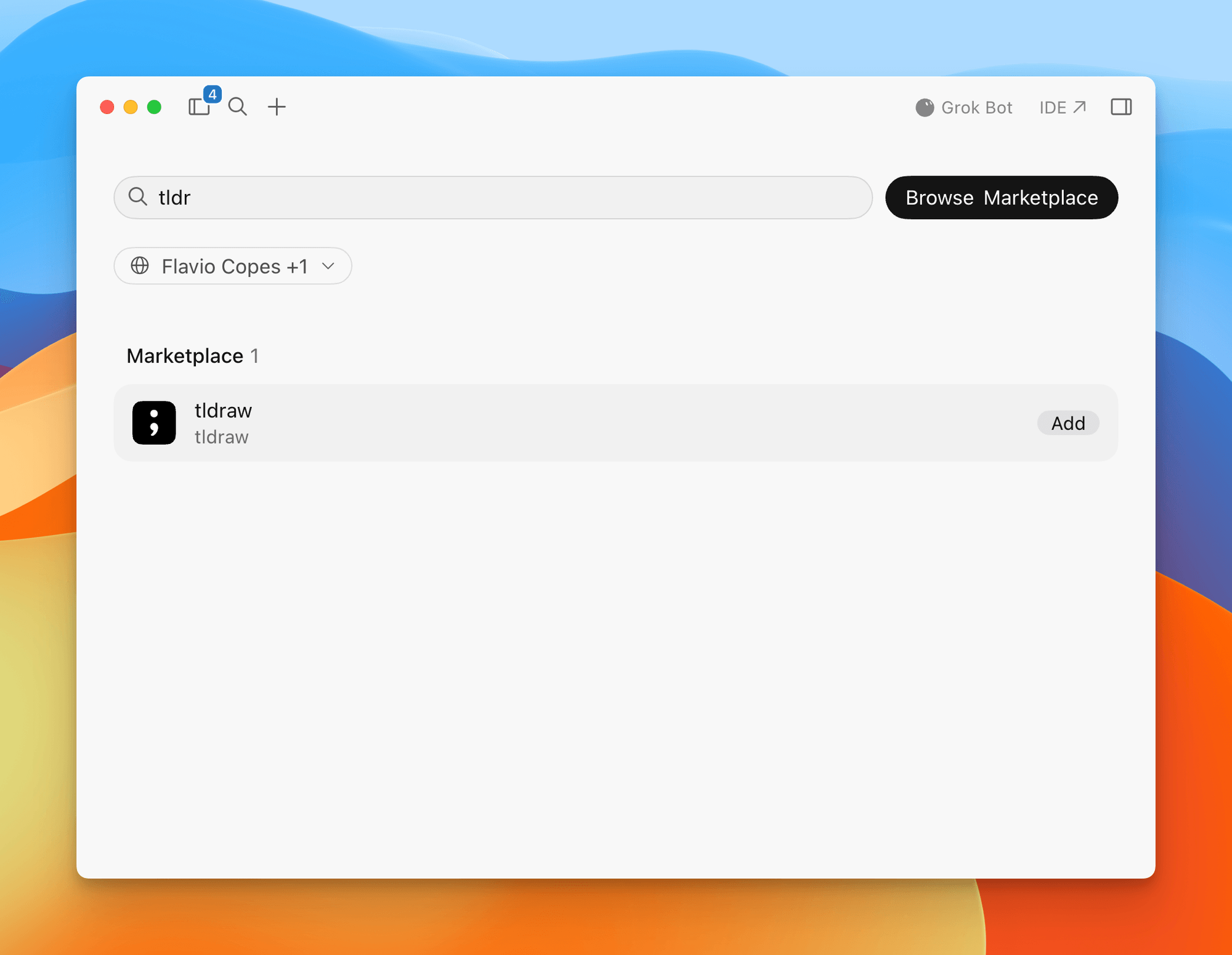
In Cursor, open the Marketplace, search for tldraw, add it, and restart Cursor.
Once installed, Cursor shows the tldraw MCP server and its available tools:
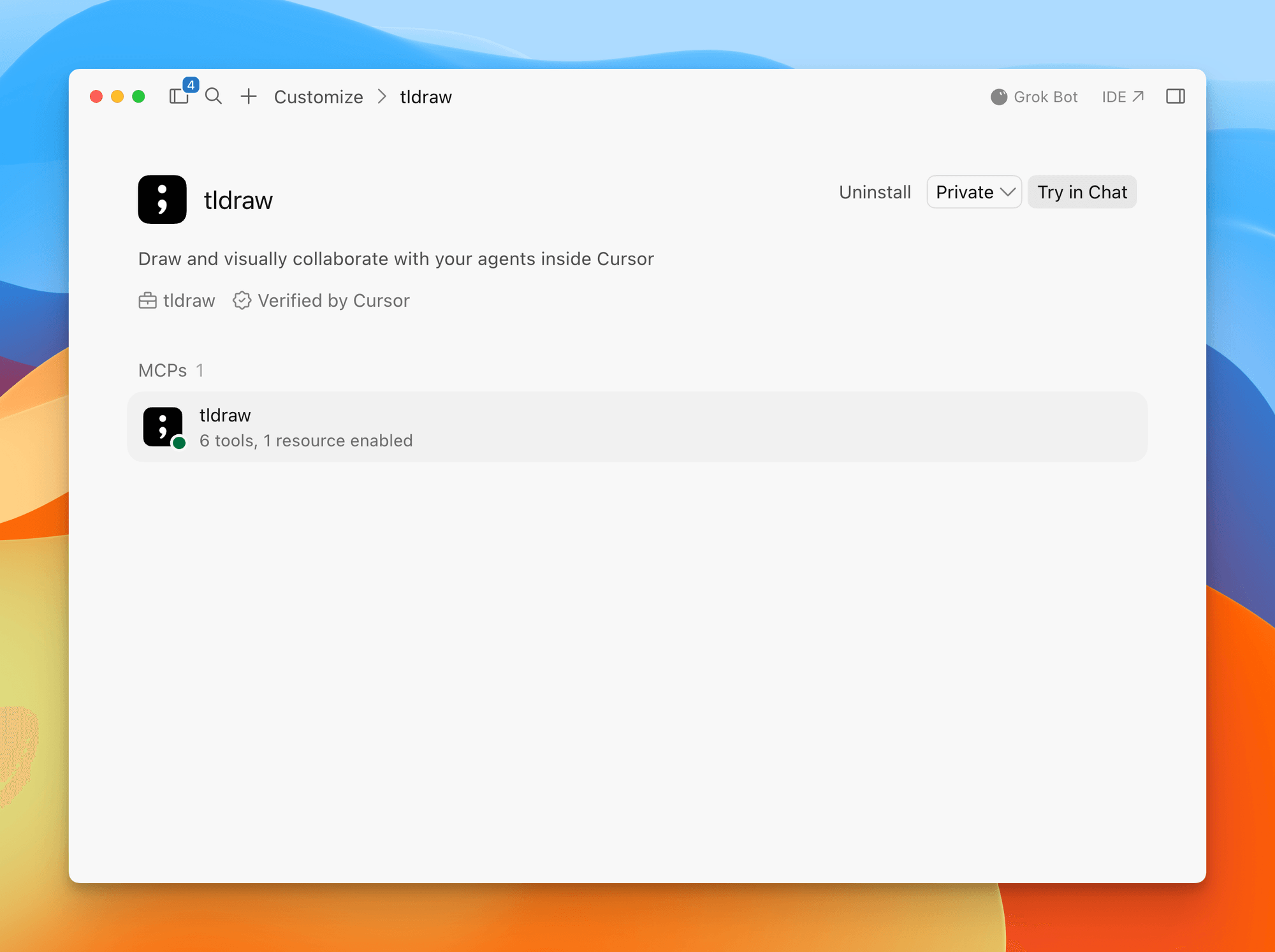
You can also use it in the Claude web and desktop apps. Open Settings, choose Connectors, then Browse Connectors. Search for tldraw and connect it.
Then ask the agent for a diagram:
Read the current repository.

Draw the complete request path for POST /purchase.
Include every external call, database write, email, and early return.
Put the file path and function name in each box.
Use a separate branch for each failure path.

Do not change code.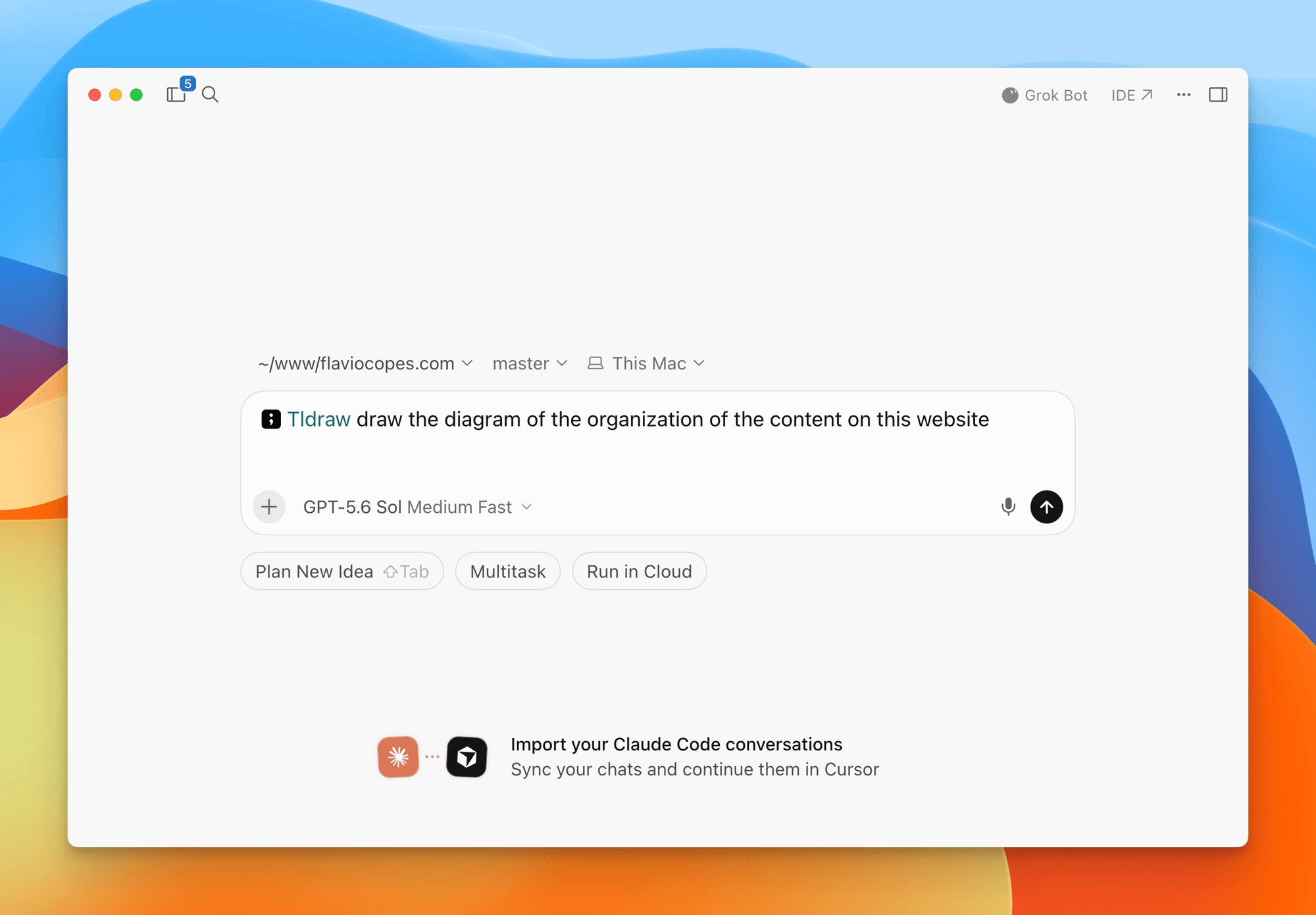
The agent can create and change shapes. You can edit those shapes yourself, and the current canvas state goes back into the conversation.
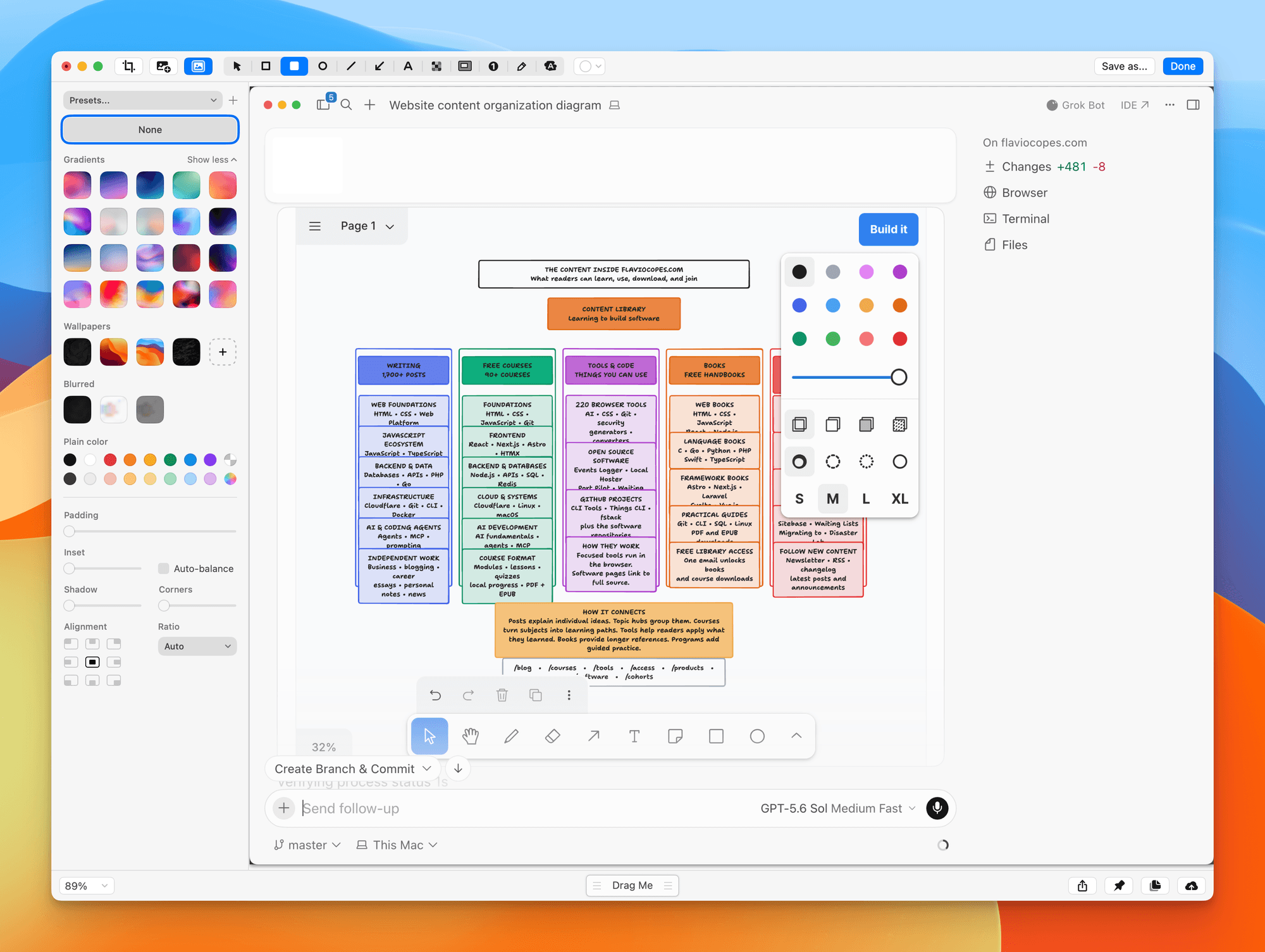
I can move the email before the database write and ask, “Is this what the code really does?” Or I can delete a branch and tell the agent that this behavior does not exist.
Now the discussion has something concrete to refer to. Instead of saying “step three in your previous answer,” we can point at the exact box.
Steve Ruiz used the MCP App during real software work at tldraw. In the MCP App write-up, he describes asking Cursor to compare an old and new curve algorithm visually. The agent drew both versions and annotated the optimization. He then used the diagram to steer the implementation.
How an agent sees the canvas
A screenshot shows the model the rough layout. It still needs exact text, shape identities, and coordinates.
tldraw’s AI integration combines a screenshot with structured context about the board and conversation:
- a screenshot of the current viewport
- simplified shape records with text, type, position, and bounds
- information about shapes outside the viewport
- the current selection and recent actions
- the conversation history
The image gives the model the layout, and the structured records give it the exact values.
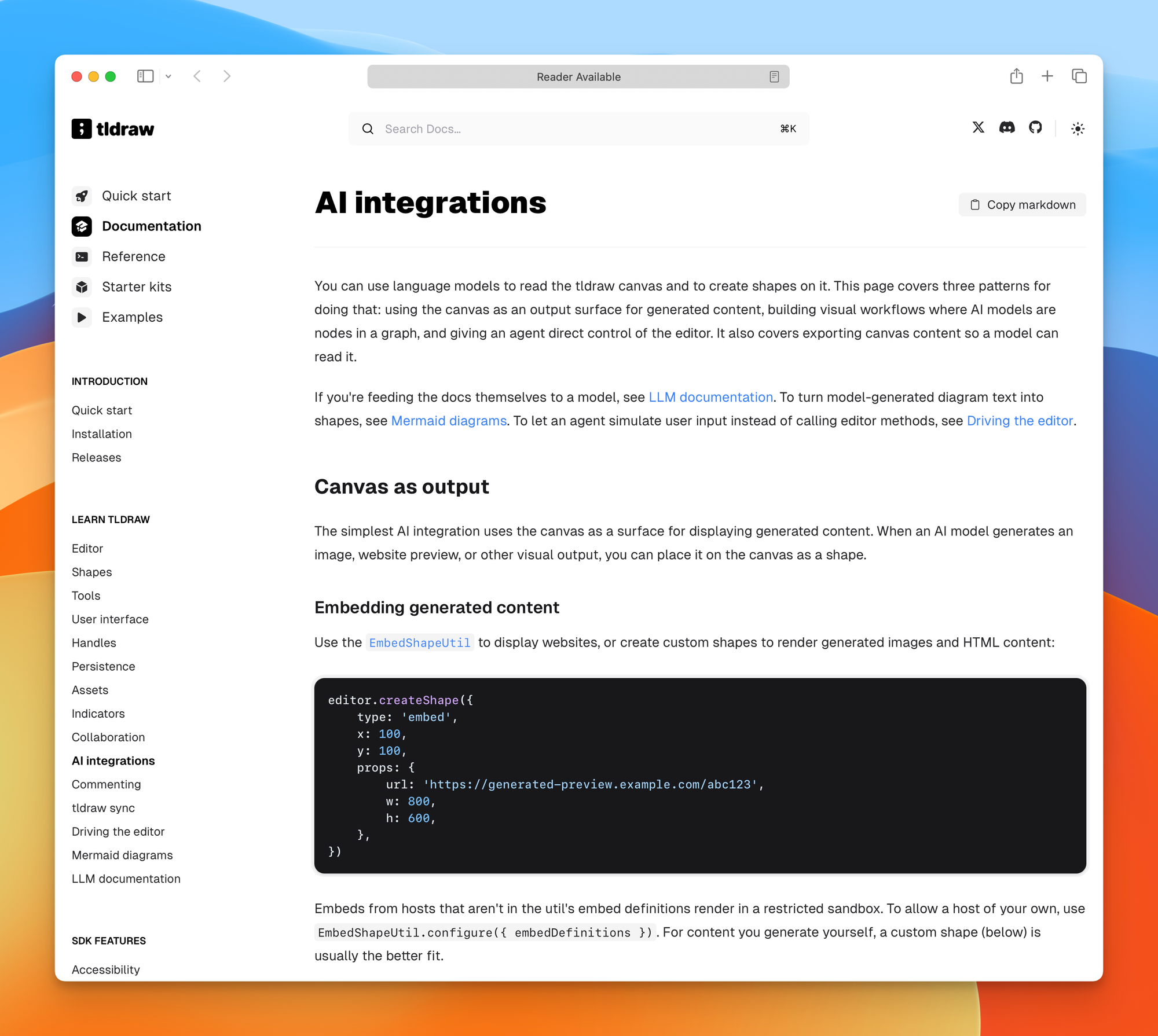
When the model changes the board, it performs typed canvas actions instead of generating an opaque image. The Agent starter kit validates and cleans those actions before applying them. It can correct common model mistakes such as duplicate identifiers, missing shapes, and invalid coordinates.
The Agent starter kit
The Agent starter kit is for building an application where an agent controls the canvas.
You can create a starter project with:
npm create tldraw@latest -- --template agent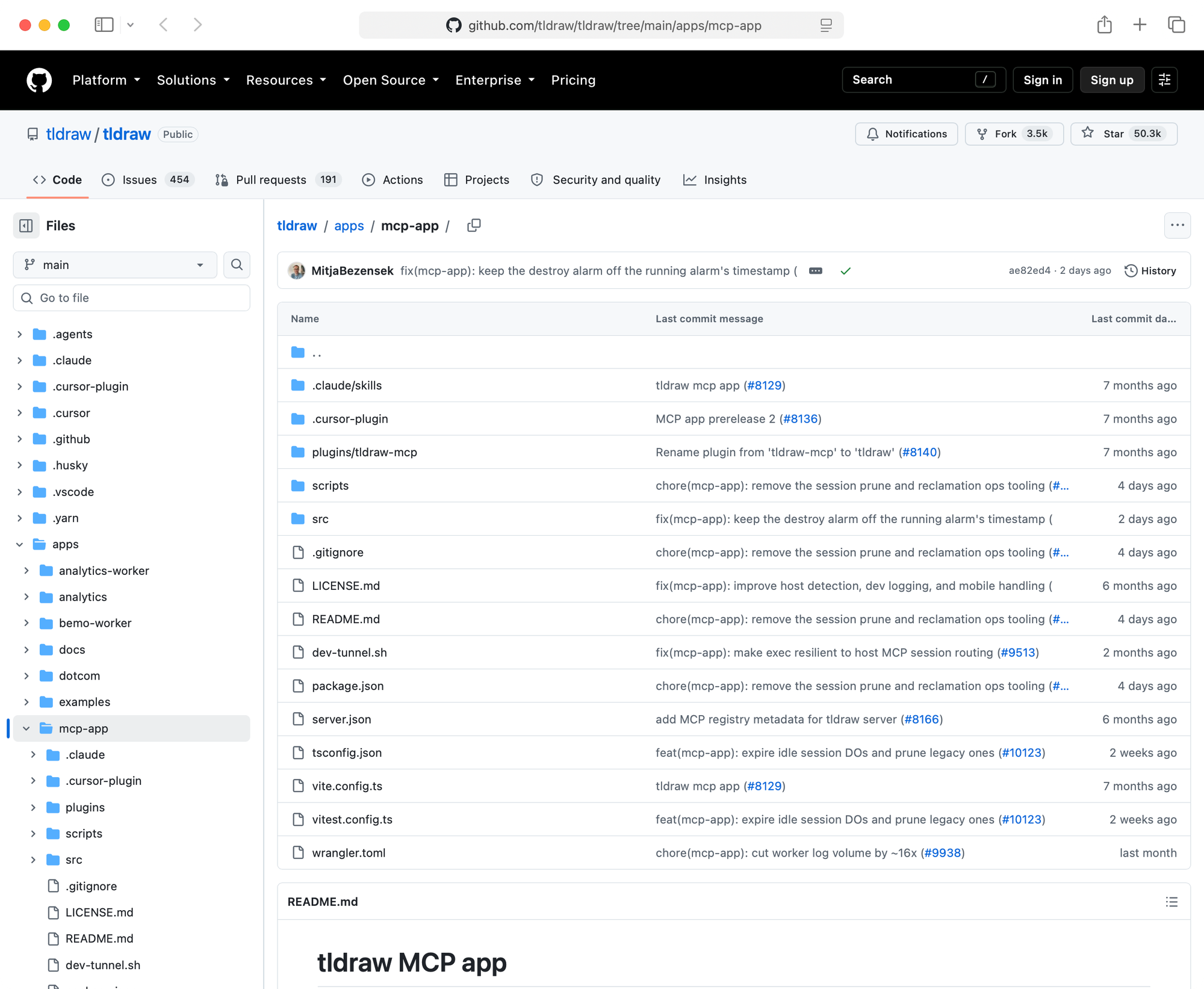
The included agent can create, update, and delete shapes. It can draw, arrange groups, move its viewport, count matching shapes, maintain a todo list, schedule follow-up work, and call external APIs.
You can configure a planning mode that reads without drawing. A working mode can edit shapes, while a review mode can remove most editing tools and focus on critique.
I like this pattern for coding agents too. The model does not need every capability during every phase. A planning agent should not be able to deploy, and a review agent should not quietly rewrite the work it is reviewing.
The starter kit supports several model providers behind a common interface. If I built on it, I would focus more on keeping the action layer narrow than on which model draws the arrows. The model could propose a node, connection, or annotation. Application code would validate the operation and decide whether it is allowed.
The Chat starter kit
The Chat starter kit adds a whiteboard to a chat application. You can upload an image, crop it, draw over it, and send the annotated result to the model. The application saves both a PNG and the tldraw snapshot, so you can reopen the drawing without flattening all its shapes.
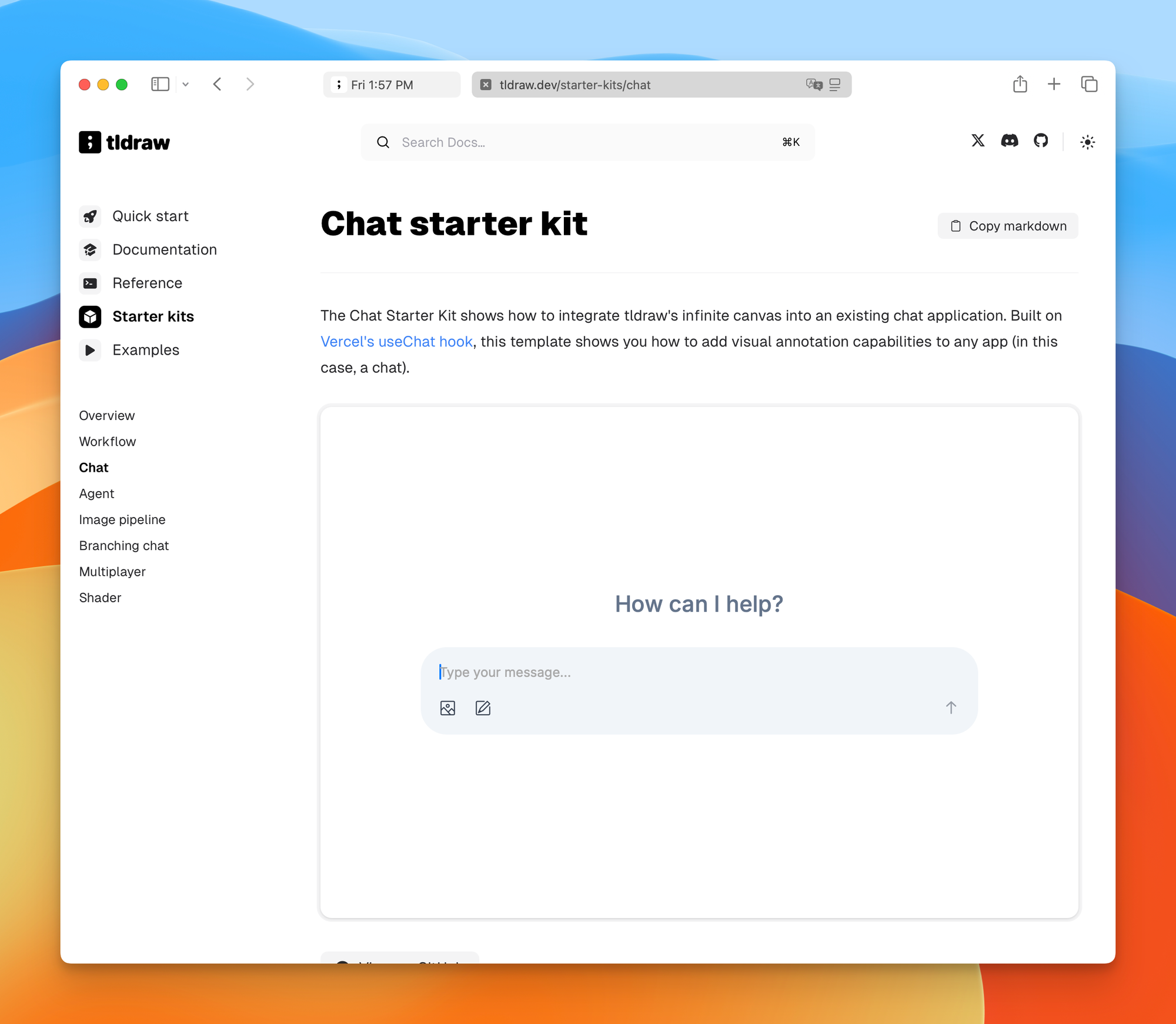
For a visual bug report, paste a screenshot of a mobile page. Circle the clipped button, draw the spacing you want, and add a note beside the incorrect state. The model receives the image with your instructions on it.
This is much clearer than writing:
The second box on the right should be a little lower,
but only on screens around 390 pixels wide.
The Workflow starter kit
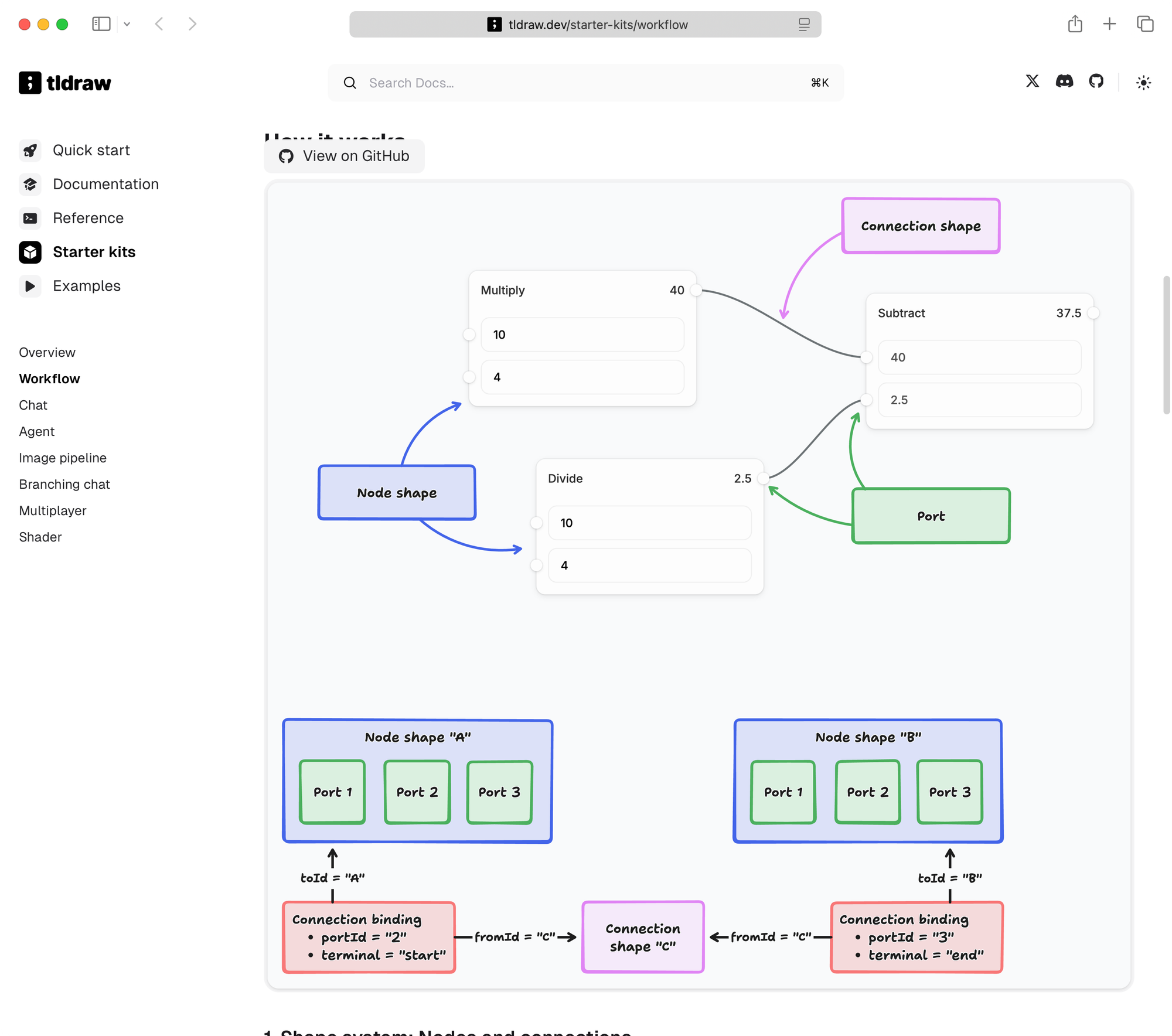
The Workflow starter kit turns the canvas into a node-based programming interface.
You create custom node shapes with input and output ports. Bindings keep the connections attached when nodes move. An execution engine resolves dependencies and runs the nodes in the correct order.
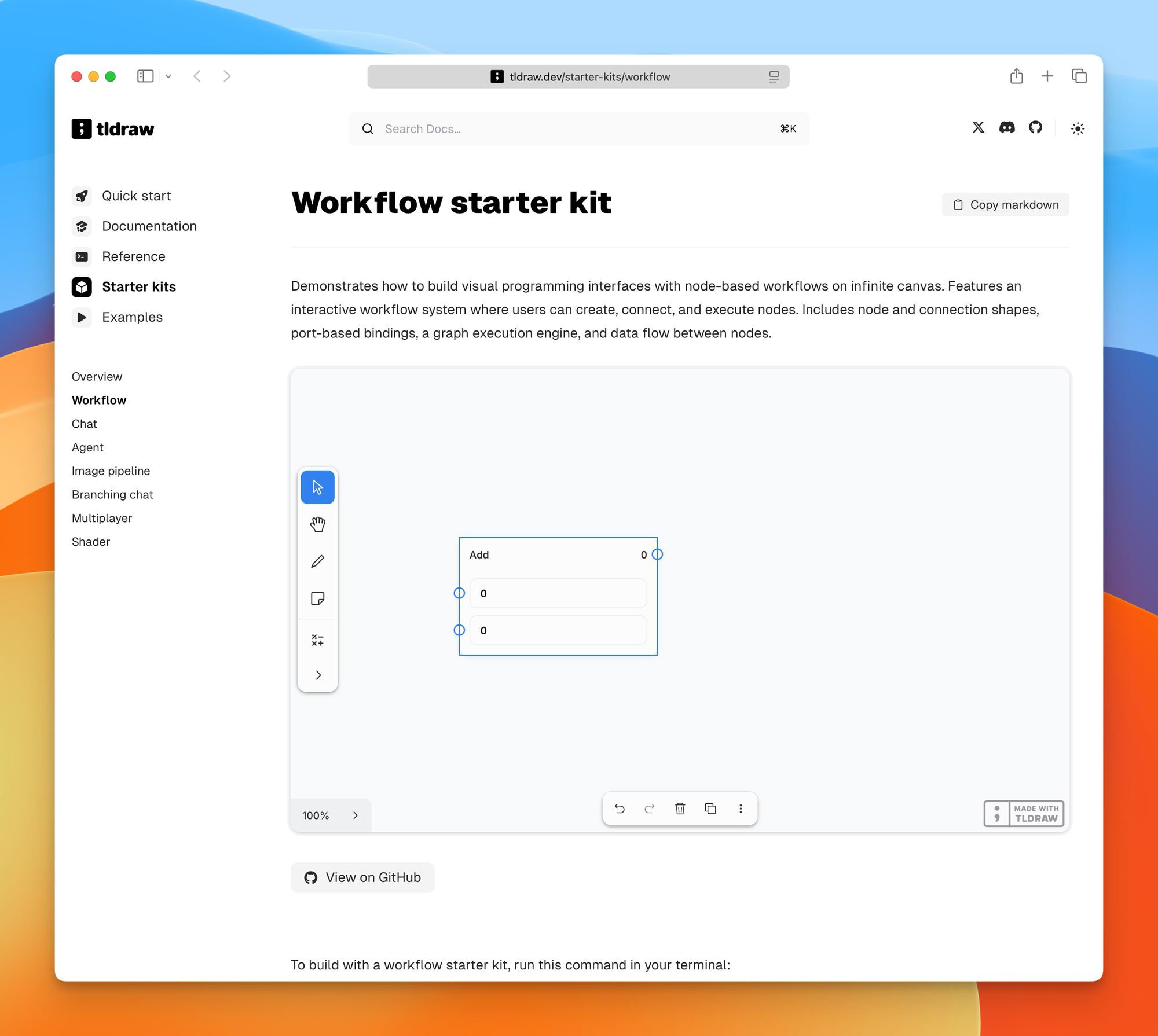
Start with:
npm create tldraw@latest -- --template workflowThe included engine is a demonstration. You replace it with your own business logic, which can run in the browser or on a server.
The visual graph only describes the execution. Your application still needs authentication, retries, idempotency, logs, rate limits, and approval boundaries.
For example, I could draw a release workflow with these nodes:
build → test → preview → visual check → deploytldraw can manage the visual graph and its connections. My execution layer must decide what each node means. The deploy node should still require the checks and permissions enforced by code.
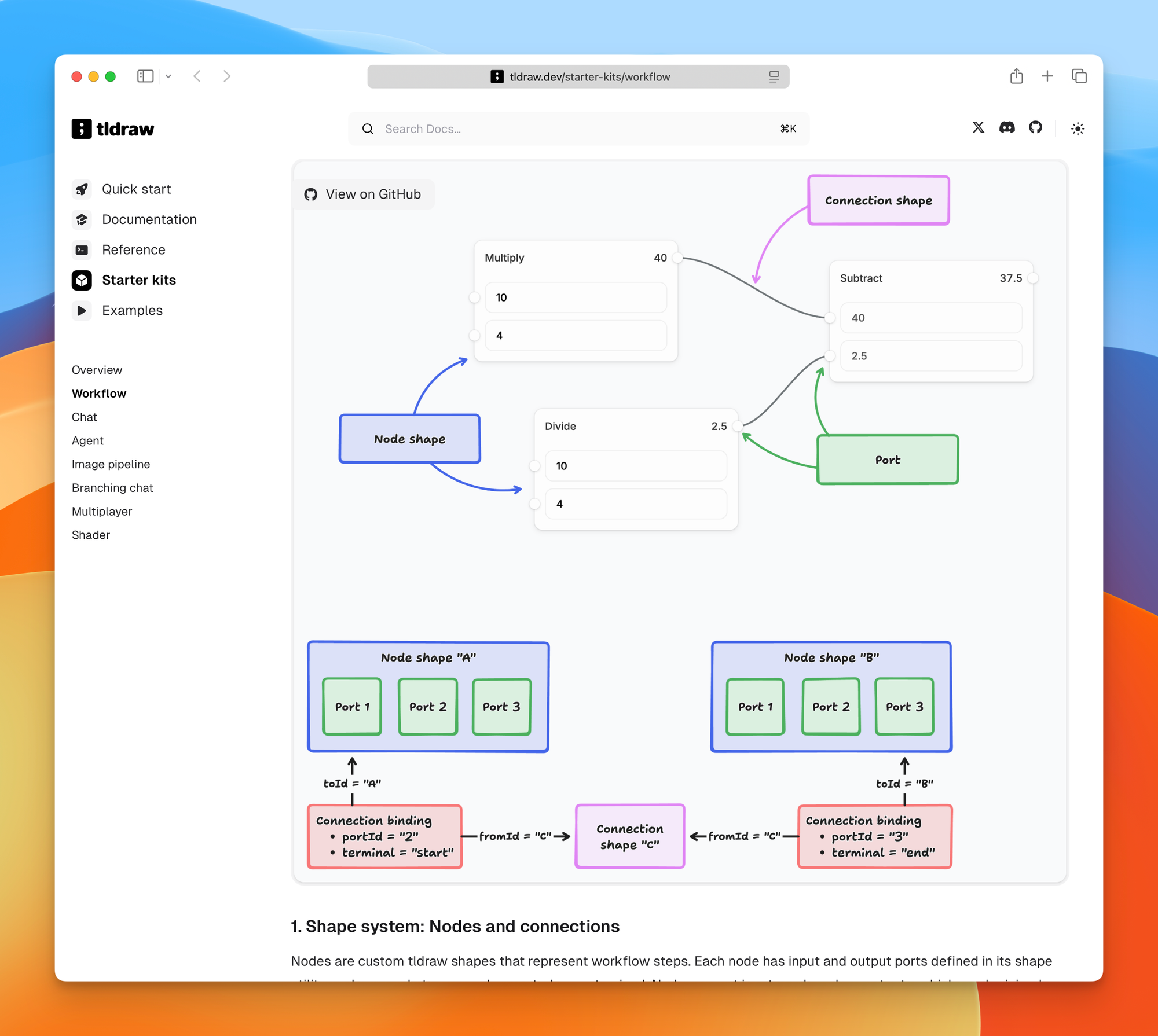
For agentic software, the canvas can show which agent performs each step, which artifact moves forward, and where a person must approve the result.
You could turn this into a visual front end for a software factory. I would wait until I had a real need for it, because a plain plan and one local agent still cover most small tasks.
Branching conversations
Normal chat hides alternative paths. You ask a follow-up, continue down that branch, and lose sight of the other answer.
The Branching Chat starter kit puts messages in connected nodes. You can branch from any point, compare the results, and keep each branch’s context visible.
For software development, I would use this for decisions:
- keep the current architecture
- move the work into a queue
- replace it with a scheduled job
- remove the feature
Each branch can hold its consequences, risks, and implementation plan. You can compare them without asking the model to summarize an hour of chat from memory.
tldraw Offline and local agents
tldraw Offline is a desktop version of tldraw built for local files. It is available for macOS, Windows, and Linux.
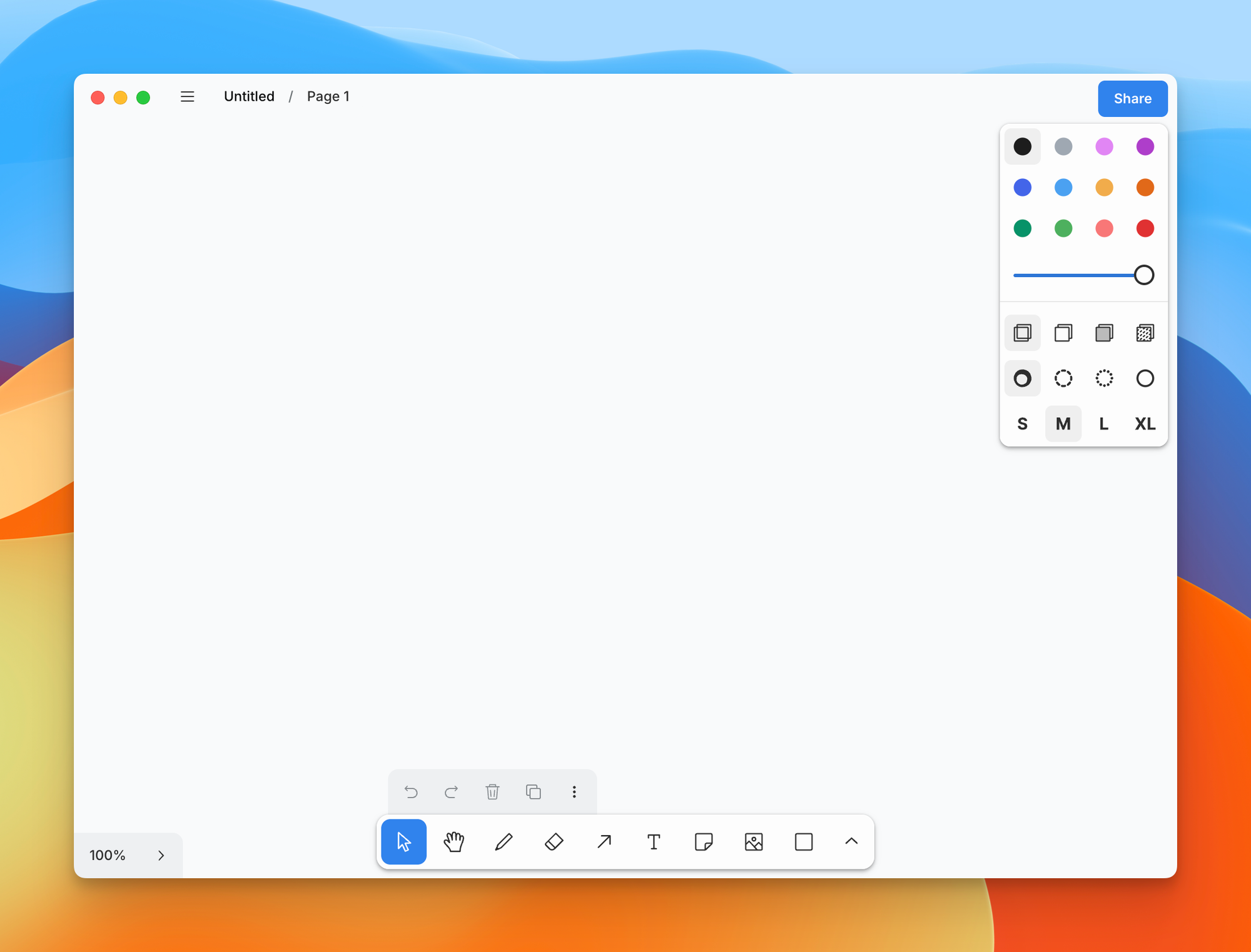
There is no account and no cloud document server. Boards live in self-contained .tldraw files at a location you choose.
A file can include several canvas pages, images, videos, and a document script. You can keep it private, back it up, put it beside a project, or send it to someone else.
Drawing, editing, local media, saving, and exporting all work offline. Web embeds and scripts that fetch remote data still need a network connection.
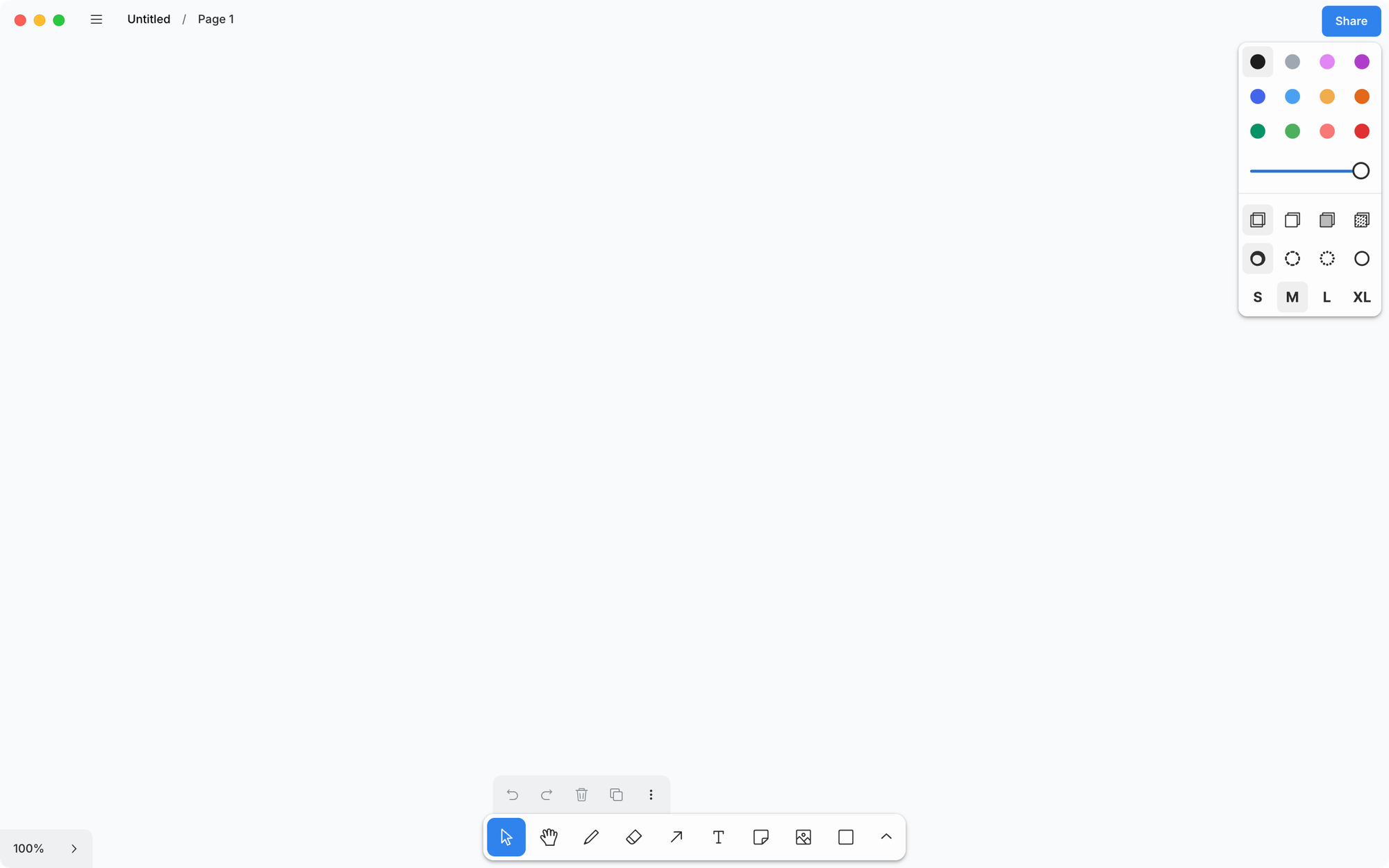
tldraw Offline interests me most because I prefer local coding agents with access to my computer. A local canvas file fits how I work.
Connect tldraw Offline to a coding agent
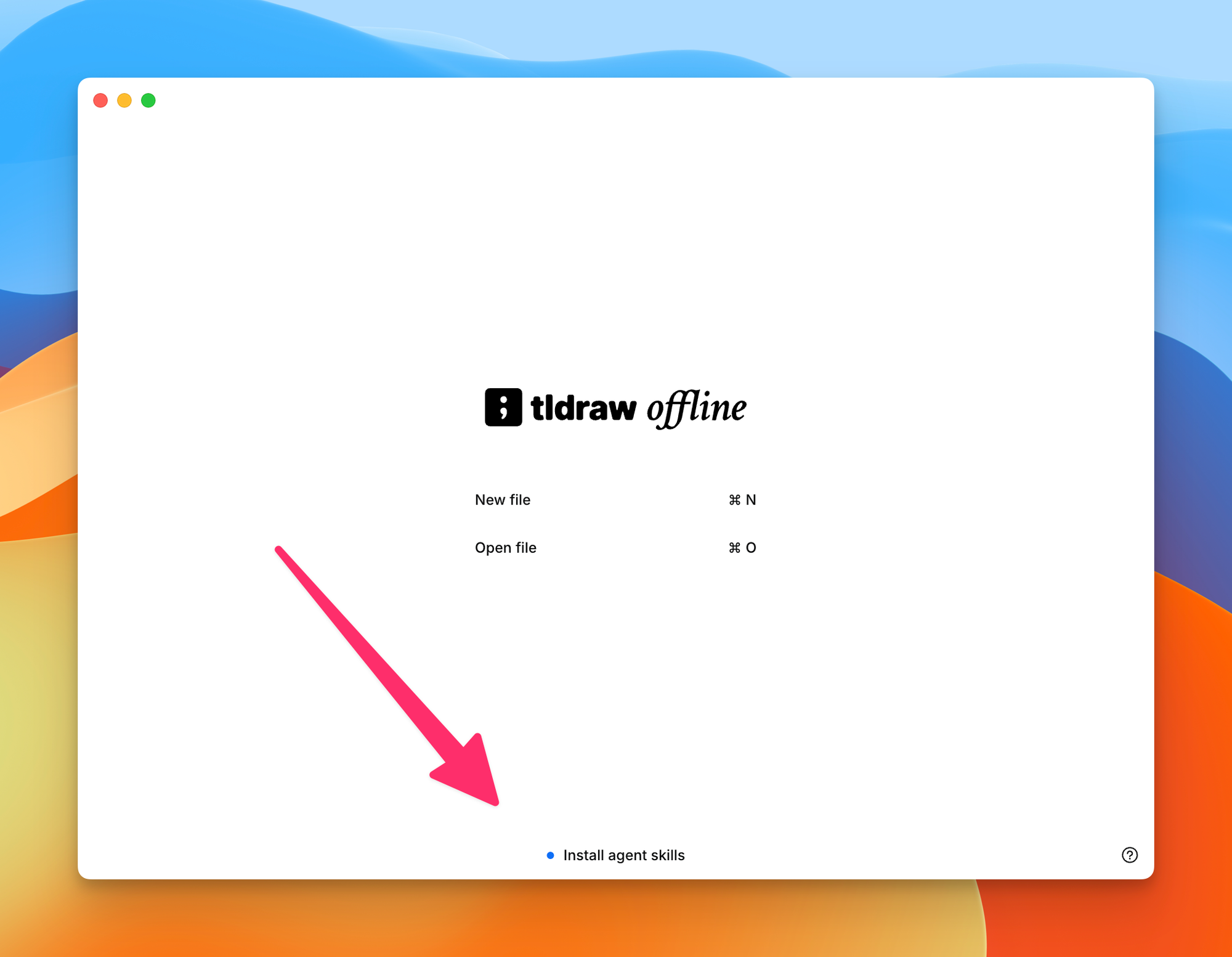
tldraw Offline can install its own agent skills.
Open the Develop menu and choose Install Agent Skills. The app installs instructions for supported local tools, including Cursor, Claude Code, and Codex. Restart or reload the coding agent so it discovers them.
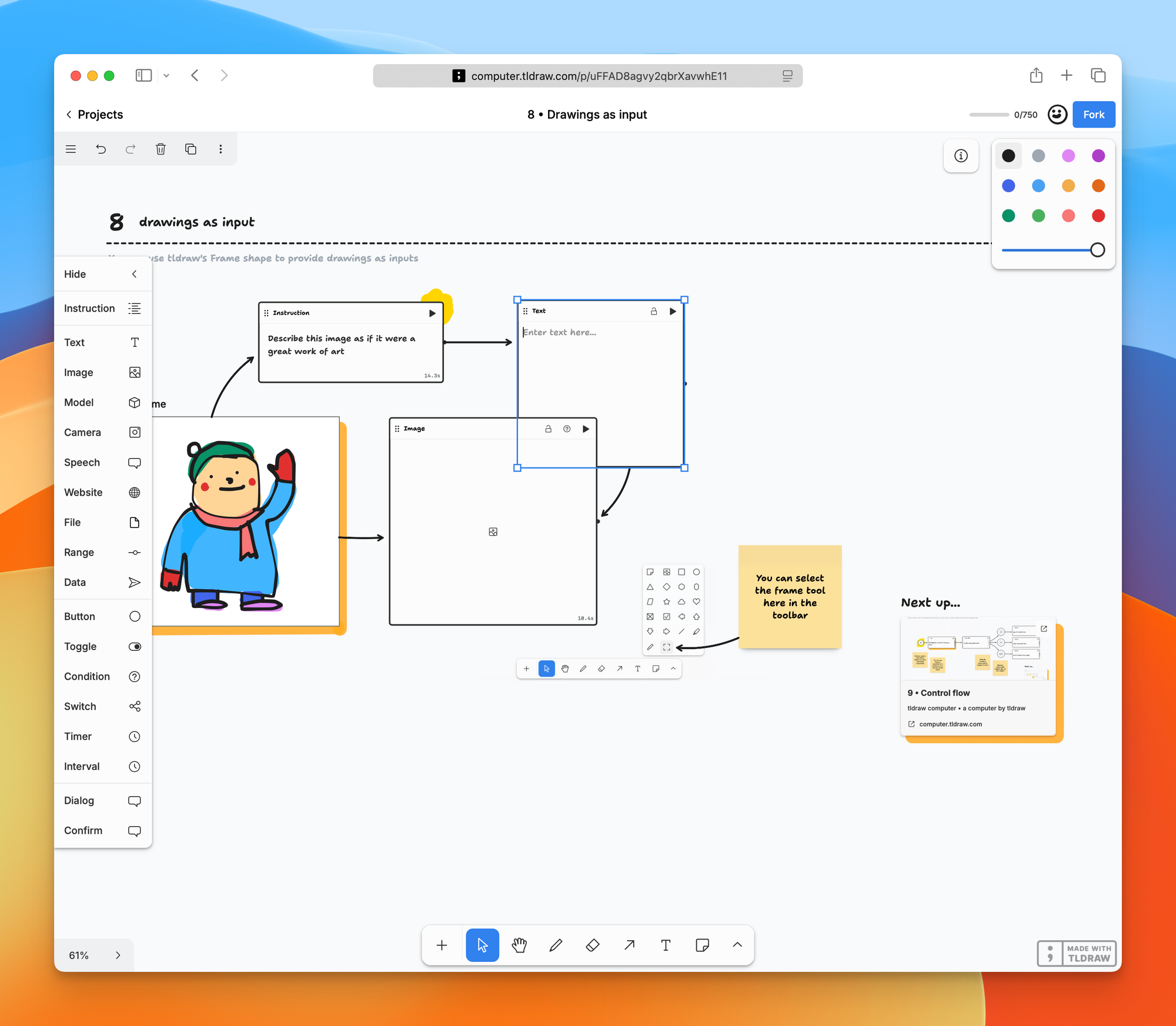
Keep tldraw Offline and the target document open while the agent works. If several boards are open, name the one you want it to use.
The agent can inspect shapes and connections, capture a screenshot, and change the canvas through the open editor. It can also add document scripts that give the board new behavior.
Agent changes are normal unsaved edits. Review the result, then save the document yourself. The agent can inspect the repository as code while using the board as its visual map.
Keep a canvas beside the repository
I could keep an architecture.tldraw file inside a project and ask the agent:
Compare the open architecture.tldraw board with the current repository.

Mark outdated nodes in red.
Add missing external services in orange.
Do not remove anything.
Include the source file beside every change you propose.
I would review the board, correct it, and ask the agent to turn the accepted changes into a short PLAN.md.
The diagram would not replace the code or project documentation. It would be a map I can inspect before asking an agent to make a large change.
I could also use one board per feature, with the existing system on the left and the proposed version on the right. Questions and assumptions would stay visible between them.
Turn a board into a small application
A .tldraw document can include JavaScript in script/main.js.
The script can create and update shapes, react to canvas events, add controls, import data, or run animations. It travels inside the document when you share the file.
Use Develop → Reveal Script to open the script workspace. Saving main.js reloads it in the open board. You still need to save the tldraw document to embed the updated script in the file.
A coding agent could read a local CSV and draw a chart, add a presentation mode, or update an architecture board from repository data.
The script workspace supports tldraw, React, and React DOM. It is not a general Node.js project, so I would keep external build systems and complex application logic outside it.
Share a board without a cloud service
tldraw Offline can share an open file directly with people on the same network. The host keeps the file. Guest edits flow into that copy and become permanent when the host saves it.
Under the hood it is the same sync package that runs tldraw.com, started as an in-process server on the host’s laptop instead of in a Durable Object. Kostya Farber described the build in August 2026.
This could work well during an in-person planning session because it requires no account or internet connection.
Local network sharing is not encrypted. Anyone with the invitation link can view or edit the board, so I would only use it on a network I trust.
Watch out for external file changes
tldraw Offline does not merge file contents changed by Git, a sync service, another program, or another computer while the document is open.
A later save from the desktop app can overwrite that external change. Let the installed agent skill work through the open editor. If another tool needs to replace the .tldraw file itself, close the document first and reopen it afterward.
The native .tldraw format works across macOS, Windows, and Linux. To open a board in tldraw.com, the tldraw VS Code extension, or the Obsidian extension, export it as the older .tldr format. That export removes document scripts.
A .tldraw file can contain scripts, so read an unfamiliar board before running it. Be especially careful if its script can call external services.
When an unfamiliar scripted file opens, choose Open Without Script. You can inspect the board first and approve the script later.
What tldraw Computer is
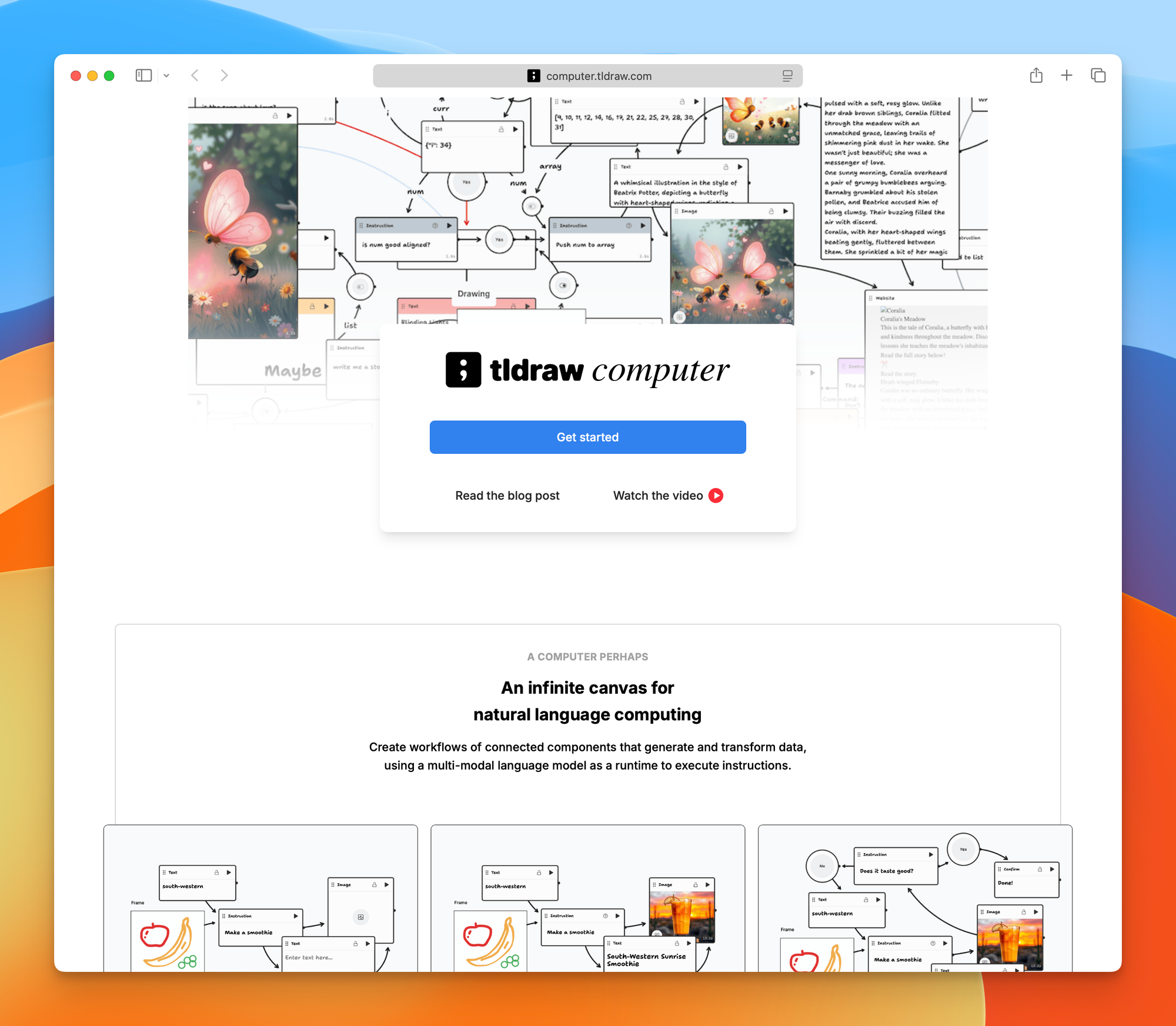
tldraw Computer is an experimental infinite canvas for natural-language computing.
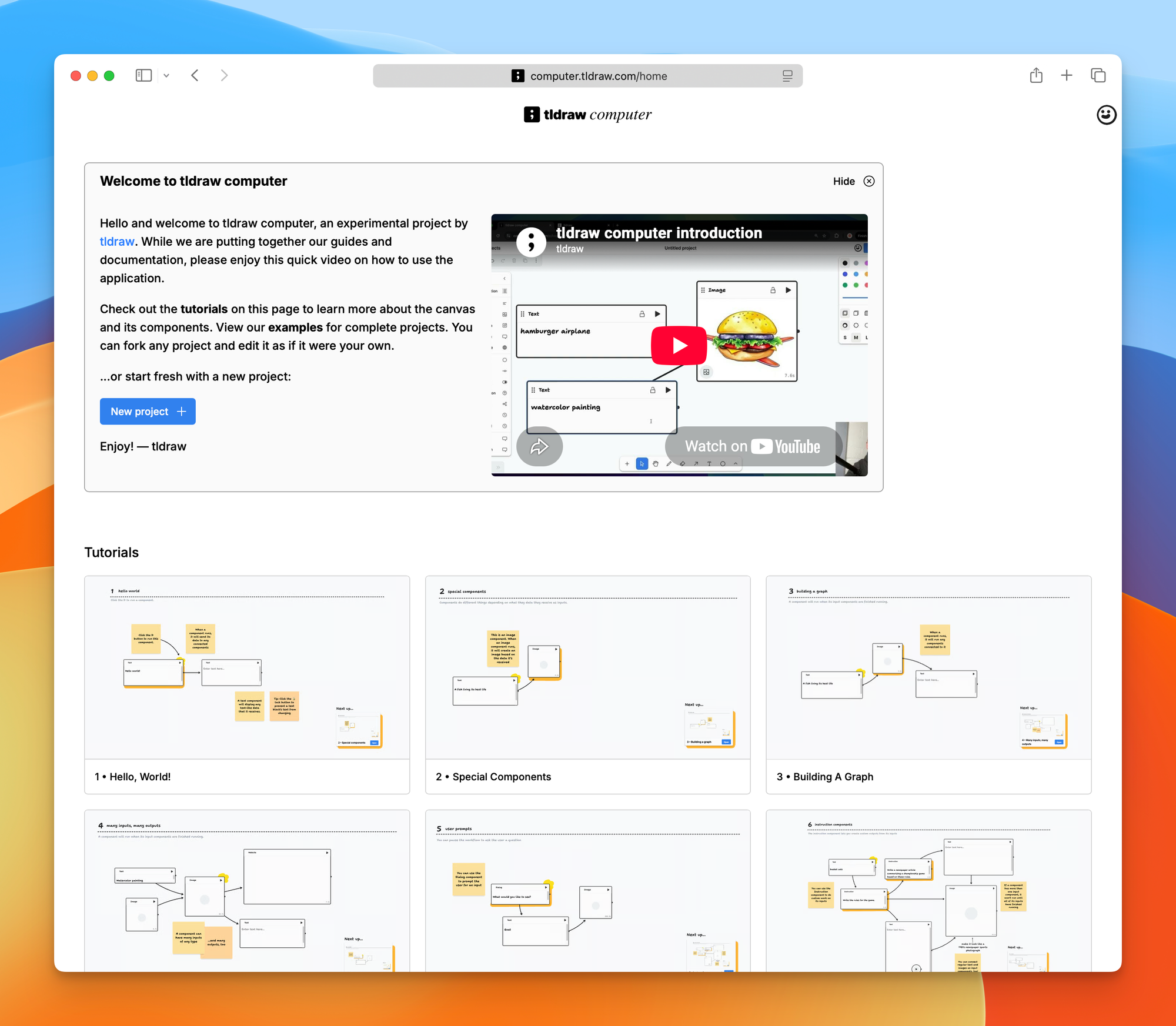
You connect components that generate and transform data. A multimodal model acts as the runtime. Workflows can branch and loop, and the canvas shows the data beside the operations that produced it.
This is closer to visual programming than desktop “computer use”.
It does not mean an agent automatically gets control of your Mac, browser, or terminal. The word computer here refers to the canvas as a place where computation happens.
Input, operation, and output can live together. You might place a prompt beside the image it generated, with a transformation between two versions. Another branch can compare different model outputs.
tldraw Flash
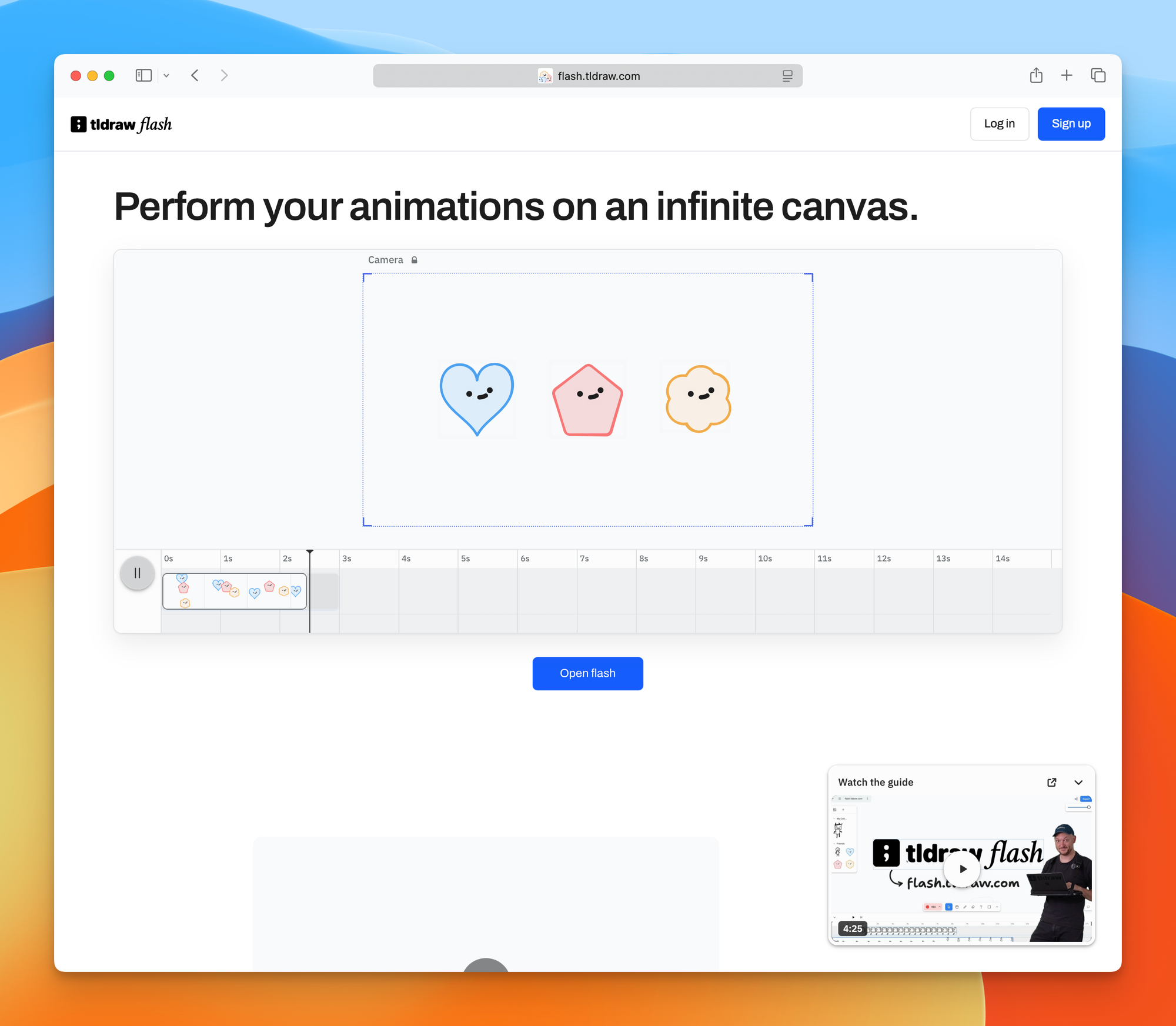
tldraw Flash is a newer, separate web application for making short animations on a tldraw canvas.
Draw something, press record, and move it. Flash captures your actions as a clip on a timeline.
According to the Flash user manual, you can trim and split clips, change their speed, arrange them on tracks, record voiceover, add audio, and export H.264 MP4 video at 60 frames per second. You can also publish a watch link that other people can remix into their own project.
Flash is separate from the agent frameworks. Here I would use it to explain a flow.
An agent can help plan a deployment diagram or a request flow. Flash can turn that idea into a short animated walkthrough:
request enters → signature is checked → record is written → email is sentI could use this inside a tutorial, course lesson, product walkthrough, or release note. Instead of panning across a large static architecture diagram, the animation reveals the path in order.
I would use Flash for the final presentation. Its manual does not document a direct handoff from the tldraw MCP App or tldraw Offline, so my workflow would not depend on importing between them.
How I would use tldraw
I would start with the MCP App in Cursor on an existing project. Before building anything, I would use it to make a codebase map.
Understand one path through a real system
This site’s purchase flow is a good example. One webhook can verify a signature, assign course access, update a mailing list, write to storage, and send email.
I would ask the agent to draw one successful request. Then I would add the duplicate delivery and storage failure. The email failure would get its own branch too.
Every box would need a file path and function name. If the agent cannot point to the code, the box stays marked as an assumption.
This would show me which parts came from the repository and which parts the agent inferred.
Review an agent’s plan before it writes code
When a feature touches several systems, a text plan can hide a bad boundary.
I would ask the agent for two diagrams: the system today and the proposed system. I would move nodes until the responsibilities looked right, then ask it to regenerate the written plan from the accepted board.
Annotate UI changes
For a visual bug, I would paste the real screenshot onto the board and draw the correction.
I would use this for responsive layout work and dense landing pages. Small alignment problems can take many chat messages to describe.
I would also ask the agent to place its proposed screenshot beside mine after implementation, so I could compare them side by side.
Map dangerous actions
I built an MCP server that can buy a domain. The hard part was the boundary before the irreversible action, not the API call.
tldraw would be useful for showing that boundary. The agent can prepare the quote, then code checks the price and expiry. A person approves one exact purchase before the server registers the domain.
This kind of diagram is easier to audit when approvals, retries, and irreversible steps are visible.
Keep one local board per product
For products such as Waiting Lists or Port Pilot, I would try one .tldraw file beside the repository.
It would contain the current architecture, external services, important data flows, and the few invariants an agent must not break. A local agent could update it after a meaningful architecture change.
I would not put every component on it. A board with 200 boxes is another form of unreadable documentation. It should show the boundaries I need to remember.
Create short animated explanations
A queue retry, a webhook arriving twice, a deployment moving between environments, or an agent stopping for approval all have a sequence. Flash could show that sequence faster than a page of prose.
I would keep each animation focused on one flow and under a minute.
Building your own tldraw application
I would only reach for the SDK after the same visual workflow kept appearing.
Repeated screenshot annotation fits the Chat kit. I would use the Agent kit when an agent needs to maintain a diagram. If the nodes must execute, I would start from the Workflow kit.
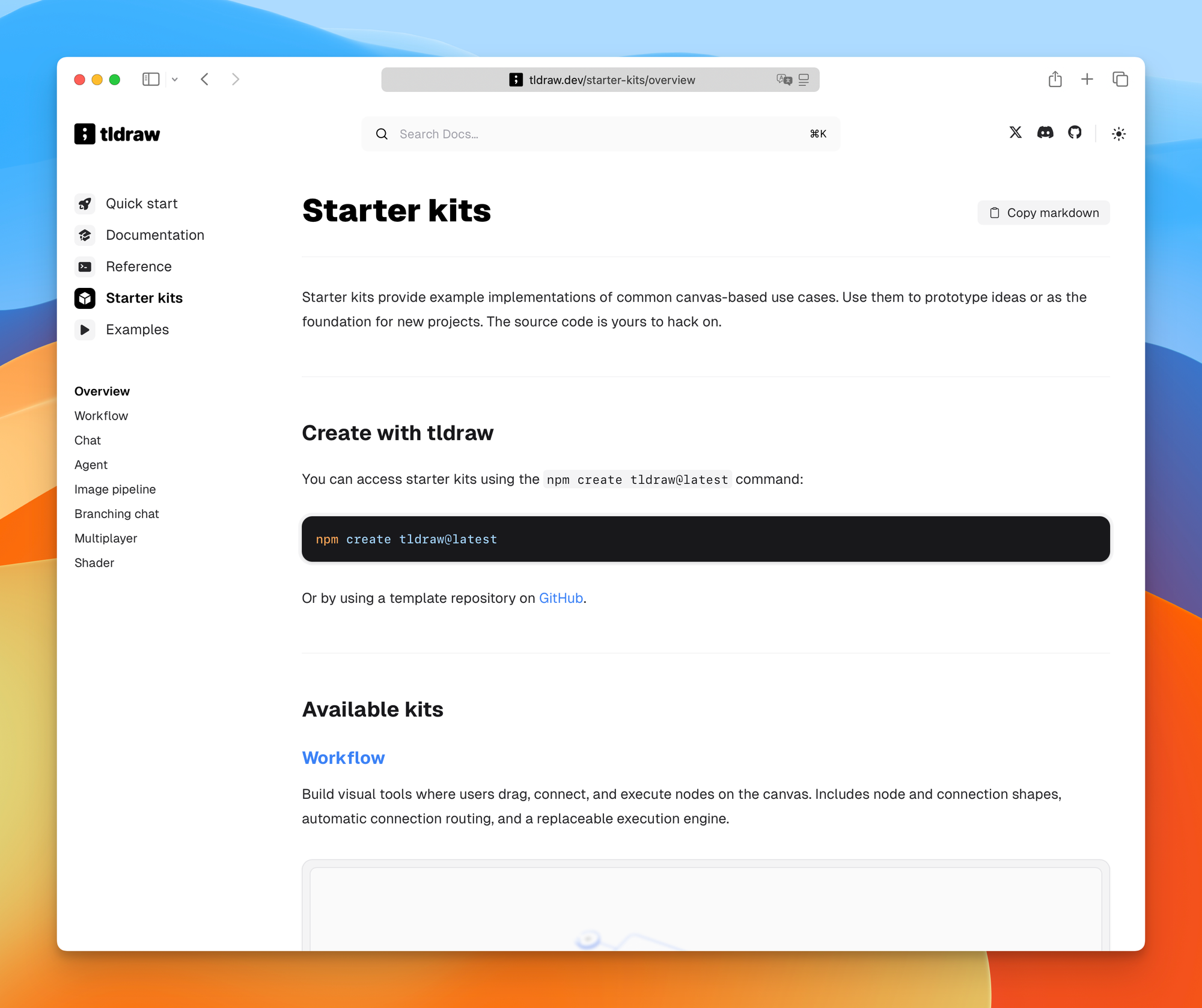
The SDK uses React and TypeScript. If those are new to you, my free React course and TypeScript course cover the foundation.
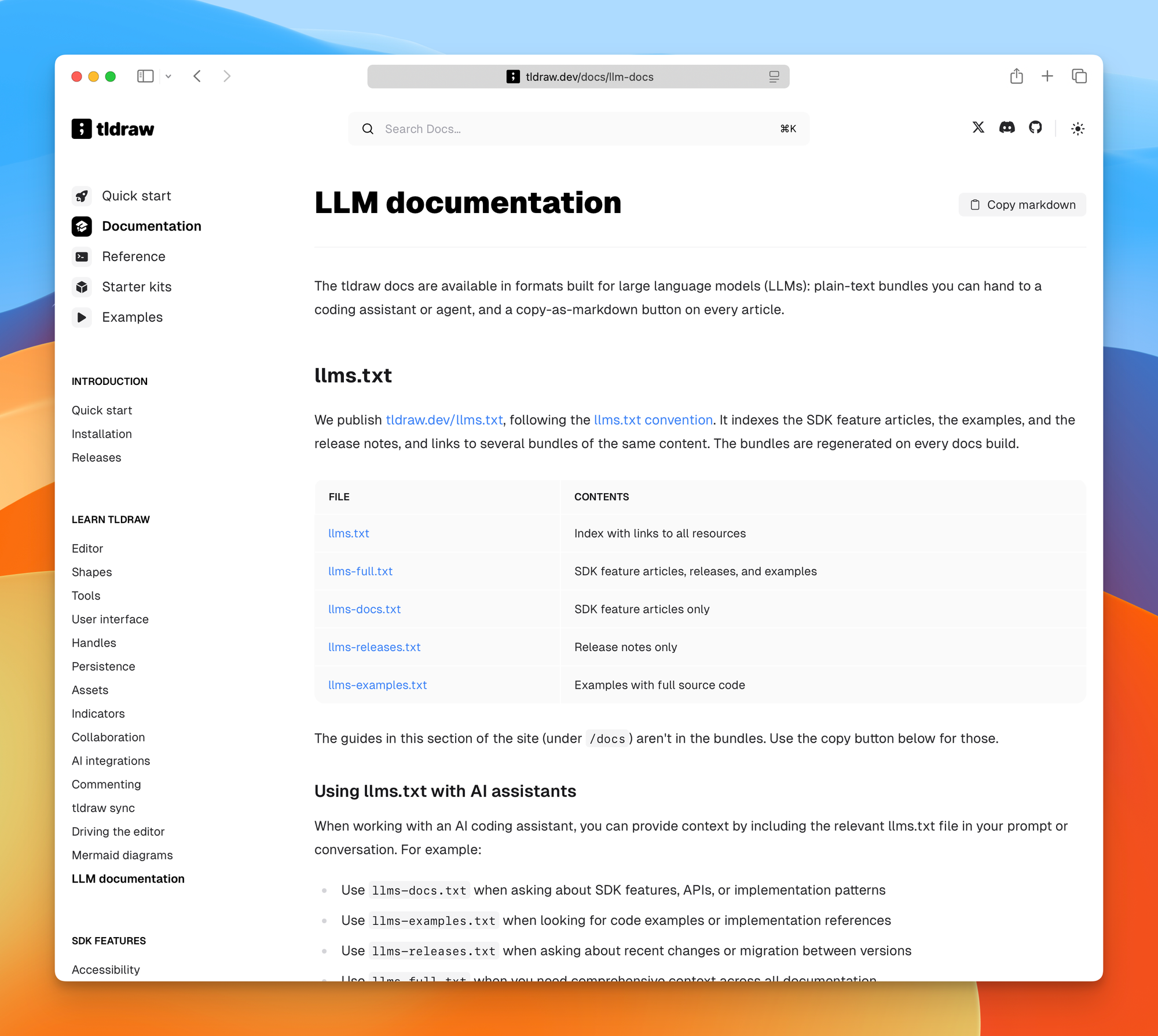
tldraw also publishes documentation bundles for language models. You can give an agent the SDK docs, examples, or release notes without asking it to scrape the documentation site.
You can create the smallest starter with:
npm create tldraw@latestFrom there, replace the generic board with your own shapes, actions, and rules.
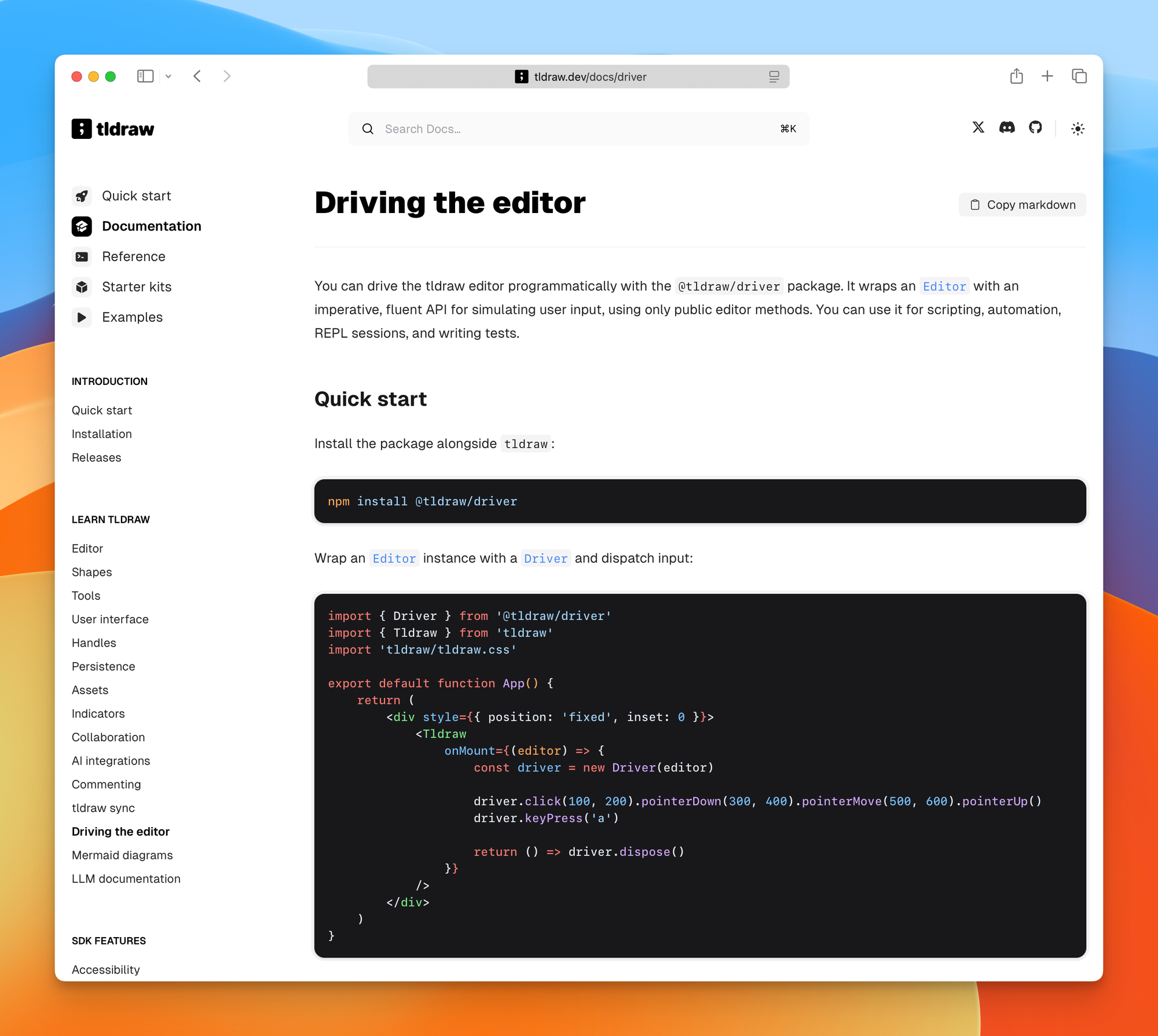
The SDK exposes a large Editor API for creating shapes, reading state, changing selection, controlling the camera, and exporting content. The @tldraw/driver package can simulate pointer, keyboard, wheel, and pinch input through the editor’s normal tool state machines. That is useful for automation and tests.
Unless the drawing tool is your product, use tldraw instead of rebuilding all those canvas interactions.
Check the license before building a product
The tldraw SDK is source available, but it is not open source under a permissive license.
Under the current SDK license, the default terms cover development use. Production requires an active trial, commercial, or hobby license key.
The trial lasts 100 days. Commercial pricing is discussed with the tldraw team. Hobby licenses are discretionary, non-commercial, and keep the “made with tldraw” watermark.
Many starter kits and examples use the MIT license. That does not change the license of the SDK they depend on.
You can prototype on localhost under the development terms. For a product, make the license decision near the start instead of discovering it before launch.
The first experiment I would run
I would install the tldraw MCP App in Cursor and open a repository I already know well.
Then I would ask it to map one real request from entry point to final side effect. I would correct the diagram by hand. Finally, I would ask the agent to explain every difference between its first map and my corrected map.
The answer would show what the agent misunderstood before it touched the code. I want to try this on the next feature that crosses more than one system.
Want me to talk about your product? You can sponsor this site.
Related posts about ai: