How to back up the books on your Kindle to a Mac
By Flavio
A Kindle that shows up on your Mac as a disk keeps your books and your highlights in one folder. Here's how to copy it all with the Finder, what the copy looks like on the Mac, and how to copy chosen books by title.
Your Kindle holds books you put on it yourself, the ones that aren’t in your Amazon account, and a file with all your highlights. If the Kindle gets lost or reset, those are gone. A copy on your Mac fixes that.
On a Kindle that shows up in the Finder as a disk, all of it is in one folder, documents. Copy that folder and you have a backup. The tutorial about a Kindle that doesn’t show up explains which Kindles show up as a disk.
Copy the documents folder with the Finder
I tried this on a stand-in Kindle: an 8 GB disk image formatted FAT32 like a Kindle that shows up as a disk, named Kindle, with a documents folder. On the Mac it behaves like an older Kindle plugged in by cable. Its books are public-domain books I put there, and its My Clippings.txt has highlights I made up in the layout a Kindle writes.
- Make a folder for the backup on your Mac. I made
Kindle backupin Downloads. - Click Kindle in the Finder’s sidebar, select
documents, and choose Edit > Copy. - Open your backup folder and choose Edit > Paste Item. Dragging the folder there does the same.
The copy had all 11 files, about 18 MB:
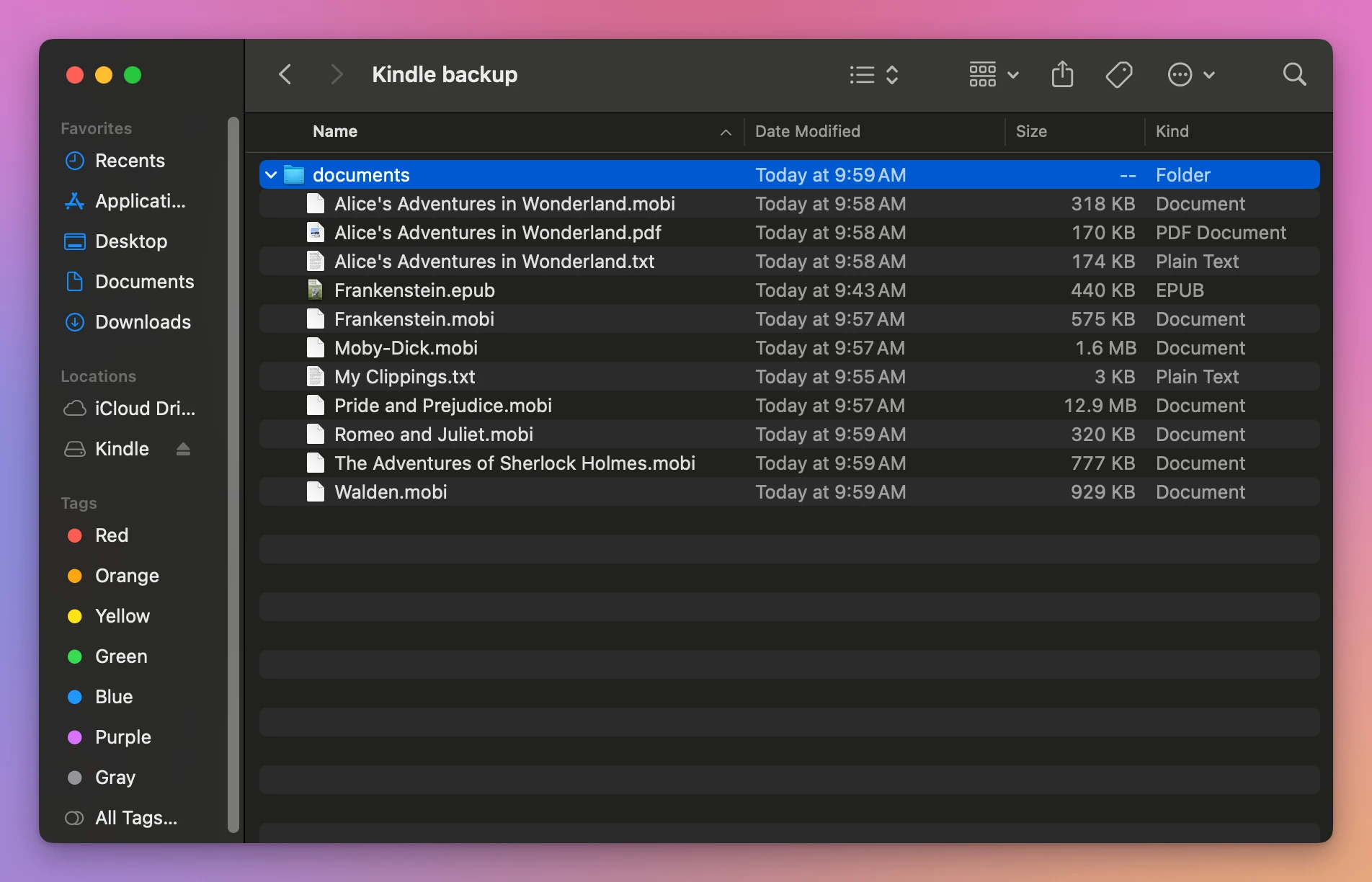
That’s every book, and My Clippings.txt with the highlights. Name the folder with the date, like Kindle backup 2026-11-19, and the next backup goes next to it instead of over it.
What the backup is good for
The Finder calls the MOBI files “Document”, because nothing on a Mac opens them. Double-clicking Pride and Prejudice.mobi in the backup gave this:
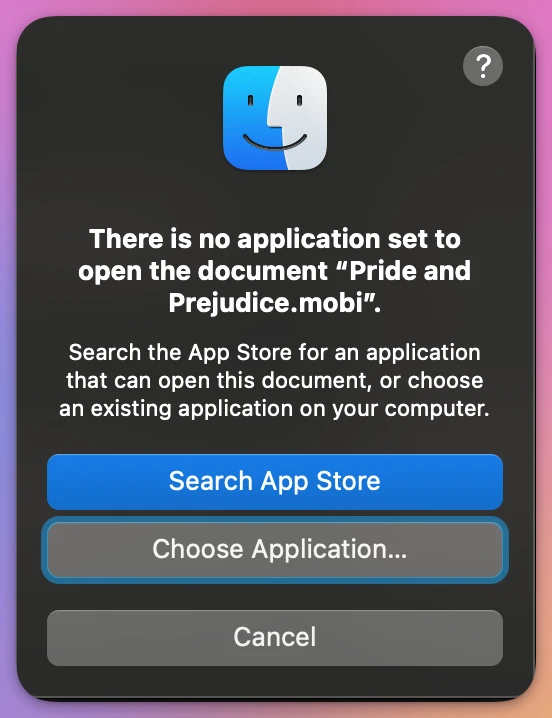
So the backup is for putting the books back on a Kindle, not for reading them on the Mac. The PDF and the text files are ordinary files, and My Clippings.txt opens in TextEdit.
Where the Finder stops
Copying the whole folder is easy. Copying only some books is harder, because the Finder shows file names, not titles. Even on my small stand-in, Moby-Dick.mobi is the book titled “Moby Dick; Or, The Whale”, and Walden.mobi is “Walden, and On The Duty Of Civil Disobedience”.
Finder, the whole documents folder | Transfer for Kindle, Copy to Mac… | |
|---|---|---|
| What it copies | Every file, highlights included | The books you select |
| How you pick books | By file name | By title, author and cover |
| A second copy | Use a new folder, like one named with the date | Keeps both, like Moby-Dick 2.mobi |
My Clippings.txt | Copied with the rest | Not a book: save it from Highlights |
Copy books by title
Transfer for Kindle is a Mac app I made that lists a Kindle’s books with their title, author and cover, and copies the ones you select to your Mac. It’s my own app, not made by, affiliated with or endorsed by Amazon. It costs $20, paid once.
Click a book, or press Command-A to select them all:
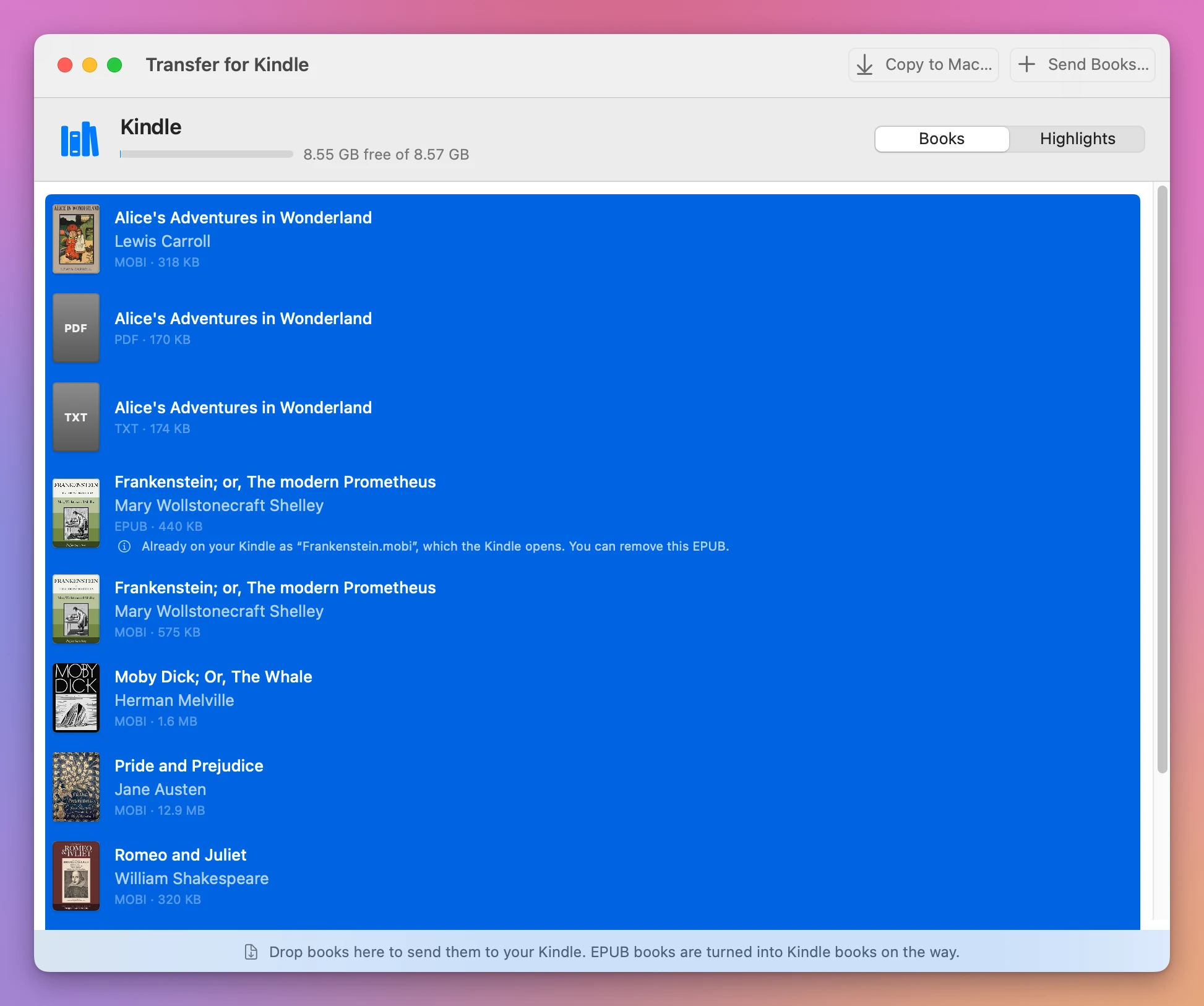
Then click Copy to Mac… and pick a folder. It starts in Downloads. I picked a folder named Kindle copies, and the 10 books came over:
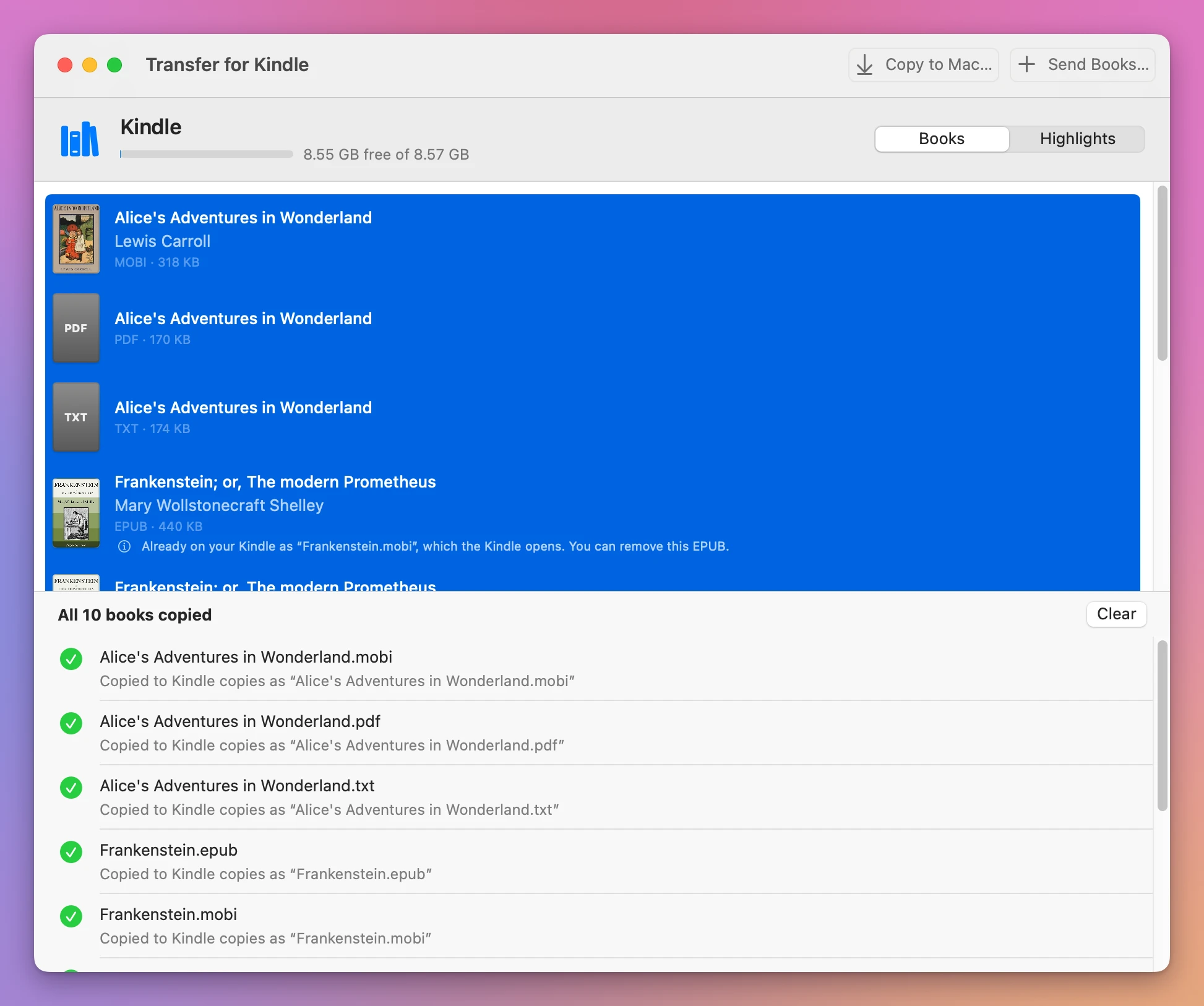
Each copy was byte for byte the same as the file on the Kindle. When I copied Moby-Dick a second time into the same folder, the app kept the first copy and named the new one “Moby-Dick 2.mobi”.
My Clippings.txt isn’t a book, so it isn’t in the list. Save the highlights from the Highlights tab, with Export All…, which the tutorial about exporting Kindle highlights shows.
The app copies a book from a store, one with DRM, as it is, without unlocking it. I had none on the stand-in to try.
I also copied a book from my own Kindle to my Mac with the app, an older Kindle that shows up as a disk.
Get Transfer for Kindle
Plug your Kindle into your Mac and see its books, send your own EPUB, PDF and other books to it by cable, copy books back, and save your highlights. An EPUB is turned into a book the Kindle opens, on your Mac, with nothing uploaded.
See Transfer for Kindle → · Read the docs · $20. See the app page for tax details.
Want me to talk about your product? You can sponsor this site.