How to export Kindle highlights to Markdown, text or a spreadsheet on a Mac
By Flavio
Your Kindle highlights are in My Clippings.txt, all books mixed together. Here's how to pull one book's highlights out by hand in TextEdit, and how to save them all by book as Markdown, plain text or CSV.
You want the passages you highlighted in a book on your Kindle in your notes app, or in a spreadsheet. They’re in My Clippings.txt on the Kindle, a plain text file with every highlight, note and bookmark of every book, in the order you made them. The tutorial about My Clippings.txt explains where it is and what each line means.
Getting one book out of it by hand is copy and paste in TextEdit. Getting all of them out, by book, in a format another app understands, is where it gets long.
One book by hand, in TextEdit
I tried this on a stand-in Kindle: an 8 GB disk image formatted FAT32 like a Kindle that shows up as a disk, named Kindle, with a documents folder. On the Mac it behaves like an older Kindle plugged in by cable. Its My Clippings.txt is one I made, 14 entries from 5 public-domain books in the layout a Kindle writes. The passages are real lines from those books, and the notes, locations and dates are made up.
- Open
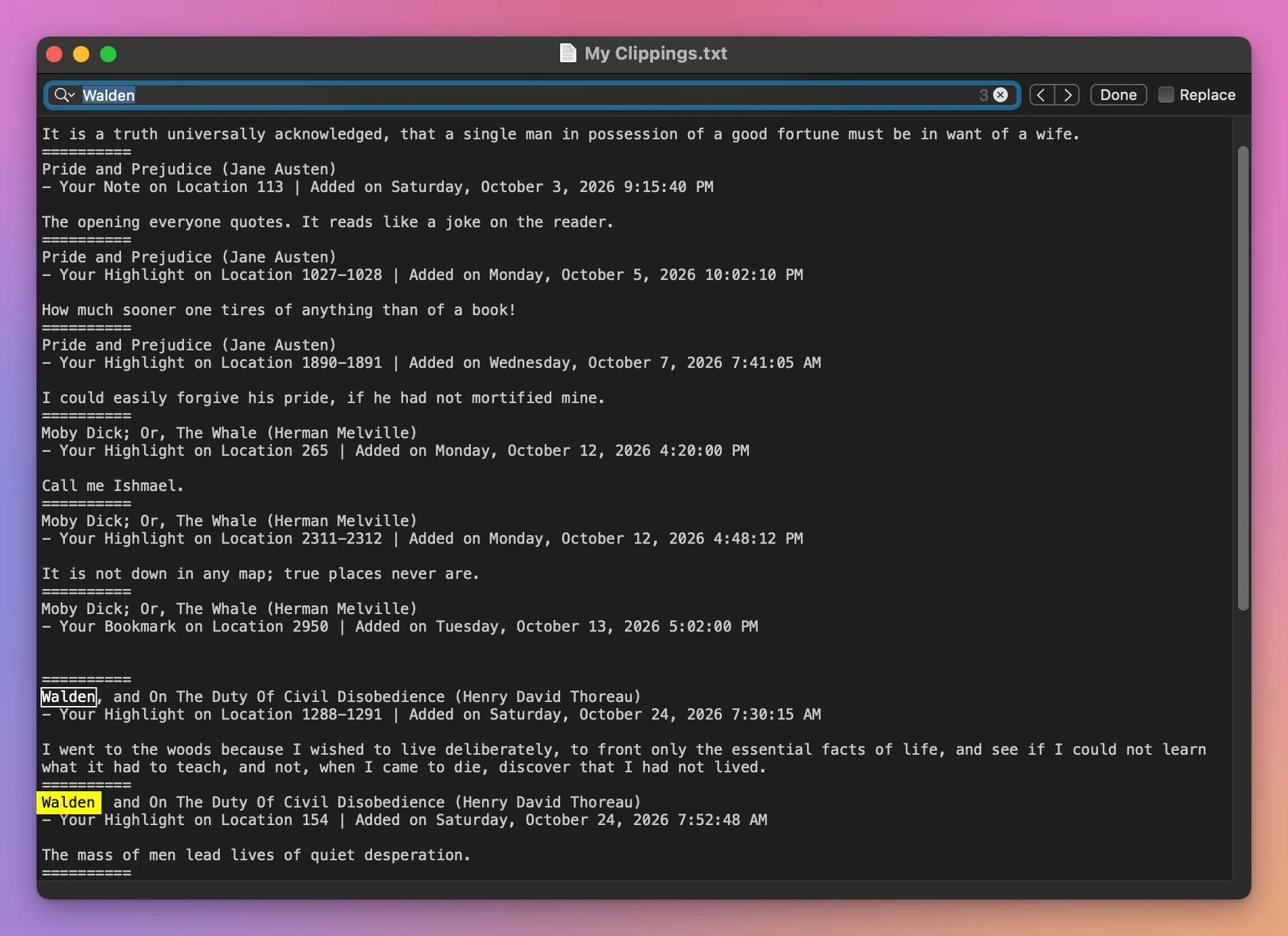
My Clippings.txtin TextEdit. I’d copy it to the Desktop first and open the copy. - Choose Edit > Find > Find… (Command-F) and type part of the book’s title.
- Press Return to go from one entry to the next.
For Walden, TextEdit found 3 matches, one per entry: two highlights and a note.
- Choose File > New for an empty document, then Format > Make Plain Text.
- Copy each passage from
My Clippings.txtand paste it into the new document. - Save it with a name ending in
.txt, or in.mdfor a Markdown file.
For a spreadsheet, it’s the same copying, one cell at a time: the book, the type, the location, the date, the passage.
Where it stops
Three Walden entries is a minute of work. My made-up file has 14. A Kindle used for a few years can have thousands, and each one is four lines to look at and one passage to copy.
The location and the date stay behind unless you copy them too, and a note ends up wherever you paste it, not under its passage.
| By hand in TextEdit | Transfer for Kindle | |
|---|---|---|
| One book | Find, then copy each passage | Click the book, Export This Book… |
| Every book | Repeat for each title | Export All…, one file |
| Markdown | Format it yourself | A heading per book, passages as quotes |
| Spreadsheet | One cell at a time | A CSV with a row per highlight |
| Location and date | Copied by hand, if you want them | Under each passage, or in their own column |
Export them by book
Transfer for Kindle is a Mac app I made that reads My Clippings.txt from the Kindle and saves the highlights by book. It’s my own app, not made by, affiliated with or endorsed by Amazon. It costs $20, paid once.
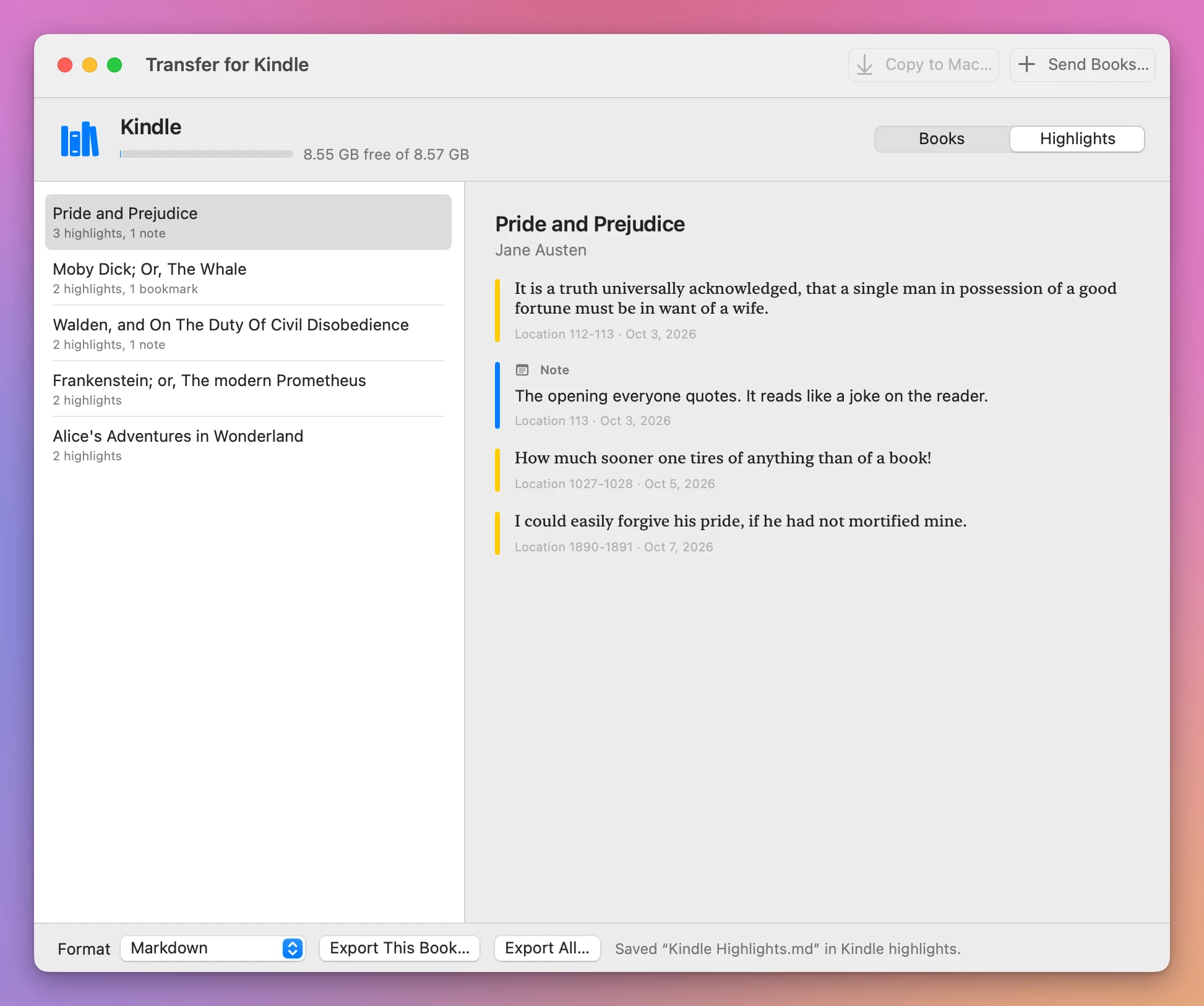
Click Highlights, pick a format at the bottom, and click Export This Book… for the selected book, or Export All… for every book. The app asks for a folder, starting in Downloads, and saves the file there. I picked a folder named Kindle highlights:
Markdown
Here’s the start of Kindle Highlights.md. Each book is a heading, each passage a quote with its location and date, and the note sits under the passage it’s on:
# Pride and Prejudice

by Jane Austen

> It is a truth universally acknowledged, that a single man in possession of a good fortune must be in want of a wife.

*Location 112-113 · October 3, 2026*

**Note:** The opening everyone quotes. It reads like a joke on the reader.
Within a book, the highlights are in the order they appear in the book. Walden’s “The mass of men lead lives of quiet desperation”, at location 154, comes before “I went to the woods”, at 1288, though I made it later.
Plain text
Kindle Highlights.txt is the same, without the Markdown signs:
Pride and Prejudice
by Jane Austen

It is a truth universally acknowledged, that a single man in possession of a good fortune must be in want of a wife.
(Location 112-113 · October 3, 2026)
Note: The opening everyone quotes. It reads like a joke on the reader.
CSV, for a spreadsheet
Kindle Highlights.csv has a row for each highlight, note and bookmark, with these columns: Book, Author, Type, Page, Location, Added, Text. A CSV opens in Numbers, Excel or Google Sheets as a table. Here it is in TextEdit, so you can see what’s inside:
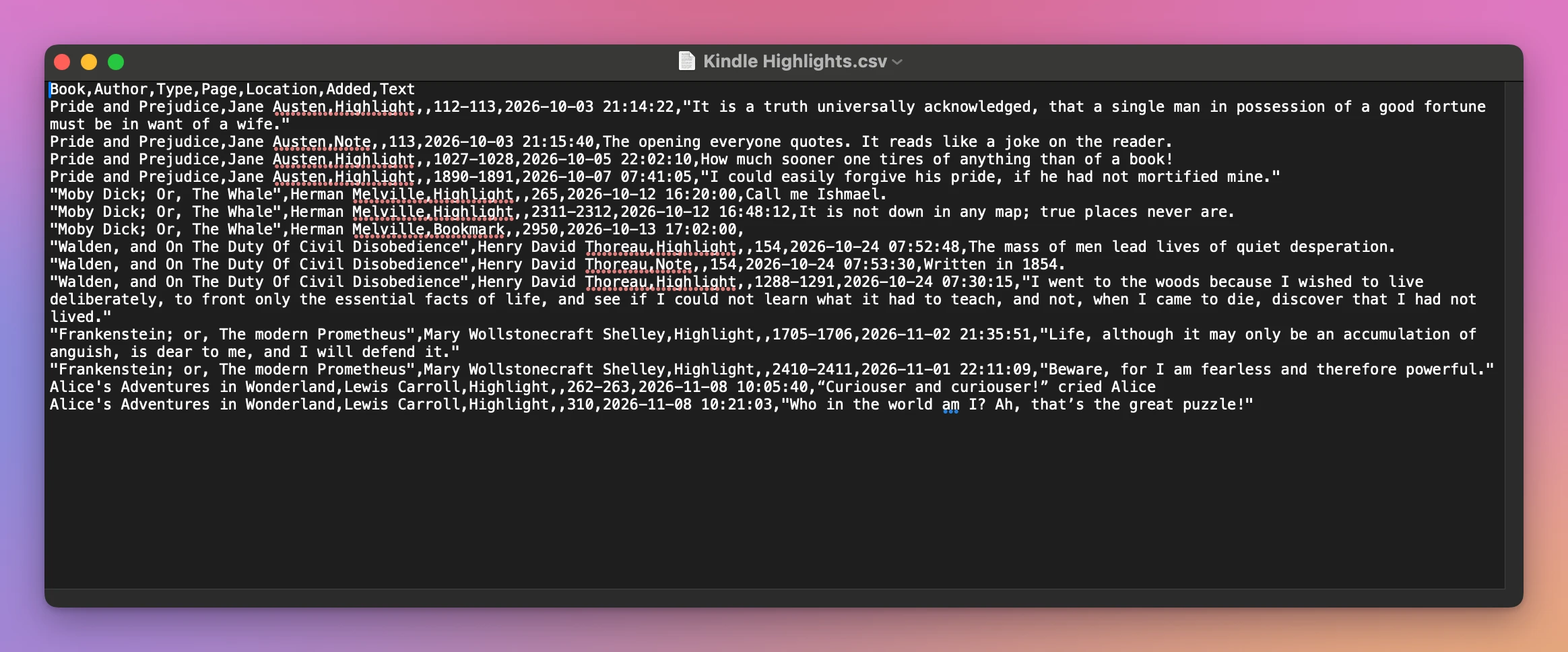
The Page column is empty in my file, because my made-up entries only have locations.
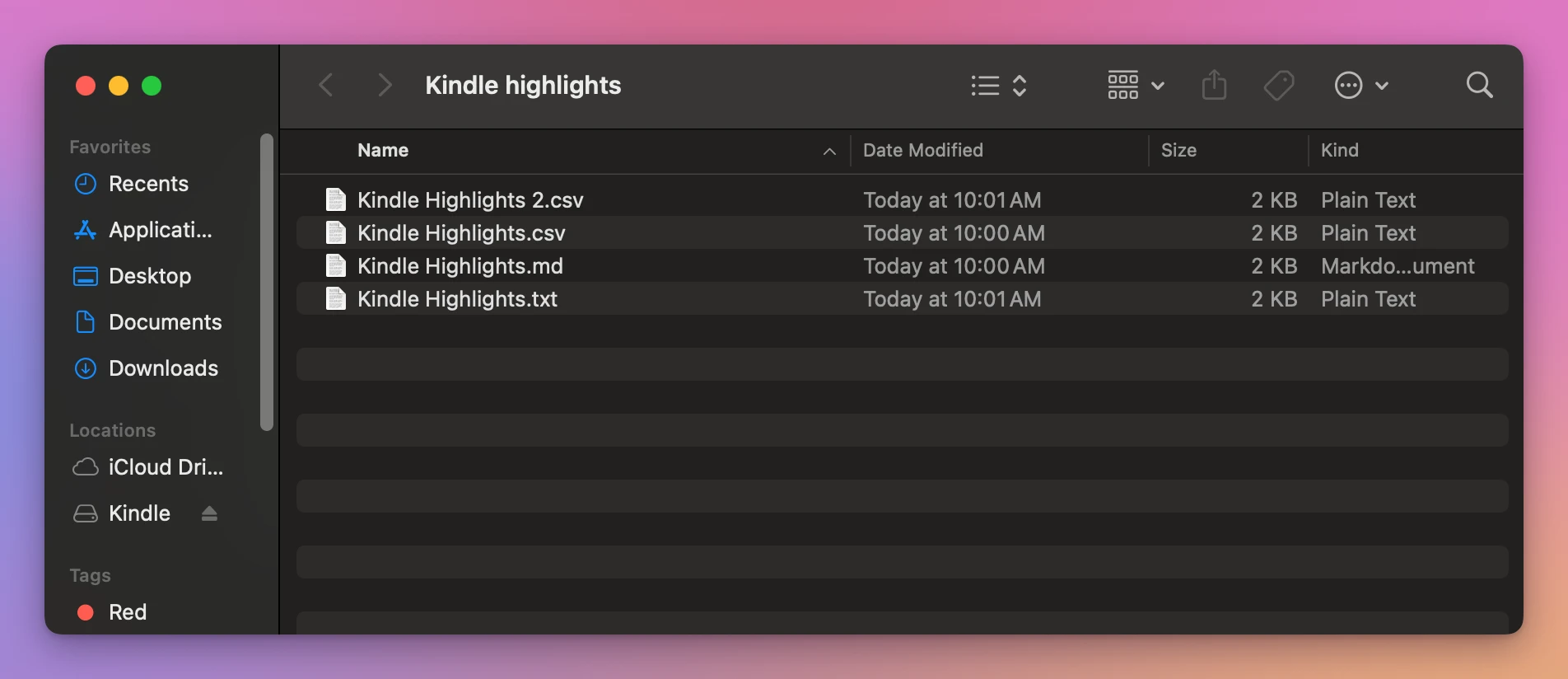
The app never replaces a file. When I exported CSV a second time into the same folder, the new file became Kindle Highlights 2.csv:
| File | Size | Good for |
|---|---|---|
Kindle Highlights.md | 1,716 bytes | A notes app that reads Markdown |
Kindle Highlights.txt | 1,661 bytes | Anything that opens text |
Kindle Highlights.csv | 2,177 bytes | Numbers, Excel, Google Sheets |
I also exported the highlights of my own Kindle this way, an older one that shows up as a disk.
Get Transfer for Kindle
Plug your Kindle into your Mac and see its books, send your own EPUB, PDF and other books to it by cable, copy books back, and save your highlights. An EPUB is turned into a book the Kindle opens, on your Mac, with nothing uploaded.
See Transfer for Kindle → · Read the docs · $20. See the app page for tax details.
Want me to talk about your product? You can sponsor this site.