How to join dashcam clips into one video on a Mac
By Flavio
Join a dashcam's one-minute clips into one video with QuickTime Player: which files to pick, where the locked minute hides, and the save folder that points at the card. Then the same drive saved as one file in one step.
QuickTime Player joins videos with Edit > Add Clip to End, and the tutorial about joining videos in QuickTime Player covers the steps and the format question at the end. With a dashcam’s card there are a few more things to get right: which files to pick, where the missing minute is, and where QuickTime Player wants to save the result.
I tried it on a stand-in card: a disk image formatted like a dashcam’s card, with made-up one-minute clips named the way a dashcam names them, from a front and a rear camera. The pictures are a drawn road with a clock, and the files are much smaller than a real camera’s. I joined three minutes of a drive, 9:45 to 9:48, around the clip the camera had locked.
Pick the right files
On my card, every minute has a front video ending in F.MP4, a rear video ending in R.MP4, and a GPS file. Join one camera at a time, and only videos. If you add the front and the rear of the same minute, they play one after the other, not side by side.
The tutorial about one-minute dashcam files shows how to list one camera’s clips in time order with the Finder’s search, which saves you from picking around the other files.
Add the clips in order
- Double-click the first clip,
2026_1107_094500_0006F.MP4, to open it in QuickTime Player. - Choose View > Show Clips.
- Choose Edit > Add Clip to End and pick the next minute.
The next minute, 9:46, wasn’t in the folder I started from. The camera had locked it and moved it to the Event folder, so I went there to find it:
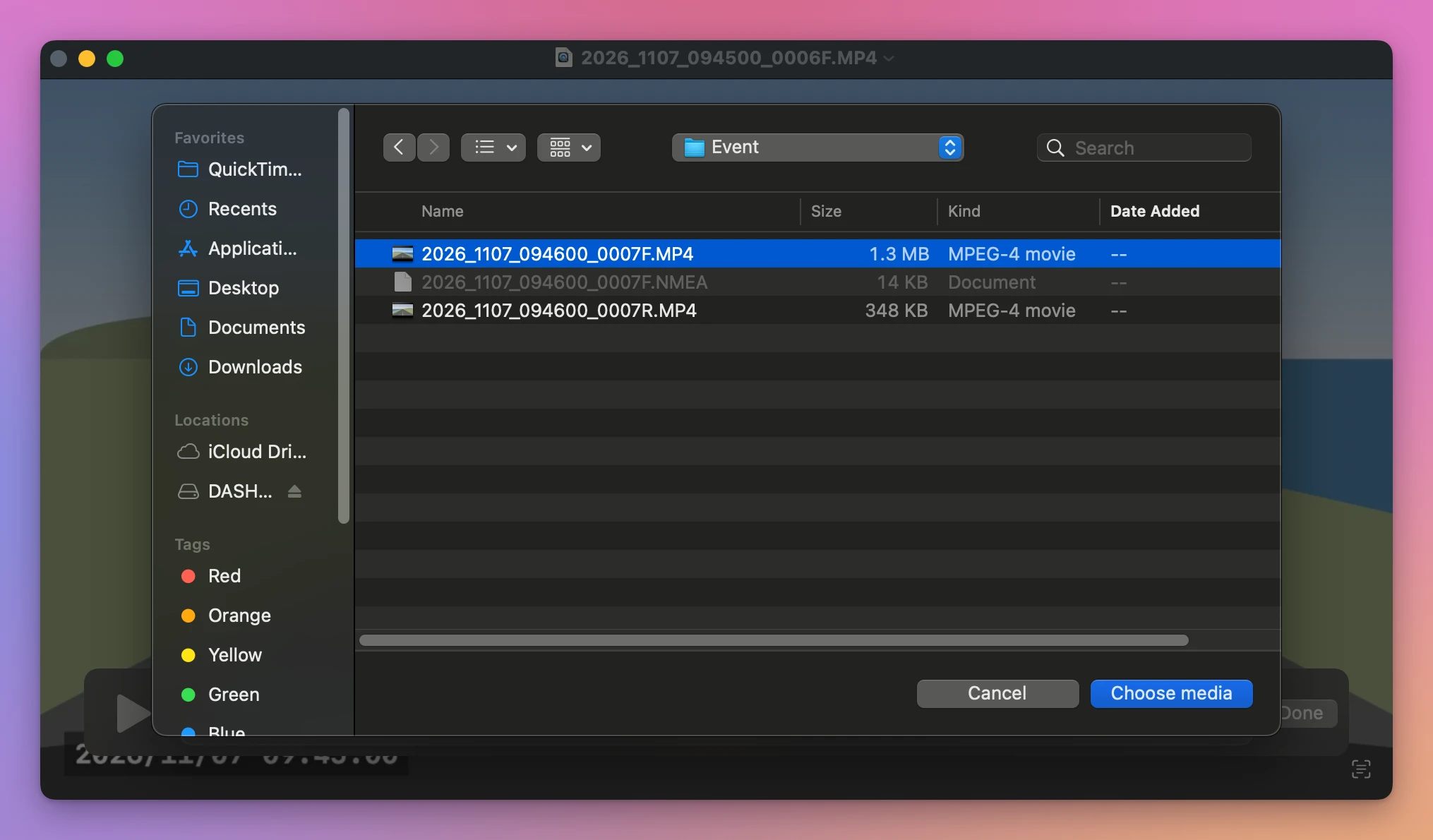
Then back to the normal folder for 2026_1107_094700_0008F.MP4. Three clips in the strip, and the window called Untitled:
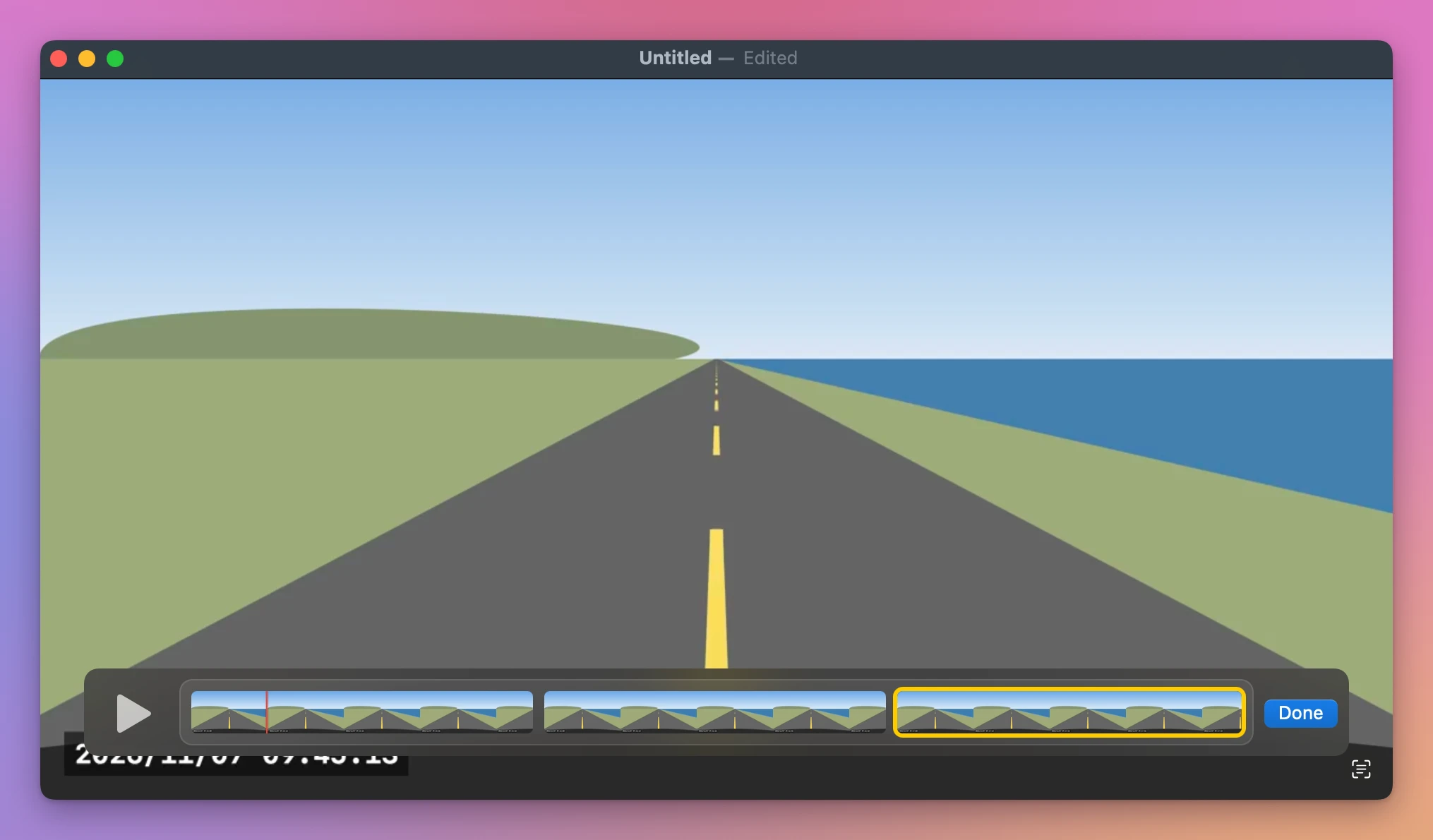
Click Done. The new video is 3:00 long.
Watch where it saves
Closing the window makes QuickTime Player ask whether to keep the new document. On my run, Where pointed at Normal, the card’s folder, because that’s where the first clip came from:
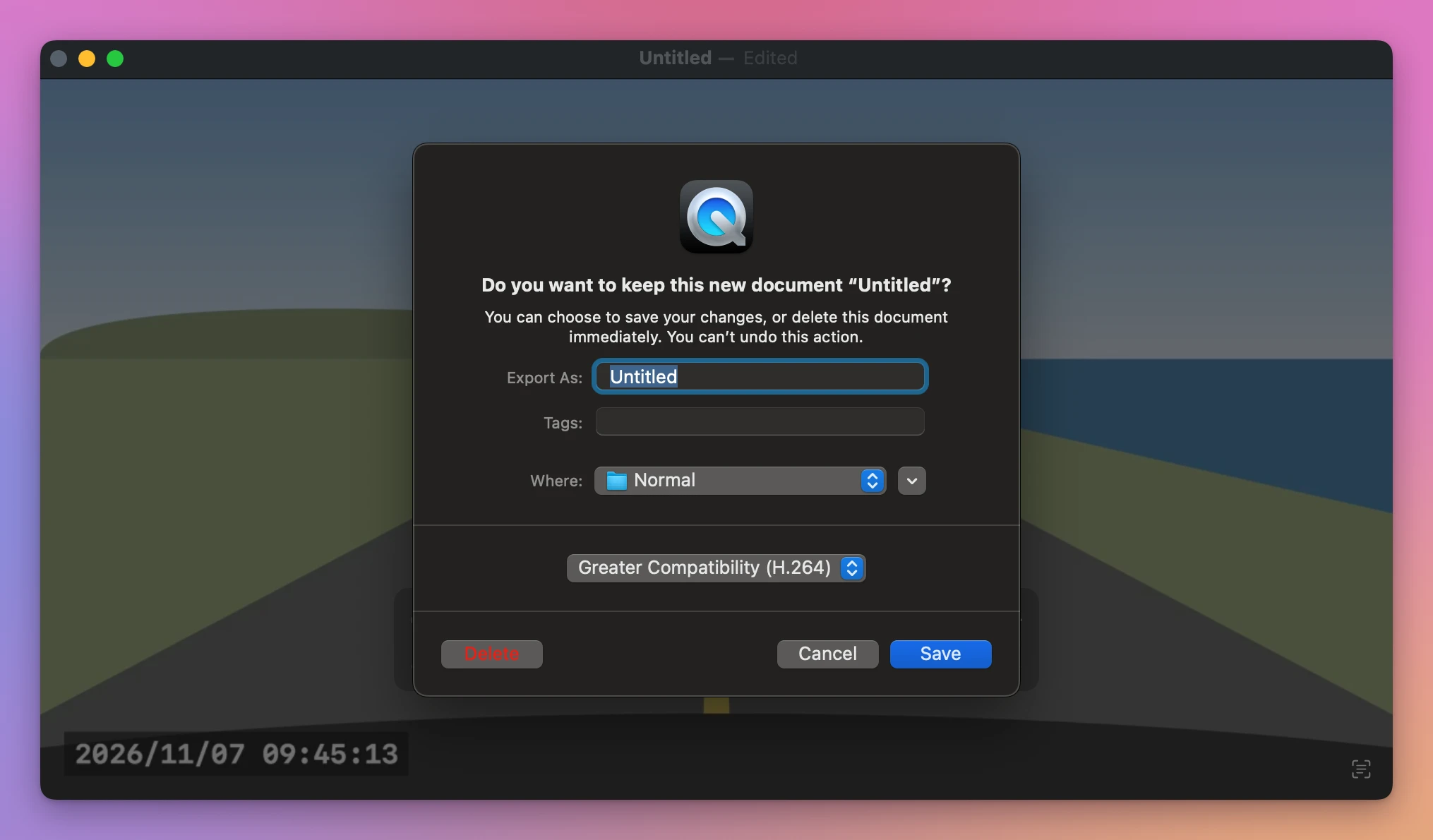
Change Where to a folder on your Mac before you click Save. A joined drive written to the card takes space the camera needs for recording, and you want the card to stay as the camera left it.
The format menu was on Greater Compatibility (H.264). With that choice, my 3:00 .mov of 3.8 MB had the camera’s video copied as it was, not compressed again.
Where joining by hand stops
Three minutes took three files and two trips to the Add Clip window. The whole morning drive is 12 front clips, one of them in another folder.
| Joining the 9:40 AM drive | QuickTime Player | Trips for Dashcam |
|---|---|---|
| Front clips to add | 12, one at a time | Pick the trip |
The locked minute in Event | Find it yourself | Already in its place |
| Rear camera | Another 12 clips, another file | Same sheet, one camera per file |
| Save folder | Started on the card’s folder | The folder you pick |
| Length of the result | 3:00 for my 3 clips | 11:37 for the whole drive |
The GPS files next to the clips aren’t joined either. The joined video has no route in it.
Save a whole trip as one file
Trips for Dashcam is a Mac app I made that turns the card into trips and saves any part of a trip, or all of it, as one video file. It’s my own app, not made by, affiliated with or endorsed by any dashcam maker. It costs $19, paid once.
Pick the trip, choose File > Save Video Stretch, and drag To all the way to the right. For my 9:40 AM trip the sheet said “From 0:00 to 11:37, 11 min 37 s”:
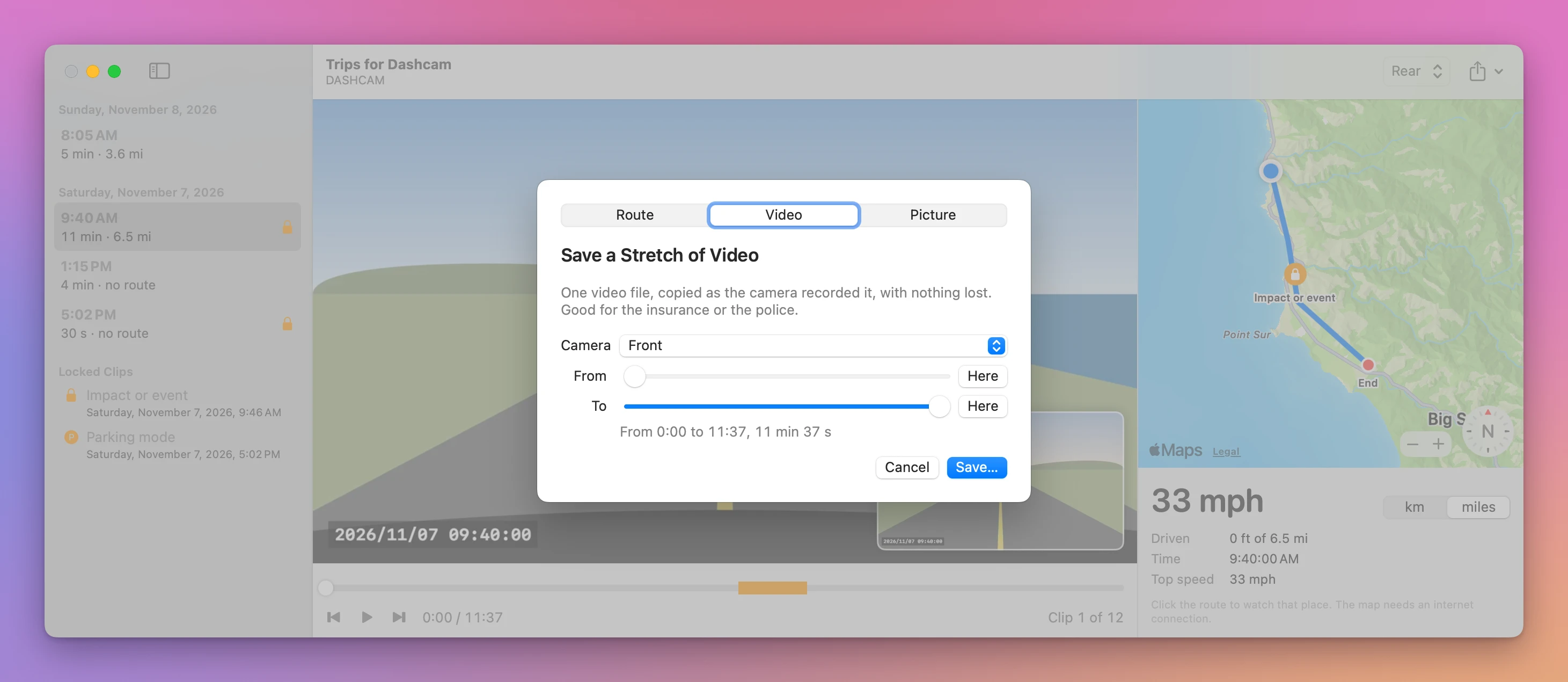
I clicked Save and picked a folder on the Mac. The file, Trip 2026-11-07 09.40.00 front.mov, is 11:37 long and 14.7 MB, with all 12 front clips in a row, the one from Event included. The video is copied as the camera recorded it, so it’s the same picture, like the MP4 join without re-encoding, and nothing on the card changes.
Get Trips for Dashcam
Watch your dashcam's memory card as trips instead of hundreds of short files, with the rear camera in a corner and the route on a map. Save a stretch of video without losing quality, the route or a picture. Nothing on the card is changed.
See Trips for Dashcam → · Read the docs · $19. See the app page for tax details.
Want me to talk about your product? You can sponsor this site.