Join MP4 files on a Mac without re-encoding them
By Flavio
Merge MP4 videos into one file on your Mac with no quality loss: what re-encoding means, why it makes the picture worse, the mistakes that break a join, and an app that does it in seconds.
You have a few MP4 videos from the same phone or camera, and you want one file. You don’t want it to look worse than the originals, and you don’t want to wait for an export.
The answer is to join them without re-encoding. Re-encoding means the video is compressed again: every frame is opened and squeezed a second time, which takes a while and throws detail away. Without it, the pictures and the sound are copied into the new file as they are, which takes seconds and loses nothing. Clip Joiner is a Mac app I made that joins videos this way.
The clips on this page are made up: three one-minute 1080p videos, 116 MB each, named clip1.mp4, clip2.mp4 and clip3.mp4.
Why does compressing again make it worse?
An MP4 file stores its picture already compressed. Each round of compression throws a little detail away, so compressing a second time loses some more.
Joining without compressing again puts the frames of each file one after the other, untouched. Here’s the same join done both ways:
| Copying the frames as they are | An app that compresses the video again | |
|---|---|---|
| Time for 3 minutes of 1080p | 0.3 seconds | 59 seconds |
| File size | 347 MB | 283 MB |
| Frames identical to the originals | 5,400 of 5,400 | 0 of 5,400 |
The compressed-again file is smaller because it threw detail away. Measured against the copy on a similarity score where 1 means identical, its picture scores 0.93.
When does a join go wrong?
Clips with different settings
Copying frames as they are only works when every clip was recorded the same way: the same kind of compression (the codec, the method the camera uses to shrink the video), the same picture size, the same kind of sound.
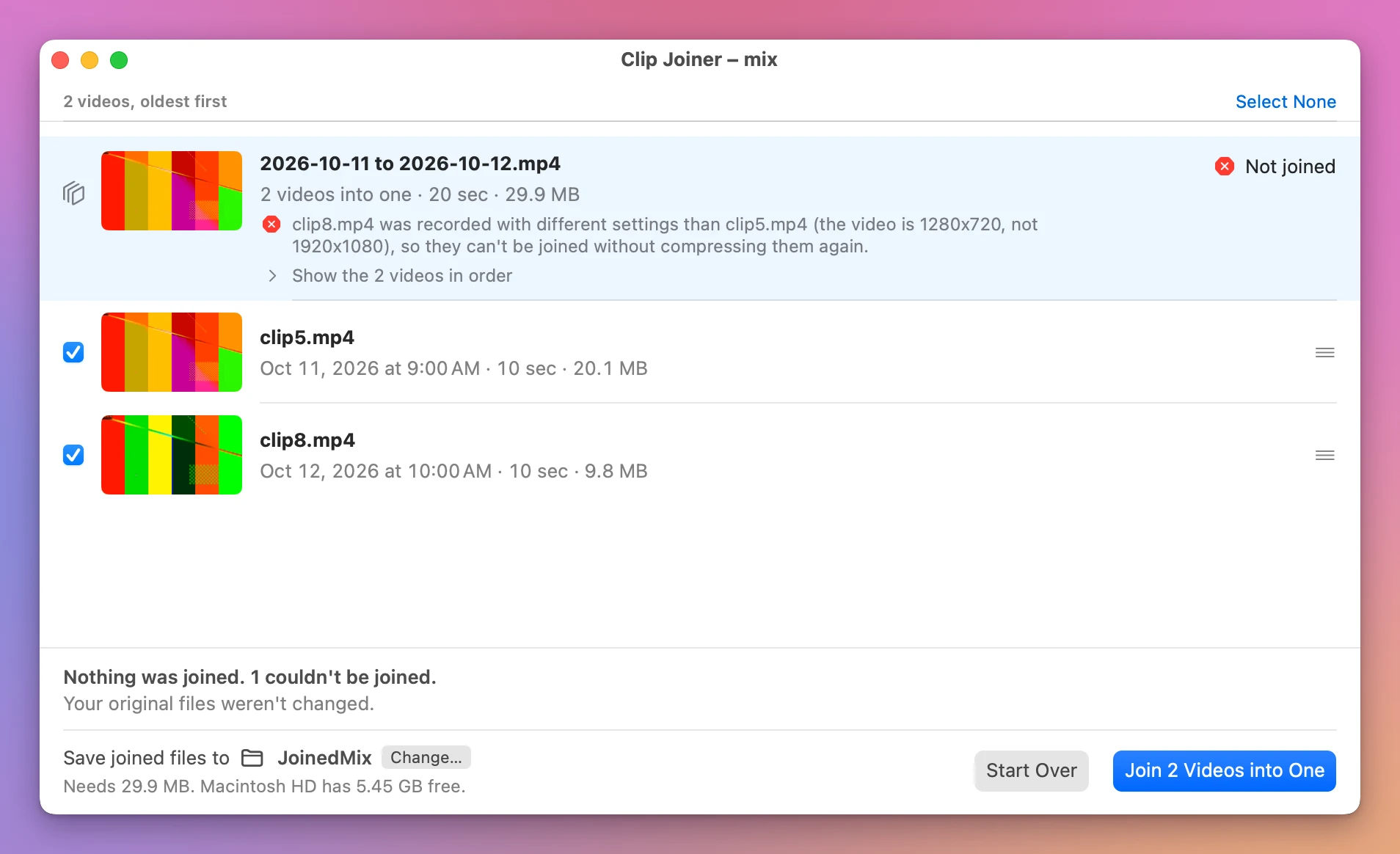
I joined clip5.mp4, 1080p with stereo sound, and clip7.mp4, 720p with mono sound, with a tool that copies frames without checking them. It didn’t warn me and said it worked. The joined file claims to be 1080p with stereo sound from start to end, and its sound is 18.4 seconds long for 20 seconds of picture.
The video system built into macOS, the one QuickTime Player uses, plays 298 frames of the first clip and stops with “Cannot Decode” where the second clip starts.
Sound and picture of different lengths
In many MP4 files the sound is a little shorter or longer than the picture. A join has to keep the two in step at every joint, so each clip’s picture and sound still start together. The tool I tried did that, by leaving a fraction of a second of silence, or of a still frame, where one track was shorter.
Nothing checks the result
The simplest check is to compare the joined file’s length with the lengths of the clips added up. Three one-minute clips should make a 3-minute file.
That check isn’t enough on its own. The broken file from the mixed clips passes it: 10 seconds plus 10 seconds, and the joined file lasts 20. Make sure the clips match before joining, and play a few seconds around each join.
What about QuickTime Player?
QuickTime Player can do it too. You add each video with Edit > Add Clip to End…, close the window, and choose Greater Compatibility (H.264) when it asks to keep the new video. With H.264 clips, that kept every frame as it was in my test.
Two things to know. The first time, that menu was on Smaller File Size (HEVC), which compresses the whole video again. And the file it writes is a .mov, not an MP4. The steps, with what each choice does to the video, are in their own tutorial.
How do I join them with Clip Joiner?
Clip Joiner costs $20, paid once. It copies the frames as they are and does the checks above for you.
Open the folder with your videos (or click Downloads, Desktop or Movies). The videos are listed by the date they were recorded. Tick the ones you want and click Join 3 Videos into One.
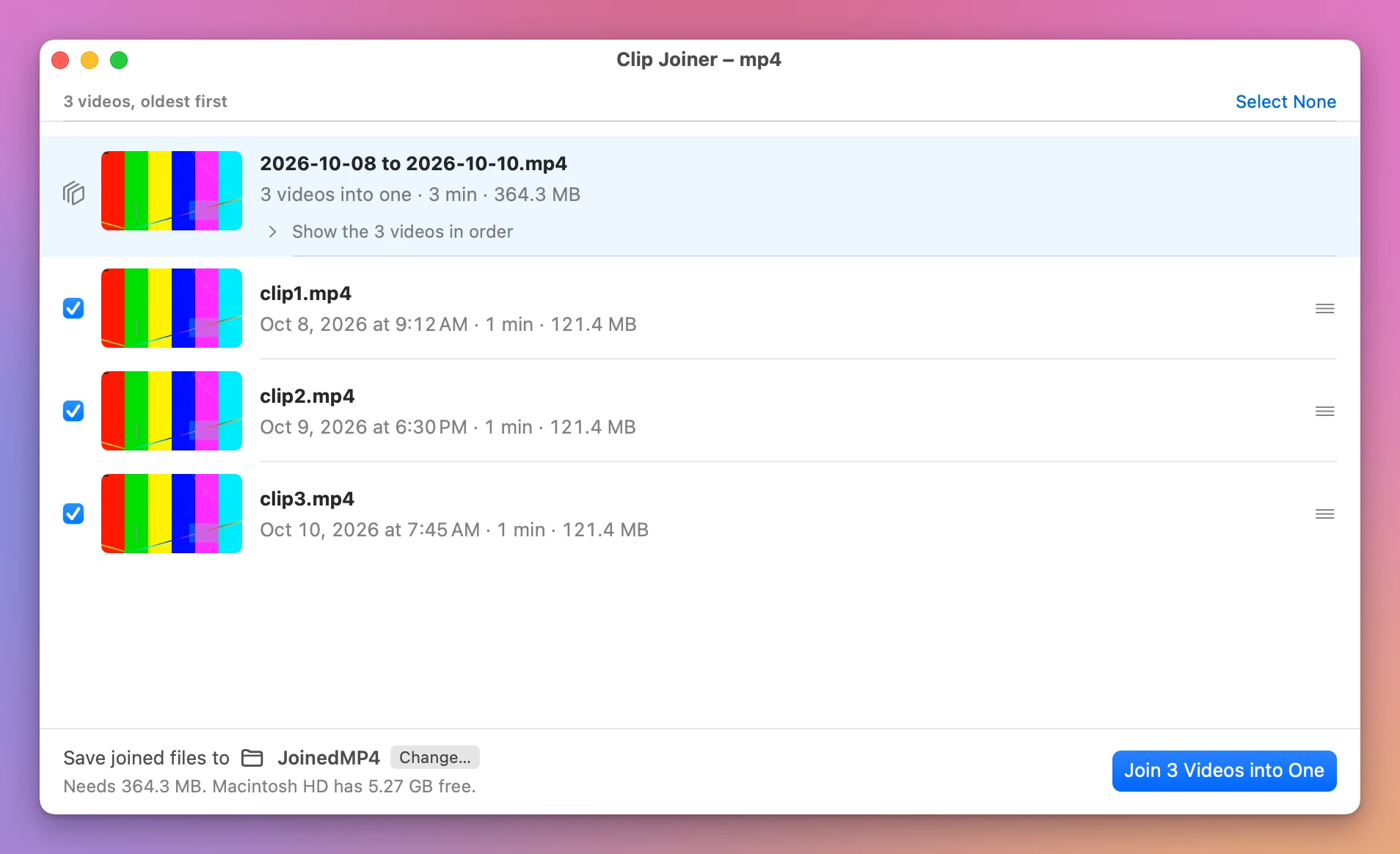
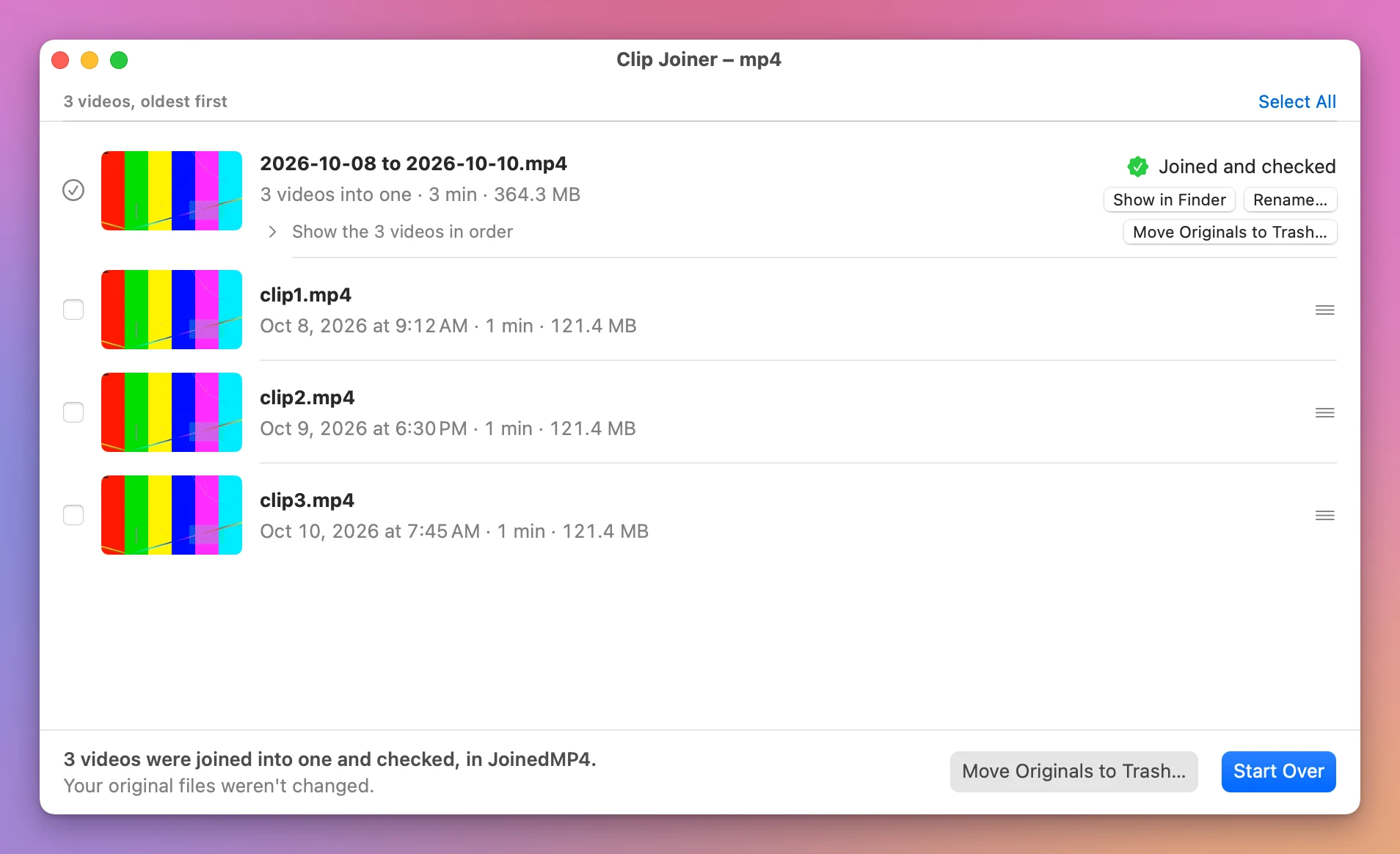
In the joined file, each video’s picture and sound start together, as they did in the video alone. Before it says Joined and checked, the app compares the joined file with the originals, piece by piece, and asks macOS to open it. Its length has to be the originals’ lengths added together. If anything is off, the file is thrown away. The same three clips took under a second, check included.
Clips with different settings are refused before anything is written, with a sentence that names the odd one out:
The joined file is named by the day the videos were recorded, like 2026-10-08.mp4, or 2026-10-08 to 2026-10-10.mp4 over several days. Click Rename… on its row to call it something else. To join in another order, drag a row, and Sort by Date puts the date order back.
Here’s how it compares, on the three one-minute clips:
| An app that compresses the video again | Clip Joiner | |
|---|---|---|
| Quality | Every frame compressed again | The same frames |
| Time | 59 seconds | Under a second, check included |
| Checks the result | No | Yes |
Get Clip Joiner
Join the videos on a memory card into one file on your Mac, straight from the card. Nothing loses quality, and every join is checked before your originals go.
See Clip Joiner → · Read the docs · $20. See the app page for tax details.
Want me to talk about your product? You can sponsor this site.