Join the videos on an SD card into one file on your Mac, without copying them first
By Flavio
Twenty clips on a memory card and you want one video on your Mac? You don't have to import them first. Join them straight from the card and only the joined video lands on your Mac.
You plug the memory card into your Mac, and there are twenty short videos on it. You want one file.
You don’t have to copy them all to the Mac first. When the videos are joined as they are, without being compressed again, they can be read where they sit on the card, and only the joined file is written to your Mac. Clip Joiner is a Mac app I made that works this way.
What’s the usual way?
Most people do it in four steps:
- Copy the camera’s folder from the card to the Mac in the Finder.
- Join the copies with a video app.
- Delete the copies.
- Clear the card.
QuickTime Player is already on your Mac and can do step 2.
It works, but for a while your Mac holds the videos twice. My trail camera’s seven clips were 1.8 GB. Here’s what happens to the Mac’s disk along the way:
| Step | On the Mac | On the card |
|---|---|---|
| Copy the folder | 1.8 GB of copies | 1.8 GB |
| Join the copies | 1.8 GB of copies + 1.8 GB joined = 3.6 GB | 1.8 GB |
| Delete the copies | 1.8 GB | 1.8 GB |
| Clear the card | 1.8 GB | 0 |
At the busiest moment you need 3.6 GB free for a 1.8 GB video. Step 3 is also easy to forget.
Can a joined file be made straight from the card?
Yes. A join that doesn’t compress the video again copies the picture and the sound as they are, one video after the other. It only needs to read each video and write the result. Reading from a card is no different from reading from the Mac’s disk.
I tried it on five small made-up trail camera clips, with a folder standing in for the card. Joining them straight from the “card” added one file to the Mac, 852 KB, about the size of the five clips together. Copying the clips over first and joining the copies used twice that, 1.7 MB, until the copies were deleted.
Joining as they are has two catches. The videos must have been recorded with the same settings (picture size, frames per second, sound), and they must go in the order they were recorded, which isn’t always the order of their names. Combining AVI files on a Mac shows what goes wrong when either is off.
How do I do it with Clip Joiner?
Clip Joiner reads the videos on the card and saves one joined video on your Mac.
Plug in the card. The start screen gets a button with the card’s name, like Scan NO NAME.
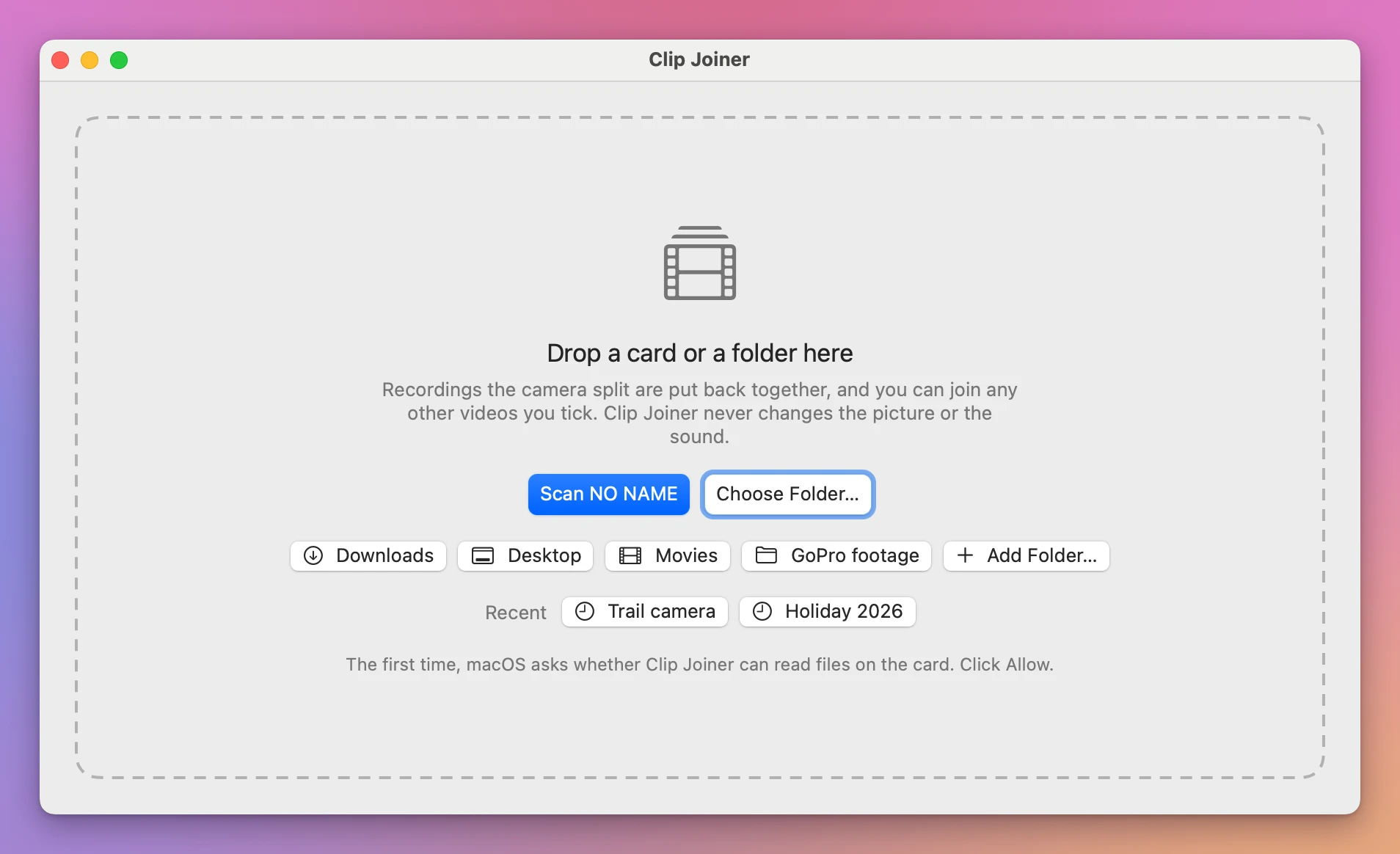
The first time, macOS asks whether Clip Joiner can read files on the card. Click Allow.
The app lists the videos it found, oldest first, with each one’s date, length and size. Tick the ones you want in the joined video. With two or more ticked, a row at the top shows the file they’ll become.
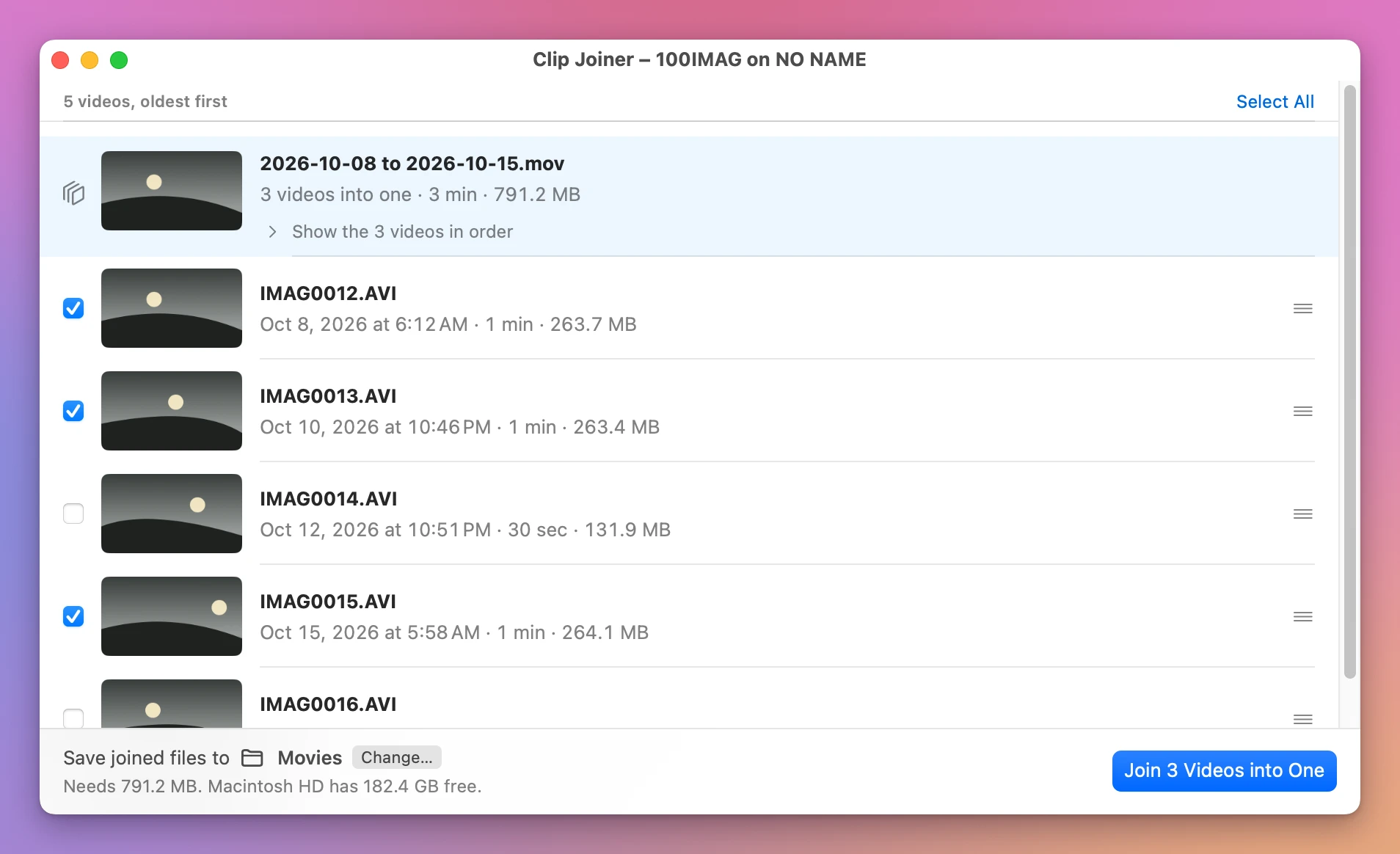
The bar at the bottom says where the file goes: Movies, unless you click Change…. It also says how much space the join needs and how much is free. If you pick a folder on the card itself, the app warns you that the joined file will take up space there.
Click Join 3 Videos into One (the button counts what you ticked). The row goes through Reading, Copying and Checking, then says Joined and checked.
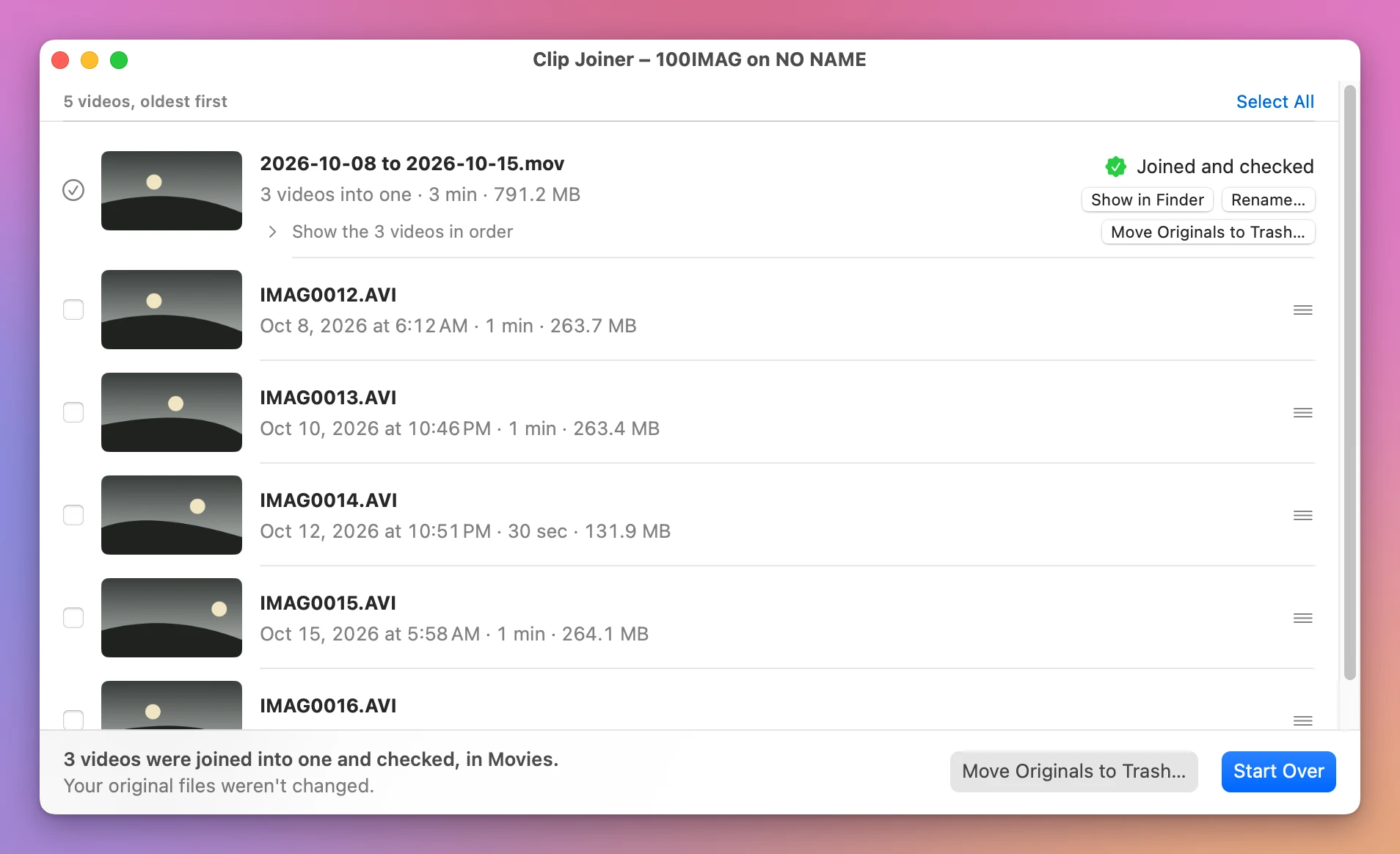
The check reads the joined file and the videos on the card again, and compares every frame and every piece of sound. Then macOS opens the joined video, and its length must match the videos’ lengths added together. If anything is off, the joined file is thrown away. Videos recorded with different settings are refused before anything is written.
The joined video is named after the day it was recorded, like 2026-10-08.mov, or 2026-10-08 to 2026-10-15.mov when the videos span several days. To call it something else, click Rename… on its row.
Trail camera AVI clips become a .mov, which plays in QuickTime Player. The app also puts back recordings a GoPro or a drone split into several files.
How long does it take?
The card sets the speed. Clip Joiner reads the videos twice, once to join them and once to check them, so a join from a card takes about the time your card reader needs to read the videos twice.
My seven clips, 1.8 GB, took under 5 seconds. They were on the Mac’s own disk, which is much faster than a card. From a card, do the arithmetic with your reader’s speed: at 90 MB/s, one read of 1.8 GB is 20 seconds, so two are about 40.
The usual way reads twice too: the card to copy, then the copies to join.
What about the files left on the card?
After Joined and checked, the row offers Move Originals to Trash…. Nothing happens until you confirm, and Keep Originals is the default button. For videos on a card, the alert adds Delete Now, because a card’s Trash stays on the card and frees nothing until you empty it. Delete Now frees the space right away and can’t be undone. Why an SD card is still full after deleting explains what happens to the space.
| Copy, then join | Clip Joiner from the card | |
|---|---|---|
| Copies on the Mac | Yes, until you delete them | No |
| Mac space for 1.8 GB of clips | 3.6 GB at the peak | 1.8 GB |
| Reads of the clips | Card once, copies once | Card twice (join, then check) |
| Joined file checked | Depends on the app | Yes, every frame and the length |
| Clears the card for you | No | It offers, after the check |
Get Clip Joiner
Join the videos on a memory card into one file on your Mac, straight from the card. Nothing loses quality, and every join is checked before your originals go.
See Clip Joiner → · Read the docs · $20. See the app page for tax details.
Want me to talk about your product? You can sponsor this site.